Why Your Samsung Battery Drains Fast: A Comprehensive Troubleshooting Guide
A Samsung battery drains fast primarily due to high-power display settings, such as 120Hz refresh rates and high brightness, coupled with intensive background app activity and persistent 5G network searching. While hardware aging is a...
A Samsung battery drains fast primarily due to high-power display settings, such as 120Hz refresh rates and high brightness, coupled with intensive background app activity and persistent 5G network searching. While hardware aging is a factor in older devices, most 2026-era power issues stem from unoptimized software configurations and aggressive connectivity demands.
Contents
Understanding the mechanics of your Samsung Galaxy’s power consumption is the first step toward reclaiming its longevity. In 2026, Samsung devices have become more powerful than ever, featuring sophisticated LTPO (Low-Temperature Polycrystalline Oxide) displays and multi-band 5G modems. However, these advancements come with high energy costs. If you find your device struggling to make it through a full day, the cause is rarely a single "broken" component, but rather a cumulative effect of several demanding features and background processes working simultaneously.
The Architecture of Power: Why Samsung Devices Consume Energy
Samsung Galaxy smartphones utilize Lithium-ion (Li-ion) or Lithium-polymer (Li-Po) battery technology, which is managed by a complex subsystem within Samsung’s "One UI" software. This software acts as a gatekeeper, deciding how much power the CPU, GPU, and modem receive at any given second.
One UI includes a feature known as Adaptive Battery, which uses machine learning to analyze your usage patterns. In 2026, this system is quite advanced, but it can still be tripped up. If the system "learns" that you use high-intensity apps frequently, it keeps more resources active in the background, leading to faster drain. Furthermore, Samsung's integration with the Android OS means that "Google Play Services" and "Samsung Cloud" are constantly syncing data. If a sync cycle gets stuck in a loop, it creates a "wake lock," preventing the processor from entering its low-power "deep sleep" state.
Primary Software Culprits for Rapid Drain
Software is the most common reason for sudden battery drops. Unlike hardware failure, which is linear and predictable, software-related drain can happen overnight after an update or a new app installation.
Background App Activity and "Rogue" Processes
Many apps continue to run even after you have swiped them away from the "Recents" screen. Some apps are designed to stay active to provide notifications or track your location. However, poorly coded apps can enter a "rogue" state where they consume 10–20% of your battery in a matter of hours.
Samsung provides a robust tool called Background Usage Limits. Within this menu, you can see apps categorized into:
- Sleeping apps: These will run in the background only occasionally.
- Deep sleeping apps: These will never run in the background and only work when you open them.
- Never sleeping apps: These are allowed to run freely (typically apps like Spotify or messaging platforms).
If a specific app is showing a high percentage of use in your battery settings but you haven't used it actively, it should be moved to the "Deep Sleeping" list immediately.
Frequent Data Syncing and Account Refreshing
In 2026, the average user has dozens of accounts—email, social media, work tools, and cloud storage—all competing for data. Every time an app checks for an update, the phone’s modem must power up, send a request to a server, and wait for a response. Doing this across 20 apps every 15 minutes creates a massive cumulative drain.
Display and Visual Settings: The Biggest Power Consumers
Samsung is world-renowned for its display technology, but those vibrant colors and smooth animations are incredibly energy-intensive.
High Refresh Rates (120Hz and Beyond)
Most modern Samsung flagships utilize a 120Hz refresh rate, which makes scrolling look incredibly fluid. However, refreshing the screen 120 times per second requires significantly more power than the standard 60Hz. Even with Adaptive Refresh Rate technology (which drops the frequency when the screen is static), the overhead is still substantial. If your battery is draining too fast, switching back to "Standard" smoothness (60Hz) can often save 10–15% of your total battery capacity over a day.
Always On Display (AOD)
The AOD feature allows you to see the time and notifications while the screen is "off." While Samsung uses AMOLED technology to only light up the necessary pixels, the AOD still requires the display controller to remain active. On average, AOD can consume about 1% of your battery per hour. Over a 16-hour day, that is 16% of your battery gone just to show the clock.
Screen Resolution and Brightness
High-end Samsung devices often default to FHD+ or QHD+ resolutions. Pushing more pixels requires more processing power from the GPU. Additionally, Samsung’s "Extra Brightness" mode, used for outdoor visibility, can drain the battery faster than almost any other setting. Keeping the brightness on Adaptive is generally more efficient than manual high settings, as the light sensor can react to environmental changes faster than a human operator.
Network and Connectivity Stressors
Connectivity is a silent battery killer. Your phone is constantly searching for the strongest possible signal to ensure you stay connected.
The 5G Power Penalty
While 5G provides incredible speeds, it is notoriously harder on batteries than LTE (4G). This is especially true in areas with "weak" 5G coverage. When the signal is poor, the phone increases the power to the modem to maintain the connection. If you are in a location with fluctuating 5G, your device will constantly "handover" the signal between 5G and LTE towers, a process that generates heat and drains power rapidly.
Wi-Fi and Bluetooth Scanning
By default, Android devices use "Wi-Fi Scanning" and "Bluetooth Scanning" to improve location accuracy, even when those features are toggled off. This means the hardware is never truly dormant. You can disable these in the Location Services menu to squeeze extra runtime out of your charge.
Hardware Health and Environmental Factors
By 2026, many users are holding onto their devices for 3–5 years. This brings physical battery degradation into the spotlight.
Chemical Aging
Lithium batteries have a finite number of "charge cycles." A cycle is defined as a full 0% to 100% discharge. After approximately 800 to 1,000 cycles, a battery typically loses about 20% of its original capacity. This means that even if your software is perfectly optimized, a three-year-old phone simply cannot hold as much energy as it did on day one.
Temperature Extremes
Batteries rely on chemical reactions to move ions. Excessive heat (above 35°C or 95°F) speeds up the degradation of the internal components and causes the software to "throttle" performance, which ironically can lead to more drain as the phone takes longer to complete simple tasks. Conversely, extreme cold increases internal resistance, making it harder for the battery to deliver power, often leading to sudden shutdowns.
Comparison of Common Battery Drain Factors
The following table outlines the impact of various settings on a typical Samsung Galaxy device in 2026.
| Factor | Estimated Daily Drain | Ease of Adjustment | Recommended Action |
|---|---|---|---|
| 120Hz Refresh Rate | 10% - 15% | Very Easy | Switch to "Standard" (60Hz) during long trips. |
| 5G (Weak Signal) | 10% - 20% | Medium | Toggle "LTE Only" if 5G is unstable in your area. |
| Always On Display | 10% - 18% | Very Easy | Set to "Tap to Show" instead of "Always Show." |
| Rogue Background Apps | 5% - 25% | Medium | Use "Deep Sleep" for apps you rarely use. |
| Max Brightness | 15% - 30% | Very Easy | Enable "Adaptive Brightness." |
| High Resolution (QHD) | 3% - 7% | Easy | Switch to FHD+ in Display settings. |
Advanced Troubleshooting and Optimization Steps
If you have adjusted the settings above and the drain persists, you may need to perform deeper system maintenance.
Wiping the Cache Partition
After a major software update (such as an upgrade to a new version of One UI), "junk" files can remain in the system's cache partition. These files can cause background conflicts. Wiping the cache partition does not delete your personal data; it simply clears out temporary system files.
- Turn off the device.
- Connect it to a computer via USB.
- Press and hold Volume Up + Power until the Samsung logo appears.
- Use the volume keys to navigate to "Wipe Cache Partition" and the power key to select it.
- Reboot the system.
Using Samsung Members Diagnostics
In 2026, the Samsung Members app is a vital tool for verifying hardware health. Open the app and navigate to the "Diagnostics" section. You can run a specific "Battery Status" test which will tell you if the battery's "Life" is "Good," "Normal," or "Action Required." If it says "Action Required," it is a definitive sign that the physical hardware needs replacement.
When to Seek Professional Repair
There are specific scenarios where no amount of software "tweaking" will fix the issue:
- Physical Swelling: If the back panel of your Samsung phone is lifting or the screen is pushing outward, the battery has "off-gassed" and is dangerous. Stop using it immediately.
- Sudden Percentage Jumps: If your phone drops from 40% to 10% in a few minutes, the internal battery controller is likely failing to accurately measure voltage.
- Excessive Heat During Idle: If the phone is hot to the touch while sitting on a desk with no apps running, there may be a short circuit or a catastrophic processor failure.
In these cases, visit an authorized Samsung Service Center for a professional diagnostic and a genuine battery replacement.
Frequently Asked Questions
Does "Fast Charging" damage my Samsung battery?
Modern Samsung devices use sophisticated Battery Management Systems (BMS) that regulate heat. While fast charging generates slightly more heat than slow charging, the impact on longevity is minimal compared to the convenience it provides. To maximize health in 2026, use the "Protect Battery" feature in settings, which limits the maximum charge to 80% or 85%.
Why does my battery drain so fast at night?
Overnight drain is almost always caused by background syncing or a "wake lock." If your phone is losing more than 3–5% overnight, check your "Accounts and Backup" settings. Frequent email syncing or cloud photo uploads are the usual suspects. You can use "Modes and Routines" to automatically enable Power Saving mode during your sleep hours.
Is the "Power Saving Mode" safe to use all the time?
Yes, it is safe, but it will limit your user experience. It typically reduces CPU speed to 70%, lowers brightness, and disables the 120Hz refresh rate. While it significantly extends battery life, you may notice slight lag in high-end games or intensive video editing apps.
Does Dark Mode really save that much battery?
On Samsung's AMOLED screens, yes. Dark Mode can save between 3% and 9% of battery life per day because black pixels are completely powered off. The darker the interface, the less power the display panel consumes.
Practical Recommendations
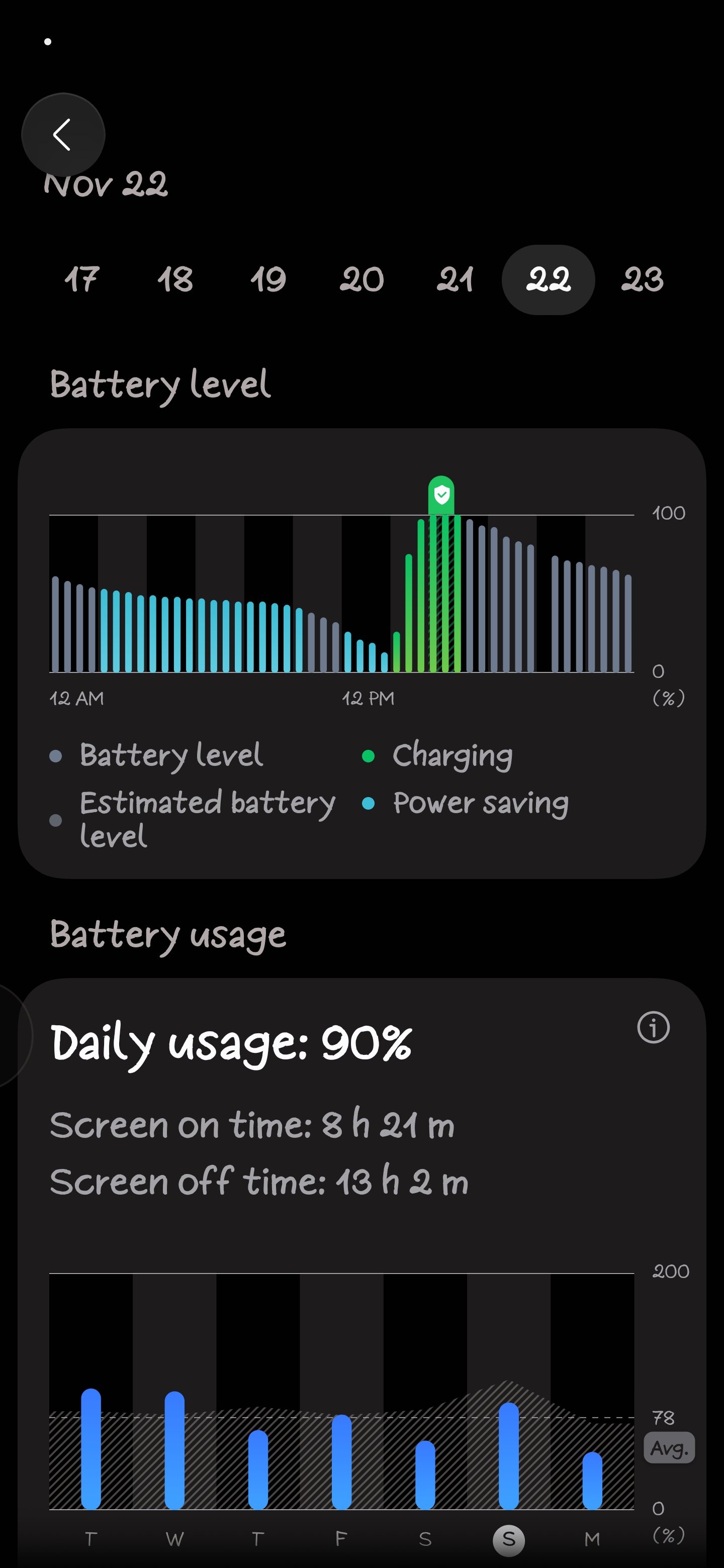
To resolve a fast-draining Samsung battery, start by checking the Battery and Device Care menu to identify which apps are the top consumers. Move any non-essential apps to "Deep Sleep" and switch your display refresh rate to 60Hz if you prioritize longevity over smoothness. Finally, if your device is more than three years old, use the Samsung Members app to check for hardware degradation. Maintaining your battery between 20% and 80% and avoiding extreme temperatures remain the most effective ways to ensure your Samsung Galaxy lasts through 2026 and beyond.
Image Gallery