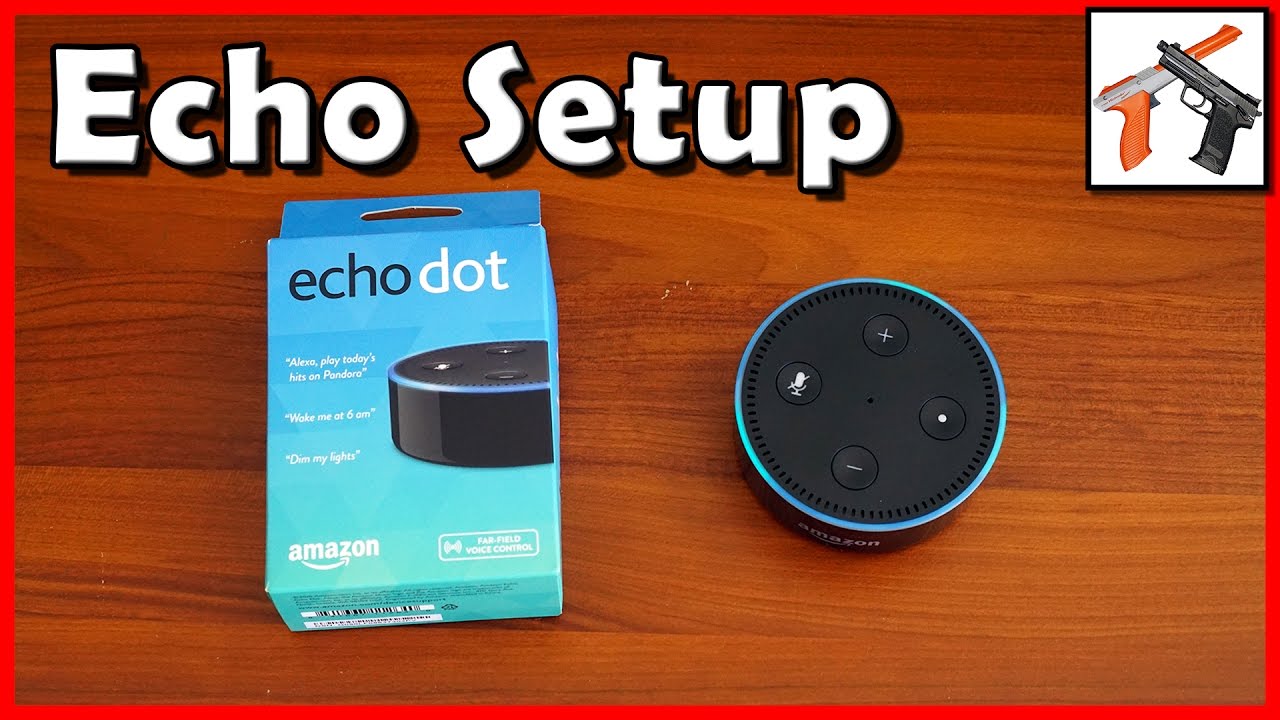
Comprehensive Guide to Amazon Echo Setup: Hardware Configuration, Network Integration, and Optimization
Setting up an Amazon Echo device involves connecting the smart speaker to a stable Wi-Fi network, downloading the official Amazon Alexa application on a mobile device, and linking the hardware to an active Amazon account. This process...
Setting up an Amazon Echo device involves connecting the smart speaker to a stable Wi-Fi network, downloading the official Amazon Alexa application on a mobile device, and linking the hardware to an active Amazon account. This process establishes voice control, smart home automation, and media streaming capabilities.
Contents
Understanding the Amazon Echo Ecosystem and Hardware Prerequisites
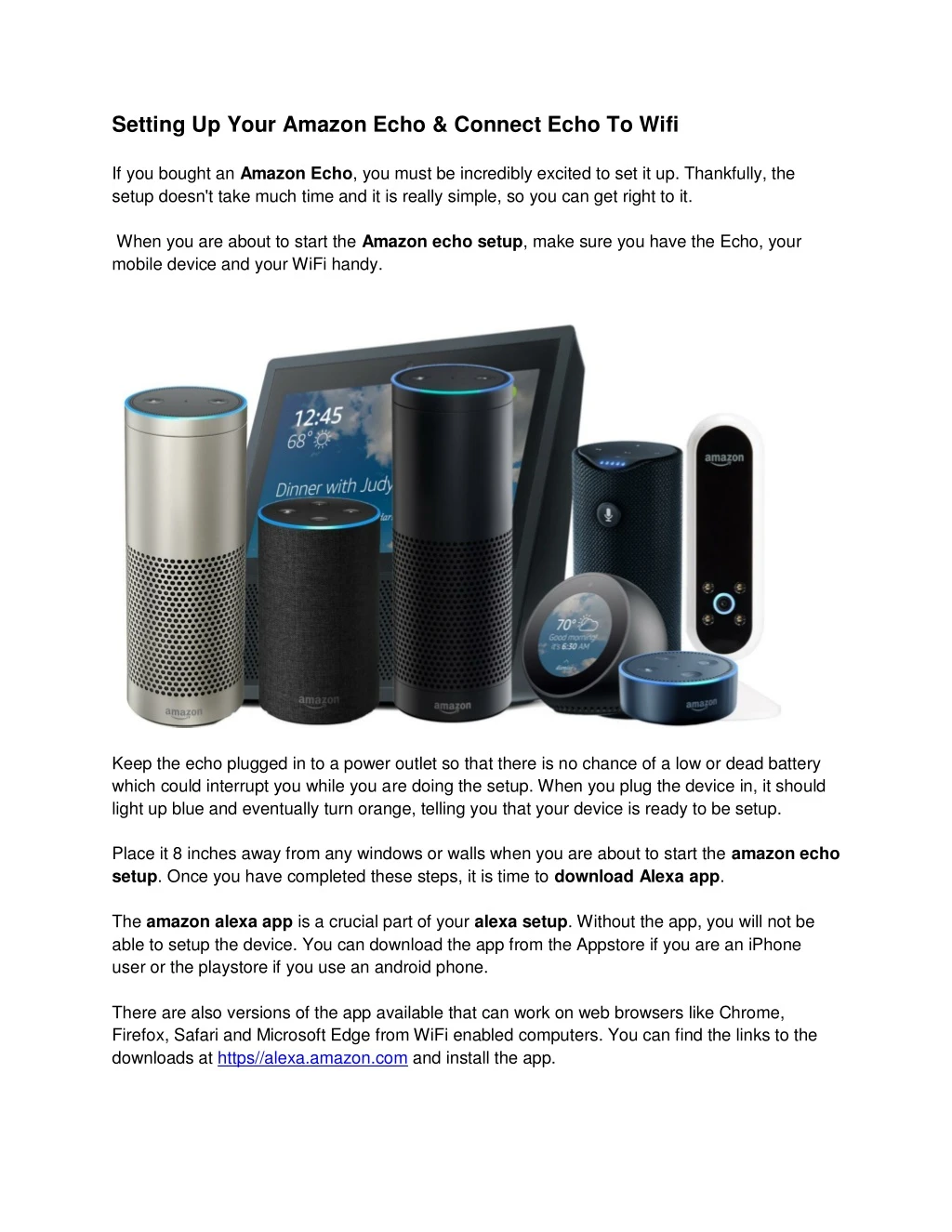
Before initiating the setup process for any Amazon Echo device, verifying physical requirements and network compatibility ensures a smooth installation. The Echo lineup ranges from compact bedside smart speakers like the Echo Dot to display-equipped units like the Echo Show and specialized audio gear like the Echo Studio. Each model shares a foundational architecture centered around far-field microphone arrays, custom-tuned audio drivers, and direct integration with Amazon's cloud-based voice service, Alexa.
Operating an Echo device requires a reliable broadband internet connection, a Wi-Fi router operating on standard frequencies, and a compatible mobile device running either Apple iOS or Google Android. The Alexa companion app serves as the centralized management console for configuring network settings, managing device groups, installing third-party skills, and linking music streaming accounts.
Network Security Standards Router Compatibility: Echo devices support dual-band Wi-Fi networks operating on 2.4 GHz and 5 GHz frequencies, connecting to 802.11a/b/g/n/ac routers. Enterprise networks requiring certificate-based authentication or captive portal logins are generally incompatible without specific network administrator configurations.
Essential Preparation Steps Prior to Configuration
Proper preparation minimizes configuration errors and network dropouts during the initial boot sequence. Establishing a clean digital workspace and verifying account credentials prevents authentication delays during setup.
- Active Amazon Account: Ensure login credentials for an active Amazon account are readily available, as the Echo device must be registered to this profile to access digital media, purchasing capabilities, and personalized routines.
- Mobile Companion App: Download and install the latest version of the Amazon Alexa application from the Apple App Store or Google Play Store onto a smartphone or tablet connected to the target home Wi-Fi network.
- Bluetooth and Location Services: Enable Bluetooth and location permissions on the mobile device. The Alexa app utilizes Bluetooth Low Energy (BLE) to discover nearby unconfigured Echo hardware during the initial pairing phase.
- Power Placement: Position the Echo device within range of the wireless router, away from thick concrete walls, heavy electrical appliances, and microwave ovens that generate 2.4 GHz interference which can degrade audio wake-word detection and response times.
Step-by-Step Echo Setup Procedure
Executing the setup sequence systematically ensures the device links correctly to both the local network and the user profile. Follow these detailed steps to complete the configuration.
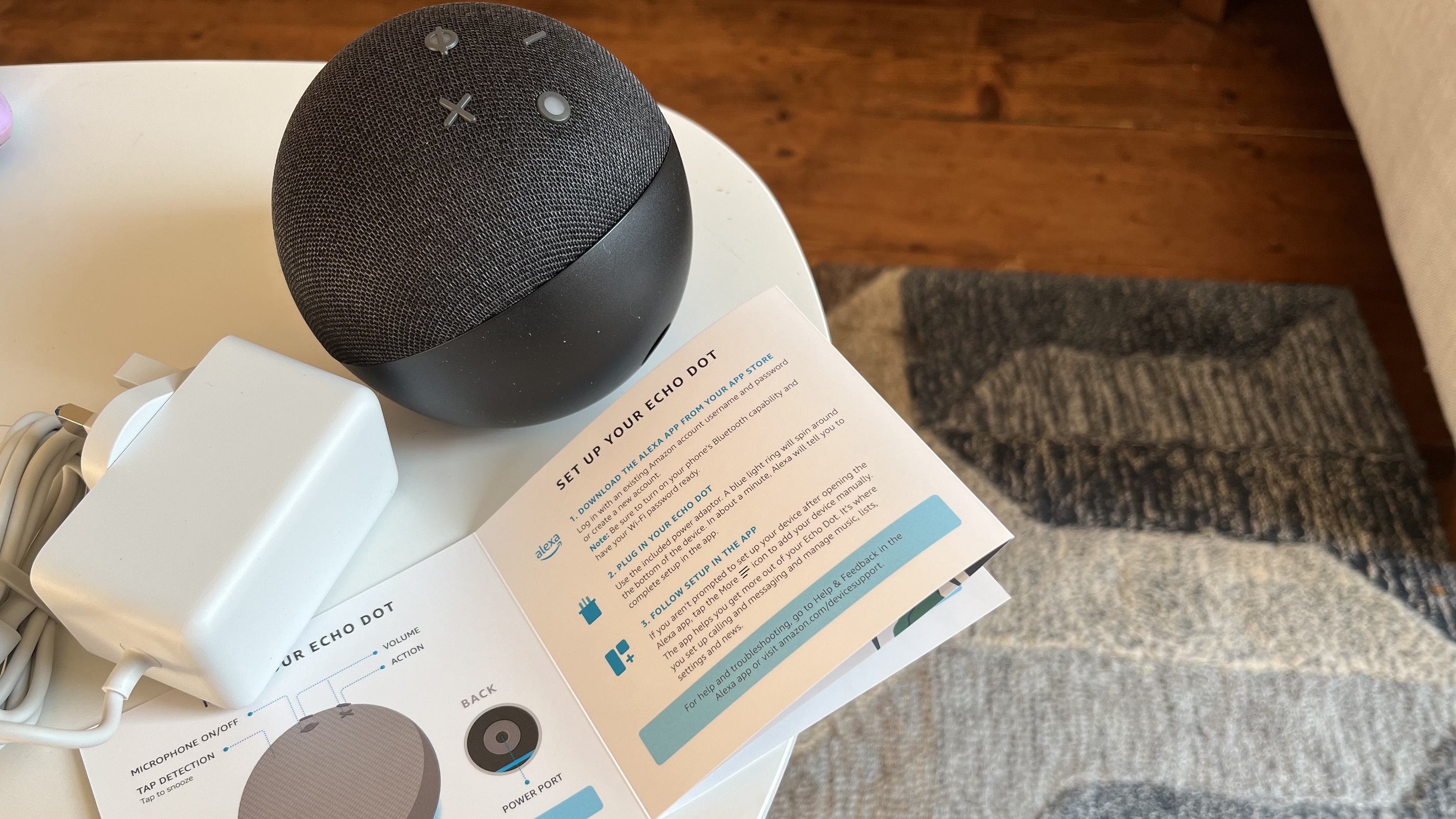
- Unbox and Power the Device: Connect the included power adapter to the Echo device and plug it into a standard wall outlet. The light ring on the device will illuminate, typically pulsing blue before transitioning to an orange glow, which indicates the hardware has entered setup mode.
- Launch the Alexa App: Open the Amazon Alexa application on your mobile device. If prompted, sign in using your Amazon account credentials. If this is a new account, complete the profile setup and verification steps.
- Initiate Device Discovery: Tap the Devices icon (represented by a square and plug symbol) in the lower navigation bar, select the plus (+) icon in the top right corner, and choose "Add Device." Select "Amazon Echo" from the hardware category list.
- Select Device Model: Choose the specific Echo generation or model type matching your physical hardware (e.g., Echo Dot, Echo Show, Echo Pop) to load the correct software configuration wizard.
- Confirm Setup Mode: The app will prompt you to verify that the Echo device's light ring is orange. If the light is not orange, press and hold the Action button (often marked with a dot or gear icon) on the Echo device for approximately five seconds until the light turns orange.
- Connect to Wi-Fi via Temporary Network: The mobile app will search for available devices. Once discovered, approve the connection. On iOS devices, you may need to temporarily switch to the device's generated Wi-Fi network (beginning with "Amazon-XXX") in your phone's Wi-Fi settings, then return to the Alexa app.
- Select Home Wi-Fi Network: Choose your primary home Wi-Fi network from the list of detected SSIDs and enter the corresponding network security password. The Echo will securely transmit these credentials and connect to the cloud.
- Configure Location and Room Assignment: Specify the physical room where the Echo is located (e.g., Living Room, Kitchen). This ensures accurate weather reporting, smart home group targeting, and localized timer management. Verify your device address for local emergency services if using Alexa Communication features.
Comparing Echo Device Setup Requirements and Capabilities
Different models within the Amazon Echo family feature varying setup interfaces and connectivity specifications. Reviewing these technical parameters helps identify model-specific requirements during configuration.
| Echo Model | Primary Interface | Connectivity Standards | Setup Mode Trigger | Special Configuration Notes |
|---|---|---|---|---|
| Echo Dot (5th Gen) | Audio & Light Ring | Wi-Fi 5 (802.11ac), Bluetooth, Matter Controller | Action Button (Hold 5 sec) | Includes built-in temperature sensor and Eero built-in mesh Wi-Fi extender capabilities. |
| Echo Show 8 (3rd Gen) | Touchscreen & Audio | Wi-Fi 6 (802.11ax), Bluetooth, Zigbee, Matter | On-Screen Prompts / Volume + Mic Buttons | Requires initial touchscreen calibration, Amazon account sign-in via screen or QR code. |
| Echo Studio | High-Fidelity Audio | Wi-Fi 5, Bluetooth, Zigbee, Audio In (Optical/3.5mm) | Action Button (Hold 5 sec) | Automatically calibrates audio output based on room acoustics during initial setup. |
| Echo Pop | Compact Audio | Wi-Fi 5, Bluetooth | Action Button (Hold 5 sec) | Optimized for smaller spaces; standard voice-only configuration via mobile app. |
Advanced Network Integration and Smart Home Protocol Setup
Modern Echo devices operate as more than standalone smart speakers; many models function as local smart home hubs supporting advanced communication protocols. Configuring these features unlocks extended automation potential.
Matter and Zigbee Integration
Select Echo models feature integrated Zigbee controllers and Matter protocol support. During the setup process or via the device settings menu in the app, you can command Alexa to discover smart home devices (such as smart bulbs, plugs, and locks) directly without requiring separate manufacturer bridges. Say, "Alexa, discover devices," after ensuring the target smart accessory is in pairing mode.
Audio Pairing and Stereo Configuration
For users owning multiple Echo units in the same physical space, the Alexa app allows the creation of Stereo Pairs or multi-room music groups. Navigate to Devices, select an existing Echo device, tap the settings gear icon, and select "Stereo Pair / Subwoofer" to combine two identical speakers into left and right audio channels for enhanced fidelity.
Troubleshooting Common Echo Setup Failures
Encountering technical hurdles during installation is common, usually stemming from wireless interference, outdated mobile software, or authentication mismatches. Applying systematic troubleshooting resolves most setup bottlenecks.
- Orange Light Fails to Appear: If the device does not enter setup mode automatically, perform a hard factory reset. For most devices, press and hold the Action button for 20 to 25 seconds until the light ring turns off and on again, signaling a reboot.
- Wi-Fi Authentication Error: Ensure the router is broadcasting on a 2.4 GHz or supported 5 GHz channel with WPA2/WPA3 security. Echo devices frequently fail to connect to hidden SSIDs or networks utilizing legacy WEP encryption protocols.
- App Discovery Loop: If the Alexa app fails to locate the Echo device via Bluetooth, close all background applications, toggle phone Bluetooth off and on, and restart both the mobile phone and the Echo hardware. Ensure local network permissions are explicitly granted to the Alexa app within your mobile operating system settings.
Frequently Asked Questions About Echo Setup
How do I reset my Amazon Echo if setup fails?
To factory reset an Echo device, press and hold the Action button for 20 to 25 seconds until the light ring turns off and on again. This clears all user data and returns the hardware to initial setup mode.
Can I set up an Echo device without a smartphone?
While initial setup typically requires the Alexa mobile app, some Echo Show models permit account sign-in directly on the touchscreen display. However, full device customization and skill installation still require a compatible mobile app or web browser portal.
Why won't my Echo connect to my home Wi-Fi network?
Common causes include incorrect Wi-Fi passwords, router isolation settings, or operating on unsupported network frequencies. Verify your router is broadcasting a standard 2.4 GHz or 5 GHz signal using WPA2 security.
Do I need an Amazon Prime membership to use an Echo?
An Amazon Prime membership is not required to set up or use an Echo device. A standard, free Amazon account is sufficient to activate the device, use voice commands, and access basic smart home features.
How do I update the Wi-Fi network on an existing Echo?
Open the Alexa app, navigate to Devices, select your specific Echo device, tap the settings gear icon, and select "Change" next to the Wi-Fi Network field to run through the network connection wizard again.
Can an Echo device operate on a mobile hotspot?
Yes, an Echo device can connect to a mobile hotspot operating on a smartphone or dedicated cellular router, provided the hotspot maintains a stable internet connection and active broadcast signal.
Professional Optimization Recommendation
To maximize the long-term performance and responsiveness of your Amazon Echo installation, assign a static IP address or reserved DHCP lease to the device within your home router's admin panel. This network configuration prevents frequent re-authentication errors and reduces latency when executing complex smart home automation routines across multiple connected devices.
Image Gallery