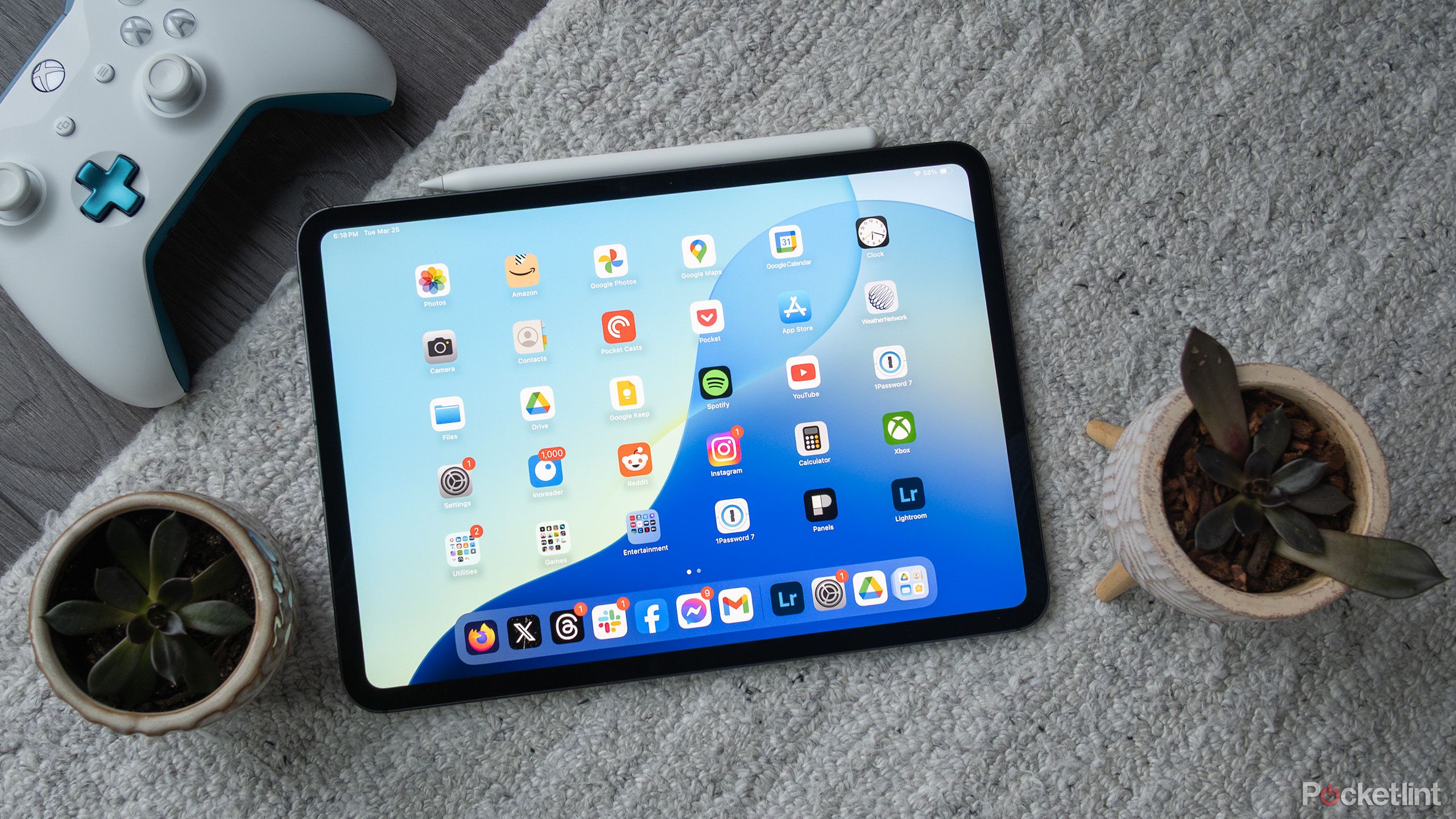
How to Identify the iPad Model You Have
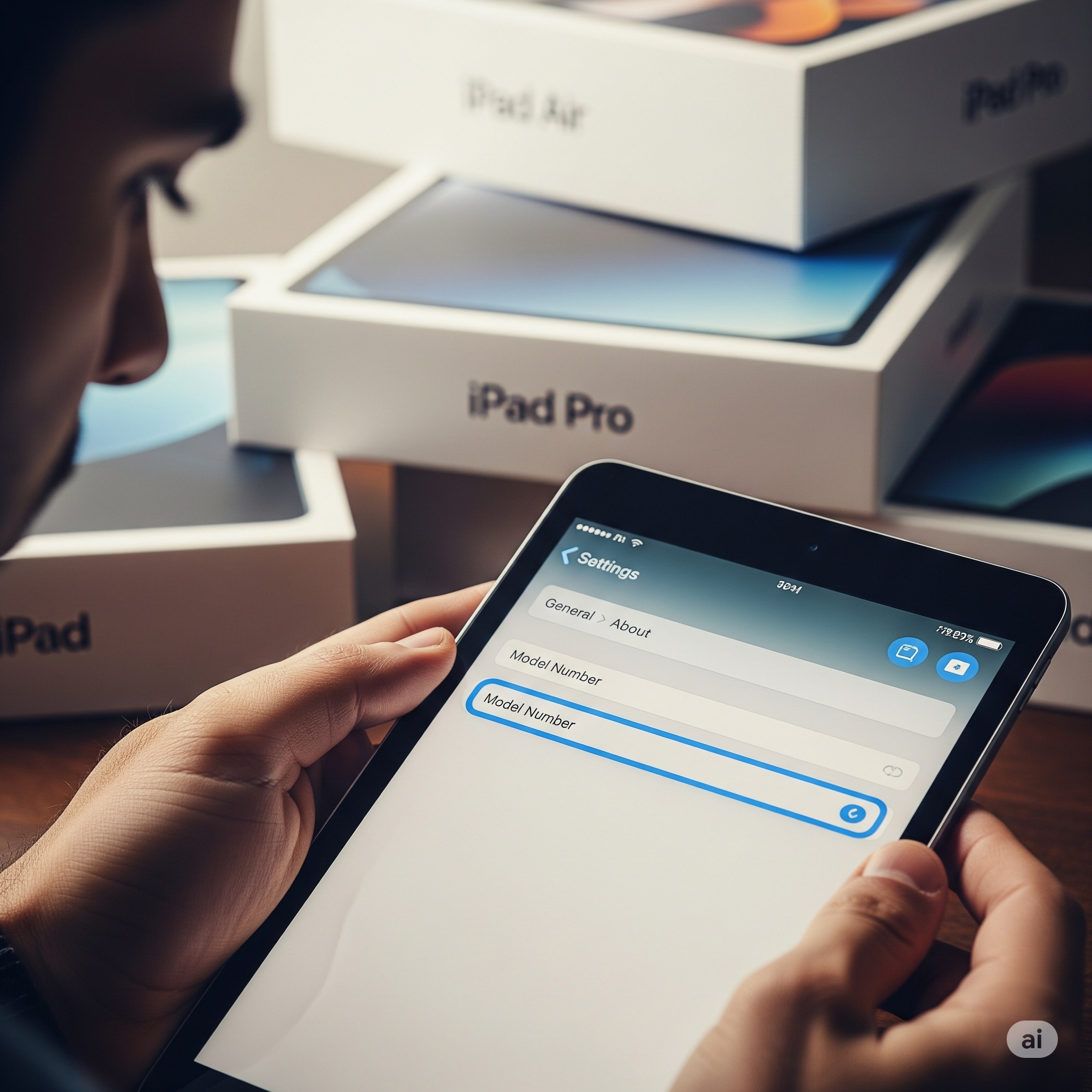
To identify your iPad model, open Settings, tap General, and select About. Look for the Model Name and Model Number fields. Tapping the SKU number (which ends in /A) toggles it to reveal a five-character model number starting with the...
To identify your iPad model, open Settings, tap General, and select About. Look for the Model Name and Model Number fields. Tapping the SKU number (which ends in /A) toggles it to reveal a five-character model number starting with the letter A followed by four digits (such as A2759).
Contents
Why Identifying Your iPad Model Is Necessary
Knowing the precise identity of your iPad is crucial for several practical reasons. Apple has released dozens of iPad iterations across four distinct lines—standard iPad, iPad mini, iPad Air, and iPad Pro—since the original device debuted in 2010. Because many generations share nearly identical industrial designs, physical appearances can easily fool even experienced users.
Determining your exact model number matters when:
- Buying Compatible Accessories: Key peripherals like the Apple Pencil (1st Gen, 2nd Gen, USB-C, and Apple Pencil Pro) and hardware keyboards (Magic Keyboard, Smart Keyboard Folio) rely on strict hardware and magnetic alignment standards specific to certain iPad generations.
- Verifying iPadOS Compatibility: Apple periodically phases out operating system updates for older processors. Identifying your model helps you confirm whether your device supports the latest iPadOS features.
- Purchasing Replacement Parts or Cases: Screen protectors, protective enclosures, and internal battery replacements require exact dimensional precision. A 10.9-inch iPad Air and an 11-inch iPad Pro, for example, have different camera cutouts and button layouts despite their similar screen sizes.
- Calculating Trade-In or Resale Value: Accurate device descriptions ensure fair pricing when selling your iPad on secondary markets or trading it in through official retail channels.
Method 1: Locate the Model Number in iPadOS Settings
The simplest and most foolproof way to identify an iPad that powers on is through the native operating system interface. This method yields both the consumer marketing name (e.g., "iPad Air (5th generation)") and the specific engineering model number (e.g., "A2588").
Step-by-Step Instructions
- Unlock your iPad and tap the Settings app icon (the gear icon on your home screen).
- On the left-hand navigation sidebar, select General.
- Tap About at the top of the right-hand panel.
- Locate the Model Name row. This displays the official marketing title of your iPad along with its hardware generation.
- Locate the Model Number row directly underneath.
| Settings > General > About | |
|---|---|
| Model Name | iPad Pro (11-inch) (4th generation) |
| Model Number | MNXD3LL/A (Tap here) |
| (After Tapping): | |
| Model Number | A2759 |
Deciphering Part Numbers vs. "A" Model Numbers
When you first look at the Model Number field, you will see a string of characters that looks like MY232LL/A or MNXD3LL/A. This code represents Apple's commercial stock keeping unit (SKU) or part number. It contains information regarding the device's storage capacity, color finish, cellular connectivity, and regional distribution market (for instance, "LL" denotes the United States).
To convert this SKU into the universal hardware model number:
- Tap the Model Number line once.
- The display will instantly change from the long SKU format to a shorter code that begins with a capital A followed by four numbers (for example, A2228 or A2759).
This four-digit "A-number" is the primary identifier used by technical support, repair facilities, and hardware accessory documentation.
Method 2: Read the Physical Markings on the Back Cover
If your iPad will not turn on, has a dead battery, or possesses a broken display, you can still find the model number printed directly on the exterior casing.
Locating the Etched Text
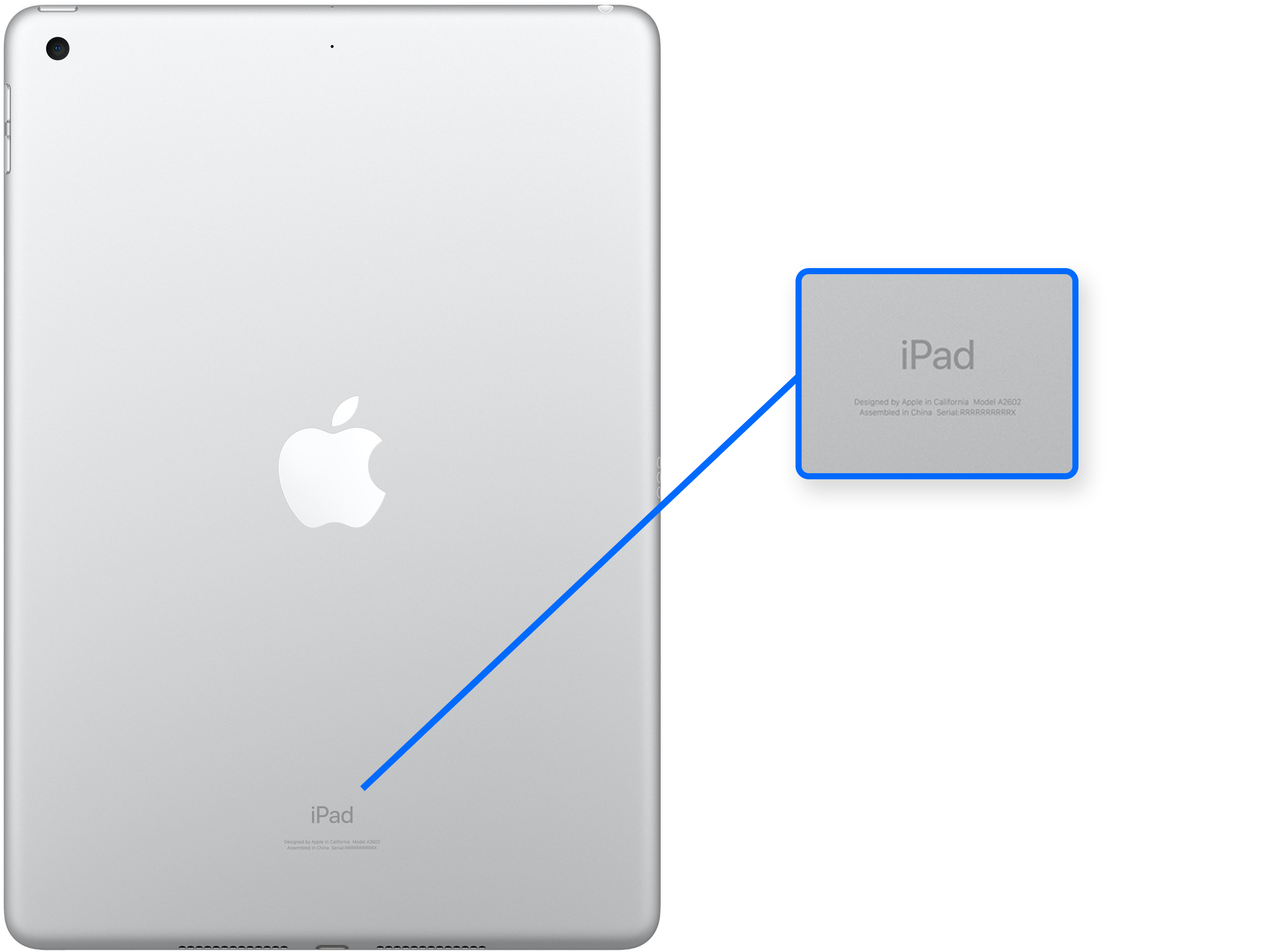
Turn your iPad over so the display faces down. Inspect the lower portion of the rear aluminum enclosure beneath the stylized Apple logo.
Near the bottom edge, you will find several lines of laser-etched text containing regulatory marks, assembly information, and the serial number. Within the first or second line of this fine print, look for the word "Model" followed by the letter A and four numbers.
Designed by Apple in California Assembled in China Model A2377 IC: 579C-A2377 SCC ID: BCGA2377 Serial: DMP...
- Clear Visibility: On silver, starlight, or gold iPads, this text is etched in medium grey and remains legible under direct light.
- Dark Finishes: On space grey, space black, or dark blue aluminum finishes, the text can be faint. You may need to angle the device under a bright desk lamp or use a magnifying glass to read the four-digit code clearly.
Note: On select newer iPad models released in recent design cycles, Apple has minimized back-chassis laser etchings in certain regions. If your rear shell only displays the word "iPad" without regulatory fine print, rely on the Settings menu or external packaging methods.
Method 3: Identify Your iPad Without Access to the Device
If your iPad is missing, lost, broken beyond display legibility, or locked in a remote location, you can retrieve its model details using account management tools or original product documentation.
Option A: Check Your Apple Account Page
Every iPad connected to an active Apple Account (Apple ID) is registered under that account's hardware inventory list.
- Open a web browser on any computer or mobile device and navigate to account.apple.com.
- Sign in with your primary Apple Account credentials and complete any multi-factor authentication steps.
- Navigate to the Devices section in the side menu.
- Select your iPad from the listed hardware. A pop-up menu or detailed card will display the device's registered marketing name, serial number, and exact model designation.
Alternatively, if you own another Apple device (such as an iPhone or Mac) signed into the same account:
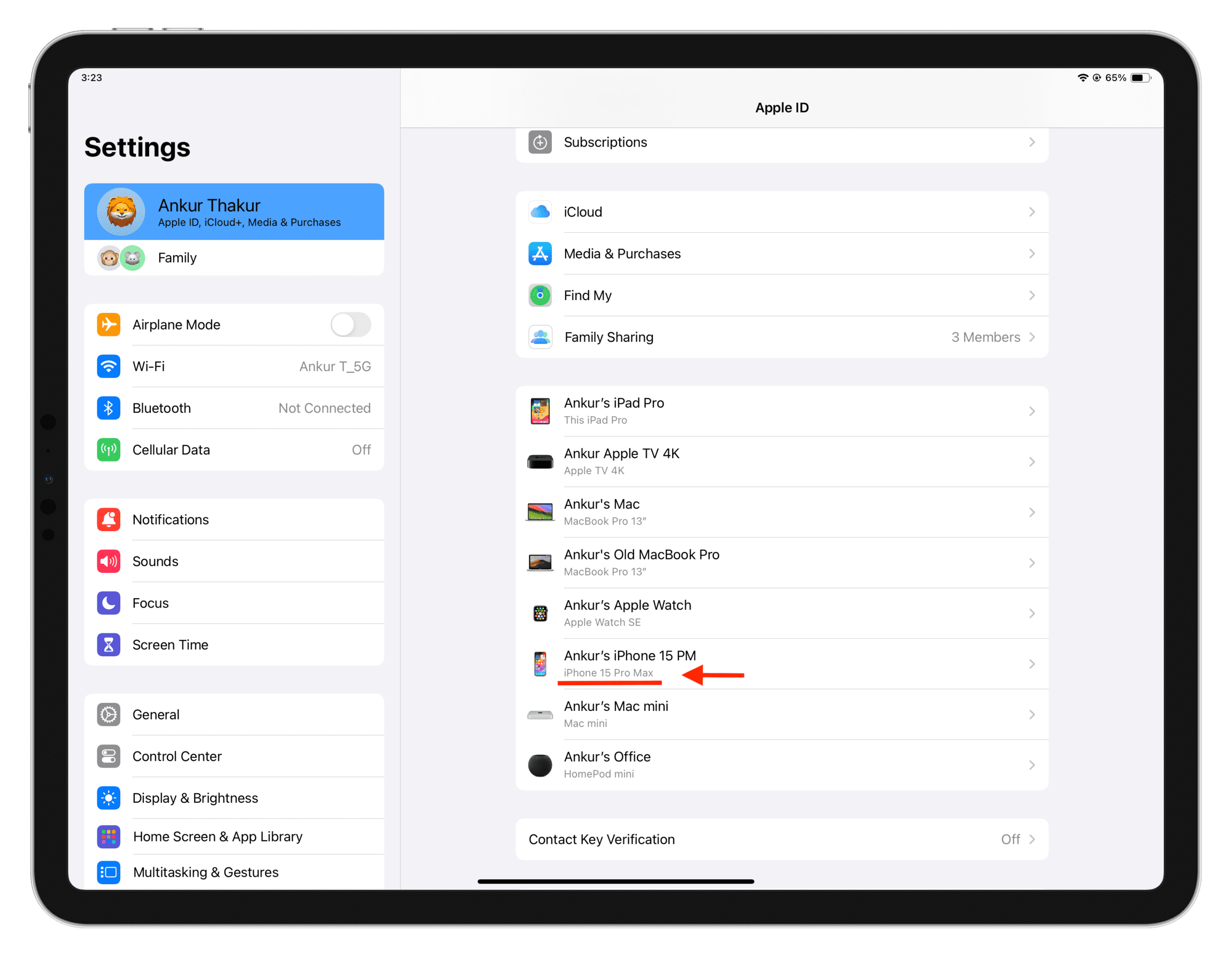
- Open Settings on iOS/iPadOS, tap your Name/Profile banner at the top, scroll down to the device list, and tap your iPad's name.
- On macOS, open System Settings, click your Apple Account name at the top left, and select the iPad from the hardware list.
Option B: Inspect the Original Packaging
If you kept the retail box your iPad came in, you can find the complete product specifications printed on the white barcoded label attached to the back of the package.
Look for the label on the lower rear panel of the box. It lists:
- The full commercial description (e.g., iPad Air (5th Gen) Wi-Fi 256GB Blue).
- The commercial part number (SKU).
- The physical hardware model number (e.g., Model A2588).
- The unique serial number (S/N) and IMEI (for cellular models).
Option C: Review Digital Receipts and Order History
If you purchased your iPad online directly from Apple, an authorized seller, or a cellular service operator, search your email archive for purchase confirmations. Receipts from the official Apple Store explicitly state the device generation, storage size, network capability, and SKU number at the time of purchase.
Comprehensive iPad Hardware Identification Reference Table
Once you have located your five-character "A-number" (from the Settings app or the back cover), match it against the reference table below to determine your exact iPad model, release generation, and marketing classification.
Standard iPad Series
| Model Number (A-Series) | Official Marketing Name | Generation | Primary Screen Size | Release Year |
|---|---|---|---|---|
| A1395, A1396, A1397 | iPad 2 | 2nd Generation | 9.7-inch | 2011 |
| A1416, A1430, A1403 | iPad (3rd generation) | 3rd Generation | 9.7-inch | 2012 |
| A1458, A1459, A1460 | iPad (4th generation) | 4th Generation | 9.7-inch | 2012 |
| A1822, A1823 | iPad (5th generation) | 5th Generation | 9.7-inch | 2017 |
| A1893, A1954 | iPad (6th generation) | 6th Generation | 9.7-inch | 2018 |
| A2197, A2200, A2198 | iPad (7th generation) | 7th Generation | 10.2-inch | 2019 |
| A2270, A2428, A2429, A2430 | iPad (8th generation) | 8th Generation | 10.2-inch | 2020 |
| A2602, A2604, A2603, A2605 | iPad (9th generation) | 9th Generation | 10.2-inch | 2021 |
| A2696, A2757, A2777 | iPad (10th generation) | 10th Generation | 10.9-inch | 2022 |
iPad Air Series
| Model Number (A-Series) | Official Marketing Name | Generation | Primary Screen Size | Release Year |
|---|---|---|---|---|
| A1474, A1475, A1476 | iPad Air | 1st Generation | 9.7-inch | 2013–2014 |
| A1566, A1567 | iPad Air 2 | 2nd Generation | 9.7-inch | 2014 |
| A2152, A2123, A2153, A2154 | iPad Air (3rd generation) | 3rd Generation | 10.5-inch | 2019 |
| A2316, A2324, A2325, A2072 | iPad Air (4th generation) | 4th Generation | 10.9-inch | 2020 |
| A2588, A2589, A2591 | iPad Air (5th generation) | 5th Generation | 10.9-inch | 2022 |
| A2902, A2903, A2904 | iPad Air 11-inch (M2) | 6th Generation | 11-inch | 2024 |
| A2898, A2899, A2900 | iPad Air 13-inch (M2) | 6th Generation | 13-inch | 2024 |
iPad mini Series
| Model Number (A-Series) | Official Marketing Name | Generation | Primary Screen Size | Release Year |
|---|---|---|---|---|
| A1432, A1454, A1455 | iPad mini | 1st Generation | 7.9-inch | 2012 |
| A1489, A1490, A1491 | iPad mini 2 | 2nd Generation | 7.9-inch | 2013 |
| A1599, A1600 | iPad mini 3 | 3rd Generation | 7.9-inch | 2014 |
| A1538, A1550 | iPad mini 4 | 4th Generation | 7.9-inch | 2015 |
| A2133, A2124, A2126, A2125 | iPad mini (5th generation) | 5th Generation | 7.9-inch | 2019 |
| A2567, A2568, A2569 | iPad mini (6th generation) | 6th Generation | 8.3-inch | 2021 |
| A2993, A2994, A2995 | iPad mini (A17 Pro) | 7th Generation | 8.3-inch | 2024 |
iPad Pro Series
| Model Number (A-Series) | Official Marketing Name | Generation / Chip | Screen Size | Release Year |
|---|---|---|---|---|
| A1584, A1652 | iPad Pro 12.9-inch | 1st Generation | 12.9-inch | 2015 |
| A1673, A1674, A1675 | iPad Pro 9.7-inch | 1st Generation | 9.7-inch | 2016 |
| A1701, A1709, A1852 | iPad Pro 10.5-inch | 2nd Generation | 10.5-inch | 2017 |
| A1670, A1671, A1821 | iPad Pro 12.9-inch | 2nd Generation | 12.9-inch | 2017 |
| A1980, A2013, A1934, A1979 | iPad Pro 11-inch | 1st Generation | 11-inch | 2018 |
| A1876, A2014, A1895, A1983 | iPad Pro 12.9-inch | 3rd Generation | 12.9-inch | 2018 |
| A2228, A2068, A2230, A2231 | iPad Pro 11-inch | 2nd Generation | 11-inch | 2020 |
| A2229, A2069, A2232, A2233 | iPad Pro 12.9-inch | 4th Generation | 12.9-inch | 2020 |
| A2377, A2459, A2301, A2460 | iPad Pro 11-inch (M1) | 3rd Generation | 11-inch | 2021 |
| A2378, A2461, A2379, A2462 | iPad Pro 12.9-inch (M1) | 5th Generation | 12.9-inch | 2021 |
| A2759, A2435, A2761, A2762 | iPad Pro 11-inch (M2) | 4th Generation | 11-inch | 2022 |
| A2436, A2764, A2437, A2766 | iPad Pro 12.9-inch (M2) | 6th Generation | 12.9-inch | 2022 |
| A2836, A2837, A3006 | iPad Pro 11-inch (M4) | 5th Generation | 11-inch | 2024 |
| A2925, A2926, A3007 | iPad Pro 13-inch (M4) | 7th Generation | 13-inch | 2024 |
For absolute confirmation across legacy or specialized variants, refer directly to Apple's official iPad model identification guide.
Physical Hardware Identifiers for Quick Distinction
When software menus are unavailable, specific physical traits can help narrow down your device's family and generation.
- Lightning Port (Pre-2018 / Base Models): Solid Pin
- USB-C Port (Modern Air / Pro / Mini): Hollow
1. Connection Port Type
- 30-Pin Connector: Found exclusively on vintage iPads (iPad 1st, 2nd, and 3rd generations). This wide dock connector is significantly broader than modern ports.
- Lightning Port: Features a thin, solid connector tab with visible gold pins. Used on standard iPad models up through the 9th generation, early iPad Air models (1 through 3), early iPad minis (1 through 5), and older iPad Pro units.
- USB-C Port: Features an oval opening with an internal pin tongue. Found on all iPad Pro models released since late 2018, iPad Air 4th Gen and newer, iPad mini 6th Gen and newer, and standard iPad 10th Gen.
2. Home Button vs. All-Screen Design
- Front Home Button (Touch ID): Indicates an older hardware enclosure. If the home button is a smooth concave plastic circle, it is an early model. If it features a flat glass ring without an icon inside, it supports Touch ID.
- Top Button Touch ID: Modern iPad Air models, iPad mini (6th Gen and later), and standard iPad (10th Gen) move Touch ID to the top power/lock key, eliminating the front home button.
- Face ID (TrueDepth Camera Array): Exclusively featured on iPad Pro models introduced from 2018 onward (iPad Pro 11-inch 1st–5th Gen, 12.9-inch 3rd–6th Gen, and M4 models). These devices feature uniform, narrow bezels and no home button.
3. Cellular Band Antennae & SIM Trays
- Wi-Fi Only Models: Feature a clean, uniform metal top and side frame with no plastic breaks or SIM tray slots.
- Wi-Fi + Cellular Models: Older models feature a broad plastic stripe across the top edge. Modern cellular iPads feature thin, color-matched antenna lines embedded into the top and side metal frame, as well as a physical SIM tray (or pure eSIM support on recent cellular models).
Accessory Compatibility Matrix
Incorrectly matching accessories is the primary issue caused by misidentifying an iPad. Use the hardware groupings below to verify stylus and keyboard support.
| Accessory | Compatible iPad Models |
|---|---|
| Apple Pencil (1st Generation) | - iPad (6th, 7th, 8th, 9th Gen)- iPad mini (5th Gen)- iPad Air (3rd Gen)- iPad Pro 9.7", 10.5", 12.9" (1st & 2nd Gen) |
| Apple Pencil (2nd Generation) | - iPad Pro 11-inch (1st, 2nd, 3rd, 4th Gen)- iPad Pro 12.9-inch (3rd, 4th, 5th, 6th Gen)- iPad Air (4th, 5th Gen)- iPad mini (6th Gen) |
| Apple Pencil Pro | - iPad Pro 11-inch (M4) & 13-inch (M4)- iPad Air 11-inch (M2) & 13-inch (M2) |
| Apple Pencil (USB-C) | - iPad (10th Gen)- All iPad models with USB-C ports |
Troubleshooting Unresponsive or Unidentified iPads
If standard identification steps fail, apply the following advanced solutions:
What to Do if the Screen Is Cracked or Unresponsive
If the display is broken, plug your iPad into a Mac running macOS Catalina or later (via Finder) or a PC running iTunes/Apple Devices app.
- Connect the iPad using an appropriate USB cable.
- Open Finder (Mac) or the Apple Devices application (Windows).
- Select the iPad from the left menu bar. The main summary screen displays the hardware generation, storage capacity, and serial number directly on your computer display.
Distinguishing Serial Numbers from Model Numbers
Users often confuse serial numbers with model numbers:
- Model Number: A standardized code shared by thousands of devices manufactured to identical specifications (e.g.,
A2377). - Serial Number: A unique alphanumeric code assigned strictly to your individual unit (e.g.,
DMPZX000Q168).
To check warranty coverage or service history, visit Apple's official Check Coverage portal and input your individual serial number. The system will return your exact device name along with its original purchase status.
Frequently Asked Questions
Where do I find the model number on my iPad if I cannot open Settings?
Look at the bottom rear panel of the iPad underneath the Apple logo. You will find small laser-etched text containing the word "Model" followed by the letter "A" and four digits. Alternatively, connect the device to a computer via USB and view its summary details in Finder or the Apple Devices app.
What is the difference between an iPad model number and a part number?
A model number (e.g., A2588) identifies the core hardware platform and chassis build shared globally by that generation. A part number (e.g., MM9C3LL/A) specifies the exact commercial SKU, detailing the color finish, storage capacity, cellular band configuration, and original sales region.
How do I know which generation my iPad is?
Navigate to Settings > General > About. The Model Name line states both the family line and generation (for example, "iPad Air (5th generation)"). If your software version shows an older layout, find the "A-number" and cross-reference it with the lookup table in this guide.
Why does my iPad model number start with an 'M' or 'N'?
Codes starting with letters like 'M', 'N', 'F', or 'P' are commercial part numbers, not hardware model numbers. An 'M' denotes a new retail unit, 'N' indicates a factory replacement device, 'F' signifies a refurbished unit, and 'P' indicates a custom-engraved unit. Tap this number once in Settings > General > About to toggle it to the standard "A-number."
How can I tell if my iPad is a Wi-Fi only model or Cellular?
Wi-Fi + Cellular iPads feature thin antenna lines embedded into the metal frame (or a plastic antenna block on older models) and a physical SIM card tray on the side (or built-in eSIM settings). Wi-Fi-only models have solid metal frames with no SIM tray. You can also verify this in Settings > General > About under Cellular Data / ICCID.
Which Apple Pencil works with my iPad model?
Apple Pencil compatibility depends on the iPad's design. The 1st Gen Pencil works with older models featuring Lightning ports and front home buttons. The 2nd Gen Pencil works with magnetic-charging iPad Pro and iPad Air models up to 2022. The Apple Pencil Pro requires M4 iPad Pro or M2 iPad Air models. The Apple Pencil (USB-C) works across all USB-C-equipped iPads.
Recommended Next Actions
- Record Your Information: Once you identify your A-number and generation, write down your model name, storage size, and serial number in a secure note or document.
- Verify Accessory Fit: Before purchasing keyboards, cases, or styluses, check the manufacturer's listed model compatibility against your specific "A-number."
- Check Operating System Status: Visit Settings > General > Software Update to ensure your iPad is running the latest supported version of iPadOS for your hardware tier.
Image Gallery