How to Cancel a LinkedIn Premium Membership
Canceling a LinkedIn Premium membership requires navigating to your account’s subscription settings through the "Me" icon on the platform's navigation bar. By selecting "Access My Premium," you can manage your billing cycle, modify you...
Canceling a LinkedIn Premium membership requires navigating to your account’s subscription settings through the "Me" icon on the platform's navigation bar. By selecting "Access My Premium," you can manage your billing cycle, modify your plan, or initiate the cancellation process to prevent future charges before your next billing date.
Contents
Understanding Your Premium Subscription Status
Before proceeding with a cancellation, it is important to understand how LinkedIn manages its subscription service. LinkedIn Premium operates on a recurring billing cycle, either monthly or annually. When you sign up for a paid plan—such as Career, Business, Sales Navigator, or Recruiter—you are entering into a service agreement that renews automatically until you take active steps to terminate it.
Because LinkedIn processes payments via different channels depending on how you initially subscribed, the cancellation route may vary slightly. If you signed up through the LinkedIn website on a desktop browser, your billing is handled directly through LinkedIn’s payment processor. However, if you purchased your subscription through a mobile application store, such as the Apple App Store or Google Play Store, the cancellation must be executed within that respective store’s subscription management interface.
Prerequisites for Cancellation
To ensure a smooth termination of your service, verify the following prerequisites:
- Account Access: Ensure you have access to the email address or authentication method associated with your LinkedIn account.
- Subscription Source: Determine if you subscribed via a web browser or a mobile app, as this dictates the cancellation portal.
- Billing Cycle Awareness: Note your next billing date. Canceling your subscription does not result in a pro-rated refund for the remainder of the current period; you retain access to Premium features until the final day of your current billing cycle.
Step-by-Step Guide: Canceling via Web Browser
If you purchased your LinkedIn Premium subscription via the official website on a desktop computer, follow these steps to cancel:
- Log in to LinkedIn: Navigate to LinkedIn.com and sign in to your account.
- Access the "Me" Icon: Click on the "Me" icon at the top right of your LinkedIn homepage.
- Navigate to Subscription Settings: From the dropdown menu, select "Access My Premium" or "Premium Subscription Settings."
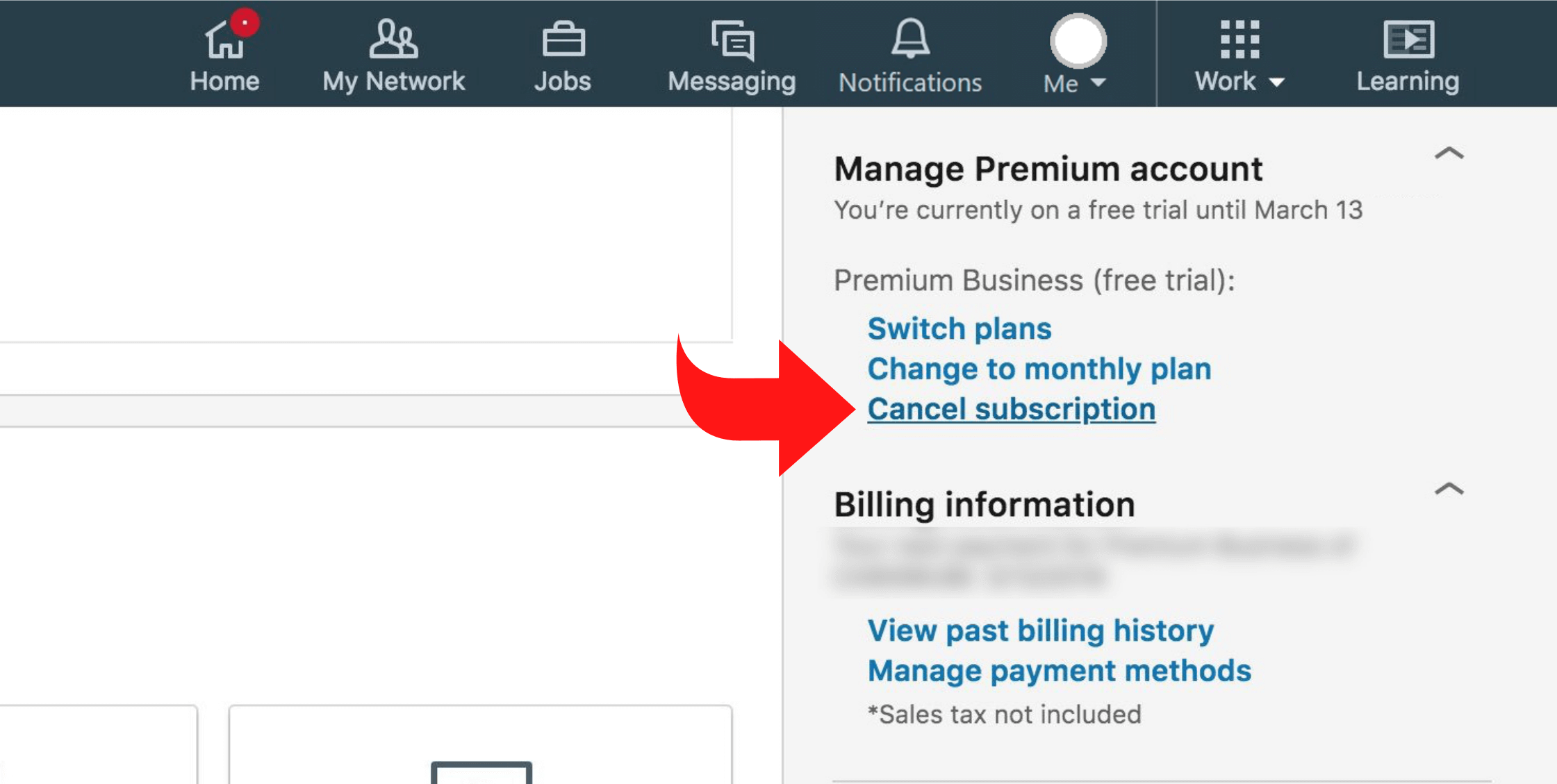
- Manage Premium Account: On the right-hand side of the page, locate the "Manage Premium account" button. This will redirect you to the subscription management dashboard.
- Initiate Cancellation: Under the "Manage Subscription" section, click the "Cancel subscription" link.
- Confirm Cancellation: Follow the on-screen prompts to confirm your choice. LinkedIn may offer to pause your subscription or offer a discount; if you are certain about canceling, proceed through the final confirmation screens until you receive a cancellation success notification.
Step-by-Step Guide: Canceling via Mobile Devices
Subscription management on mobile devices is governed by the platform’s integrated payment systems. LinkedIn does not have direct control over these billing agreements once they are established through a third-party app store.
For iOS (Apple App Store)
- Open the Settings app on your iPhone or iPad.
- Tap your Apple ID name at the top of the menu.
- Select Subscriptions.
- Locate LinkedIn in your list of active subscriptions.
- Tap Cancel Subscription. If you do not see this option, the subscription has already been canceled or was not initiated through the Apple App Store.
For Android (Google Play Store)
- Open the Google Play Store app.
- Tap your profile icon at the top right.
- Select Payments & subscriptions, then tap Subscriptions.
- Select the LinkedIn subscription from the list.
- Tap Cancel subscription and follow the instructions to confirm.
Comparing Subscription Management Methods
| Method | Where to Cancel | Primary Advantage |
|---|---|---|
| Desktop Web | LinkedIn.com Settings | Direct integration with LinkedIn account controls. |
| Apple App Store | iOS Settings | Unified management for all Apple-billed services. |
| Google Play Store | Google Play App | Centralized control for all Android-billed subscriptions. |
What Happens After You Cancel?
Once you have successfully canceled your LinkedIn Premium membership, your status will change from "Active" to "Pending Cancellation." You will maintain full access to all Premium features—such as InMail credits, viewing who has viewed your profile, and access to LinkedIn Learning courses—until the end of your current paid term.
When your current term expires, your account will automatically revert to the standard "Basic" (free) version of LinkedIn. Your professional network, connection history, and profile content remain intact. However, you will lose access to data insights, InMail credits will be removed, and you will no longer be able to view the full list of people who have viewed your profile.
Troubleshooting Common Issues
If you are unable to locate the cancellation option, consider these potential points of failure:
- Wrong Account: Ensure you are logged into the specific account that holds the Premium subscription. If you have multiple LinkedIn accounts, verify the email address associated with the active billing.
- Third-Party Billing: If you do not see a "Cancel" option on the LinkedIn website, it is highly probable that your subscription is managed via an app store. You must navigate to your phone’s settings rather than the LinkedIn website.
- Administrative Delays: If you recently signed up for a free trial and are trying to cancel immediately, the system may require a few hours to process your initial enrollment before the "Manage Subscription" link becomes fully responsive.
- Corporate Subscriptions: If your Premium access is provided through your employer (often via "LinkedIn Recruiter" or "Enterprise" licenses), you likely do not have the ability to cancel the subscription individually. You must contact your organization’s internal LinkedIn administrator or IT department to revoke your access.
Frequently Asked Questions
Does canceling my subscription delete my LinkedIn account? No. Canceling your Premium membership only reverts your account to the free tier. Your profile, connections, and data will remain exactly as they are.
Will I receive a refund if I cancel halfway through my month? Generally, LinkedIn does not provide pro-rated refunds for the unused portion of a billing cycle. You continue to have access to the services until the end of your current cycle, at which point the subscription expires.
How can I verify if my cancellation was successful? After canceling, you should receive a confirmation email from LinkedIn or your app store provider. Additionally, you can return to the "Manage Premium account" page; if the button now says "Restart Subscription" or similar, your cancellation is confirmed.
Can I pause my subscription instead of canceling? In some regions and for certain subscription types, LinkedIn may offer a "pause" feature. This allows you to stop billing for a temporary period. Check the "Manage Premium account" page; if available, it will be listed as an alternative to full cancellation.
Why am I still seeing charges after I thought I canceled? If you continue to be charged, check if you have multiple LinkedIn accounts or if you are signed in with a secondary email address that holds a separate subscription. Also, verify that your cancellation was successfully processed through your mobile app store if applicable.
Recommendation
If you are canceling because you find the cost prohibitive, consider that LinkedIn often provides a "Manage Subscription" screen that may present a "Switch Plan" option. If you are on an expensive Business or Recruiter plan, downgrading to a "Career" tier may maintain the features you find most valuable while reducing your overhead. Always ensure you complete the process at least 24 hours before your next renewal date to guarantee that the system has adequate time to process the request.
Image Gallery