How to Professionally Add a Nebraska Life and Health Insurance License to LinkedIn
Displaying your Nebraska life and health insurance license on your LinkedIn profile is an essential step for building professional credibility, establishing trust with potential clients, and ensuring transparency in a highly regulated...
Displaying your Nebraska life and health insurance license on your LinkedIn profile is an essential step for building professional credibility, establishing trust with potential clients, and ensuring transparency in a highly regulated industry. By accurately listing your credentials, you demonstrate to prospects and colleagues that you are authorized to operate within the state’s regulatory framework, managed by the Nebraska Department of Insurance. This guide details how to correctly add your licensure, maintain compliance with professional guidelines, and optimize your profile for better visibility in the financial services sector.
Contents
Understanding the Significance of Professional Credentials
For insurance professionals, LinkedIn is more than just a digital resume; it is a primary tool for business development and professional networking. When a client searches for a licensed professional, they look for verifiable proof of competency. Including your life and health license signals that you have completed the mandatory pre-licensing education, passed the requisite state examinations, and met the background checks required by the Nebraska Department of Insurance.
From a regulatory perspective, it is imperative that your digital presence remains consistent with the information held by state regulators. Misrepresentation of licensing status—even inadvertently—can lead to professional scrutiny. Therefore, the goal is to present your credentials with precision, using the correct terminology and ensuring the information is easily discoverable by those seeking authorized agents.
Prerequisites Before Updating Your Profile
Before you navigate to your LinkedIn settings, ensure you have the following information verified:
- License Number: Have your exact Nebraska producer license number ready. This is usually a 7-to-10-digit number assigned upon issuance.
- Effective and Expiration Dates: Verify your current status via the Nebraska Department of Insurance Producer Search portal. Using accurate dates is critical for compliance and trust.
- Official Title: Ensure you are using the correct designation, such as "Life and Health Insurance Producer," as recognized by the state.
Step-by-Step Guide to Adding Your License
LinkedIn provides a dedicated section for "Licenses & Certifications" that is specifically designed to house professional credentials. Follow these steps to ensure your Nebraska license is displayed prominently:
Navigate to Your Profile: Click on your profile icon in the top navigation bar and select "View Profile."
Access the Add Section Button: Scroll down to the "Licenses & certifications" section. If you do not see this section, click the "Add profile section" button at the top of your profile, then look under the "Recommended" or "Background" drop-down menus.
Input Credential Details:
- Name: Enter a clear, professional title such as "Nebraska Life and Health Insurance License."
- Issuing Organization: Type "Nebraska Department of Insurance." LinkedIn will usually provide a dropdown menu; select the official entity to ensure your license is linked to the correct organization page.
- Issue Date and Expiration Date: Input the dates exactly as they appear on your official license. Check the box labeled "This credential does not expire" only if applicable, though most insurance licenses require periodic renewal.
- Credential ID: Enter your license number here. This is the primary field for verification.
- Credential URL: Paste the URL to your profile on the Nebraska Department of Insurance public lookup tool, or the National Insurance Producer Registry (NIPR) if available. This allows potential clients to verify your status instantly.
Save and Review: After clicking "Save," review your profile to ensure the entry appears correctly. It should now be visible to your network and appear in search results when recruiters or prospects filter for licensed professionals.
Comparing Methods for Displaying Credentials
Depending on your level of professional visibility, you may choose to display your license in different sections. The table below outlines the best practices for placement.
| Section | Visibility | Best Practice Use Case |
|---|---|---|
| Licenses & Certifications | High (Verified) | The standard location for all formal, government-issued licenses. |
| Experience Section | High (Contextual) | Use this if you are a captive agent or broker and wish to highlight your status within a specific firm's role. |
| Headline | Very High | Use this only if "Life and Health Insurance Professional" is your primary identity and you have space constraints. |
| Featured Section | High (Visual) | Ideal for showcasing a PDF of your official license or a verified link to your NIPR status. |
Regulatory and Ethical Considerations
When adding your license to a public platform like LinkedIn, you must adhere to both the terms of service of the platform and the professional standards of the insurance industry. Avoid using "creative" job titles that could imply you hold qualifications you do not, such as "Financial Advisor" or "Investment Specialist," unless you hold the appropriate securities registrations (such as a Series 6 or 7).
Furthermore, always maintain a link to an official verification source. If your license expires or is subject to disciplinary action, remove the credential immediately. Transparency is the cornerstone of the insurance industry; outdated or incorrect licensing information can be interpreted as misleading, which may violate state insurance laws regarding professional conduct.
Maintaining and Updating Your License Data
Insurance licenses are subject to continuing education (CE) requirements and biennial renewal periods. In 2026, many producers handle these updates through the NIPR. Once you successfully renew your license with the state, do not forget to update your LinkedIn profile.
If your license status changes—for example, if you add a line of authority for Property and Casualty—you should update the existing entry in the "Licenses & Certifications" section to reflect your broader scope of practice. Keeping this information current ensures that prospective clients find the most relevant and accurate data regarding your capabilities.
Troubleshooting Common Issues
- The Nebraska Department of Insurance does not appear in the dropdown: If LinkedIn’s database does not recognize the agency, you can manually type "Nebraska Department of Insurance." It is better to use the official name than a vague alternative.
- License number is not showing: Ensure you have filled out the "Credential ID" field. If it still does not show, re-edit the entry to confirm the data saved correctly.
- Profile view count is low: If you feel your license is not driving traffic, ensure your LinkedIn Headline is optimized with keywords such as "Insurance Agent," "Life & Health," and "Nebraska Insurance."
Frequently Asked Questions
Does LinkedIn automatically verify my Nebraska insurance license? No. LinkedIn does not verify your credentials against state government databases. You are responsible for ensuring the information is accurate and up to date. The platform acts as a host for the data you provide.
Can I include my license in my professional headline? You may, but be concise. A headline like "Life & Health Insurance Producer | Nebraska Licensed" is acceptable and highly searchable. Avoid cluttering the headline with multiple license numbers, as this can look unprofessional.
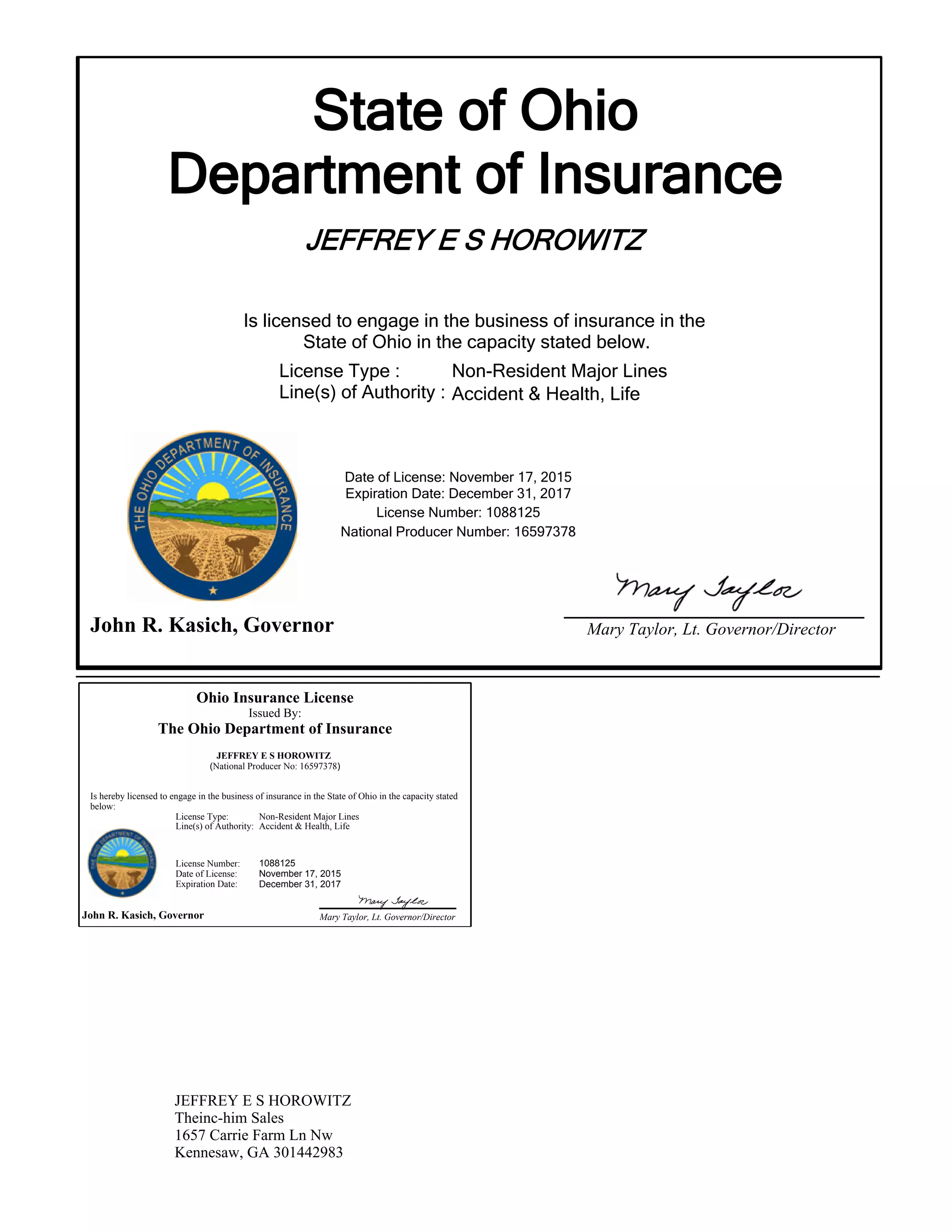
Should I upload a picture of my physical license? It is generally better to provide a link to the official state lookup portal. A PDF upload is possible in the "Featured" section, but ensure you redact sensitive personal information, such as your social security number or home address, before publishing to a public network.
What if I hold licenses in multiple states? It is best to list your Nebraska license separately if you wish to emphasize your local expertise. If you have a large number of non-resident licenses, you might group them under a single entry such as "Multi-State Life and Health Producer" and note your primary residence license in the description.
Is it necessary to list the expiration date? Yes. Providing the expiration date adds legitimacy and proves that your license is active and in good standing. It builds immediate trust with potential clients who are concerned about working with compliant professionals.
Final Recommendation for Professionals
To maximize the impact of your credentials, take one final step: request a "Skill Endorsement" from colleagues or managers who can attest to your professional standing. Once your license is added to your profile, ensure your "Skills" section includes terms like "Life Insurance," "Health Insurance," and "Insurance Brokerage." This creates a comprehensive profile that signals both your legal authority to operate in Nebraska and your practical experience in the field. Regularly auditing your profile to ensure your license, status, and contact information remain current is the most effective way to maintain professional integrity on LinkedIn in 2026 and beyond.
Image Gallery