PS4 Share Play Limits and Requirements: The Complete Guide
PlayStation 4 Share Play allows users to stream their gameplay to a friend over the internet, pass control of a game remotely, or play local multiplayer titles together as if sitting on the same couch. However, Sony enforces strict ope...
PlayStation 4 Share Play allows users to stream their gameplay to a friend over the internet, pass control of a game remotely, or play local multiplayer titles together as if sitting on the same couch. However, Sony enforces strict operational thresholds, network prerequisites, and subscription rules to maintain streaming stability. Understanding these boundaries ensures uninterrupted sessions and prevents frustrating disconnections during active game streams.
Contents
Understanding the Purpose and Core Mechanics of Share Play
Share Play functions as a virtual couch session, bridging the physical gap between two PlayStation 4 or PlayStation 5 users. When initiated, the host streams their game screen and audio directly to the visitor's console in real-time. Depending on the chosen mode, the visitor can watch passively, take over the controls to play single-player games, or join in as a second player in cooperative and competitive titles.
Despite its seamless appearance, the feature relies heavily on cloud infrastructure, video encoding, and robust peer-to-peer or server-mediated connections. Sony implements specific safeguards to protect game content, manage bandwidth demands, and enforce licensing agreements between the host and the visitor. Because the host streams an interactive video feed rather than transferring game files, technical constraints like internet latency and upload speeds dictate whether the session remains stable or suffers from input lag and resolution drops.
Core Prerequisites and System Requirements
Before launching a session, both the host and the visitor must meet mandatory hardware, software, and account standards set by Sony. Overlooking any single requirement will prevent the feature from initiating or running correctly.
Hardware and Firmware Versions
- Consoles: Share Play is fully supported between PS4 and PS5 consoles in both directions. A PS4 host can invite a PS5 visitor, and vice versa.
- System Software: Both consoles must run the latest official system software update. Outdated firmware routinely blocks network handshakes and online features.
- DualShock 4 / DualSense Controllers: The host must use a compatible controller. Visitors do not strictly need a controller if they are only watching, but active participation requires an officially supported controller connected to their console.
Account and Subscription Prerequisites
- PlayStation Plus: Both the host and the visitor must possess active PlayStation Plus subscriptions if they wish to use modes that involve shared multiplayer or passing the controller for games requiring online access.
- Age Restrictions: Child accounts and accounts with parental controls restricting online communication or user-generated content cannot host or join Share Play sessions.
- Region and Content Ratings: The game being shared must be legally available and rated appropriately in the visitor's region. If a game is banned or unavailable in the visitor's country store, the connection will be blocked.
Network Bandwidth and Connection Specifications
Network performance serves as the most common bottleneck for Share Play. Because the host's console encodes and uploads high-definition video while simultaneously downloading the visitor's controller inputs, internet bandwidth requirements are significantly higher than standard online multiplayer.
| Network Metric | Minimum Recommended Speed | Optimal Performance Standard |
|---|---|---|
| Host Upload Speed | 2 Mbps | 5 Mbps or higher (10 Mbps for HD streaming) |
| Visitor Download Speed | 2 Mbps | 5 Mbps or higher |
| Connection Type | Wi-Fi (5GHz) or Wired Ethernet | Wired Ethernet (Recommended for both) |
| NAT Type | NAT Type 1 or NAT Type 2 | NAT Type 1 (Open) or NAT Type 2 (Moderate) |
Sony recommends a wired Ethernet connection for both participants to minimize packet loss and jitter. Additionally, NAT (Network Address Translation) Type 3 (Strict) frequently blocks peer-to-peer data streams, making Share Play impossible until the router configuration is updated to Open or Moderate.
Operational Limits and Session Restrictions
Sony enforces strict boundaries regarding how long, how often, and under what conditions users can utilize the feature. These restrictions prevent abuse and manage server loads across the PlayStation Network.
Time Limits and Session Durations
- 60-Minute Limit per Session: Each individual Share Play session lasts for a maximum of 60 minutes. Once the timer expires, the session automatically terminates.
- Immediate Restart Availability: There is no lifetime daily limit on how many sessions can be started. Hosts and visitors can immediately restart a new Share Play session as soon as the previous 60-minute window closes, allowing for multi-hour gaming blocks with brief interruptions.
Game-Specific Restrictions
- Blocked Scenes: Game developers retain the right to restrict Share Play during specific narrative cutscenes, sensitive spoiler moments, or specific gameplay sequences. When a restricted scene is reached, the visitor's screen temporarily goes black while the host continues playing normally.
- Save Data and Trophies: When passing the controller, the visitor plays on the host's game save. Trophies earned during a visitor session typically unlock on the host's account, depending on game design, though visitors generally do not earn trophies on their own accounts during standard remote control sharing.
Step-by-Step Guide: How to Start a Share Play Session
Initiating a session requires navigating the PlayStation 4 party menu and establishing a secure connection with a friend on your friends list.
- Launch a Game: Turn on your PS4 and start the game you intend to share. You must be actively inside the game or at its main menu before initiating the feature.
- Open a Party Chat: Press the PlayStation button on your controller, navigate to the Party icon, and create or join a voice chat party with the friend you want to invite.
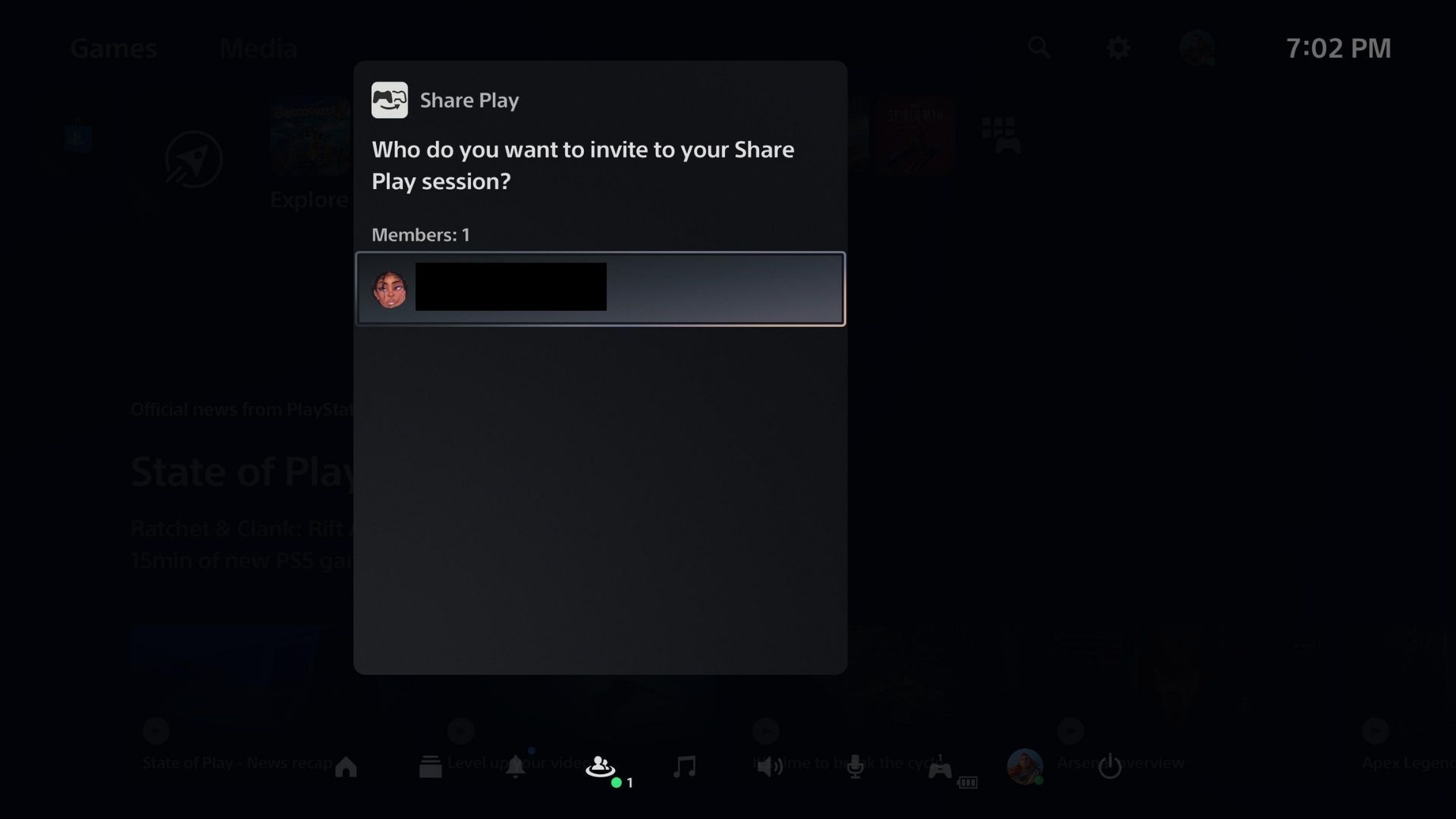
- Select Share Play: Inside the party screen, select Share Play from the menu options, then choose Start Share Play.
- Choose a Visitor Role: Select how you want your friend to participate:
- Visitor Plays as You: Gives the visitor full control of your game.
- Play a Game Together: Enables local co-op multiplayer (requires both players to have PS Plus for online multiplayer games).
- Watch the Screen: Allows the visitor to view your gameplay passively.
- Confirm and Connect: Select the visitor from your friends list and send the invitation. Once accepted, the system tests your network speeds and launches the stream.
Troubleshooting Common Share Play Errors
Users frequently encounter specific error codes and connection failures when attempting to run Share Play. Addressing these root causes resolves the vast majority of issues.
"The internet connection of the host is too slow"
This message indicates that the host's upload bandwidth has dropped below the threshold required to maintain a stable video stream.
- Fix: Close background downloads, pause video streaming apps on the local network, switch from a 2.4GHz Wi-Fi network to a wired Ethernet cable, or lower the video quality settings in the Share Play menu from High Definition back to Standard Definition.
"Share Play is not available for this game in your country or region"
Regional licensing discrepancies prevent certain titles from being streamed across international borders.
- Fix: Both the host and the visitor must be logged into accounts registered to the same regional PlayStation Store, and the game must be authorized for sale in both territories.
Persistent Connection Drops and Lag Spikes
If the session connects successfully but suffers from severe input delay or frequent disconnects:
- Fix: Test the internet connection via the PS4 network settings menu to verify current upload and download speeds. Check that your router has UPnP (Universal Plug and Play) enabled to streamline NAT port forwarding automatically.
Frequently Asked Questions
Do both players need to own a copy of the game for Share Play?
No. For "Visitor Plays as You" and "Watch the Screen" modes, only the host needs to own and run the game. However, for "Play a Game Together" (local couch co-op mode), both the host and the visitor generally need to own the game, or the game must support shared session access under specific PlayStation Plus guidelines.
Can I use Share Play with a PS5 player if I am on a PS4?
Yes. Share Play features full cross-generation compatibility between PlayStation 4 and PlayStation 5 consoles. A PS4 owner can host a session for a PS5 friend, and a PS5 owner can host a session for a PS4 friend, provided both users run updated system software and meet all subscription requirements.
Why does the visitor's screen go black during gameplay?
A black screen usually indicates that the host has entered a restricted narrative area, cinematic cutscene, or blocked portion of the game designated by the publisher. Sony and game developers restrict streaming during these segments to prevent major story spoilers. The video stream automatically resumes once the host moves past the restricted area.
Is there a limit to how many times I can use Share Play in a day?
There is no daily limit on the total number of sessions you can host. While individual sessions automatically terminate after 60 minutes, users can immediately launch a new session with the same friend or a different participant without incurring penalties or lockouts from the PlayStation Network.
Does Share Play affect my console's performance or frame rate?
Share Play utilizes dedicated hardware encoding chips within the PlayStation 4 console to compress and stream video without heavily taxing the CPU or GPU. Consequently, core game performance, resolution, and frame rates remain largely unaffected during active streaming sessions.
Final Recommendations and Best Practices
To maximize your Share Play experience on the PlayStation 4, always verify that both participants run wired network connections whenever possible to eliminate Wi-Fi interference. Prior to inviting a friend, test your upload speeds via the network settings menu and coordinate with other household members to pause large downloads or 4K video streaming. By respecting the 60-minute session intervals and checking regional game availability in advance, you can ensure smooth, uninterrupted remote co-op sessions.
Image Gallery