How Voice Access on Android Works Today: Architecture, Modes, and Setup
Android Voice Access allows users to control their mobile devices entirely through spoken commands, offering complete hands-free navigation for individuals with motor impairments, visual limitations, or situational multitasking needs....
Android Voice Access allows users to control their mobile devices entirely through spoken commands, offering complete hands-free navigation for individuals with motor impairments, visual limitations, or situational multitasking needs. Operating through Android's native accessibility framework, it analyzes on-screen elements, assigns visual identifiers, and translates spoken language into precise user interface actions locally on the device.
Contents
The Core Architecture Behind Android Voice Access
Voice Access does not simply listen for broad voice commands; it acts as a dynamic bridge between speech recognition engines and the underlying Android application framework. To understand how Voice Access controls an application, it is essential to look at the process occurring between the moment a user speaks and when an icon is tapped on screen.
The Accessibility Framework and UI Tree Parsing
At its core, Voice Access relies on the Android AccessibilityService API. When an application renders its user interface, Android constructs an internal data structure known as the Accessibility Node Tree. This tree catalogs every visible component—such as buttons, text views, images, text input boxes, and scrollable layouts—along with their technical properties (such as whether an item is clickable, editable, or currently focused).
- Screen Layout
- Accessibility Node Tree
- Voice Access Parser
- Visual Badging / Commands
When Voice Access is active, it continuously queries this node tree whenever the display changes. The service parses the screen to extract two primary pieces of information:
- Accessibility Labels: Text strings provided by developers (such as
android:contentDescriptionfor icons or visible text on standard buttons). - Bounding Boxes: The exact pixel coordinates defining where each clickable component resides on the display.
If a developer follows standard Android accessibility guidelines, Voice Access can target elements directly by their visible names. If an app uses non-standard visual elements or custom-rendered canvases lacking accessibility metadata, Voice Access falls back on visual mapping systems to ensure the user can still interact with the screen.
On-Device Speech Recognition Engine
Voice Access leverages speech-to-text models hosted directly on the device through Google Speech Services. Processing audio locally rather than sending voice streams to external cloud servers yields critical operational advantages:
- Low Latency: Spoken commands translate into screen events almost instantaneously, avoiding network round-trip delays.
- Offline Functionality: Navigation, scrolling, and basic text commands work without an active cellular or Wi-Fi connection.
- Privacy and Data Security: Audio streams are processed within memory and discarded, keeping screen contents and personal voice inputs localized to the device hardware.
The speech engine converts incoming acoustic signals into candidate text strings. Voice Access filters these strings against its command grammar—a prioritized list of interface actions, system navigation terms, and visible text labels extracted from the active screen.
Navigation and Interaction Modes
Voice Access adapts to different types of user interfaces by offering three primary interaction methods. These modes allow users to switch seamlessly between intuitive name-based commands and precise coordinate-level targets.
| Voice Access Modes | Description |
|---|---|
| 1. Text Labels | Speaks exact on-screen words ("Tap Send") |
| 2. Numerical Badging | Speaks assigned visual numbers ("Tap 14") |
| 3. Spatial Grid | Uses coordinate-based zooming for fine control |
Text Label and Direct Name Recognition
The most natural way to navigate using Voice Access is by speaking the target element's explicit name. If a button displays the word "Save," saying "Tap Save" prompts Voice Access to scan the Accessibility Node Tree for a node containing the text string "Save."
Once a matching node is validated, the service executes a system-level gesture (a tap event) precisely at the center coordinates of that element's bounding box. This mode works effectively across standard system menus, settings screens, and well-designed third-party applications.
Numerical Badging Overlay
When apps contain icons without clear text labels—or when multiple items share identical names (such as a list of checkmarks)—direct text commands can become ambiguous. To solve this, Voice Access uses a visual numerical badging overlay.
When activated, Voice Access overlays small, high-contrast numbered badges next to every interactive component on screen. Instead of reading complex visual descriptions, the user simply states the number:
- "Tap 4"
- "4"
- "Long press 12"
The engine immediately translates the integer back to the specific node ID associated with badge 4, issuing the corresponding event. This eliminates ambiguity and reduces the cognitive effort required to speak complex element descriptions.
Spatial Grid Navigation System
Certain software environments—such as mobile games, photo editing interfaces, map viewers, or web pages with non-standard canvas elements—do not expose individual nodes to the accessibility layer. Voice Access handles these screens through a spatial grid overlay.
Saying "Show grid" divides the display into a numbered two-dimensional matrix (typically 3x3 or 4x4). The user can interact with this grid using a step-by-step refinement process:
- The user identifies the general location of an unlabelled target and speaks the corresponding grid square number (e.g., "Square 5").
- Voice Access zooms in on that selected area, re-subdividing that specific quadrant into a smaller numbered sub-grid.
- The user states the refined sub-grid number to perform a precise tap, drag, or pinch gesture at those exact screen coordinates.
Setup Requirements and Activation Triggers
Configuring Voice Access involves enabling core system permissions and selecting how the listening state is triggered during everyday use.
System Requirements and Initial Configuration
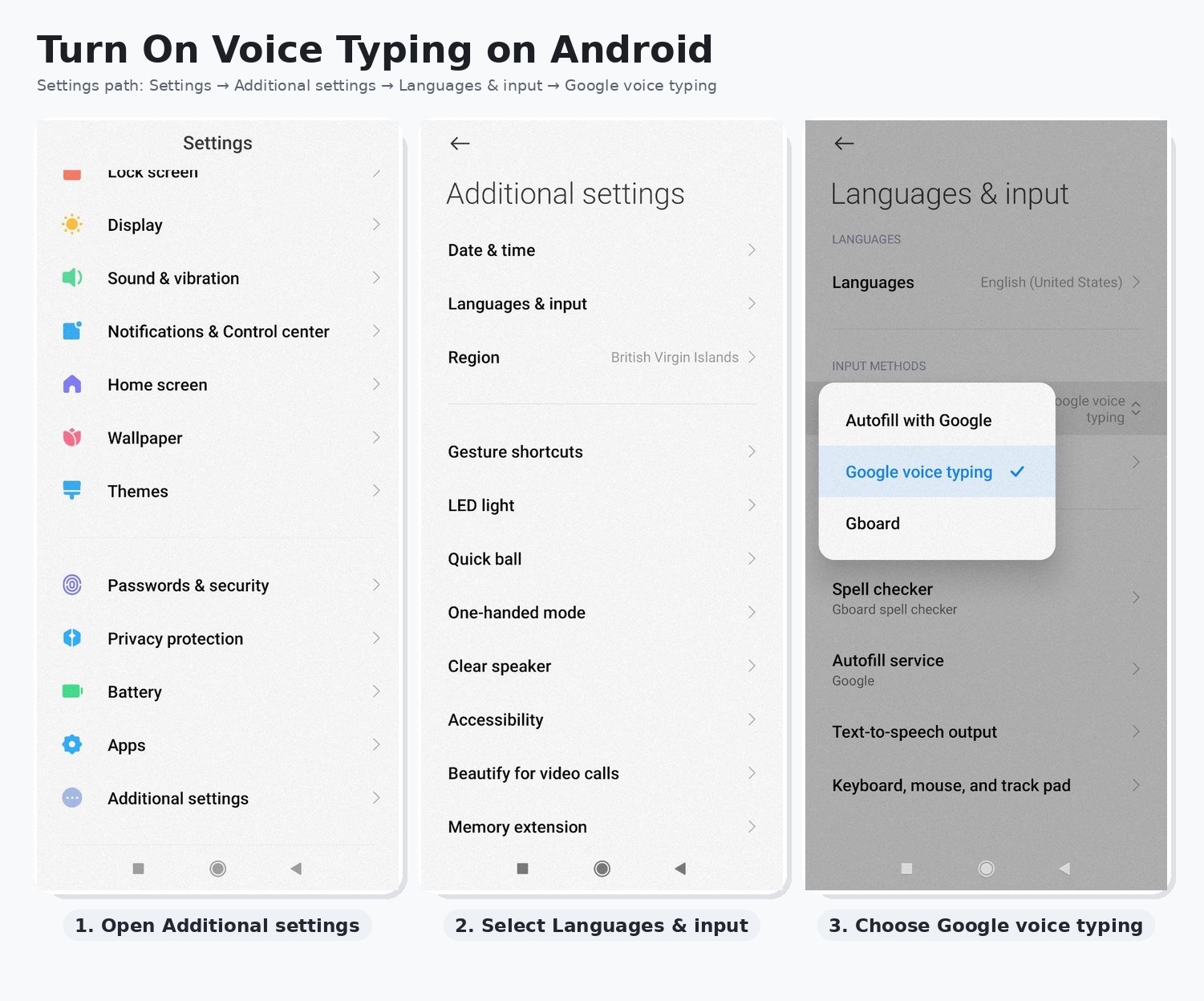
Voice Access requires an Android device running modern OS versions with Google Play Services installed. To enable the service:
- Open Settings on the Android device.
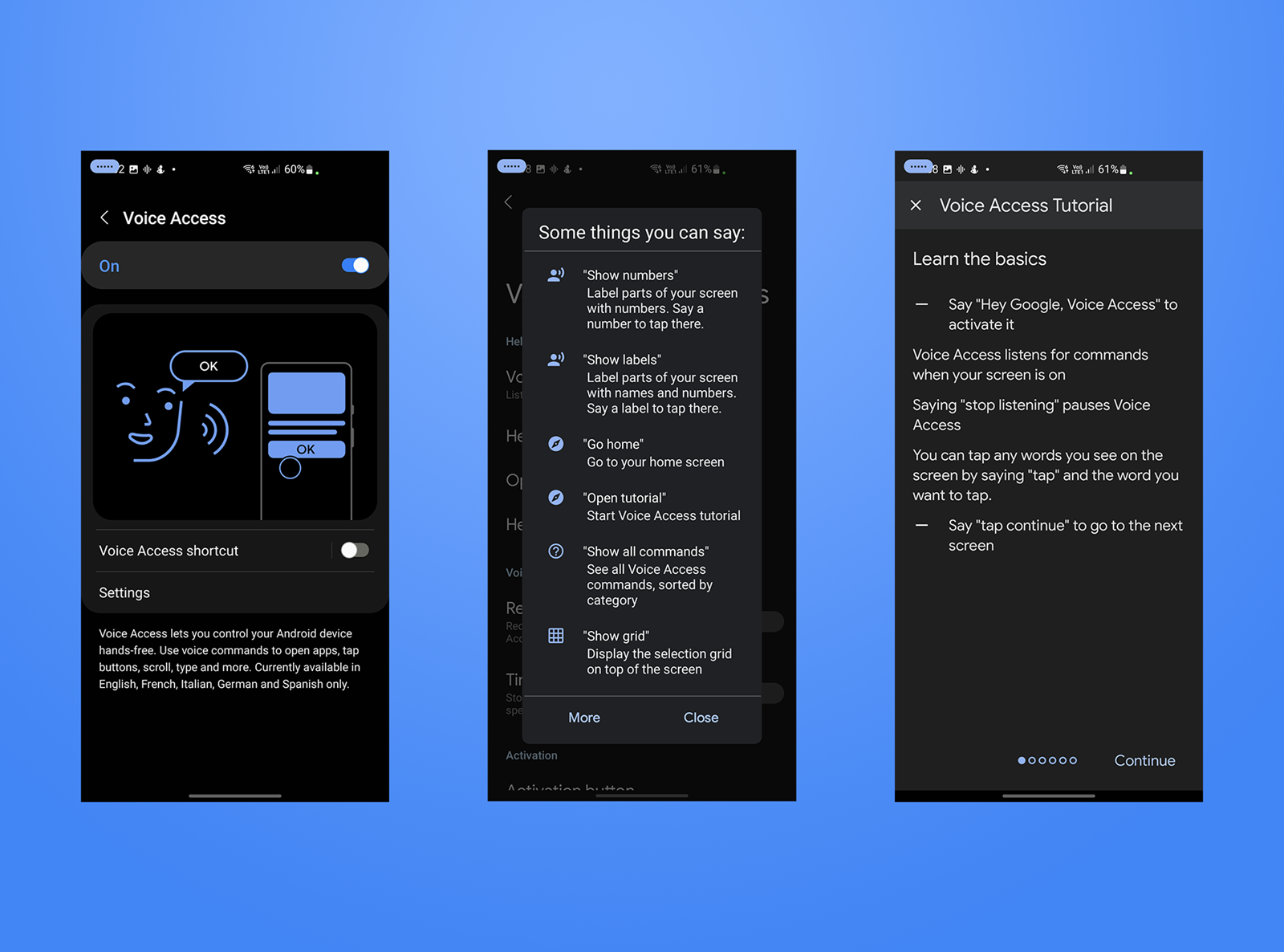
- Navigate to Accessibility $\rightarrow$ Voice Access.
- Toggle Use Voice Access to On.
- Confirm system permissions, granting the service full operational control over screen reading and gesture execution.
During initial setup, Android prompts the user to choose between Continuous Listening (where the microphone stays open while the screen is on) and Command Timeout (where the service pauses listening after a few seconds of inactivity to conserve battery).
Activation Options: Gaze Detection, Hotwords, and Shortcuts
To launch or wake Voice Access without physical contact, Android provides multiple trigger mechanisms:
- "Hey Google" Integration: Users can start the service by speaking "Hey Google, turn on Voice Access."
- Gaze Detection: On supported devices equipped with front-facing camera sensors, Voice Access can track eye orientation. Listening activates when the user looks directly at the screen and pauses when they look away, preventing accidental execution during side conversations.
- Accessibility Button or Gesture: A persistent floating button, system bar icon, or side-key physical press can manually toggle the listening session.
Voice Access vs. Google Assistant and Gemini
It is common to confuse Voice Access with virtual assistants like Google Assistant or Gemini. While all these utilities use speech input, their functional architectures and primary goals differ significantly.
| Feature / Capability | Android Voice Access | Google Assistant / Gemini |
|---|---|---|
| Primary Focus | Complete hands-free UI control and device accessibility. | Conversational search, task automation, and information retrieval. |
| Interface Navigation | Interacts directly with visible screen elements, badges, and grids. | Relies on deep links, background APIs, and app actions. |
| Execution Context | Local on-device parsing of the screen layout. | Mix of on-device actions and cloud-based natural language processing. |
| Unlabeled Elements | Can tap arbitrary screen coordinates using spatial grid mode. | Cannot interact with UI elements lacking direct API support. |
| Offline Capability | High; navigation and basic commands function entirely offline. | Limited; requires internet connectivity for most complex requests. |
| Target Audience | Motor/mobility impaired users; full hands-free power users. | General consumer base seeking quick queries and basic device control. |
Text Editing and Dictation Capabilities
Beyond screen navigation, Voice Access functions as a dictation tool for text entry. When focus moves to an editable input field (such as a text message box or search bar), Voice Access shifts into editing mode automatically or upon explicit command.
Dictation and Formatting Commands
Users can dictate text directly into an open field. Voice Access processes natural spoken sentences and converts them into text strings while interpreting real-time formatting directives:
- "Type Hello world"
- "Insert exclamation point"
- "New line"
Granular Editing and Selection Controls
When correcting auto-transcription errors or revising documents, Voice Access offers granular cursor control that mirrors desktop keyboard actions:
- Navigation: "Move cursor to the end," "Go to the beginning of the field," or "Next word."
- Selection: *"Select from 'Hello' to 'world'," * "Select all text."
- Modification: "Delete line," "Undo," "Replace 'cat' with 'dog'."
Because editing commands rely on node properties within editable text fields, Voice Access can read back character strings, clear input fields, and move the insertion point precisely without requiring manual screen touches.
Common Challenges and Technical Limitations
While Voice Access provides robust coverage across the Android operating system, certain interface designs and hardware conditions introduce operational challenges.
Non-Standard UI Design and Unlabeled Icons
Applications constructed with non-standard graphical frameworks (such as custom canvas renders in mobile games or cross-platform web views) often fail to publish an internal Accessibility Node Tree. When an application exposes no text attributes or node boundaries to Android:
- Text label commands like "Tap Submit" fail because the system cannot find matching text nodes.
- Numerical badges may not align with custom interactive regions.
In these cases, users must rely on the Spatial Grid method, which requires more spoken steps to complete actions.
Ambient Noise and Microphone Constraints
Because Voice Access processes commands locally, acoustic environment quality directly impacts accuracy. Background conversations, loud fan noise, or echo-heavy rooms can lead to misrecognized words or dropped triggers. Using directional multi-microphone arrays built into modern smartphones, or pairing a dedicated Bluetooth headset, significantly improves command recognition accuracy in noisy environments.
Battery Consumption
Continuous speech recognition and real-time screen overlay calculations require ongoing CPU processing and microphone hardware usage. Keeping Voice Access in continuous listening mode increases power usage. Enabling Gaze Detection or setting a conservative Command Timeout helps balance hands-free availability with overall battery longevity.
Practical Guidance and Troubleshooting Voice Access Issues
If Voice Access behaves unreliably or stops responding as expected, following a structured troubleshooting sequence usually resolves the issue.
Resolving Touch Overlay Blocking Errors
Sometimes Android shows a system warning stating that an application is "blocking an overlay," preventing Voice Access from clicking screen badges.
- Open Settings $\rightarrow$ Apps $\rightarrow$ Special App Access.
- Select Display over other apps.
- Temporarily disable overlay permissions for secondary floating utilities (such as chat heads, screen recorders, or third-party twilight filters) that might interfere with Voice Access's input capture layer.
Resetting Speech Recognition Data
If Voice Access routinely misinterprets standard commands despite clear speech, the underlying local speech processing cache may require a reset:
- Go to Settings $\rightarrow$ Apps $\rightarrow$ See All Apps.
- Select Speech Services by Google (or system voice recognizer).
- Tap Storage & Cache, then select Clear Cache.
- Restart the device to re-initialize the local speech engine.
Frequently Asked Questions
Can Voice Access be used entirely without an internet connection?
Yes. Modern Voice Access uses on-device speech processing for its core interface commands, badging engine, grid overlays, and basic dictation. While some web-dependent apps require data to load content, controlling the Android interface itself operates offline.
How does Voice Access handle password and sensitive pin fields?
For security, when focus lands on a secure password or PIN input field, Voice Access suppresses spoken character audio feedback. Depending on system settings, users can dictate characters, use screen numbers, or leverage spatial grids without risking cleartext password exposure in local logs.
Will Voice Access slow down high-performance Android devices?
On contemporary hardware, Voice Access consumes minimal background memory and CPU cycles. Screen tree parsing and on-device speech translation are optimized at the C++/native layer within Android, ensuring smooth menu transitions and frame rates.
What is the difference between numerical badging and direct label commands?
Direct label commands match spoken words to visible text on screen (e.g., saying "Tap Settings"). Numerical badging overlays small numbers next to all tapable elements on screen, allowing users to activate elements by stating their assigned number (e.g., saying "Tap 5"). Badging works best when icons lack readable text labels.
Can Voice Access perform complex touch gestures like swiping or pinching?
Yes. Voice Access supports multi-touch gesture emulation. Users can speak commands such as "Scroll down," "Scroll left," "Pinch in," "Zoom out," or "Swipe right" to navigate image galleries, documents, and web pages without touching the screen.
Next Actions for Optimizing Your Hands-Free Experience
To get the most efficiency out of Voice Access on your Android device:
- Complete the Native Interactive Tutorial: Go to Settings $\rightarrow$ Accessibility $\rightarrow$ Voice Access $\rightarrow$ Settings $\rightarrow$ Open Tutorial. This step-by-step guide helps train your speech cadence while testing local device microphone performance.
- Configure Activation Shortcuts: Map Voice Access activation to a physical hardware key (like holding both volume buttons) or set up Gaze Detection to turn listening on and off naturally without vocal fatigue.
- Customize Display Settings: Increase text size and contrast within Android's accessibility settings to ensure that numerical badges and grid overlays remain easy to read across dark and light app themes.
Image Gallery