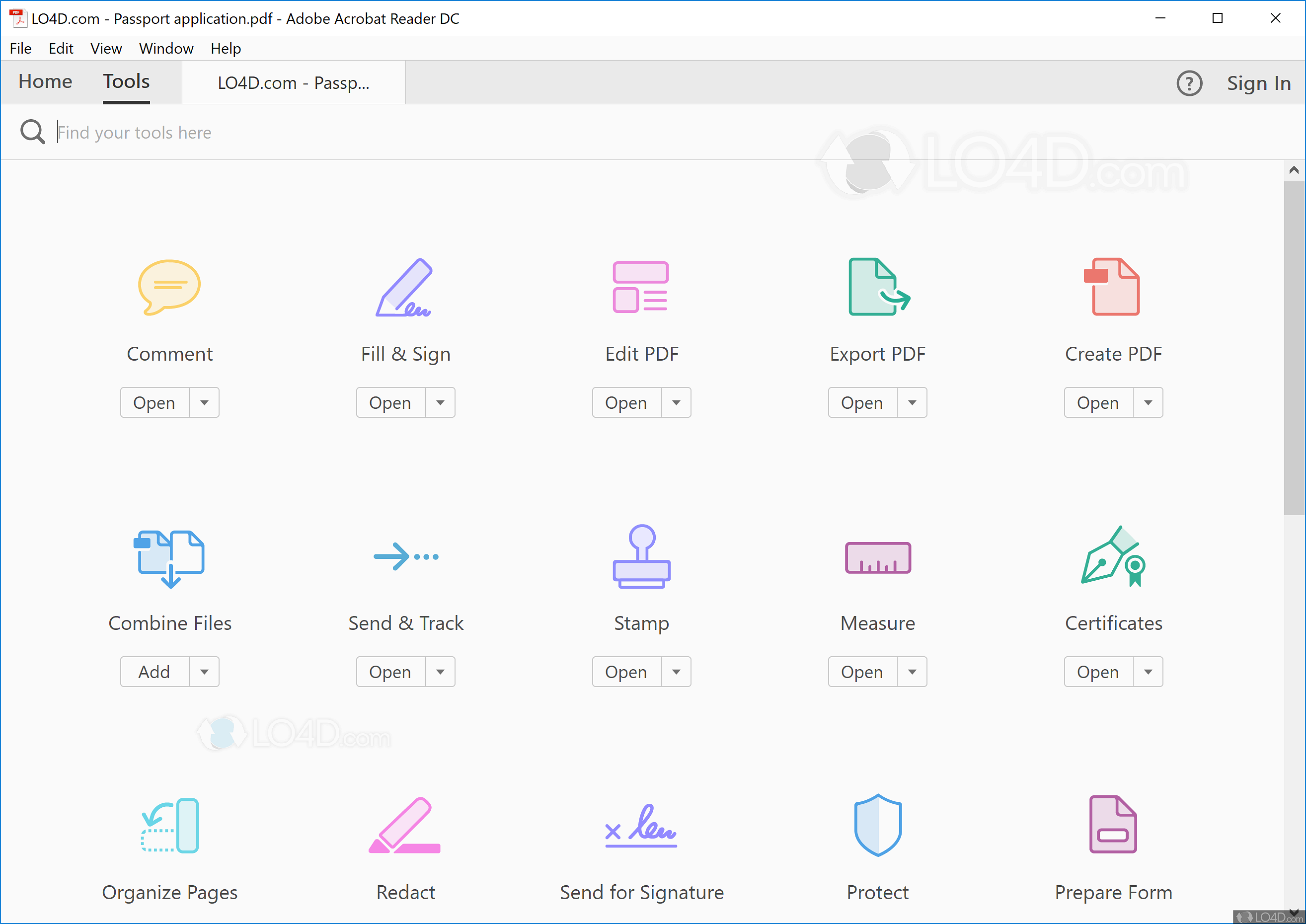
Why the Adobe Acrobat Reader Icon Matters: Security, Usability, and Brand Identity
The Adobe Acrobat Reader icon serves as a critical visual anchor in desktop and mobile computing. Beyond basic brand identification, it provides instant visual verification of Portable Document Format (PDF) files, reduces cognitive fri...
The Adobe Acrobat Reader icon serves as a critical visual anchor in desktop and mobile computing. Beyond basic brand identification, it provides instant visual verification of Portable Document Format (PDF) files, reduces cognitive friction during file management, and acts as a front-line defense against cybersecurity threats like executable file spoofing.
Contents
The Icon as a Universal Mental Model for Digital Documents
The red Adobe Acrobat icon is one of the most recognized software symbols in modern computing. Developed following Adobe co-founder John Warnock's 1991 "Camelot" project—which sought to create a file format that could display documents accurately on any screen—the PDF became an open standard (ISO 32000-1) in 2008. Throughout this evolution, Adobe's distinct red icon remained the visual benchmark for fixed-layout digital paper.
Human visual processing relies heavily on preattentive attributes such as color and geometric shape. When browsing a directory containing hundreds of mixed file formats, the human eye processes the distinct red hue and stylized white geometry of the Acrobat icon faster than it reads alphanumeric text file extensions (.pdf). This visual association creates a mental model: the red icon signals a document that preserves typography, vector graphics, and layout integrity across diverse operating systems and devices.
When operating systems assign the Acrobat icon to a file, it establishes a reliable binding between the system's file system, the registered MIME type (application/pdf), and the target rendering application. This visual consistency minimizes cognitive load, allowing users to process high volumes of administrative, legal, and technical documentation without pausing to verify file formats.
Cybersecurity and Trust: The Icon as a Front-Line Defense Signal
While the icon enhances usability, it also plays a significant role in endpoint security and threat detection. Malicious actors frequently attempt to exploit user trust by manipulating file icons to hide dangerous executable code.
Detecting Executable Spoofing and Double Extensions
Phishing campaigns often deliver malicious payloads named with double extensions, such as Q3_Financial_Report.pdf.exe or Invoice_9021.pdf.scr. Attackers embed a fake Adobe Acrobat icon into the resources section of the executable file. When hidden file extensions are enabled in operating system settings, the icon immediately reveals discrepancies.
- Authentic PDF File: Rendered by the operating system shell using the official application icon or a generated thumbnail preview, bound strictly to
.pdf. - Spoofed Executable File: Uses an embedded, static icon inside a Windows Portable Executable (PE) header. While it displays a red logo, the file type column in File Explorer shows "Application" or "Screen Saver" rather than "Adobe Acrobat Document."
Visual Comparison: Authenticity Verification
- Authentic File:
- Filename: Document.pdf
- Icon: Acrobat System Rendering / Shell Preview
- Type Column: Adobe Acrobat Document (.pdf)
- Spoofed Malware:
- Filename: Document.pdf.exe
- Icon: Static Embedded PE Resource Image
- Type Column: Application (.exe)
Understanding how the system renders the Acrobat icon helps security-conscious users spot anomalies. If a file displays a slightly pixelated or outdated version of the Acrobat icon, or if it appears on a file whose extension is listed as executable, it signals an immediate security risk.
Integrity of System Shell Extensions
The Acrobat Reader icon relies on native operating system shell extensions—such as pdfshell.dll on Microsoft Windows. These extensions pull the verified icon directly from the installed, digitally signed executable. If malware attempts to hijack file association handlers or corrupt registry keys under HKEY_CLASSES_ROOT\.pdf, the system icon often reverts to a generic blank page or displays a broken application graphic. A missing or corrupted icon can be an early indicator of damaged registry entries, corrupted installation files, or unauthorized system modification attempts.
Workflow Efficiency and Visual Ergonomics
Visual ergonomics in software design centers on reducing friction during repetitive tasks. Within enterprise document management systems, digital asset libraries, and local file systems, the Acrobat icon provides critical information hierarchy.
Thumbnail Previews vs. Default Application Icons
Adobe Acrobat Reader integrates with operating system file managers to display either the standard red application icon or dynamic page thumbnail previews. Each mode serves a specific operational purpose:
- Standard Application Icon: Optimized for high-density list and detail views. It reduces GPU and CPU rendering overhead when scanning massive archives of legacy records.
- Dynamic Thumbnail Preview: Renders an image of the document's first page framed by a thin border with an overlaid mini-Acrobat badge. This allows quick visual verification of content while preserving file-type identification.
When system performance degrades or directory indexing slows down, disabling thumbnail previews in favor of the standard Acrobat Reader icon drastically cuts down disk read operations and memory consumption, particularly on network-attached storage (NAS) drives containing thousands of PDF records.
Evolution of the Adobe Acrobat Icon Design
The visual design of the Acrobat icon has undergone multiple revisions to keep pace with changing display technologies, resolution standards, and interface design philosophies.
Icon Design Evolution Timeline
1993–1999: Solid Red Rectangle with Bold White "A"
- Designed for CRT monitors; high-contrast flat graphics.
2000–2014: 3D Dimensional Red Badge with Curved Geometry
- Adapted for skeuomorphic desktop themes (Windows XP/7, Mac OS X).
2015–Present: Continuous Red Ribbon / Loop Motif
- Flat design, vector-scalable; harmonized across Creative Cloud ecosystem.
Early Skewed "A" Era (1990s): Featured a bold, sharp letterform set against a high-contrast red square, optimized for low-resolution CRT monitors.
Dimensional Era (2000s): Introduced glossy gradients, shadows, and 3D curves matching the skeuomorphic user interface trends of Windows XP/7 and early Mac OS X releases.
Continuous Loop / Red Ribbon (2015–Present): Shifted to a modernized, flat vector shape resembling an interconnected loop or folded ribbon. This design scales cleanly across diverse pixel densities, from standard 1080p desktop monitors to high-DPI 4K displays and mobile retina screens.
This design history reinforces brand continuity. When Adobe standardized its product suite around single-color minimalist badges, the Acrobat icon retained its signature red hue, ensuring users across Windows, macOS, iOS, Android, and web browsers recognized the tool instantly.
Technical Solutions: Troubleshooting Missing or Generic Acrobat Icons
System updates, software conflicts, and corrupted cache files can cause the Adobe Acrobat Reader icon to disappear, turn into a generic white sheet, or be replaced by a web browser icon. The following troubleshooting matrix and procedures resolve these issues across modern operating systems.
Status, Impact, and Resolution Summary
| Icon Condition / Visual State | Technical Cause | Security & Operational Impact | Recommended Solution |
|---|---|---|---|
| Standard Red Acrobat Icon | Default file association correctly assigned to Adobe Acrobat Reader. | Normal operation; verified file extension alignment. | No action required. |
| Generic White/Blank Sheet | Corrupted system icon cache or unmapped .pdf shell handler. |
Workflow friction; higher visual scanning time; low security risk. | Rebuild operating system icon cache (IconCache.db or macOS LaunchServices). |
| Web Browser Icon (Edge/Chrome) | Operating system update reset default application assignments. | Medium friction; PDFs open in web browser lacking advanced form/signature tools. | Reassign default PDF application via system settings. |
Acrobat Icon on .exe File |
Phishing attack or malicious file spoofing attempt. | Critical Risk: Potential execution of unauthorized code/malware. | Enable file extensions; do not double-click; run anti-malware scan. |
Step-by-Step Fixes for Windows 11 and Windows 10
1. Reassigning Default PDF File Associations
If the icon has changed to a web browser or generic reader, reassigning default application privileges restores the official icon.
- Open Settings (
Win + I) and select Apps > Default apps. - Scroll to Set defaults for file types and enter
.pdfinto the search box. - Select the current default application, choose Adobe Acrobat (or Adobe Acrobat Reader) from the list, and click Set default.
2. Rebuilding the Windows Icon Cache
When icons appear blank, corrupted, or show incorrect graphic artifacts, the Windows shell icon cache database must be cleared and rebuilt.
- Save all open work and launch Command Prompt as Administrator.
- Terminate the Windows File Explorer process:
taskkill /f /im explorer.exe - Navigate to the local icon cache directory:
cd %localappdata%\Microsoft\Windows\Explorer - Delete the cached database files:
del iconcache* /a /f /q - Restart the File Explorer process:
start explorer.exe
Step-by-Step Fixes for macOS
Resetting LaunchServices Database
On macOS, incorrect file associations and missing document icons stem from corrupted LaunchServices data. Rebuilding the database restores native system icons for registered PDF files.
- Open Terminal from Applications > Utilities.
- Execute the following command to reset LaunchServices:
/System/Library/Frameworks/CoreServices.framework/Frameworks/LaunchServices.framework/Support/lsregister -kill -r -domain local -domain system -domain user - Restart Finder by running:
killall Finder
Frequently Asked Questions
Why did my PDF icons suddenly change to Microsoft Edge or Google Chrome icons?
Operating system updates—particularly major Windows quality and feature updates—frequently reset file association rules back to system default programs. Because modern web browsers include built-in PDF viewers, the OS assigns browser binaries as the default handler, replacing the red Acrobat icon with the browser's branded icon. Reassigning Adobe Acrobat as the default PDF app in your system settings restores the original icon.
Does the presence of the Adobe Acrobat Reader icon guarantee a file is safe?
No. An icon alone does not guarantee safety. Attackers can embed authentic-looking Acrobat graphics inside malicious executable files (.exe, .scr, .vbs). Always check the full file extension in your operating system's detail view, keep hidden file extensions set to visible, and verify the file type column before opening unverified attachments.
What is the difference between the Adobe Acrobat Reader icon and the Adobe Acrobat Pro icon?
While both icons share the same red background and continuous ribbon logo design, Adobe Acrobat Pro features distinct badging in administrative panels and application headers. On some platforms, Acrobat Pro presents a darker red or distinct accent border, alongside additional context menu entries in file explorers (such as "Combine files in Acrobat" or "Edit with Acrobat").
How do I turn on PDF thumbnail previews instead of showing the static Acrobat icon?
In Windows File Explorer, open Adobe Acrobat Reader, navigate to Edit > Preferences > General, and check the box labeled Enable PDF thumbnail previews in Windows Explorer. Allow the installer to add the required shell handler extension. Once applied, files will display a preview of their first page instead of the standard static icon.
Why does the Acrobat Reader icon look different on mobile devices compared to desktop systems?
Mobile operating systems (iOS and Android) enforce strict icon squircle and rounded-rectangle framing rules defined by Apple's Human Interface Guidelines and Google's Material Design standard. The desktop icon uses a free-floating vector silhouette, whereas the mobile variant sits inside a uniform white or red container box to maintain design consistency with mobile app grids.
Recommended Next Actions
To maintain an optimized visual workflow and protect your desktop environment:
- Expose File Extensions: Ensure your operating system displays full file extensions (such as
.pdfand.exe) so spoofed icons are immediately obvious. - Verify Application Defaults: Check that Adobe Acrobat Reader is correctly set as your system's default handler if you require dedicated commenting, form filling, and digital signature capabilities.
- Clear Icon Cache After Software Upgrades: If you experience visual glitching or blank sheet icons after updating your operating system or PDF software, clear the system icon cache using the administrative steps detailed above.
Image Gallery