Comprehensive Guide to Managing Samsung Voice Assistants: Methods and Trade-offs
Disabling a Samsung voice assistant—typically Bixby or Google Assistant—involves navigating specific system settings to decouple the software from hardware triggers. Users can achieve this by remapping side buttons, disabling voice-wak...
Disabling a Samsung voice assistant—typically Bixby or Google Assistant—involves navigating specific system settings to decouple the software from hardware triggers. Users can achieve this by remapping side buttons, disabling voice-wake keywords, or revoking app permissions. While these actions streamline the user experience and reduce accidental activations, they simultaneously limit hands-free functionality and may disrupt integrated smart home routines.
Contents
Samsung devices, particularly those running One UI, are designed to integrate deeply with voice-based artificial intelligence. While this provides convenience for tasks like setting alarms, sending texts, or controlling smart home devices, many users find the sensitivity of these assistants to be intrusive or redundant. Understanding the specific methods to deactivate these services requires a clear distinction between the two primary assistants found on Samsung hardware: Bixby and Google Assistant.
Understanding the Role of Voice Assistants on Samsung Devices
Before modifying your device settings, it is essential to distinguish between the two assistants that dominate the Samsung ecosystem. Bixby is Samsung’s proprietary AI platform, designed specifically for controlling system-level settings, such as "Turn on my flashlight" or "Open the camera." Google Assistant, conversely, is an integrated Android feature that excels at web-based queries, third-party app interaction, and contextual information retrieval.
Most Samsung users face the "assistant problem" when their device interprets ambient noise as a wake word, such as "Hey Google" or "Hi Bixby," or when the side button—which often defaults to a voice assistant launch—is pressed accidentally. Disabling these features does not remove the software from the device entirely, as they are often baked into the system framework, but it does render them dormant.
Methods to Disable Bixby
Bixby is deeply embedded in the Samsung One UI interface. If you find Bixby launching unexpectedly, you can disable its various triggers through these methods:
1. Disabling the Bixby Side Button Trigger
By default, long-pressing the power (side) button on most Samsung Galaxy devices activates Bixby. To change this:
- Navigate to Settings.
- Select Advanced features.
- Tap Side button.
- Under the "Press and hold" section, change the setting from "Wake Bixby" to "Power off menu." This effectively removes the hardware shortcut to the assistant.
2. Disabling Voice Wake-up
To prevent the device from listening for the "Hi Bixby" command:
- Open the Bixby app.
- Tap the Settings (gear icon).
- Toggle off Voice wake-up. Once disabled, Bixby will remain inactive until you manually launch the app, and even then, it will require a tap to initiate listening.
3. Restricting Bixby Permissions
If you want to ensure Bixby remains dormant, you can remove its access to essential hardware:
- Go to Settings > Apps.
- Search for Bixby Voice.
- Tap Permissions and deny access to the Microphone. Without microphone access, the assistant cannot process voice commands even if a trigger is accidentally activated.
Methods to Disable Google Assistant
Google Assistant operates as a layer above the Android operating system. Unlike Bixby, it is often tied to your Google account’s personalization settings.
1. Turning Off "Hey Google"
To stop the device from responding to voice triggers:
- Open the Google app.
- Tap your profile icon in the top right corner.
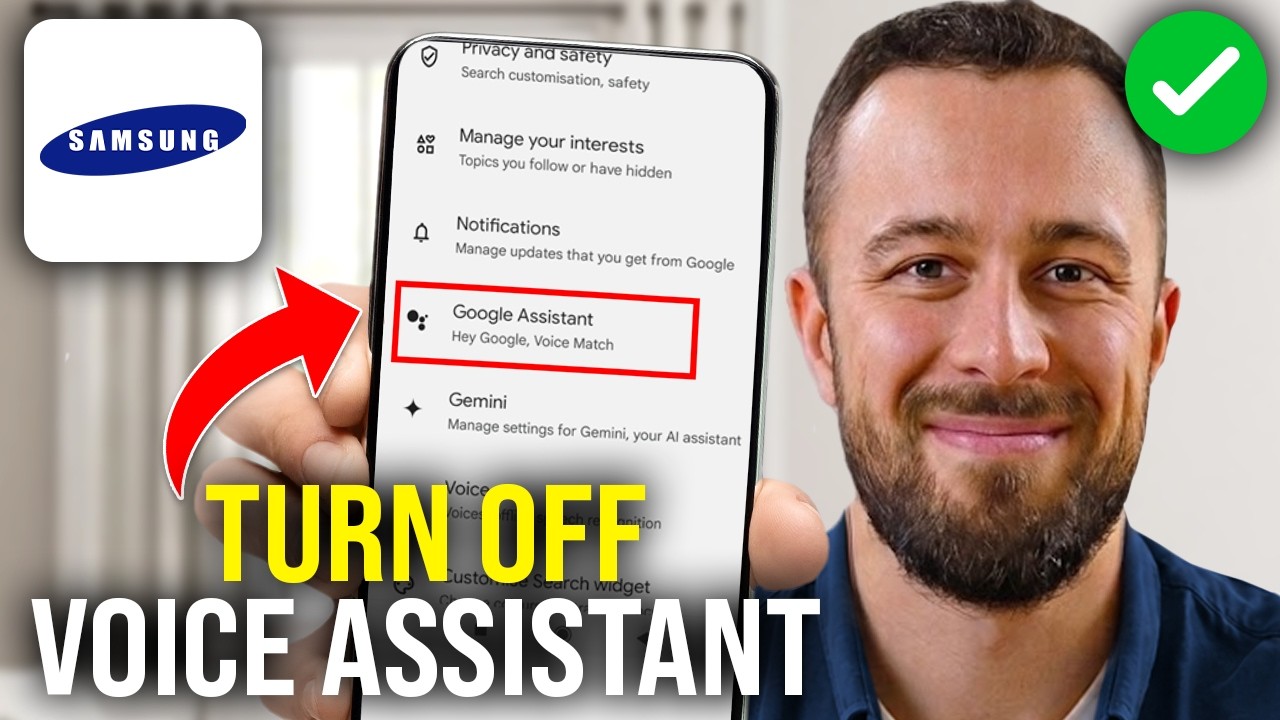
- Select Settings > Google Assistant.
- Tap Hey Google & Voice Match.
- Toggle off the Hey Google switch.
2. Disabling the Assistant Shortcut
If you prefer not to have an assistant active even when the home button or corner gesture is used:
- Go to Settings > Apps > Choose default apps.
- Tap Digital assistant app.
- Set the "Device assistance app" to None. This disables the ability for Google Assistant to pop up when you perform the standard Android gestures (typically swiping from the bottom corner).
Comparison of Implications and Trade-offs
Disabling these assistants is a trade-off between privacy/simplicity and convenience. The following table outlines the impact of these changes.
| Feature Area | With Voice Assistant Active | With Voice Assistant Disabled |
|---|---|---|
| Hands-Free Control | Execute commands while driving or cooking | Must use manual touchscreen inputs |
| Accidental Activation | Prone to false positives from ambient noise | Zero risk of unwanted AI interruptions |
| System Integration | Can change system settings via voice | Requires manual navigation of Settings menu |
| Battery Life | Potential minor drain due to constant listening | Slight improvement in standby battery performance |
| Data Privacy | Voice samples processed to improve AI | Prevents audio data collection for voice models |
Potential Risks and Troubleshooting
When you disable these assistants, you may encounter scenarios where you expect the phone to perform a task but find it unresponsive. For example, if you are accustomed to using "Hey Google" to set a timer while your hands are busy, you must revert to opening the Clock app manually.
Common issues to watch for include:
- Routine Interruptions: If you rely on Bixby Routines or Google Home automation, these may still work in the background, but the voice-trigger portion will cease to function.
- Accessibility Hurdles: Voice assistants are vital accessibility tools for users with motor impairments. If you are disabling them for preference rather than necessity, ensure you do not inadvertently hinder the device's usability for other occupants who may rely on those features.
- System Updates: Occasionally, major OS updates may reset system defaults. If you notice your assistant suddenly active again, check the "Digital assistant app" setting, as a firmware update might have restored the default Google handler.
Final Considerations for Power Users
If your goal is to minimize digital intrusion but you still want some functionality, consider "Selective Disabling." You can keep the assistant enabled but remove its access to your personal data. Within the Google Assistant settings, you can review and delete your voice activity history, prevent the assistant from accessing your contacts, and limit its integration with third-party apps like Spotify or Maps. This provides a middle ground: you retain the ability to use the assistant for simple web searches while keeping your private data out of the training loop.
Ultimately, the choice to turn off these assistants is personal. If you find the technology improves your workflow, the "trade-off" is simply a matter of managing sensitivity settings. However, if the technology is perceived as an unnecessary layer of complexity or a privacy concern, disabling the features as outlined above will provide a cleaner, more manual experience that puts you in total control of your hardware.
Frequently Asked Questions
Does disabling Bixby delete the app from my phone? No. Bixby is a core system component on Samsung devices. Disabling the triggers and permissions essentially puts the application into a dormant state, but it cannot be fully uninstalled through standard user settings.
Will my phone run faster if I disable voice assistants? On modern devices with high-performance processors, the performance difference is negligible. However, you may notice a marginal improvement in battery longevity, particularly on older models, because the system is no longer constantly monitoring the microphone buffer for wake words.
Can I re-enable these features later? Yes. All steps described can be reversed. If you find you miss the hands-free utility, you can return to the same menus and toggle the features back to the "On" position to restore full functionality.
Does disabling Google Assistant stop Google from tracking me? Disabling the assistant stops the collection of specific voice commands for AI training, but it does not stop broader Google account tracking. You should also visit your Google My Activity dashboard to manage your web and app activity settings independently.
Is there a way to map the button to something other than an assistant? Yes. You can use official Samsung tools like "RegiStar" within the Good Lock app (available in the Galaxy Store) to remap the side button to custom actions, such as taking a screenshot, opening a specific app, or toggling the flashlight, providing more utility than the default assistant trigger.
Recommendation: If you decide to disable these services, start by removing the "Hey" triggers first. Test your device for a few days to see if your workflow is disrupted. If you find you never miss the voice control, proceed to revoke permissions and disable the side-button shortcuts to finalize the change.
Image Gallery