How to Connect JBL Tune 510BT to Your Devices: Step-by-Step Guide
To connect your JBL Tune 510BT headphones to any device, power on the headphones by holding the power button for two seconds. For initial setup or manual pairing, press and hold the power button for five seconds until the LED indicator...
To connect your JBL Tune 510BT headphones to any device, power on the headphones by holding the power button for two seconds. For initial setup or manual pairing, press and hold the power button for five seconds until the LED indicator flashes blue. Open your device’s Bluetooth menu, select JBL TUNE510BT, and confirm the connection.
Contents
Understanding JBL Tune 510BT Controls and Pairing Modes
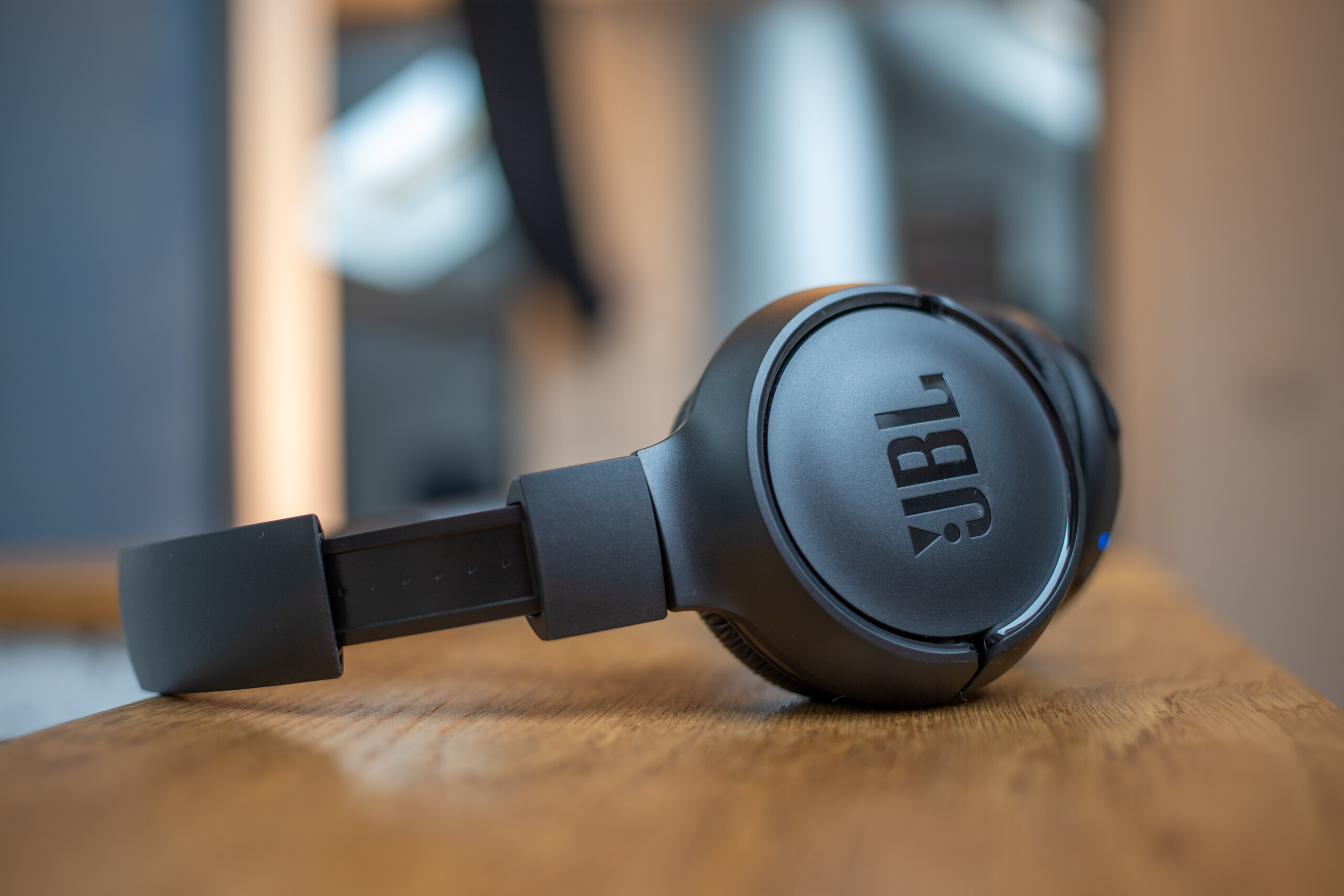
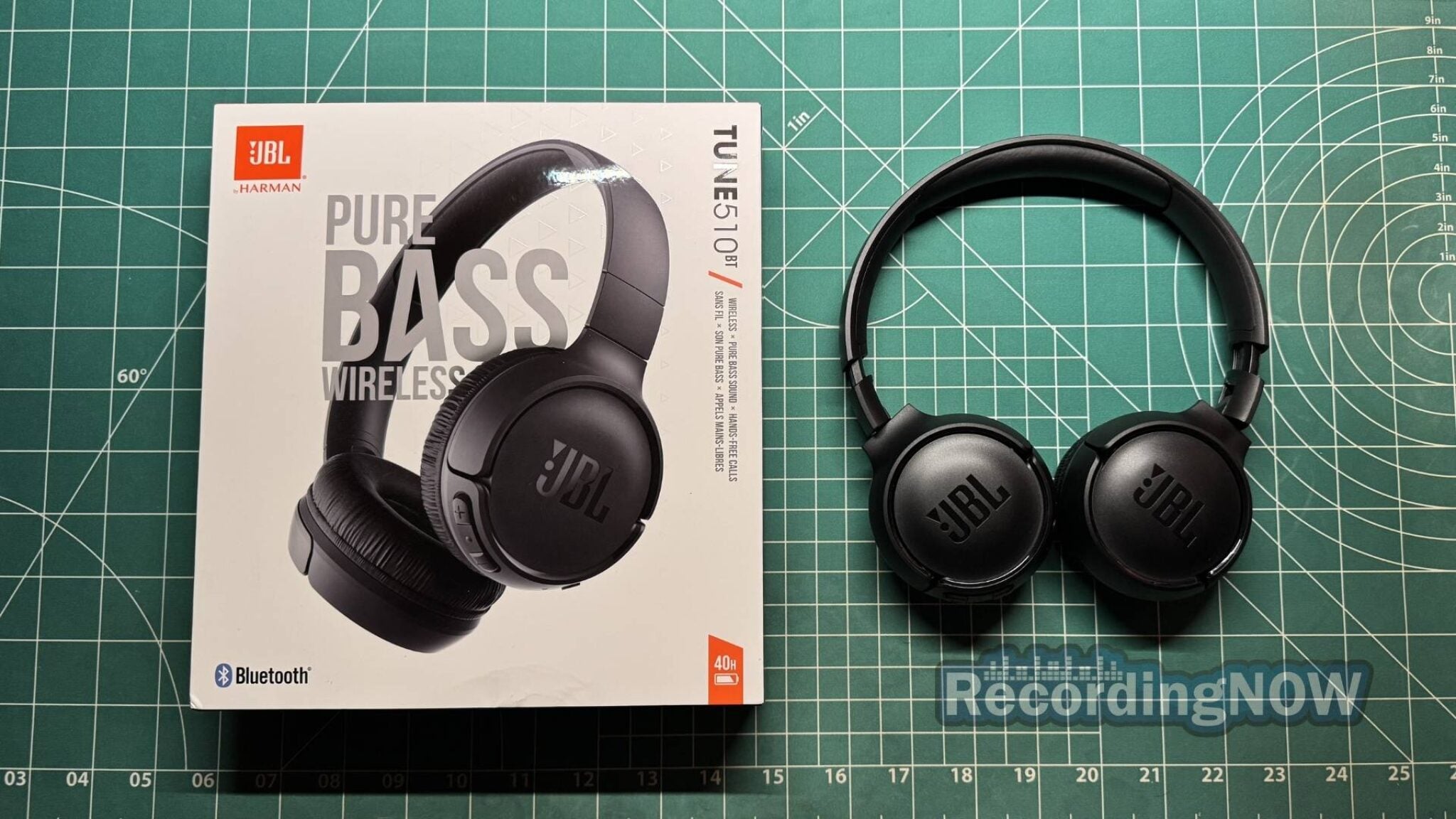
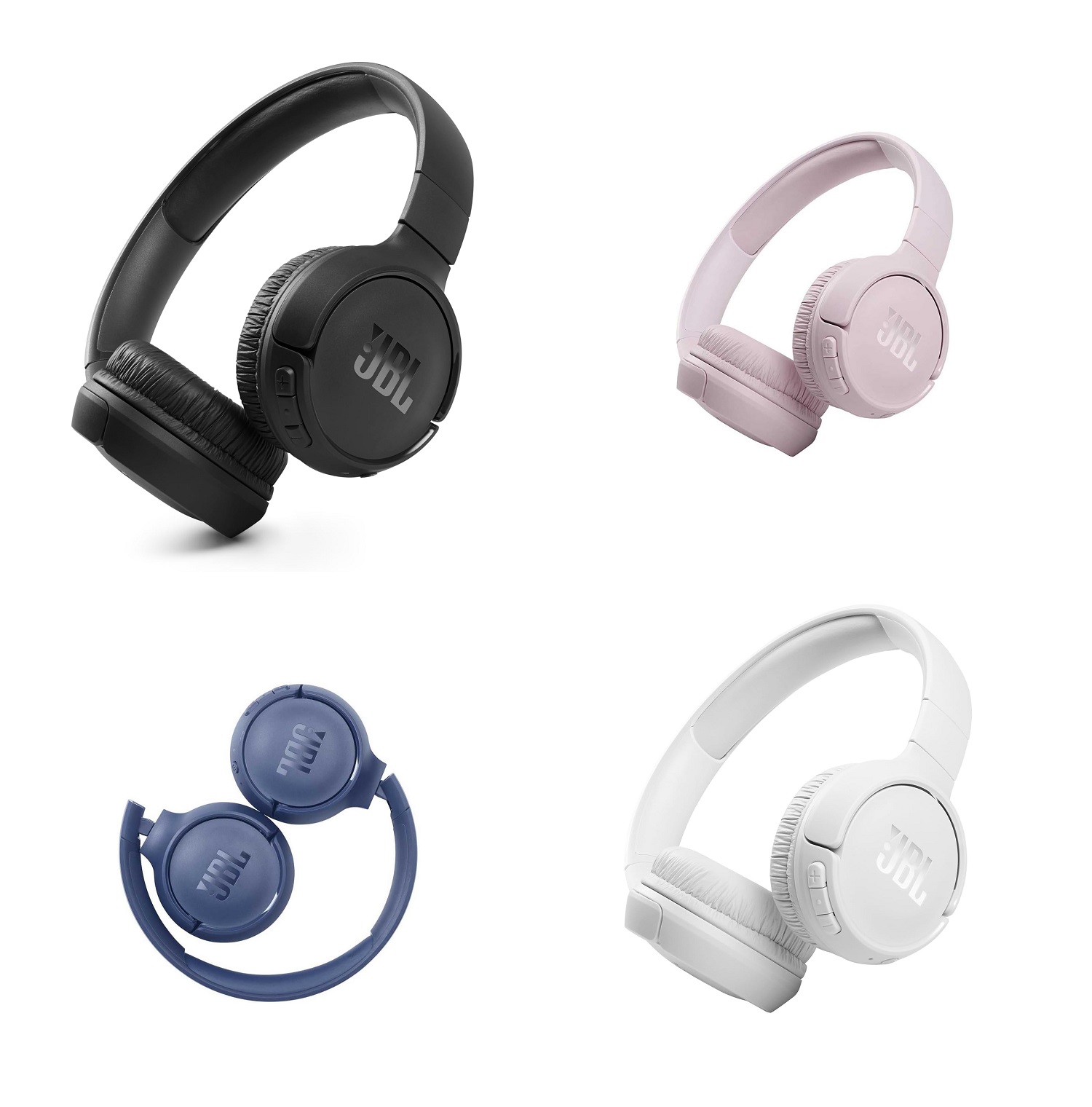
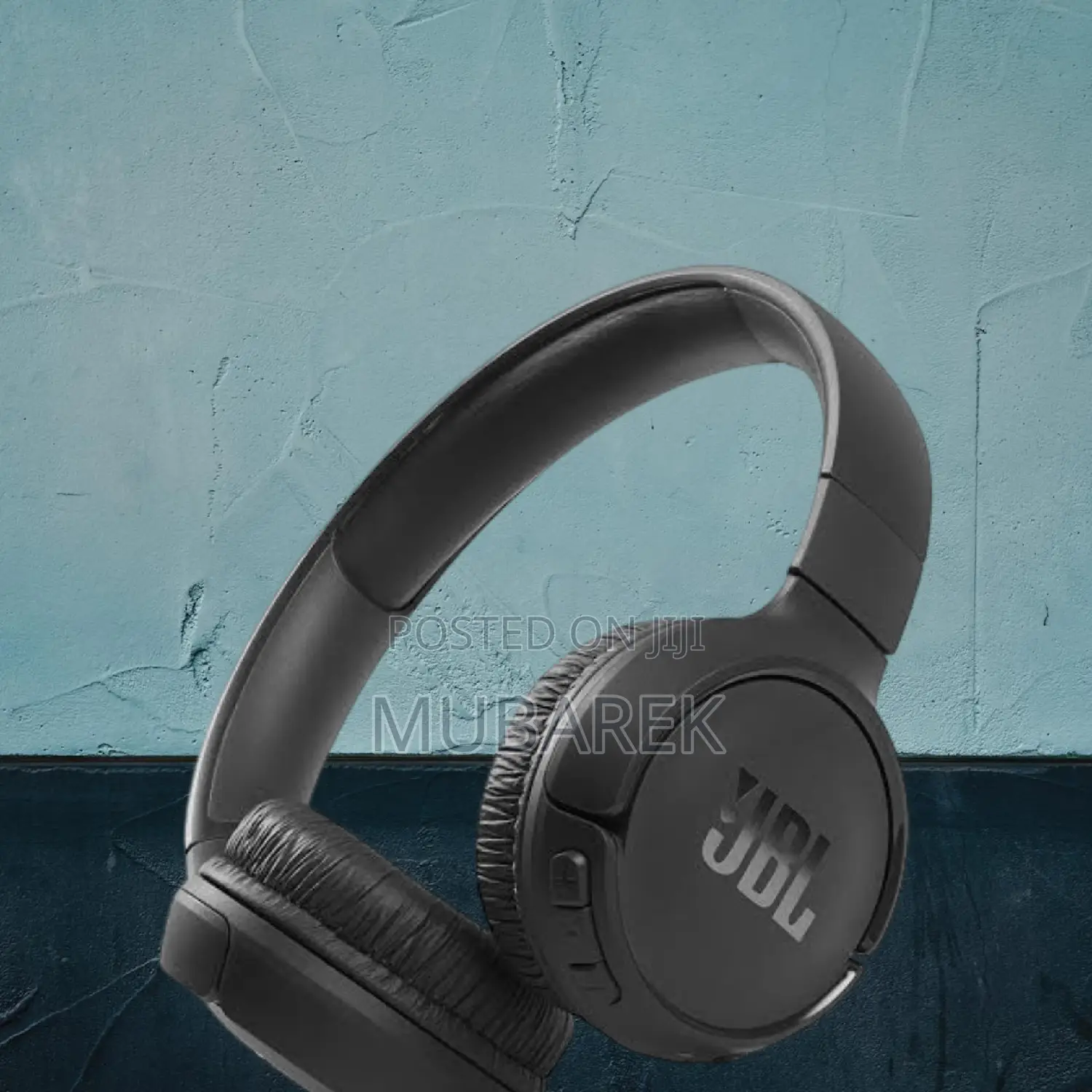
Before attempting to connect your JBL Tune 510BT on-ear wireless headphones to your phone, computer, or television, it is essential to understand how the device manages its power states and Bluetooth broadcast modes. The controls for the JBL Tune 510BT are located entirely on the right ear cup. They consist of three primary audio management buttons (Volume Up, Play/Pause, Volume Down), a dedicated Power/Pairing button, a status LED indicator light, and a USB-C charging port.
RIGHT EAR CUP LAYOUT
- Vol +: Increase Volume / Skip Forward
- Play: Play / Pause / Call Answer / Assistant
- Vol -: Decrease Volume / Skip Backward
- Power:
- Press 2s: Power On/Off
- Press 5s (from off): Enter Pairing Mode
- LED:
- Flashing Blue: Pairing Mode
- Solid Blue: Connected
- Flashing Red: Low Battery
Initial Out-of-the-Box Setup Mode
When you unpack a new JBL Tune 510BT for the first time, it automatically enters Bluetooth pairing mode as soon as you turn it on.
- Press and hold the Power button on the right ear cup for approximately two seconds until you hear the power-on chime.
- The LED light adjacent to the power button will illuminate blue and immediately begin flashing rapidly in blue.
- This rapid blue flashing indicates that the headphones are discoverable and ready to pair with any compatible Bluetooth host device.
Manual Pairing Mode for Secondary Devices
If you have already paired your JBL Tune 510BT with one device and wish to connect it to a new smartphone, tablet, or computer, the headset will not automatically enter pairing mode upon powering on. Instead, it will attempt to reconnect to the last used device. To force the headphones into pairing mode manually:
- Ensure the headphones are turned OFF. (Press and hold the Power button for two seconds until the power-down tone plays and the LED turns off).
- From the powered-off state, press and hold the Power button continuously for five seconds.
- Do not release the button when you hear the initial power-on sound; continue holding it until you hear a distinct pairing chime and observe the LED light flashing blue rapidly.
How to Connect JBL Tune 510BT to iOS Devices (iPhone & iPad)
Connecting your JBL Tune 510BT to an Apple iPhone, iPad, or iPod Touch requires navigating the native iOS or iPadOS Settings app. Because the JBL Tune 510BT utilizes Bluetooth 5.0 protocols, it connects smoothly across modern Apple operating systems.
- iOS Pairing Workflow:
- Open Settings
- Tap Bluetooth
- Switch Bluetooth ON
- Select JBL TUNE510BT under OTHER DEVICES
- Switch Bluetooth ON
- Tap Bluetooth
- Open Settings
Step-by-Step iOS Connection Guide
- Prepare the Headphones: Verify that your JBL Tune 510BT is in pairing mode with the LED light actively flashing blue.
- Access Settings: On your iOS device, open the Settings app from your home screen or App Library.
- Open Bluetooth Menu: Tap Bluetooth. Ensure the main toggle switch at the top of the screen is switched to the ON position (green).
- Locate the Headset: Scroll down to the bottom of the screen under the Other Devices header. Your device will scan for nearby discoverable signals.
- Establish Pairing: Tap JBL TUNE510BT when it appears in the list.
- Confirm Connection: Once selected, the text will move under My Devices and display a status of Connected. The LED light on your JBL headphones will change from flashing blue to a solid blue light, accompanied by an audio confirmation tone.
How to Connect JBL Tune 510BT to Android Devices
Android devices running Android 6.0 or later support Google Fast Pair, a feature that streamlines the setup procedure. However, you can also connect using the standard Bluetooth menu on any Android device regardless of brand (Samsung Galaxy, Google Pixel, OnePlus, Xiaomi, or Motorola).
- Standard Android Method:
- Go to Settings > Connected Devices
- Select "Pair new device"
- Select "JBL TUNE510BT"
- Google Fast Pair Method:
- Turn on Headphones near Phone
- Pop-up Notification Appears
- Tap "Connect"
Method 1: Using Google Fast Pair (Recommended for Android 6.0+)
- Turn on Bluetooth on your Android phone or tablet via the quick settings shade or main Settings app.
- Ensure Location services are enabled, as Google Fast Pair utilizes low-energy location beacons to detect accessories.
- Put your JBL Tune 510BT into pairing mode (flashing blue LED).
- Hold the headphones near your Android device. A pop-up card displaying an image of the JBL Tune 510BT will automatically appear on the lower half of your phone screen.
- Tap the Connect button on the notification card. Your phone will pair automatically without requiring you to open the Settings menu.
Method 2: Manual Pairing via Android Settings
- Open the Settings app on your Android device.
- Select Connected devices (or Connections on Samsung Galaxy devices).
- Tap Pair new device or switch on Bluetooth and tap Scan.
- Look under the Available devices section for JBL TUNE510BT.
- Tap the entry. If prompted with a pairing request pop-up asking to grant access to contacts or call history, tap Pair.
- The LED on your headphones will turn solid blue, indicating a successful connection.
How to Connect JBL Tune 510BT to a Windows Computer (Windows 10 & 11)
Connecting wireless headphones to a desktop or laptop running Microsoft Windows requires configuring both the Bluetooth pairing settings and the default audio output devices.
- Windows Connection Workflow:
- Open Settings
- Select Bluetooth & devices
- Click Add device > Bluetooth
- Select JBL TUNE510BT
- Click Add device > Bluetooth
- Select Bluetooth & devices
- Open Settings
Connecting to Windows 11
- Place your JBL Tune 510BT into pairing mode (press and hold the Power button for 5 seconds until the LED flashes blue).
- Click the Start button on your desktop taskbar and select Settings (or press
Win + I). - Click on Bluetooth & devices in the left sidebar.
- Ensure the main Bluetooth toggle is set to On.
- Click the large Add device button at the top of the menu.
- In the pop-up window titled Add a device, select the top option: Bluetooth (Mice, keyboards, pens, or audio and other kinds of Bluetooth devices).
- Wait for Windows to discover nearby hardware, then click JBL TUNE510BT.
- Windows will configure the device drivers automatically. Click Done when the setup complete screen appears.
Connecting to Windows 10
- Open Settings from your Start menu and select Devices.
- Click Bluetooth & other devices in the left panel.
- Turn the Bluetooth toggle switch On.
- Click Add Bluetooth or other device at the top.
- Choose Bluetooth from the selection prompt.
- Click JBL TUNE510BT from the list of available devices to finalize pairing.
How to Connect JBL Tune 510BT to a Mac (macOS)
Connecting your JBL Tune 510BT to a Mac computer (MacBook Air, MacBook Pro, iMac, Mac mini, or Mac Studio) is handled through System Settings or System Preferences depending on your macOS version.
- macOS Connection Workflow:
- Open System Settings
- Select Bluetooth
- Turn Bluetooth ON
- Hover over JBL TUNE510BT and click Connect
- Turn Bluetooth ON
- Select Bluetooth
- Open System Settings
Steps for Modern macOS Versions (macOS Ventura, Sonoma, and Later)
- Turn on your JBL Tune 510BT headphones and place them in pairing mode (rapidly flashing blue LED).
- Click the Apple Menu () in the upper-left corner of your menu bar and choose System Settings.
- Click Bluetooth in the left sidebar menu.
- Ensure Bluetooth is toggled On.
- Scroll down to the Nearby Devices section.
- Move your pointer over JBL TUNE510BT and click the Connect button that appears next to it.
- The status will update to Connected, and the audio output of your Mac will switch automatically to your JBL headphones.
Steps for Older macOS Versions (macOS Monterey and Earlier)
- Open System Preferences from the Apple Menu () or Dock.
- Click the Bluetooth icon.
- Verify that Bluetooth is turned on.
- Locate JBL TUNE510BT under the Devices list on the right side.
- Click Connect next to the headset name.
How to Connect JBL Tune 510BT to Smart TVs and Streaming Media Players
Connecting your JBL Tune 510BT to a Smart TV allows for private listening without disturbing others. Modern Smart TVs running Android TV, Google TV, Samsung Tizen, LG webOS, or Apple TV feature native Bluetooth audio transmitter output.
| TV OS Platform | Navigation Menu Path |
|---|---|
| Android / Google TV | Settings > Remotes & Accessories > Add Accessory > Select "JBL TUNE510BT" |
| Samsung (Tizen) | Settings > Sound > Sound Output > Bluetooth Speaker List > Select JBL |
| LG (webOS) | Settings > Sound > Sound Out > Use Wireless Speaker > Bluetooth Device |
| Apple TV (tvOS) | Settings > Remotes and Devices > Bluetooth > Select "JBL TUNE510BT" |
Step-by-Step Procedure for TV Pairing
- Place your JBL Tune 510BT headphones into pairing mode by holding the power button for 5 seconds from a powered-off state until the LED flashes blue.
- Grab your TV remote control and navigate to the Settings menu.
- Locate the Sound, Audio, or Remotes & Accessories section depending on your TV brand (refer to the structural table above).
- Open the Bluetooth Speaker List, Device List, or Add Accessory search screen.
- Wait for the TV to complete its scan of nearby discoverable Bluetooth devices.
- Select JBL TUNE510BT from the list and press OK or Enter on your remote to confirm pairing.
Managing Multipoint Connections on JBL Tune 510BT
One of the standout hardware features of the JBL Tune 510BT is its integrated Multipoint Connection capability. This feature allows the headphones to maintain an active Bluetooth connection with two separate host devices simultaneously (for instance, an iPad and a smartphone, or a work laptop and a personal mobile phone).
- Multipoint Connection Flow:
- JBL Tune 510BT (Active Headset)
- Connected to Device 1: Laptop (Streaming Video/Audio)
- Connected to Device 2: Smartphone (Receives Incoming Call)
- Auto-Switches Audio dynamically between active devices
- JBL Tune 510BT (Active Headset)
How Multipoint Audio Switching Works
Multipoint functionality prioritizes active voice communication over media streaming:
- If you are watching a video on your laptop (Device 1) and receive an incoming phone call on your mobile phone (Device 2), the JBL Tune 510BT will automatically pause or mute the audio stream on the laptop and switch the audio channel to your phone so you can answer the call.
- Once you end the phone call, the headphones automatically route the audio back to the original media stream on your laptop.
How to Set Up a Multipoint Connection
To establish a dual-device multipoint link, follow these instructions step-by-step:
- Pair Device 1: Put the headphones in pairing mode and pair them with your first host device (e.g., your laptop computer) following the standard pairing steps.
- Disconnect / Enter Pairing Mode: Disconnect the headphones from Device 1 via Device 1's Bluetooth menu (or simply put the headphones back into manual pairing mode by switching them off, then holding the Power button for 5 seconds until the blue LED flashes).
- Pair Device 2: Pair the JBL Tune 510BT with your second host device (e.g., your smartphone).
- Reconnect Device 1: Open the Bluetooth menu on Device 1 (laptop) and manually select JBL TUNE510BT from your paired devices list to reconnect.
- Both devices will now display the headphones as connected simultaneously.
Device Compatibility & Setup Path Quick Reference
The following table summarizes the system specifications, primary connection paths, and LED status behaviors across different hardware and software ecosystems:
| Operating System / Device Type | Direct Setup Menu Path | Supports Fast Pair | Audio Driver / Profile Used | Visual Connection Confirmation |
|---|---|---|---|---|
| iOS / iPadOS | Settings > Bluetooth > Other Devices | No | AAC / SBC | LED turns solid blue; "Connected" status shown in iOS |
| Android (6.0+) | Quick Settings > Pop-up Card (Fast Pair) OR Settings > Connected devices | Yes | AAC / SBC | Pop-up notification completes; LED turns solid blue |
| Windows 10 / 11 | Settings > Bluetooth & devices > Add device > Bluetooth | No | A2DP (Media) / HFP (Voice) | Windows notification confirms device ready |
| macOS | System Settings > Bluetooth > Nearby Devices | No | AAC / SBC | "Connected" status under menu bar / System Settings |
| Smart TVs (Android / Samsung / LG) | Settings > Sound / Remotes & Accessories > Bluetooth List | No | SBC / A2DP | On-screen dialog box confirms paired headset |
Troubleshooting JBL Tune 510BT Connection Issues
If your JBL Tune 510BT fails to pair, stops playing sound, or disconnects unexpectedly, work through the following troubleshooting procedures to restore full functionality.
- Troubleshooting Connection Failure:
- Interference / Stale Cache:
- Forget Device in Settings
- Toggle Bluetooth OFF/ON
- Re-pair from Scratch
- Hardware Sync Glitch:
- Perform Factory Reset (Hold Vol+ & Vol- for 5s)
- Re-enter Pairing Mode
- Interference / Stale Cache:
1. Headset Not Showing Up in Available Bluetooth List
- Verify Pairing Mode: Ensure the LED light is flashing blue rapidly. If the LED is solid blue, the headphones are already paired and connected to another nearby device (such as a paired phone in the next room). Turn off Bluetooth on nearby previously paired devices to free up the channel.
- Battery Status Check: Low battery levels can cause the Bluetooth transmitter inside the headphones to malfunction. Charge the JBL Tune 510BT using the supplied USB-C cable for at least 15 minutes before attempting to pair again. (A solid red LED indicates charging; the LED turns off when fully charged).
2. Paired but No Sound Transmitting
- Check Output Routing: On Windows or Mac, click the sound icon in the taskbar/menu bar and verify that JBL TUNE510BT is actively selected as the Primary Output Device rather than internal speakers or display monitors.
- Adjust Volume Controls: Independent hardware volume levels can cause confusion. Press the Volume + button on the right ear cup of the JBL headphones, as well as raising the volume on your master host device.
3. Audio Stuttering, Disconnections, or Latency
- Eliminate Wireless Interference: Physical barriers like thick concrete walls, as well as electronic equipment emitting electromagnetic signals (2.4 GHz Wi-Fi routers, microwaves, cordless phones), can disrupt Bluetooth transmissions. Move closer to your host device.
- Clear Connection Cache: Clear out stale paired profiles by clearing your host device's network settings or deleting the Bluetooth cache.
How to Perform a Factory Reset on JBL Tune 510BT
If basic troubleshooting does not resolve your connectivity problems, resetting your headphones to their original factory default state will erase all saved Bluetooth paired devices and reset the internal firmware memory.
FACTORY RESET INSTRUCTIONS
Power ON the JBL Tune 510BT headphones.
Locate the Volume Up (+) and Volume Down (-) buttons.
Press and HOLD BOTH buttons simultaneously for > 5s.
The LED indicator will light up/flash, then turn OFF.
Power on the headset again; it is now fully reset.
Press the Power button for 2 seconds to turn ON your JBL Tune 510BT.
Press and hold both the Volume Up (+) button and the Volume Down (-) button simultaneously on the right ear cup.
Keep holding both buttons for at least 5 seconds.
You will see the LED indicator light flash, signaling that the reset sequence is complete. The headphones will then power down or reboot automatically.
On your host devices (phone, computer, TV), go to your Bluetooth menu, locate JBL TUNE510BT, and choose Forget Device or Unpair.
Turn the headphones back on to enter fresh pairing mode, and pair your device anew.
Frequently Asked Questions
Why is my JBL Tune 510BT not entering pairing mode?
If holding the power button turns the headset on and off without flashing blue, you may be holding the button down while the headphones are already powered on. To manually enter pairing mode, start with the headphones turned OFF, then press and hold the Power button for 5 seconds without letting go until the LED flashes blue.
Can I connect my JBL Tune 510BT using an audio cable?
No. The JBL Tune 510BT is a strictly wireless headphone model. It features a USB-C port solely for battery charging and does not include a 3.5mm auxiliary audio jack. It cannot transmit audio through a wired connection.
How many devices can the JBL Tune 510BT store in its memory?
The JBL Tune 510BT can remember up to 8 paired host devices in its internal memory cache, and it can actively maintain a Multipoint Connection with up to 2 devices simultaneously.
What is the Bluetooth range of the JBL Tune 510BT?
The JBL Tune 510BT operates on the Bluetooth 5.0 standard. Under optimal conditions without heavy wall obstruction or signal interference, it provides a reliable wireless operating range of up to 33 feet (10 meters) from the connected host device.
How do I switch audio between two connected multipoint devices?
To switch audio sources manually, pause or stop playback on the first connected device, then press play on the second connected device. If an incoming call arrives on a connected phone while streaming audio from a tablet or PC, the JBL Tune 510BT will switch to the phone call automatically.
Recommended Next Actions
To maintain seamless Bluetooth connections across all your equipment, establish a standard pairing routine for your audio setup:
- Perform a Firmware Fresh Start: If you experience intermittent dropouts across multiple devices, perform a full factory reset (holding Vol + and Vol - for 5 seconds) to clean out stale pairing memory.
- Configure Primary Audio Outputs: Set the JBL Tune 510BT as your primary communication device within calling applications (such as Microsoft Teams, Zoom, or Skype) on Windows or macOS to prevent driver routing conflicts during calls.
- Manage Battery Health: Avoid letting your headset remain at 0% battery for extended periods. Charge the battery via USB-C whenever the LED indicator starts flashing red to prevent low-power Bluetooth transmission dropouts.
Image Gallery