How to Manage Offline Playlists Spotify Offers: A Complete Guide
To manage offline playlists on Spotify, download your chosen playlists while connected to Wi-Fi or cellular data, configure your audio quality settings, and manage local storage allocations within the app settings. Spotify Premium subs...
To manage offline playlists on Spotify, download your chosen playlists while connected to Wi-Fi or cellular data, configure your audio quality settings, and manage local storage allocations within the app settings. Spotify Premium subscribers can store up to 10,000 tracks per device on up to five separate devices, provided the app connects to the internet at least once every 30 days.
Contents
Prerequisites and Download Limits for Spotify Offline Playlists
Before managing offline audio files in Spotify, it is essential to understand the account requirements, device thresholds, and active licensing validation rules set by the platform.
| Spotify Offline Requirement | Details |
|---|---|
| Account Status | Active Spotify Premium Subscription |
| Track Limit | Up to 10,000 songs per device |
| Device Limit | Maximum 5 authorized devices per account |
| Total Capacity | Up to 50,000 songs offline across all devices |
| Licensing Rule | Internet connection required every 30 days |
Account Eligibility
Offline music playback is restricted to active Spotify Premium tiers, including Individual, Duo, Family, and Student plans. Free tier accounts can download podcasts for offline listening across mobile devices and desktops, but cannot download individual songs, full albums, or custom music playlists for offline playback.
Device and Track Capacity Limits
Spotify enforces concrete licensing limits on offline content:
- Per-Device Capacity: You can download a maximum of 10,000 tracks on any single device.
- Device Quantity Limit: You can authorize up to five distinct devices per Spotify account for offline downloads.
- Total Account Limit: Across five authorized devices, an account can maintain up to 50,000 downloaded tracks simultaneously.
If you attempt to download content on a sixth device, Spotify automatically revokes offline permissions and clears downloaded content from the device that has been offline the longest.
The 30-Day Online Re-Verification Requirement
Spotify requires devices to connect to the internet and run the Spotify application at least once every 30 days. This online check-in performs two critical backend functions:
- It verifies that your Spotify Premium subscription remains active and paid in full.
- It sends offline stream count analytics back to Spotify so that artists and rights holders receive accurate royalty payments.
If a device remains offline past the 30-day threshold, all offline tracks become greyed out and unplayable until the device reconnects to an active network connection.
How to Download and Organize Offline Playlists
Managing offline playlists requires understanding how to initiate downloads, organize library structures, and maintain custom playlist updates across platforms.
Downloading Playlists on Mobile Devices (iOS & Android)
- Connect your smartphone or tablet to a reliable Wi-Fi network to avoid unexpected mobile data usage.
- Open the Spotify app and navigate to Your Library.
- Select the specific playlist, saved album, or podcast you wish to store locally.
- Tap the Download icon (a down-facing arrow inside a circle located below the playlist title).
- The arrow turns green once the download is complete. Individual track rows display a small green down-arrow badge indicating successful local caching.
To ensure downloads execute on mobile data when Wi-Fi is unavailable:
- Go to Settings & Privacy > Audio Quality.
- Scroll to the Downloads section.
- Toggle Download using cellular to the ON position (note: this may incur data fees from your mobile carrier).
Downloading Playlists on Desktop (Windows & macOS)
- Launch the Spotify desktop application.
- Select a playlist or album from your left-hand sidebar or search for a specific title.
- Click the Download arrow icon adjacent to the playlist title or main action buttons.
- Monitor the download progress bar in the top-right or lower notification bar.
- Once complete, a green downloaded badge appears next to the playlist title in your sidebar.
Organizing Offline Playlists with Folders and Filters
As your downloaded collection grows, navigating offline files becomes more complex. You can streamline navigation using Spotify's library management tools:
Your Library
- [Folder] Workout Offline
- High BPM Running
- Heavy Lifting Beats
- [Folder] Travel & Commute
- Long Flights Mix
- Daily Commute Podcasts
- [Filter] Downloaded (Shows only locally stored files)
- [Folder] Workout Offline
Playlist Folders (Desktop & Mobile): Right-click the left-sidebar on the desktop client and choose Create folder. Group related offline playlists (e.g., "Gym Offline," "Road Trip") into nested folders. Folders sync across all logged-in devices, though you must trigger the download action within the folder on each individual device.
Downloaded Content Filter: In the Your Library tab on mobile or desktop, tap or click the Downloaded quick-filter pill at the top of the interface. This hides all cloud-only content, showing only playlists and albums currently available for offline playback.
Managing Storage Locations and Download Quality
High-fidelity audio consumes significant storage space. Spotify provides settings to balance audio fidelity against available local storage.
Audio Quality Bitrate Settings
Spotify streams and downloads audio using compressed audio formats (Vorbis and AAC depending on platform). You can adjust offline audio quality independently from streaming quality:
| Quality Setting | Approximate Bitrate | File Size per 3-Minute Track | Estimated Storage per 1,000 Tracks |
|---|---|---|---|
| Low | ~24 kbps | ~0.5 MB | ~0.5 GB |
| Normal | ~96 kbps | ~2.2 MB | ~2.2 GB |
| High | ~160 kbps | ~3.6 MB | ~3.6 GB |
| Very High | ~320 kbps | ~7.2 MB | ~7.2 GB |
To alter download audio quality:
- Open Settings & Privacy in the Spotify mobile or desktop app.
- Select Audio Quality.
- Locate the Download dropdown or selection list and set it to your preferred fidelity (e.g., Very High for high-end headphones, or Normal to save storage).
Note: Changing download quality retroactively forces Spotify to re-download all existing offline playlists at the newly selected bitrate.
Changing Storage Path Location
On Android Devices
If your Android device supports an external microSD card, you can move offline Spotify storage off internal storage:
- Tap your profile avatar and go to Settings & Privacy.
- Scroll down to the Storage section.
- Tap Storage location.
- Select SD card instead of Device storage.
- Confirm the transfer. Spotify will automatically move existing offline files to the microSD card.
On Desktop (Windows & macOS)
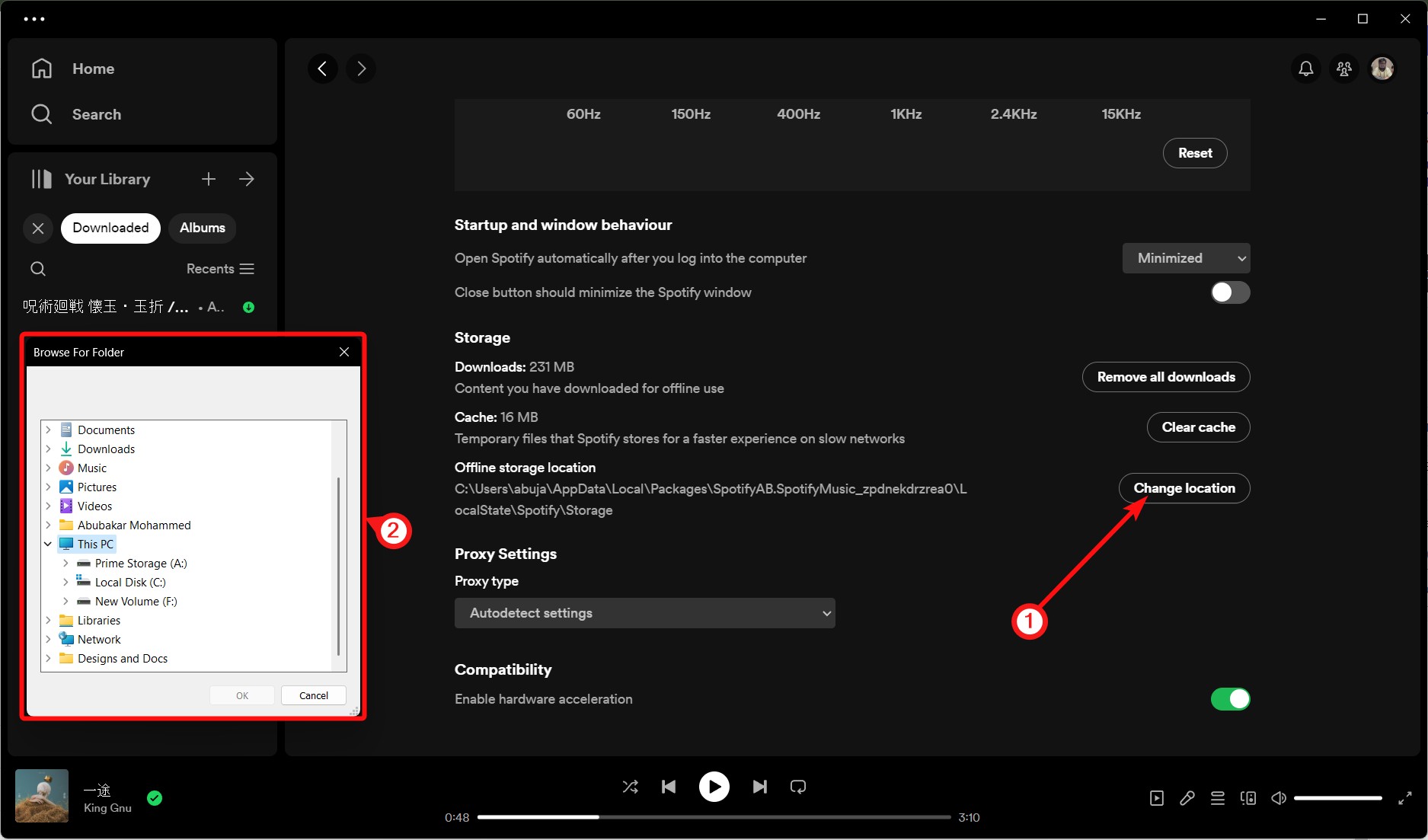
By default, Spotify saves offline audio data in the system partition. To change the storage path to a secondary internal drive or dedicated partition:
- Open Spotify Desktop and click your profile picture > Settings.
- Scroll to the bottom and click Show Advanced Settings (or expand the Storage section).
- Under Offline storage location, view the current path.
- Click Change location and select your preferred folder path on a secondary drive.
- Restart the Spotify client to finalize file relocation.
Default Storage Paths: • Windows: C:\Users\AppData\Local\Spotify\Storage • macOS: /Users//Library/Caches/com.spotify.client/Data
Understanding the Difference Between Cache and Offline Downloads
Spotify manages local data using two distinct categories:
Spotify Local Data
- Offline Downloads
- Fully downloaded music tracks
- Fully downloaded podcasts
- Playable without internet
- Explicitly user-initiated
- Cached Data
- Temporary audio chunks
- Album artwork / images
- Search history data
- Automatically generated
- Offline Downloads
Offline Downloads: Audio tracks explicitly downloaded by clicking the download arrow. These remain on your device indefinitely as long as your subscription is active and you log in every 30 days.
Cached Data: Temporary data automatically saved during active playback, including album artwork, interface assets, and track buffers. Clearing your Cache inside Spotify settings frees up temporary space without deleting your downloaded offline playlists.
Advanced Offline Features: Offline Mode and Smart Features
Spotify includes automated tools designed to manage offline content and prevent unexpected data usage.
Activating Offline Mode
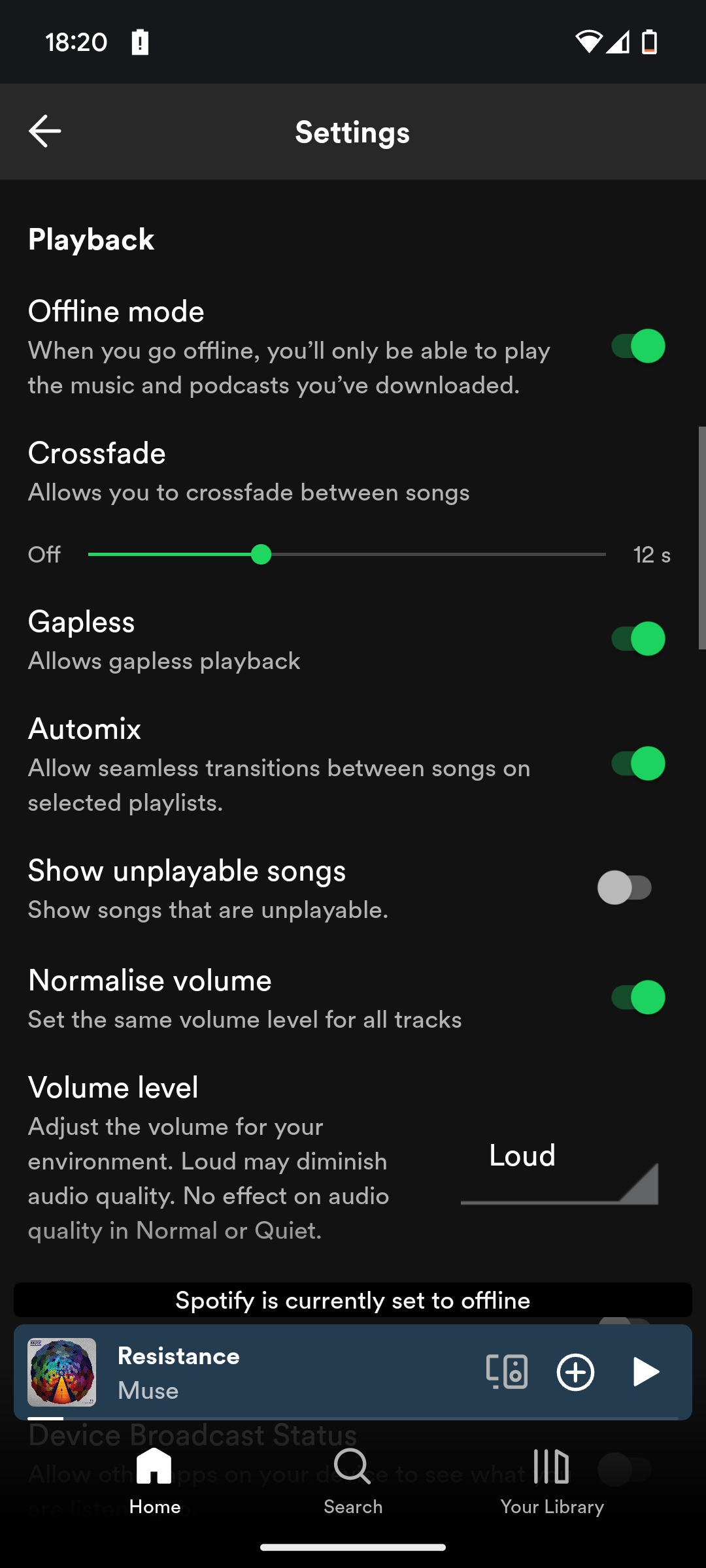
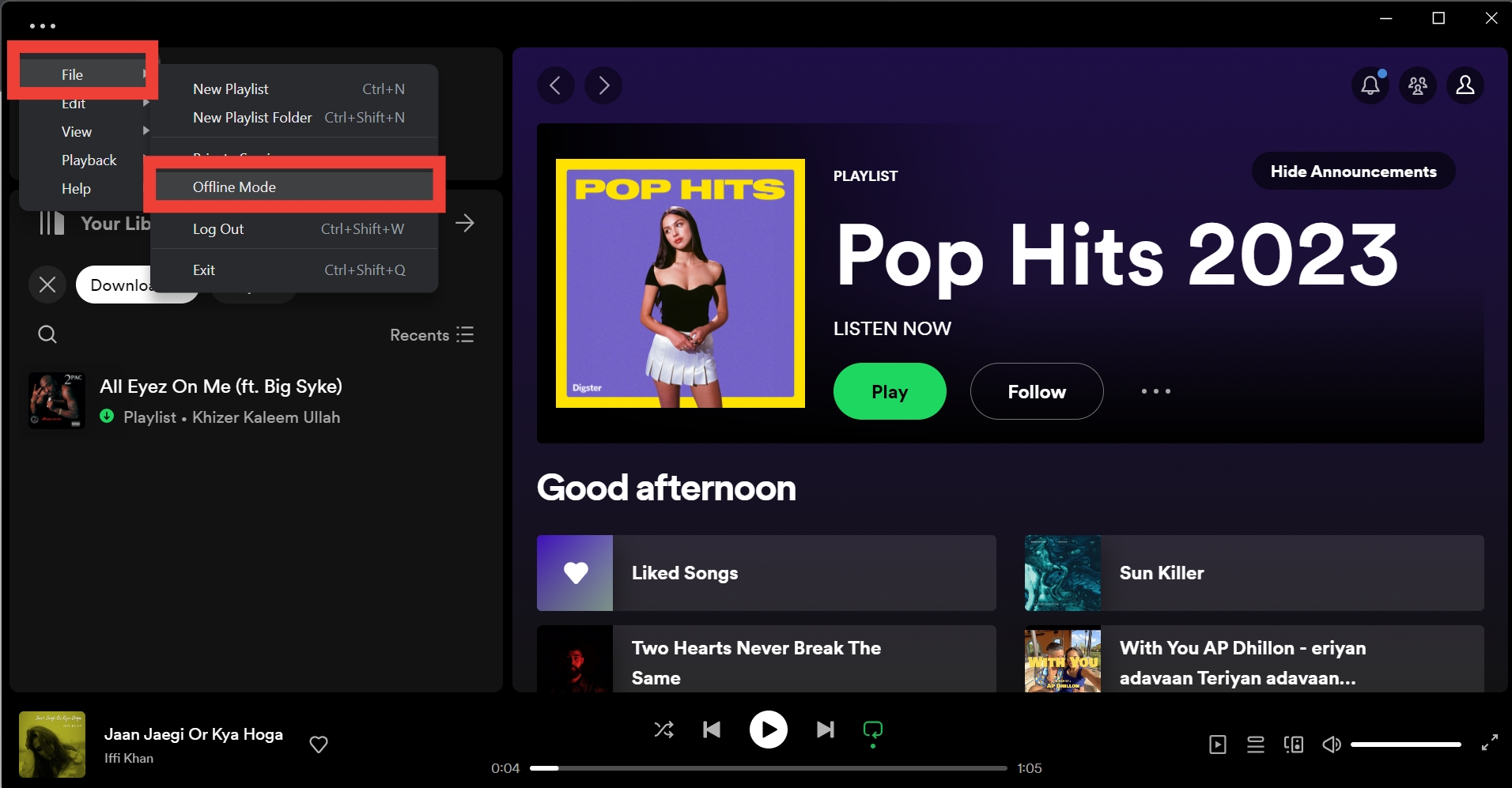
Even when you download playlists, Spotify may continue to fetch metadata, friend activity, or canvas video graphics via mobile network connections. To ensure zero cellular data usage:
- iOS & Android: Tap your profile picture > Settings & Privacy > Playback > Toggle Offline to ON.
- Desktop: Click the File menu (Windows) or Spotify menu (macOS) in the top menu bar and select Offline Mode.
When Offline Mode is turned on, Spotify displays an offline status banner, and only downloaded playlists and local files remain accessible.
| Mode State | Network Status | Playable Content |
|---|---|---|
| Online | Connected | Full Catalog + Offline Downloads |
| Offline | Forced Off | Only Green-Badged Offline Downloads |
Smart Downloads and Offline Backup
Spotify offers automated offline playback features to streamline content management:
- Smart Downloads / Auto-Downloads: Automatically downloads recently saved tracks, newly released episodes from followed podcasts, or curated mixes based on listening habits without manual intervention.
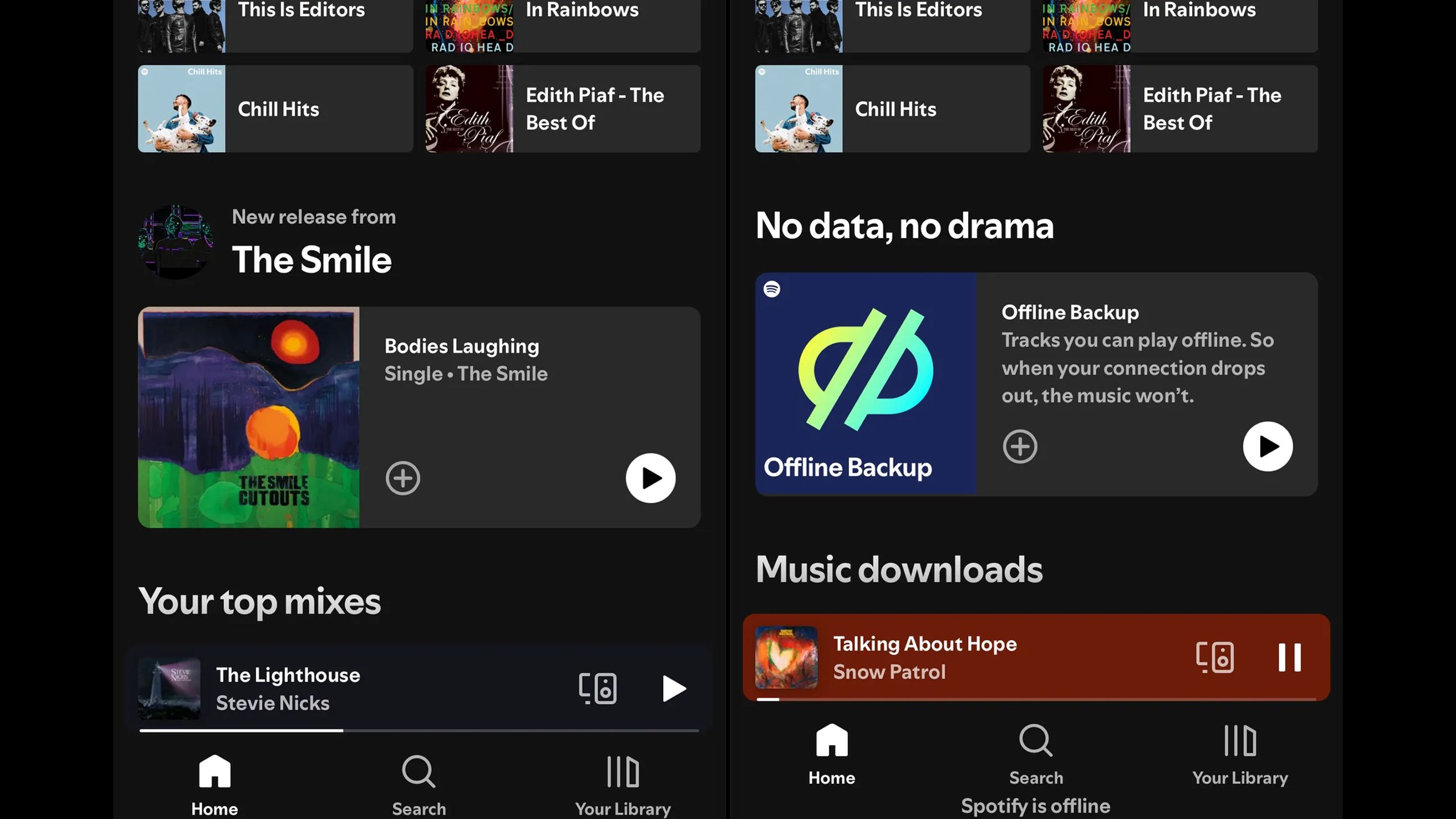
- Offline Backup: Automatically generates a temporary offline dynamic playlist based on your recent listening queue and cached files. This feature operates automatically when the app detects loss of cellular or Wi-Fi signal, providing uninterrupted audio playback even if you forgot to download playlists manually.
Managing Offline Playlists on Smartwatches
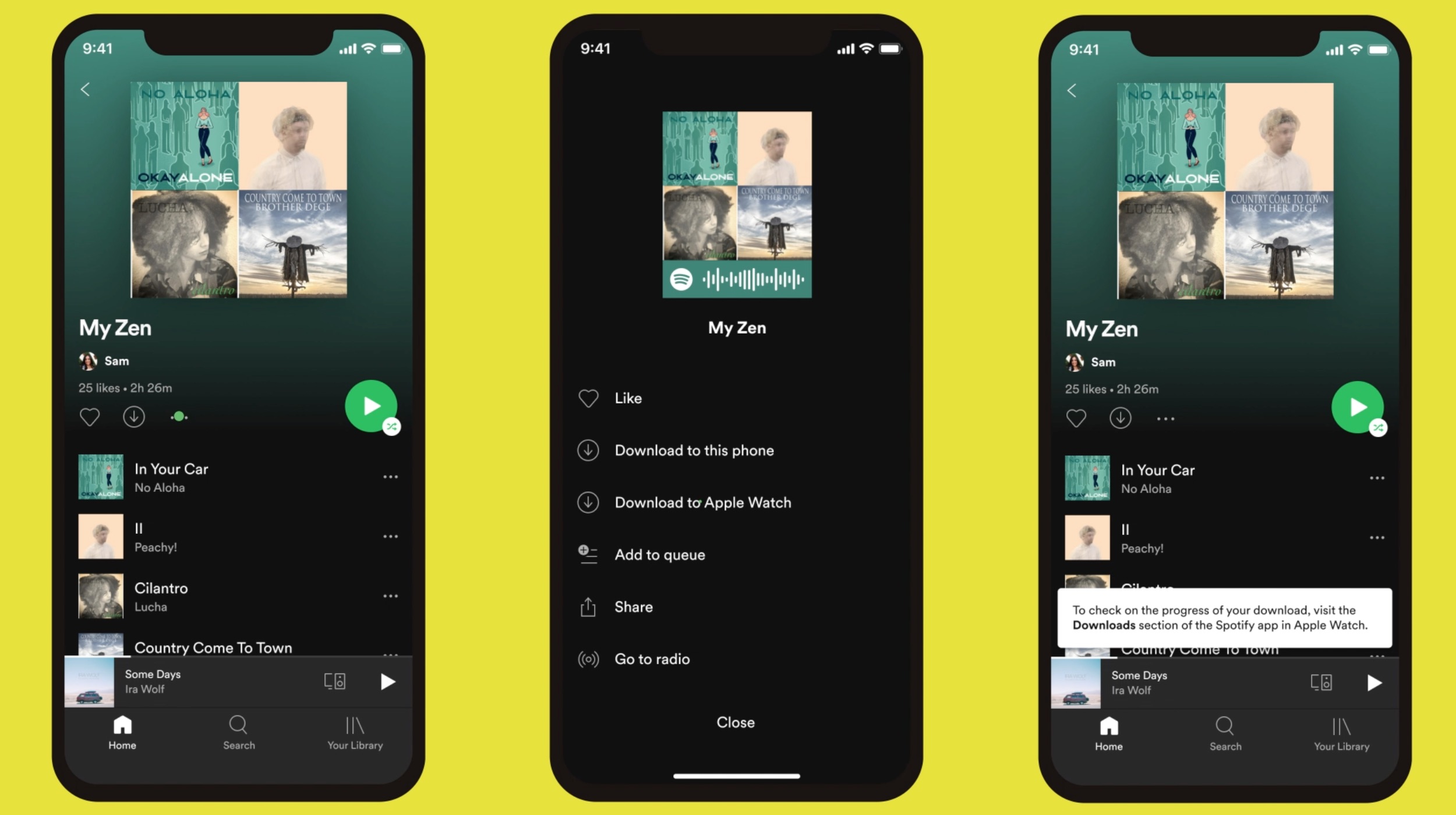
Spotify Premium allows direct offline playback on wearables including Apple Watch and Wear OS smartwatches:
- Open the Spotify app on your smartwatch.
- Navigate to the playlist or album you wish to download.
- Tap the Download to Watch button.
- Pair Bluetooth headphones directly to your smartwatch to play music during workouts without carrying a phone.
Comparison of Spotify Offline Features Across Devices
The table below outlines feature availability and functional differences across supported platforms:
| Feature | Mobile (iOS / Android) | Desktop (Windows / macOS) | Wearables (Apple Watch / Wear OS) |
|---|---|---|---|
| Download Music Playlists | Yes | Yes | Yes |
| Download Podcasts | Yes (Free & Premium) | Yes (Free & Premium) | Yes |
| Change Audio Download Quality | Yes (Low to Very High) | Yes (Low to Very High) | Fixed / System Managed |
| Change File Storage Location | Yes (Internal / SD Card) | Yes (Custom Directory) | No (Internal Storage Only) |
| Forced Offline Mode Toggle | Yes | Yes | Auto-selects when disconnected |
| Smart Downloads / Offline Backup | Yes | Limited | No |
| Max Devices per Account | Combined max 5 | Combined max 5 | Combined max 5 |
Troubleshooting Spotify Offline Playlist Issues
If your offline playlists become unplayable, fail to download, or consume excessive space, use the following troubleshooting methods:
Issue 1: Downloaded Songs Turned Grey or Disappeared
- Cause: The 30-day offline check-in window expired, your subscription status changed, or you exceeded the 5-device download limit.
- Solution: Reconnect your device to Wi-Fi, open Spotify, and ensure your account status is active. If you recently logged into a 6th device, re-enable downloads on your primary phone or computer.
Issue 2: Downloads Stuck on "Waiting to Download"
- Cause: Low device storage, weak internet connection, or restrictive background data settings.
- Solution:
- Verify your device has at least 1 GB to 2 GB of free internal storage.
- Disable battery-saver modes that restrict background data usage for Spotify.
- Go to Settings & Privacy > Audio Quality and temporarily toggle Download using cellular to test if Wi-Fi network security is blocking the downloads.
Issue 3: High Local Storage Usage
- Cause: Download quality set to Very High or duplicate cached data.
- Solution: Lower download audio quality to Normal or High. Go to Settings & Privacy > Storage and tap Clear cache. This removes unnecessary temporary files without deleting your downloaded songs.
Frequently Asked Questions
How many playlists and songs can I store offline on Spotify?
You can download up to 10,000 songs per device across up to five authorized devices, allowing a total of 50,000 offline songs per Spotify account. There is no strict limit on the number of individual playlists, provided the total song count does not exceed 10,000 per device.
Why did my downloaded Spotify playlists suddenly disappear?
Offline playlists disappear or grey out if your device has not connected to the internet in over 30 days, if your Spotify Premium subscription lapsed, or if you logged into a 6th device (which un-authorizes the device that was offline longest). Downloads can also be cleared if you manually clear app data or reinstall Spotify.
What is the difference between clearing the Spotify cache and deleting downloads?
Clearing the Spotify cache deletes temporary files, such as album cover images, search history, and streamed track fragments, without removing your downloaded music. Deleting downloads explicitly removes local audio files, freeing up storage space but requiring you to re-download the songs for offline listening.
Can I play offline Spotify playlists without a Premium subscription?
No. Free Spotify accounts can only download podcasts for offline listening. Downloading music, individual tracks, albums, and user playlists for offline playback requires an active Spotify Premium membership.
How do I change where Spotify downloads offline music on my computer or Android phone?
On Android, navigate to Settings & Privacy > Storage > Storage Location, and select SD Card. On the desktop client (Windows/macOS), go to Settings > Storage, find Offline storage location, click Change location, and select a folder on a secondary internal drive.
Next Steps for Managing Your Offline Library
To maintain a smooth offline listening experience:
- Review Storage Usage Monthly: Open Settings & Privacy > Storage to evaluate how much space offline audio occupies relative to your total hardware capacity.
- Standardize Download Quality: Set audio quality to High instead of Very High if local device storage is limited; this cuts file sizes roughly in half with minimal loss in consumer audio clarity.
- Establish a Check-in Routine: If you use dedicated offline devices (such as tablet systems, secondary devices, or smartwatches during long travel periods), connect them to Wi-Fi at least once every three weeks to refresh subscription licenses and avoid playback disruptions.
Image Gallery