How to Use SubRip Subtitle Files: A Comprehensive Guide to .SRT Formatting and Playback
To use SubRip (.srt) subtitle files, ensure the subtitle file has the exact same filename as your video and resides in the same folder. Most modern media players, such as VLC or MPV, will then detect and display the text automatically....
To use SubRip (.srt) subtitle files, ensure the subtitle file has the exact same filename as your video and resides in the same folder. Most modern media players, such as VLC or MPV, will then detect and display the text automatically. You can also manually drag the .srt file onto an active video window.
Contents
As we navigate the digital media landscape of 2026, the SubRip subtitle format—commonly known by its .srt extension—remains the industry standard for external subtitles. Despite the rise of more complex formats like Advanced SubStation Alpha (.ass), the SubRip format’s simplicity, wide compatibility, and ease of editing make it the go-to choice for creators, translators, and viewers alike. Whether you are a cinephile looking to watch foreign films or a content creator ensuring accessibility for your audience, understanding the mechanics of .srt files is essential.
Understanding the Anatomy of a SubRip (.srt) File
Before diving into how to use these files, it is helpful to understand what they actually are. A SubRip file is a simple text file that contains specific timecode information and the corresponding text to be displayed. Unlike internal subtitles that are "burned" into the video stream, .srt files are "soft" subtitles that exist independently.
A standard SubRip entry consists of four parts:
- A numeric counter identifying the subtitle's sequence (e.g., 1, 2, 3).
- The timecode indicating when the text should appear and disappear, formatted as
hours:minutes:seconds,milliseconds. - The text itself, which can span one or more lines.
- A blank line signifying the end of that specific subtitle entry.
Because they are plain text, .srt files have a very small footprint and can be opened or edited in any basic text editor like Notepad (Windows), TextEdit (macOS), or dedicated subtitle editors. This transparency is the primary reason why SubRip has survived for decades as the dominant subtitle format.
The Foundation: The "Same Name" Rule
The most common way to use a SubRip file is through automatic loading. This is a feature built into almost every major media player in 2026. To trigger this, you must adhere to a strict naming convention.
If your video file is titled Project_Presentation_2026.mp4, your subtitle file must be named Project_Presentation_2026.srt. Both files must be located in the exact same directory (folder). When you open the video file, the player scans the folder for a matching filename with a subtitle extension and overlays it automatically.
If you have subtitles in multiple languages, many modern players recognize a suffix system. For example:
Movie_Title.mp4Movie_Title.en.srt(English)Movie_Title.es.srt(Spanish)Movie_Title.fr.srt(French)
Using this naming structure allows the media player to populate a "Subtitle Track" menu, allowing the user to switch between languages on the fly.
Using SubRip Files with Desktop Media Players
Desktop environments offer the most flexibility for handling .srt files. While the "Same Name" rule is the easiest method, you can also load files manually.
VLC Media Player
VLC remains one of the most robust tools for subtitle management in 2026. If the subtitles do not load automatically, you can:
- Open your video in VLC.
- Go to the Subtitle menu in the top navigation bar.
- Select Add Subtitle File... and browse to your .srt file.
- Alternatively, you can simply drag and drop the .srt file directly onto the VLC window while the video is playing.
MPV and MPC-HC
For users who prefer lightweight players like MPV or Media Player Classic Home Cinema (MPC-HC), the process is similar. These players are often preferred for their high-quality rendering engines, which can make .srt text look sharper than standard OS-level players. In MPV, you can cycle through loaded subtitles using the 'j' key.
Windows "Movies & TV" and macOS QuickTime
Native operating system players have improved significantly by 2026. In Windows, you can click the speech bubble icon (CC) near the volume slider to select an external subtitle file. In QuickTime on macOS, you navigate to View > Subtitles to enable the track.
Subtitles on Smart TVs and Hardware Players
Using .srt files on hardware devices like Smart TVs, Roku, or PlayStation 5 can be slightly more temperamental than on a PC. Most hardware players rely exclusively on the "Same Name" rule.
If you are playing a video from a USB drive plugged into your TV:
- Ensure the drive is formatted correctly (usually FAT32 or exFAT).
- Place the .mp4 and the .srt in the root folder or the same sub-folder.
- Ensure the filenames are identical (case sensitivity can matter on some Linux-based TV OS).
If you are using a Media Server like Plex or Jellyfin, the server software handles the heavy lifting. Once you add a movie to your library, the server scans for local .srt files. You can then select these subtitles from the "Playback Options" on your TV remote. Plex also offers an "On-Demand Subtitles" feature that can search the internet and download the correct .srt file for you if yours is missing or out of sync.
Hardcoding vs. Softcoding: When to Burn In Subtitles
There are scenarios where you might want to "hardcode" your SubRip file. Hardcoding (or "burning in") means the subtitles become a permanent part of the video frames. Once burned in, they cannot be turned off, but they are guaranteed to show up on every single device, even those that do not support subtitle files.
Why Hardcode?
- Social Media: Platforms like Instagram or TikTok often require subtitles to be part of the video file itself for the best user experience.
- Compatibility: Older hardware that doesn't recognize .srt files.
- Styling: If you want to ensure a specific font, color, or position that .srt (which is usually plain text) cannot strictly enforce.
How to Hardcode with Handbrake
Handbrake is a free, open-source transcoder that is still the gold standard in 2026 for this task.
- Open Handbrake and load your video file.
- Go to the Subtitles tab.
- Click Import Subtitle and select your .srt file.
- Check the box labeled Burn In.
- Choose your output format (e.g., MP4 or MKV) and click Start Encode.
| Feature | Softcoding (External .srt) | Hardcoding (Burned-in) |
|---|---|---|
| Flexibility | High (can turn off/on) | Low (permanent) |
| Editing | Easy (open in Notepad) | Impossible (requires re-encode) |
| Compatibility | High (Most modern apps) | Universal (Works everywhere) |
| File Size | Negligible (KB) | No change to video size |
| Multiple Languages | Supported via multiple files | Only one language at a time |
Troubleshooting Common .SRT Issues
Even with a format as simple as SubRip, errors can occur. Most issues fall into two categories: synchronization and character encoding.
Fixing Out-of-Sync Subtitles
If the dialogue appears before or after the audio, the "offset" is wrong. You do not need to edit the file manually to fix this during playback.
- In VLC: Use the 'H' key to delay the subtitles or the 'G' key to speed them up (in 50ms increments).
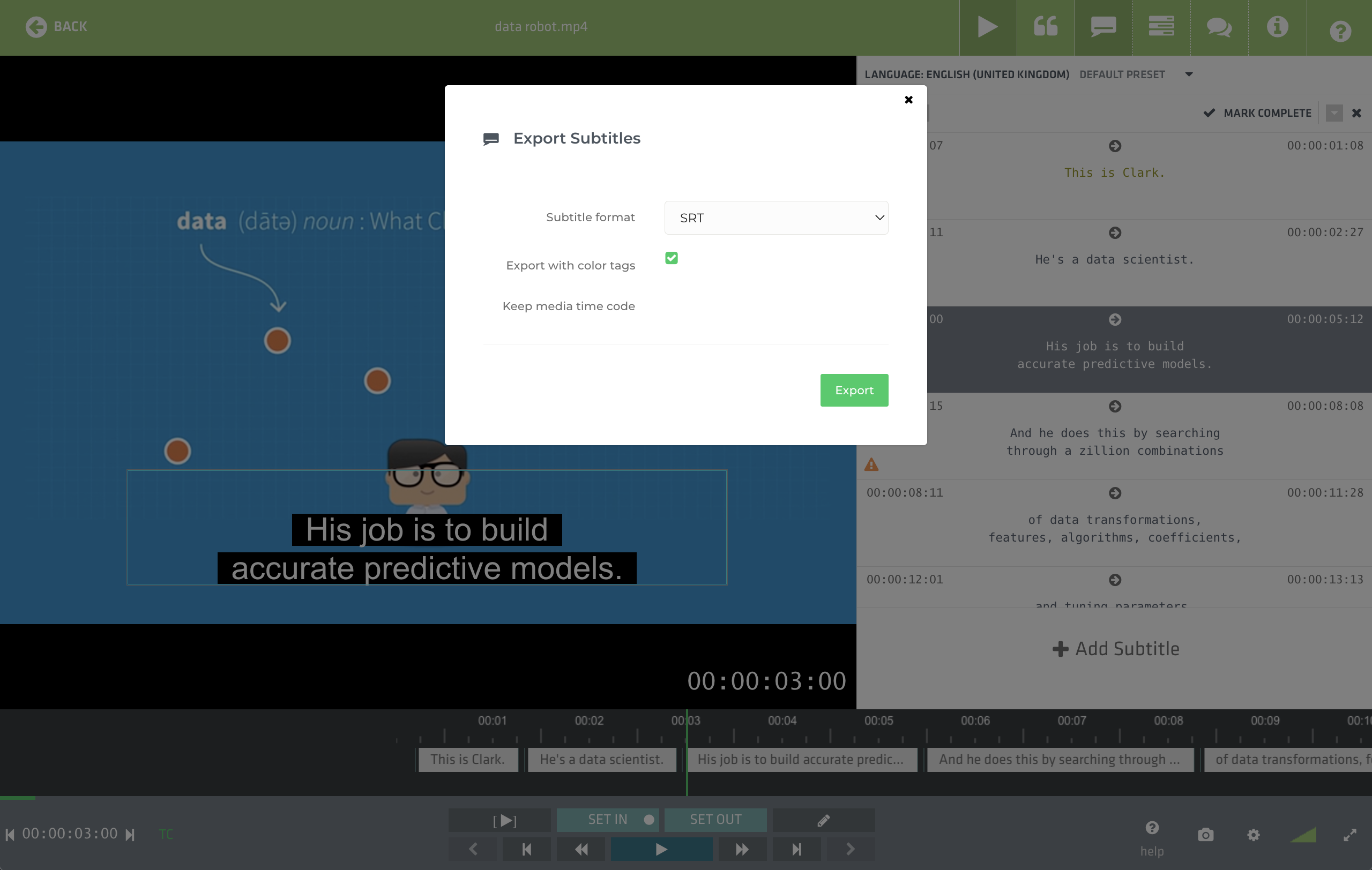
- Permanent Fix: Use an online tool or software like Subtitle Edit to "Shift" all timecodes by a specific number of seconds.
Encoding and "Garbage" Characters
If you see strange symbols instead of accented letters (like ñ, ö, or symbols from non-Latin alphabets), the text encoding is likely the culprit.
- In 2026, almost all systems expect UTF-8 encoding.
- If your file was created in an older environment using ANSI or Western European encoding, open the .srt in a text editor like Notepad++, select "Encoding" from the menu, and choose "Convert to UTF-8." Save the file, and the characters should render correctly.
Practical Expert Guidance for Content Creators
If you are generating .srt files for your own content, accuracy is paramount. In 2026, AI-driven transcription has reached near-perfect accuracy, but the "human touch" is still required for timing and readability.
Limit Line Length: Aim for a maximum of 40 characters per line. If a subtitle is too long, the viewer’s eye cannot track the action on screen while reading. Two Lines Maximum: Never let a subtitle entry exceed two lines. If there is more dialogue, break it into a second entry with a new timecode. Consistency: Ensure that if you use italics for "off-screen voices" or "radio chatter," you do so consistently throughout the file.
FAQ: Frequently Asked Questions
Can I convert an .srt file to other formats?
Yes. You can easily convert .srt to .vtt (Web Video Text Tracks) for web use or .ass for advanced styling. Many free online converters exist, but software like Subtitle Edit offers the most control over frame rates and timecode conversions.
Why won't my .srt file play on my TV?
Check the file encoding first; most TVs require UTF-8. Secondly, ensure there are no special characters in the filename itself (like emojis or unusual symbols). Finally, ensure the file extension is exactly .srt and not .srt.txt (a common mistake when saving from Notepad).
How do I create an .srt file from scratch?
Open any text editor and follow the SubRip format (Number, Timecode, Text, Space). However, it is much more efficient to use a dedicated subtitle editor or an AI transcription service that exports to .srt, as they handle the timecode formatting automatically.
Can .srt files contain colors or bold text?
Standard SubRip supports basic HTML-like tags: for bold, for italics, for underline, and . However, not all media players support these tags; some will display the literal tags on screen, while others will ignore them entirely.
Is there a limit to how large an .srt file can be?
There is no practical limit to the number of entries, but the file size is usually under 100 KB for a feature-length film. If your file is significantly larger (megabytes), it may contain non-standard data or may not be a true .srt file.
Final Recommendation
For the best experience, always keep your video and subtitle files in a dedicated folder and use a modern, versatile player like VLC or Plex. If you encounter errors, check that the filenames match exactly and that the file is saved with UTF-8 encoding. Following these simple steps ensures that your viewing experience is seamless, accessible, and high-quality.
Image Gallery