Understanding the Status Bar on an iPhone: A Comprehensive Guide
The status bar on an iPhone is the thin, horizontal strip located at the very top of the screen that provides essential system information at a glance. It displays critical data including cellular signal strength, Wi-Fi connectivity, c...
The status bar on an iPhone is the thin, horizontal strip located at the very top of the screen that provides essential system information at a glance. It displays critical data including cellular signal strength, Wi-Fi connectivity, current time, battery level, and various indicators for active features like location services, privacy usage, or alarms.
Contents
The status bar serves as the primary dashboard for your device’s background operations. Because the iPhone interface is designed to be immersive, the status bar remains one of the few persistent elements across the operating system. Whether you are browsing the web, using an app, or checking your notifications, this area provides real-time updates regarding your connection to the world and the internal health of your device.
The Evolution and Layout of the Status Bar
Since the introduction of the first iPhone, the status bar has undergone significant design changes to accommodate shifts in hardware technology, such as the introduction of the "notch" and the "Dynamic Island." While the exact visual layout may vary slightly depending on your specific iPhone model—whether it uses a Home button or Face ID—the fundamental purpose remains consistent.
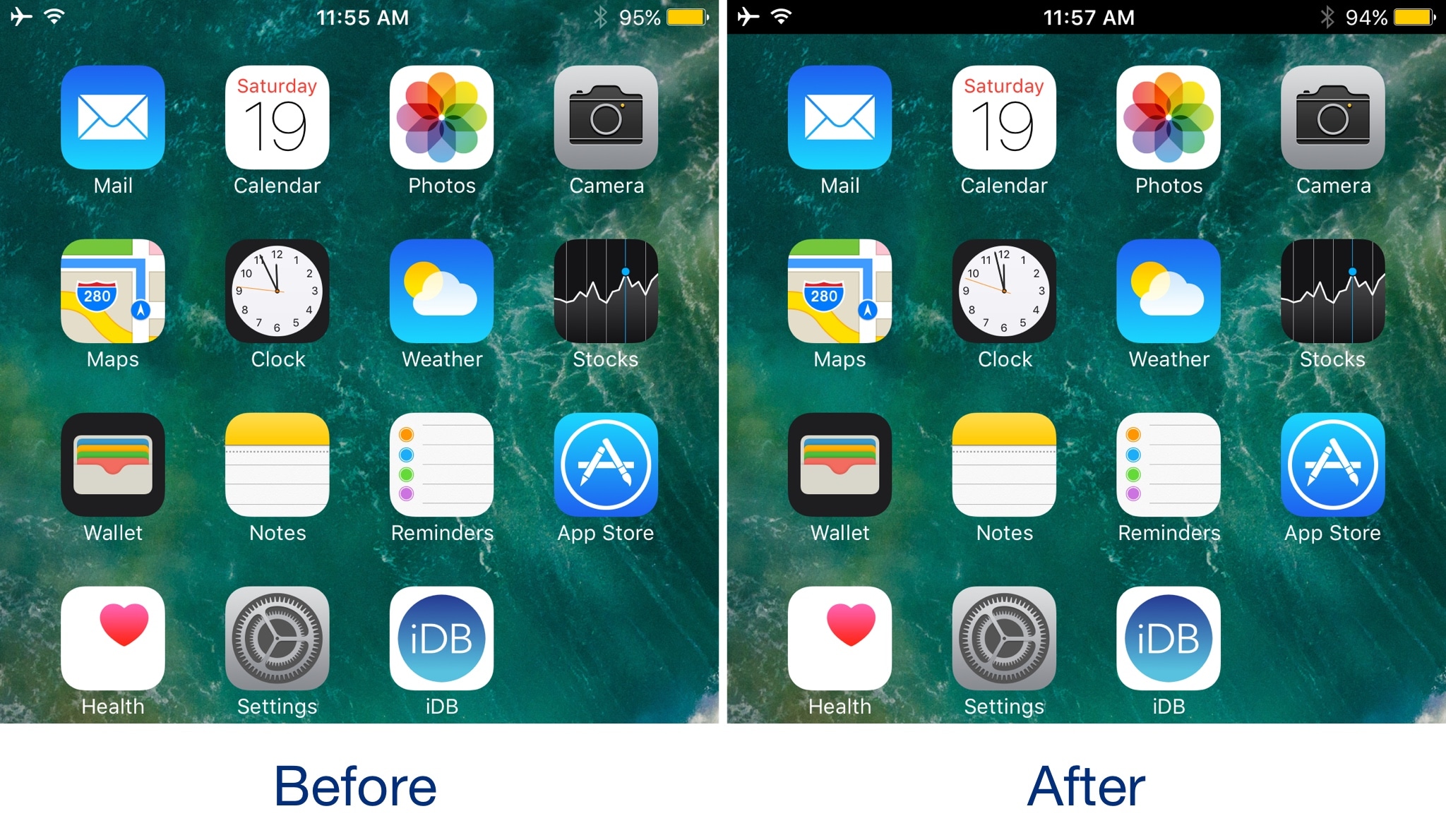
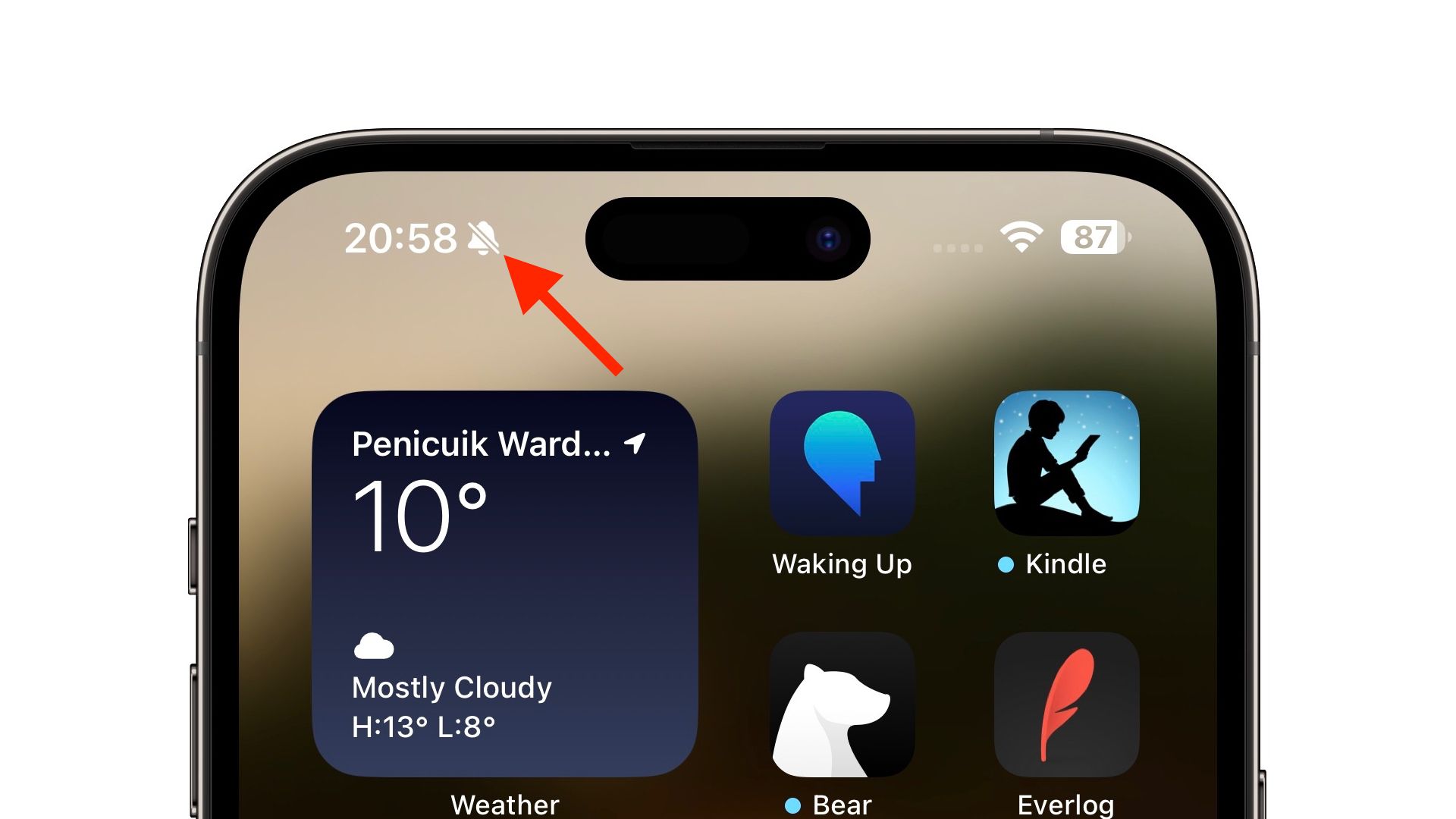
On older devices with a physical Home button, the status bar runs as a continuous line across the top of the display. On newer devices equipped with the TrueDepth camera system (the notch) or the Dynamic Island, the status bar is split into two sections: one on the left for time and location indicators, and one on the right for cellular signal, Wi-Fi, and battery status.
Anatomy of the Status Bar
To effectively use your iPhone, it is important to understand what the various symbols in the status bar represent. These symbols are not merely decorative; they inform you about the immediate operational state of your hardware.
- Connectivity Indicators: These occupy the top-right corner on modern iPhones. You will see bars indicating cellular signal strength, a Wi-Fi icon, and an icon representing your current cellular data technology (e.g., 5G, 4G, or LTE).
- Battery and Power: The battery icon indicates your current charge level. If the icon is yellow, Low Power Mode is active. If it is red, your battery is critically low. If it turns green while plugged in, it signifies the device is charging.
- Time: Always present, the clock provides quick access to the current time, ensuring you remain oriented regardless of which application you have open.
- Privacy and System Indicators: These are often colored dots that appear above the cellular signal icons. A green dot indicates that an app is using your camera, while an orange dot signifies that an app is using your microphone.
Understanding Status Icons and Their Meanings
The status bar is a communication tool between the operating system and the user. Knowing what specific icons mean can help you diagnose issues quickly without digging into the Settings app.
| Icon Type | Meaning | Common Action/Requirement |
|---|---|---|
| Orange Dot | Microphone Active | Check Privacy settings to see which app is using the mic. |
| Green Dot | Camera Active | Ensure no app is accessing your camera without authorization. |
| Lock Icon | Screen Orientation Locked | Swipe down from the top right to toggle Portrait Orientation Lock. |
| Airplane Icon | Airplane Mode | Toggle off in Control Center to restore cellular and Wi-Fi data. |
| Arrow Icon | Location Services | An app is currently requesting or using your GPS coordinates. |
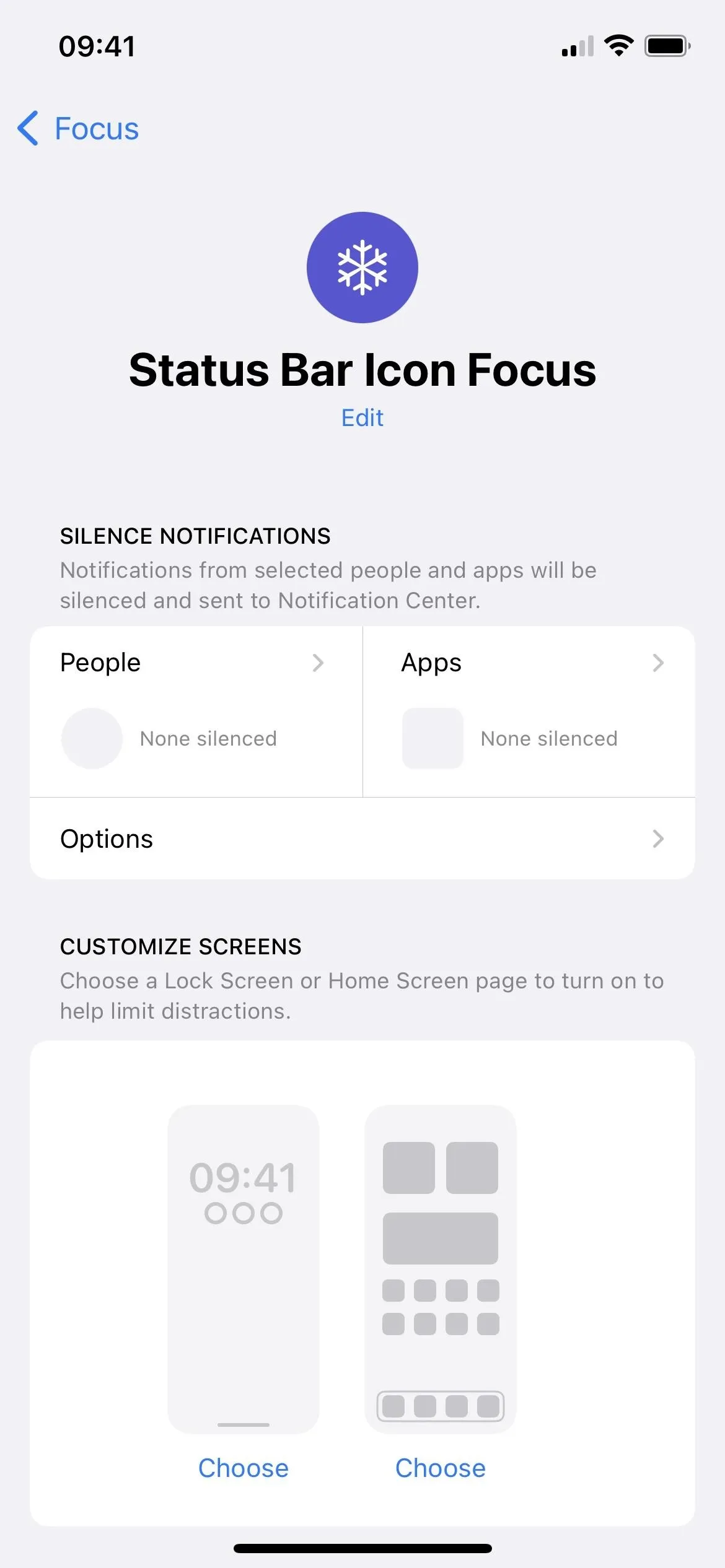
| Moon Icon | Focus Mode/Do Not Disturb | Indicates that notifications are being silenced or filtered. |
The status bar also displays dynamic icons that appear only when specific features are active. For example, if you are actively using Personal Hotspot, you may see two blue, overlapping circles. If your device is currently AirPlaying media to another screen, a blue icon will appear in the top-left area.
Managing the Status Bar Through Control Center
While the status bar provides the "what," the Control Center provides the "how." If the status bar alerts you to a problem—such as no signal or an active recording—you can manage these settings by accessing the Control Center.
To access the Control Center, swipe down from the top-right corner of your screen (on iPhones with Face ID) or swipe up from the bottom edge of the screen (on iPhones with a Home button). The Control Center offers toggle switches that correspond directly to the icons you see in the status bar. If you notice your Wi-Fi is disconnected, the Control Center is your primary tool for reconnection.
Privacy and Security Indicators
In recent iterations of the iPhone operating system, Apple has prioritized user privacy. The status bar is the first line of defense in maintaining this transparency. If you see an orange or green dot in the status bar, it is an active warning that a component of your hardware is currently in use.
If you are not using an app that should require a camera or microphone, seeing these dots is a signal to investigate. You can pull down the Control Center, which will display the name of the app that most recently accessed your microphone or camera. This serves as a vital tool for security, allowing you to identify and terminate apps that may be behaving unexpectedly.
Troubleshooting Common Status Bar Issues
Occasionally, users may encounter issues where the status bar disappears or icons display incorrect information. Here are steps to troubleshoot these concerns:
- Restart the Device: A simple power cycle often clears temporary glitches that cause the status bar to misbehave.
- Check for Software Updates: Apple frequently releases updates that patch UI-related bugs. Navigate to Settings > General > Software Update to ensure you are on the latest version available for your device.
- Check Display Zoom: Sometimes, using the "Zoomed" display mode in Settings can cause the status bar to look unusual or hide certain icons. Changing this to "Standard" in Settings > Display & Brightness may resolve layout issues.
- Network Reset: If your cellular signal or Wi-Fi icons are stuck or inaccurate, performing a network reset (via Settings > General > Transfer or Reset iPhone) can force the system to re-establish connections with local towers and routers.
Frequently Asked Questions
Why does my battery icon sometimes change color?
The battery icon color changes to signify power management states. A yellow icon indicates that Low Power Mode is enabled to extend battery life. A red icon signifies that your battery is below 20%. When charging, the icon becomes green, sometimes accompanied by a lightning bolt symbol.
What is the difference between a green and orange dot?
The green dot indicates that an app is currently using your camera, which inherently includes the microphone. The orange dot indicates that only your microphone is currently being used by an application. These are standard security indicators meant to protect your privacy.
Can I hide or customize the status bar?
On standard versions of the iPhone operating system, you cannot remove or hide the status bar. It is a system-level component. While you can customize what appears in the Control Center or within your lock screen widgets, the status bar itself remains a fixed, persistent element to ensure safety and usability.
Why is there a blue icon in my status bar?
A blue icon (often a blue background behind the time or a blue bar) typically indicates that an application is actively using your location in the background or that your device is actively recording the screen. If you tap the blue indicator, your iPhone will often provide you the option to return to the app that is currently using that resource.
Does the status bar consume more battery if I have many icons active?
No. The status bar is merely a visual reflection of background processes. The icons do not drain your battery; the applications or hardware functions they represent (such as GPS, constant cellular searching, or Wi-Fi) are the actual sources of power consumption.
How do I see the exact battery percentage?
On newer iPhones with Face ID, the battery percentage is usually shown inside the battery icon itself or can be viewed by swiping down into the Control Center. You can enable the percentage to show permanently by going to Settings > Battery and toggling "Battery Percentage" to on.
Next Steps for Users
To master your device, treat the status bar as a dashboard for your iPhone's health and security. When you notice an unfamiliar icon, consult the Control Center to identify the active process. If you find your signal is consistently poor or your battery life is declining, use the status bar as an early warning system to take action, such as toggling Airplane Mode or checking for resource-heavy apps in the Privacy settings. Consistent monitoring of these indicators will help you maintain an efficient and secure mobile experience throughout 2026 and beyond.
Image Gallery