Bluetooth Pairing PS5 Controller: A Practical Overview
Pairing a PlayStation 5 DualSense controller via Bluetooth is a straightforward process that allows you to connect the device to compatible platforms, including PCs, macOS devices, smartphones, and tablets. To initiate the pairing mode...
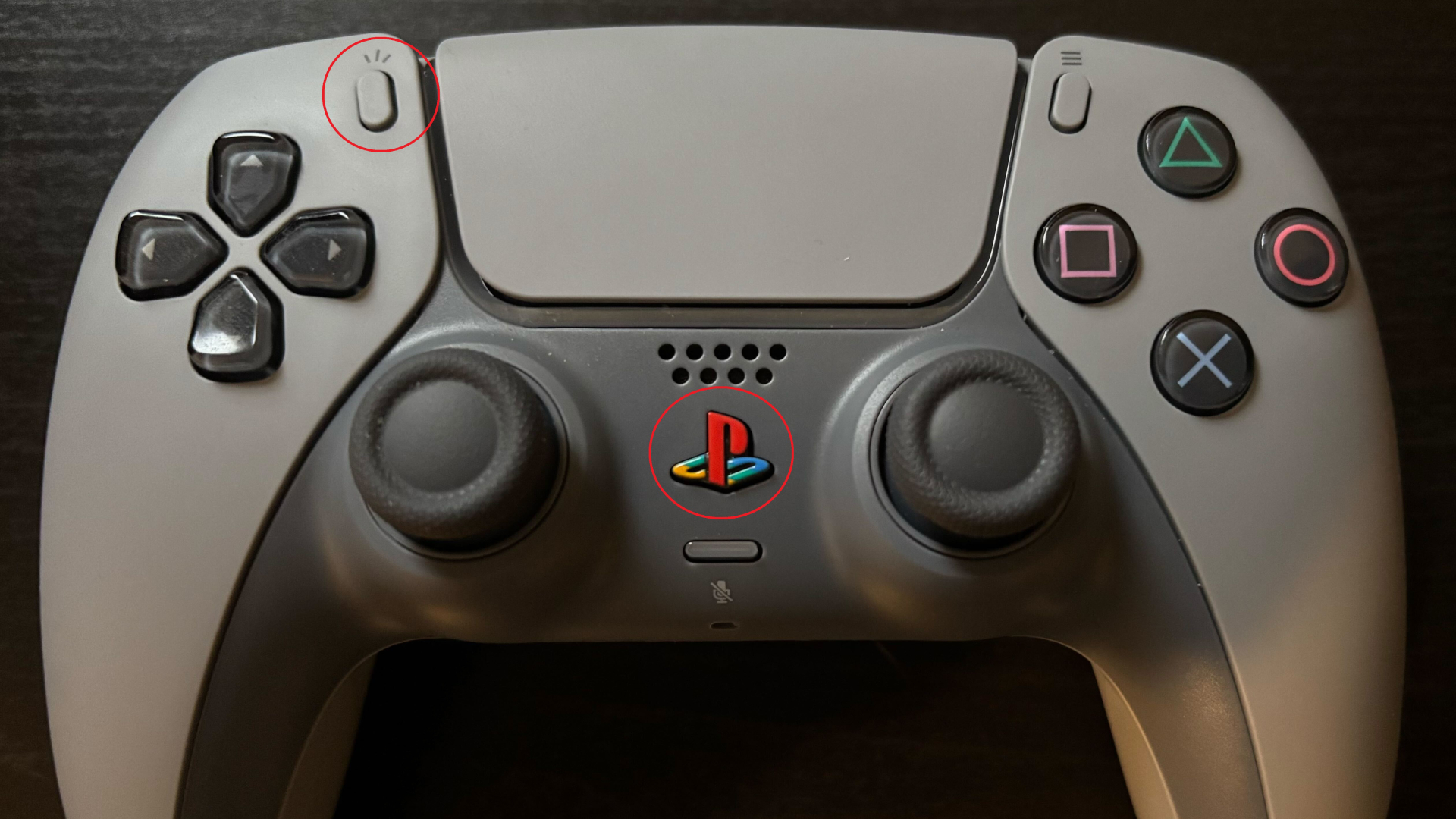
Pairing a PlayStation 5 DualSense controller via Bluetooth is a straightforward process that allows you to connect the device to compatible platforms, including PCs, macOS devices, smartphones, and tablets. To initiate the pairing mode, you must simultaneously press and hold the Create button and the PlayStation logo button until the light bar surrounding the touchpad begins to flash rapidly in a rhythmic pattern, indicating the controller is discoverable by host devices.
Contents
Understanding the DualSense Connection Ecosystem
The DualSense wireless controller is engineered for seamless integration with the PlayStation 5 console, but its Bluetooth 5.1 capability makes it a versatile input device for other hardware. When you pair the controller to a device other than a PS5, you are essentially leveraging the standard Human Interface Device (HID) profile over a wireless connection.
It is important to note that while the Bluetooth connection enables fundamental input functionality, specific advanced features—such as haptic feedback, adaptive triggers, and the integrated microphone array—may not be fully supported by all third-party operating systems or individual software titles. The level of functionality often depends on the drivers or input wrappers (such as Steam Input or DS4Windows) that interpret the controller’s signals on platforms like Windows.
Prerequisites for Successful Pairing
Before attempting to pair your DualSense controller, ensure your environment is prepared to handle the wireless handshake.
- Battery Level: Confirm that your controller has sufficient charge. If the battery is critically low, the Bluetooth radio may fail to initialize or maintain a stable connection. A charge of at least 25% is recommended for setup.
- Disconnected State: The controller should not be currently "searching" for a previously paired PS5 console. If it attempts to connect to your console while you are trying to pair it with a PC or mobile device, the console will "steal" the connection. You may need to power off your PS5 or unplug it from the wall during the initial pairing process to prevent this conflict.
- Host Device Visibility: Ensure the Bluetooth settings menu is open on your target device (e.g., your computer or phone) so it is actively scanning for new peripherals.
Step-by-Step Pairing Procedure
To place the DualSense controller into discovery mode, follow these precise steps:
- Power Off the Controller: If the controller is currently on, press and hold the PS button for about 10 seconds until the light bar turns off.
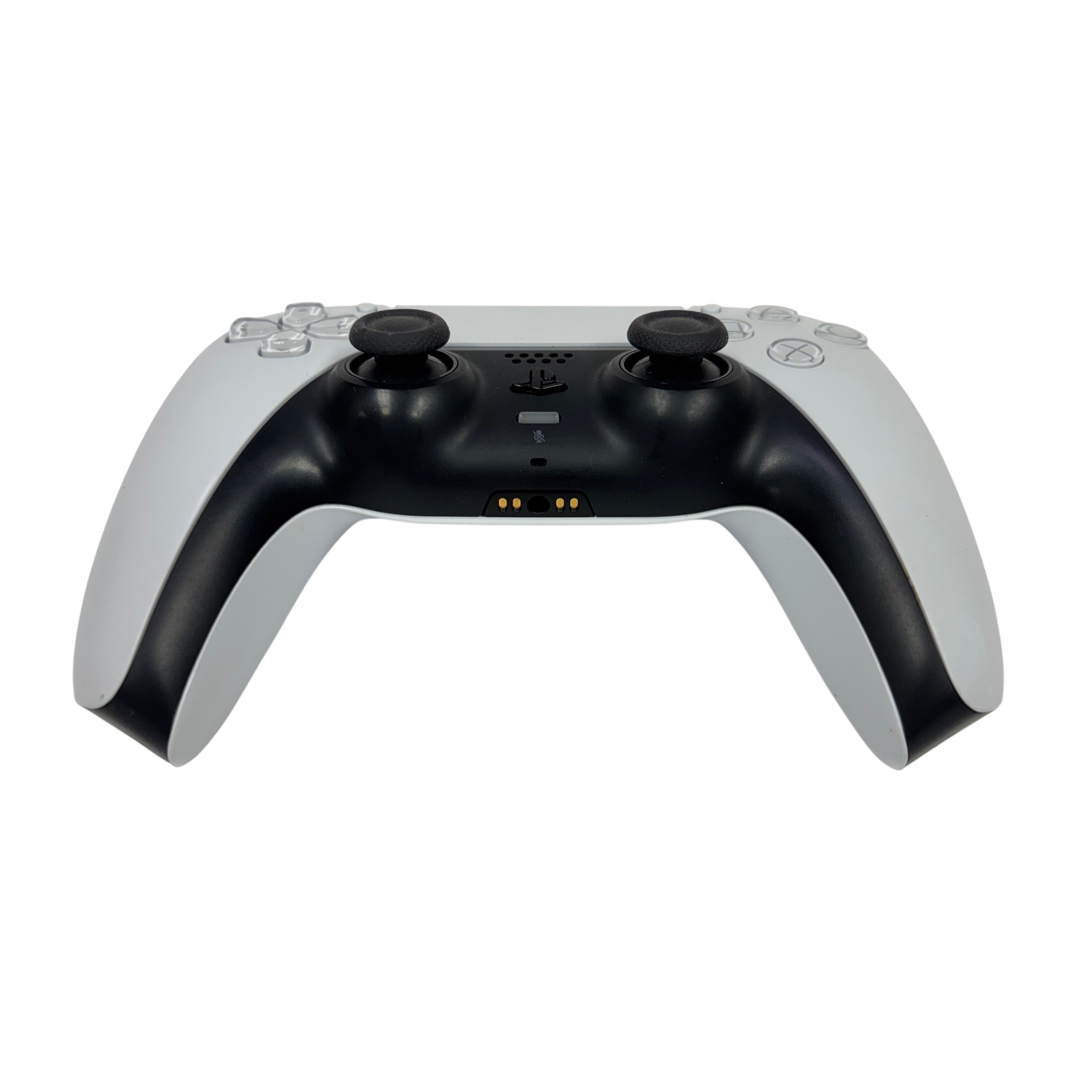
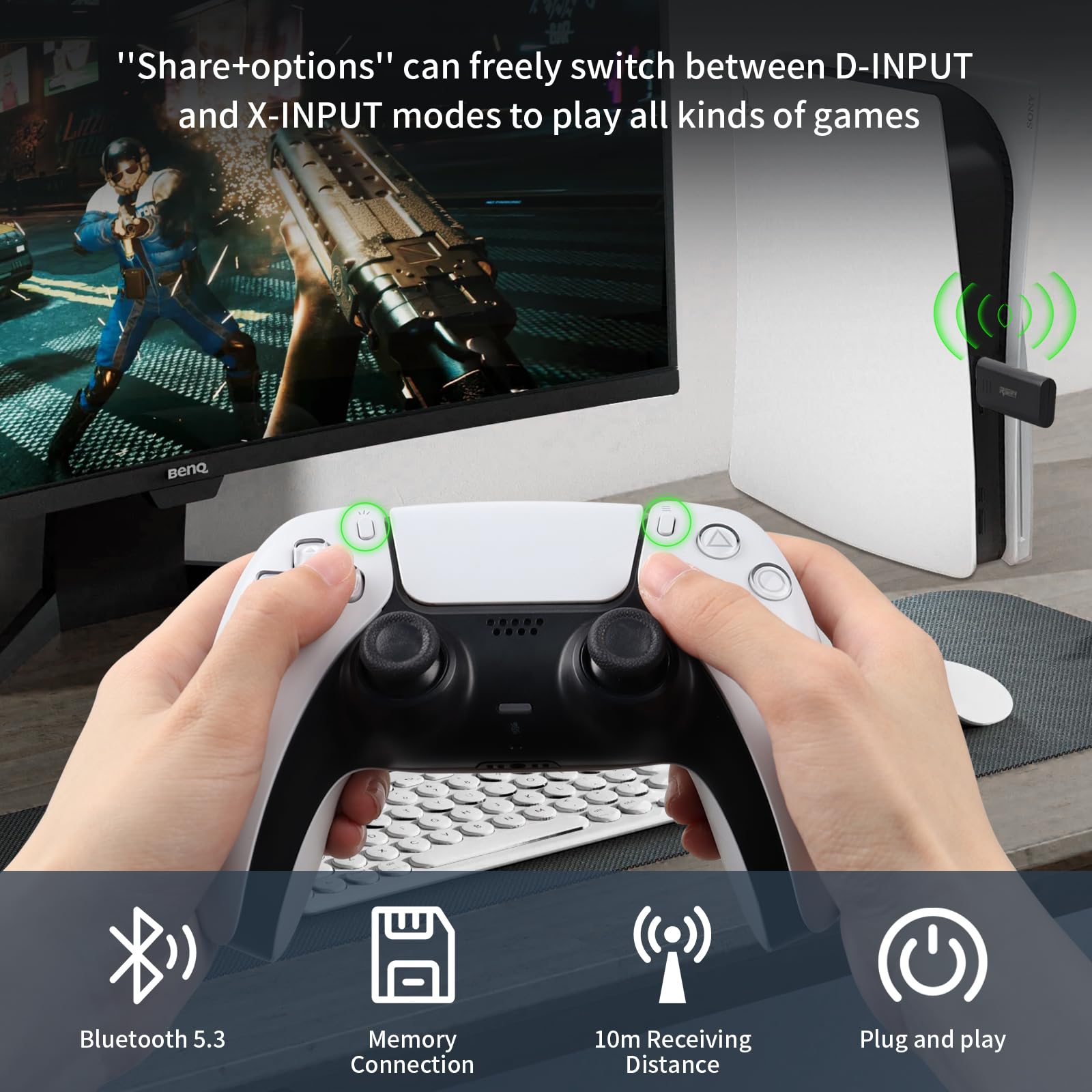
- Initiate Discovery: Locate the "Create" button (the small button to the left of the touchpad with three lines) and the "PS" logo button (the center button). Press and hold both simultaneously.
- Monitor the Light Bar: Keep holding both buttons for approximately 3 to 5 seconds. The light bar will begin a double-flash pattern. This indicates that the controller is now in pairing mode.
- Select on Host Device: Open the Bluetooth settings on your PC, Mac, or mobile device. Look for "Wireless Controller" in the list of available devices. Select it to finalize the handshake.
- Confirmation: Once connected, the light bar will stop flashing and usually remain a solid color, confirming a successful link.
Compatibility and Functional Expectations
Different operating systems handle the DualSense controller differently. The following table provides a high-level overview of compatibility expectations when using the controller via a standard Bluetooth connection.
| Platform | Native Support | Advanced Features | Recommended Tools |
|---|---|---|---|
| Windows 11 | Basic HID | Limited | Steam Input, DS4Windows |
| macOS 14+ | Native | Partial | System Settings |
| Android 14+ | Native | Limited | Game-specific mapping |
| iOS 17+ | Native | Limited | System Settings |
When connecting to a Windows PC, native support is often restricted to basic button inputs. To unlock the full potential of the controller, such as remapping buttons or utilizing the touchpad as a mouse input, software such as DS4Windows or the built-in controller configuration tools within the Steam client is highly recommended. These utilities act as a translator, allowing the game to see the DualSense as an Xbox controller or a custom mapping, which ensures broader compatibility across different game engines.
Troubleshooting Common Connection Issues
If your device fails to discover the controller, or if the connection drops frequently, consider these common technical hurdles:
Controller Won't Enter Pairing Mode If the controller does not flash when you press the Create and PS buttons, it may be because the battery is drained or the controller is already locked onto a different active device. Ensure the PS5 is powered down and try resetting the controller. On the back of the DualSense, there is a small hole near the Sony logo; use a paperclip or a SIM-eject tool to press the reset button inside for five seconds to force a factory state.
Input Lag and Interference Bluetooth performance can be significantly affected by physical obstructions between the controller and the host device's Bluetooth antenna. If you experience latency or "button sticking," ensure there is a clear line of sight, or move the PC/device away from other sources of wireless interference, such as microwave ovens or dense clusters of other active Bluetooth peripherals.
Frequent Disconnections This is often a software-level issue on the host device. If you are on Windows, navigate to the "Device Manager," find the Bluetooth radio properties, and ensure the "Power Management" setting does not allow the computer to turn off the device to save power. Modern Windows power-saving profiles can aggressively drop connections with idle controllers.
Maintaining Your Hardware
To ensure the longevity of your Bluetooth functionality, treat the controller as a sensitive wireless instrument. Avoid leaving the battery at 0% for extended periods, as this can lead to permanent degradation of the lithium-ion cell, which in turn can cause inconsistent wireless performance.
When updating firmware, always use a high-quality USB-C data cable connected directly to a PS5 console. While some PC-based firmware update tools exist, official updates are best handled through the PlayStation ecosystem to ensure the Bluetooth module's internal microcode remains compatible with the latest security and connectivity standards.
Frequently Asked Questions
Can I use the DualSense controller on my PC without a Bluetooth adapter? Yes. You can use a USB-C to USB-A (or USB-C to USB-C) cable to create a wired connection. This is often the most reliable method for competitive gaming as it eliminates input lag and removes the need for battery management.
Why does my controller reconnect to my PS5 instead of my PC? The controller "remembers" the last device it was paired with. If you return to your PS5 after playing on a PC, it will attempt to pair with the console. You will need to manually re-pair the controller with your PC using the discovery steps mentioned earlier each time you switch hosts.
Does the touchpad work on non-Sony devices? Yes, but functionality varies. On macOS, it often works as a secondary trackpad. On Windows, it usually requires third-party drivers like DS4Windows to map the touchpad as a mouse or specific macro inputs.
What is the maximum range for a Bluetooth connection? The theoretical range is approximately 30 feet (roughly 10 meters) with a clear line of sight. However, in practice, walls, furniture, and radio interference from other Wi-Fi signals will reduce this effective distance.
Do I need a specific Bluetooth version? The DualSense uses Bluetooth 5.1. While it is backward compatible with older Bluetooth standards, using a host device with Bluetooth 4.0 or lower may result in a less stable connection or increased latency.
Next Actions
To successfully integrate your controller, perform a test-drive in a controlled setting. First, fully charge the device using a USB cable. Second, disable Bluetooth on your PS5 if it is in the same room. Third, follow the discovery mode steps outlined above to pair with your primary gaming device. If you intend to play games that do not natively support the DualSense, download a controller mapping utility like Steam Input to ensure that every button click is registered correctly by your games.
Image Gallery