All-in-One Computers: The Complete Guide to Selection, Specs, and Performance
An all-in-one (AIO) computer integrates the system chassis, processor, display, speakers, and internal hardware into a single compact housing behind the screen. By eliminating the separate desktop tower, AIO systems offer a space-savin...
An all-in-one (AIO) computer integrates the system chassis, processor, display, speakers, and internal hardware into a single compact housing behind the screen. By eliminating the separate desktop tower, AIO systems offer a space-saving workspace, streamlined cable management, and immediate setup for home offices, commercial enterprise desks, and educational environments.
Contents
How All-in-One Desktop Architecture Works
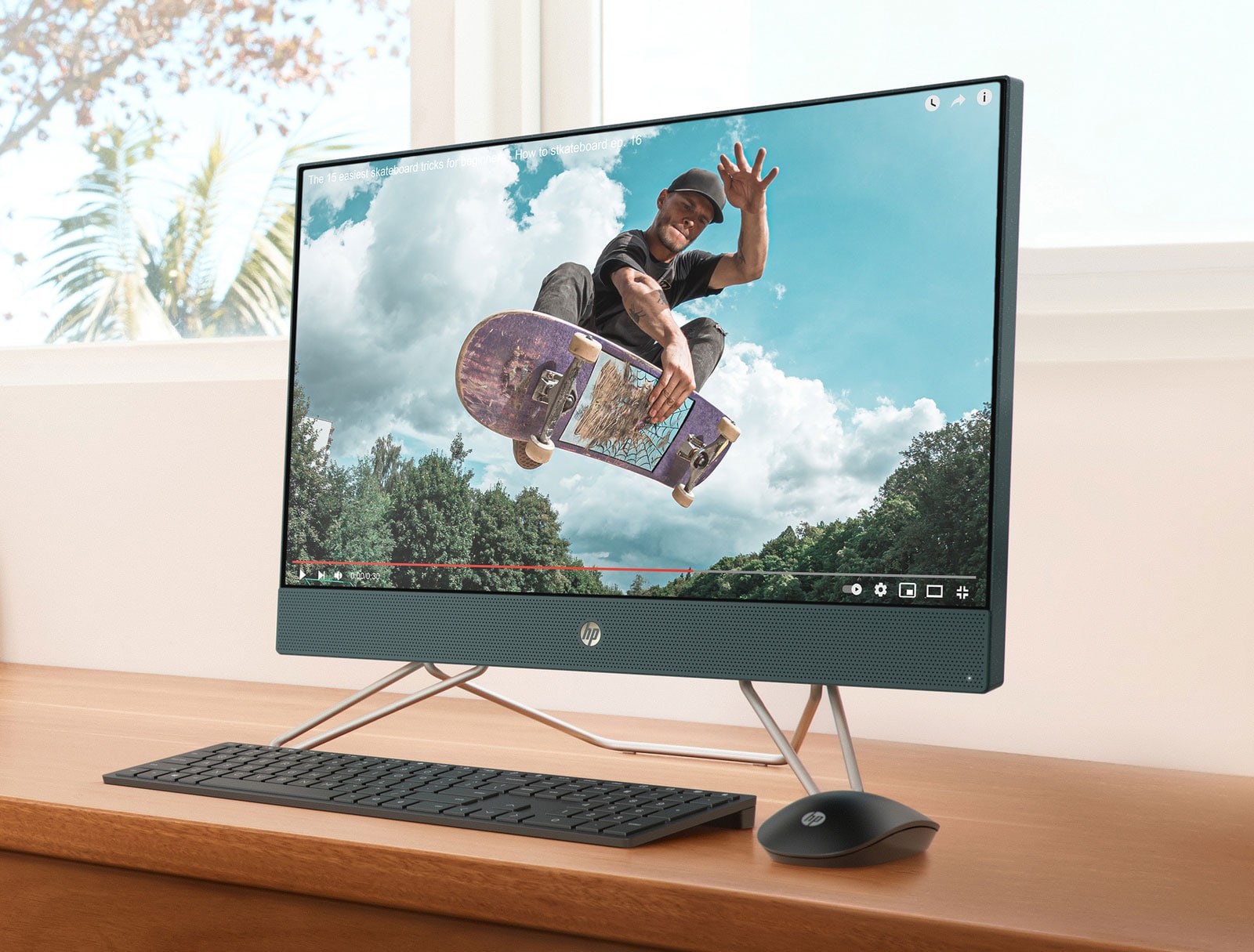
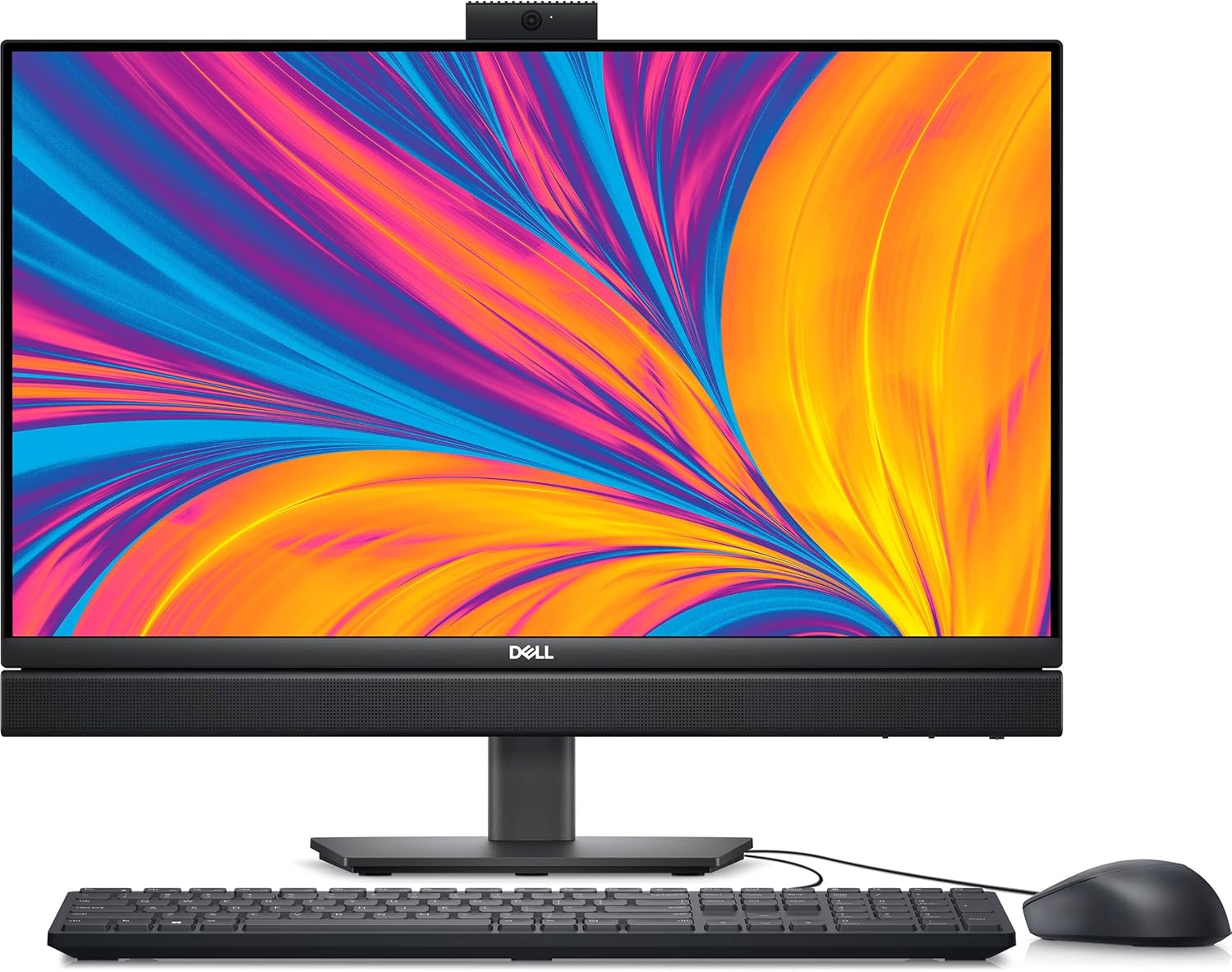
An all-in-one desktop computer redesigns traditional PC components to fit within the perimeter of a monitor enclosure. Traditional desktop computers separate the processing chassis (the tower) from the display device, requiring power cables, display interfaces (such as DisplayPort or HDMI), and peripheral wires to bridge the system. An AIO computer combines these subsystems into one continuous chassis, utilizing engineered cooling channels and high-density system boards.
To achieve a slim profile, manufacturers rely heavily on mobile or custom small-form-factor architecture. The motherboard inside an AIO often resembles the layout of a laptop rather than a standard ATX or Micro-ATX desktop board. Central processing units (CPUs) and graphics processing units (GPUs) are selected or tuned for low thermal design power (TDP) to keep heat output within manageable levels inside the sealed enclosure. High-efficiency internal power supplies or external power bricks supply energy, preventing heat buildup within the display housing.
The integration extends beyond core computing components. Premium display panels—ranging from 24-inch Full HD units to 32-inch 4K or 5K displays—house integrated stereo speakers, multi-microphone arrays, webcams, and wireless connectivity cards. Air intake and exhaust vents are strategically positioned along the bottom and top edges of the frame, utilizing convection and blower-style fans to draw cool air across heat sinks attached to the processor and storage modules.
Primary Benefits and Practical Limitations
Understanding the engineering trade-offs of an all-in-one computer helps buyers evaluate whether this form factor meets their long-term operational needs.
Key Advantages
- Space Efficiency and Aesthetics: Because the computer resides entirely behind the display panel, an AIO frees up significant desk space. This footprint reduction makes it valuable in front-reception desks, retail POS terminals, and minimalist home offices.
- Simplified Setup and Reduced Cable Clutter: Setting up an AIO requires plugging in a single power cable and connecting a wireless keyboard and mouse. This setup minimizes wiring mess and reduces installation time across institutional deployments.
- Integrated Peripherals: Most modern AIO systems ship with high-resolution webcams, studio-quality microphone arrays, and robust built-in speakers, eliminating the need to purchase external multimedia accessories.
- High-Quality Displays: Because the panel is fixed to the hardware, manufacturers optimize the display panel to match the targeted performance level, offering factory-calibrated color profiles, thin bezels, and touch options on select models.
Practical Limitations
- Restricted Upgradability: Due to tight internal spaces and specialized layout designs, upgrading components in an AIO is often difficult or impossible. While some systems allow access to system memory (RAM) or secondary storage, many solder key components—including the CPU, GPU, and RAM—directly to the motherboard.
- Thermal Constraints: The compact chassis limits the physical size of heat sinks and cooling fans. Under heavy computational loads, components may trigger thermal throttling, temporarily lowering operational clock speeds to prevent overheating.
- Single Point of Hardware Failure: In a component-based desktop, a failed monitor can be replaced independently of the computer tower. If an AIO’s integrated display panel fails outside of warranty, replacing the entire display module can be costly, often requiring whole-system servicing.
- Higher Initial Cost per Unit of Performance: Integrating high-density display panels and custom thermals increases manufacturing costs compared to standard desktop towers with comparable compute specifications.
Essential Specifications to Evaluate Before Buying
Evaluating an AIO computer requires understanding how its internal specs affect everyday performance, screen clarity, and long-term hardware relevance.
| AIO Hardware Stack | Specification |
|---|---|
| Display Panel | IPS / OLED | 1080p, 1440p, or 4K/5K | Touch option |
| Processor | Intel Core Ultra / AMD Ryzen 8000+ / Apple M-series |
| System Memory | 16 GB DDR5 Minimum (32 GB for creative workloads) |
| Storage | 512 GB – 2 TB NVMe PCIe M.2 SSD |
| Connectivity | Thunderbolt 4 / USB-C / Wi-Fi 6E or 7 / HDMI In-Out |
Display Panel and Resolution
The display panel is the primary user interface and physical body of an AIO system. Selection depends on screen size, panel technology, and resolution:
- Resolution: A 1920x1080 (Full HD) resolution is standard for 24-inch entry-level displays. For screens sized 27 inches and larger, 2560x1440 (QHD) or 3840x2160 (4K) resolutions are recommended to prevent visible pixelation and increase usable desktop space.
- Panel Type: In-Plane Switching (IPS) panels are standard, offering wide viewing angles and consistent color rendering. Advanced creative AIOs feature OLED or Mini-LED displays, which provide high contrast ratios and deeper blacks for professional editing workflows.
- Touchscreen Options: Touch-enabled screens add versatility for point-of-sale systems, digital whiteboards, and interactive applications, though non-touch panels generally feature lower screen glare and lower power consumption.
Processor (CPU) Architecture
The processor dictates how efficiently an AIO handles multitasking, application execution, and background background services.
Modern AIO systems typically feature mid-to-high-tier processor families built on power-efficient architectures:
- Intel Core Ultra Series: Integrates dedicated Neural Processing Units (NPUs) to handle local artificial intelligence tasks and real-time audio/video processing alongside standard performance cores.
- AMD Ryzen 8000 and 9000 Series: Offers high multi-core performance with integrated Radeon graphics, delivering balance for productivity and moderate multimedia processing.
- Apple Silicon (M-Series): Implemented in the Apple iMac line, unifying system memory and compute blocks directly on the system-on-chip (SoC) for exceptional energy efficiency and minimal thermal output.
Memory (RAM) and NVMe Storage
System memory ensures fluid multitasking when operating resource-intensive software applications:
- 16 GB DDR5 RAM: The recommended baseline for modern office productivity, web browsing with numerous active tabs, and cloud application integration.
- 32 GB+ RAM: Necessary for creative tasks such as 4K video editing, local software development, high-resolution graphic design, and large dataset processing.
Storage specifications should rely exclusively on solid-state drives (SSDs). Modern systems use NVMe PCIe M.2 SSDs, which deliver read and write speeds exceeding 3,000 MB/s—far outperforming legacy mechanical hard drives. A minimum storage target of 512 GB is recommended for basic installations, while 1 TB or 2 TB is ideal for local media storage and project files.
Port Selection and Video Input Passthrough
Because rear port access can be less convenient on an AIO, port selection and layout play a key role in practical usability:
- USB-C and Thunderbolt 4: Provide high-speed data transfer, external device charging, and output support for additional display monitors.
- HDMI-In Capability: Select AIO models include an HDMI-Input port. This feature allows the system to act as a standalone external display panel for a secondary laptop, gaming console, or streaming box, extending the utility of the hardware even if the internal PC components become outdated.
- Wireless Standards: Look for units certified for Wi-Fi 6E or Wi-Fi 7 and Bluetooth 5.3+, ensuring high data rates and reliable peripheral connections in high-density wireless environments.
Comparing All-in-One PCs, Traditional Desktops, and Laptops
Selecting the right device architecture requires balancing performance requirements, desk space, upgrade paths, and portability.
| Feature / Attribute | All-in-One (AIO) Computer | Traditional Desktop Tower | Laptop Computer |
|---|---|---|---|
| Physical Footprint | Low (Integrated into monitor) | High (Requires separate desk space/floor area) | Minimal (Portable fold-closed design) |
| Portability | Fixed (Transportable within building) | Stationary (Tied to desk setup) | High (Battery operated, highly portable) |
| Display Integration | Fixed built-in display panel | External display required (User choice) | Integrated small display panel |
| Component Upgradability | Very Low to Moderate | High (Standard modular components) | Low to None (Soldered hardware) |
| Thermal Capacity | Moderate (Mobile/slim cooling) | Exceptional (Large heat sinks/liquid cooling) | Low (Compact fan design) |
| Peak GPU Performance | Integrated or low-power Discrete | Full-size, high-wattage discrete GPUs | Mobile-tier GPUs (Power restricted) |
| Cable Complexity | Extremely Low (Single power cord) | Moderate to High (Multiple interconnects) | Low (Charging cable only) |
| Cost to Performance | Mid-range | High efficiency | Mid-range |
Matching an All-in-One Computer to Your Needs
Different computing tasks require tailored hardware setups. Selecting the correct system tier prevents under-buying for demanding workloads or over-spending for basic productivity.
- Select Usage Profile
- Office Work
- 24" 1080p/QHD
- Mid-range CPU
- 16 GB DDR5 RAM
- Creative Work
- 27"-32" 4K IPS
- Dedicated GPU
- 32 GB+ RAM
- Commercial & POS
- 24" Touchscreen
- VESA Compliant
- TPM 2.0 Security
- Office Work
Home Office and General Enterprise Productivity
For administrative duties, cloud management, financial modeling, and web browsing, balance and efficiency take priority over raw computing power:
- Target Screen Size: 24 to 27 inches (1080p or 1440p panel).
- Recommended Specs: Mid-tier processor (Intel Core Ultra 5 / AMD Ryzen 5 / Apple M-series), 16 GB DDR5 RAM, 512 GB NVMe SSD.
- Key Considerations: Look for integrated low-light webcams with hardware privacy shutters, noise-canceling microphone arrays, and built-in cable management channels along the support stand.
Creative Work and Multimedia Content Production
Visual content creation, video rendering, and architectural design demand elevated screen quality and higher graphic processing capabilities:
- Target Screen Size: 27 to 32 inches (4K UHD resolution, wide color gamut supporting 99%+ DCI-P3 or sRGB coverage).
- Recommended Specs: High-tier processor (Intel Core Ultra 7/9, AMD Ryzen 7/9, or Apple M-series Pro/Max), 32 GB to 64 GB RAM, dedicated graphics acceleration (such as NVIDIA GeForce RTX series), and 1 TB to 2 TB NVMe SSD.
- Key Considerations: Standardize on panel quality. Color accuracy, hardware calibration support, and high peak brightness levels (400+ nits) are essential for high-dynamic-range (HDR) work.
Enterprise Desks, Healthcare, and Retail POS
Commercial deployments require physical durability, standardized deployment features, and security options:
- Target Screen Size: 21.5 to 24 inches with responsive touchscreen interface options.
- Recommended Specs: Standard enterprise CPU with remote management capabilities (such as Intel vPro), 16 GB RAM, 256 GB–512 GB SSD.
- Key Considerations: Look for VESA mount compatibility (100x100mm standard) to secure systems to wall brackets or articulating monitor arms. Integrated hardware-level encryption modules (TPM 2.0) and Kensington lock slots are essential for physical security in public access zones.
Setup, Maintenance, and Upgradability Realities
To maintain long-term reliability and secure optimal performance from an AIO computer, follow these setup and maintenance protocols.
Initial Desk Placement and Ergonomics
Positioning: Install the computer on a stable work surface. Because the integrated stand holds both screen and compute weight, position the top edge of the display screen at or slightly below eye level to minimize neck strain.
Ventilation Space: Ensure a minimum clearance of three to four inches around the intake vents (usually at the base) and exhaust outlets (along the top or rear spine). Avoid pushing the rear of the monitor flat against a wall, as this restricts heat dissipation.
All-in-One Screen
- Eye Level Top of Screen
Stand & Cable Way
- 3-4 Inches Rear Clearance
Thermal Maintenance and Cleaning
Dust buildup inside small-form-factor heatsinks restricts airflow, causing higher fan noise and elevated component temperatures:
- Cleaning Vents: Periodically clean intake and exhaust grilles using compressed air. Perform this maintenance while the system is powered down to prevent dust from settling deeper inside internal fan bearings.
- Screen Care: Clean the display panel with a lint-free microfiber cloth lightly dampened with water or specialized screen-cleaning solution. Never spray liquids directly onto the glass panel, as liquid running down the screen face can enter the lower bezel and damage internal control boards.
Hardware Upgrade Strategies
Before attempting hardware modifications, consult manufacturer technical documentation to verify accessible internal components:
- Memory Upgrades: Determine whether the system uses standard SO-DIMM memory slots or soldered RAM. If SO-DIMM slots are accessible via a rear hatch, power down the system, disconnect all power sources, apply grounding precautions, and install matching RAM modules.
- Storage Expansion: If internal expansion options are limited, use external high-speed storage. Connecting an external NVMe SSD via a USB4 or Thunderbolt 4 interface delivers read/write speeds over 2,000 MB/s—ideal for offloading large project archives without voiding warranties or opening the chassis.
Frequently Asked Questions
Can an all-in-one computer be used as a second monitor for another system?
Yes, but only if the specific AIO model features an HDMI-In port or supports specialized target display protocols. Systems equipped with HDMI-In accept direct video signals from external devices, functioning as a standalone monitor. If an HDMI-In port is missing, software-based network casting solutions must be used instead, though they can introduce input latency.
Is an all-in-one computer suitable for modern 3D gaming?
AIO computers designed with integrated graphics can easily run casual games, competitive esports titles, and older games at moderate display settings. However, demanding modern 3D AAA games require an AIO fitted with a dedicated mobile or desktop-class GPU (such as an NVIDIA GeForce RTX card). Due to thermal limits, AIOs generally perform below high-end desktop towers optimized for gaming.
Can you upgrade the RAM or storage in an all-in-one PC?
Upgradability varies by brand and model design. Many 27-inch and larger Windows AIO computers feature removable rear doors or accessible slots for expanding memory (RAM) and adding M.2 NVMe solid-state drives. Conversely, thin AIOs and modern Apple iMac models solder memory and storage directly to the main logic board, preventing post-purchase hardware upgrades.
What happens if the display screen on an all-in-one computer breaks?
If the screen panel sustains physical damage or experiences backlight failure, the repair requires replacing the integrated display assembly. Out-of-warranty screen replacements can be expensive due to component integration. However, if the underlying computing hardware remains functional, you can often connect an external monitor to one of the system's video output ports (HDMI-Out or DisplayPort over USB-C) to continue using the PC.
How long does an all-in-one computer typically last?
With proper thermal care, regular cleaning, and stable operating environments, an all-in-one computer has an average hardware lifespan of 5 to 7 years. The primary limiting factor over time is usually software performance demands or fixed internal hardware limits rather than sudden structural failure.
Summary and Next Steps
All-in-one computers offer a clean, functional balance between space efficiency, high-quality display design, and complete out-of-the-box operation. By housing internal computing components within the monitor housing, they clean up workstations across home offices, design studios, and corporate environments.
Next Steps for Buyers:
- Define Performance Tier: Determine whether your daily operations require basic office multitasking (16 GB RAM, integrated graphics) or heavy media production (32 GB+ RAM, dedicated GPU).
- Check Port Layout and Inputs: If you plan to connect a secondary computer or gaming console later, verify that your chosen model includes an HDMI-In port.
- Verify Upgradability Limits: Check the manufacturer's technical specifications to confirm whether system memory and storage drives can be upgraded in the future, or if you need to order higher capacity hardware upfront.
Image Gallery