How to Fix Microsoft RunDLL Errors in Windows (Step-by-Step Guide)
To address a Microsoft RunDLL error, restart your computer and run Windows Security to eliminate malware. If the popup persists, open Task Manager or Task Scheduler to disable leftover startup items referencing missing .dll files. For...
To address a Microsoft RunDLL error, restart your computer and run Windows Security to eliminate malware. If the popup persists, open Task Manager or Task Scheduler to disable leftover startup items referencing missing .dll files. For system-level errors, open Command Prompt as an administrator and execute sfc /scannow followed by the DISM repair command.
Contents
Understanding Microsoft RunDLL and Why Errors Occur
The Microsoft RunDLL process (represented by the executable file rundll32.exe) is a core Windows operating system component. Unlike standard software applications that run directly via .exe files, Dynamic Link Library (.dll) files contain shared code, data, and resources designed to be executed by other programs. Because Windows cannot launch a .dll file directly, it relies on rundll32.exe to load these library functions into memory.
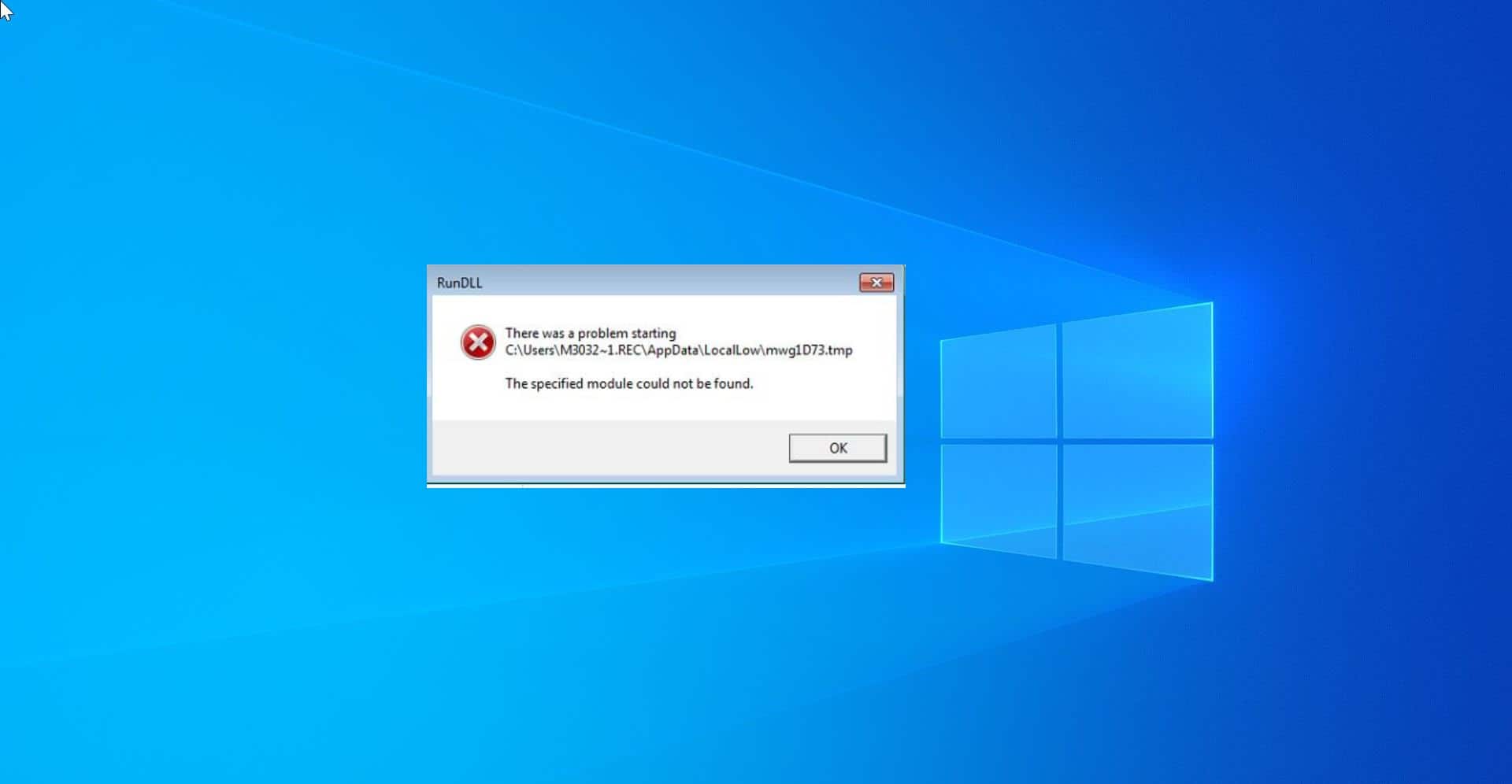
When a RunDLL error dialog box pops up—typically stating "There was a problem starting [filename].dll" or "The specified module could not be found"—it means Windows is attempting to execute a DLL file that has been deleted, corrupted, moved, or improperly installed.
RunDLL Error Prompt Example:
- There was a problem starting C:\Users...\AppData\Local....dll
- The specified module could not be found.
- [ OK ]
These errors occur due to several distinct operational breakdowns:
- Orphaned Startup Entries: An application or third-party background tool was uninstalled, but its corresponding startup entry remains in the Windows Registry or Task Scheduler. At boot, Windows attempts to run the deleted file via
rundll32.exe. - Incomplete Antivirus Remediation: Security software may quarantine or delete a malicious
.dllfile while leaving the Registry autorun key untouched. Every time the computer reboots, Windows triggers a RunDLL prompt for the now-deleted malware payload. - Corrupted System Libraries: System-critical dynamic libraries can suffer corruption due to abrupt power losses, unstable updates, or disk errors.
- Faulty Software Updates: An application update may overwrite or misconfigure DLL dependency pathways, preventing
rundll32.exefrom calling required functions. - Active Malware Activity: Certain forms of adware or Trojan viruses hijack legitimate Windows binaries or attempt to run malicious code under the guise of
rundll32.exe.
Identifying the Source of the RunDLL Error
Before executing repair commands, you must identify whether the missing module belongs to a legitimate third-party application, a core Windows system library, or a remnant of a security threat.
- Examine the File Path: Pay close attention to the exact path listed in the error popup.
- Paths originating in
C:\Windows\System32\orC:\Windows\SysWOW64\generally refer to core operating system components or driver software. - Paths located in
C:\Users\\AppData\Local\Temp\orC:\Users\\AppData\Roaming\frequently point to low-level browser extensions, third-party update utilities, or quarantined malware strains.
- Paths originating in
- Document the Exact DLL Name: Record the name of the file (e.g.,
Bridge.dll,LogiLDA.dll, or random character strings likex86_a94f.dll). - Check Task Manager for Active Instances: Press
Ctrl+Shift+Escto open Task Manager. Navigate to the Processes tab and look for Windows Host Process (Rundll32). Right-click the process and select Properties to inspect its execution origin.
Method 1: Remove Orphaned Startup Entries and Scheduled Tasks
The vast majority of persistent RunDLL popups occurring immediately after logging into Windows are caused by orphaned registry keys or scheduled tasks.
Step 1: Disable Invalid Startup Programs in Task Manager
- Right-click the Windows Start button and select Task Manager (or press
Ctrl+Shift+Esc). - Select the Startup apps tab (or Startup tab in older Windows builds).
- Review the list of applications configured to launch on system boot. Look for entries whose publisher is listed as "Unknown" or those matching the application named in the RunDLL prompt.
- Right-click the suspect item and click Disable.
- Restart the system to test whether the popup is resolved.
Step 2: Remove Orphaned Tasks in Task Scheduler
If disabling startup apps does not stop the error, the command is likely embedded inside a scheduled task created by a former application or malware installer.
- Press
Windows Key+Rto open the Run dialog box. - Type
taskschd.mscand pressEnterto open Task Scheduler. - Select Task Scheduler Library in the left navigation pane.
- Highlight each task in the center pane and click the Actions tab at the bottom of the screen.
- Inspect the Details box for references to
rundll32.exeor the specific.dllfile named in your error dialog. - When you locate the task pointing to the missing
.dllfile, right-click the task name in the top pane and select Delete.
Task Scheduler Window:
- Task Scheduler Library
- [Select Task] - View "Actions" tab below
- Check Details for:
rundll32.exe "path\to\file.dll"
- Check Details for:
- Action: Right-Click Task - Delete
- [Select Task] - View "Actions" tab below
Step 3: Use Microsoft Sysinternals Autoruns for Deep Inspection
For persistent entries hidden deep within the Windows Registry, the official Microsoft Sysinternals utility offers complete visibility into system launch triggers.
- Download Microsoft Sysinternals Autoruns directly from the official Microsoft Learn documentation platform.
- Extract the downloaded zip file and right-click
Autoruns.exe(orAutoruns64.exefor 64-bit systems), selecting Run as administrator. - Allow the tool to scan the system completely.
- Select the Everything tab, then click Options in the top menu bar and check Hide Microsoft Entries to isolate third-party keys.
- Look for entries highlighted in yellow or pink. Yellow entries indicate file targets that no longer exist on the hard drive (orphaned entries).
- Look specifically for any yellow entry referencing your target
.dllfile. Right-click the entry and select Delete.
Method 2: Run Built-In Windows Repair Utilities (SFC and DISM)
If your RunDLL error involves files situated in C:\Windows\System32\ or manifests alongside system crashes, essential OS components may be corrupted. Use Windows' native command-line repair tools to verify system integrity.
Step 1: Execute System File Checker (SFC)
System File Checker scans protected Windows system files and replaces corrupted or missing data with a cached copy stored within the operating system.
- Press the
Windows Key, typecmdinto the search bar, right-click Command Prompt, and select Run as administrator. - Type the following command exactly as shown and press
Enter:sfc /scannow - Allow the verification process to reach 100% completion. The utility will return one of four messages:
- Windows Resource Protection did not find any integrity violations.
- Windows Resource Protection found corrupt files and successfully repaired them.
- Windows Resource Protection found corrupt files but was unable to fix some of them.
- Windows Resource Protection could not perform the requested operation.
If SFC reports that it fixed corrupt files, restart your computer to see if the RunDLL error has cleared.
Step 2: Run Deployment Image Servicing and Management (DISM)
If SFC fails to repair the corruption or states it found files it could not fix, run DISM. This utility connects to official Microsoft Windows Update servers to download fresh replacement files for system components.
- Reopen Command Prompt as an administrator.
- Execute the following command to check the component store status:
DISM.exe /Online /Cleanup-Image /CheckHealth - If corruption is identified, run the full restoration command:
DISM.exe /Online /Cleanup-Image /RestoreHealth - Wait for the operation to complete (this process typically takes 10 to 20 minutes depending on internet connection speed).
- Once DISM finishes successfully, run
sfc /scannowonce more to ensure all offline caches are updated.
Method 3: Address Security Threats and Quarantine Remnants
Malware frequently uses legitimate Windows processes like rundll32.exe to disguise malicious background operations (a technique known as process masquerading). Alternatively, an antivirus program may have scrubbed an infection while leaving behind the registry startup trigger.
Run a Complete Threat Scan
- Select Start, type
Windows Security, and open the application. - Click Virus & threat protection.
- Select Scan options beneath the Quick Scan button.
- Choose Full scan and click Scan now.
- For deep offline threats, return to Scan options, select Microsoft Defender Offline scan, and click Scan now. Your system will reboot into a secure environment to remove persistent rootkits or malware DLLs.
Windows Security Scan Flow:
- Virus & threat protection
- Scan options
- Full scan / Microsoft Defender Offline
Method 4: Re-register or Repair Application Dependencies
If the error appears only when launching a specific program (such as video editing software, games, or legacy hardware utility suites), the application's internal library registration is likely damaged.
Re-register existing DLL components via Regsvr32
If the physical .dll file exists on your system but Windows fails to invoke it properly, re-registering the module within the Windows Registry can re-establish communication links.
- Open Command Prompt as an administrator.
- Type
regsvr32 "full_path_to_file.dll"and pressEnter.- Example:
regsvr32 "C:\Windows\System32\example.dll"
- Example:
- If successful, a dialog box reading "DllRegisterServer in [filename] succeeded" will appear.
Safety Warning: Never download standalone
.dllfiles from generic third-party "DLL download" websites. Files hosted on these portals are often outdated, unverified, or bundled with malware. Always obtain missing runtime components directly from official software vendors or by reinstalling the host application.
Reinstall the Affected Application
- Press
Windows Key+R, typeappwiz.cpl, and pressEnterto open Programs and Features. - Locate the software product associated with the error.
- Select the application and click Uninstall or Repair.
- Download the latest official installation package from the vendor's verified website and reinstall the package to restore missing dynamic libraries properly.
RunDLL Error Diagnostic and Remediation Matrix
Use the reference table below to match your specific diagnostic symptoms to the appropriate corrective action:
| Error Symptom / Message | Likely Underlying Cause | Primary Resolution Method | Recommended Tool |
|---|---|---|---|
Popup occurs upon Windows startup pointing to AppData\Local\... |
Leftover registry entry from uninstalled app or removed malware | Disable startup entry or remove orphaned registry key | Sysinternals Autoruns / Task Manager |
"The specified module could not be found" referencing System32 |
Corrupted system component or missing Windows system file | Execute system integrity repair routines | SFC (/scannow) & DISM |
| Error appears when launching a specific third-party app | Damaged installation folder or missing software runtime dependency | Reinstall program or repair application binaries | Control Panel / Official Installer |
Frequent popup paired with high CPU usage by rundll32.exe |
Active malware infection or process injection attack | Run an offline security scan and isolate the parent process | Microsoft Defender Offline Scan |
| "Specified module failed to load" for driver hardware (e.g., audio, graphics) | Corrupted device driver DLL references | Reinstall official hardware device drivers | Device Manager / OEM Installer |
Advanced Troubleshooting: Performing a Clean Boot
When basic diagnostic steps fail to isolate the source of a RunDLL pop-up window, performing a Clean Boot isolates startup processes by loading Windows with a minimal set of drivers and startup programs.
- Press
Windows Key+R, typemsconfig, and select OK to launch System Configuration. - Navigate to the Services tab.
- Select the checkbox marked Hide all Microsoft services at the bottom left of the window.
System Configuration (msconfig):
- Services Tab
- Hide all Microsoft services (CRITICAL STEP)
- Click: [ Disable all ]
- Startup Tab
- Click: Open Task Manager (Disable remaining items)
- Click Disable all to turn off all non-essential third-party services.
- Click the Startup tab, then select Open Task Manager.
- Disable all startup items listed within Task Manager, close the window, and return to System Configuration.
- Click Apply, then OK, and restart your computer.
If the error no longer occurs upon startup in the Clean Boot state, a third-party application or service is the culprit. You can isolate the exact program by re-enabling services one by one and restarting until the error recurs.
Summary of Best Practices
To resolve Microsoft RunDLL errors safely and maintain system performance over time:
- Isolate the path: Determine if the missing
.dllfile belongs to Windows (System32), a standard program (Program Files), or a residual startup item (AppData). - Clean up startup triggers: Use Task Manager, Task Scheduler, or Sysinternals Autoruns to eliminate broken shortcuts left behind by uninstalled apps or quarantined security threats.
- Repair OS corruptions natively: Use
sfc /scannowandDISMcommands to repair core system utilities rather than downloading manual replacement files. - Avoid third-party DLL repositories: Always obtain dynamic libraries directly from official installers, official redistributable packages (such as Microsoft Visual C++ Redistributable packages), or vendor updates.
- Keep your system updated: Regularly install Windows Updates to keep core system dependencies fully synchronized.
Frequently Asked Questions (FAQs)
What is the difference between rundll32.exe and standard .exe files?
An .exe (executable) file contains a complete entry point allowing the Windows operating system to launch and manage the code independently as a primary process. A .dll (Dynamic Link Library) file contains shared code, routines, and data structures intended for use by multiple applications simultaneously. Because .dll files cannot be executed directly by the system kernel, Windows uses rundll32.exe as an intermediary wrapper to load and run functions exported by DLL libraries.
Is rundll32.exe a virus?
rundll32.exe itself is a safe, legitimate core Microsoft Windows system binary located in C:\Windows\System32\. However, malicious software sometimes attempts to exploit this tool by using it to run malicious .dll files, or by spawning processes with similar names (such as rundll.exe or rundl32.exe) placed in improper file folders. You can verify whether rundll32.exe is authentic by opening Task Manager, right-clicking the running process, selecting **Properties**, and verifying that its location is C:\Windows\System32.
Why does a RunDLL error pop up after my antivirus removes malware?
When an antivirus program detects and removes a malicious .dll file, it deletes the file from your hard drive or moves it to a secure quarantine vault. However, if the malware created a startup entry in your Windows Registry or Task Scheduler, Windows will still attempt to launch the file every time your system boots. Because the file is gone, rundll32.exe fails to load the module, resulting in an error popup. You can stop the prompt by removing the leftover startup entry using Task Manager, Task Scheduler, or Sysinternals Autoruns.
How do I re-install missing Windows DLL files safely?
The safest way to restore missing or corrupted system DLL files is through Windows' built-in repair features. Run System File Checker (sfc /scannow) and DISM (DISM.exe /Online /Cleanup-Image /RestoreHealth) via an elevated Command Prompt. If the missing DLL belongs to a specific third-party application or gaming environment, reinstalling the software program or updating the appropriate Microsoft Visual C++ Redistributable Package will safely place original, uncorrupted libraries back onto your computer.
Image Gallery