How to Use a Phone Hotspot via Wi-Fi: A Complete Guide to Mobile Tethering
To use a phone hotspot via Wi-Fi, you must enable the "Personal Hotspot" (iOS) or "Portable Hotspot" (Android) feature within your smartphone's settings. This turns your device into a wireless router, sharing its cellular data connecti...
To use a phone hotspot via Wi-Fi, you must enable the "Personal Hotspot" (iOS) or "Portable Hotspot" (Android) feature within your smartphone's settings. This turns your device into a wireless router, sharing its cellular data connection with nearby devices like laptops or tablets. Once enabled, simply find your phone's name in the Wi-Fi list of your secondary device and enter the password you created.
Contents
Using your phone as a Wi-Fi hotspot, often referred to as "tethering," has become an essential skill for professionals, travelers, and students in 2026. With the proliferation of high-speed 5G-Advanced networks, a mobile hotspot can often outperform public Wi-Fi in terms of both speed and security. However, setting it up correctly requires understanding your hardware, your carrier’s limitations, and the security protocols necessary to protect your data.
Prerequisites for Using a Mobile Hotspot
Before you attempt to broadcast a Wi-Fi signal from your phone, several technical and contractual requirements must be met. Not every smartphone or data plan is configured to allow hotspot usage by default.
Carrier Compatibility and Data Plans
Most modern cellular plans include a dedicated "hotspot data" allotment. While your primary smartphone data might be "unlimited," carriers frequently cap the amount of data you can share with other devices. In 2026, many premium plans offer between 50GB and 100GB of high-speed hotspot data before throttling speeds to 3G or 2G levels. It is vital to check your carrier’s mobile app or website to confirm your specific entitlement. Some legacy plans or budget "prepaid" options may charge a separate monthly fee to unlock the hotspot feature.
Hardware Requirements
Your smartphone must be equipped with a functional cellular modem and a Wi-Fi chip capable of simultaneous transmission. While almost all smartphones manufactured in the last decade support this, the quality of the connection depends on the bands supported. Devices using 5G-Advanced (5.5G) can provide multi-gigabit speeds to connected devices, provided the hardware can manage the heat generated by such high-speed data processing.
Battery and Power Considerations
Broadcasting a Wi-Fi signal while simultaneously processing cellular data is one of the most power-intensive tasks a smartphone can perform. To prevent your device from shutting down or experiencing thermal throttling, it is recommended to keep the phone connected to a power source while the hotspot is active. If you are on the move, a high-capacity power bank is a necessary accessory for extended tethering sessions.
How to Set Up a Hotspot on Android Devices
Android's interface can vary slightly depending on the manufacturer (such as Samsung, Google, or OnePlus), but the underlying process remains consistent across the operating system.
Accessing the Hotspot Menu
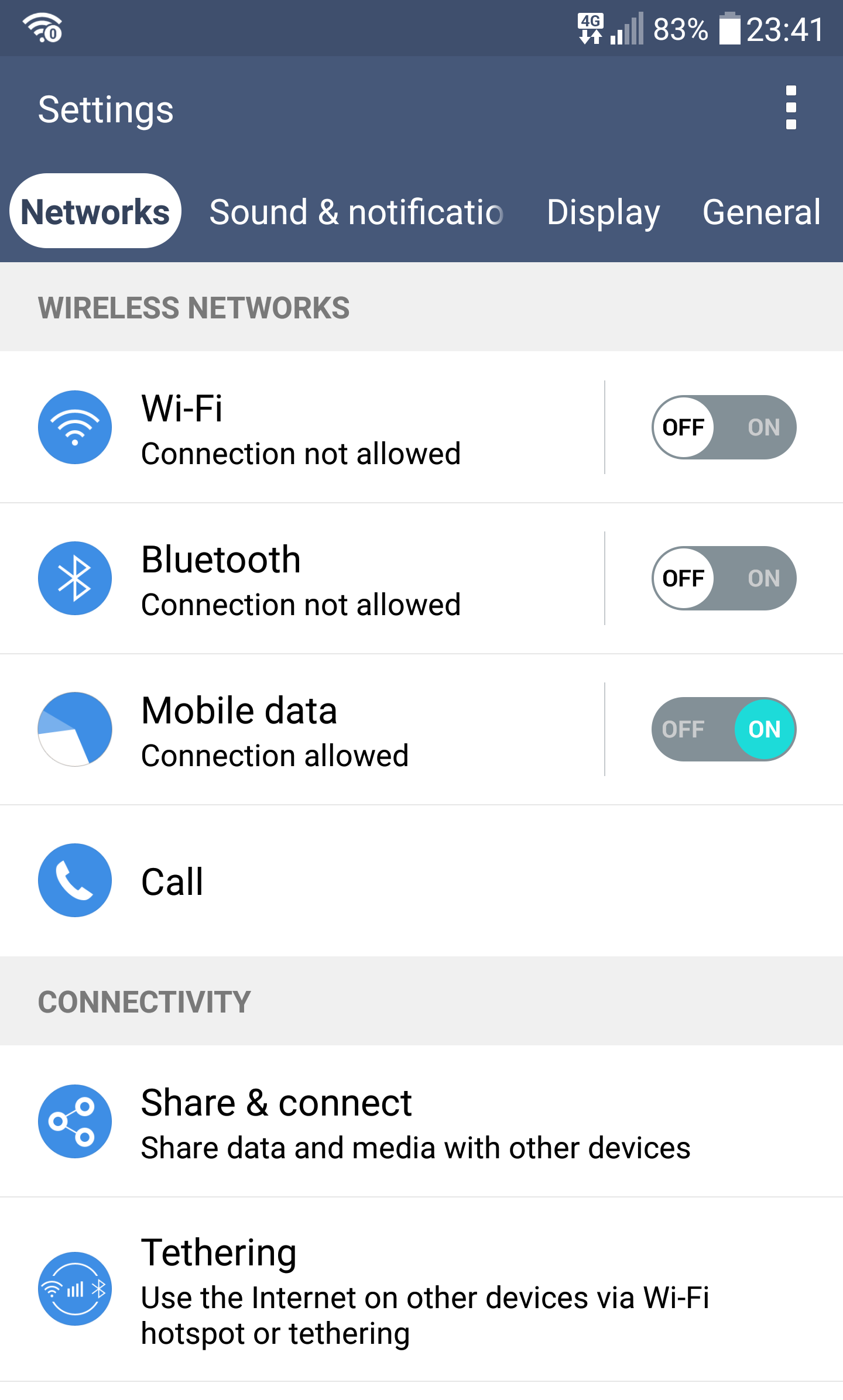
To begin, swipe down from the top of your screen to access the Quick Settings panel. Look for an icon labeled Hotspot or Mobile Hotspot. If it is not there, you will need to navigate through the main settings menu:
- Open the Settings app.
- Tap on Network & Internet (or Connections on Samsung devices).
- Select Hotspot & Tethering.
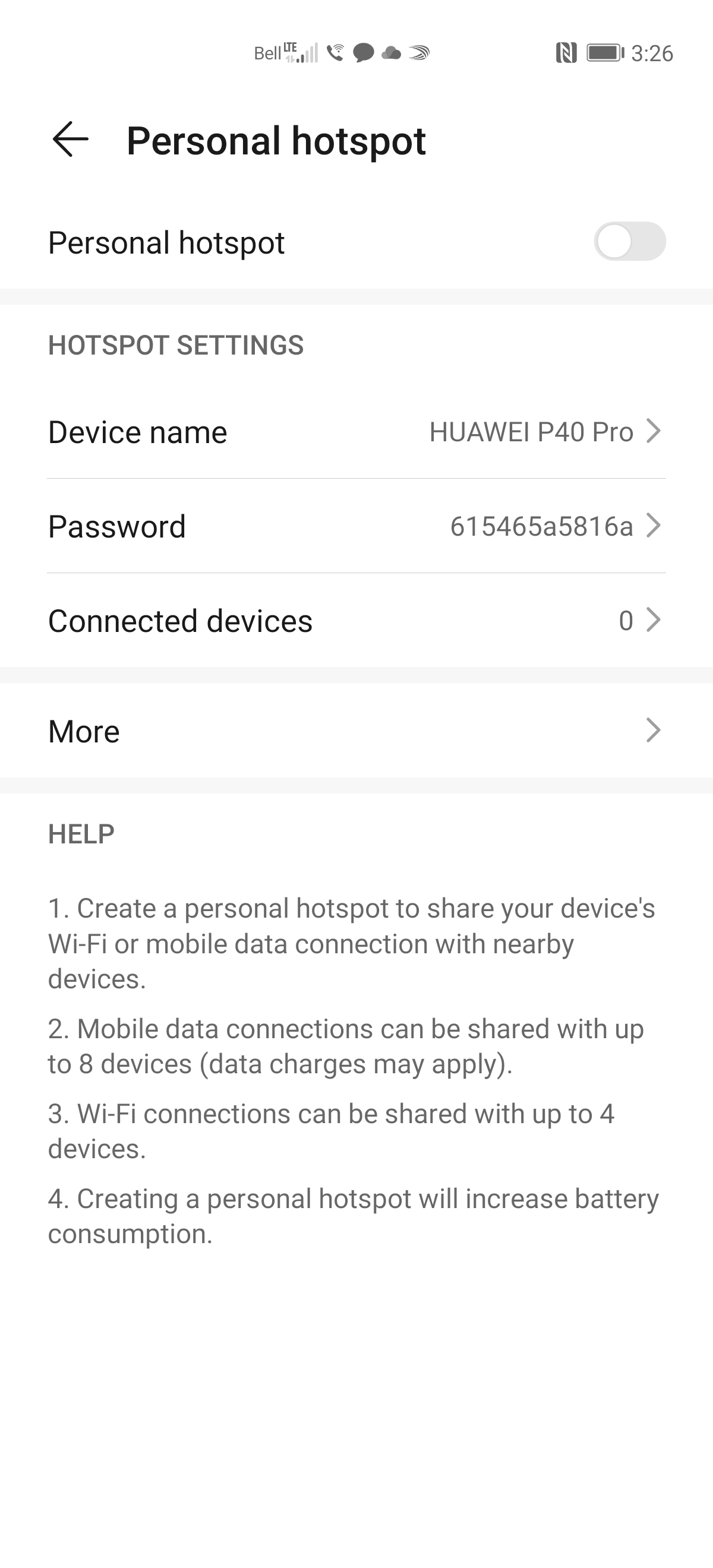
- Tap on Wi-Fi Hotspot or Mobile Hotspot.
Configuring Your Network
Before toggling the switch to "On," you must configure your network identity and security. Tap on Hotspot Name to give your network a recognizable SSID (Service Set Identifier). Next, tap on Hotspot Password. Ensure you use a complex password; because you are broadcasting in a public or semi-public space, a weak password allows others to consume your data and potentially intercept unencrypted traffic.
Advanced Android Settings
In 2026, many Android devices offer an "AP Band" selection. You can typically choose between 2.4 GHz, 5 GHz, or 6 GHz (on Wi-Fi 6E/7 compatible phones).
- 2.4 GHz: Best for range and compatibility with older devices.
- 5 GHz / 6 GHz: Provides significantly faster speeds and less interference but has a shorter physical range and consumes more battery.
How to Set Up a Hotspot on iPhone (iOS)
Apple has streamlined the hotspot process, integrating it deeply into the iCloud ecosystem to allow for "Instant Hotspot" functionality between Apple devices.
Enabling the Personal Hotspot
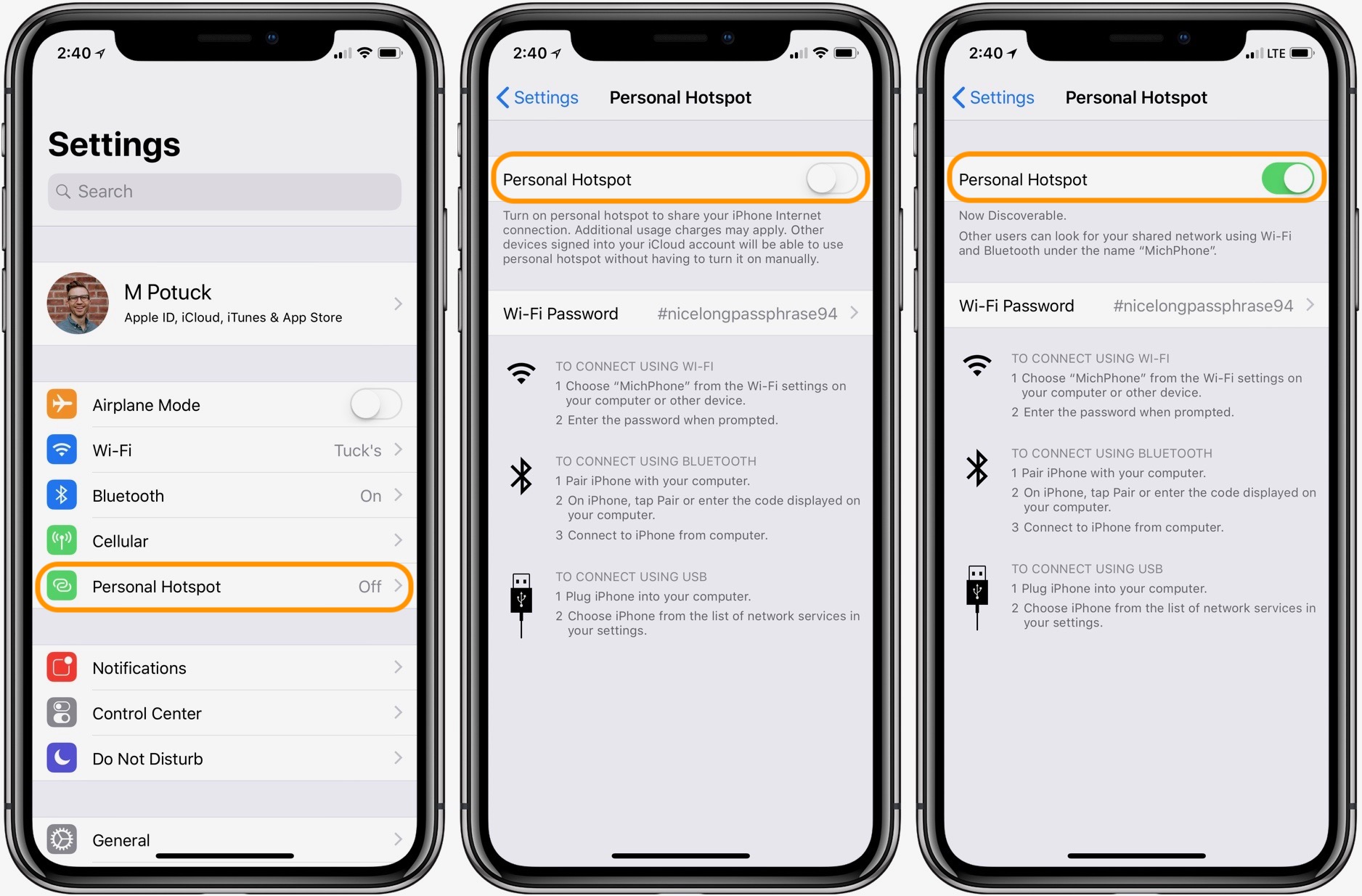
- Open the Settings app on your iPhone.
- Tap on Cellular (or Mobile Data in some regions).
- Tap on Personal Hotspot.
- Toggle the switch for Allow Others to Join to the green "On" position.
Security and Compatibility
Under the same menu, you will see a field for Wi-Fi Password. iOS generally defaults to a strong generated password, but you can change it to something more memorable.
For users attempting to connect older laptops or legacy devices, iPhone includes a toggle labeled Maximize Compatibility. When enabled, the iPhone switches its broadcast frequency from 5 GHz to 2.4 GHz. While this reduces maximum throughput, it ensures that older Wi-Fi hardware can "see" and connect to the network.
The Apple Ecosystem Advantage
If you are signed into the same iCloud account on both your iPhone and your Mac or iPad, you do not need to manually toggle the hotspot or enter a password. The secondary device will see your iPhone listed under "Personal Hotspots" in its Wi-Fi menu and can remotely trigger the phone to start broadcasting.
Connecting Your Devices to the Hotspot
Once the phone is broadcasting, the process of connecting another device is identical to joining a standard home or office Wi-Fi network.
- On the secondary device (Laptop, Tablet, Gaming Console): Open the Wi-Fi settings.
- Scan for Networks: Locate the SSID (the name you gave your phone hotspot).
- Enter Password: Input the password exactly as it appears on your phone's screen.
- Verify Connection: Once connected, the phone will typically display a status icon—often a blue bubble or a green link icon in the top corner—indicating how many devices are currently tethered.
| Feature | Wi-Fi Hotspot | USB Tethering | Bluetooth Tethering |
|---|---|---|---|
| Connection Speed | Very High (5G/Wi-Fi 6+) | Highest (Direct Link) | Low (Legacy support) |
| Battery Drain | High | Low (Charges phone) | Medium |
| Ease of Use | Simple (Multiple devices) | Moderate (Requires cable) | Complex (Pairing required) |
| Device Limit | Usually up to 10 | 1 Device | 1 Device |
| Range | ~30-50 feet | Cable length | ~30 feet |
Managing Data Usage and Performance
Sharing a cellular connection is not without its limitations. Because you are essentially acting as an intermediary for data, several factors can impact your experience.
Avoiding Data Overages
Laptops and tablets often assume they are on an "unmetered" connection when they see a Wi-Fi signal. This can lead to the device automatically downloading massive OS updates or syncing cloud photo libraries in the background. To prevent this, you should set your hotspot connection as a Metered Connection in your laptop's network settings. This tells the operating system to defer non-essential data tasks until you are back on a standard home Wi-Fi.
Connection Stability and Latency
Mobile hotspots are subject to the same signal fluctuations as your phone. If you are in an area with poor cellular reception, your tethered devices will experience high latency (ping) and frequent disconnections. For gaming or video conferencing, stability is improved by placing the phone near a window or in a clear line of sight to the exterior.
Thermal Management
Prolonged use of a 5G hotspot can cause a smartphone to overheat. Modern devices in 2026 are equipped with sophisticated thermal management, but they will eventually throttle data speeds to cool down the internal components. To mitigate this, avoid placing your phone in direct sunlight or inside a heavy protective case while it is serving as a hotspot.
Security Best Practices for Mobile Hotspots
Broadcasting your own Wi-Fi network carries inherent risks. Because your phone acts as the gateway, any security breach on the Wi-Fi level can expose your device's data.
- Use WPA3 Security: If your phone supports it, always choose WPA3 encryption in the hotspot settings. It provides superior protection against "brute force" password guessing compared to the older WPA2 standard.
- Change Your Password Regularly: Never leave your hotspot password as the factory default (e.g., "12345678" or "password").
- Disable "Auto-Join": While convenient, allowing devices to auto-join can lead to unintended data usage. Manually enabling the hotspot only when needed is the safest approach.
- Monitor Connected Devices: Periodically check the hotspot settings on your phone to see a list of connected MAC addresses. If you see an unrecognized device, change your password immediately and restart the hotspot.
Troubleshooting Common Hotspot Issues
If your devices are unable to connect or the internet is not working despite a successful connection, check the following:
- No Internet Access: Ensure that cellular data is turned on and that you have a functional signal. Some carriers disable hotspot functionality if your total monthly bill has not been paid or if you have reached a hard data limit.
- Hotspot Not Visible: Toggle Airplane Mode on and off to reset the wireless radios. Ensure the "Maximize Compatibility" (iPhone) or "2.4 GHz" (Android) setting is enabled if the receiving device is older.
- Frequent Disconnects: Check if your phone has a "Timeout" setting. Many Android phones will automatically turn off the hotspot if no devices are connected for 5 or 10 minutes to save battery.
- VPN Interference: Sometimes, having a VPN active on the phone can prevent the hotspot from routing traffic correctly to tethered devices. Try disabling the VPN on the phone and see if the connection improves.
Frequently Asked Questions
Can I use my phone's Wi-Fi connection to create a hotspot?
Most modern smartphones can only share their cellular data (LTE/5G) via Wi-Fi hotspot. However, some high-end Android devices support "Wi-Fi Sharing" or "Wi-Fi Bridge" mode, which allows you to connect to a Wi-Fi network and rebroadcast it to other devices. This is particularly useful in hotels that charge per device for Wi-Fi access.
Does using a hotspot cost extra money?
It depends on your service provider. As of 2026, most major carriers include hotspot usage in their standard plans, but they often have a separate data cap for it. Once you exceed this cap, you may be charged overage fees or, more commonly, your speeds will be drastically reduced. Always verify your plan details via your provider's official support portal.
How many devices can I connect to my phone hotspot at once?
Most smartphones allow between 5 and 10 simultaneous connections. However, keep in mind that every connected device shares the same cellular bandwidth. If you have five devices connected and one is streaming 4K video, the other four will experience significantly slower speeds.
Why does my phone get hot when the hotspot is on?
The phone's processor and modem are working at high capacity to translate cellular signals into Wi-Fi packets. This generates significant heat. If the phone becomes too hot, it may automatically disable the hotspot to protect the battery and internal circuitry.
Can I receive phone calls while using the hotspot?
Yes, on modern VoLTE (Voice over LTE) and Vo5G (Voice over 5G) networks, you can maintain a data connection and a voice call simultaneously. Your hotspot will continue to function during a call, although data speeds may momentarily dip depending on the network's priority settings.
Practical Recommendation
For the best experience, use a WPA3-protected 5 GHz connection and keep your phone plugged into a USB-PD (Power Delivery) charger. If you find yourself relying on a mobile hotspot daily for work, consider investing in a dedicated mobile hotspot device (often called a "MiFi"). These dedicated units have larger antennas and better cooling systems than a smartphone, providing a more stable connection for long-term professional use.
Image Gallery