How to Block People on Twitter: A Comprehensive Guide
Blocking accounts on X (formerly known as Twitter) is a standard safety feature that allows users to restrict specific individuals from interacting with their content, viewing their posts, or initiating direct messages. By enacting a b...
Blocking accounts on X (formerly known as Twitter) is a standard safety feature that allows users to restrict specific individuals from interacting with their content, viewing their posts, or initiating direct messages. By enacting a block, you effectively sever the digital connection between your profile and another account, ensuring that the blocked user can no longer engage with your public or private digital space on the platform.
Contents
Understanding the Mechanics of Blocking
When you block an account on X, the platform enforces a strict set of limitations on that user. The primary objective of this action is to provide users with control over their environment, mitigating harassment, filtering out unwanted interactions, and curating a safer experience.
Once a user is blocked, they can no longer:
- Follow your account.
- See your posts (unless they are logged out or browsing from a third-party, non-authenticated interface).
- Tag you in photos or include your handle in their posts.
- Send you direct messages.
- View your lists or followers/following lists while logged into their account.
It is important to note that blocking is not a privacy setting that hides your profile from the entire internet; it is a permission-based barrier tied to the specific account being blocked. If a blocked user visits your profile page while logged into their account, they will see a notification stating that they are blocked.
Step-by-Step Instructions to Block an Account
The process for blocking someone is consistent across various platforms, though the interface may differ slightly between desktop web browsers and mobile applications.
Via Mobile Application (iOS and Android)
- Navigate to the profile page of the user you intend to block.
- Locate the three-dot icon (the overflow menu) typically found in the top-right corner of the screen.
- Tap the icon to reveal the menu options.
- Select Block from the list.
- A confirmation window will appear. Tap Block again to finalize the action.
Via Web Browser
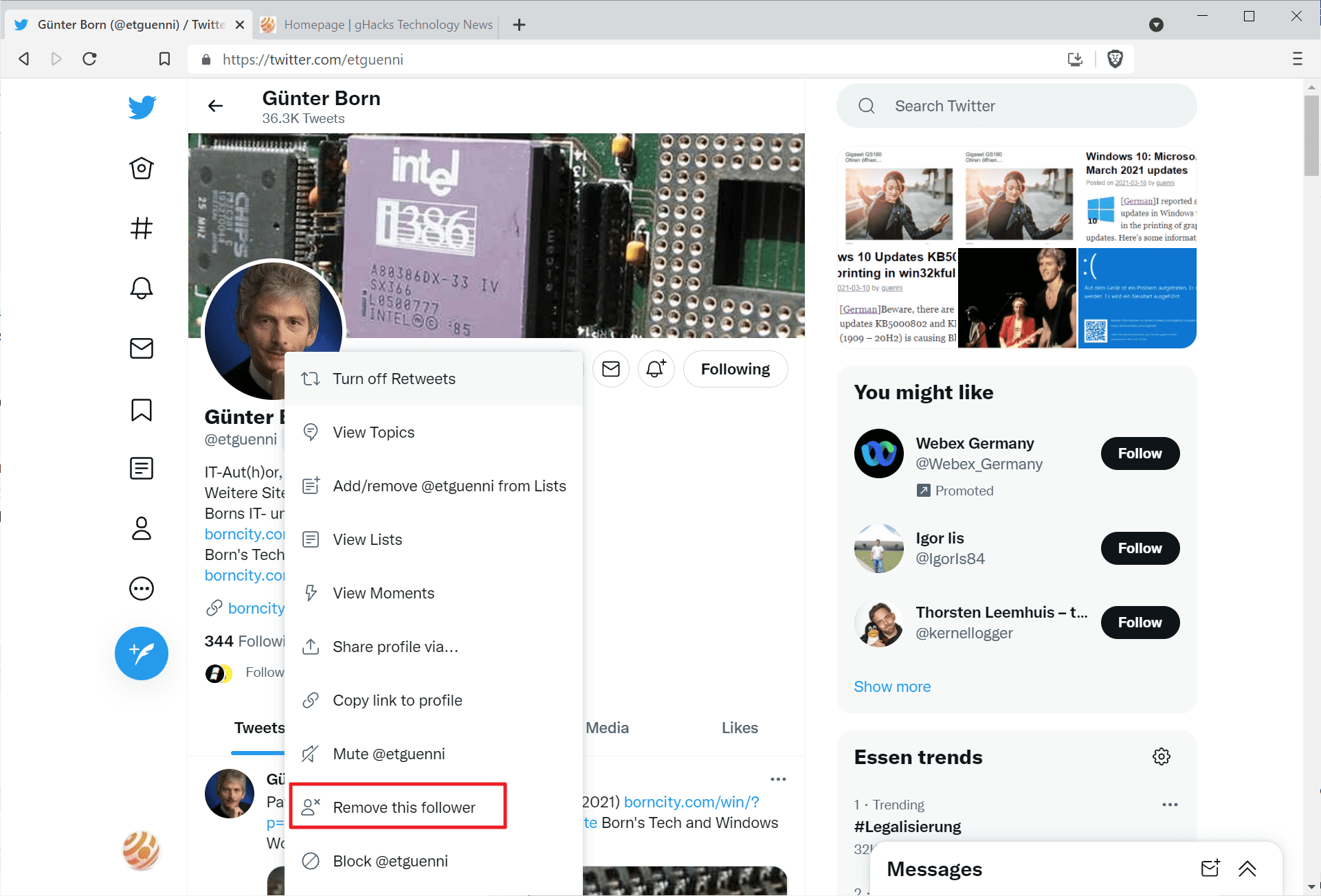
- Navigate to the user’s profile page.
- Click the three-dot icon located near the "Follow" button or the header section of their profile.
- Select Block from the drop-down menu.
- Confirm your decision when the prompt appears to finalize the restriction.
Identifying and Managing Your Blocked List
As your interaction with the platform grows, you may find it necessary to manage your blocked list. Reviewing this list periodically allows you to unblock accounts you no longer deem a risk or to clean up your settings.
To view your blocked accounts:
- Open your Settings and privacy menu.
- Navigate to Privacy and safety.
- Select Mute and block.
- Tap or click Blocked accounts.
From this menu, you can see every account you have blocked. If you choose to remove a block, simply select the "Blocked" button next to the account name. This will revert the status, allowing the user to follow and interact with you again. Please be aware that if you unblock an account, your previous relationship (i.e., being a follower or following them) does not automatically reset. You would need to re-follow them if that is your intent.
Comparing Blocking, Muting, and Restricting
Users often confuse blocking with other platform tools such as "muting" or adjusting who can reply to posts. Choosing the right tool depends on the desired outcome.
| Action | Impact on User | Visibility | Interaction |
|---|---|---|---|
| Block | Total separation | They cannot see your posts | Cannot interact/DM |
| Mute | Silence | They can still see you | They can still reply |
| Protected Account | Approval needed | Only followers see posts | Followers only |
- Muting: Use this if you do not want to see someone’s posts in your timeline but do not necessarily mind if they continue to follow you or reply to your posts. Muting is a "passive" filter that removes content from your view without alerting the other user.
- Protecting Your Tweets: This is a proactive privacy measure. By setting your account to "Protected," only people you approve can see your posts. This is different from blocking, as it is a blanket rule for all non-followers rather than a targeted action against a single individual.
Handling Harassment and Reported Violations
Blocking acts as a personal barrier, but it does not address potential violations of the platform’s Terms of Service. If an account is harassing, spamming, or violating safety policies, you should report the account in addition to blocking it.
Reporting an account involves:
- Selecting the three-dot menu on the user's profile or on a specific post.
- Choosing Report @username.
- Following the prompts to categorize the nature of the violation (e.g., spam, hateful conduct, or abuse).
Once reported, the platform’s moderation systems review the account. This is a separate process from blocking; the report goes to the platform administrators, while the block remains a personal preference that stays in effect regardless of the report outcome.
Frequently Asked Questions
What happens if I block someone by mistake? If you block someone accidentally, you can immediately reverse it by visiting their profile and selecting "Unblock," or by navigating to your "Blocked accounts" list under settings and toggling the block off.
Will the other person know if I block them? X does not send a notification to the person being blocked. However, if they visit your profile page while logged in, they will see a banner stating that you have blocked them, preventing them from viewing your content or interacting with you.
Can a blocked user see my posts from another account? Yes. Blocking is account-specific. If an individual has multiple accounts, they may be able to see your public posts using their alternative handles, provided those accounts are not also blocked.
Does blocking someone remove them from my followers list? Yes, blocking an account immediately forces that person to unfollow you. Even if you unblock them later, they will not be automatically re-added to your followers list; they would need to follow you again.
Can I block someone who has already blocked me? The interface usually prevents you from performing actions on the profiles of users who have blocked you, as you cannot view their profile content. Since you are already separated, the need to block them is generally negated.
Recommendation
For the most effective platform experience, utilize blocking as a primary tool for hostile interactions and use muting for accounts that simply do not align with your interests. Regularly check your "Blocked accounts" list to ensure your digital boundaries reflect your current preferences. If you encounter persistent harassment, leverage the reporting function alongside blocking to maintain platform integrity.
Image Gallery