How to Use Google Remote Desktop Safely: A Complete Guide
To use Google Remote Desktop safely, you must secure your Google Account with a strong passkey or two-factor authentication (2FA), set a complex and unique PIN for host devices, and only share one-time support codes with verified indiv...
To use Google Remote Desktop safely, you must secure your Google Account with a strong passkey or two-factor authentication (2FA), set a complex and unique PIN for host devices, and only share one-time support codes with verified individuals. Always keep your Chrome browser updated to the latest version to ensure you have the most recent security patches and encryption protocols.
Contents
Chrome Remote Desktop (often referred to by users as "Google Remote Connect") is a powerful, free tool that allows you to access your computer from another device over the internet. Whether you are helping a family member troubleshoot a software issue or accessing your office workstation from home, security must be your primary concern. As of 2026, the landscape of remote access has evolved to prioritize biometric authentication and encrypted tunnels, making it more secure than ever—provided you follow the correct protocols.
Understanding Chrome Remote Desktop in 2026
Chrome Remote Desktop operates using a technology called WebRTC (Web Real-Time Communication), which allows for secure, low-latency streaming of your desktop environment. Unlike traditional Remote Desktop Protocol (RDP) tools that often require complex port forwarding on your router, Chrome Remote Desktop uses Google’s secure infrastructure to broker the connection, significantly reducing the "attack surface" of your local network.
There are two primary modes of operation:
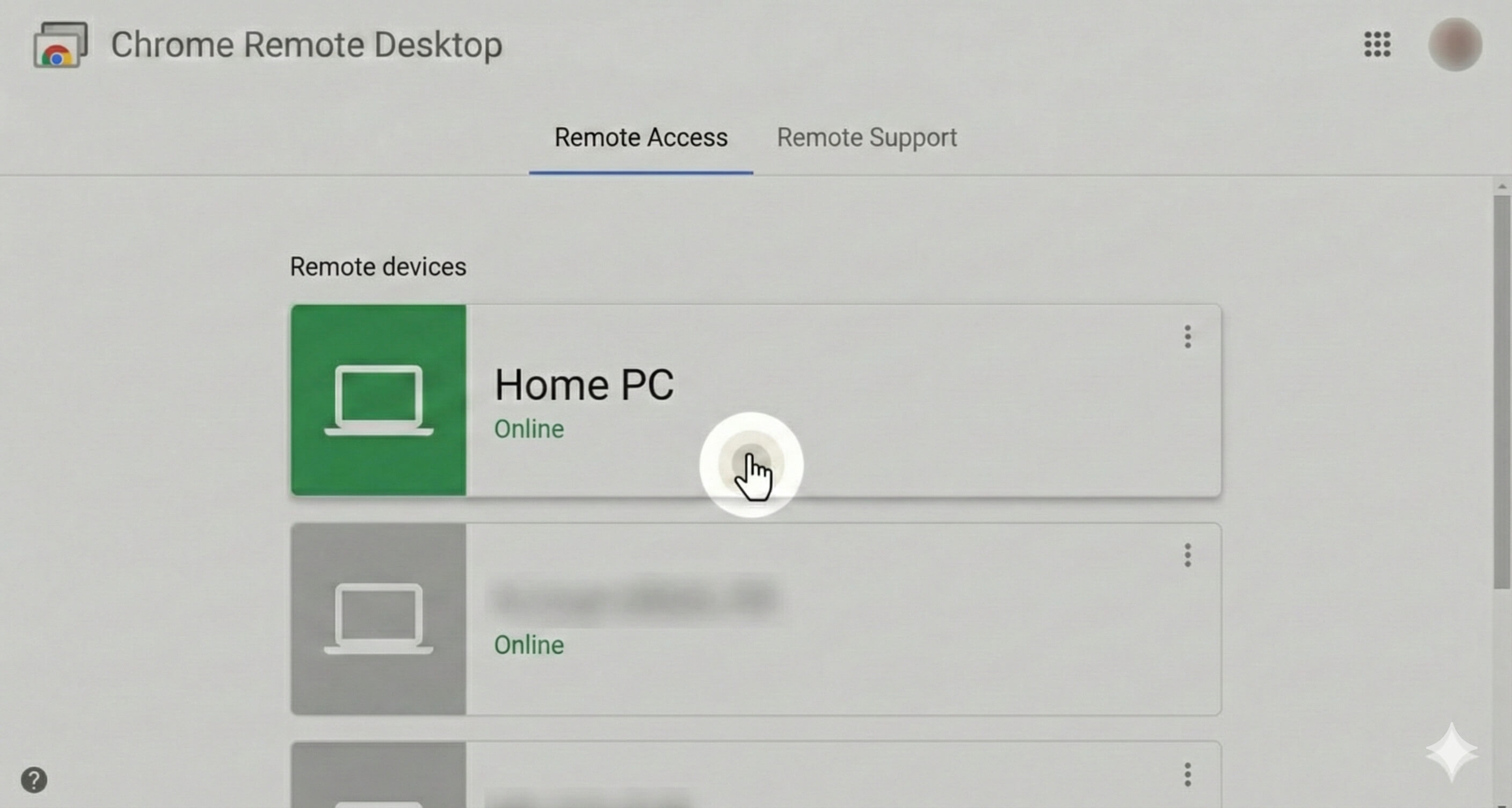
- Remote Access: This allows you to access your own computers at any time. This mode requires you to be signed into the same Google account on both devices and uses a persistent PIN.
- Remote Support: This is designed for one-time sessions. You generate a 12-digit code to give to someone else, or you enter a code provided by someone you are helping.
In 2026, the service remains a browser-based application, though standalone apps for mobile devices and specialized desktop clients continue to provide optimized performance for high-resolution displays and multi-monitor setups.
Prerequisites and System Requirements
Before setting up a secure connection, ensure your hardware and software meet the necessary standards. Using outdated software is one of the most common ways security is compromised.
- Google Account: A managed Google Workspace account or a personal Gmail account.
- Browser Requirements: The latest version of Google Chrome or a Chromium-based browser (such as Microsoft Edge or Brave).
- Operating Systems: Compatibility includes Windows 10 or later, macOS 11 (Big Sur) or later, Linux (Debian-based distributions), and ChromeOS.
- Network Stability: A minimum upload/download speed of 1 Mbps is required, though 10 Mbps or higher is recommended for a fluid 60fps experience.
- Host Permissions: You must have administrative privileges on the computer you intend to access remotely to install the host service components.
Step-by-Step Setup for Secure Remote Access
Setting up the host computer correctly is the most critical stage for long-term security. Follow these steps to ensure the "Remote Access" feature is configured with maximum protection.
1. Installing the Remote Desktop Host
Navigate to the Chrome Remote Desktop website. Click on the "Set up remote access" download icon. This will prompt you to install the Chrome Remote Desktop extension from the Chrome Web Store and a small host installer (.msi for Windows or .pkg for Mac). Once installed, give your computer a descriptive name that does not reveal sensitive personal information or specific network locations.
2. Creating a Secure PIN
You will be asked to choose a PIN of at least six digits. Do not use simple sequences like "123456" or your birth date. In 2026, it is recommended to use a 10-to-12-digit PIN. This PIN acts as a second layer of defense. Even if someone gains access to your Google account, they still cannot control your computer without this specific PIN.
3. Granting System Permissions
On macOS and Windows, the operating system will ask for permission to allow Chrome Remote Desktop to record the screen and control the mouse. Ensure you grant these permissions specifically to the official Google application. On macOS, these are found under "Security & Privacy" in System Settings.
Utilizing Remote Support for Temporary Assistance
Remote Support is a different use case where you allow someone else to see and control your screen. This is often where "tech support scams" occur, so safety is paramount.
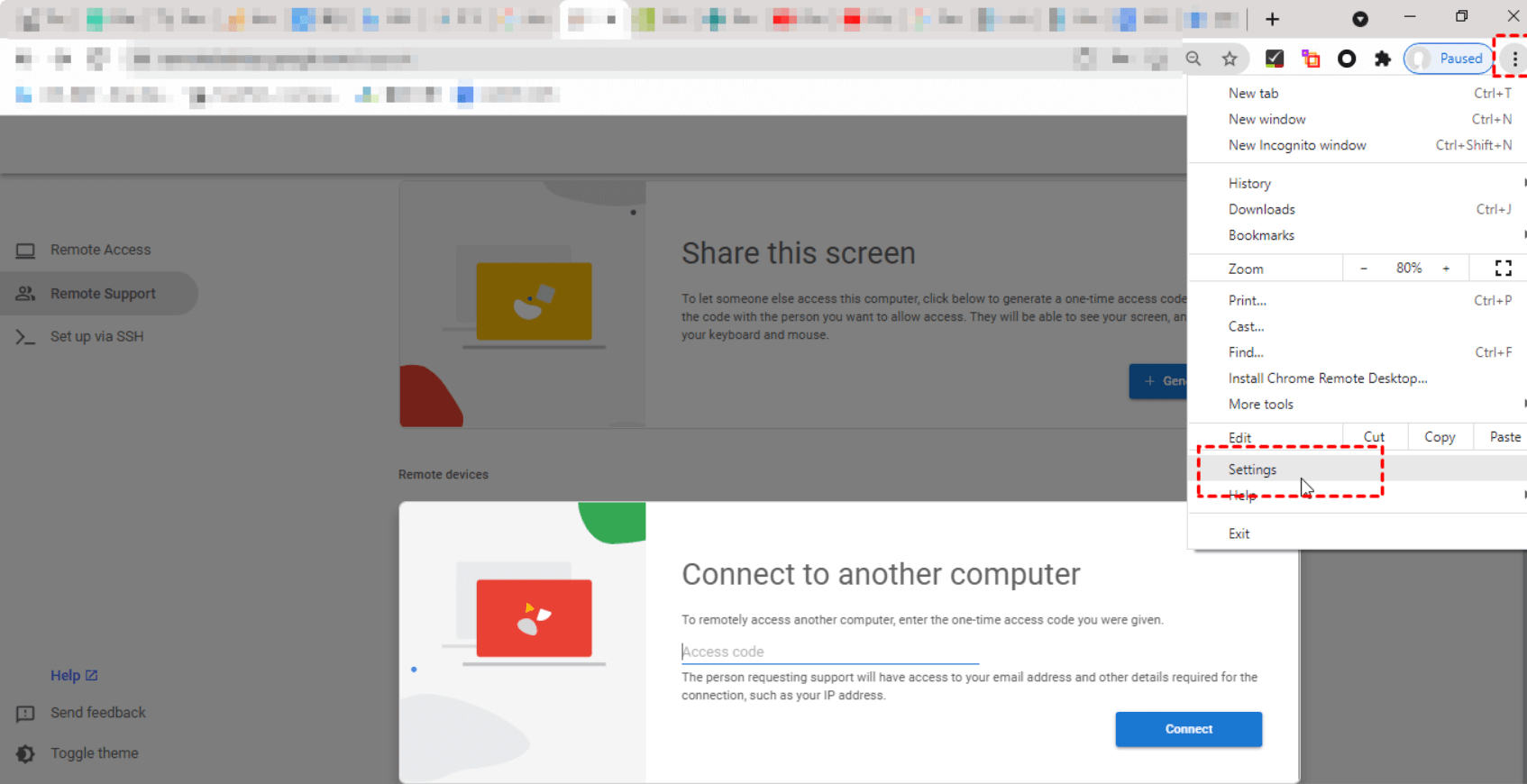
- Generating a Code: If you need help, click "Share this screen" to generate a 12-digit access code. This code is only valid for five minutes.
- Verifying the Recipient: Never give this code to someone who called you unexpectedly claiming to be from "Microsoft Support" or "Google Security." Only share it with people you know or through official, verified corporate support channels.
- Monitoring the Session: While someone is connected to your computer, a small notification window will appear at the bottom of your screen saying "Your desktop is currently shared." You can click "Stop Sharing" at any time to instantly kill the connection.
Advanced Security Protocols and Best Practices
To achieve a professional-grade security posture, you must look beyond the basic setup. Google provides several underlying security layers that you should leverage.
Strengthening Your Google Account
The security of your remote connection is only as strong as your Google Account password.
- Passkeys: By 2026, passkeys have largely replaced traditional passwords. They use your device's local authentication (like Windows Hello, FaceID, or TouchID) to sign you in, making them immune to phishing.
- Two-Factor Authentication (2FA): If you are not using passkeys, ensure 2FA is enabled via the Google Safety Center. Use an authenticator app or a physical security key (like a YubiKey) rather than SMS-based codes, which can be intercepted via SIM swapping.
Managing Session Permissions and Curtain Mode
For enterprise or privacy-conscious users, "Curtain Mode" is an essential feature. When Curtain Mode is enabled, the physical monitor of the host computer remains black or shows a login screen while you are connected remotely. This prevents anyone standing near the host computer from seeing what you are doing.
To enable Curtain Mode on Windows, you generally need to modify registry keys or use a Group Policy Object (GPO). On macOS, this is often handled through a separate "Privacy Screen" toggle in the Remote Desktop settings menu.
Encryption and Data Privacy
All Chrome Remote Desktop sessions are encrypted using AES (Advanced Encryption Standard) via a secure SSL connection. This ensures that the data moving between your host and client devices—keystrokes, mouse movements, and screen video—cannot be decrypted by third parties or internet service providers.
Comparison of Remote Access Solutions (2026)
| Feature | Chrome Remote Desktop | TeamViewer (Personal) | AnyDesk | Windows RDP |
|---|---|---|---|---|
| Cost | Free | Free (Limited) | Freemium | Free (Pro/Ent only) |
| Setup Complexity | Very Low | Medium | Medium | High (requires VPN/Port Forward) |
| Authentication | Google Auth + PIN | App ID + Password | ID + Password | Windows Credentials |
| Platform Support | Windows, Mac, Linux, iOS, Android | All | All | Windows Only (Host) |
| Encryption | AES-256 | AES-256 | TLS 1.2 / AES-256 | RC4 or AES |
| Security Layer | Google 2FA/Passkeys | Account 2FA | Account 2FA | Local/Domain Auth |
Common Troubleshooting and Connectivity Issues
Even with a perfect setup, you may encounter issues. Safely resolving them requires understanding the network flow.
- "Unable to reach the host": This usually indicates the host computer is offline or the Remote Desktop service has stopped. Check that the computer is not in "Sleep" or "Hibernate" mode. You should adjust your Power Settings to "Never sleep" when plugged in.
- "Invalid PIN": If you have forgotten your PIN, you must "Disable Remote Access" on the host machine and set it up again. There is no "forgot PIN" recovery for security reasons; the PIN is stored locally on the host.
- Lag or High Latency: This is often caused by a double-NAT configuration on your router or a restrictive firewall. Ensure that Outbound UDP traffic is allowed on your network to facilitate WebRTC connections.
Frequently Asked Questions
Is Google Remote Desktop safe enough for banking or sensitive work?
Yes, provided your Google Account is secured with a physical security key or a passkey. The end-to-end encryption ensures that your data is private. However, always ensure you use "Curtain Mode" or turn off the host monitor to prevent "over-the-shoulder" snooping at the physical location of the computer.
Can someone access my computer without me knowing?
If you have "Remote Access" enabled and someone has both your Google Account credentials and your PIN, they could theoretically access it. However, Google sends a notification to your account email whenever a new device accesses your computer, and a persistent toolbar appears on the host screen whenever a session is active.
Does Google Remote Desktop work if the computer is at the login screen?
Yes. Unlike some other web-based tools, the Chrome Remote Desktop host service runs as a system-level process. This allows you to reboot your machine remotely and log back in from the Windows or macOS login screen.
How do I completely remove Google Remote Desktop?
To stop being a host, go to the Chrome Remote Desktop site and click the "Delete" (trash can) icon next to your computer's name. Then, uninstall the "Chrome Remote Desktop Host" from your computer’s "Add/Remove Programs" or "Applications" folder to ensure all background services are terminated.
Is there a limit to how many computers I can add?
There is no strictly defined limit for personal users, but for managing dozens of machines, Google Workspace administrators should use the Google Admin Console to deploy and manage remote access policies across an organization.
Practical Recommendation
For the highest level of safety, treat your Google Account like the keys to your house. Use the Google Security Checkup tool regularly to see which devices are signed in. If you are using Google Remote Desktop for work, always disconnect the session when finished rather than just closing the browser tab. This ensures the session token is properly invalidated. Finally, if you ever suspect your PIN has been compromised, change it immediately through the Remote Desktop web interface on the host computer.
Image Gallery