Master How to Use Confluence for Meeting Minutes in 2026
To use Confluence for meeting minutes effectively, start by creating a page using the built-in "Meeting Notes" template. This automatically structures your agenda, attendees, and action items. Enhance your notes by using the "/" comman...
To use Confluence for meeting minutes effectively, start by creating a page using the built-in "Meeting Notes" template. This automatically structures your agenda, attendees, and action items. Enhance your notes by using the "/" command to insert macros like action items, dates, and user mentions, ensuring every task is tracked and assigned in real-time.
Contents
Effective documentation is the backbone of high-performing teams. In 2026, Confluence remains the industry standard for collaborative documentation, moving far beyond static text to become an interactive hub for project execution. Using Confluence for meeting minutes ensures that decisions are not lost in email threads or chat logs, but are instead centralized, searchable, and actionable.
Establishing a Meeting Culture in Confluence
Before diving into the technical steps, it is essential to understand why Confluence is superior to traditional word processors for meeting documentation. In a distributed or hybrid work environment, the "single source of truth" philosophy is vital. Confluence allows for simultaneous editing, integrated task management, and seamless linking to Jira issues, making the transition from "discussion" to "execution" nearly instantaneous.
By using Confluence, you eliminate the "post-meeting lag"—the time wasted re-typing handwritten notes or formatting a document for distribution. Instead, the document is live the moment the meeting starts. Stakeholders who could not attend can catch up immediately by following the page, and project managers can track progress through automated reporting macros.
Prerequisites and Workspace Setup
Before you can document meetings effectively, ensure your Confluence workspace is configured to support high-speed note-taking.
- Space Permissions: Ensure you have "Add Page" permissions in the relevant space. If you are documenting a cross-functional project, the space should be accessible to all stakeholders.
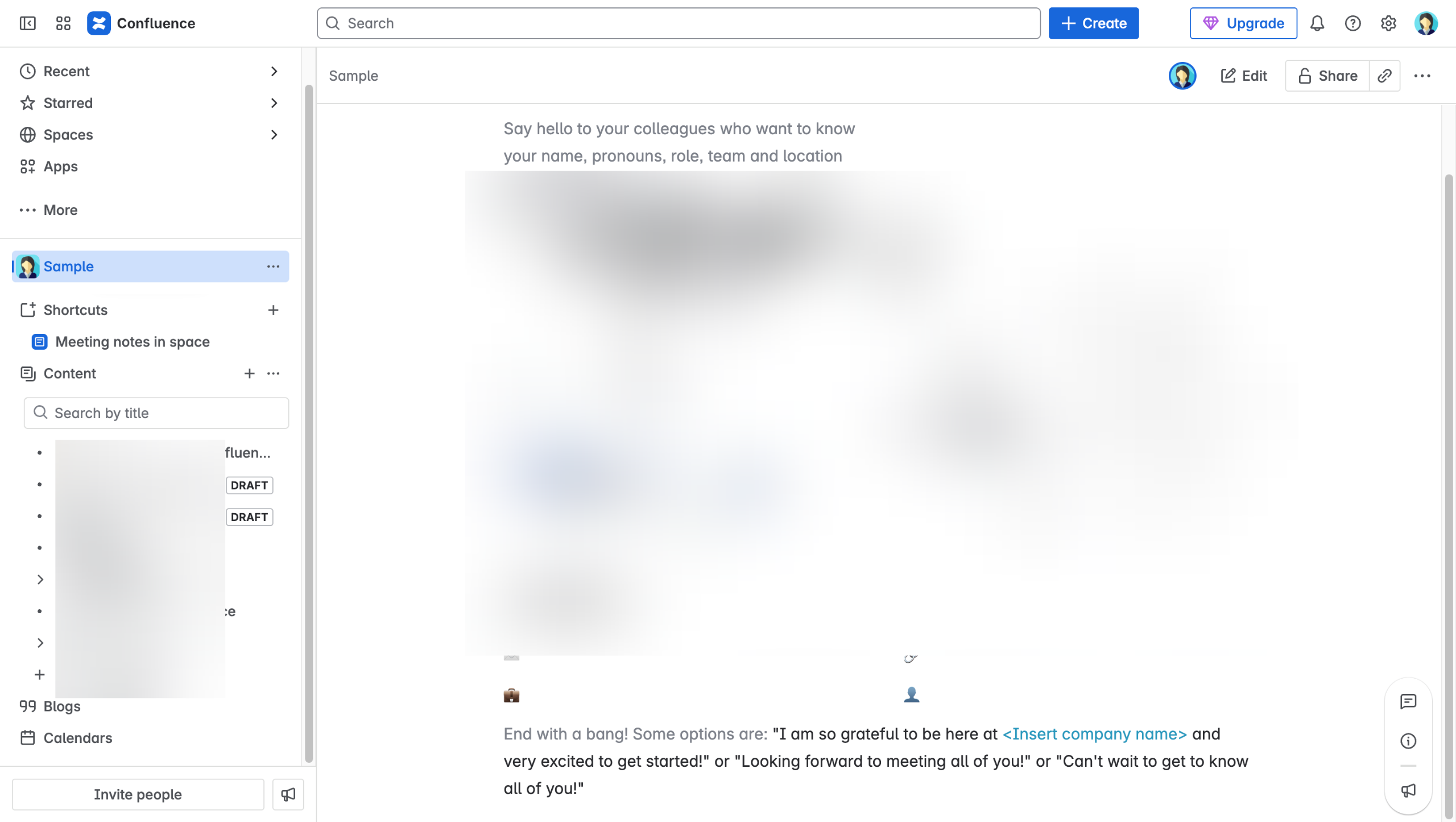
- Parent Page Structure: It is a best practice to create a top-level page titled "Meeting Minutes" or "Project Syncs." All individual meeting pages should be nested under this parent page to maintain a clean sidebar hierarchy.
- App Integrations: Ensure the Jira-Confluence integration is active. This allows you to create Jira issues directly from your meeting text, a critical feature for technical teams and product managers.
Step-by-Step: Creating Meeting Minutes Using Templates
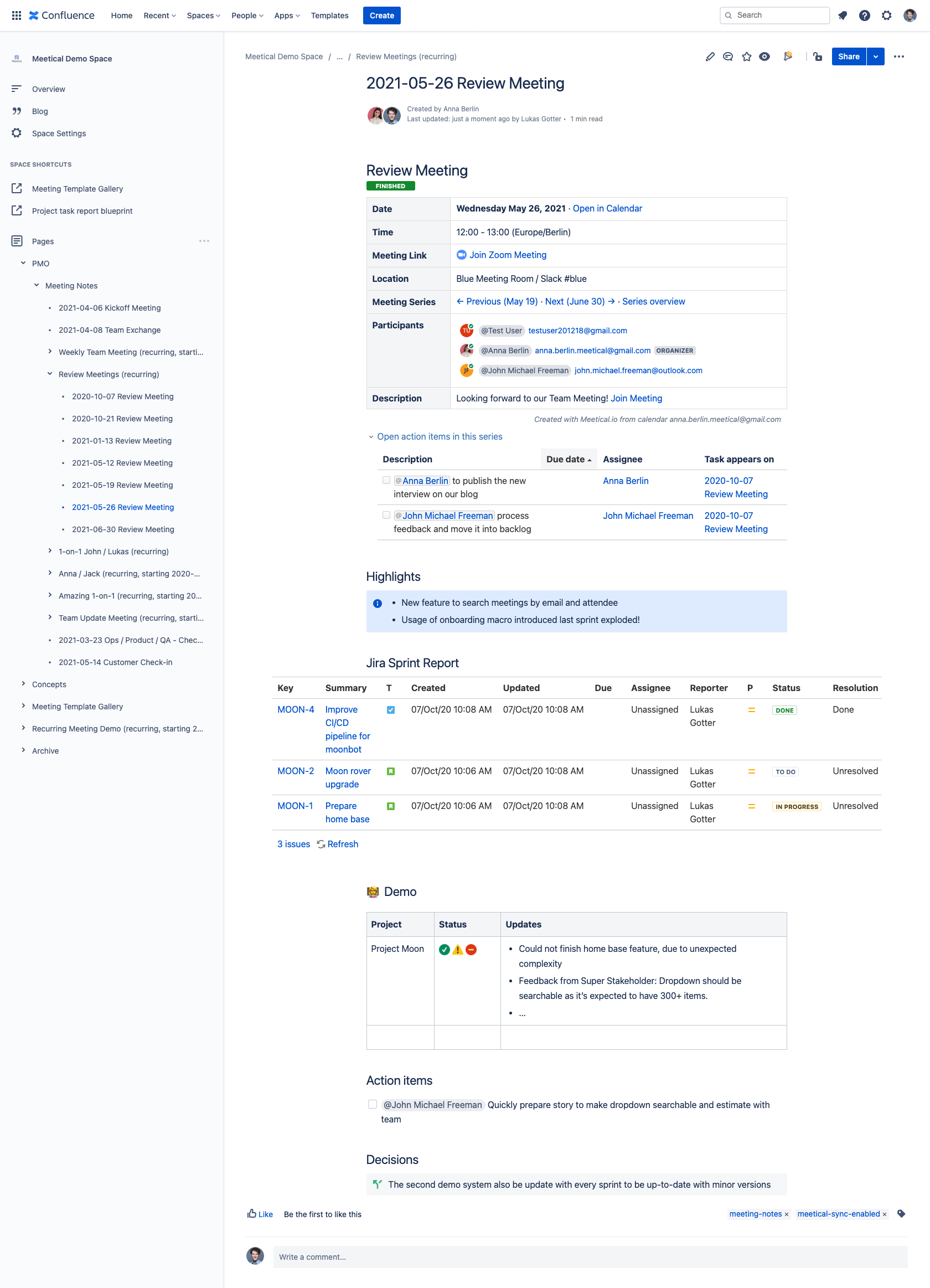
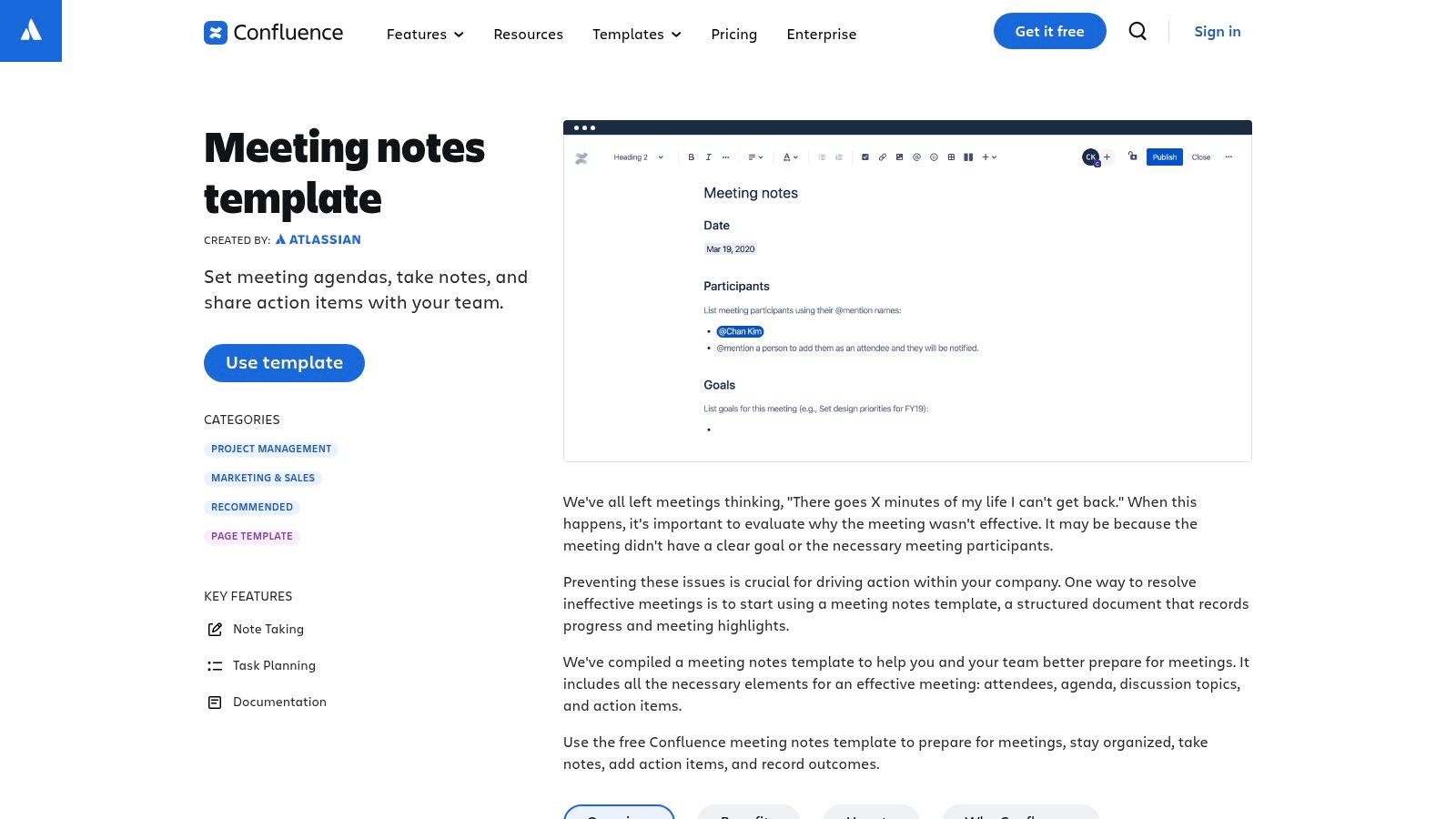
Confluence provides a robust "Meeting Notes" template that serves as the foundation for most professional interactions. Using a template ensures consistency across the organization, making it easier for readers to find information quickly.
Step 1: Create the Page
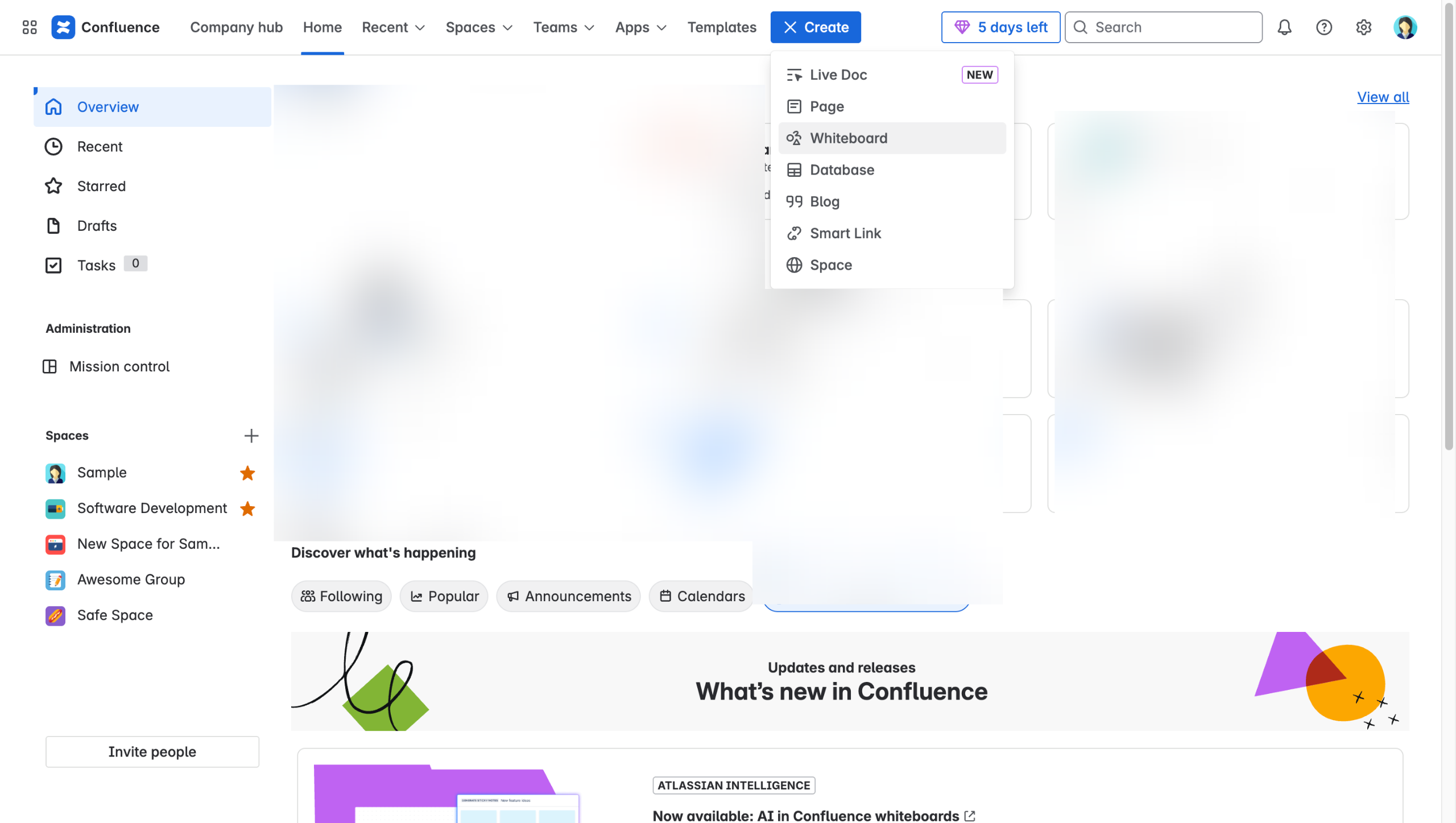
Click the Create button in the top navigation bar. Instead of selecting a blank page, search for the Meeting Notes template in the right-hand sidebar. Select it and click Create. This pre-populates the page with sections for participants, goals, discussion items, and action items.
Step 2: Define Metadata
At the top of the template, you will see placeholders for "Date," "Participants," and "Location."
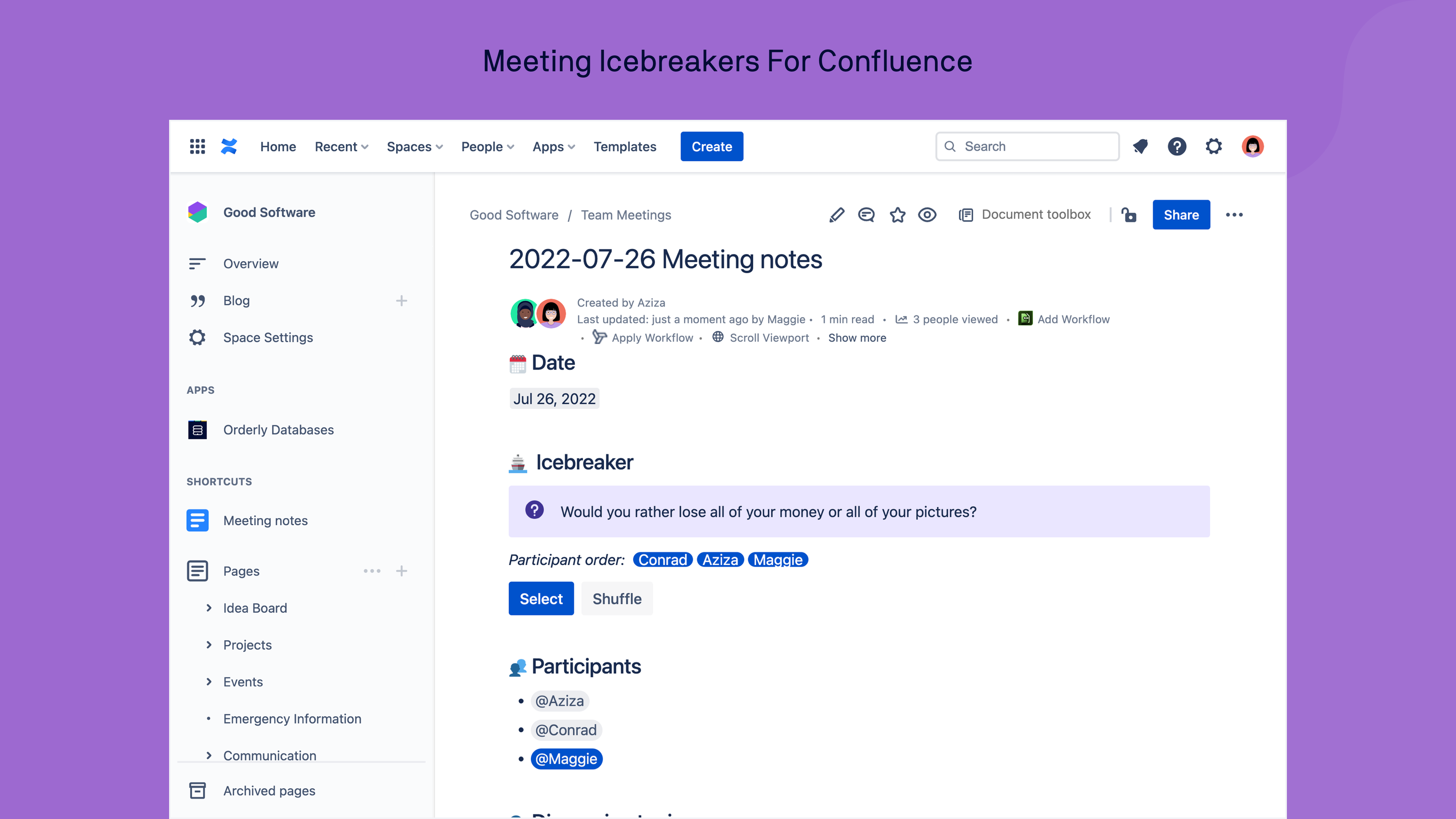
- Use the // command to trigger the date picker.
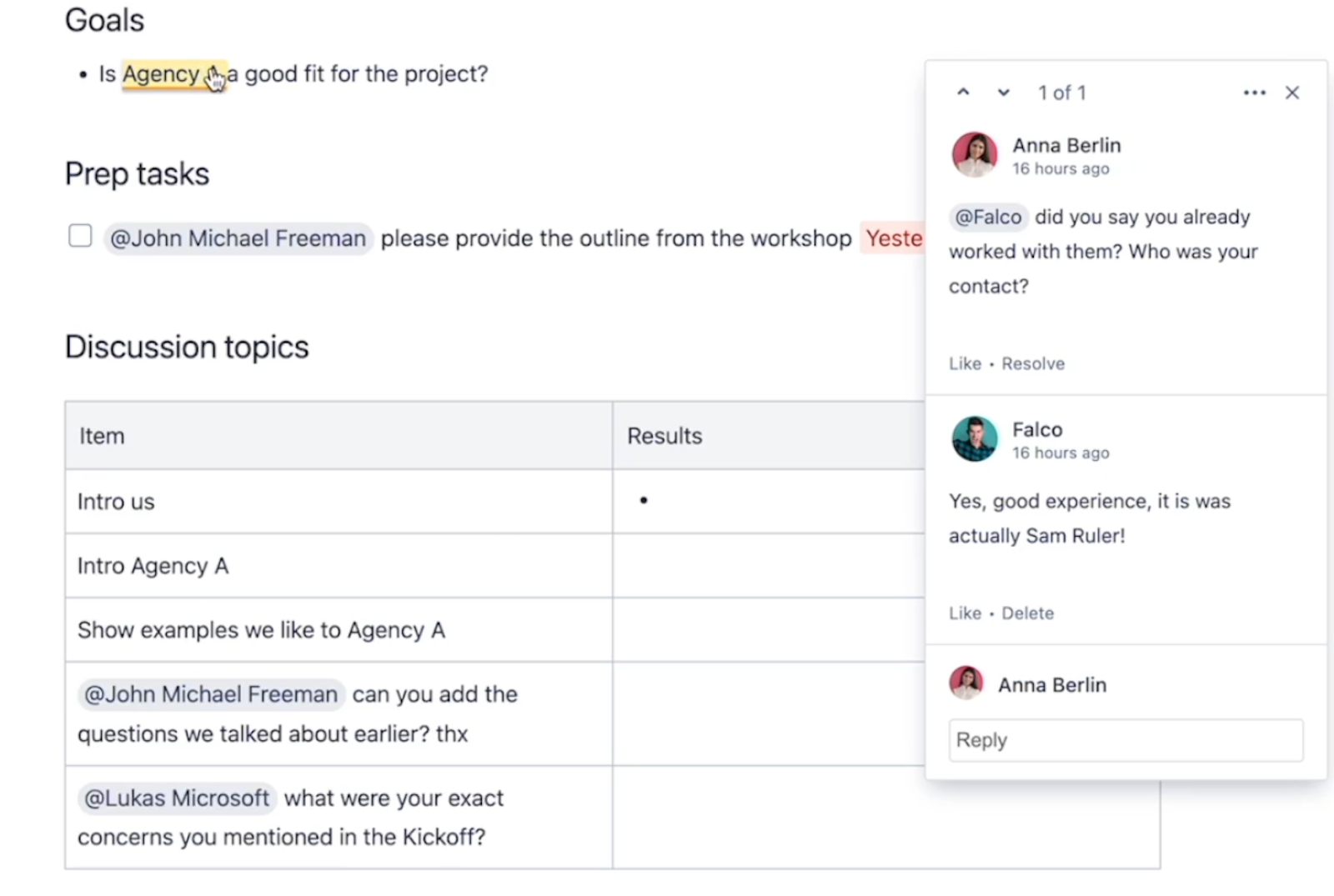
- Use the @ command to mention participants. Mentioning users not only records their attendance but also notifies them that the page exists, automatically sharing the notes with them.
Step 3: Record the Discussion
During the meeting, use the "Discussion" section to capture key points. Use bullet points for readability. If a discussion point leads to a decision, highlight the text and use the /decision macro. This wraps the text in a visual "Decision" box that stands out during a quick scroll.
Step 4: Assign Action Items
This is the most critical part of any meeting. Use the [] (bracket) shortcut or type /action item to create a checklist.
- Every action item should include an @mention for the assignee.
- Every action item should include a //date for the deadline. Confluence will automatically track these tasks. Assignees will see these tasks in their personal Atlassian task profile, ensuring accountability.
Advanced Techniques: Customizing Your Meeting Minutes
While the default template is excellent, many teams find they need specialized structures for different types of meetings, such as daily stand-ups, retrospective meetings, or executive board reviews.
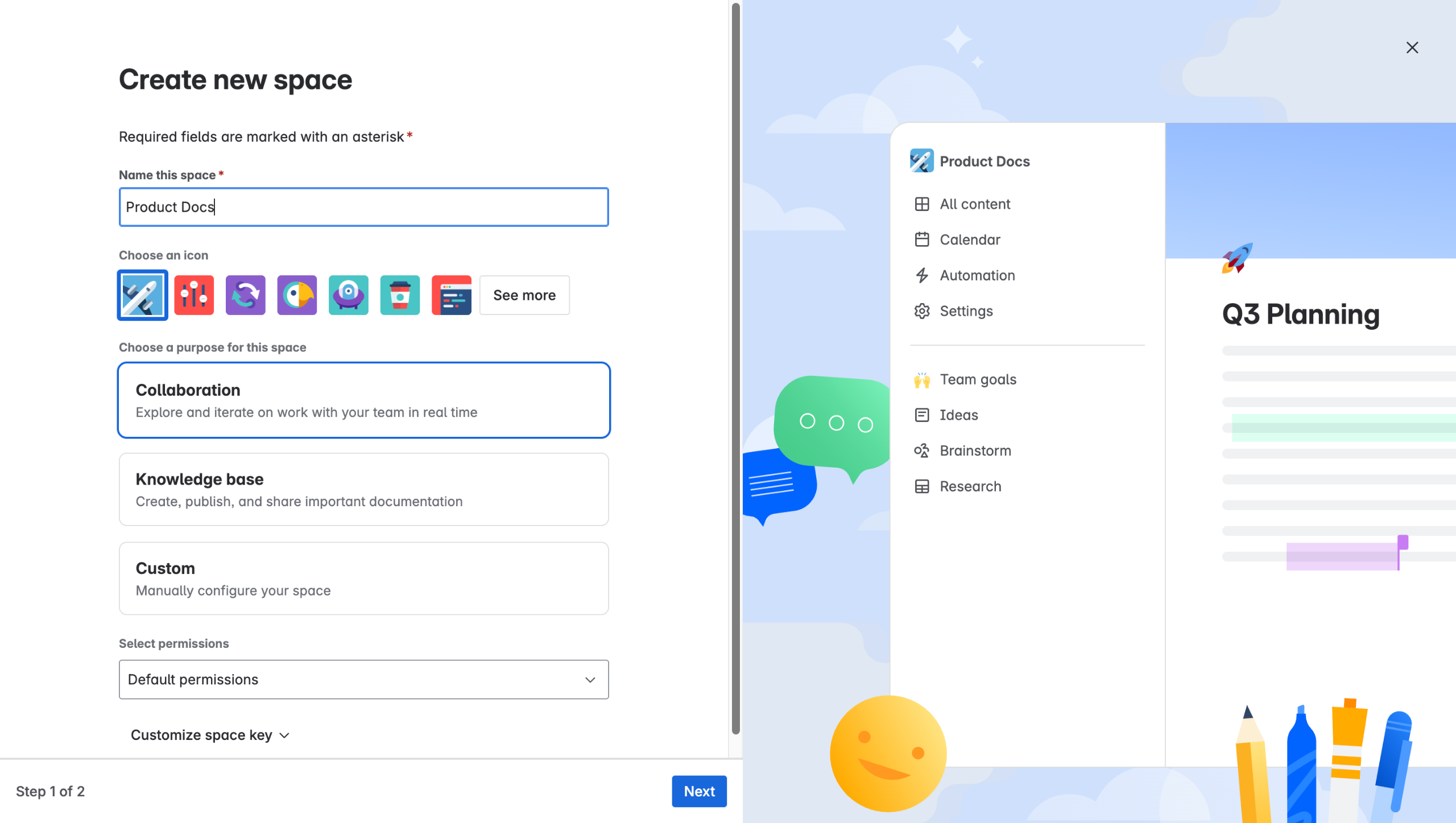
Creating a Custom Team Template
If the standard template doesn't fit your needs, you can create a "Space Template." Navigate to Space Settings > Look and Feel > Templates. Here, you can design a layout that includes specific sections like "Risk Assessment" or "Budget Updates." Once saved, your team can select this custom template every time they meet, ensuring that no critical project metrics are overlooked.
Using the Page Properties Macro
For teams managing dozens of meetings a month, the Page Properties macro is indispensable. By wrapping your meeting metadata (Date, Type, Status) in this macro and adding a specific label (e.g., weekly-sync), you can use the Page Properties Report macro on a summary page. This generates an automatically updated table showing the status and date of every meeting in that category, providing a high-level overview for leadership without them having to open every individual page.
Leveraging Atlassian Intelligence (AI) in 2026
In 2026, Atlassian Intelligence (AI) is deeply integrated into the Confluence editor. When taking meeting minutes, you can leverage these AI capabilities to improve efficiency:
- Summarization: If a meeting was particularly long, use the AI "Summarize" tool to generate a three-paragraph executive summary at the top of the page.
- Action Item Extraction: If you took "messy" notes during a fast-paced brainstorm, you can highlight the text and ask the AI to "Find and format action items." It will identify tasks and format them into the standard checklist format.
- Tone Adjustment: For formal board meetings, AI can help rephrase shorthand notes into a more professional, objective tone suitable for official records.
Comparing Documentation Methods in Confluence
To choose the right approach for your team, consider how the complexity of the meeting aligns with Confluence’s feature set.
| Feature | Blank Page | Standard Template | Custom Template + AI |
|---|---|---|---|
| Speed of Entry | Slow (Manual setup) | Fast (Pre-filled) | Instant (Automated) |
| Consistency | Low | High | Very High |
| Task Tracking | Manual | Integrated | Automated Extraction |
| Searchability | Keyword only | Labeled & Organized | Semantic AI Search |
| Best For | Ad-hoc brainstorming | Regular team syncs | Executive & Governance |
Integrating with Jira for Seamless Workflow
For technical and project-based teams, meeting minutes shouldn't just exist in a vacuum; they should drive the development pipeline. Confluence allows you to bridge this gap through the Jira integration.
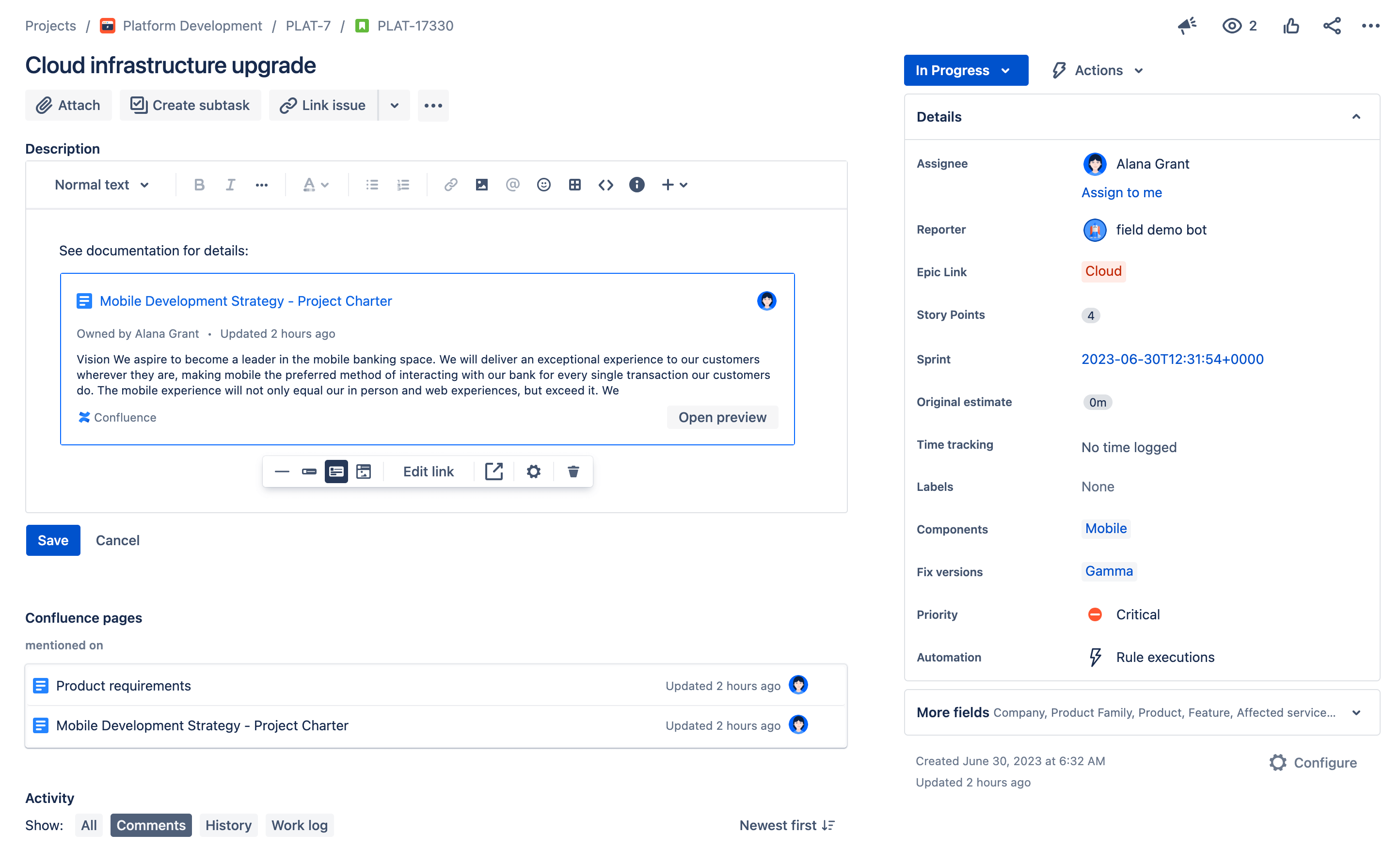
When a task is discussed that requires a formal ticket, you do not need to switch tabs. Simply highlight the text in your meeting minutes and click the Jira icon that appears in the floating toolbar. You can select the project and issue type (Bug, Story, Task) and create the issue right there. A dynamic link will appear in your notes, showing the real-time status of that Jira issue. If the developer closes the ticket in Jira, the status will automatically update to "Done" on your Confluence meeting page.
Best Practices for Organizing and Distributing Minutes
A common pitfall is creating excellent minutes that no one ever reads again. To avoid this, implement a robust organizational strategy.
- Use Labels Religiousy: Apply labels like
minutes,project-alpha, ordecision-log. This makes the "Search" function significantly more powerful. - The "Move" Feature: If a meeting starts in a personal draft space, use the Move function (under the three-dot menu) to transition it to the official Project Space once the notes are finalized.
- Automated Notifications: Instead of emailing the link to the team, use the Share button or simply trust the @mentions. Confluence handles the notification logic, sending an email or a Slack notification (if integrated) to everyone involved.
- Version History: Never worry about "messing up" the notes. Confluence tracks every change. If someone accidentally deletes a section of the minutes, you can go to Page History and restore a previous version from any point in the meeting.
Troubleshooting Common Issues
- Duplicate Pages: Often, two people will try to create meeting notes simultaneously. To fix this, Confluence’s collaborative editing allows you to merge content. If two pages were created, simply copy the content from one into the other and delete the duplicate.
- Missing Tasks: If action items aren't showing up in reports, ensure they were created using the specific "Task" macro (the checkbox) and not just a standard bullet point with a manual checkbox emoji.
- Access Issues: If a stakeholder can't see the notes, check the Lock icon at the top right. Ensure page-level restrictions aren't overriding the space-level permissions.
Summary and Next Actions
Mastering meeting minutes in Confluence transforms a mundane administrative task into a strategic asset. By using templates, leveraging AI summarization, and integrating directly with Jira, you ensure that your team's discussions lead directly to measurable results.
Next Action: For your next team meeting, avoid the "Blank Page" trap. Open Confluence, select the Meeting Notes template, and use the @mention and //date shortcuts to document the session in real-time. After the meeting, apply a specific label to the page and see how much easier it is to track your team's progress.
Image Gallery