How to Clear History YouTube Sonia Hanifa
To clear your watch and search history on YouTube—whether managing personal data privacy or following specific account tutorials such as those associated with queries like Sonia Hanifa—you can easily accomplish this through the YouTube...
To clear your watch and search history on YouTube—whether managing personal data privacy or following specific account tutorials such as those associated with queries like Sonia Hanifa—you can easily accomplish this through the YouTube settings menu on mobile devices or desktop browsers. By navigating to your Google My Activity dashboard or directly inside the YouTube application's history tab, you can delete individual videos, clear entire watch history logs, or pause history tracking altogether.
Contents
Managing digital footprints on video-sharing platforms is a fundamental aspect of online privacy. Users frequently look for step-by-step procedures to wipe their digital trails, remove embarrassing searches, or reset algorithmic recommendations. This guide provides a comprehensive breakdown of how to clear your YouTube history across different devices, exploring the operational mechanics, privacy implications, and troubleshooting steps necessary to ensure your account remains clean and secure.
Understanding YouTube History and Privacy Mechanics
YouTube tracks two primary types of data to curate your homepage recommendations, populate search bars, and log your viewing habits: watch history and search history. Your watch history records every video you play on the platform, provided you watched it for a significant duration while signed in. Your search history records every query you type into the YouTube search bar across any device linked to your Google account.
When users search for specific tutorials, content creators, or queries—such as looking up instructions related to "Sonia Hanifa" or other platform personalities—these entries permanently attach to the Google account profile unless actively purged. Understanding how Google synchronizes this data is crucial. YouTube is a subsidiary of Google, meaning your viewing and search records are centrally tied to your broader Google Account activity.
By default, Google may also track your interactions across web browsers, mobile apps, and smart TVs. Clearing your history removes these logs from your immediate viewing feed, but it also alters how the recommendation algorithm serves content to you. Once wiped, your homepage feed will revert to default, trending, or generic recommendations until new viewing habits establish a fresh profile.
Prerequisites and Account Access Requirements
Before attempting to clear your YouTube history, ensure you meet the following operational requirements to prevent synchronization errors or incomplete deletions:
- Active Google Account Sign-In: You must be signed into the exact Google account associated with the YouTube history you intend to clear. If you manage multiple brand accounts or personal channels, verify you have selected the correct profile from the account switcher.
- Internet Connectivity: A stable Wi-Fi or cellular data connection is required, as history deletions sync directly with Google’s cloud servers in real time.
- Application Updates: If using a mobile device (iOS or Android), ensure your YouTube application is updated to the latest available version to avoid interface discrepancies within the settings menu.
- Browser Access: For desktop users, ensure third-party cookie blockers or aggressive script-blocking extensions are temporarily disabled if you encounter persistent errors loading the Google My Activity portal.
Step-by-Step Instructions: Clearing YouTube History on Desktop
Using a desktop web browser provides the most granular control over your Google and YouTube data. Follow these verified steps to clear your watch and search history:
- Open YouTube: Launch your preferred web browser, navigate to the official YouTube website, and sign in to your Google account.
- Access the History Menu: Look at the left-hand sidebar navigation menu. Click on the History tab. If the sidebar is collapsed, click the three horizontal hamburger menu lines in the top-left corner to expand it.
- Choose Deletion Type: On the right-hand side of the screen, you will see a management panel titled "History type." Here, you can select whether you want to clear your watch history, search history, or manage all history through Google.
- Clear Watch or Search History: Click on Clear all watch history or Clear search history depending on your preference. A confirmation pop-up window will appear asking you to verify your decision.
- Confirm Action: Click the Clear watch history or Clear search history button inside the pop-up warning box to finalize the deletion.
| History Type | Data Removed | Impact on Recommendations | Location in Desktop Menu |
|---|---|---|---|
| Watch History | All records of previously played videos. | Homepage feed resets; recommendations lose personalization. | Sidebar > History > Clear all watch history |
| Search History | All text queries entered into the search bar. | Search bar drops historical auto-complete suggestions. | Sidebar > History > Manage all history > Delete |
| Auto-Delete | Rolling logs older than 3, 18, or 36 months. | Automates ongoing privacy maintenance. | Sidebar > History > Choose to auto-delete |
Step-by-Step Instructions: Clearing YouTube History on Mobile Devices
Mobile users utilizing the official iOS or Android YouTube applications can clear their data directly through the application interface without needing a computer.
- Launch the YouTube App: Open the YouTube application on your smartphone or tablet.
- Navigate to Your Profile: Tap the You tab (formerly the Library tab) located in the bottom-right corner of the screen.
- Open History Settings: Near the top of the "You" page, locate the History section and tap the View all button to see your complete log. Alternatively, tap your profile picture in the top-right corner, select Settings, and tap Manage all history.
- Delete Specific Entries or All Data: To remove a single video or search term, tap the three vertical dots next to the item and select Remove from watch history. To wipe everything, tap the three dots in the top-right corner of the history screen, select Clear all watch history, and confirm the prompt.
- Pause History Tracking: If you wish to prevent YouTube from recording future views or searches, return to the Settings > Manage all history menu and toggle off YouTube History.
Managing Auto-Delete Settings and Privacy Controls
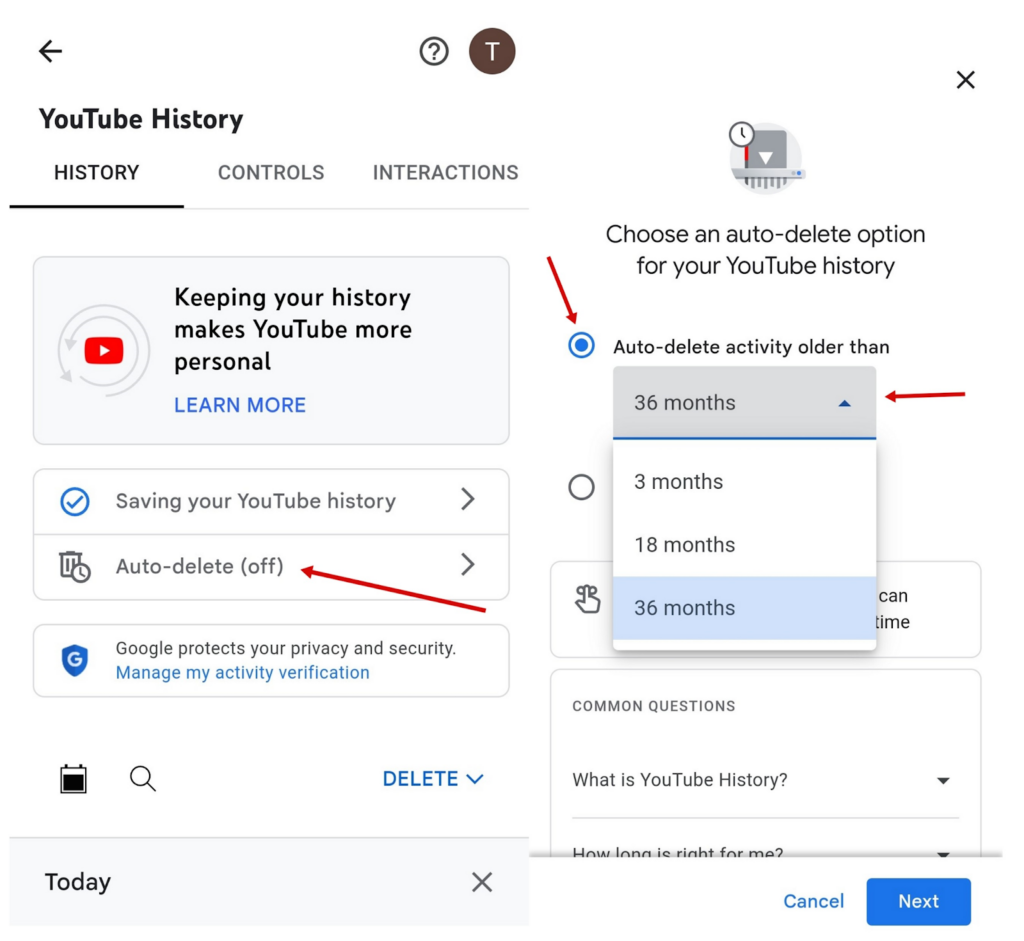
Manually clearing your history each time you search for specific terms or watch sensitive content can be tedious. Google provides an automated feature that purges your YouTube history on a recurring schedule. Setting up auto-delete ensures your data footprint remains minimal without requiring constant manual intervention.
To enable auto-delete, navigate to your Google Account's My Activity page specifically filtered for YouTube. Look for the Auto-delete option, which is usually positioned near your history controls. You can choose to automatically delete activity that is older than 3 months, 18 months, or 36 months. Any data older than your selected timeframe is permanently erased from Google's servers on a rolling basis.
Additionally, you can pause your history entirely. When paused, YouTube will not record what you watch or search for, though this also means the platform cannot generate personalized video recommendations or remember your place in multi-part video series.
Troubleshooting Common Deletion and Synchronization Issues
Users attempting to clear their history occasionally encounter synchronization glitches or persistence bugs where deleted items reappear. Review the following troubleshooting steps to resolve these issues:
- Account Mismatch: If items reappear immediately after deletion, verify that you are not logged into multiple Google accounts simultaneously. Cross-device syncing can sometimes push cached history from a secondary device back to the primary cloud profile. Clear the history on all active devices.
- Browser Cache Corruption: Clear your web browser's cache and cookies, then log back into YouTube. Outdated cache files can prevent the user interface from registering commands sent to Google's servers.
- Server-Side Delays: During periods of high traffic on Google's network, history deletions may take several minutes to reflect across all connected applications. Wait 10 to 15 minutes before checking your homepage recommendations.
- Incognito Mode Verification: Ensure you were not browsing in an Incognito window or private tab when attempting to modify account-level settings, as these sessions do not retain login states required for persistent account modifications.
Frequently Asked Questions
Can I delete individual videos from my YouTube watch history instead of clearing everything?
Yes. You do not need to wipe your entire history to remove unwanted entries. On desktop or mobile, navigate to your History page, locate the specific video you wish to remove, click or tap the three vertical dots next to the video title, and select "Remove from watch history." This deletes only that single entry while preserving the rest of your viewing log and algorithm recommendations.
Does clearing my YouTube history delete my liked videos or playlists?
No. Clearing your watch and search history is entirely separate from your saved playlists, liked videos, and channel subscriptions. Your liked videos remain safely stored within your "Liked Videos" playlist, and your subscribed channels will remain intact. Deleting history only removes the algorithmic record of what you have watched and searched for.
Why do my deleted search terms still appear as auto-complete suggestions?
If a deleted search term continues to appear in your drop-down search suggestions, it is typically due to local app caching or predictions stored directly on your device rather than cloud history. To fix this, long-press the specific search suggestion in the drop-down menu on your mobile app and tap "Remove" from the pop-up confirmation box.
Will clearing my history stop YouTube from recommending similar videos?
Yes. Your YouTube homepage recommendations rely heavily on your recent watch and search history. Once you clear your history, the recommendation algorithm loses its primary dataset. Your homepage will initially display generic, trending, or popular content until you build a new history profile through subsequent video views.
Can other people see my YouTube watch history if we share the same device?
If you share a device and are logged into the same Google account, other users can see your watch and search history. To maintain privacy on shared devices, ensure you sign out of your Google account when finished, use separate browser profiles, or utilize Incognito browsing modes when viewing sensitive content.
Conclusion and Next Actions
Maintaining your digital privacy on streaming platforms requires regular oversight of your account data. By utilizing the built-in management tools provided by Google and YouTube, you can successfully clear your history, automate future deletions with auto-delete parameters, or pause tracking altogether. To ensure ongoing security, review your Google My Activity dashboard periodically and verify that your account is signed out on public or shared devices.
Image Gallery