How to Find the DNS IP Address for Your Home Network
Finding the DNS IP address for your home network is a straightforward process that allows you to verify, troubleshoot, or manually configure the domain name system settings on your devices. You can typically find these addresses by acc...
Finding the DNS IP address for your home network is a straightforward process that allows you to verify, troubleshoot, or manually configure the domain name system settings on your devices. You can typically find these addresses by accessing your computer's network properties, checking your router’s administrative dashboard, or utilizing command-line tools across various operating systems.
Contents
The Domain Name System (DNS) acts as the phonebook of the internet, translating human-readable domain names like "google.com" into the numerical IP addresses that computers use to communicate. In most home networks, your router acts as a relay, automatically assigning DNS server addresses provided by your Internet Service Provider (ISP). However, there are scenarios—such as privacy concerns, speed optimizations, or network filtering—where you may need to know exactly which DNS servers your network is utilizing.
Understanding DNS Assignment in Local Networks
To effectively find your DNS IP address, it is important to distinguish between the address assigned to your specific device and the primary DNS servers configured on your router.
Most home networks operate via Dynamic Host Configuration Protocol (DHCP). When a device connects to your Wi-Fi or Ethernet network, the router automatically hands out an IP address, a subnet mask, a default gateway, and DNS server addresses. Consequently, your computer might show your router’s local IP address (e.g., 192.168.1.1) as the DNS server. This confirms that the router is intercepting your DNS queries and forwarding them to the ISP’s servers or any manually set upstream providers.
How to Find DNS Settings on Windows 11 and Windows 10
Windows users can identify DNS information through the graphical user interface (GUI) or the Command Prompt.
Using the Network Status Interface
- Open Settings by pressing the Windows key + I.
- Navigate to Network & internet.
- Select your active connection type (Wi-Fi or Ethernet).
- Click on Hardware properties.
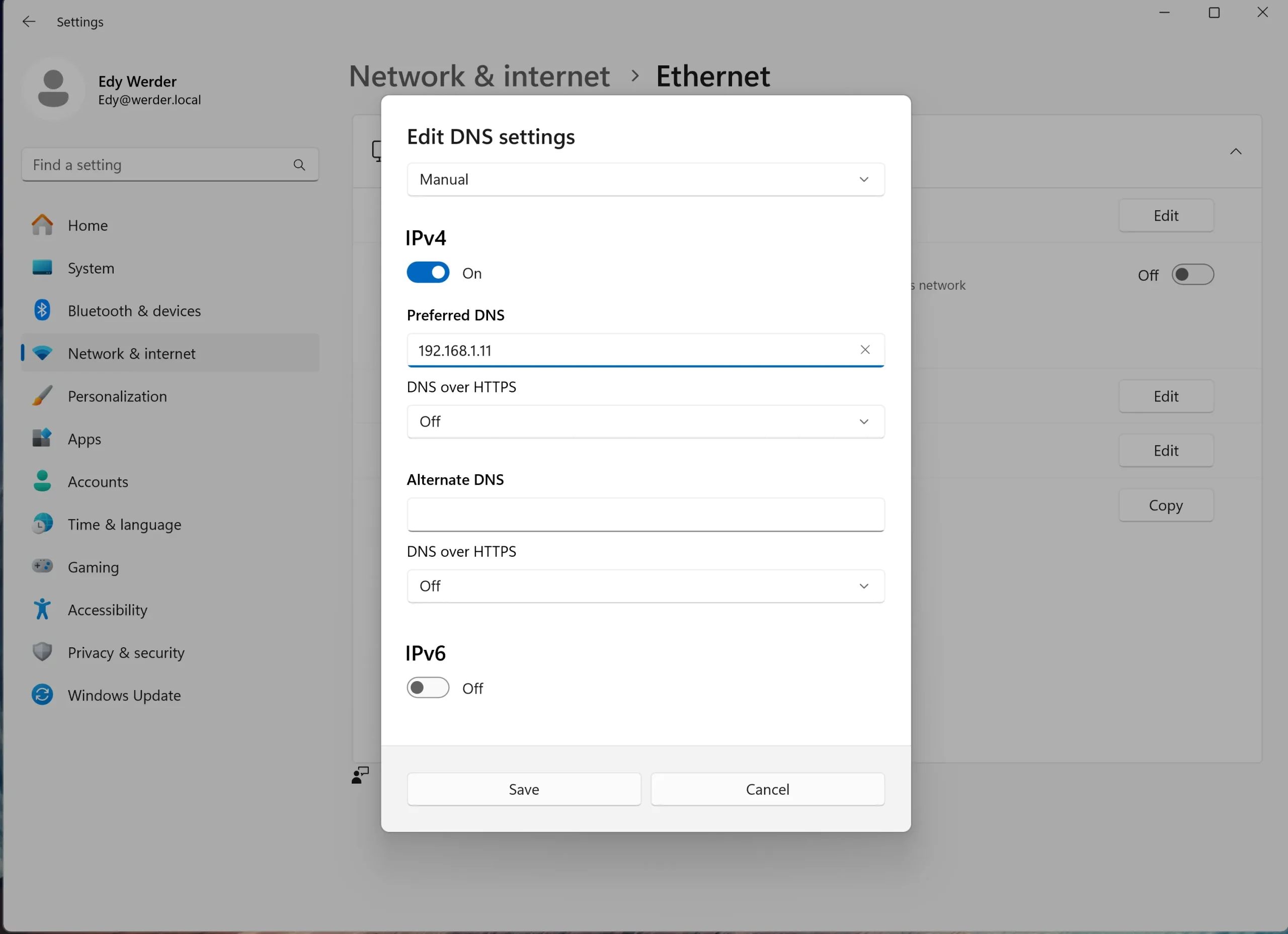
- Scroll down to the DNS server assignment section. Here, you will see the current IPv4 and IPv6 addresses being used for DNS resolution.
Using Command Prompt
For those who prefer a command-line approach, which often provides more granular detail:
- Press the Windows key, type
cmd, and press Enter. - In the console window, type
ipconfig /alland press Enter. - Locate your active adapter (e.g., "Wireless LAN adapter Wi-Fi").
- Look for the line labeled DNS Servers. This will list the specific IP addresses currently active for that connection.
How to Find DNS Settings on macOS
Apple’s macOS provides a streamlined way to view network configuration through System Settings.
- Click the Apple Menu and select System Settings (or System Preferences on older versions).
- Click Network in the sidebar.
- Select your active service (such as Wi-Fi or Ethernet) and click the Details button.
- Select the DNS tab from the left-hand menu. The current DNS server IP addresses will be listed there. If the boxes are grayed out, your device is using the default settings assigned by the router.
Finding DNS Settings on Linux Distributions
Linux users typically rely on the terminal to check network configurations. The specific method depends on the distribution, but the following command works on most modern systems using systemd.
- Open your terminal application.
- Run the command:
resolvectl statusornmcli dev show | grep DNS. - The output will display the active DNS servers currently being utilized by the network manager.
Checking DNS at the Router Level
If your computer reports your router’s IP address (e.g., 192.168.0.1 or 10.0.0.1) as the DNS server, you are seeing the "gateway" address. To find the actual external DNS servers (the ones your ISP or you have configured to resolve global domain names), you must log into your router's administration interface.
- Open a web browser and enter your router’s gateway IP address into the address bar.
- Log in using your router’s administrative credentials. These are often found on a sticker on the bottom of the device unless you have customized them.
- Look for a section labeled WAN, Internet, or DNS Settings.
- In this section, you will see either "Obtain DNS automatically" or specific IP addresses entered manually (such as those for Cloudflare, Google Public DNS, or Quad9).
Comparison of DNS Verification Methods
| Method | Best For | Technical Effort | Data Depth |
|---|---|---|---|
| System GUI | Casual users | Low | Basic (Current State) |
| Command Line | Power users/IT | Moderate | High (All adapters) |
| Router Admin | Network debugging | High | Absolute (Upstream) |
Troubleshooting Common DNS Issues
If you are investigating your DNS IP addresses because you are experiencing connectivity issues, consider the following troubleshooting steps:
- Flush DNS Cache: Sometimes, your computer’s local cache becomes corrupted. On Windows, run
ipconfig /flushdnsin the Command Prompt. On macOS, usesudo dscacheutil -flushcache; sudo killall -HUP mDNSResponderin the Terminal. - ISP DNS vs. Public DNS: ISPs often use DNS servers that may be slower or track your browsing habits. If you find your ISP's addresses (e.g., a specific server IP provided by Comcast or AT&T), you might choose to switch to a privacy-focused provider like Cloudflare (1.1.1.1) or Google (8.8.8.8) within your router settings.
- Connectivity Verification: If you cannot resolve websites, try "pinging" your DNS server IP. Open your terminal or command prompt and type
ping [DNS_IP_Address]. If it times out, your DNS server is unreachable.
Why Your DNS Address Might Change
It is common for the DNS IP address to change if your ISP updates its infrastructure or if you switch from a mobile hotspot to a home Wi-Fi network. Additionally, if you use a Virtual Private Network (VPN), your DNS settings will be overridden to route traffic through the VPN's servers, which is a common reason for seeing unfamiliar DNS addresses while secure.
Frequently Asked Questions
1. Does changing my DNS IP address increase internet speed? Not necessarily. While some public DNS providers offer faster lookup times, the actual speed of your connection depends more on your ISP's bandwidth and your physical proximity to the content delivery network. However, a faster DNS can reduce the "latency" at the start of a request.
2. Is it safe to change my DNS settings to a third-party provider? Yes, it is generally safe. Using well-known, reputable providers like Quad9 or Cloudflare can improve privacy and potentially block access to known malicious domains.
3. What is the difference between an IPv4 and IPv6 DNS address? IPv4 is the older, standard format (e.g., 8.8.8.8), while IPv6 is the newer standard (e.g., 2001:4860:4860::8888). Modern home networks often provide both; your device will typically prefer IPv6 if it is available.
4. Why does my DNS show the same address as my router? This is normal behavior. Most routers act as a "DNS proxy." Your computer sends the request to the router, and the router forwards it to the upstream DNS server. This allows the router to cache results for other devices on your home network.
5. Can a DNS IP address be used for tracking? Yes. Because the DNS server knows every website you are trying to visit, the operator of the DNS server can theoretically log your activity. Using a privacy-focused, "no-logging" DNS provider mitigates this risk.
Final Recommendation
If your goal is to optimize your home network, identify your current DNS IP addresses using the Command Prompt or System Settings first. If you find your ISP's default servers are causing slow resolution times or privacy concerns, log into your router's admin panel and manually configure a reputable public DNS provider. Always document your original settings before making changes so you can revert to them if connectivity issues arise.
Image Gallery