How to Add CenturyLink Email to Outlook: A Complete Setup Guide
Adding your CenturyLink email account to Microsoft Outlook requires configuring specific mail server settings, as CenturyLink relies on external infrastructure and POP3 or IMAP protocols for third-party client integration. Because Cent...
Adding your CenturyLink email account to Microsoft Outlook requires configuring specific mail server settings, as CenturyLink relies on external infrastructure and POP3 or IMAP protocols for third-party client integration. Because CenturyLink partnered with CenturyLink Yahoo Mail for residential email services, connecting your account to a desktop application like Outlook demands precise server hostnames, port numbers, and secure authentication methods to bypass modern security restrictions.
Contents
Understanding CenturyLink Email and Outlook Compatibility
Before configuring Microsoft Outlook, you must understand how CenturyLink email infrastructure operates. CenturyLink historically provided residential email addresses ending in domains like @centurylink.net, @qwest.net, @embarqmail.com, or @centurytel.net. Over the years, CenturyLink transitioned management of its residential webmail services to Yahoo. Despite this partnership, legacy CenturyLink email addresses remain active for many long-term subscribers, provided the underlying broadband or standalone email account remains in good standing.
Microsoft Outlook is a robust desktop and mobile email client that supports various mail protocols, including IMAP (Internet Message Access Protocol) and POP3 (Post Office Protocol 3). IMAP is the recommended protocol for adding your CenturyLink email to Outlook because it synchronizes your messages, folders, and read statuses across all your devices and the webmail interface. POP3, by contrast, downloads messages locally to a single device and typically deletes them from the server, making multi-device management difficult.
Configuring Outlook to communicate with CenturyLink servers requires entering specific incoming and outgoing mail server coordinates. Because Yahoo powers the backend, the server settings reflect Yahoo-managed infrastructure standards. Furthermore, modern versions of Outlook enforce strict security standards, meaning you must enable secure socket layers (SSL/TLS) and, in many cases, generate a specialized application password rather than using your primary account login credentials.
Prerequisites Before You Begin Setup
Proper preparation prevents common connection errors and authentication failures during the Outlook configuration process. Gather the following prerequisites before launching Outlook:
- Active Email Credentials: Ensure you know your full CenturyLink email address and your current account password. If you cannot log into the webmail interface via a browser, you must reset your password through the CenturyLink or Yahoo recovery portal before attempting to sync with Outlook.
- Stable Internet Connection: A reliable internet connection ensures that Outlook can communicate with external mail servers during the initial handshake and certificate verification phases.
- Outlook Version Identification: Know whether you are using the classic Outlook desktop application (part of Microsoft 365, Office 2019, or Office 2021), the new Outlook for Windows, or Outlook for Mac. While the underlying server settings remain identical, the menu navigation paths differ slightly across versions.
- Application-Specific Password (If Applicable): If your CenturyLink/Yahoo account has two-step verification (2FA) enabled, standard login attempts from Outlook will fail unless you generate a dedicated app password from your account security settings.
CenturyLink Email Server Settings Reference Table
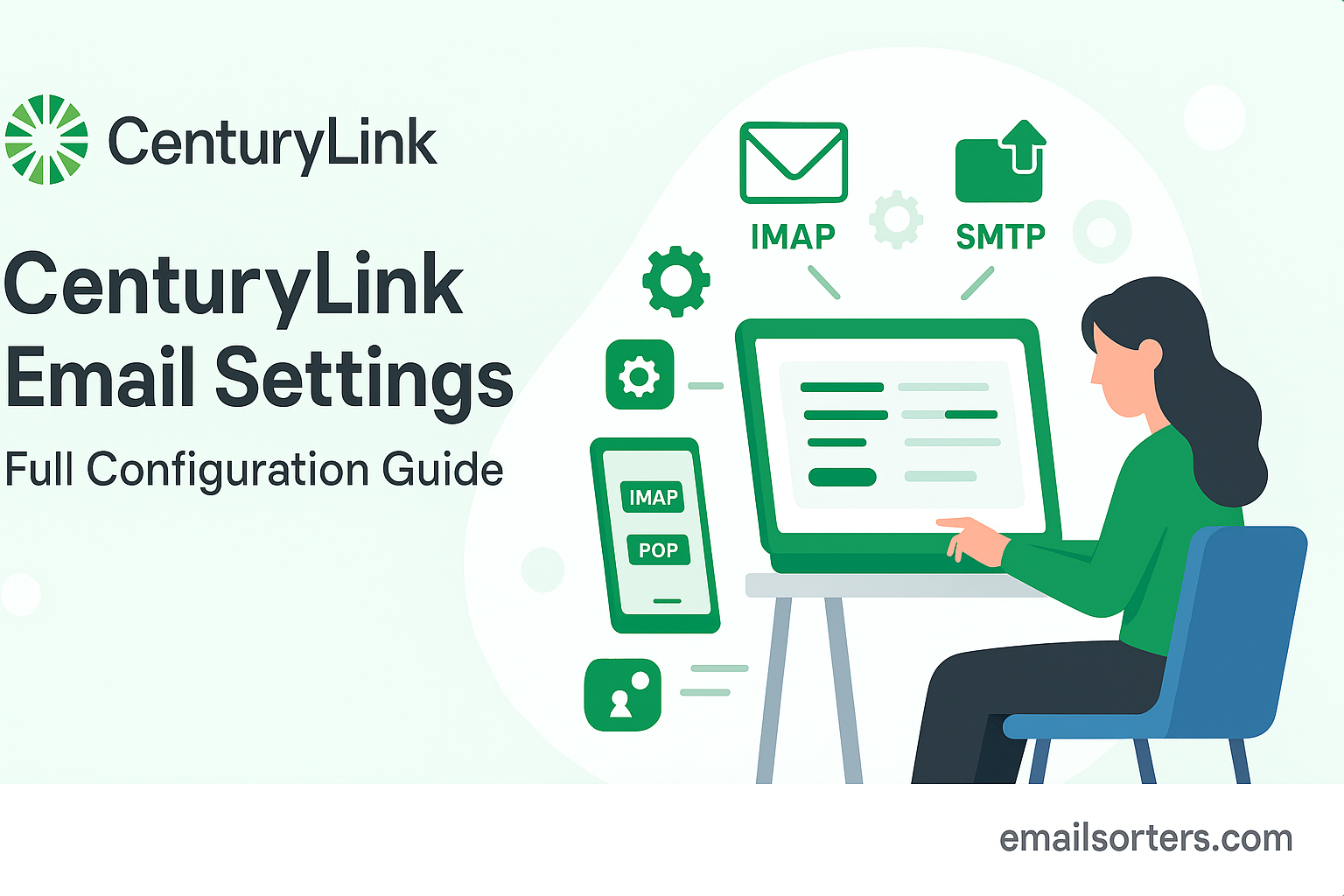
To connect your CenturyLink email account manually, you must input the correct server hostnames, ports, and encryption protocols. The table below outlines the precise technical parameters required for both IMAP and POP3 configurations.
| Configuration Parameter | IMAP Setup (Recommended) | POP3 Setup (Alternative) |
|---|---|---|
| Incoming Mail Server (IMAP/POP) | imap.mail.yahoo.com |
pop.mail.yahoo.com |
| Incoming Port Number | 993 |
995 |
| Incoming Encryption | SSL / TLS | SSL / TLS |
| Outgoing Mail Server (SMTP) | smtp.mail.yahoo.com |
smtp.mail.yahoo.com |
| Outgoing Port Number | 465 or 587 |
465 or 587 |
| Outgoing Encryption | SSL / TLS (or STARTTLS) | SSL / TLS (or STARTTLS) |
| Authentication Required | Yes (Same as incoming) | Yes (Same as incoming) |
Step-by-Step Instructions: Adding CenturyLink Email to Classic Outlook
If you are using the classic Microsoft Outlook desktop application on Windows, follow these structured steps to establish a secure connection.
Step 1: Open Account Settings
Launch Microsoft Outlook on your computer. If this is your first time opening the application, a welcome wizard will prompt you to add an email account. If you already have an existing profile, navigate to the top-left corner, click on File, select the Info tab, click the Add Account button, and choose the manual setup option if available.
Step 2: Enter Your CenturyLink Email Address
Type your complete CenturyLink email address (e.g., username@centurylink.net) into the text field. Expand the Advanced options dropdown menu (if visible in your version) and check the box labeled Let me set up my account manually. Click Connect.
Step 3: Select Account Type (IMAP)
Outlook will present a list of mail account icons. Select IMAP. This initiates the configuration window where you will supply the server hostnames retrieved from the reference table above.
Step 4: Configure Incoming and Outgoing Server Parameters
Carefully enter the server details to avoid typos:
- Under Incoming mail, set the server to
imap.mail.yahoo.com, port to993, and encryption method toSSL/TLS. - Under Outgoing mail, set the server to
smtp.mail.yahoo.com, port to465(or587), and encryption method toSSL/TLSorSTARTTLS. - Click Next.
Step 5: Input Password and Complete Authentication
When prompted, enter your CenturyLink email password. If your account utilizes enhanced security features or multi-factor authentication, ensure you paste your generated app password rather than your standard login password. Click Connect to finalize the authentication handshake. Once Outlook verifies the credentials, click Done to access your inbox.
Step-by-Step Instructions: Adding CenturyLink Email to the New Outlook or Outlook for Web
Microsoft’s modern Outlook interface—referred to as the "New Outlook for Windows" or the web-based version—streamlines account addition, though it relies heavily on automated protocol detection.
- Open the New Outlook application and click the Gear Icon (Settings) in the upper-right corner.
- Navigate to Accounts and select Email accounts.
- Click Add account and type your full CenturyLink email address into the prompt.
- Click Continue. Outlook will attempt to auto-configure the account using standard Yahoo backend parameters.
- If prompted for advanced settings, select IMAP, input
imap.mail.yahoo.com(Port 993, SSL) for incoming mail andsmtp.mail.yahoo.com(Port 465, SSL) for outgoing mail, then supply your password. - Complete the login prompts to finish syncing.
Troubleshooting Common Connection Errors
Configuring legacy email services on modern clients occasionally triggers connection blocks, authentication loops, or synchronization stalls. Review these troubleshooting protocols to resolve common errors.
1. "Authentication Failed" or Incorrect Password Errors
If Outlook repeatedly rejects your password, verify whether your CenturyLink/Yahoo account has security measures like two-factor authentication enabled. Standard SMTP and IMAP clients cannot process multi-factor prompts directly. You must log into your Yahoo/CenturyLink webmail profile, navigate to account security settings, generate a secure app-specific password, and use that unique string inside Outlook instead of your primary password.
2. Timeouts and Server Unreachable Warnings
If Outlook displays a timeout error, verify your port numbers and encryption types. Ensure incoming mail is mapped strictly to port 993 with SSL/TLS enabled, and outgoing mail is mapped to port 465 or 587 with appropriate encryption. Additionally, verify that your local antivirus suite or Windows Defender firewall is not blocking outbound traffic on port 465 or 993.
3. Missing Folders or Synchronization Delays
If your folders do not appear or new messages fail to load, right-click your CenturyLink email account root folder in the Outlook sidebar, select IMAP Folders, click Query, and ensure your subscription list is up to date. Forcing a manual send/receive cycle via the Send / Receive tab can also jump-start stalled synchronization queues.
Frequently Asked Questions
Can I still use my CenturyLink email address after canceling my internet service?
In many cases, legacy CenturyLink email accounts remain active even after disconnecting CenturyLink broadband services, provided the account is in good standing and has not been flagged for inactivity. However, CenturyLink policy changes can impact long-term retention of unlinked email accounts, so maintaining an active backup of important messages is strongly advised.
Why does Outlook keep asking for my CenturyLink password repeatedly?
This issue typically stems from outdated authentication settings, an incorrect password saved in the Windows Credential Manager, or the lack of an app-specific password when 2FA is active. Clear your saved credentials for CenturyLink within Windows Credential Manager, ensure your port numbers match the IMAP standard, and generate a fresh app password if prompted.
Should I use IMAP or POP3 for my CenturyLink email in Outlook?
IMAP is universally recommended over POP3. IMAP keeps your email messages stored on the cloud server, allowing seamless synchronization across Outlook, mobile devices, and webmail clients. POP3 downloads messages locally to one computer and deletes them from the server by default, preventing multi-device access.
What should I do if my CenturyLink email settings are rejected entirely?
Verify that your email domain is supported and that you are using the correct Yahoo-backed server hostnames (imap.mail.yahoo.com and smtp.mail.yahoo.com). If CenturyLink has deprecated support for your specific sub-domain, you may need to contact CenturyLink support or migrate your critical communications to an alternative provider.
Image Gallery