Troubleshooting and Fixing an iPhone Audio Jack That Is Not Working
When an iPhone audio jack stops working, the issue can stem from accumulated pocket lint, a Bluetooth audio routing glitch, software corruption, or physical damage to the hardware components inside the device. Resolving the problem req...
When an iPhone audio jack stops working, the issue can stem from accumulated pocket lint, a Bluetooth audio routing glitch, software corruption, or physical damage to the hardware components inside the device. Resolving the problem requires a systematic troubleshooting approach that moves from simple software checks and physical cleaning procedures to professional hardware repair options.
Contents
Understanding the iPhone Audio Jack and Headset Architecture
Before attempting any fixes, it is helpful to understand how the audio jack and external headphone connections function on Apple devices. Historically, Apple included a standard 3.5mm analog headphone jack on iPhone models up through the iPhone 6s and iPhone 6s Plus. Beginning with the iPhone 7 generation, Apple removed the physical 3.5mm headphone jack in favor of Lightning-connected audio and wireless Bluetooth transmission.
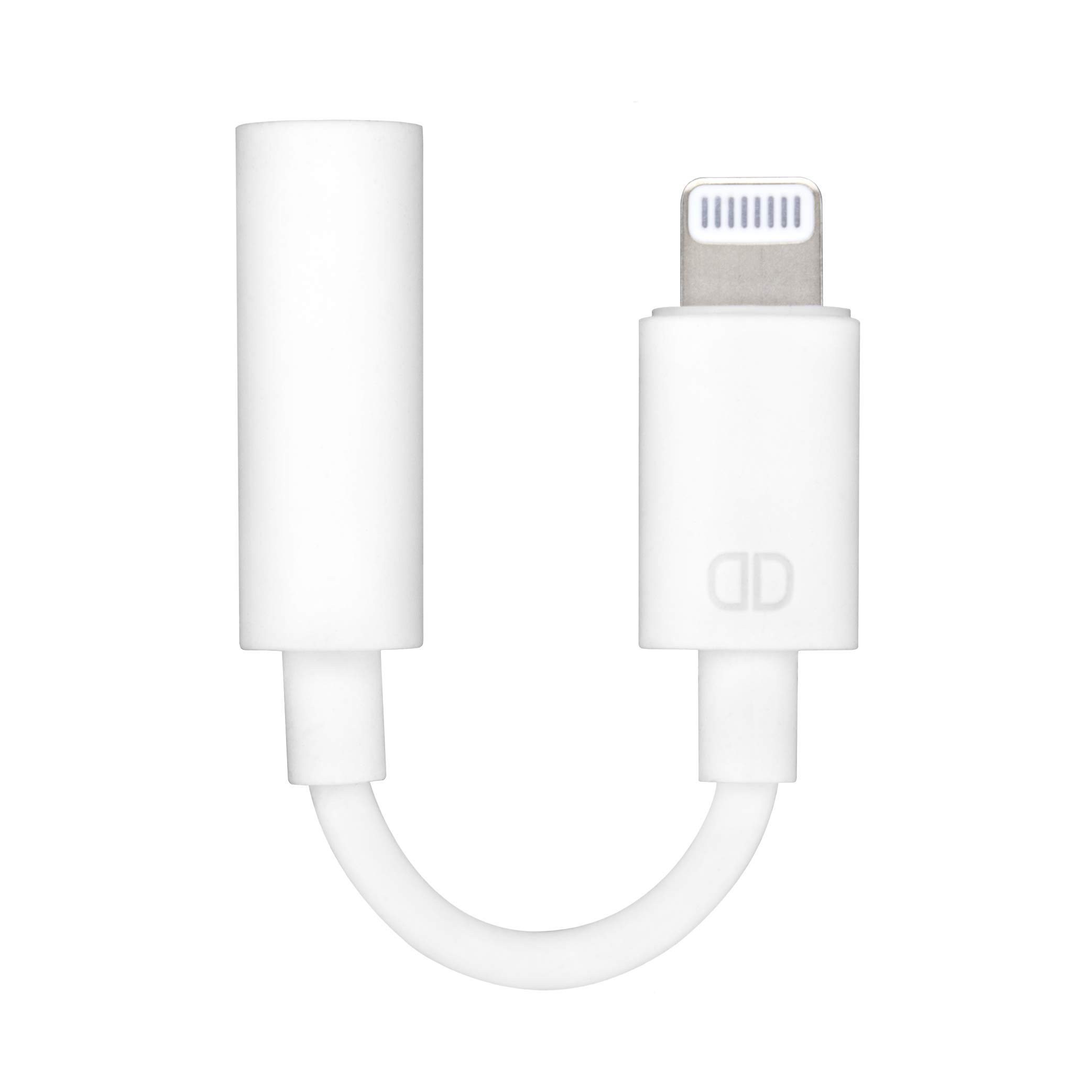
For users of older iPhone models featuring a built-in 3.5mm headphone jack, the port relies on metal spring contacts that detect when a plug is inserted, signaling the operating system to switch audio output from the internal speakers to the connected headset. If you are using a modern iPhone model, "audio jack issues" typically refer to either a Lightning-to-3.5mm headphone adapter failure, a dirty or damaged Lightning port, or a wireless Bluetooth connection error.
Phase 1: Immediate Software Checks and Audio Routing Verification
Many audio playback problems that appear to be hardware failures are actually software glitches or incorrect audio routing settings within iOS. Before inspecting physical ports, rule out these software variables.
Check Audio Output Destinations
Sometimes your iPhone is actively routing audio to an external device, such as a Bluetooth speaker, wireless headphones, or an AirPlay receiver, without your active awareness.
- Open the Control Center on your iPhone by swiping down from the top-right corner of the screen (or swiping up from the bottom edge on models with a Home button).
- Tap the AirPlay icon (which resembles a triangle with concentric circles) located in the top-right corner of the audio card.
- Verify that iPhone or Speaker is selected rather than a Bluetooth accessory or external output device.
Force Restart Your iPhone
A temporary software freeze or audio driver glitch can cause the operating system to mismanage audio input and output channels. Performing a force restart clears system memory and re-initializes hardware drivers.
- For iPhone 8 and later (including models with Face ID): Quickly press and release the Volume Up button, quickly press and release the Volume Down button, then press and hold the Side button until the Apple logo appears.
- For iPhone 7 and 7 Plus: Press and hold both the Volume Down button and the Sleep/Wake button simultaneously until the Apple logo appears.
- For iPhone 6s and earlier: Press and hold both the Home button and the Top (or Side) button until the Apple logo appears.
Phase 2: Inspecting and Cleaning the Physical Port
If your software settings are correct and audio still fails to play through your headphones or adapter, physical obstruction is the most frequent culprit. Pocket lint, dust, and debris commonly compact inside the port over time, preventing a full, secure connection.
Safe Cleaning Techniques
When cleaning an iPhone audio port or Lightning port, you must avoid using materials that can break off, conduct electricity, or damage internal contact pins.
- Wooden Toothpicks: A wooden toothpick has a soft edge that will not scratch delicate gold-plated contact pins inside the port. Gently insert the tip into the jack or port and sweep around the perimeter to dislodge packed lint.
- Compressed Air: Use short, controlled bursts of compressed air holding the can upright to blow loose dust out of the cavity. Never spray liquid propellants directly into the port.
- Anti-Static Brushes: A clean, dry, ultra-soft anti-static brush can sweep away surface particles.
Caution: Never insert metal objects such as sewing needles, paperclips, or pushpins into an iPhone audio jack or Lightning port. Metal objects can easily bend internal pins, puncture the battery, or cause a short circuit that permanently damages the logic board.
Phase 3: Hardware Diagnostics and Accessory Verification
Determining whether the fault lies with the iPhone, the headphones, or an intermediate adapter requires a process of elimination using known-working hardware.
| Component to Test | Diagnostic Action | Expected Result if Working |
|---|---|---|
| Headphones / Earbuds | Plug your headphones into a computer, tablet, or another phone. | Audio plays clearly through both left and right channels without static. |
| Lightning Adapter | Try a different Lightning-to-3.5mm headphone jack adapter on your iPhone. | Audio routes properly to the connected wired headphones. |
| Bluetooth Devices | Disconnect all paired Bluetooth audio peripherals and test wired output. | System stops attempting to route audio over wireless protocols. |
If your primary headphones fail when tested on a secondary device, the headphones themselves are broken and need replacement. If the headphones work on other devices but fail on your iPhone, the issue is isolated to your iPhone's port or internal audio IC (integrated circuit).
Phase 4: Advanced Software Solutions
If cleaning the port and verifying your accessories yield no results, software corruption within iOS may require deeper intervention.
Update iOS to the Latest Version
Apple frequently patches system bugs affecting hardware integration and audio routing in routine software updates.
- Navigate to Settings > General > Software Update.
- If an update is available, connect your device to a stable Wi-Fi network, plug it into power, and tap Update Now.
Reset All Settings
If system preferences have become corrupted, resetting your configurations restores factory defaults without deleting personal user data, photos, or messages.
- Go to Settings > General > Transfer or Reset iPhone.
- Tap Reset, then select Reset All Settings.
- Enter your passcode to confirm. Your iPhone will restart, restoring default network settings, keyboard dictionaries, and sound configurations.
Phase 5: Professional Repair Options and Cost Considerations
When physical damage—such as liquid exposure, a fractured internal solder joint, or a blown audio codec chip—is responsible for the failure, cleaning and software resets will not suffice. Professional evaluation becomes necessary.
Apple Support and Authorized Service Providers
Taking your device to an Apple Store or an Apple Authorized Service Provider guarantees genuine replacement parts and calibrated diagnostic testing. If your iPhone is covered under AppleCare+ or standard limited warranty, manufacturing defects are typically repaired at little to no cost. Out-of-warranty repairs for older models may involve flat-rate service fees or device replacement options.
Independent Repair Shops
Local third-party repair technicians can often replace a damaged headphone flex cable or clean severely corroded Lightning ports at a lower cost, particularly for out-of-warranty devices. Always verify the technician's experience and inquire about warranty coverage on replacement parts before authorizing repairs.
Frequently Asked Questions
Why does my iPhone think headphones are plugged in when nothing is connected?
This issue usually occurs when lint or moisture inside the audio jack or Lightning port tricks the internal sensor into believing a plug is inserted. Cleaning the port with a wooden toothpick or removing moisture with a dry cloth often resolves the stuck headphone mode.
Can water damage cause the iPhone audio jack to stop working?
Yes. Liquid exposure can cause corrosion on the internal contact pins of the audio jack or Lightning port, interrupting the electrical signals required for audio transmission. It can also damage the audio codec chip on the logic board.
How much does it cost to fix an iPhone audio jack?
Cost varies depending on the iPhone model and whether you use official Apple service or a third-party repair shop. For older models with a physical 3.5mm jack, port replacements are generally inexpensive, whereas modern models requiring Lightning port assembly replacements or logic board repairs carry higher service fees.
Is it possible to use wireless headphones if my physical audio jack is broken?
Yes. If your physical port or adapter is permanently damaged and repair is not economically viable, pairing Bluetooth headphones or earbuds provides a fully functional workaround for media playback, phone calls, and voice commands.
Conclusion
Fixing an iPhone audio jack that is not working requires moving methodically from software checks and audio routing verifications to careful physical cleaning and hardware testing. By eliminating software glitches and clearing out accumulated pocket lint, most minor connection issues can be resolved at home. If physical component damage or liquid corrosion is present, contacting Apple Support or a qualified technician ensures your device is safely restored to full working order.
Image Gallery