Active Directory for Ubuntu: Integration, Authentication, and Enterprise Management
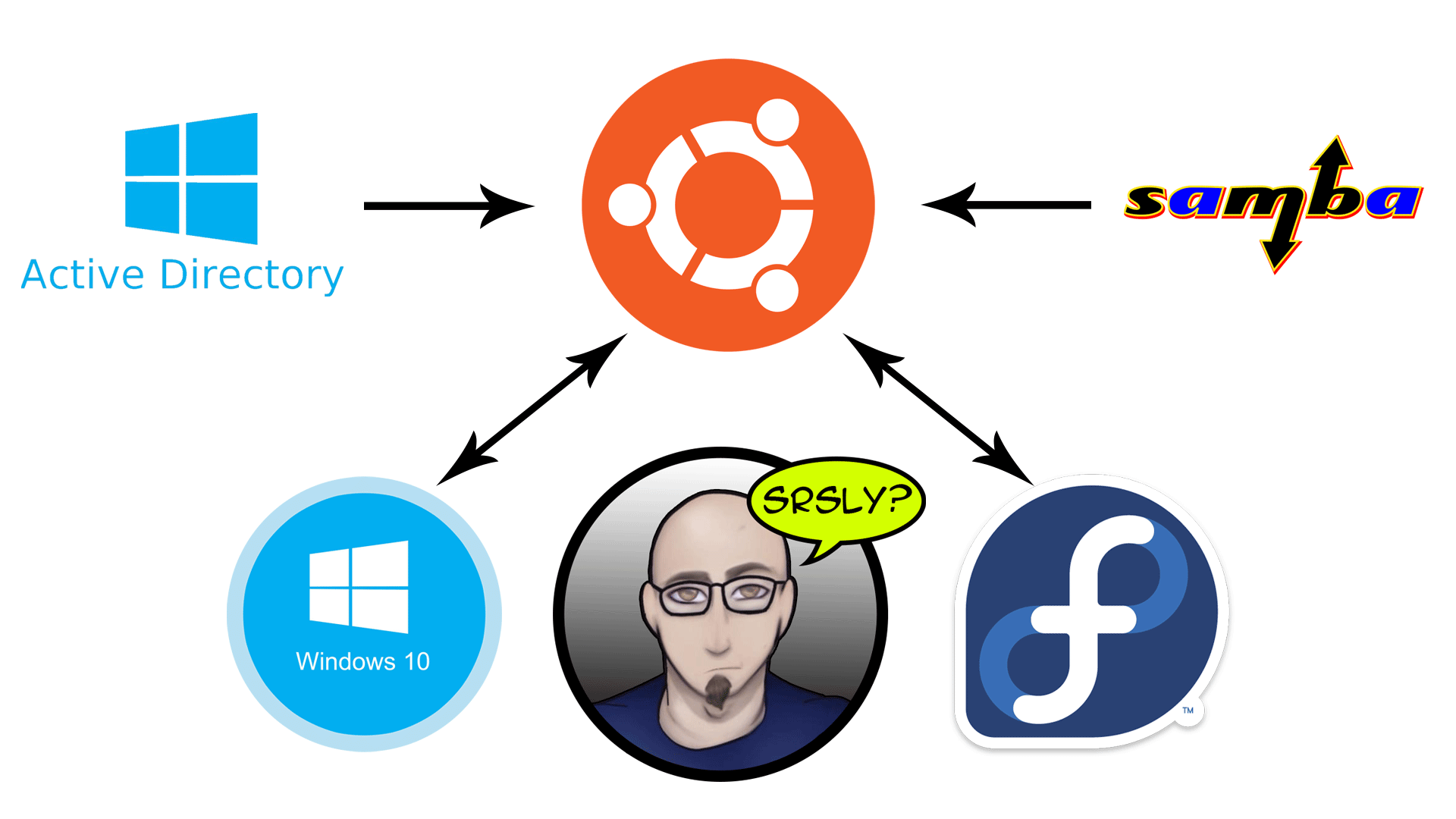
Integrating Ubuntu Linux into a Microsoft Active Directory (AD) environment allows organizations to unify identity management across Windows and Linux endpoints. By joining Ubuntu desktops and servers to an Active Directory domain, sys...
Integrating Ubuntu Linux into a Microsoft Active Directory (AD) environment allows organizations to unify identity management across Windows and Linux endpoints. By joining Ubuntu desktops and servers to an Active Directory domain, system administrators enforce centralized access control, enable single sign-on (SSO) via Kerberos, and manage administrative privileges without maintaining separate local user databases on every machine.
Contents
Modern Linux distributions handle domain integration primarily through SSSD (System Security Services Daemon) and realmd, which simplify the discovery, configuration, and domain-join process. Additionally, tools like Canonical's ADSys extend this integration by allowing Active Directory Group Policy Objects (GPOs) to manage Ubuntu system settings directly.
Technical Foundations of Ubuntu and Active Directory Integration
Active Directory relies on open standard protocols for identity and access management. Understanding how Linux maps to these protocols helps in troubleshooting and maintaining a reliable domain join.
- Ubuntu Host
- SSSD Daemon (Cache & Logic)
- Interfaces with PAM / NSS (System Auth)
- Connects to Local Cache (
/var/lib/sss) - Connects to Active Directory Domain Controller via:
- Kerberos (v5): Authentication
- LDAP (389/636): Identity Data
- DNS (UDP/TCP): Service Records
- SSSD Daemon (Cache & Logic)
When an Ubuntu client authenticates an AD user, three core services work in tandem:
- Kerberos (v5): Handles ticket-based authentication. When a user enters their domain credentials, the Kerberos client on Ubuntu requests a Ticket Granting Ticket (TGT) from the Key Distribution Center (KDC) running on the domain controller.
- LDAP (Lightweight Directory Access Protocol): Queries domain controllers for identity attributes, such as user Security Identifiers (SIDs), POSIX attributes (UID/GID), group memberships, and home directory paths.
- DNS (Domain Name System): Resolves domain controllers dynamically through SRV records (such as
_ldap._tcp.dc._msdcs.DomainName). Accurate DNS resolution is essential for locating active domain controllers.
On Ubuntu, SSSD serves as the intermediary daemon. It interfaces with PAM (Pluggable Authentication Modules) for system logins and NSS (Name Service Switch) for identity lookups. SSSD caches credentials locally, enabling users to log in even when the system is offline or disconnected from the corporate network.
System Prerequisites and Network Requirements
Before attempting to join an Ubuntu system to an Active Directory domain, ensure the infrastructure and endpoint meet several strict requirements.
1. Hostname and Domain Naming Conventions
The host must have a unique fully qualified domain name (FQDN). Avoid using .local top-level domains where possible, as Multicast DNS (mDNS) services on Linux can interfere with standard DNS resolution. Set a static hostname using hostnamectl:
sudo hostnamectl set-hostname ubuntu-node01.corp.example.com
2. DNS Configuration
The Ubuntu host must use the Active Directory domain controllers as its primary DNS servers. If the host relies on public DNS or an upstream router that cannot resolve internal AD DNS records, the domain join will fail. Verify DNS resolution by querying the AD SRV records:
dig _ldap._tcp.dc._msdcs.corp.example.com SRV
3. Time Synchronization (NTP)
Kerberos authentication requires strictly synchronized clocks between the client and the Active Directory Domain Controller. If the time skew exceeds 300 seconds (5 minutes), Kerberos ticket validation fails. Configure systemd-timesyncd or chrony to synchronize time with the domain controllers or a shared authoritative NTP source.
sudo timedatectl set-ntp true timedatectl status
4. Required Firewall Ports
Ensure network security groups or local firewalls allow outbound traffic from the Ubuntu host to the Domain Controller across the following ports:
| Port Number | Protocol | Service / Purpose |
|---|---|---|
| 53 | TCP / UDP | DNS Name Resolution |
| 88 | TCP / UDP | Kerberos Authentication |
| 123 | UDP | Network Time Protocol (NTP) |
| 135 | TCP | RPC Endpoint Mapper |
| 389 | TCP / UDP | LDAP Directory Queries |
| 464 | TCP / UDP | Kerberos Password Change |
| 636 | TCP | LDAP over SSL/TLS (LDAPS) |
| 3268 | TCP | LDAP Global Catalog |
| 3269 | TCP | LDAP Global Catalog over SSL |
Step-by-Step: Joining Ubuntu to Active Directory using realmd and SSSD
The standard and recommended approach for joining Ubuntu (including Ubuntu 22.04 LTS and Ubuntu 24.04 LTS) to Active Directory is through the realmd framework paired with SSSD.
Step 1: Install Required Packages
Update the local package index and install realmd, sssd, sssd-tools, adcli, samba-common-bin, and Kerberos client utilities:
sudo apt update sudo apt install -y realmd sssd sssd-tools adcli samba-common-bin krb5-user packagekit
During installation, the krb5-user package may prompt for a default Kerberos realm. Type the domain name in uppercase letters (for example, CORP.EXAMPLE.COM).
Step 2: Discover the Active Directory Realm
Test communication with the domain using realm discover. This command queries DNS SRV records and identifies the capabilities supported by the domain controller:
realm discover CORP.EXAMPLE.COM
The expected output shows details such as the configured domain name, server software (Active Directory), and required packages.
Step 3: Join the Domain
Execute the realm join command using an Active Directory account that holds permission to join computers to the domain (such as a Domain Admin or a delegated service account):
sudo realm join --user=Administrator CORP.EXAMPLE.COM
You will be prompted for the user's domain password. Once authenticated, realmd automatically provisions a machine account in Active Directory, generates the local /etc/krb5.keytab keytab file, and configures /etc/sssd/sssd.conf.
Step 4: Configure Automatic Home Directory Creation
Linux accounts require home directories upon initial login. Enable the PAM module pam_mkhomedir so the system automatically creates /home/username@domain when a user logs in for the first time:
sudo pam-auth-update --enable mkhomedir
Step 5: Verify Identity and Group Lookups
Confirm that Ubuntu can query user identities directly from Active Directory using the id command:
id user01@corp.example.com
If the domain join was successful, the terminal will return the user's UID, primary GID, and active domain group memberships.
Configuring SSSD and Local Administrative Privileges
While realmd establishes the basic domain connection, administrative access and login rights require explicit configuration.
Shortening Usernames (Removing Domain Suffix)
By default, SSSD requires users to log in using fully qualified names (such as john.doe@corp.example.com). To allow short usernames (john.doe), edit /etc/sssd/sssd.conf and update the following settings under the domain section:
[domain/corp.example.com] default_domain_suffix = corp.example.com use_fully_qualified_names = False
After modifying the configuration file, set restrictive permissions and restart the service:
sudo chmod 600 /etc/sssd/sssd.conf sudo systemctl restart sssd
Granting Sudo Privileges to Active Directory Groups
To grant administrative (sudo) rights to domain users, create a custom drop-in file inside /etc/sudoers.d/. Avoid modifying the main /etc/sudoers file directly.
Execute visudo with a custom file path:
sudo visudo -f /etc/sudoers.d/domain-admins
Add rules referencing domain groups. Escape spaces in group names with backslashes or use quotes:
# Allow members of "Domain Admins" full sudo access %"Domain Admins@corp.example.com" ALL=(ALL:ALL) ALL # Allow a specific Linux admin group in AD %"Linux Administrators" ALL=(ALL:ALL) ALL
Save and exit. Test sudo privileges by switching to a domain user account:
su - user01@corp.example.com sudo WHOAMI
Managing Ubuntu Endpoints with Canonical ADSys
Joining Ubuntu to Active Directory handles user authentication, but managing system policies across hundreds of Linux desktops or servers traditionally required external configuration management tools like Ansible or Puppet. Canonical introduced ADSys to bridge this gap by enabling native Active Directory Group Policy (GPO) integration for Ubuntu systems.
ADSys works by downloading and executing Active Directory administrative templates (.admx and .adml files) directly on the Ubuntu endpoint. System administrators can configure GPOs inside Microsoft's Group Policy Management Console (GPMC) on Windows Server to enforce rules on Ubuntu client machines.
- Windows Server (GPMC)
- Policy Creation via
.admx - Active Directory Replication
- Policy Creation via
- Active Directory SYSVOL Share
- Policy Fetch (GPO Download)
- Ubuntu Endpoint (ADSys Client)
- Applies Dconf Settings
- Manages AppArmor / Privileges
- Enforces Scripts & Rules
Key Capabilities of ADSys
- Dconf Policy Management: Control desktop environments, proxy settings, wall paper, screen lock timeouts, and software preferences.
- AppArmor Profile Enforcement: Distribute mandatory access control policies across Linux endpoints.
- Privilege Management: Control local sudo rights dynamically based on AD policy.
- Custom Script Execution: Run logon and logoff scripts defined in GPOs.
Enabling ADSys on Ubuntu
ADSys client integration is available natively on Ubuntu Desktop and Server LTS releases. To install the ADSys daemon:
sudo apt install adsys
Once installed, ADSys automatically registers with the sssd integration layer and fetches relevant policies during machine startup and user login. Detailed administrative templates can be retrieved from Canonical's official ADSys documentation and imported directly into the Windows Domain Controller's PolicyDefinitions directory (C:\Windows\SYSVOL\domain\Policies\PolicyDefinitions).
Architectural Comparison of Ubuntu AD Integration Methods
Depending on the environment, several methods exist to integrate Ubuntu with Active Directory. Choosing the right method depends on whether the system requires desktop policy management, simple file-sharing authentication, or legacy protocol support.
| Integration Method | Primary Components | Best Use Case | Key Advantages | Limitations |
|---|---|---|---|---|
| SSSD + realmd | sssd, realmd, adcli |
Enterprise servers and standard workstations. | High performance, robust offline caching, clean PAM/NSS integration, low overhead. | Does not natively process Windows GPOs without extra tools. |
| Canonical ADSys + SSSD | adsys, sssd, realmd |
Enterprise Ubuntu Desktop fleets and managed servers. | Native Group Policy (GPO) management via GPMC, dconf enforcement, elevated policy management. | Advanced features require Ubuntu Pro subscription on client endpoints. |
| Winbind + Samba | winbindd, samba |
File servers, legacy Linux environments, SMB/CIFS shares. | Deep integration with Samba file sharing and Windows ACLs. | Heavier resource footprint; configuration complex compared to SSSD. |
| Samba 4 AD DC | samba-ad-dc |
Host an Active Directory Domain Controller on Ubuntu. | Replaces Windows Server for identity hosting; open-source AD domain creation. | High operational burden; requires strict active directory schema management. |
Troubleshooting Common AD Join and Authentication Issues
When domain join or authentication fails, system logs provide detailed information to pinpoint the breakdown point.
Issue 1: DNS Resolution Failures
Symptom: realm discover returns errors stating the domain cannot be located.
Resolution: Check /etc/resolv.conf or systemd-resolved settings. Verify the system uses the AD DNS server IP.
Test direct LDAP SRV lookup:
nslookup -type=SRV _ldap._tcp.corp.example.com
If this lookup fails, update Netplan or systemd-resolved to point to the AD DNS servers, then flush DNS caches using sudo resolvectl flush-caches.
Issue 2: Kerberos Time Skew Errors (KRB5KRB_AP_ERR_SKEW)
Symptom: User logins fail with Kerberos time errors in system logs (/var/log/auth.log or journalctl -u sssd).
Resolution: Verify system clock drift relative to the Domain Controller.
Force an immediate time synchronization using chrony or systemd-timesyncd:
sudo chronyc tracking sudo chronyc step
Issue 3: Stale SSSD Authentication Caches
Symptom: User group changes made in Active Directory do not reflect on the Ubuntu host.
Resolution: SSSD caches directory lookups locally. Flush the cache using sss_cache:
# Clear all cached entries (users, groups, domains) sudo sss_cache -E # Restart the SSSD service to reload state sudo systemctl restart sssd
Issue 4: Debugging SSSD Logging
If authentication fails without clear messages in standard logs, increase SSSD log verbosity. Open /etc/sssd/sssd.conf and set debug_level under the [sssd] section:
[sssd] debug_level = 7
Restart SSSD and review detailed logs located in /var/log/sssd/. Remember to revert debug_level back to 0 or 2 after troubleshooting to avoid disk space exhaustion.
Frequently Asked Questions
Can Ubuntu join an Active Directory domain without third-party software?
Yes. Modern Ubuntu releases include native utilities such as realmd, sssd, and adcli within their standard software repositories. No commercial third-party software is required to join an Ubuntu host to Active Directory.
What is the practical difference between SSSD and Winbind?
SSSD is the modern standard for Linux authentication against LDAP and Active Directory. It provides superior offline caching, faster performance, and cleaner separation between system identity and network services. Winbind is part of the Samba project and is primarily used when the Ubuntu server acts as a Samba file server sharing SMB resources with Windows clients.
How do I remove an Ubuntu system from an Active Directory domain?
To gracefully unjoin an Ubuntu machine from the domain and remove its machine account, run the realm unjoin command:
sudo realm unjoin CORP.EXAMPLE.COM --user=Administrator
Does Active Directory support password changes directly from an Ubuntu host?
Yes. When logged in as a domain user, running the standard passwd command contacts the Active Directory Domain Controller over Kerberos (port 464) to update the password, enforcing any password complexity and expiration policies configured in Active Directory.
Which network components are required for offline authentication?
Offline authentication relies on SSSD caching valid credentials locally in /var/lib/sss/db/. For offline login to work, the user must have logged into the Ubuntu host successfully at least once while connected to the network.
Recommended Next Steps
To roll out Active Directory integration across an Ubuntu deployment:
- Validate Infrastructure: Ensure DNS SRV records resolve correctly and network firewalls allow communication across ports 88, 389, and 636.
- Test Domain Join: Deploy a test Ubuntu instance and complete the
realmdjoin procedure using non-production administrative credentials. - Configure Access Control: Define sudo policies in
/etc/sudoers.d/targeting specific AD groups rather than individual user accounts. - Evaluate GPO Requirements: If managing client desktops, review Canonical's ADSys documentation to determine if Group Policy administrative templates are needed for policy enforcement.
Image Gallery