Best Emulators for iPhone in 2026: The Ultimate Guide to iOS Retro Gaming
The best emulators for iPhone in 2026 include Delta for Nintendo systems, RetroArch for multi-platform versatility, and PPSSPP for high-definition PlayStation Portable gaming. Following Apple's 2024 policy reversal and the expansion of...
The best emulators for iPhone in 2026 include Delta for Nintendo systems, RetroArch for multi-platform versatility, and PPSSPP for high-definition PlayStation Portable gaming. Following Apple's 2024 policy reversal and the expansion of third-party marketplaces under the Digital Markets Act (DMA), users can now install most top-tier emulators directly from the App Store or verified alternative distributors without complex jailbreaking.
Contents
The Evolution of iOS Emulation and the 2026 Landscape
The landscape of mobile emulation has undergone a radical transformation over the last two years. Historically, iPhone users were forced to use "gray market" methods like enterprise certificates or AltStore to play retro games. However, as of 2026, the ecosystem is divided into two primary categories: official App Store releases and high-performance sideloaded apps that utilize Just-In-Time (JIT) compilation.
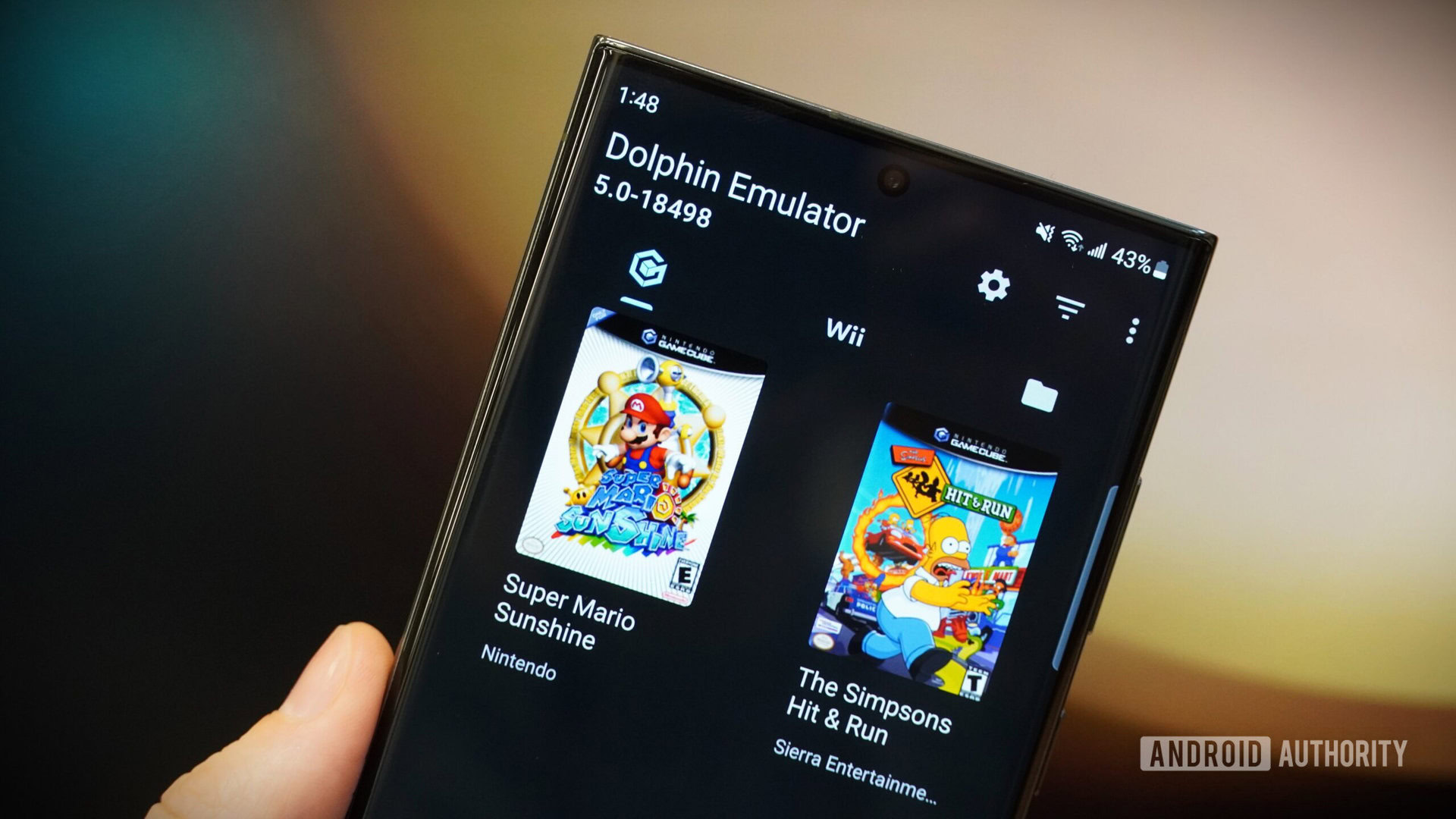
While Apple now permits "retro game console emulator apps" globally, certain technical restrictions remain. The most significant is the limitation on JIT compilation for apps distributed through the standard App Store. JIT is a technology that allows software to translate code from one processor architecture to another in real-time, which is essential for demanding systems like the Nintendo GameCube, Wii, and 3DS. For 8-bit, 16-bit, and most 32-bit systems, the native performance of Apple’s A18 and A19 chips in 2026 is so high that JIT is no longer a strict requirement for a fluid experience.
Legal and Safety Standards in 2026
Emulation itself is legal in most jurisdictions, provided the software mimics the hardware without using proprietary code from the original manufacturer. However, the acquisition of ROMs (Read-Only Memory files) remains a sensitive area.
Legal Compliance and Best Practices
Ownership and Fair Use Users should only emulate games they physically own. Creating a digital backup (dumping) of your own cartridges is widely considered the safest legal path for personal use.
Proprietary BIOS Files Certain consoles, specifically the PlayStation 1, PlayStation 2, and Nintendo DS, require original System BIOS files to function. These files are copyrighted material and are never included with emulator downloads. Users must provide their own legally obtained BIOS files to the application directory.
Security Verification Only download emulators from the official iOS App Store or reputable alternative marketplaces like AltStore PAL (in the EU) to avoid malware or credential-stealing "repackaged" IPAs.
Top 5 iPhone Emulators Rated for Performance and Stability
As we move through 2026, five specific applications have emerged as the industry standards for mobile emulation on iOS. These apps are evaluated based on their UI/UX, controller support, and emulation accuracy.
1. Delta (by Riley Testut)
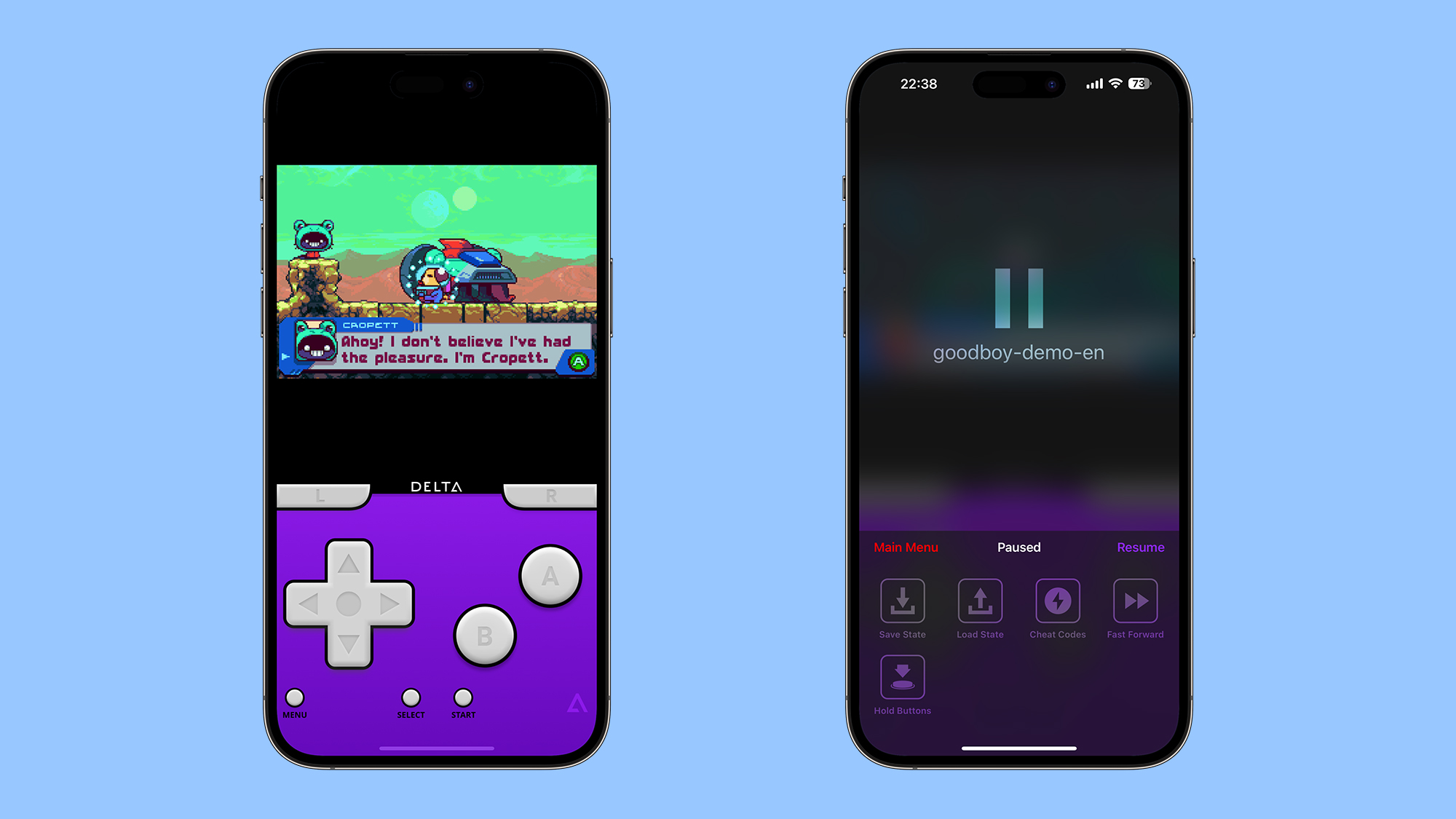
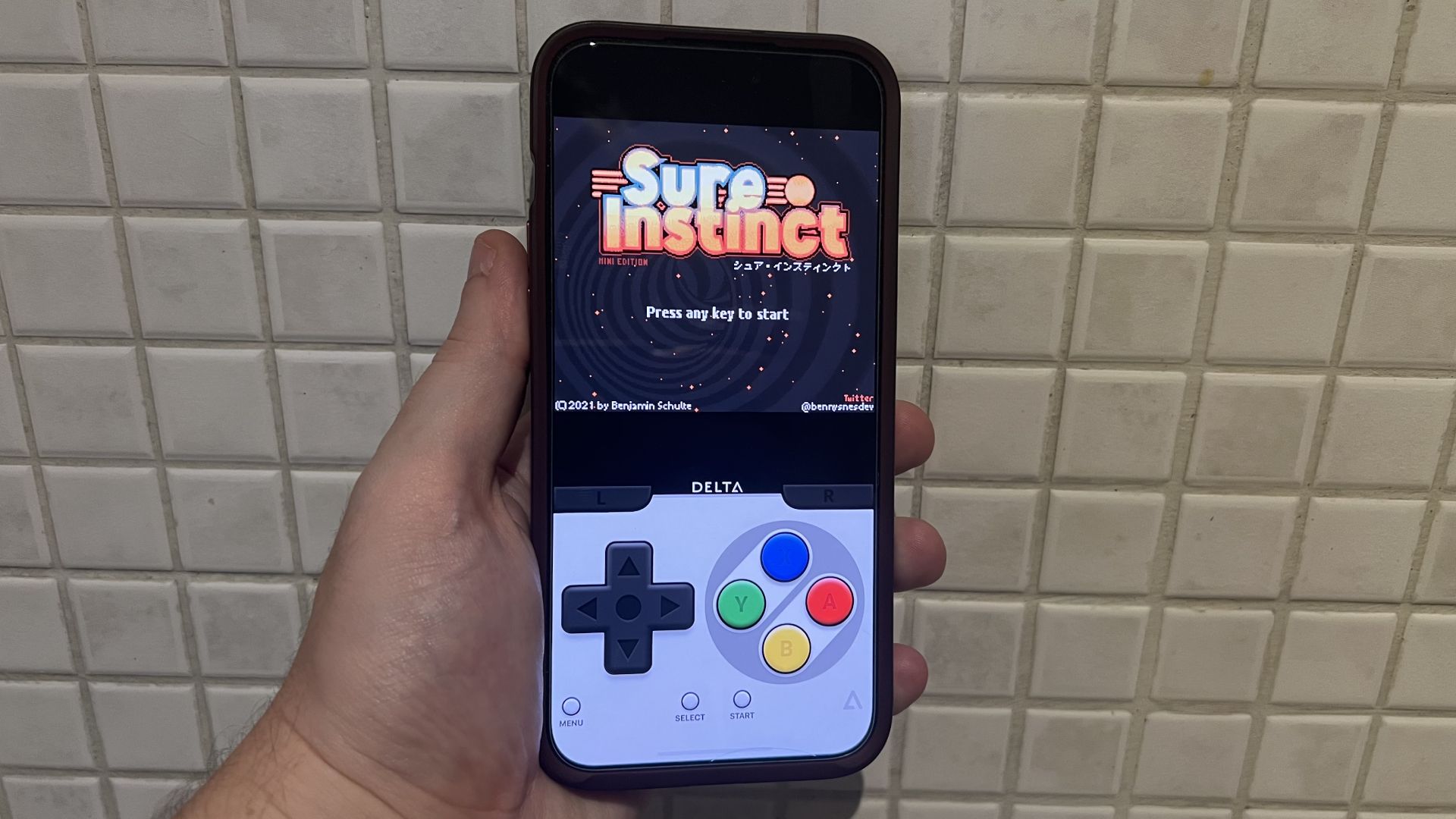
Delta remains the gold standard for the average user. It features a polished, "Apple-like" interface and supports a wide range of Nintendo consoles, including the NES, SNES, N64, Game Boy Color, Game Boy Advance, and Nintendo DS.
- Key Features: Cloud syncing via Google Drive or Dropbox, customizable "skins" for the on-screen controller, and Haptic Touch integration.
- Best For: Users who want a "set it and forget it" experience for Nintendo classics.
2. RetroArch
RetroArch is not a single emulator but a frontend for "cores." It is the most powerful tool available but comes with a steep learning curve. In 2026, the iOS version of RetroArch supports over 80 different systems, ranging from the Atari 2600 to the PlayStation 1 and Arcade systems (MAME).
- Key Features: Advanced shaders to mimic CRT televisions, Netplay for online multiplayer, and deep configuration for input latency.
- Best For: Power users who want to customize every aspect of their gaming experience across dozens of platforms.
3. PPSSPP
Developed by Henrik Rydgård, PPSSPP is the definitive PlayStation Portable emulator. On the iPhone 17 and 18 Pro series, it can easily upscale PSP games to 4K resolution with 60 frames per second.
- Key Features: Texture scaling, anisotropic filtering, and native support for the iPad’s ProMotion displays.
- Best For: Fans of the PSP library who want their games to look better than they did on the original hardware.
4. Folium
Folium is a newer contender that gained popularity in 2025 for its ability to handle Nintendo 3DS, Apple Watch, and even some Neo Geo Pocket games. Because 3DS emulation is resource-heavy, this app benefits significantly from the increased RAM found in newer iPhone models.
- Key Features: Dual-screen layout customization and support for specialized 3DS input methods.
- Best For: Users with the latest hardware looking to play 3DS titles.
5. Gamma
Gamma focuses specifically on the original PlayStation (PS1) experience. It offers a streamlined interface similar to Delta but is optimized for the .bin and .cue formats common in PS1 disc images.
- Key Features: Automatic disc-swapping support for multi-disc RPGs and enhanced audio processing.
- Best For: Dedicated PlayStation enthusiasts.
Technical Comparison of Leading iOS Emulators
The following table compares the current 2026 specifications and requirements for the top emulators on the iOS platform.
| Emulator | Primary Systems | Installation Method | JIT Required? | Minimum iOS Version |
|---|---|---|---|---|
| Delta | NES, SNES, N64, GBA, DS | App Store / AltStore | No | iOS 15.0+ |
| RetroArch | Multi-system (80+) | App Store / Sideload | Optional | iOS 14.2+ |
| PPSSPP | PSP | App Store / Official Site | No (for most titles) | iOS 13.0+ |
| Folium | 3DS, GBA, NES | App Store / Sideload | Highly Recommended | iOS 16.0+ |
| Gamma | PS1 | App Store | No | iOS 15.0+ |
| Provenance | Multi-system (Sega/Sony) | TestFlight / Sideload | No | iOS 15.0+ |
Hardware Requirements and Peripheral Support
Emulation performance in 2026 is heavily dictated by the iPhone's SoC (System on a Chip). While an iPhone 13 can comfortably handle 16-bit systems, users targeting 6th and 7th generation console emulation (GameCube, Wii, 3DS) should ideally use an iPhone 16 Pro or newer to leverage the enhanced GPU cores and thermal management.
Recommended Controllers
Playing with on-screen touch controls is sufficient for RPGs but inadequate for action games or platformers. The 2026 iOS ecosystem supports a wide array of hardware:
- Backbone One (USB-C Edition): Provides a Switch-like form factor.
- DualSense (PS5) & Xbox Series X Controllers: Connect seamlessly via Bluetooth with full button mapping.
- 8BitDo Retro Controllers: Excellent for SNES and NES titles, offering authentic d-pad feel.
Storage Management
Modern emulators support Files app integration. It is recommended to store your ROM library in a dedicated folder within "On My iPhone" rather than iCloud Drive to prevent latency issues during game loading and to ensure games are available offline.
Step-by-Step: Installing and Setting Up Your First Emulator
For this guide, we will use Delta as the example, as it represents the most common entry point for iOS users in 2026.
- Download from the App Store: Search for "Delta - Game Emulator" and verify the developer is Riley Testut.
- Prepare Your Files: Ensure your ROMs are in the correct format (e.g., .gba for Game Boy Advance, .n64 for Nintendo 64). If you are playing Nintendo DS games, you must also have
bios7.bin,bios9.bin, andfirmware.binfiles. - Importing Games: Open Delta and tap the "+" icon in the top right corner. Select "Files" and navigate to where your ROMs are stored.
- Configuring BIOS (DS Only): If prompted for DS BIOS files, go to Delta Settings > DS > and upload the three required files.
- Controller Pairing: Go to the iOS Settings > Bluetooth. Put your controller in pairing mode and select it. Delta will automatically detect the controller and map the buttons.
- Performance Tuning: If you experience frame drops, navigate to the emulator settings and ensure "Low Power Mode" is disabled on your iPhone, as this significantly throttles CPU performance.
Troubleshooting Common Performance Issues
Even with the power of 2026 hardware, users may encounter hurdles. Most issues stem from file formats or thermal throttling.
- Black Screen on Launch: This is usually caused by a missing BIOS file or a corrupted ROM. Ensure your ROMs are unzipped (unless the emulator specifically supports .zip or .7z formats).
- Audio Crackling: This typically indicates the CPU cannot keep up with the emulation speed. Try lowering the internal resolution (in PPSSPP or Folium) or disabling heavy shaders in RetroArch.
- Controller Lag: Bluetooth interference can cause input delay. If using a Pro controller, ensure you are not also streaming high-bandwidth audio to Bluetooth headphones simultaneously, as this can saturate the 2.4GHz band.
- App Crashing (Sideloaded Only): If you are using a sideloaded version of an app, remember that free developer certificates must be refreshed every 7 days. Use a service like SideStore to automate this process over Wi-Fi.
Frequently Asked Questions
Can I play Nintendo Switch games on my iPhone in 2026?
While experimental Switch emulators exist for iOS, they are currently in the early stages of development and are not available on the official App Store. They require JIT compilation and the highest-end iPhone 18 Pro hardware to achieve playable framerates in 2D titles.
Is emulation legal on the iPhone?
Yes, the software itself is legal. Apple officially updated its App Store Review Guidelines (specifically Guideline 4.7) in 2024 to allow retro game console emulators. The legality concerns only arise if you download copyrighted game ROMs that you do not own.
Do I need to jailbreak my iPhone to use emulators?
No. As of 2026, jailbreaking is unnecessary for the vast majority of emulation needs. The App Store carries the most popular emulators, and AltStore provides a safe path for those requiring advanced features like JIT.
Why doesn't my emulator show the games I downloaded?
Ensure the files are in a supported extension. Most emulators cannot read .rar files; you must extract them to get the .iso, .rom, or .bin file inside. Additionally, verify that the emulator has "Full Disk Access" or "Files and Folders" permissions in iOS Settings.
Does using an emulator drain the battery faster?
Emulation is a CPU-intensive task. Systems like the N64, PSP, and 3DS will consume significantly more power than standard apps. It is common to see increased heat and battery drain during extended play sessions.
With the right setup, the iPhone in 2026 serves as one of the most capable portable retro gaming machines ever created. By choosing the right software for your specific interests—whether it is the simplicity of Delta or the power of RetroArch—you can carry decades of gaming history in your pocket. Always remember to source your files responsibly and keep your apps updated to benefit from the latest performance optimizations provided by the Metal graphics API.
Image Gallery