How to Change Your Language on Google: A Comprehensive Guide
Changing your language settings on Google allows you to personalize your interaction with the world’s most widely used search engine. By adjusting these settings, you ensure that your interface, search results, and recommendations appe...
Changing your language settings on Google allows you to personalize your interaction with the world’s most widely used search engine. By adjusting these settings, you ensure that your interface, search results, and recommendations appear in your preferred tongue, creating a more intuitive and efficient browsing experience. Whether you are adjusting your regional settings to better suit your current location or setting your primary language for account-wide consistency, the process is streamlined across Google’s ecosystem.
Contents
To change your language on Google, navigate to your Google Account settings, select the "Personal info" tab, scroll to "General preferences for the web," and click on "Language." From there, you can add, remove, or reorder your preferred languages. Once updated, your Google interface and the language of your search results will reflect these changes, though your browser and operating system settings may also play a role in how content is displayed.
Understanding Google Language Preferences
Google manages language settings through two primary channels: the Google Account level and the web browser level. Understanding the distinction between these two is critical for ensuring your changes take effect across all your devices.
Google Account Language Settings
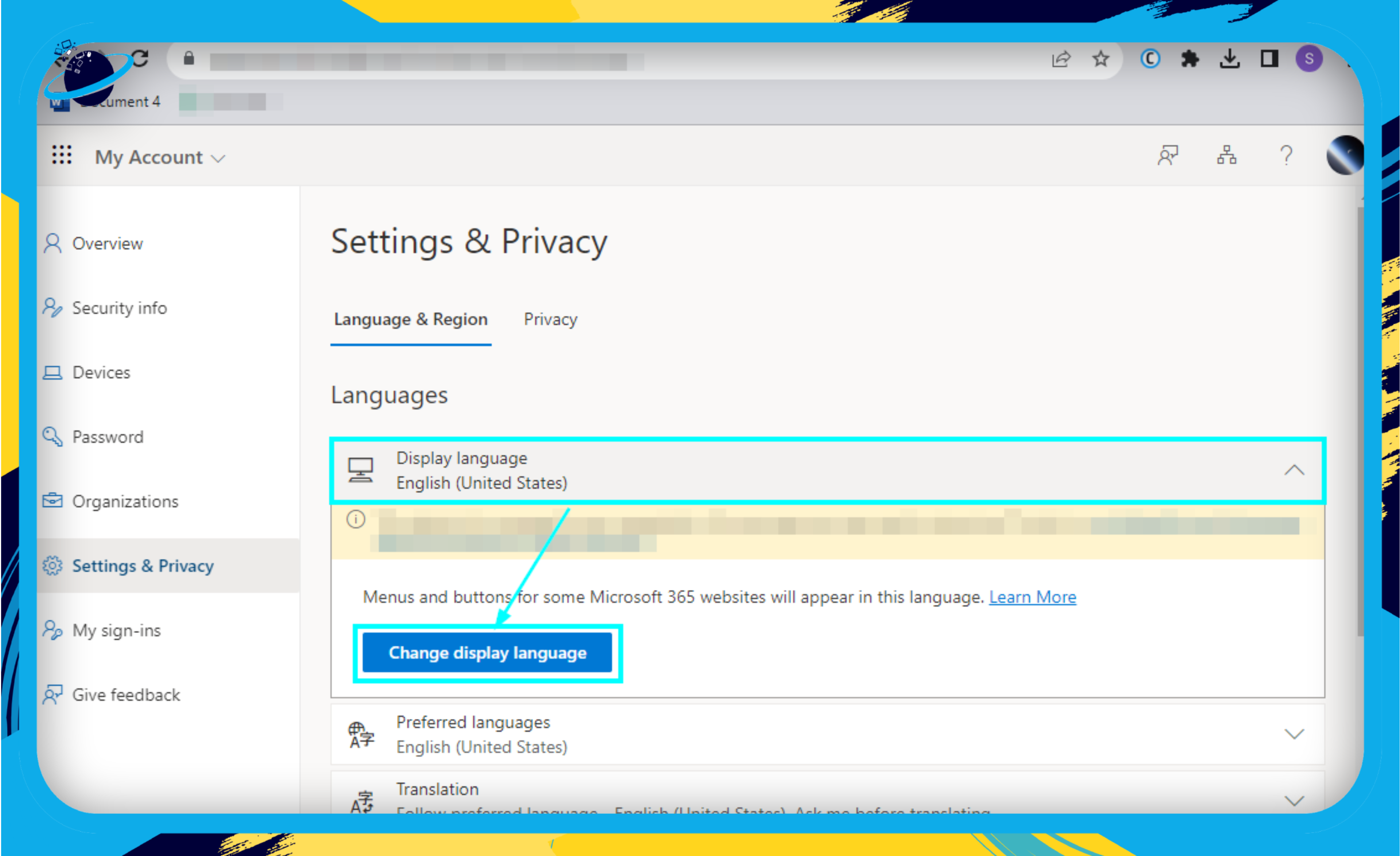
When you modify language settings within your Google Account, you are essentially telling Google’s servers how you wish to communicate with their services (such as Gmail, Drive, and Search). This is a cloud-based setting. When you sign into your account on a new device—a library computer, a friend’s tablet, or a public terminal—Google will apply these account-level preferences to the services you access. This is the most effective way to ensure a consistent experience regardless of the hardware you are using.
Browser and Operating System Dependencies
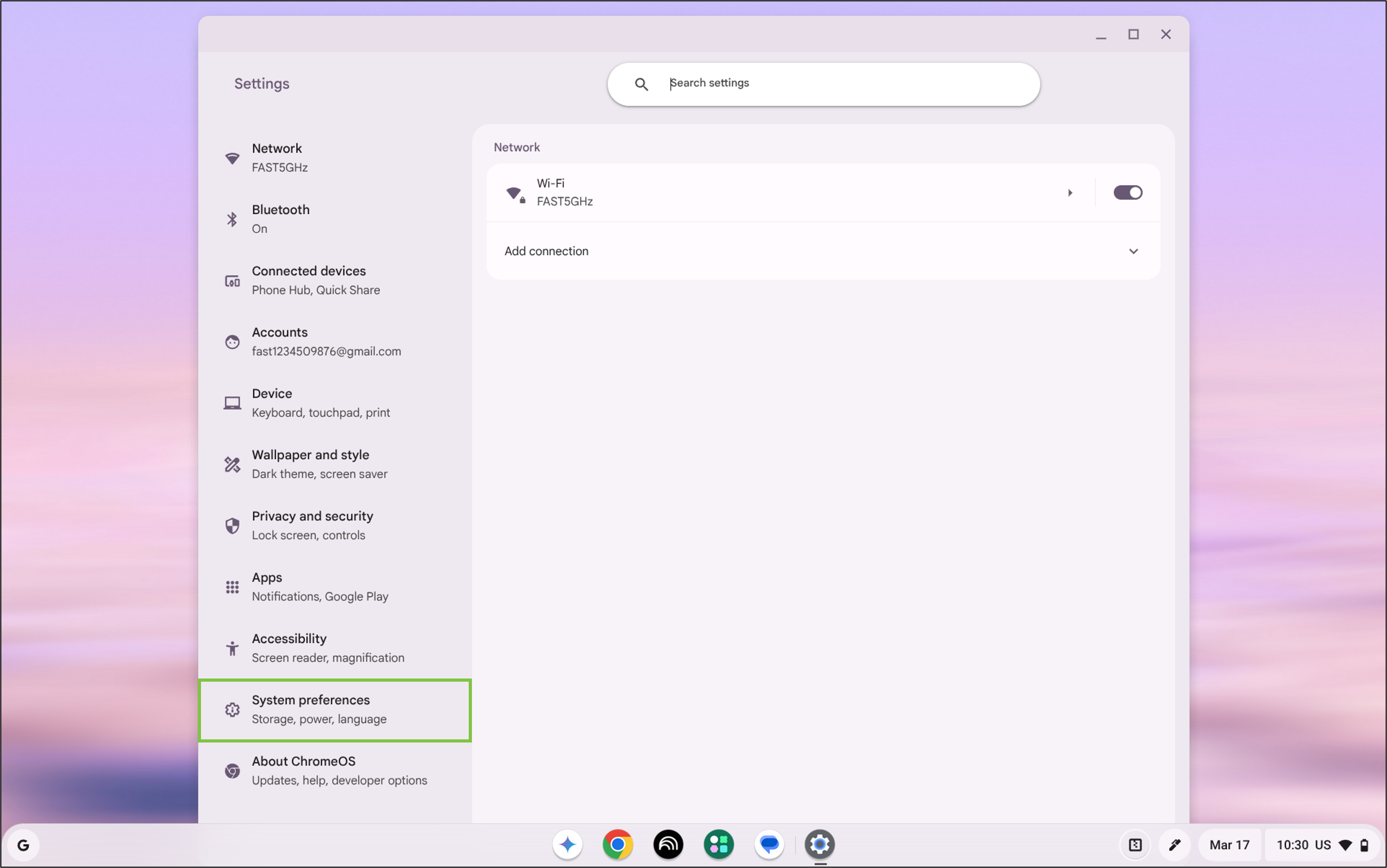
While your account settings dictate how Google services appear to you, your web browser (such as Chrome, Firefox, or Safari) and your device’s operating system (Windows, macOS, Android, or iOS) also exert influence. If your browser is set to prioritize a specific language, it may send an "Accept-Language" header to the websites you visit, which can override Google’s internal settings. If you change your language in Google but still see your browser interface (menus, tabs, and settings) in a different language, you likely need to update the language configuration in the browser's own settings menu.
Steps to Change Language in Your Google Account
Updating your language profile within your Google Account is a straightforward task that applies to the Google ecosystem universally.
- Sign In: Navigate to myaccount.google.com and ensure you are logged into the correct account.
- Access Personal Info: On the left-hand menu, click the Personal info tab.
- Locate General Preferences: Scroll down the page until you reach the section labeled General preferences for the web.
- Select Language: Click on the Language option.
- Modify Preferences:
- To change your primary language, click the edit (pencil) icon next to your default language and select your preferred option from the list.
- To add a second or third language, click Add another language and choose from the dropdown menu. This helps Google provide accurate translations for content that is not available in your primary language.
- Save Changes: Once you have selected your language, click Save. Google will automatically refresh your interface to reflect the change.
Regional Search Results and Language
A common point of confusion for users is the difference between "Language" and "Region." While language defines the vocabulary and character set used, "Region" determines the relevance of local search results.
If you are living in a country that is not your native language, you may want to set your interface language to your native tongue while keeping your region set to your current location. This ensures you see the most relevant local news, business hours, and weather updates while maintaining an interface you are comfortable navigating. You can manage this under the Search settings on the Google Search homepage by clicking Settings at the bottom right and selecting Search settings, then clicking Languages in the side menu.
Comparison of Settings
The following table clarifies where to adjust specific preferences to avoid conflicting behaviors.
| Setting Goal | Platform/Location | Scope of Effect |
|---|---|---|
| UI Interface Language | Google Account > Personal Info | All Google Apps/Services globally |
| Search Result Language | Google Search > Settings > Languages | Only Google Search results |
| Browser Menus/Buttons | Browser Settings (e.g., Chrome Settings) | Local browser software interface |
| System Language | OS Settings (Windows/macOS/iOS/Android) | Entire device OS and native apps |
Troubleshooting Common Language Issues
If you have updated your settings but do not see the desired results, consider these common technical hurdles.
Cache and Cookies
Web browsers often store "cache" and "cookies" that save previous versions of webpages, including their language settings. If you update your preferences but the page still displays old information, clear your browser’s cache. In Chrome, this is done via Settings > Privacy and security > Clear browsing data. After clearing your cache, restart the browser and sign back into Google.
Conflicting Browser Extensions
Certain translation extensions or localization add-ons may interfere with Google’s ability to serve the correct language. If you are experiencing inconsistent results, disable your extensions one by one to identify if a specific tool is overriding Google’s default language signals.
Browser-Level Language Priority
If your browser is set to a specific language, it may ignore the language preference you have set in your Google Account. For example, if you use a browser downloaded in a specific country, it may have a default language hierarchy. Navigate to your browser's language settings (usually found under Settings > Languages) and ensure that your desired language is moved to the top of the "Order by preference" list.
Frequently Asked Questions
Will changing my Google language delete my search history?
No. Changing your language settings only affects the display language and the language of the content Google presents to you. Your search history, saved bookmarks, and account data remain unaffected and fully intact after you update your language preferences.
Why do I still see ads in a different language?
Ad targeting is complex and relies on multiple factors, including your location, your search history, and the language of the sites you visit. Even if your Google interface is set to English, Google may serve ads in a local language if it detects that you are physically located in a region where that language is predominant, as advertisers often target by geographic IP address.
Can I set Google to search in multiple languages?
Yes. Within the "Search settings" menu, you can select multiple languages under the "Which language should Google products use?" section. By selecting multiple languages, you instruct Google to prioritize results in those languages when available, which is particularly useful for multilingual users who regularly conduct research in different tongues.
Does changing my language affect my YouTube recommendations?
Your YouTube language setting is often linked to your Google Account, but YouTube also has its own independent location and language settings. If you change your Google Account language, you may need to navigate to your YouTube settings via the user profile icon to ensure the regional recommendation settings match your preferences.
Final Recommendation
For the most seamless experience, ensure that both your Google Account language and your primary web browser language are set to your preference. If you find yourself frequently switching between languages, utilize the "Add another language" feature in your Google Account settings. This allows Google to provide you with search results in your preferred secondary languages while maintaining your primary UI settings. If you continue to see incorrect languages after these adjustments, clear your browser cache to ensure the system is reading your most recent configuration.
Image Gallery