How to Write on a PDF File Online
To write on a PDF file online, upload your document to a web-based editor like Adobe Acrobat Web, Smallpdf, or Google Docs. Select the text or annotation tool to insert new text boxes over the document layer or convert the file to modi...
To write on a PDF file online, upload your document to a web-based editor like Adobe Acrobat Web, Smallpdf, or Google Docs. Select the text or annotation tool to insert new text boxes over the document layer or convert the file to modify existing text directly. Once your edits are complete, export or download the updated PDF to your local device.
Contents
Understanding PDF Editing Methods: Overlay vs. Direct Reflow
When writing on a Portable Document Format (PDF) file using a web browser, the underlying technology processes your changes in one of two distinct ways: overlay annotation or direct reflow editing. Selecting the right online tool depends entirely on which of these two modifications your document requires.
- Online PDF Text Modification
- Overlay Annotation
- Adds a new graphic layer
- Preserves original layout
- Best for forms & notes
- Direct Reflow Editing
- Alters underlying streams
- Requires matching fonts
- Best for fixing typos
- Overlay Annotation
1. Overlay Annotation (Adding Layered Text)
Most free online PDF editors operate primarily as annotation platforms. When you insert text using an overlay editor, the tool creates a transparent visual layer directly on top of the existing fixed vector and raster objects.
- Mechanics: The original document's underlying text stream, font embeddings, and structural layout remain completely untouched.
- Best Used For: Filling out non-interactive forms, signing documents, adding marginal notes, grading assignments, or placing callout boxes over existing content.
- Pros: Preserves the original file structure, avoids font rendering errors, and maintains exact visual alignment of background elements.
2. Direct Reflow Editing (Modifying Pre-Existing Text)
True direct editing requires an online engine capable of parsing the underlying PDF object tree, extracting vector paths, identifying font sub-sets, and reflowing structural text blocks.
- Mechanics: Web-based suites like Adobe Acrobat Web or specialized converters (such as Google Docs or Canva) deconstruct the file so you can highlight, backspace, and retype existing words inside original paragraphs.
- Best Used For: Correcting typos in contract drafts, updating outdated dates or prices in published brochures, and rewriting whole paragraphs without restarting from a raw word processor file.
- Pros: Allows full structural updates without adding overlapping text boxes that obscure underlying graphics.
Step-by-Step Guide: How to Write on a PDF Using Web Tools
Method 1: Using Adobe Acrobat Web (Official PDF Native Tool)
Adobe Acrobat's web browser portal offers native rendering tools that adhere strictly to ISO 32000 standards for PDF management.
- Access the Editor: Open your web browser and navigate to the Adobe Acrobat online editing workspace.
- Upload the File: Drag and drop your PDF into the designated drop zone, or upload it from your local storage, Google Drive, or Adobe Cloud.
- Select the Add Text Tool: Locate the editing toolbar on the top or side menu. Click the Edit tab, then select the Add text box tool (represented by an "T" icon).
- Place and Format Text: Click anywhere on the document canvas where you want to insert content. A bounding box will appear. Type your desired text, then adjust the font family, point size, line alignment, and text color using the context menu.
- Download the File: After completing your edits, click Download to store the modified PDF on your local drive, or generate a shared link for cloud collaboration.
Method 2: Using Google Drive & Google Docs (Free Conversion Workflow)
If you need to make extensive text revisions to a PDF without purchasing premium software subscriptions, Google Drive offers a free conversion bridge.
- Upload to Google Drive: Log into Google Drive, click + New, select File upload, and pick your PDF file.
- Open with Google Docs: Right-click the uploaded PDF file inside your Drive dashboard, hover over Open with, and choose Google Docs.
- Edit the Document: Google Drive will run an automatic optical character and layout conversion, translating the PDF stream into an editable Google Docs document. You can now highlight, edit, add, or erase text anywhere in the body.
- Export Back to PDF: Once editing is complete, go to File > Download > PDF Document (.pdf) to save the updated text layout as a fresh PDF file.
Note: Complex multi-column layouts, graphical sidebars, or precise brand typography may shift during Google Docs conversion. For graphic-heavy documents, use a dedicated annotation tool instead.
Tool Comparison for Writing on PDFs Online
Selecting an online PDF tool requires balancing features, privacy policies, font handling capabilities, and cost constraints. The following matrix compares the leading online platforms based on core technical criteria:
| Platform | Modification Method | Font Matching Capability | Free Tier Restrictions | Privacy & File Retention Policy |
|---|---|---|---|---|
| Adobe Acrobat Web | Overlay & Direct Editing | Native subset matching | Free basic annotations; full editing requires login/subscription | Files stored in cloud until deleted by user; high enterprise security |
| Smallpdf | Primary Overlay (Direct in Pro) | Basic system fonts | 2 free tasks per day | Auto-deletes files from servers after 1 hour |
| Sejda PDF | Direct Text Modification | Matches embedded subset | Free for files up to 200 pages or 50 MB; 3 tasks/hour limit | Automatically deletes uploaded files after 2 hours |
| Canva | Graphic Vector Conversion | Converts to web fonts | Full free layout access; premium assets gated | Retains files in user cloud storage indefinitely |
| Google Docs | Reflow Conversion | Standard web/Google fonts | Fully free with Google Account | Subject to standard Google Drive security policies |
Technical Considerations: Fonts, Layers, and Security
Embedded Font Subsets
PDF files do not always contain full font software due to file-size optimization practices. Instead, creators embed font subsets containing only the specific characters used in the original document.
When you use an online editor to alter existing text, the browser tool must determine whether it possesses the embedded subset metrics. If the subset lacks the newly typed characters, the editor will default to a fallback font (such as Helvetica, Arial, or Times New Roman). This can cause subtle visual mismatches in stroke weight, kerning, and character width.
- Original PDF Stream
- Checks Font Subsets
- Character Match?
- Yes: Uses Original Font
- No Match: Applies Fallback Font (Helvetica / Arial)
Optical Character Recognition (OCR) for Scanned Documents
If you upload a scanned paper document or an image-based PDF, the file contains no editable text streams—only a grid of pixels. Attempting to write on a scanned PDF using standard text tools will result in placing text over a static background image.
To edit text within a scanned document online:
- Ensure the platform includes an OCR (Optical Character Recognition) processing engine.
- Run OCR prior to editing. The engine analyzes pixel patterns, identifies alphanumeric characters, and builds an invisible, searchable text layer directly behind or over the image.
- Once OCR is executed, you can select and modify text as though it were a native digital document.
Privacy, Security, and Compliance Concerns
Uploading sensitive personal, financial, or legal documents to free online PDF editors introduces compliance considerations. When you upload a file to a web editor, the document leaves your local storage and is transferred across the internet to a third-party server.
- Transport Encryption: Verify that the service uses HTTPS protocol with Transport Layer Security (TLS 1.2 or higher) to protect your data during transit.
- Server Retention Windows: Reputable services state explicitly in their privacy documentation how long documents remain stored on their remote servers (ranging from immediate purging to a 1-to-2-hour window).
- Regulatory Compliance: If you are handling documents governed by strict privacy frameworks such as HIPAA (healthcare), GDPR (European user data), or FERPA (educational records), avoid unverified web services. Instead, use localized enterprise solutions or platforms offering explicit business associate agreements (BAAs) and zero-retention data policies.
Troubleshooting Common Online PDF Editing Errors
Problem 1: Text Overlaps Existing Characters
- Cause: Occurs when using an overlay tool instead of a direct text editor, or when typing into an non-interactive PDF field without clearing the background graphic first.
- Solution: If using an overlay editor, select the Whiteout or Rectangle shape tool set to a white fill and white border. Place this rectangle over the outdated text to obscure it, then layer your new text box directly on top of the white background.
Problem 2: Downloaded PDF Form Fields Are Uneditable
- Cause: Exporting an edited PDF can sometimes "flatten" interactive form elements into fixed visual vectors.
- Solution: Check your export settings before downloading. Select Keep Interactive Elements or Fillable PDF rather than "Flatten PDF." Flattening is desirable only when you want to lock the document against further tampering.
Problem 3: Uploaded File Exceeds Size Limits
- Cause: Web-based PDF tools enforce strict payload limits (typically 50 MB to 100 MB per file) to prevent server overload.
- Solution: Run your document through an online PDF compressor before launching the editing suite. Alternatively, split a large multi-page PDF into smaller page ranges, edit the required section, and merge the pages back together afterward.
Frequently Asked Questions
Can I write on a PDF online for free without installing software?
Yes. Web-based platforms such as Adobe Acrobat Web (free tier), Smallpdf, Sejda, and Google Docs allow users to upload, annotate, and write on PDF documents directly through any modern browser (Chrome, Edge, Safari, Firefox) without downloading executable desktop software.
What is the difference between filling out a PDF form and writing on a PDF?
Filling out a PDF form relies on pre-formatted interactive form fields (AcroForms or XFA) built into the document structure. Writing on a general PDF involves adding manual text overlay layers or altering the raw document stream where no pre-designated interactive form fields exist.
Why does the font change when I try to edit existing text in a PDF online?
Online tools apply fallback fonts when the original font file is not fully embedded inside the PDF structure or when the editor lacks a commercial license for that typeface. To minimize formatting shifts, select standard system typefaces like Arial or Times New Roman for your edits.
Is it safe to upload confidential legal or financial PDFs to online editors?
Security varies by platform. While established providers use TLS encryption and automatically purge uploaded files within 1 to 2 hours, uploading highly sensitive, regulated, or proprietary data to unverified web utilities carries security risks. Always check the platform's data retention and privacy policies before uploading confidential files.
How do I write on a scanned PDF file online?
To write on or modify text in a scanned PDF, upload the document to an online editor that supports Optical Character Recognition (OCR). The OCR engine converts the static visual scan into editable text vectors, allowing you to edit or overlay text accurately.
Summary of Next Actions
To select the most efficient web-based approach for your document:
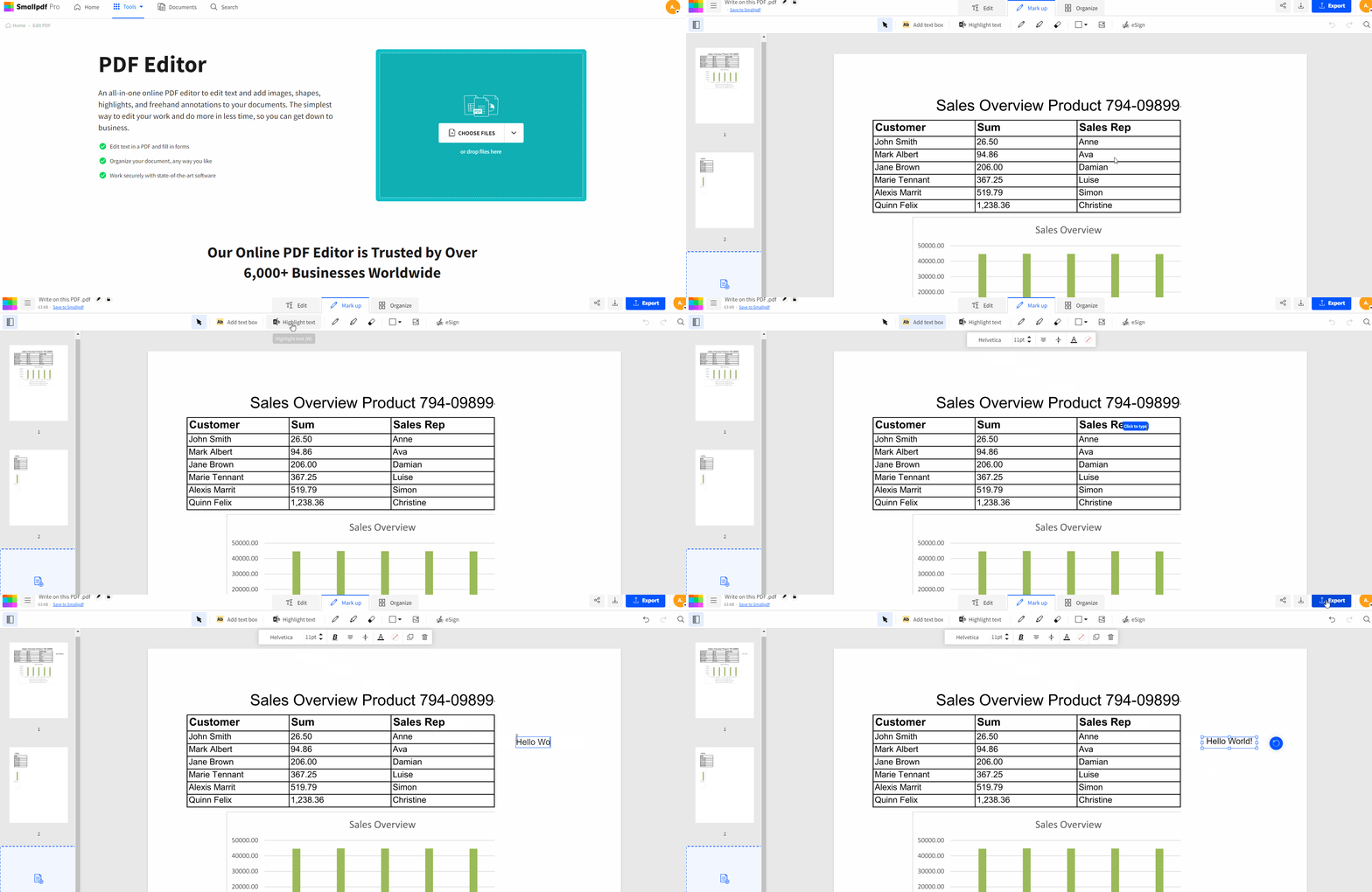
- For Quick Form Filling or Simple Annotations: Use Adobe Acrobat Web or Smallpdf. Upload your document, select the text overlay tool, type your information, and download the updated file.
- For Correcting Typos in Existing Text: Use Sejda PDF or Adobe Acrobat Web. Select the direct edit option to alter the underlying paragraph stream without needing to obscure old text.
- For Large-Scale Text Rewrites: Upload the file to Google Drive, convert it to Google Docs, adjust the text content, and export the final file as a newly formatted PDF.
Image Gallery