Complete Guide to MyUPMC Login: Access Patient Portal, Records, and Appointments
To log in to your MyUPMC patient portal, navigate to the official website at myupmc.upmc.com or open the MyUPMC mobile app on iOS or Android. Enter your registered username and password, then complete the multi-factor authentication (M...
To log in to your MyUPMC patient portal, navigate to the official website at myupmc.upmc.com or open the MyUPMC mobile app on iOS or Android. Enter your registered username and password, then complete the multi-factor authentication (MFA) step. This secure portal provides 24/7 access to medical records, doctor messaging, prescription renewals, test results, and virtual visit appointments across University of Pittsburgh Medical Center facilities.
Contents
Understanding the UPMC Digital Ecosystem: Which Portal Do You Need?
Navigating healthcare portals requires clarity on which system handles your specific clinical or administrative needs. The University of Pittsburgh Medical Center (UPMC) operates distinct digital platforms designed for clinical patient care, health insurance management, and specialized regional services. Accessing the wrong portal is the most common reason patients experience login failures or missing records.
(No code blocks used - keeping pure markdown prose)
The primary platform for clinical patient engagement across Western Pennsylvania and surrounding regional centers is MyUPMC. This portal handles direct patient-to-provider interactions, health history, diagnostic reports, and medical scheduling. However, if your care or coverage originates through specific affiliate branches or insurance lines, you may interact with secondary systems:
- MyUPMC (Clinical Patient Portal): Designed for active UPMC patients to view lab results, send HIPAA-compliant messages to primary care physicians and specialists, request prescription refills, manage outpatient scheduling, and pay medical facility bills.
- UPMC Health Plan Member Account: Dedicated to insurance beneficiaries enrolled in UPMC Commercial, Medicare Advantage, UPMC For You (Medicaid), or UPMC WorkPartners insurance plans. This portal handles coverage benefits, claims tracking, explanation of benefits (EOB) statements, plan deductible counters, and member ID card management.
- UPMC AnywhereCare: A dedicated telehealth portal for on-demand virtual urgent care visits with licensed providers, accessible either directly or linked seamlessly through your MyUPMC account.
- UPMC Central PA Patient Portals: While UPMC continues unifying digital access across all regional acquisitions, some central Pennsylvania hospital locations historically utilized alternative electronic health record (EHR) interfaces like UPMC Central PA Portal (powered by Epic MyChart). Patients receiving care in regions such as Harrisburg, York, or Lancaster should verify whether their specific clinic links directly to MyUPMC or requires the legacy Central PA MyChart login entry point.
Clarifying these entry points ensures that your username and credential set match the backend system storing your sensitive health information.
Prerequisites and Security Requirements for Account Activation
Before attempting your initial MyUPMC login, your digital profile must be authenticated to comply with federal health information privacy laws under the Health Insurance Portability and Accountability Act (HIPAA) and the federal 21st Century Cures Act for secure data access.
1. Identity Verification Requirements
To create and verify a new MyUPMC account without delay, prepare the following information:
- A valid, active email address on file with your UPMC provider's registration desk.
- Your legal full name, date of birth, and primary home address matching your medical record.
- Your Social Security Number (SSN) or official UPMC Medical Record Number (MRN), which can be found on recent discharge paperwork, billing statements, or clinical summaries.
- An activation code provided on your clinical visit summary, emergency room discharge documentation, or sent via automated SMS text invitation.
If you do not possess an activation code, the portal offers a real-time third-party identity verification check using secure demographic matching questions.
2. Cybersecurity and Authentication Standards
To protect personal health information (PHI) against unauthorized digital access, MyUPMC enforces strict security parameters:
- Multi-Factor Authentication (MFA): Mandatory verification via an automated SMS code, phone call, or authenticator app during initial setup or when logging in from an unrecognized device or browser.
- Password Requirements: Passwords must contain a minimum of 8 characters, combining uppercase and lowercase letters, at least one numerical digit, and one special symbol. Passwords cannot contain your username or common phrases.
- Biometric Authentication: Mobile app users can enable Apple Face ID, Touch ID, or Android Fingerprint/Biometric login after completing an initial successful password entry and MFA verification.
Step-by-Step Guide: Logging Into MyUPMC on Desktop and Mobile
Accessing your health records is straightforward when using supported hardware and up-to-date web browsers such as Google Chrome, Mozilla Firefox, Apple Safari, or Microsoft Edge.
Web Browser Login Process (Desktop/Laptop)
- Navigate to the Official Site: Open your browser and go directly to
myupmc.upmc.com. Verify the address bar displays the secure lock icon (https://) to prevent credential theft via phishing mirror sites. - Enter Credentials: Locate the login box on the homepage. Input your established MyUPMC Username and Password into the designated fields.
- Execute MFA Security Verification: If prompted, choose your preferred method to receive a temporary six-digit security code (SMS text message or phone call). Enter the received code into the verification field within the 10-minute validity window.
- Access Portal Dashboard: Upon successful verification, you will land on the main MyUPMC clinical dashboard, displaying upcoming appointments, recent test results, and unread provider messages.
Mobile Application Login Process (iOS & Android)
- Download Official App: Open the Apple App Store or Google Play Store, search for MyUPMC, and download the official application published by UPMC.
- Launch Application: Open the app and tap the Log In button on the home screen.
- Enter Credentials: Input your username and password.
- Enable Quick Access (Optional): After entering your credentials, select the prompt to enable Face ID, Touch ID, or PIN entry for subsequent sessions. This streamlines future access while preserving secure local device encryption.
Security Warning Regarding Third-Party Links Always verify that your browser location reads myupmc.upmc.com or that you are using the official mobile application developed directly by UPMC. Never enter your health portal credentials on unverified third-party patient aggregation apps or through unsolicited links embedded in suspicious emails or text messages.
MyUPMC Portal Feature & Access Matrix
The MyUPMC system interacts with various administrative and clinical departments. Understanding which features are accessible natively versus through linked systems helps streamline your access:
| System / Service Line | Clinical Features Included | Administrative / Billing Capabilities | Access Method / Portal URL | Primary User Group |
|---|---|---|---|---|
| MyUPMC Portal | View lab/imaging reports, send provider messages, request refills, join video visits, view immunization records. | Outpatient co-pay payment, hospital facility bill payment, demographic updates, appointment scheduling. | Desktop: myupmc.upmc.com / Mobile: MyUPMC App |
Western & Central PA UPMC Outpatient & Inpatient Care |
| UPMC Health Plan Account | Preventive care reminders, wellness coaching access, care coordinator contact details. | View insurance claims, deductibles, co-insurance, premium payments, request physical ID card, review EOBs. | Desktop: upmchealthplan.com / Mobile: UPMC Health Plan App |
Enrollees in UPMC Health Plan Insurance Products |
| UPMC Central PA (Legacy Epic) | Historical health summaries, past visit notes prior to system migration, local hospital discharge records. | Legacy balance processing, historical billing records for Central PA clinics. | Regional MyChart portal entry points / Direct link via MyUPMC | Central PA Patients (Harrisburg, Hanover, Carlisle, York) |
| UPMC AnywhereCare | 24/7 virtual urgent care consultations for non-emergency conditions (cold, flu, minor rash, sinus symptoms). | Direct credit card billing for non-covered visits, insurance claim auto-submission for eligible plans. | Integrated within MyUPMC App or upmcanywherecare.com |
All residents in Pennsylvania, Maryland, New York, Ohio, West Virginia |
Troubleshooting Common MyUPMC Login and Access Issues
Encountering errors when logging into your medical account can be frustrating, especially when trying to review critical test results or prepare for an upcoming appointment. Below are step-by-step solutions for the most frequent authentication roadblocks.
Forgotten Username or Password
If you cannot recall your access credentials:
- Go to the main login screen at
myupmc.upmc.com. - Click on the Forgot Username? or Forgot Password? hyperlink below the input fields.
- Enter your legal first name, last name, date of birth, and the email address registered to your account.
- Open the automated recovery email sent by the system. Follow the temporary link to reset your password or retrieve your account handle.
Note: Reset links expire within 24 hours for security reasons. If the link expires, you must initiate the request again.
Account Lockout Protocol
MyUPMC automatically locks an account after five consecutive incorrect password attempts to block brute-force unauthorized access attacks.
- Wait Period: The account will automatically unlock after 30 minutes of inactivity.
- Immediate Release: If you need immediate access, click the password recovery link or call the dedicated UPMC Help Desk rather than attempting additional incorrect passwords.
Two-Factor / MFA Code Delivery Delays
If you are not receiving your six-digit authentication code via SMS:
- Ensure your cellular phone has an active signal and is not filtering messages from short-code sender numbers.
- Verify that your mobile device does not have "Do Not Disturb" mode enabled.
- Select the Call My Phone option on the screen to receive an automated voice call containing your single-use access pin.
Web Browser Cache & Cookie Clearing Guide
Stale cache files or legacy cookies can create continuous redirection loops or server connection error screens.
- Clear Browser Data: In Google Chrome or Microsoft Edge, press
Ctrl + Shift + Delete(Windows) orCmd + Shift + Delete(Mac). Select Cookies and other site data and Cached images and files, then click Clear Data. - Disable Aggressive Extensions: Temporarily turn off third-party ad blockers, script blockers, or virtual private network (VPN) services, as high-security IP routing can trigger defensive firewall blocks on medical portals.
- Try Incognito / Private Mode: Open a private browser window and navigate to
myupmc.upmc.comto confirm whether browser extensions are causing the disruption.
Technical Support Contact Channels
If technical errors persist after trying standard troubleshooting methods, contact the dedicated MyUPMC Support Team:
- MyUPMC Technical Help Desk Phone: 1-866-888-7878 (Toll-Free, available Monday through Friday, 7:00 AM – 8:00 PM EST; Saturday, 8:00 AM – 5:00 PM EST).
- Email Technical Assistance: Contact system support via the web submission form on the portal login page for non-urgent technical inquiries.
Managing Medical Records, Appointments, and Doctor Messaging
Once authenticated inside MyUPMC, the platform functions as your personal health control center, designed to support proactive health management and patient transparency.
Accessing Test Results and OpenNotes Clinical Summaries
Under federal health interoperability frameworks, diagnostic reports, laboratory panels (such as blood chemistry, CBC, metabolic panels), path reports, and imaging descriptions (X-ray, MRI, CT scans) are published to your MyUPMC dashboard as soon as they are finalized by the laboratory or imaging facility.
- Viewing Test Results: Click the Test Results tab on the navigation menu. Results are listed chronologically. Out-of-range results are visually highlighted for review.
- Clinical Notes (OpenNotes): Under the Past Visits or Health Summary menu, click on any completed appointment date to read your attending provider's detailed clinical encounter notes, physical examination observations, and treatment plans.
Virtual Visits and Online Appointment Scheduling
MyUPMC eliminates the need to call scheduling desks during standard office hours:
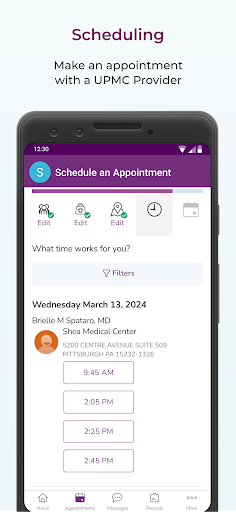
- Direct Outpatient Scheduling: Schedule routine wellness checkups, follow-up appointments, mammograms, or vaccinations with established primary care physicians and specialists.
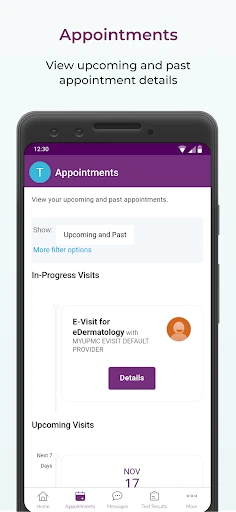
- Joining Video Visits: On the day of a scheduled virtual appointment, log into MyUPMC 15 minutes before your scheduled start time. Select your appointment from the Upcoming Visits section, complete the pre-visit digital intake questionnaire (verifying medication lists and allergies), and click Launch Video Visit.
HIPAA-Compliant Direct Provider Messaging
The messaging system allows secure communications with your care team for non-emergency medical questions:
- Appropriate Use Cases: Follow-up questions regarding an active treatment plan, clarifying prescription dosages, discussing minor symptom changes, or requesting documentation forms (e.g., return-to-work or school notes).
- Response Window: Care teams typically review and respond to portal messages within 1 to 2 business days.
- Emergency Warning: Do not use MyUPMC messaging for urgent medical emergencies, acute chest pain, severe shortness of breath, or sudden neurological symptoms. Call 911 or visit the nearest emergency department immediately.
Proxy Access for Caregivers and Family Members
Managing healthcare access for dependents, aging parents, or individuals requiring caregiver assistance is supported through MyUPMC Proxy Access. Proxy rights allow designated individuals to view or manage another patient's portal details without violating HIPAA guidelines or sharing personal login credentials.
Important Privacy Rule for Account Credentials Never share your personal MyUPMC username and password with family members or caregivers. To grant someone access to your medical information, you must set up official Proxy Access. Sharing login credentials invalidates security protocols and exposes your entire medical record without proper auditing.
Proxy Access Categories and Age Limitations
- Pediatric Proxy (Child Under Age 13): Parents or legal guardians can request full access to their child’s health profile, including immunization records, growth charts, appointment scheduling, and provider messaging.
- Adolescent Proxy (Ages 13 to 17): Due to state and federal privacy regulations governing adolescent healthcare rights, access for parents or guardians of teenagers may be restricted to specific scheduling and messaging features, unless full access authorization forms are signed by both the parent and adolescent.
- Adult-to-Adult Proxy (Ages 18 and Older): Adult patients can grant access to another adult (such as a spouse, adult child, or legal caregiver). The authorization level can be set to Full Access (viewing notes, results, messaging, billing) or Read-Only Access (viewing schedules and summaries without messaging capabilities).
How to Request and Authorize Proxy Access
- Log into your established MyUPMC account.
- Navigate to the Account Settings section and select Share My Account Access (or Proxy Request).
- Complete the online request form by entering the proxy recipient's legal name, date of birth, contact details, and relationship to you.
- For legal guardians or court-appointed conservators, upload supporting documentation (such as Power of Attorney for Healthcare or Legal Guardianship papers).
- Once approved by the clinical records management department, the proxy user will see the shared patient profile added as a drop-down option within their own personal MyUPMC dashboard.
Frequently Asked Questions About MyUPMC Access
How quickly are lab and imaging test results posted to MyUPMC?
Most routine blood work, urine tests, and standardized laboratory panels are released to your MyUPMC account automatically within 24 hours of test completion. Advanced diagnostic imaging reports (MRI, CT scans) and pathology reports are generally posted within 1 to 3 business days, following initial review by a board-certified radiologist or pathologist.
Why do I see a message that my account is deactivated or invalid?
An account may show as deactivated if it has been inactive for an extended period, if there is a conflict between multiple demographic records, or if an security flag was placed on the profile. Contact the MyUPMC Help Desk at 1-866-888-7878 to verify your identity and reactivate your profile.
Can I access MyUPMC if I am receiving care at a UPMC facility outside Western Pennsylvania?
Yes. MyUPMC integrates records across UPMC's primary regional networks in Western Pennsylvania, North Central Pennsylvania, and regional hospital campuses. However, if your care occurred at an independent facility affiliated with UPMC Central PA that still uses a legacy portal, you may be redirected to an affiliated MyChart entry point to complete your login.
What should I do if my doctor is not listed in my MyUPMC messaging options?
A provider only appears in your direct messaging list if you have had an active clinical visit with them within the past 18 to 24 months. If a provider is missing from your list, contact their clinic office by phone to request that your clinical connection be re-established, or ask them to send an initial portal connection invite.
How do I pay my hospital or clinical bill using MyUPMC?
Log into MyUPMC and click on the Billing & Payments tab. You can view outstanding statements, review itemized clinical charges, make one-time payments using a credit card or checking account, or establish structured monthly payment plans for eligible balances.
Take Control of Your Health Record Today
Maintaining fast, secure access to your MyUPMC patient portal ensures you remain an informed participant in your healthcare journey. Whether you need to review recent laboratory reports, initiate a secure conversation with your care team, or launch a virtual urgent care visit, accessing the official login portal at myupmc.upmc.com provides immediate administrative and clinical access. Keep your contact details updated, configure multi-factor authentication on your mobile devices, and utilize authorized proxy channels to safely manage your family's care needs.
Image Gallery