How to Share Links in Instagram Stories: A Comprehensive 2026 Guide
To share a link in an Instagram Story, create your content, tap the sticker icon in the top navigation bar, and select the Link sticker. Enter your destination URL, customize the sticker text to create a clear call to action, and place...
To share a link in an Instagram Story, create your content, tap the sticker icon in the top navigation bar, and select the Link sticker. Enter your destination URL, customize the sticker text to create a clear call to action, and place it prominently on your screen before sharing the post.
Contents
In the current social media ecosystem of 2026, the ability to direct traffic from Instagram to external websites is one of the most powerful tools for creators, businesses, and casual users alike. While Instagram was once a "walled garden" that limited external linking to those with over 10,000 followers via the "Swipe Up" feature, the universal rollout of the Link Sticker has democratized access to the open web. This guide provides an exhaustive walkthrough of how to utilize this feature effectively, optimize for engagement, and troubleshoot common issues.
The Evolution of Linking on Instagram
Understanding the current state of Instagram linking requires a brief look at how the platform has shifted its philosophy regarding external traffic. For years, the "Swipe Up" gesture was a status symbol, reserved for verified accounts or those with significant following counts. In late 2021, Meta phased out this gesture in favor of the Link Sticker.
The move to stickers was motivated by two primary factors: creative control and engagement. Unlike the Swipe Up, which was a fixed UI element at the bottom of the screen, stickers can be moved, resized, and customized to match the aesthetic of the Story. Furthermore, Link Stickers allow viewers to react to or reply to a Story—actions that were previously impossible on "Swipe Up" stories because the swipe gesture overrode the interaction bar. As of 2026, this system remains the gold standard for Story-based navigation.
Prerequisites for Using the Link Sticker
Before attempting to share a link, ensure your account and device meet the basic requirements. While the feature is nearly universal, certain account restrictions can still apply.
- App Version: Ensure your Instagram app is updated to the latest 2026 build via the Apple App Store or Google Play Store. Outdated versions may suffer from UI bugs or missing sticker assets.
- Account Standing: Accounts that have repeatedly shared misinformation or violated Community Guidelines may have their ability to use the Link Sticker revoked.
- Content Readiness: Have your destination URL copied to your clipboard. Using long, messy URLs can occasionally lead to errors; consider using clean, direct links.
Step-by-Step Instructions: Adding a Link to Your Story
Sharing a link is a straightforward process, but maximizing its effectiveness requires attention to detail during the editing phase.
Step 1: Open the Instagram Story Camera
Launch the Instagram app and swipe right from your home feed or tap the + icon on your profile picture to open the Story creator. You can either take a new photo or video using the in-app camera or swipe up to select media from your device's gallery.
Step 2: Access the Sticker Tray
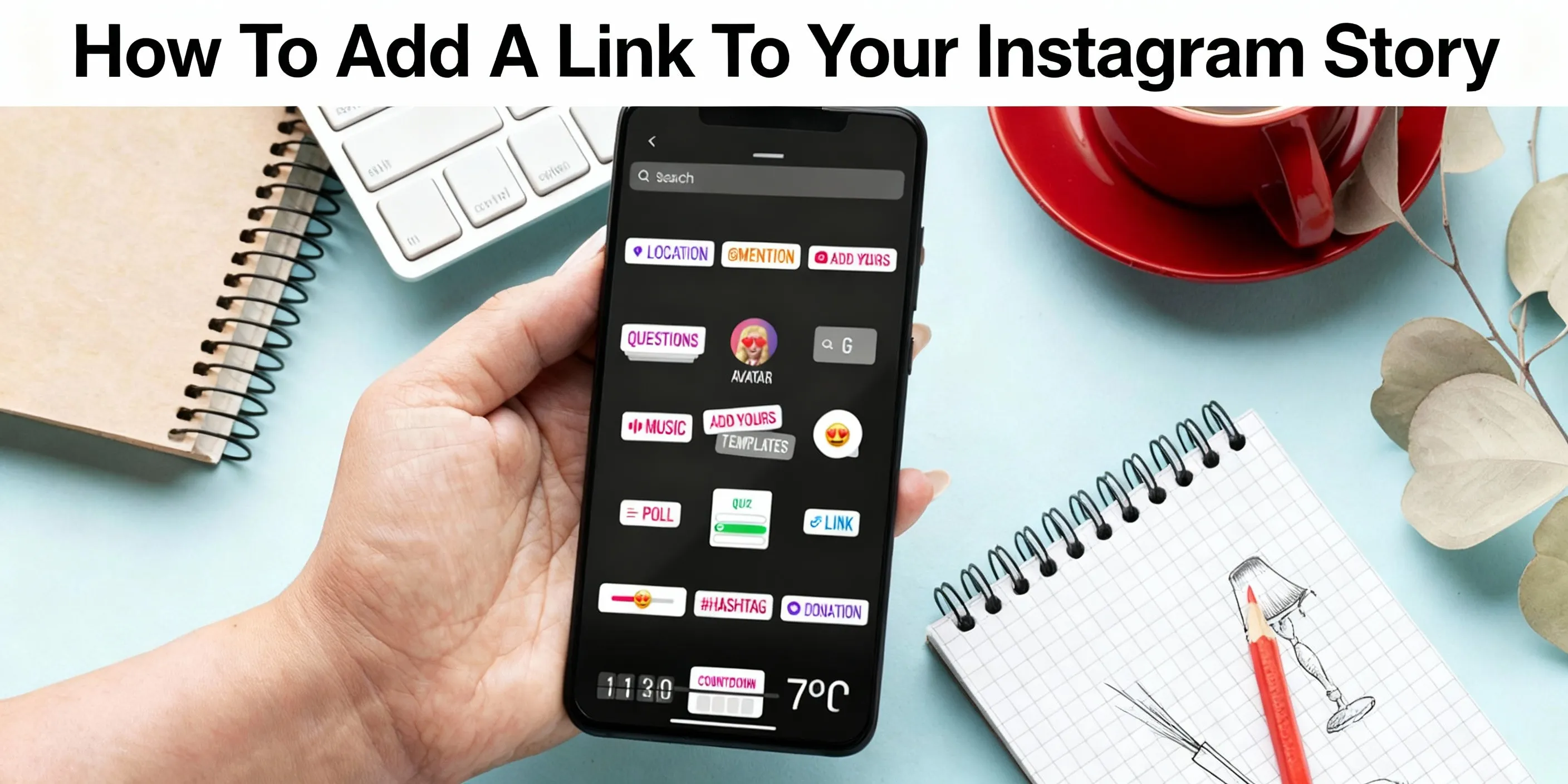
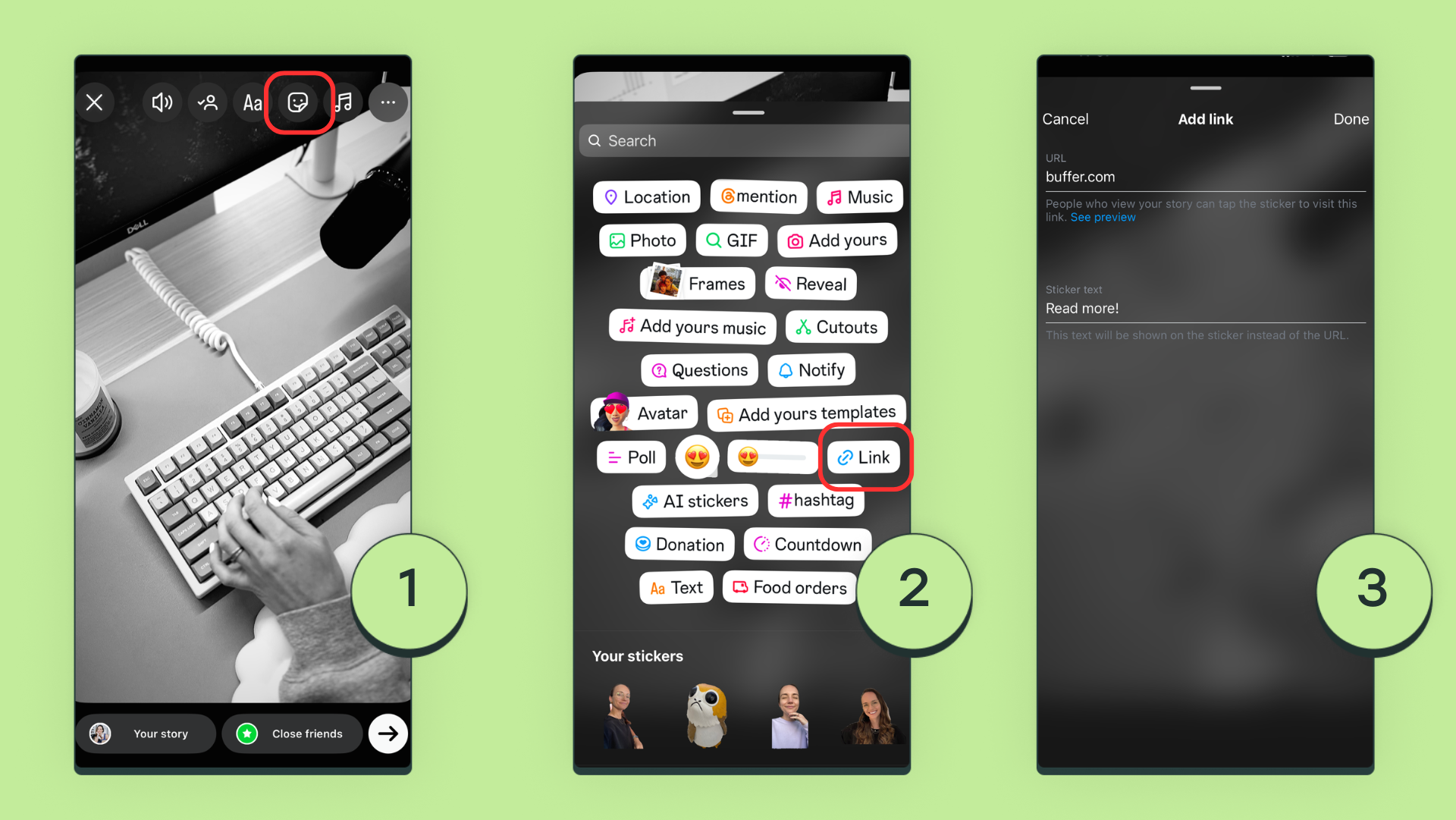
Once your media is selected and you are in the editor screen, look at the top of the interface. Tap the Sticker icon (the square smiley face with a folded corner). This menu houses all interactive elements, including polls, quizzes, and the Link Sticker.
Step 3: Select the Link Sticker
Scroll through the sticker tray until you find the one labeled Link. Tap it to open the URL configuration window.
Step 4: Enter the URL
Type or paste the full web address into the URL field. Ensure you include the https:// prefix to avoid redirection errors. As of 2026, Instagram’s internal browser is highly sophisticated, but it still prefers secure (HTTPS) connections.
Step 5: Customize the Sticker Text
Directly below the URL field, you will see an option labeled Customize sticker text. This is a critical step for conversion. Instead of showing a raw URL (like https://www.example.com/product/12345), you can display a clear Call to Action (CTA) such as "Shop the Sale," "Read the Full Article," or "Sign Up Now." After entering your custom text, tap Done.
Step 6: Position and Style the Sticker
The sticker will now appear on your Story. You can:
- Tap the sticker to cycle through different color schemes (typically white, black, or translucent).
- Pinch or expand with two fingers to resize it.
- Drag and drop it to your preferred location.
- Rotate it by using a twisting motion with two fingers.
Step 7: Post Your Story
Once you are satisfied with the placement, tap Your Story or Close Friends at the bottom of the screen to publish.
Strategic Placement and Design Best Practices
Simply adding a link does not guarantee clicks. In the high-speed environment of Instagram Stories, users often skip through content in seconds. To capture attention, consider the following design principles:
Avoiding the "Danger Zones"
Instagram’s UI overlays elements at the top (your profile icon and progress bars) and the bottom (the "Send Message" bar and "Share" icons). Avoid placing your Link Sticker in these areas, as it may become unclickable or obscured. The "sweet spot" is generally in the middle third of the screen.
Creating Visual Hierarchy
Use Instagram’s text tools to add arrows or "Tap Here" instructions near the sticker. High-contrast colors help the sticker stand out against the background. If your background image is busy, consider placing the Link Sticker on a solid-colored semi-transparent "background" created with the brush tool or a text box.
The Power of the CTA
Vague links get fewer clicks. Research in 2026 indicates that specific, benefit-driven CTAs outperform generic ones. For example, "Get 20% Off" is significantly more effective than "Click Here." Ensure the text on the sticker accurately represents what the user will find on the other side.
Technical Tracking and Analytics
For creators and digital marketers, knowing how many people clicked a link is essential for calculating Return on Investment (ROI).
| Metric | Description | How to Access |
|---|---|---|
| Link Taps | The total number of times the sticker was pressed. | Story Insights > Interactions |
| Navigation | How many users swiped away versus clicked the link. | Story Insights > Navigation |
| UTM Parameters | Custom tags added to your URL to track traffic in Google Analytics. | Manual creation via URL builders |
| Profile Visits | Users who visited your profile after seeing the link. | Story Insights > Discovery |
To use UTM parameters, append strings to your URL like ?utm_source=instagram&utm_medium=stories&utm_campaign=summer_sale. This allows you to differentiate Story traffic from "Link in Bio" traffic in your external analytics dashboard.
Why Can’t I Share Links? (Troubleshooting)
If you find that the Link Sticker is missing or not functioning, it is usually due to one of the following reasons:
- Regional Rollouts: While the feature is global, certain new UI updates are rolled out in phases. If you recently traveled or moved, your app may be syncing to a local server with different feature sets.
- Account Flagging: If Instagram's automated systems detect that you are sharing "spammy" or malicious links, your access to the Link Sticker may be temporarily or permanently suspended.
- App Cache Issues: A bloated app cache can cause stickers to fail to load. Try offloading the app (on iOS) or clearing the cache (on Android) and restarting the device.
- Internet Connectivity: The Link Sticker requires a "handshake" with Instagram's servers to validate the URL. If your connection is weak, the "Done" button may remain greyed out.
Comparison: Link Stickers vs. Other Methods
While the Link Sticker is the most direct way to share a URL, it is not the only method available in 2026.
| Feature | Best For | Pros | Cons |
|---|---|---|---|
| Link Sticker | Specific, time-sensitive CTAs | Direct access, customizable | Only lasts 24 hours |
| Link in Bio | Evergreen content, main website | Permanent, easy to find | Requires two clicks to reach |
| DM Automation | High-volume lead generation | Personal touch, high conversion | Can feel "spammy" if overused |
| Ads (Paid) | Scaling reach to non-followers | Massive reach, guaranteed placement | Requires monetary investment |
Advanced Integration: Linking to Other Apps
In 2026, the Link Sticker is increasingly used for "deep linking." Deep links are URLs that don't just open a website but open a specific section of another mobile app. For example, you can use a deep link to take a user directly to a specific song on Spotify, a product in the Amazon app, or a specific video on YouTube.
When using deep links, be aware that if the user does not have the destination app installed, the Link Sticker will typically default to opening the web version in Instagram’s in-app browser. This is often a suboptimal experience, so it is helpful to add a text note like "Best viewed in the [App Name] app."
Practical Recommendation
To maximize the impact of your Story links, always pair the sticker with a short video explanation (10-15 seconds) explaining why the viewer should click. Moving images and human faces have been proven to stop the "infinite scroll" better than static images. If you are promoting a product, show the product in use and place the Link Sticker directly next to it. For 2026, the trend is toward "native" looking content—avoid overly polished graphic designs that look like traditional banner ads, as users are increasingly conditioned to skip content that feels commercial.
Image Gallery