How to Block Contact on iOS Devices Effectively
Blocking unwanted callers, texters, and FaceTime users on an iOS device is a fundamental security and privacy measure that prevents specific individuals from initiating communication with your iPhone or iPad. By utilizing the built-in...
Blocking unwanted callers, texters, and FaceTime users on an iOS device is a fundamental security and privacy measure that prevents specific individuals from initiating communication with your iPhone or iPad. By utilizing the built-in features of Apple’s iOS, you can effectively silence communications from specific phone numbers, email addresses, or contacts, ensuring that you no longer receive alerts or notifications from those sources.
Contents
When you block a contact on an iPhone or iPad, the system essentially creates a filter at the hardware and carrier-integration level. Once added to your Blocked Contacts list, the individual will be unable to call you, send you iMessages or SMS text messages, or initiate FaceTime requests. For voice calls, the caller is typically routed directly to your voicemail, depending on your carrier’s configuration, while your phone remains silent. For messages, the sender will see their messages sent as usual, but they will never be delivered to your device, and you will not receive a notification.
Prerequisites and System Scope
Before initiating the blocking process, ensure your device is running a current version of iOS. While the core blocking functionality has remained consistent for years, operating system updates provide essential security patches that ensure these privacy controls function as intended.
Blocking a contact is device-specific, but if you are signed into the same iCloud account across multiple Apple devices (such as an iPad, Mac, and iPhone), your Blocked Contacts list will sync via iCloud. This means that if you block a contact on your iPhone, they are automatically blocked across your entire ecosystem of Apple devices.
Methods to Block Contacts on iOS
There are several ways to block an unwanted contact depending on where the interaction is occurring. You do not necessarily need to have the person saved in your Contacts application to block them.
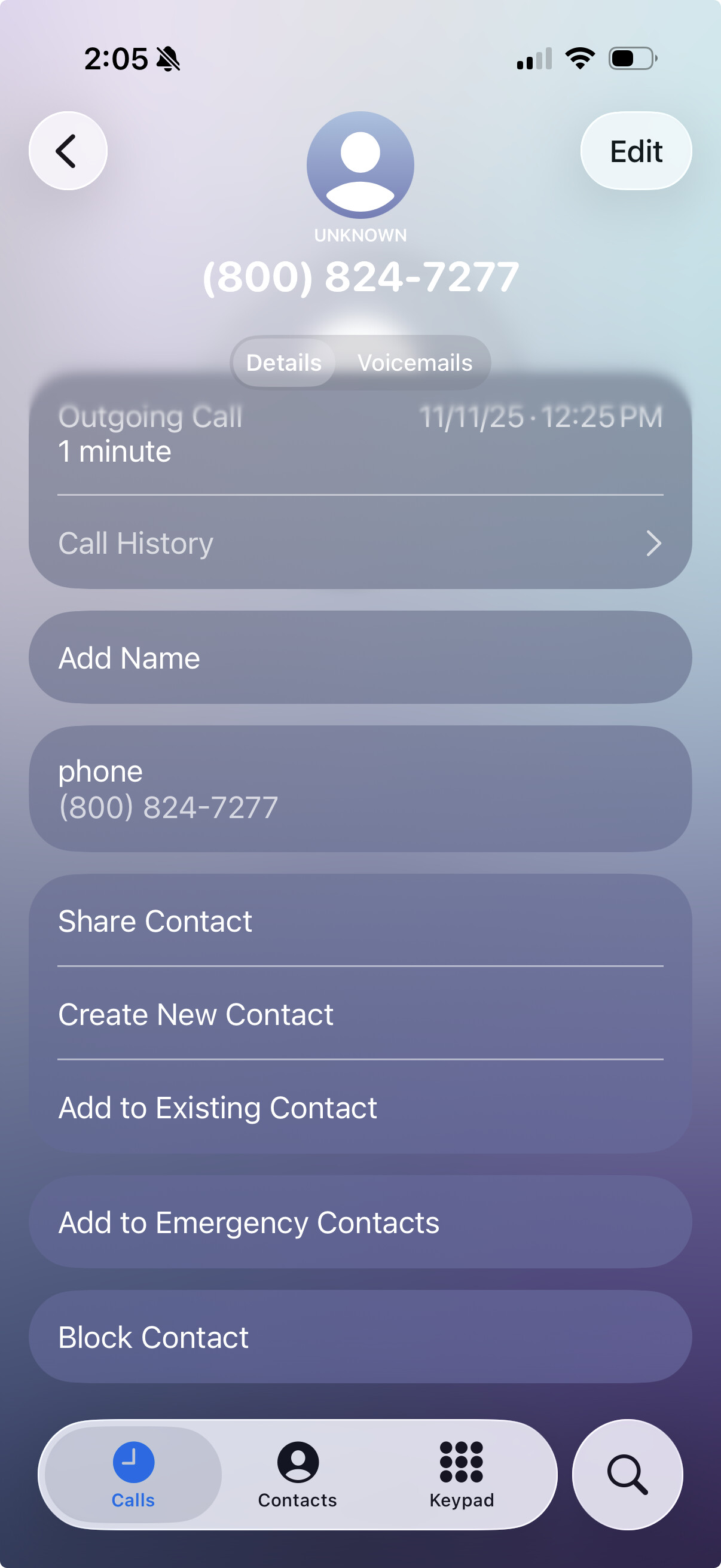
1. Blocking from the Phone App (Recent Calls)
If you have received a call from an unknown or unwanted number, you can block it directly from your call history:
- Open the Phone app.
- Tap the Recents tab at the bottom.
- Locate the number or contact you wish to block.
- Tap the blue "i" (Information) icon to the right of the number.
- Scroll to the bottom of the screen and select Block this Caller.
- Confirm the action by tapping Block Contact.
2. Blocking from Messages
If you are receiving unwanted iMessages or SMS texts:
- Open the Messages app and select the conversation with the person you wish to block.
- Tap the name or phone number at the top of the conversation.
- Tap the Info button.
- Scroll down and select Block this Caller.
3. Blocking from FaceTime
If you are receiving unwanted video or audio requests via FaceTime:
- Open the FaceTime app.
- Locate the recent call from the person you wish to block.
- Tap the "i" button next to their name or number.
- Scroll to the bottom and select Block this Caller.
Managing Your Blocked List
It is essential to periodically review your blocked list to ensure no numbers were added by mistake or to unblock individuals you no longer wish to restrict.
To manage your list:
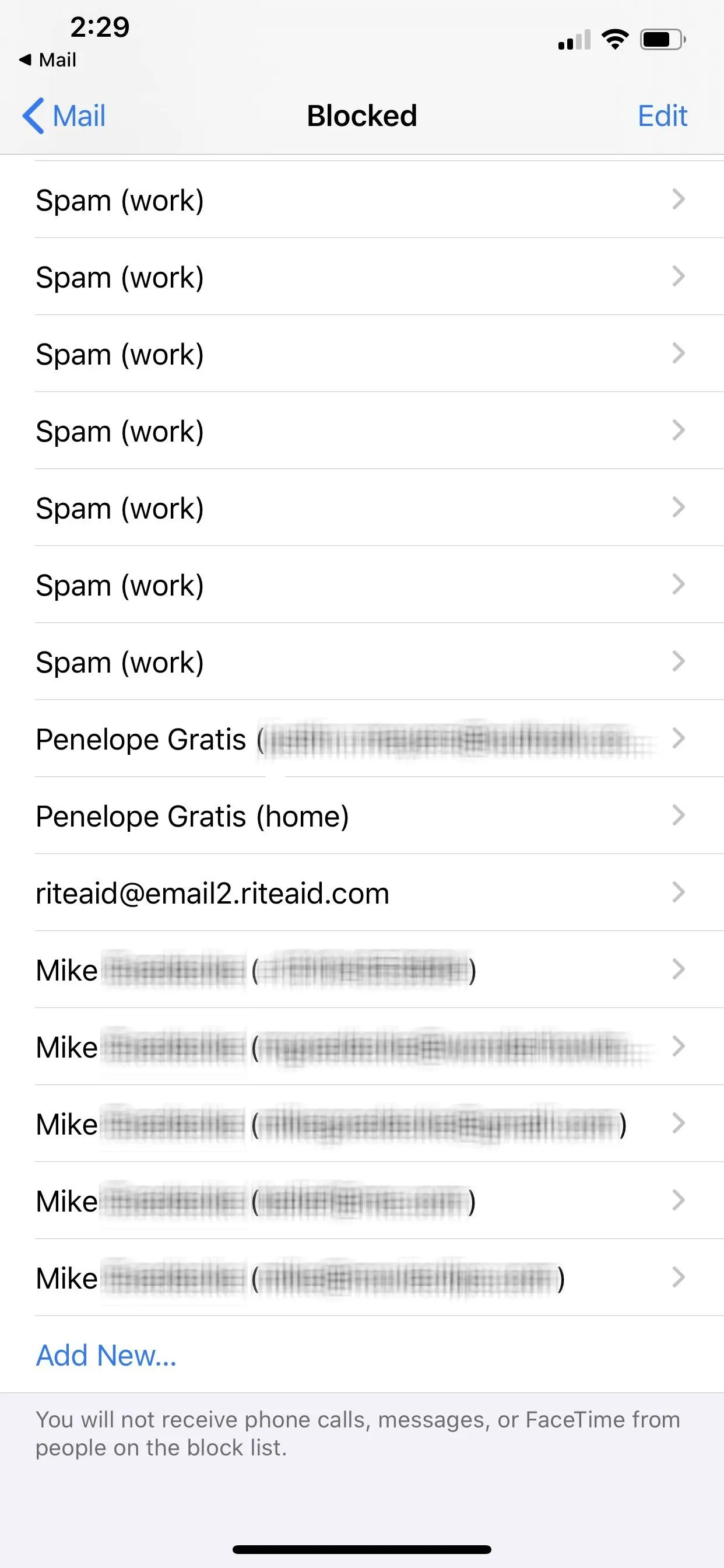
- Go to Settings on your iPhone or iPad.
- Scroll down and tap on Phone, Messages, or FaceTime. These menus all share the same underlying list.
- Tap Blocked Contacts.
- To unblock someone, tap Edit in the top-right corner, then tap the red minus button next to the contact, and select Unblock.
Comparative Overview of Blocking Methods
The following table summarizes how different communication channels handle blocked contacts.
| Communication Type | Result for the Blocked Party | Your Notification Status |
|---|---|---|
| Phone Call | Routed to voicemail (carrier dependent) | No ring, no notification |
| iMessage | Appears "Delivered" on their end | No alert, message never appears |
| SMS/MMS | Sent normally | No alert, message never appears |
| FaceTime | Ringing sound (no answer) | No alert, no notification |
Handling Unknown Callers
If you are experiencing a high volume of spam, blocking individual numbers may feel like an endless task. Apple provides a built-in feature to filter out calls from people who are not in your contacts list.
To enable this:
- Go to Settings.
- Tap Phone.
- Select Silence Unknown Callers.
- Toggle the switch to On.
When this feature is active, incoming calls from numbers that are not in your Contacts, recent outgoing calls, or Siri Suggestions are sent directly to voicemail and silenced. You will still see the number in your Recents list, but your phone will not ring.
Troubleshooting and Limitations
While the blocking system is robust, there are specific scenarios where you might still receive contact:
- Caller ID Spoofing: If a spammer frequently changes their number (a practice known as "spoofing"), blocking one specific number will not prevent them from calling from a new, spoofed number.
- Third-Party Apps: Blocking only affects native iOS apps. If you use communication platforms like WhatsApp, Telegram, or Signal, you must use the block functions built into those specific applications, as they operate independently of the iOS system-level block.
- Voicemail: Some carriers may allow a blocked caller to leave a voicemail. These will typically appear in a separate "Blocked Messages" section at the bottom of your Voicemail tab in the Phone app.
Legal and Privacy Considerations
Blocking is a personal privacy tool. It does not delete communication history, nor does it provide legal protection against harassment. If you are dealing with persistent unwanted contact that rises to the level of harassment or threats, keep a log of the calls and messages. Depending on your jurisdiction, you may need to contact your mobile carrier to request a formal investigation into the caller or consult with legal professionals regarding local harassment laws.
Frequently Asked Questions
Does the blocked person know they are blocked? Apple does not send a notification to the person you have blocked. However, they may eventually suspect they are blocked if their calls consistently go to voicemail and their messages remain in an "unanswered" state for an extended period.
What happens to my old text messages after I block someone? Your existing conversation history remains in the Messages app until you manually delete it. Blocking someone does not retroactively remove or hide your previous communication.
Can I block a contact who has hidden their Caller ID? If a caller suppresses their number ("No Caller ID" or "Private"), you cannot block them using the individual contact block method because there is no phone number to select. However, enabling Silence Unknown Callers often helps mitigate these instances.
Why am I still getting notifications from a blocked contact? Verify that the contact is appearing in the Blocked Contacts list in your Settings. If they are not, repeat the blocking steps. Also, ensure that you are not receiving messages through a third-party app that requires its own separate block list.
If I change my phone number, does my block list carry over? Yes, your block list is tied to your Apple ID and iCloud account. As long as you sign in with the same account on a new device, your blocked contacts will sync automatically.
Next Steps
If you find that standard blocking is insufficient to manage your communication, consider utilizing "Focus" modes, such as the Do Not Disturb feature. This allows you to silence all incoming notifications during specific times or based on location, providing a broader layer of digital peace without needing to manage individual blocked contacts. If the issue persists, contact your cellular provider to inquire about advanced spam-blocking services they may offer at the network level, which can provide additional security beyond the device settings.
Image Gallery