How to Combine Two PDF Files on Mac: A Comprehensive 2026 Guide
Combining two PDF files on a Mac is a straightforward task that requires no additional software, as the native Preview application is fully equipped to handle document merging natively. By utilizing the built-in sidebar functionality o...
Combining two PDF files on a Mac is a straightforward task that requires no additional software, as the native Preview application is fully equipped to handle document merging natively. By utilizing the built-in sidebar functionality or the drag-and-drop feature, you can quickly append, reorder, or integrate multiple PDF documents into a single cohesive file without sacrificing formatting or security settings.
Contents
Understanding the Native Capabilities of Preview in 2026
Since its inception, macOS has prioritized document management, and in 2026, the Preview application remains the most secure and efficient utility for basic PDF manipulation. Unlike third-party online converters that require uploading sensitive documents to external servers, using Preview ensures that your files remain localized on your machine's storage.
The primary benefit of using Preview is data privacy. When you merge documents offline, you eliminate the risk of data interception or unauthorized access that can occur with browser-based PDF tools. Furthermore, Preview maintains the integrity of internal metadata, font embedding, and vector graphics, which are often degraded by lower-quality online compression algorithms.
Prerequisites for Document Merging
Before you begin the process of combining your files, ensure your Mac meets the basic requirements for standard file operations:
- An active macOS installation (macOS 12 Monterey or later is recommended for optimal performance in 2026).
- Sufficient local storage space to accommodate the newly generated PDF, especially if the source files are high-resolution documents containing extensive imagery.
- Administrative read/write permissions for the folders where your source PDF files are saved.
Step-by-Step Guide to Merging PDFs Using Preview
The most reliable method for combining two or more PDFs involves the Sidebar view, which allows for precise control over page order.
- Open the first PDF document in the Preview app by double-clicking the file or right-clicking and selecting Open With then Preview.
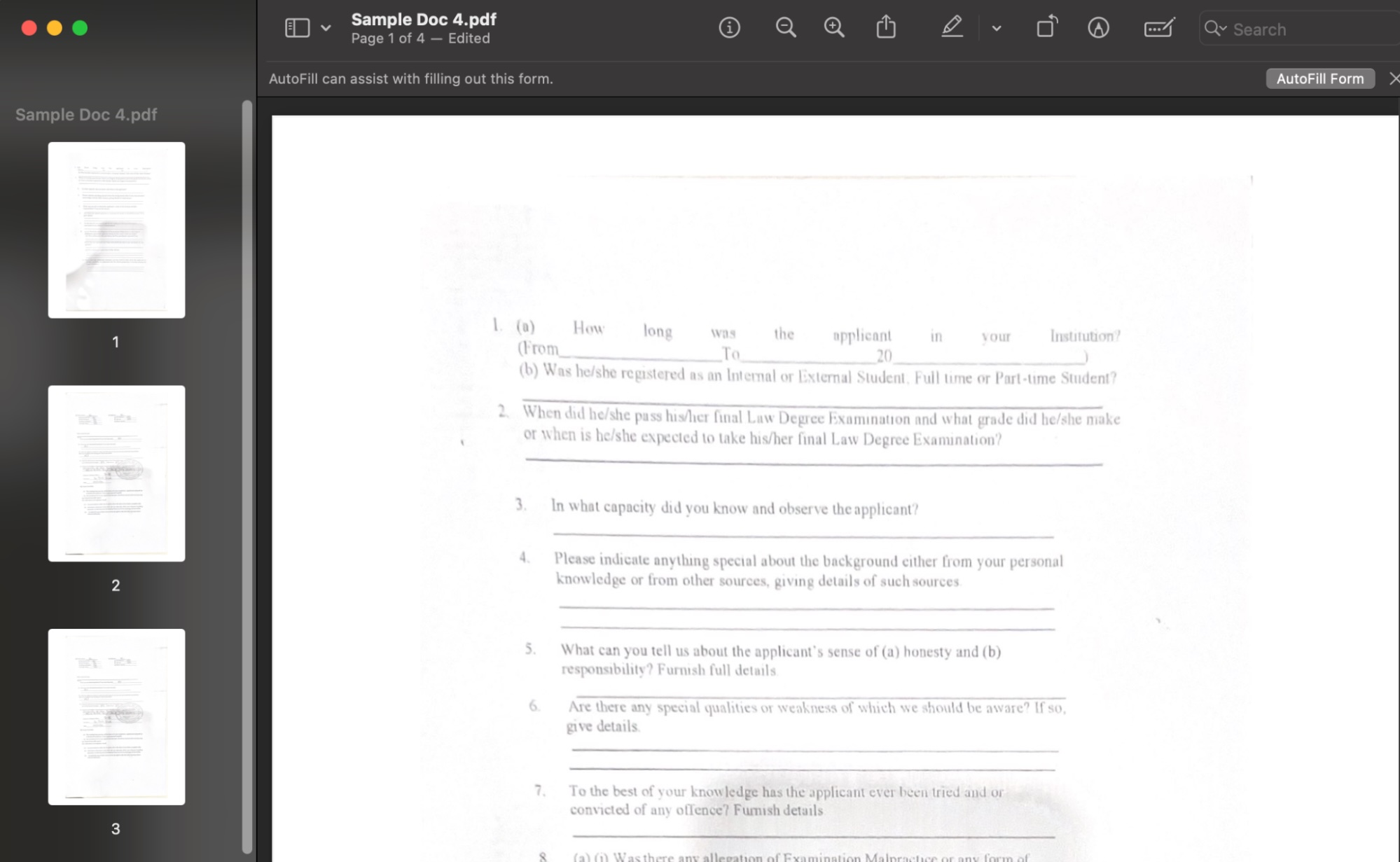
- Navigate to the View menu located at the top of your screen and select Sidebar, then ensure Thumbnails is checked.
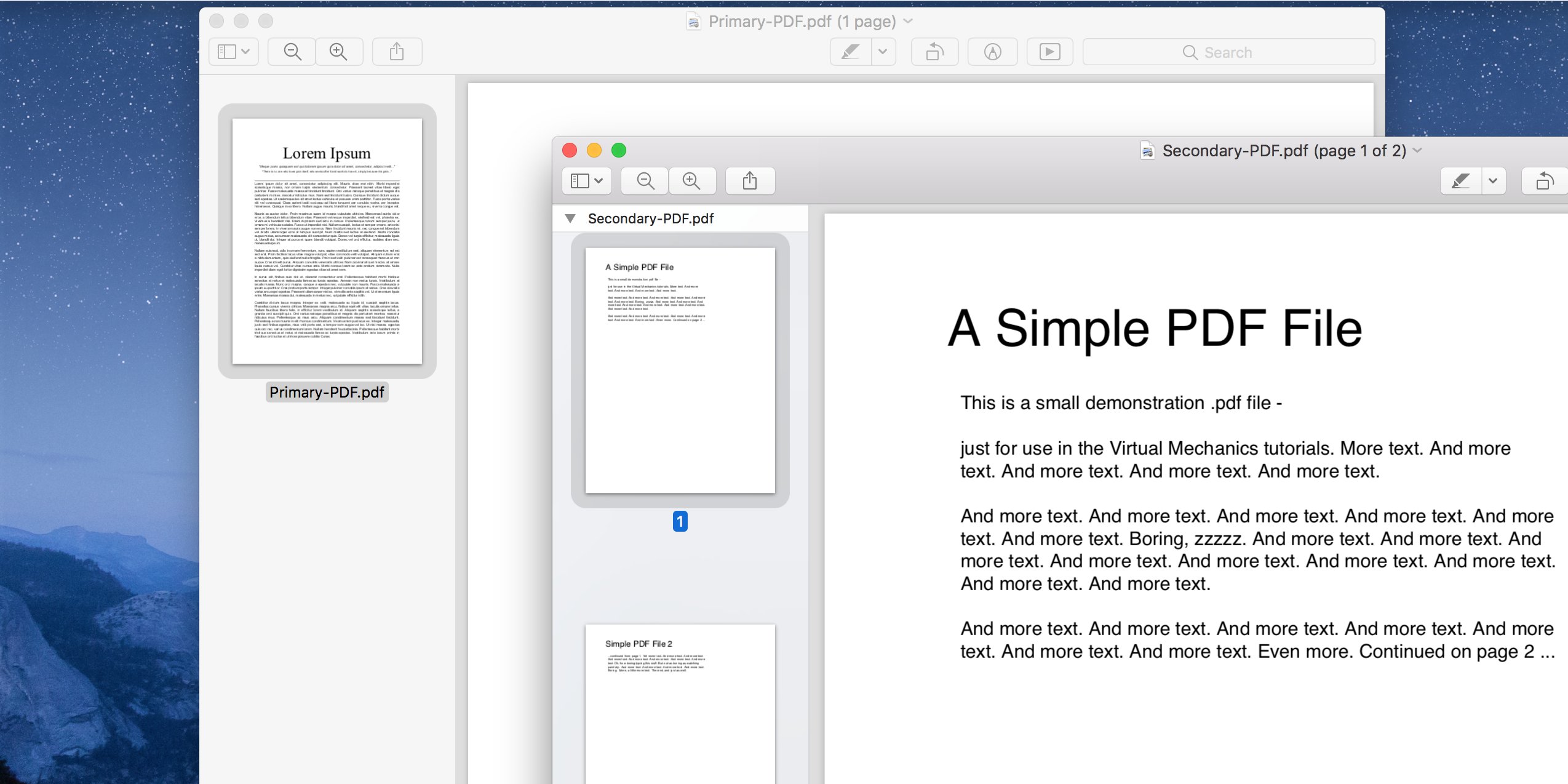
- Once the sidebar is visible, open the second PDF file you wish to combine.
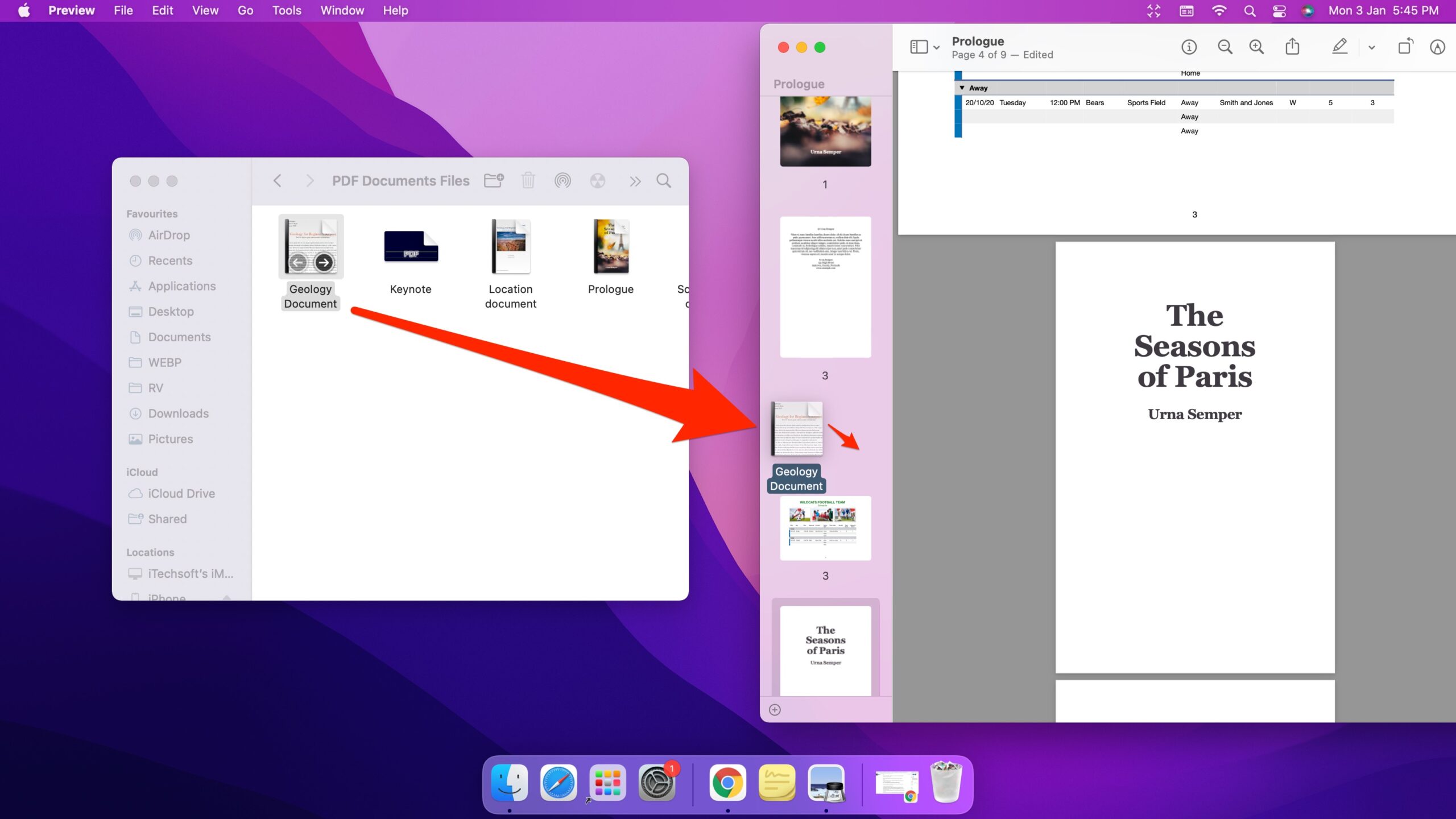
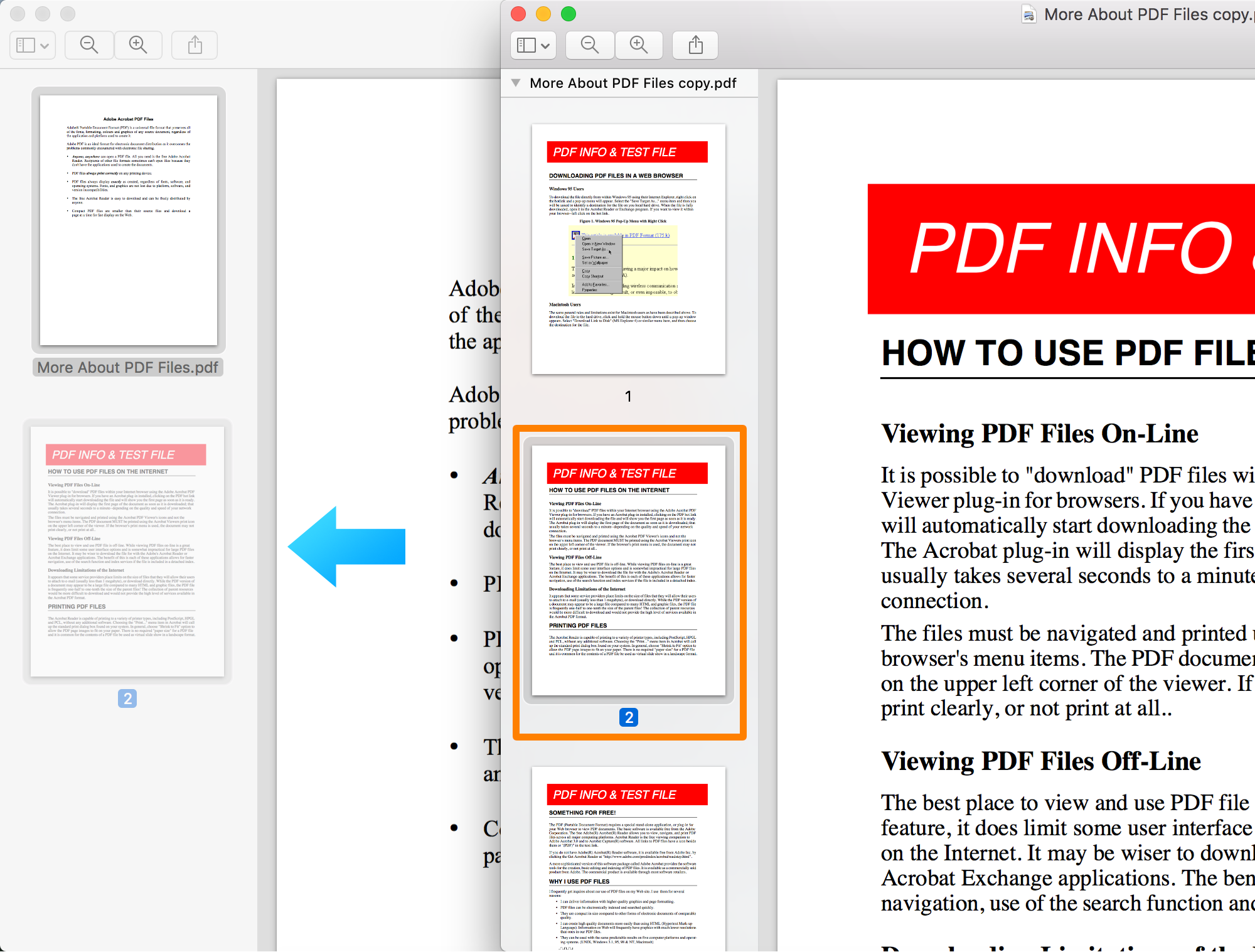
- If you have the second file open in a separate window, simply drag the thumbnail of the page or document from the second window directly into the sidebar of the first window.
- Release the mouse button to drop the page into your desired position. You can drag thumbnails up or down to reorder the pages before finalizing the merge.
- Once the document is arranged correctly, select File from the top menu bar, then click Export as PDF to save your new, combined document.
Alternative Methods for Advanced Document Management
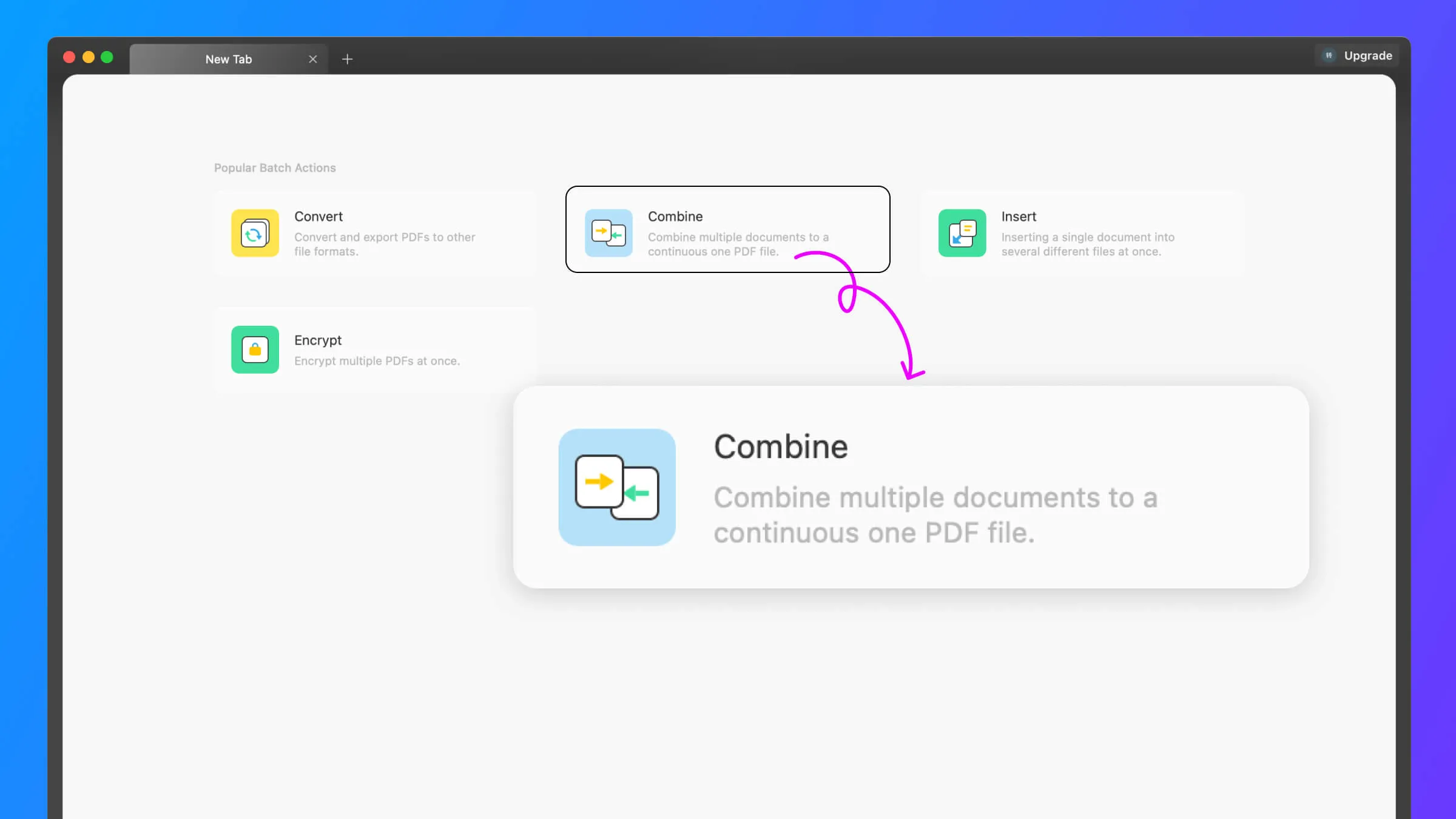
While Preview is ideal for simple merging, users with complex requirements—such as professional layout designers or those managing high volumes of documents—may look toward other native or third-party solutions.
Important Considerations for Document Integrity
Preserving Links and Annotations When merging files, Preview generally maintains internal hyperlinks and form field data. However, if a source document has document-level JavaScript or complex security permissions, these features may be restricted in the final output. Always verify the permissions of your source files by clicking Tools, then Show Inspector.
Handling Large Files If you are working with files exceeding 500MB, ensure your Mac has sufficient swap memory. Attempting to merge excessively large files simultaneously may cause the Preview application to become unresponsive. In such cases, process the documents in smaller batches.
Comparative Overview of PDF Merging Solutions
The following table outlines the most common methods available to Mac users in 2026, detailing the trade-offs between speed, security, and functionality.
| Method | Security Level | Cost | Complexity | Best Use Case |
|---|---|---|---|---|
| Apple Preview | Maximum (Offline) | Free (Included) | Low | Daily tasks, merging personal docs |
| Automator (macOS) | High (Local Script) | Free (Included) | High | Batch processing multiple files |
| Adobe Acrobat Pro | High (Subscription) | Paid | Medium | Advanced editing, OCR, and redaction |
| Online Converters | Low (Cloud Based) | Free/Freemium | Low | Quick, non-sensitive public docs |
Automating the Process with macOS Shortcuts
For users who frequently need to merge multiple documents, the Shortcuts app introduced in recent versions of macOS provides a highly efficient "drag and drop" alternative. You can create a simple automation that triggers a merge every time specific files are selected in the Finder.
- Open the Shortcuts app on your Mac.
- Click the plus (+) icon to create a new shortcut.
- Search for the action labeled Combine PDF and drag it into the workspace.
- Configure the shortcut to accept files from the Finder.
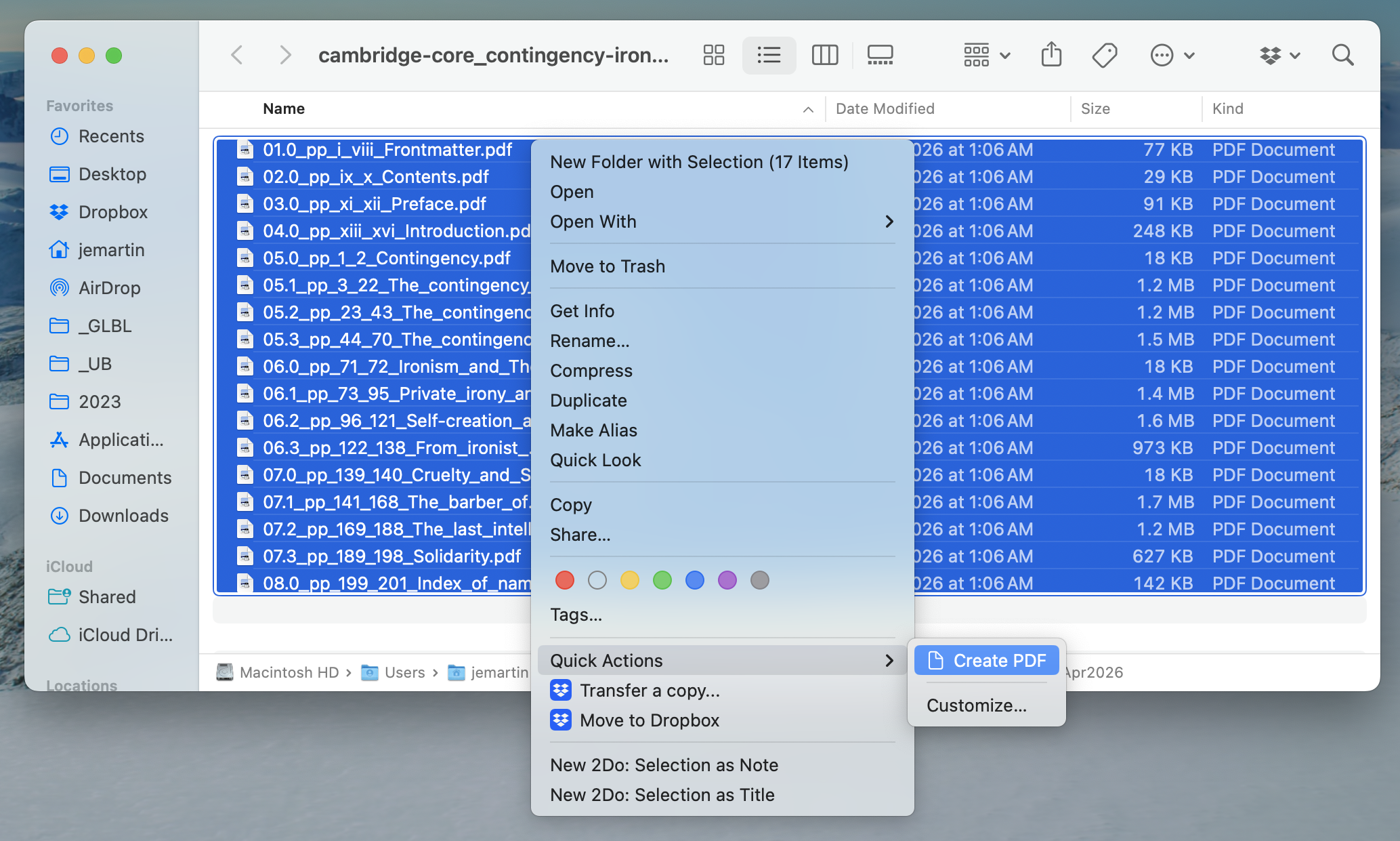
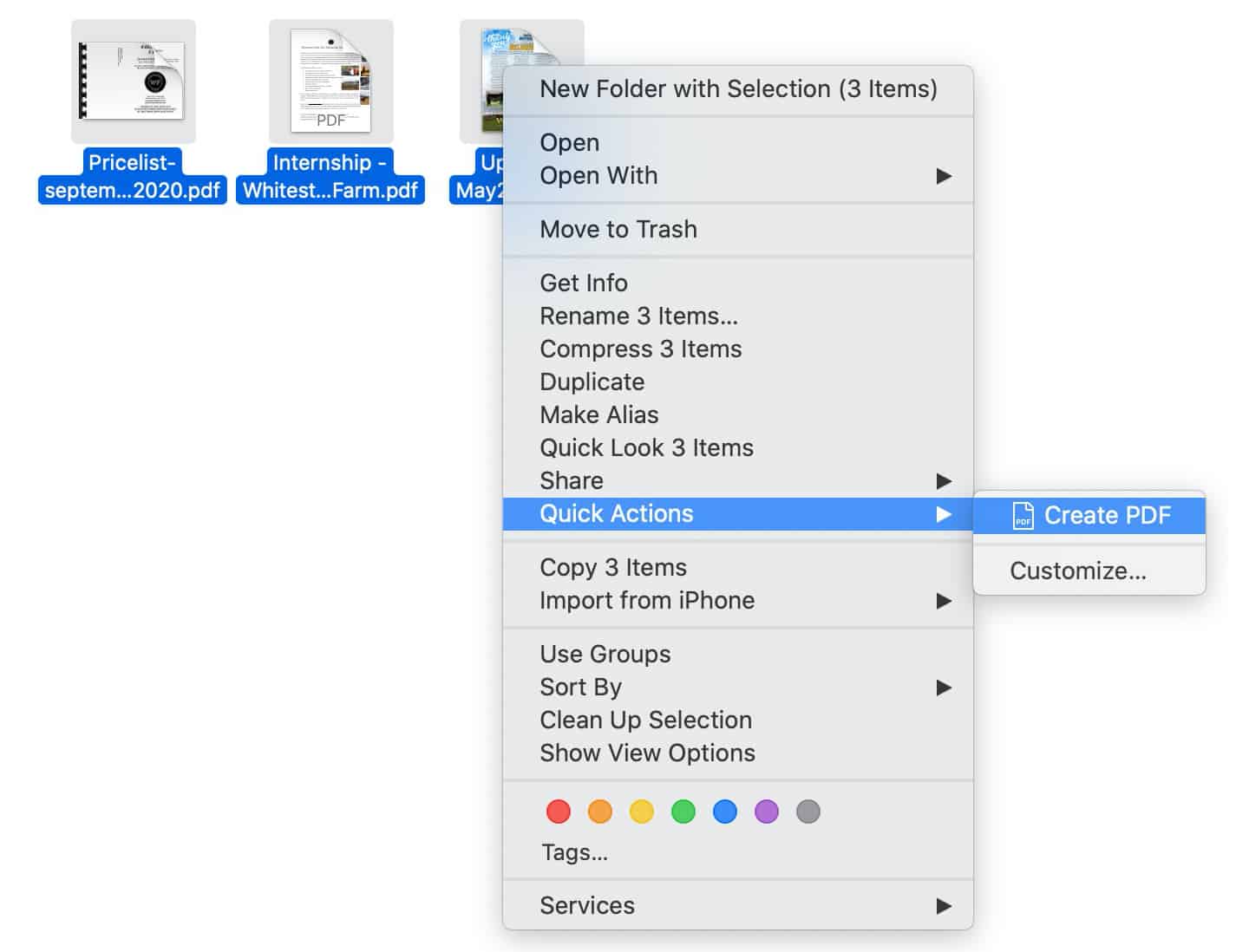
- Save the shortcut as a Quick Action. You can now highlight two PDF files in your folder, right-click, select Quick Actions, and trigger your custom merge command instantly.
Troubleshooting Common Issues
Despite the simplicity of the process, users occasionally encounter roadblocks. If you find you cannot drag a file into the sidebar, consider the following checklist:
- File Permissions: Check if the PDF is read-only or password-protected. If the document is encrypted, you must enter the password to unlock it before it can be modified.
- Corrupt Metadata: In rare cases, a PDF may have corrupted internal structures that prevent Preview from interacting with its thumbnails. If this happens, open the file, select File > Print, then choose Save as PDF from the dropdown menu to "re-print" the file into a fresh, clean version.
- Unsupported Formats: Ensure that you are strictly working with standard PDF files. Files exported as images (JPG/PNG) should be converted to PDF format first before attempting to merge them into a document.
FAQ: Frequently Asked Questions
Can I combine PDFs on my Mac if they are password-protected? You can only merge password-protected files if you have the owner or user password to remove the restriction. Once the restriction is removed via the Print to PDF trick, you can combine them freely with other documents.
Does merging PDFs in Preview affect the quality of images? No, Preview does not re-compress images during the merge process unless you explicitly choose an option to reduce file size during export. The visual fidelity and resolution remain identical to the source files.
Can I merge more than two PDF files at once? Yes, you can select multiple files in the Finder, open them all in Preview at once, and drag entire blocks of thumbnails between the sidebars. This process is highly efficient for batch-merging dozens of files.
Is there a limit to the number of pages I can merge? There is no hard limit set by macOS; however, the task is bound by the total available RAM on your Mac. For documents containing thousands of pages, ensure you have sufficient memory available or close other demanding applications like web browsers or video editors.
Do I need a third-party app to keep my data secure? For the vast majority of users, Apple Preview is sufficient. Because it processes files locally on your hardware without a network connection, it is one of the most secure ways to handle sensitive legal or financial PDF documentation.
Final Recommendations for Document Workflow
To maintain an organized digital workspace, always rename your merged files immediately upon saving. Use a consistent naming convention that includes the date or a project reference code. If you handle highly sensitive information, such as health records or financial statements, consistently rely on native macOS tools rather than third-party cloud services to ensure your documents never leave your local encrypted storage. By mastering these native techniques, you can effectively streamline your document management workflow without needing expensive software subscriptions.
Image Gallery