Understanding the Status Bar: How Android Displays System Info and Notifications
The Android status bar is a core component of the operating system's user interface, located at the top of the screen to provide real-time updates on device connectivity, battery life, time, and active notifications. It functions as a...
The Android status bar is a core component of the operating system's user interface, located at the top of the screen to provide real-time updates on device connectivity, battery life, time, and active notifications. It functions as a persistent dashboard, using a sophisticated hierarchy of icons and text managed by the Android SystemUI to ensure users can monitor critical system states at a glance without interrupting their current tasks.
Contents
The Architecture of the Android Status Bar
To understand how a phone displays system info, one must look beneath the surface at the Android Open Source Project (AOSP) architecture. The status bar is not merely a static image or a simple overlay; it is a dynamic window managed by a specific process known as SystemUI.
In the Android framework, the StatusBarManagerService is the primary backend component responsible for coordinating what appears at the top of your screen. This service communicates with the WindowManager to reserve space at the top of the display. Because the status bar is a system-level window, it typically sits on a higher layer than standard applications, allowing it to remain visible even when you are using an app—unless that app explicitly requests "Immersive Mode."
The system info displayed is gathered through various "observers" and listeners. For instance, the telephony service reports signal strength, the battery service reports charge levels, and the connectivity manager reports Wi-Fi or data status. These services push updates to the status bar, which then updates its specific icons in real-time. By 2026, these updates have become incredibly efficient, utilizing hardware-accelerated rendering to ensure that refreshing a battery icon doesn't drain the very power it is measuring.
The Functional Split: Notifications vs. System Icons
The Android status bar is logically divided into two primary zones. This spatial organization helps users process information quickly based on where their eyes land on the screen.
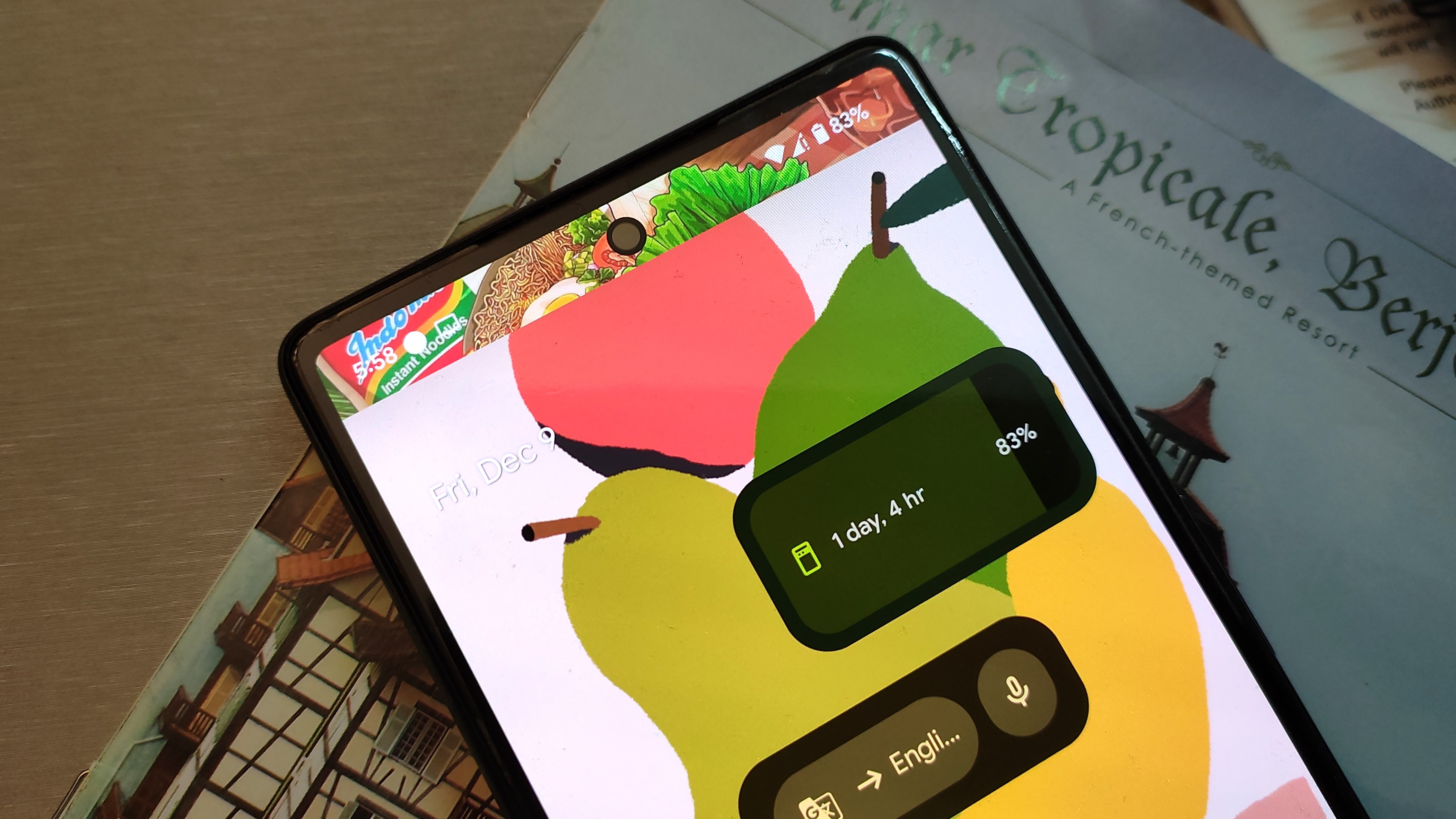
The Left Side: Notifications and Time
Traditionally, the left side of the status bar is reserved for the digital clock and notification icons. When an app—such as a messaging platform or an email client—receives new data, it issues a Notification object to the NotificationManager. If the notification meets the priority criteria, a small icon representing that app appears on the left.
In recent versions of Android, including the updates seen leading into 2026, this area has become more intelligent. If there are too many notifications to display, the system uses a "mathematical overflow" logic, showing a small dot or a number to indicate additional pending alerts. This prevents the status bar from becoming cluttered and maintains the aesthetic integrity of the UI.
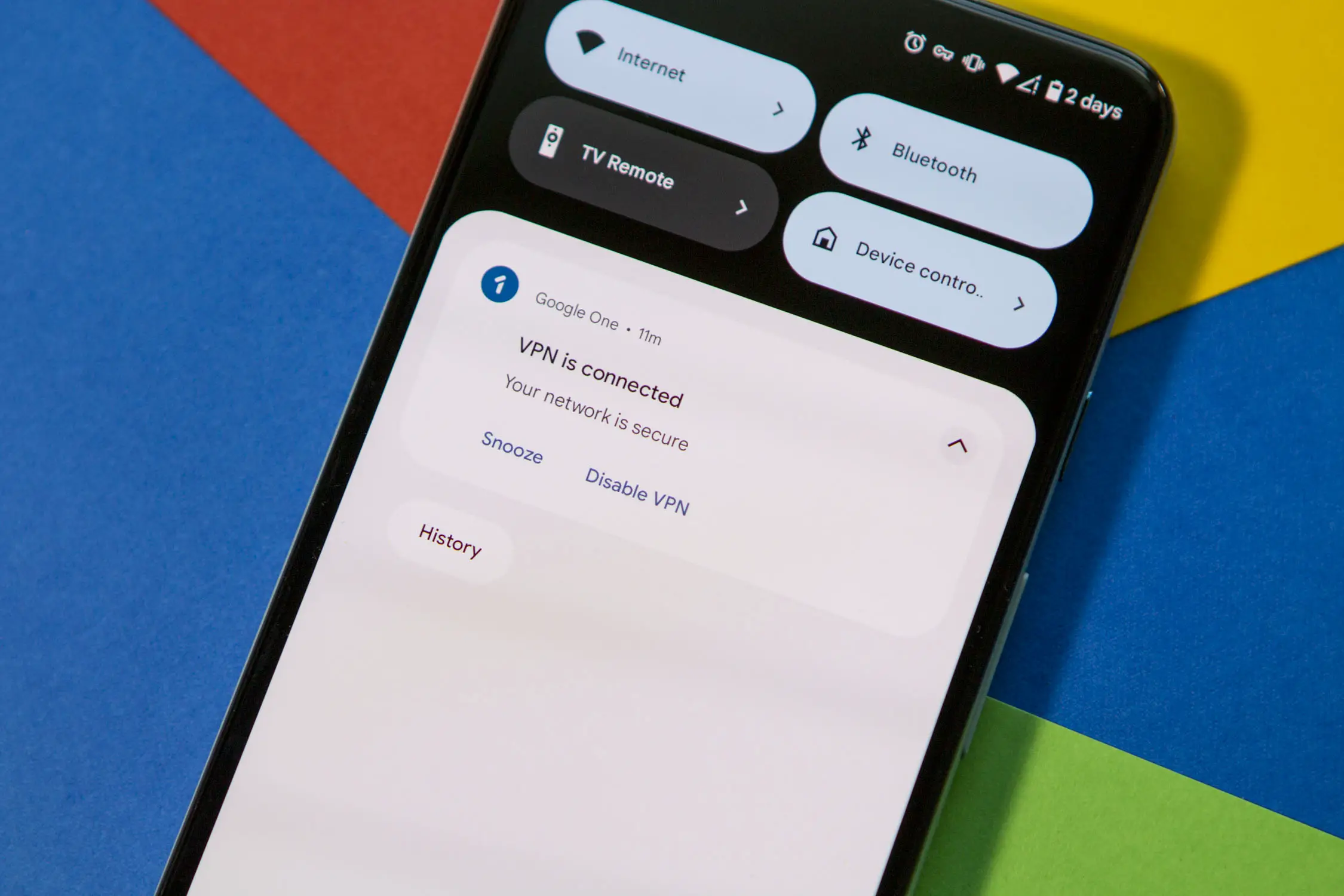
The Right Side: System Status Indicators
The right side is dedicated to the device's "health" and connectivity. This includes:
- Cellular Signal: Displays both signal strength and the generation of data (e.g., 5G, 6G).
- Wi-Fi Connectivity: Shows the strength of the wireless local area network.
- Battery Level: Often customizable to show a percentage, a bar, or a circle.
- System Toggles: Icons for Bluetooth, Alarm, Do Not Disturb, and Location Services (GPS).
The right-side icons are managed by the PhoneStatusBar class within the SystemUI package. Unlike notifications, which are transient and can be dismissed, system icons are state-based. They only disappear if the feature is turned off (like disabling Bluetooth) or if the state changes (like losing a signal).
How Hardware Evolution Influenced the Status Bar
The physical design of smartphones has forced the Android status bar to evolve significantly. The introduction of "notches," "hole-punch cameras," and under-display sensors changed the status bar from a continuous horizontal strip into a fragmented display area.
Android 9 (Pie) introduced official support for Display Cutouts. This allowed the software to recognize the coordinates of the camera hardware and "split" the status bar icons around it. In modern devices in 2026, the status bar is context-aware. If a phone has a center-mounted hole-punch camera, the system automatically centers the clock on the left and moves system icons to the right, ensuring no information is rendered behind the physical camera lens.
Furthermore, with the rise of OLED and AMOLED screens, the status bar utilizes "pixel shifting" techniques. Because the status bar icons are often white and static, they pose a risk of OLED burn-in. To mitigate this, the Android system subtly moves the icons by a few pixels over time—unnoticeable to the human eye—to ensure that the same pixels aren't constantly illuminated at high brightness.
Customizing the Status Bar Display
While the default configuration is designed for the average user, Android provides several layers of customization for how system info is displayed.
Built-in System Settings
Most manufacturers (including Samsung, Google, and OnePlus) provide a "Status Bar" menu within the Display or Notifications settings. Here, users can:
- Toggle the Battery Percentage: Choose whether to see the numerical value or just the icon.
- Select Which Icons Appear: If you always have Bluetooth on, you might want to hide the icon to save space.
- Clock Customization: On some skins, you can move the clock to the center, right, or hide it entirely.
The System UI Tuner
For advanced users, the "System UI Tuner" is a hidden menu in some Android versions. It allows for more granular control, such as showing seconds in the clock or enabling a "Demo Mode" where the status bar shows a clean, fixed set of icons for taking screenshots. Accessing this often requires long-pressing the settings gear in the notification shade or using third-party "Activity Launcher" apps.
ADB (Android Debug Bridge)
Developers and power users often use ADB commands to modify the status bar without rooting the device. Commands like adb shell settings put secure icon_blacklist followed by a list of icon names can forcefully hide elements that the standard settings menu won't touch. This is particularly useful for removing persistent icons like "VPN" or "Data Saver" that some users find distracting.
Technical Comparison: Status Bar Information Layers
The following table breaks down the different types of information displayed in the status bar and how the system prioritizes them.
| Information Category | Display Location | Logic Type | Priority Level |
|---|---|---|---|
| System Time | Left / Center | Persistent / Dynamic | High |
| Critical Alerts | Left | Transient / Interruptive | Very High (e.g., Low Battery) |
| Standard Notifications | Left | Queue-based | Medium |
| Connectivity (Wi-Fi/Cell) | Right | State-based | High |
| Device Hardware Status | Right | State-based | Medium (e.g., Bluetooth, Vibrate) |
| Privacy Indicators | Right (Top) | Event-based | Critical (e.g., Mic/Camera in use) |
The Role of Privacy Indicators
In 2026, privacy is a cornerstone of the Android status bar. Whenever an application accesses the device's microphone or camera, a small green or orange dot (or icon) appears in the top-right corner of the status bar.
This is a hardware-software handshake. The Android kernel monitors the "media.camera" and "audio" services. When an app opens a stream to these sensors, the SystemUI immediately renders the privacy indicator. This is a non-negotiable system feature; it cannot be disabled by standard apps, providing a layer of security that informs the user of potential background surveillance. Tapping these indicators usually reveals which specific app is currently accessing the sensor.
Troubleshooting Common Status Bar Issues
Occasionally, the status bar may fail to display system info correctly. This is usually due to a crash in the com.android.systemui process.
- Missing Icons: If your Wi-Fi or Signal icons disappear but your internet still works, the SystemUI might have a cached error. A simple restart usually fixes this, but clearing the cache for the "System UI" app in the system settings (under "Show System Apps") is a more targeted solution.
- Frozen Clock: If the time stops updating, it typically indicates that the background thread responsible for the clock has hung. This can happen during heavy CPU thermal throttling.
- Overlapping Icons: This occurs most often on devices with custom ROMs or modified "Smallest Width" (DPI) settings in Developer Options. If the DPI is set too high, the system thinks there is more horizontal space than physically exists, leading to icons overlapping with the camera cutout.
Summary of Best Practices for Users
To get the most out of your status bar, keep it lean. A cluttered status bar increases cognitive load and makes it harder to see important system info. Use the "Minimalist" approach: hide icons for features you use 24/7 (like Bluetooth) and limit notification icons to only "Alerting" notifications rather than "Silent" ones.
Frequently Asked Questions
Why does my status bar change color sometimes?
The status bar utilizes a feature called "Dynamic Coloring" (introduced with Material You). The system analyzes your wallpaper and picks a dominant color, applying it to the status bar background or icons to create a cohesive look. Additionally, many apps use the "WindowInsets" API to tell the status bar to match their specific theme color when the app is open.
Can I move the clock from the left to the right side?
On stock Android, the clock is fixed on the left to accommodate the notch and provide a clear distinction from system icons. However, third-party Android skins like Samsung's One UI or Xiaomi's HyperOS often provide settings to move the clock. For stock users, third-party apps like "Super Status Bar" can overlay a custom bar with a different layout.
What is the small "plus" icon inside a circle?
In most Android versions, this icon represents "Data Saver" mode. It indicates that the system is restricting background data usage for apps to save on your cellular plan. You can disable this in the Network & Internet settings.
How do I hide the status bar for a "Full Screen" experience?
While you cannot permanently hide the status bar globally without root or specific ADB commands, you can use "Immersive Mode" apps. Most video players and games trigger this automatically. To manually hide it, you can use a third-party launcher that offers a "Hide Status Bar" toggle for the home screen.
Why do some icons disappear and get replaced by a dot?
This is the "Overflow" mechanism. Android reserves a certain amount of "safe space" for icons. If your notification count or system icons exceed the available horizontal pixels (especially on phones with large camera cutouts), the system hides the least recent icons and displays a dot to signify that there is more information to see if you swipe down the notification shade.
Recommended Action
For users who find the status bar cluttered, the most effective next step is to enter Settings > Notifications > Status Bar and toggle off icons for services you use constantly. For those seeking a deeper dive into system performance, enabling Developer Options and turning on the "Show Refresh Rate" toggle will add a real-time hardware metric directly to your status bar area, demonstrating the OS's ability to overlay dynamic system data.
Image Gallery