How to Block Ads in Google Chrome on iOS: The Complete 2026 Technical Guide
To block ads in Google Chrome on iOS in 2026, you must utilize system-wide solutions such as encrypted DNS profiles or network-level filtering apps. Unlike the desktop version, Chrome on iPhone and iPad does not support browser extensi...
To block ads in Google Chrome on iOS in 2026, you must utilize system-wide solutions such as encrypted DNS profiles or network-level filtering apps. Unlike the desktop version, Chrome on iPhone and iPad does not support browser extensions. Using a private DNS provider like AdGuard or NextDNS remains the most efficient, battery-friendly method for removing intrusive marketing and trackers.
Contents
While Google Chrome is the preferred browser for millions of iOS users due to its seamless synchronization with Google accounts and Cross-Device capabilities, it lacks the native extension support found in Safari. This guide focuses specifically on the technical workarounds required to achieve a clean, ad-free browsing experience within the Chrome app on iOS 19 and iOS 20 architectures.
Why Traditional Chrome Extensions Do Not Work on iOS
Understanding the technical limitations of the iOS ecosystem is crucial for any user attempting to modify their browsing experience. As of 2026, Apple maintains strict control over the browser engines permitted on the App Store. Although regulatory changes in certain regions have begun to allow non-WebKit engines, the majority of Chrome installations on iOS still operate as a sophisticated wrapper around Apple's underlying framework.
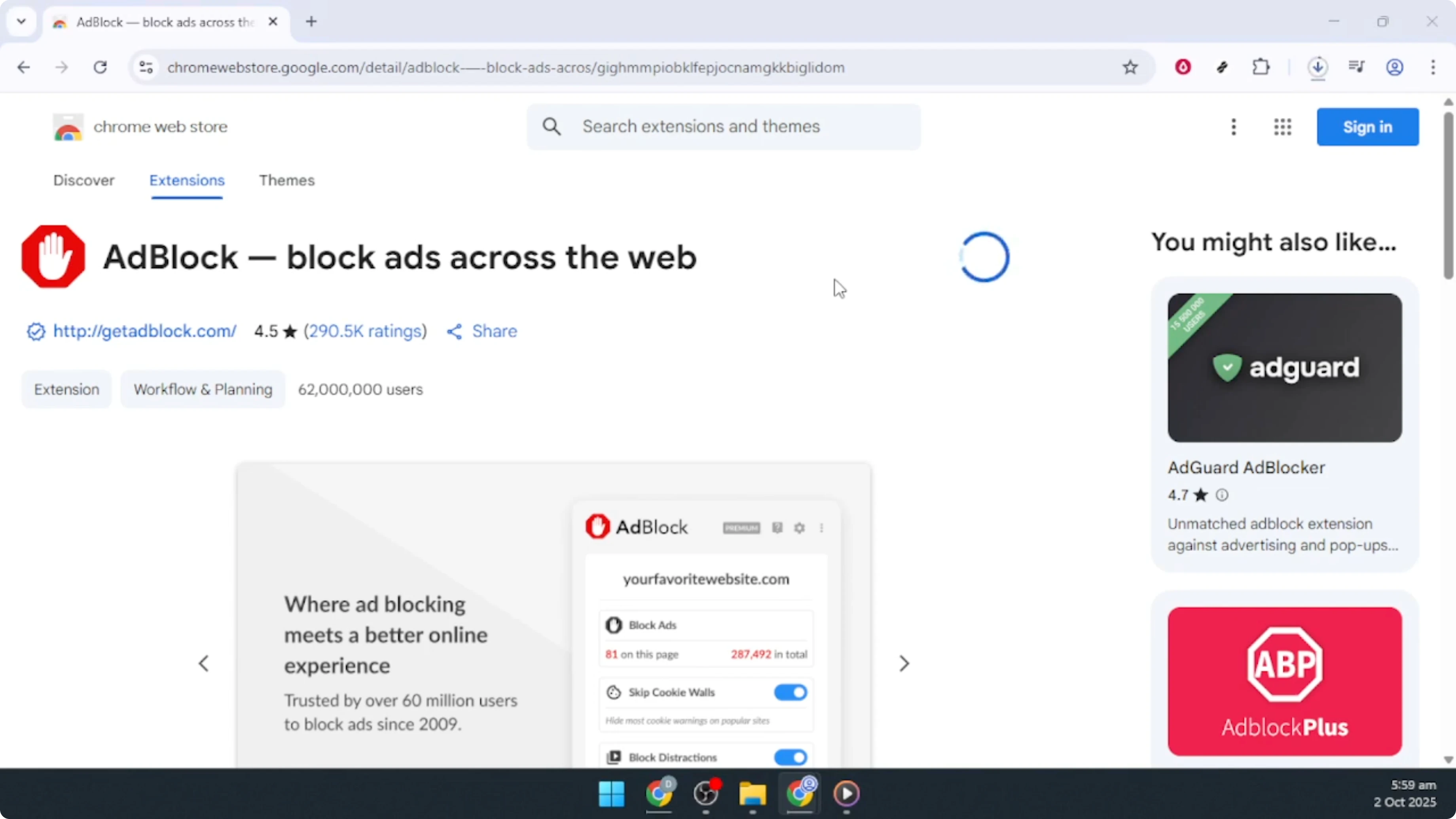
Standard Chrome Web Store extensions (CRX files) rely on the Manifest V3 architecture specifically designed for the Blink engine on desktop and Android. Because the iOS version of Chrome cannot execute these external scripts in the same manner, users cannot simply visit a store and click "Add to Chrome." To bypass this, we must look at the network layer of the device rather than the application layer of the browser itself.
Method 1: Implementing Encrypted DNS (The 2026 Standard)
Configuring a Private DNS (Domain Name System) is the most robust method for blocking ads in Chrome without draining your battery or compromising device speed. In 2026, iOS provides native support for DNS-over-HTTPS (DoH) and DNS-over-TLS (DoT), allowing you to filter ad-serving domains before they even reach the Chrome browser.
- Select a Provider: Choose a reputable DNS filtering service such as NextDNS, AdGuard DNS, or Control D. These services maintain massive databases of known ad and tracker domains.
- Generate a Configuration Profile: Visit the provider's website to download a mobile configuration profile (.mobileconfig). This file tells your iPhone to route DNS queries through their filtering servers.
- Install the Profile: Open Settings, tap Profile Downloaded, and select Install. You will need to enter your device passcode.
- Activate the Setting: Navigate to Settings > General > VPN & Device Management > DNS. Select the newly installed encrypted DNS provider instead of "Automatic."
By using this method, when Chrome attempts to load an ad from a domain like "ads.google.com" or "doubleclick.net," the DNS server returns a "null" address, effectively preventing the ad from ever appearing on your screen.
Method 2: System-Wide Ad Blocking Apps
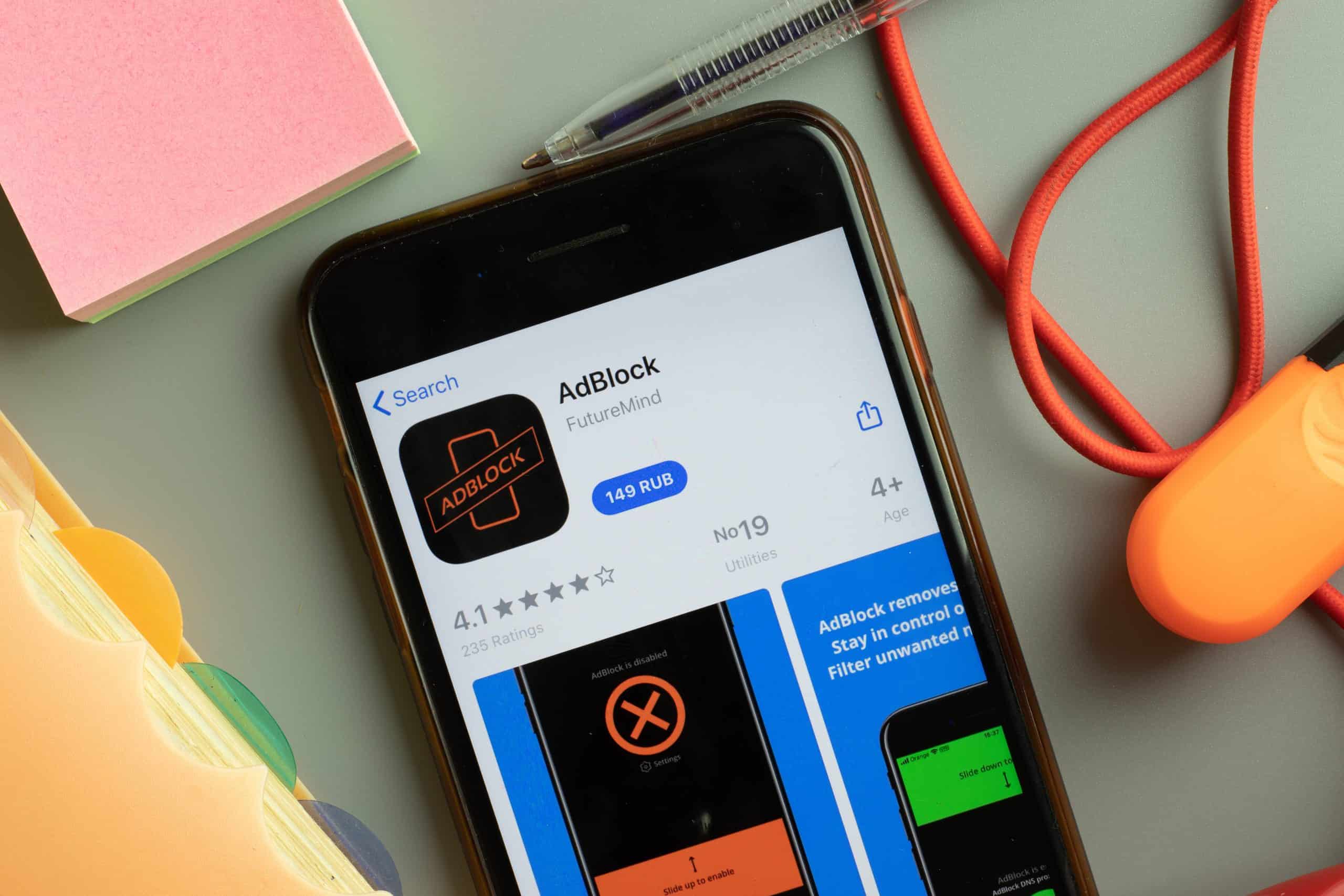
For users who prefer a more graphical interface or the ability to toggle blocking on and off quickly, dedicated ad-blocking applications are the ideal choice. These apps typically utilize a "Local VPN" or "Split-Tunnel" architecture.
Important Distinction Between Global and Local VPNs Traditional VPNs route all your internet traffic through a remote server to hide your IP address. In contrast, local ad-blocking VPNs create a filter on your device itself. Your data does not leave the phone to be processed elsewhere; instead, the app acts as a local gatekeeper that identifies and drops packets associated with advertising scripts.
Popular options in 2026 include:
- AdGuard for iOS: Offers a comprehensive Pro version that handles system-wide filtering.
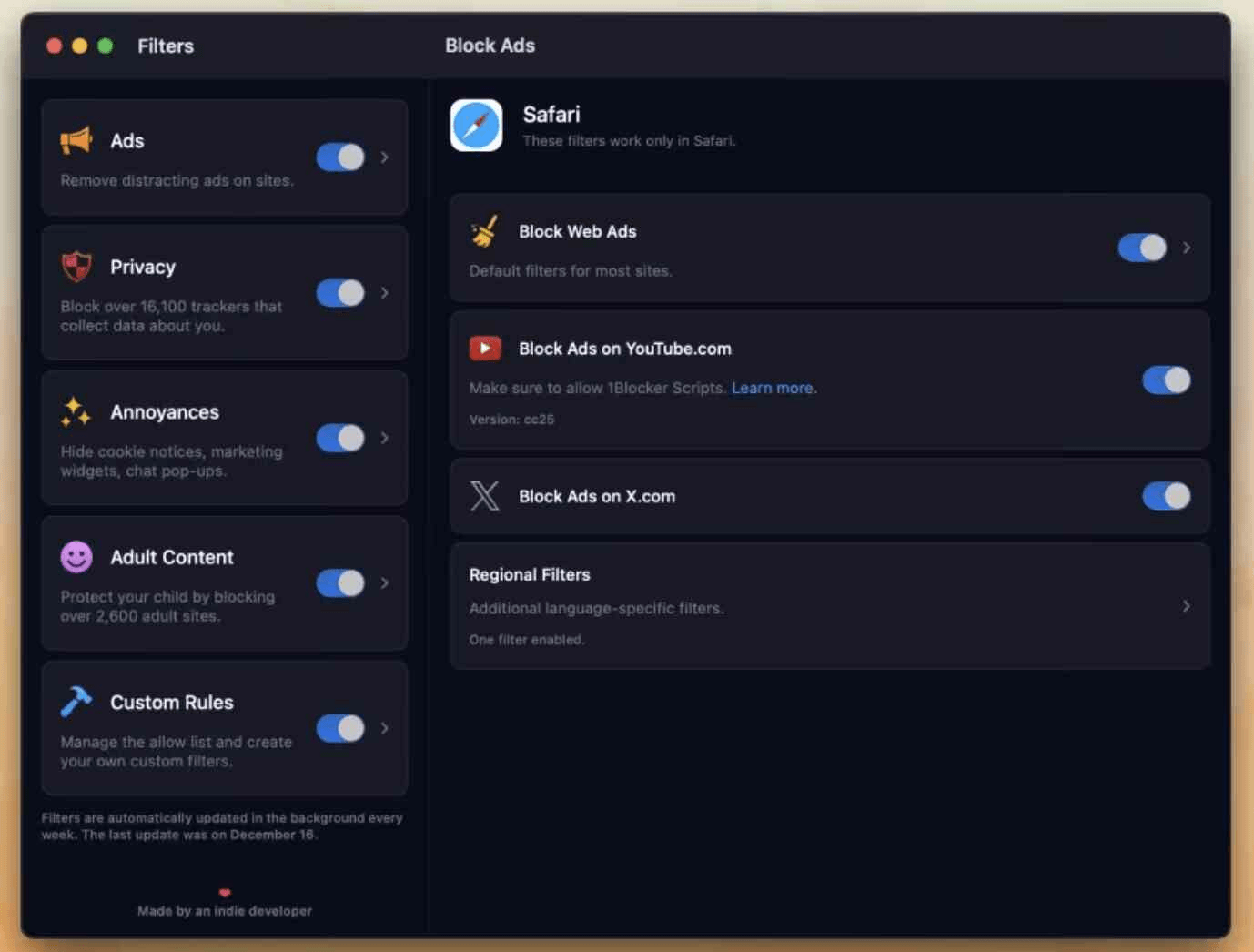
- 1Blocker: Highly customizable for those who want to create specific "firewall" rules for their browsing habits.
- Lockdown Privacy: An open-source option focused heavily on preventing trackers from communicating with third-party servers.
Method 3: Optimizing Chrome's Native Privacy Settings
While Chrome on iOS cannot block all ads natively, Google has integrated several features into the 2026 version of the app that can minimize the most intrusive elements. These settings should be used as a secondary layer of defense alongside the DNS methods mentioned above.
- Pop-up Blocking: Go to Chrome Settings > Content Settings > Block Pop-ups and ensure this is toggled ON.
- Safe Browsing: Enable Enhanced Protection under Settings > Privacy and Security. This uses Google’s real-time database to block known malicious sites and some forms of intrusive advertising.
- Ad Privacy: Within the Privacy and Security menu, navigate to Ad Privacy. Here you can disable "Ad topics" and "Site-suggested ads," which limits how much data Chrome shares with advertisers to target you.
Comparison of Ad Blocking Methods for iOS Chrome
| Feature | Encrypted DNS Profile | Local VPN/Filtering App | Native Chrome Settings |
|---|---|---|---|
| Blocking Power | High (Blocks 90%+ of ads) | Very High (Customizable) | Low (Pop-ups only) |
| Battery Impact | Negligible | Low to Moderate | None |
| Privacy Level | High (Encrypted queries) | High (Local processing) | Moderate (Google-managed) |
| Ease of Setup | Moderate (Requires profile) | Easy (App Store install) | Very Easy (In-app toggle) |
| Cost (2026) | Often Free / Freemium | Subscription-based | Free |
Advanced Configuration: Troubleshooting and Maintenance
Even with the best ad blockers, some advertisements may occasionally leak through, especially YouTube mid-roll ads or "First-Party" sponsored content on social media platforms.
If you find that ads are still appearing in Chrome after following the steps above, check for these common issues:
- DNS Leaks: Your ISP or a secondary VPN may be overriding your custom DNS settings. Use a site like "dnsleaktest.com" to verify that your queries are actually going to your chosen provider.
- Cached Content: Chrome often caches website data. If you recently installed an ad blocker, clear your browsing data via Settings > Privacy and Security > Clear Browsing Data to remove previously stored ad scripts.
- App Updates: Ensure you are running the latest version of Chrome from the App Store. Google frequently updates the browser to comply with the latest iOS 19/20 security protocols, which can affect how network filters interact with the app.
The Future of Ad Blocking: Manifest V3 and iOS
By 2026, the transition to Manifest V3 is complete. While this change significantly limited the power of ad blockers on desktop Chrome, the impact on iOS was minimal because the system already utilized a similar declarative rule-based approach. The most sophisticated ad blockers now use advanced heuristics to identify "ad-like behavior" rather than just relying on static lists of URLs, making them more effective against "unblockable" ads.
Frequently Asked Questions
Can I install uBlock Origin on Chrome for iOS? No. uBlock Origin and similar extensions are not compatible with the mobile version of Chrome. You must use the DNS or App-based methods described in this guide to achieve similar results.
Will blocking ads in Chrome make my browsing faster? Yes. By preventing the device from downloading large ad videos and tracking scripts, pages typically load 20% to 40% faster, and you will consume significantly less mobile data.
Is it legal to block ads on my iPhone? Yes. Users have the right to control the content that is downloaded to their personal devices and to protect their privacy by blocking unwanted tracking scripts.
Does ad blocking work on Incognito mode? Yes. If you use the DNS or Local VPN method, the filtering happens at the system level, meaning it will function perfectly whether you are in standard browsing or Incognito mode.
Why am I still seeing ads on YouTube within the Chrome app? YouTube uses "server-side ad insertion," which stitches the advertisement directly into the video stream. DNS-based blockers often struggle with this. To block YouTube ads effectively on iOS, you may need to use a specialized third-party client or a Premium subscription.
Can I use these methods on both Wi-Fi and Cellular data? Yes. Modern DNS profiles and filtering apps are designed to stay active regardless of your connection type, ensuring consistent protection as you switch between networks.
If you are looking for the absolute best performance, we recommend combining a Private DNS profile with Chrome's native pop-up blocker. This dual-layered approach provides the cleanest interface with the lowest possible impact on your iPhone's hardware longevity.
Image Gallery