Video Not Playing on WhatsApp: Why It Happens and How to Fix It
If your videos are not playing on WhatsApp, the issue usually stems from a poor internet connection, insufficient device storage, or an outdated version of the application. To fix this, verify your network stability, clear the WhatsApp...
If your videos are not playing on WhatsApp, the issue usually stems from a poor internet connection, insufficient device storage, or an outdated version of the application. To fix this, verify your network stability, clear the WhatsApp cache, ensure your device has at least 500MB of free space, and update the app via your official app store.
Contents
Understanding the Mechanics of WhatsApp Video Playback
To diagnose why a video fails to play, it is essential to understand how WhatsApp handles media. Unlike traditional streaming services that buffer content from a central server, WhatsApp typically downloads the media file to your local storage before or during playback. In 2026, with the prevalence of high-definition 4K and 8K mobile recording, the file sizes and codec requirements have become significantly more demanding.
When you tap a video, WhatsApp initiates a request to the local file system. If the file is not yet fully downloaded, it relies on your network bandwidth to fetch the remaining data packets. If the file is already present, the app uses the device’s internal media player framework to render the visuals. A failure at any point in this chain—from the network handshake to the hardware acceleration of the video processor—will result in a playback error.
Primary Causes of Playback Failure
1. Network Instability and Latency
The most common culprit is a fluctuating internet connection. Even if your device shows "bars," the actual data throughput may be insufficient for high-bitrate video. WhatsApp requires a consistent stream of data to verify the media's integrity. In environments with high interference or congested 5G/6G networks, packet loss can occur, causing the video to hang indefinitely at the loading circle.
2. Storage Capacity and Write Errors
WhatsApp requires a specific amount of "breathing room" on your internal storage to function correctly. When your device is at 99% capacity, the operating system struggles to create the temporary cache files needed to play a video. Furthermore, if you use an SD card as your primary media storage, hardware degradation or a slow read/write speed (Class 10 or lower) can prevent the app from accessing the video file fast enough to sustain playback.
3. Outdated Application and Operating System
As mobile operating systems like Android 17 and iOS 20 evolve, WhatsApp must update its architecture to remain compatible with new security protocols and media engines. If you are running an older version of WhatsApp, it may lack the necessary instruction sets to communicate with your phone’s modern video hardware, leading to black screens or immediate crashes upon clicking a video.
4. Incorrect Date and Time Settings
This is a technical quirk that many users overlook. WhatsApp’s security encryption relies on a synchronized timestamp between your device and their servers. If your phone’s date or time is manually set incorrectly, the security certificates will fail to validate. This prevents the app from "trusting" the media file it is trying to play, resulting in a blocked playback session.
Comprehensive Troubleshooting Steps
Basic Connectivity Reset
Before diving into complex settings, perform a network refresh. Toggle Airplane Mode on for ten seconds and then off. This forces your device to disconnect from the local cell tower or Wi-Fi router and re-establish a fresh handshake. If you are on Wi-Fi, try switching to mobile data (or vice versa) to see if the issue is specific to one network provider.
Managing Storage and Permissions
On modern smartphones, "Scoped Storage" settings can sometimes restrict WhatsApp's ability to read files it has previously saved.
- Navigate to your device Settings.
- Go to Apps or Application Manager.
- Select WhatsApp.
- Tap Permissions and ensure that "Files and Media" (or "Photos and Videos") is set to Allow.
- While in the WhatsApp app settings, check Storage. If the app is consuming several gigabytes, consider using the "Manage Storage" tool within WhatsApp to delete large forwarded files that may be clogging the system.
Clearing the App Cache
The cache is a collection of temporary files that help the app load faster. Over time, these files can become corrupted.
- Android: Go to Settings > Apps > WhatsApp > Storage > Clear Cache. Do not select "Clear Data" unless you have a full backup, as this will delete your chat history.
- iOS: Apple does not provide a direct "Clear Cache" button for apps. The most effective way to clear the cache on an iPhone is to "Offload" the app. Go to Settings > General > iPhone Storage > WhatsApp > Offload App. This removes the app binaries but keeps your data intact. Reinstalling the app from the same screen will refresh the system.
Checking the SD Card (Android Only)
If your media is stored on an external card, it may be set to "Read Only" or have corrupted sectors. Try moving the WhatsApp media folder back to the internal storage to test if the playback resumes. If the video plays from internal memory, your SD card likely needs to be replaced or reformatted.
Troubleshooting WhatsApp Web and Desktop
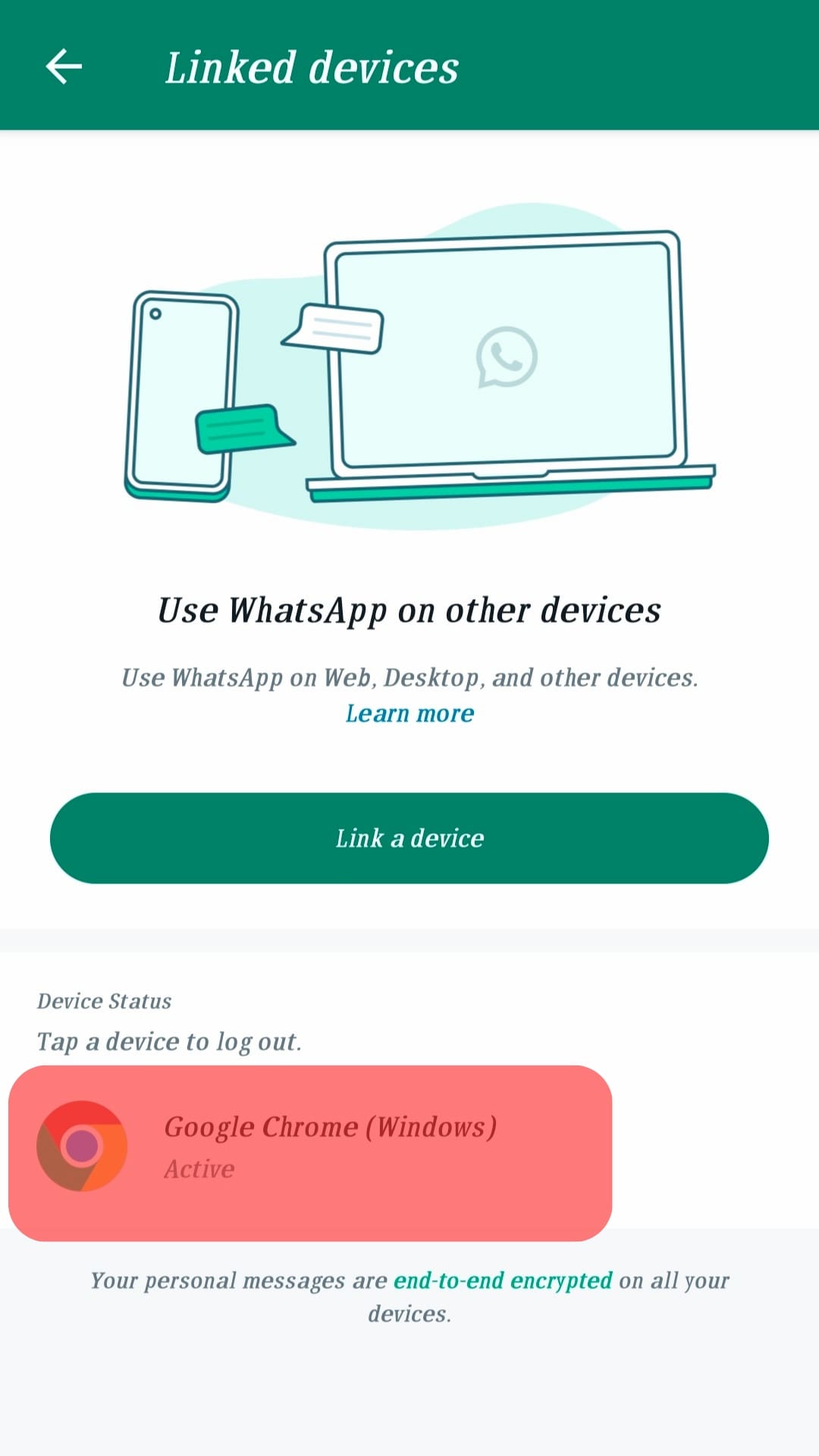
Playback issues are not limited to mobile devices. If you are using WhatsApp Web or the Desktop application for Windows/macOS, the causes are slightly different.
| Platform | Common Cause | Recommended Solution |
|---|---|---|
| WhatsApp Web | Browser Cache/Extensions | Clear browser cookies or disable Ad-Blockers. |
| WhatsApp Web | Outdated Browser | Update Chrome, Firefox, or Safari to the latest build. |
| Desktop App | Hardware Acceleration | Disable "Hardware Acceleration" in the app settings if the screen is black. |
| Desktop App | Missing Codecs | Install the "HEVC Video Extensions" from the Microsoft Store or App Store. |
For the Desktop app, ensure that your computer’s firewall is not blocking the specific ports used by WhatsApp for media streaming. In corporate environments, IT departments often restrict high-bandwidth media, which can lead to videos failing to load despite the text messages working perfectly.
The Role of Video Codecs and Formats
In 2026, the transition to HEVC (High Efficiency Video Coding) and AV1 is nearly complete. These codecs allow for high-quality video at smaller file sizes. However, if a user sends a video recorded on a high-end professional camera or an experimental format, the built-in WhatsApp player might not recognize the "container" (e.g., .mkv or .mov with specific profiles).
If you see a message saying "File format not supported," you can try to view the file outside of WhatsApp. Navigate to your phone's gallery or a dedicated file manager, find the WhatsApp Video folder, and try opening the file with a versatile media player like VLC for Mobile. If VLC can play it but WhatsApp cannot, the issue is an internal app limitation, and you may need to wait for a software update.
Advanced Fixes and Reinstallation
If none of the above steps work, the application's core files may be damaged beyond a simple cache clear.
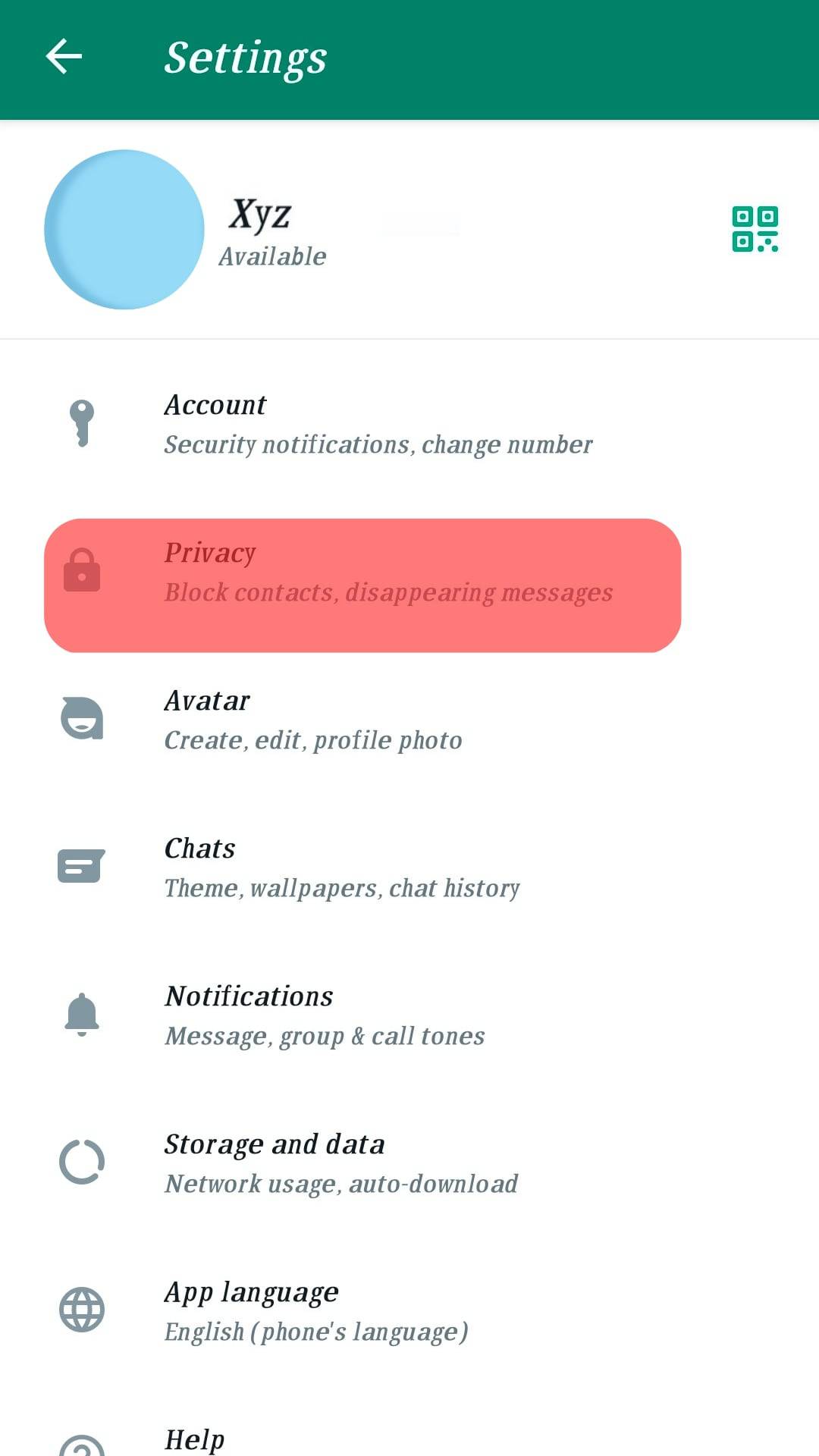
- Verify Backup: Open WhatsApp > Settings > Chats > Chat Backup and ensure you have a recent upload to Google Drive or iCloud.
- Uninstall: Delete the application from your device.
- Restart: Power down your phone completely and restart it to clear the system RAM.
- Reinstall: Download a fresh copy of WhatsApp from the official Google Play Store or Apple App Store.
By performing a clean installation, you ensure that any deep-seated configuration errors are wiped and that the app starts with a fresh set of permissions and system hooks.
Preventing Future Playback Issues
To minimize the chances of videos failing to play in the future, consider the following maintenance habits:
- Enable Auto-Download on Wi-Fi Only: This ensures that videos are fully downloaded in the background when you have a stable connection, rather than trying to fetch them on the fly when you have poor cellular reception.
- Maintain 10% Free Space: Modern flash storage slows down significantly when it reaches near-full capacity. Keeping at least 10% of your total storage free ensures the OS can manage file swapping efficiently.
- Avoid Beta Versions: While the WhatsApp Beta program offers new features, it is often prone to media playback bugs. If stability is your priority, stick to the public release versions.
Frequently Asked Questions
Why is the video blurry before I play it?
WhatsApp shows a low-resolution thumbnail (a "preview") that is sent along with the text message. The blurriness indicates that the full-resolution video file has not been downloaded yet. Ensure you have a stable data connection and tap the download icon on the video.
Can a full SD card stop videos from playing?
Yes. If WhatsApp is configured to save media to an SD card and that card is full, the download will fail. Even if the video was previously downloaded, if the card is experiencing "mount" errors or is physically damaged, the app will be unable to pull the data into the video player.
Does WhatsApp limit the size of videos I can play?
While WhatsApp has increased its file-sharing limit over the years, extremely large files (over 2GB) may struggle to play on devices with low RAM. If the video is very long or recorded in an ultra-high bitrate, the device may run out of memory during the rendering process.
Why can I hear the audio but the screen is black?
This usually signifies a rendering conflict. Your phone’s hardware is decoding the audio track successfully, but the video codec is either unsupported or the "Hardware Acceleration" in your OS is malfunctioning. A device restart usually fixes this specific symptom.
How do I fix the "Media file does not exist on your internal storage" error?
This happens if the video was moved, deleted, or renamed by another app (like a "Cleaner" app or a Gallery app). Once the file is moved from its original "WhatsApp Video" folder, the app loses the link to it. You will need to ask the sender to resend the video or find where the file was moved to.
Next Actions
If you have followed these steps and still cannot play videos, verify if other apps (like YouTube or Instagram) are also failing. If they are, the problem is likely a broader hardware failure with your device's GPU or display driver, requiring a visit to an authorized service center. Otherwise, keeping your WhatsApp updated remains your best defense against playback errors.
Image Gallery