How to Find Invoices on Amazon for Your Orders
Finding an invoice for your Amazon order is a straightforward process, though the specific steps depend on whether you are shopping as a personal consumer or using an Amazon Business account. Most customers can retrieve a professional,...
Finding an invoice for your Amazon order is a straightforward process, though the specific steps depend on whether you are shopping as a personal consumer or using an Amazon Business account. Most customers can retrieve a professional, printable invoice—often referred to as an "Order Summary" or "Tax Invoice"—directly from the "Your Orders" section of their account dashboard, which provides essential details like purchase dates, shipping addresses, line items, and tax breakdowns.
Contents
Understanding Your Order Documents
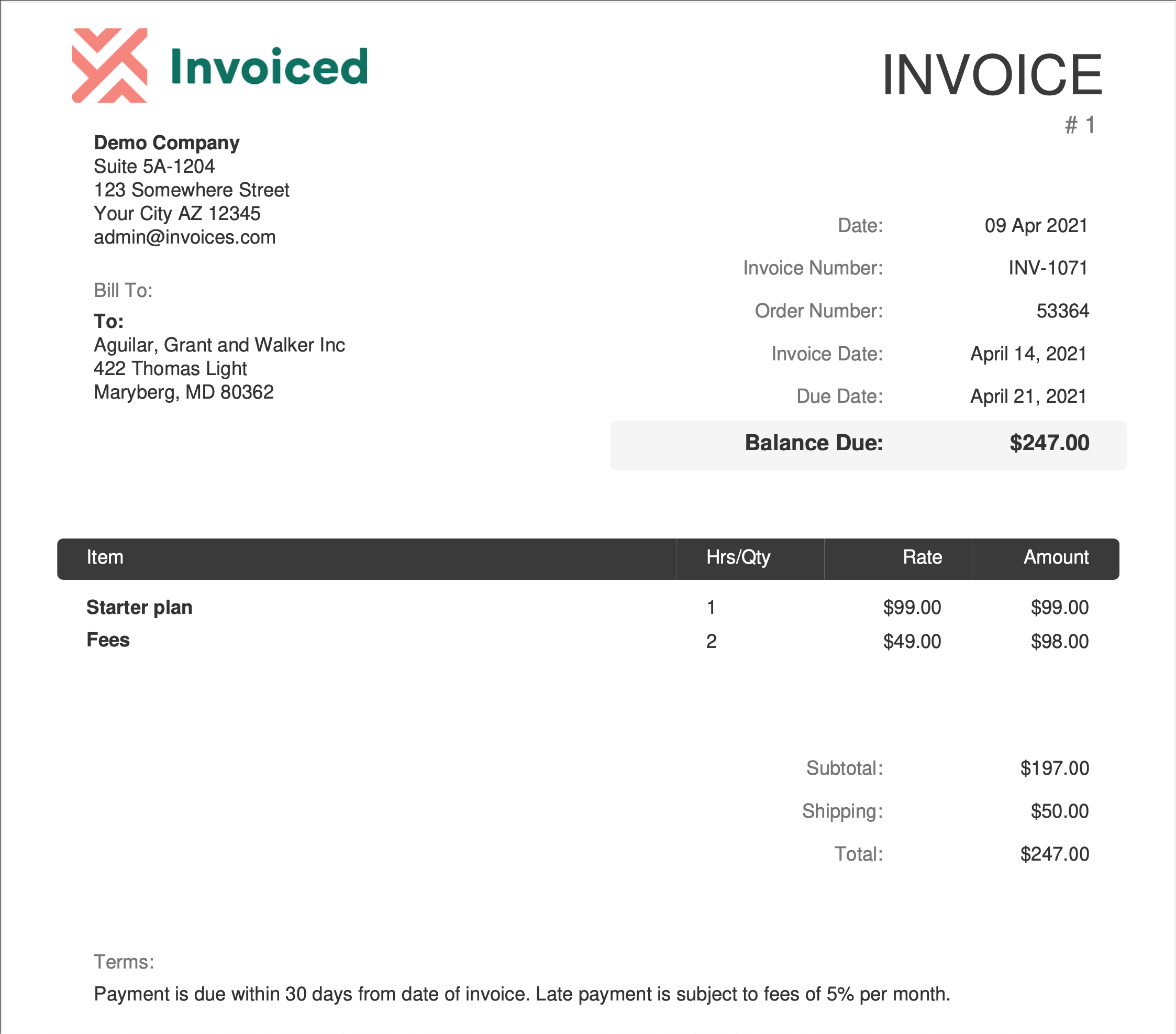
When you place an order on Amazon, the platform automatically generates documentation that serves as proof of purchase. For the average retail consumer, this is typically formatted as an "Order Summary." For business customers, Amazon provides a more formal "Tax Invoice" that includes specific VAT (Value Added Tax) or GST (Goods and Services Tax) information, which is necessary for accounting and tax reporting purposes.
It is important to distinguish between a "Packing Slip" and an "Invoice." A packing slip, which is sometimes included in the physical box, is a logistical document meant for the recipient to verify the contents of a shipment. An invoice, however, is a financial document that serves as a receipt for legal and tax purposes. If you need to submit expenses or claim tax credits, you must download the official order summary or invoice from the website rather than relying on the packing slip.
How to Retrieve Invoices for Personal Accounts
If you are using a standard retail account, the process is centralized within the "Your Orders" interface. Follow these steps to obtain your documentation:
- Log in to your account: Navigate to the Amazon homepage and ensure you are signed in.
- Access your order history: Click on the "Returns & Orders" button located in the top right corner of the navigation bar.
- Filter by date: You can use the dropdown menu to select the year or time frame during which the order was placed to quickly locate the item.
- View order details: Click on the "View order details" link located next to the specific order.
- Print or Save: Once the order summary page opens, click the "Print" button near the top of the screen. If you do not have a physical printer connected, you can choose "Save as PDF" in your browser’s print dialog menu.
This document serves as your official record for personal tax deduction tracking or warranty claims. If an "Invoice" button does not appear, the "Order Summary" is generally accepted as the official transaction record for retail purchases.
Accessing Invoices for Amazon Business Accounts
For businesses, documentation is more rigorous. Amazon Business accounts provide access to specialized tax invoices that display tax identification numbers (TIN) and other corporate-specific details.
- Navigate to Business Analytics: Amazon Business users should access the "Business Analytics" tab within the "Your Account" menu.
- Select Orders: Use the "Orders" tab to view your purchasing history.
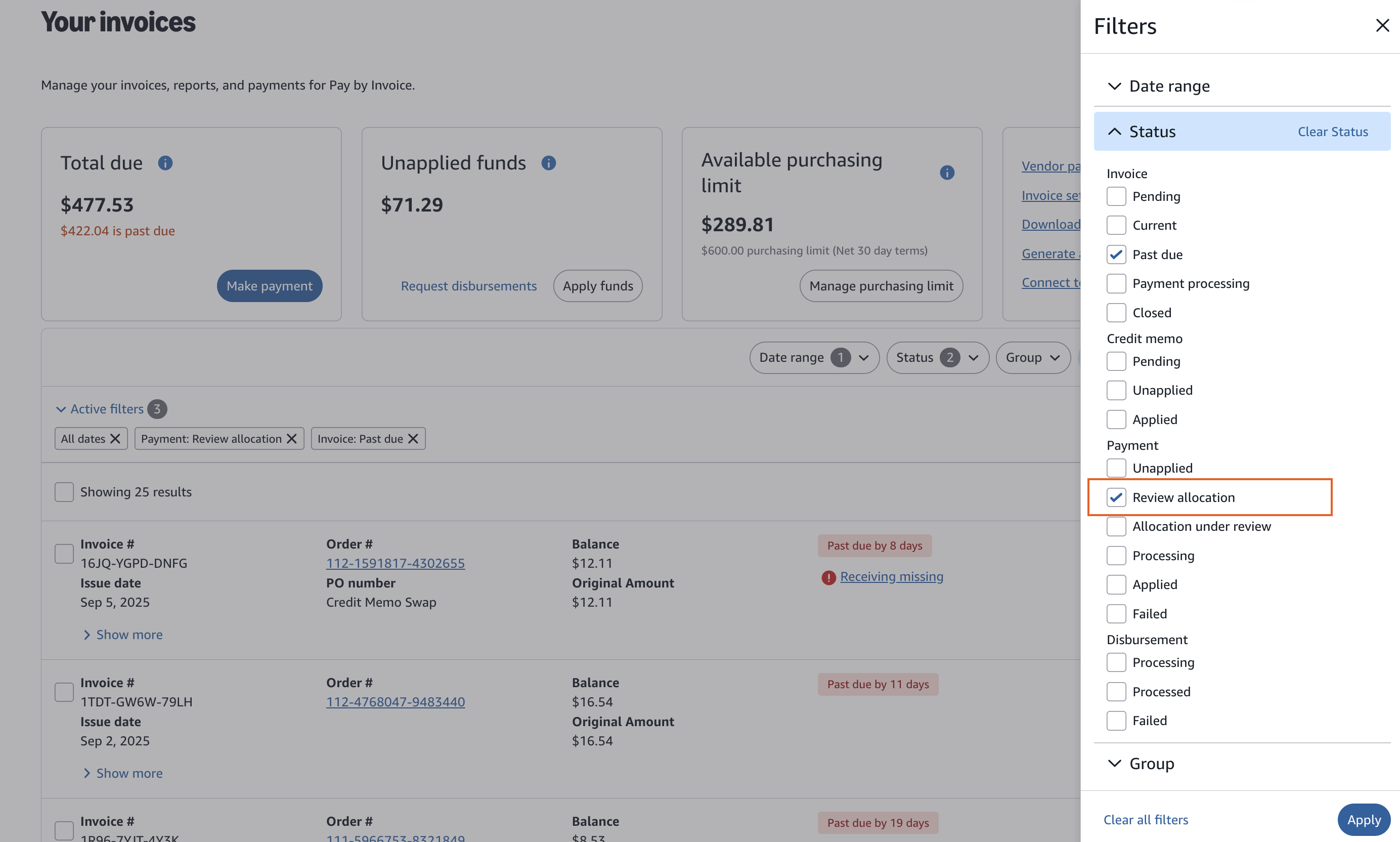
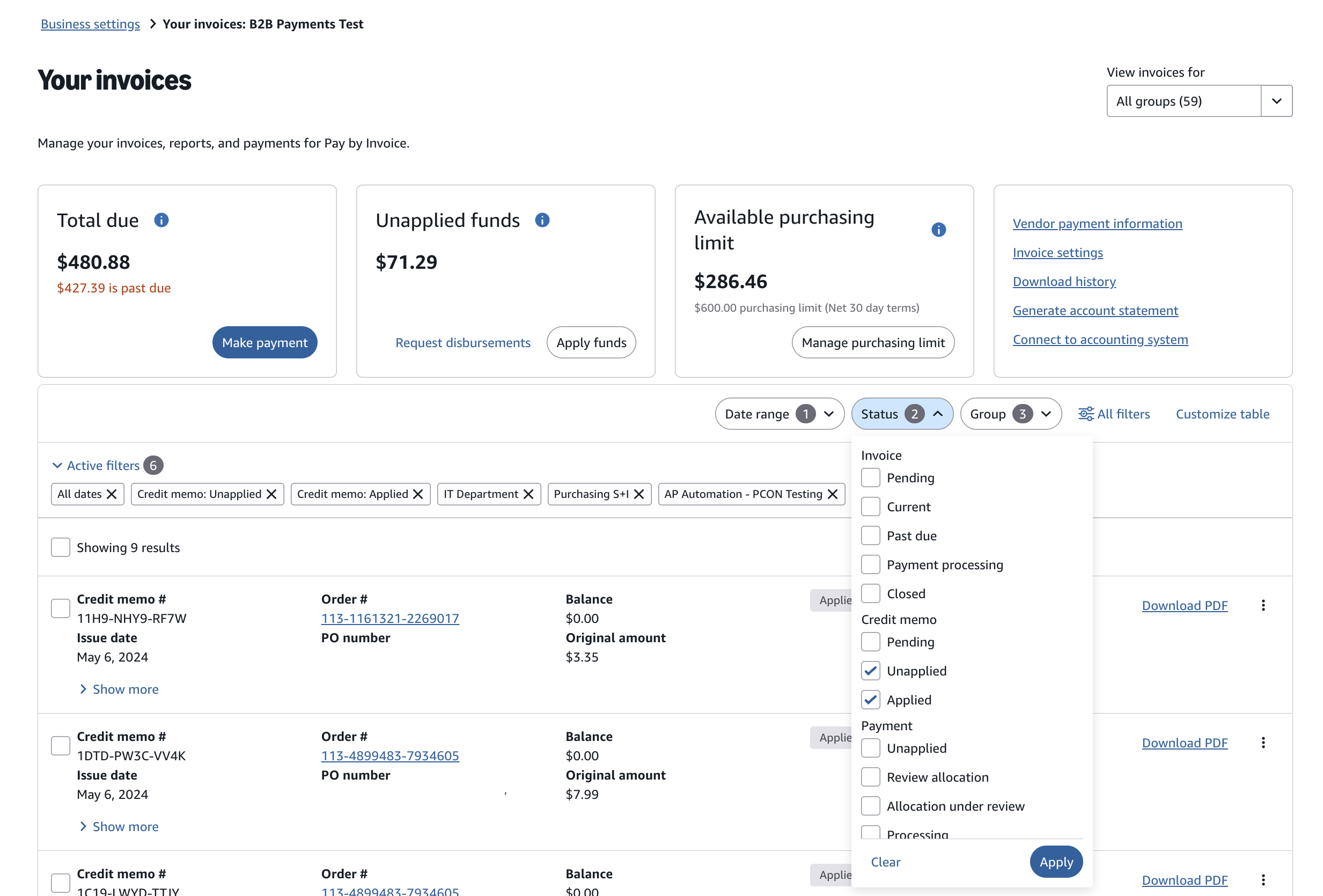
- Generate Reports: You can download these records in bulk as CSV files or download individual invoices by clicking "View Order Details" and selecting the "Download Invoice" option.
- VAT Invoices: If you are operating in a region with Value Added Tax, Amazon provides specific "VAT Invoices" that include the seller’s tax registration number. These are essential for filing accurate business expense reports.
Comparison of Documentation Types
| Feature | Order Summary (Retail) | Tax Invoice (Business) |
|---|---|---|
| Primary Use | Personal record keeping | Tax deductions and auditing |
| Tax Detail | Standard itemized summary | Formal breakdown of tax/VAT |
| Bulk Access | Manual download per order | Downloadable via Analytics tool |
| Content | Price, shipping, address | TIN, Seller tax registration |
Troubleshooting Missing Invoices
Occasionally, you may find that an invoice is not immediately available or that the "Invoice" link is missing. Several factors can cause this:
1. Marketplace Seller Policy: If you purchased an item from a third-party seller (a "Marketplace" seller), that seller is responsible for providing the invoice. Amazon generally facilitates this, but if the invoice is not in your account, you must contact the seller directly. You can do this by navigating to the "View Order Details" page, clicking on the seller’s name, and selecting "Ask a question."
2. Pending Payments: If an order is still in the "Pending" stage, an invoice may not be generated until the payment has been fully processed and the item has been marked as shipped. Check your status to ensure the payment method was successfully charged.
3. Digital Content: If you are looking for an invoice for digital items such as Kindle eBooks or software downloads, these are typically found in the "Your Digital Orders" tab rather than the main "Your Orders" page.
4. Account Syncing: If you recently transitioned from a personal account to an Amazon Business account, ensure that the order was actually placed through the business entity. Orders placed via a personal profile will not appear in the business reporting tools.
Best Practices for Expense Management
Maintaining organized financial records is vital for both personal budgeting and corporate tax compliance. To streamline your workflow in 2026:
- Save Periodically: Rather than waiting until the end of the year, download your invoices monthly. This prevents the "rush" of trying to locate dozens of documents during tax season.
- Use Digital Folders: Organize your PDFs by year and month (e.g., /2026/05_May/). Use a consistent naming convention like "YYYY-MM-DD_Vendor_Amount."
- Cloud Backup: Store your invoice backups in a secure cloud environment. Losing physical receipts can lead to complications with tax authorities if you are ever subject to an audit.
Frequently Asked Questions
Can I get a copy of an invoice for an order from several years ago? Yes, Amazon’s "Your Orders" history typically retains data indefinitely for active accounts. You can navigate back through years of purchase history to retrieve documentation for historical orders.
Does an Amazon packing slip count as an invoice? No, a packing slip is not a financial document. It does not provide the necessary tax information or payment proof required by most accounting software or tax departments. Always use the "Order Summary" or "Tax Invoice."
What if the seller refuses to provide a VAT invoice? If you are a business customer and a seller fails to provide a compliant VAT invoice, you should report the transaction to Amazon Customer Service. Amazon's marketplace participation agreement requires sellers to provide accurate documentation for business buyers.
Can I download multiple invoices at once? Retail users must typically download them one by one. Amazon Business users, however, can use the "Business Analytics" feature to generate reports that cover multiple orders, which can then be exported as a CSV or PDF package.
Is there a way to automate invoice retrieval? While Amazon does not have an "automatic email to inbox" feature for every individual invoice, third-party expense management software can often integrate with your Amazon Business account via API to automatically pull and categorize invoices.
Recommendation
For the most efficient record-keeping, log in to your Amazon account on a desktop browser rather than the mobile app, as the browser view provides more robust options for printing to PDF and managing bulk documentation. If you are managing professional expenses, ensure you are using the "Business Analytics" tool to save significant time compared to individual document retrieval.
Image Gallery