How to Run Windows XP on an iPhone: Exploring Emulation, Limitations, and Reality
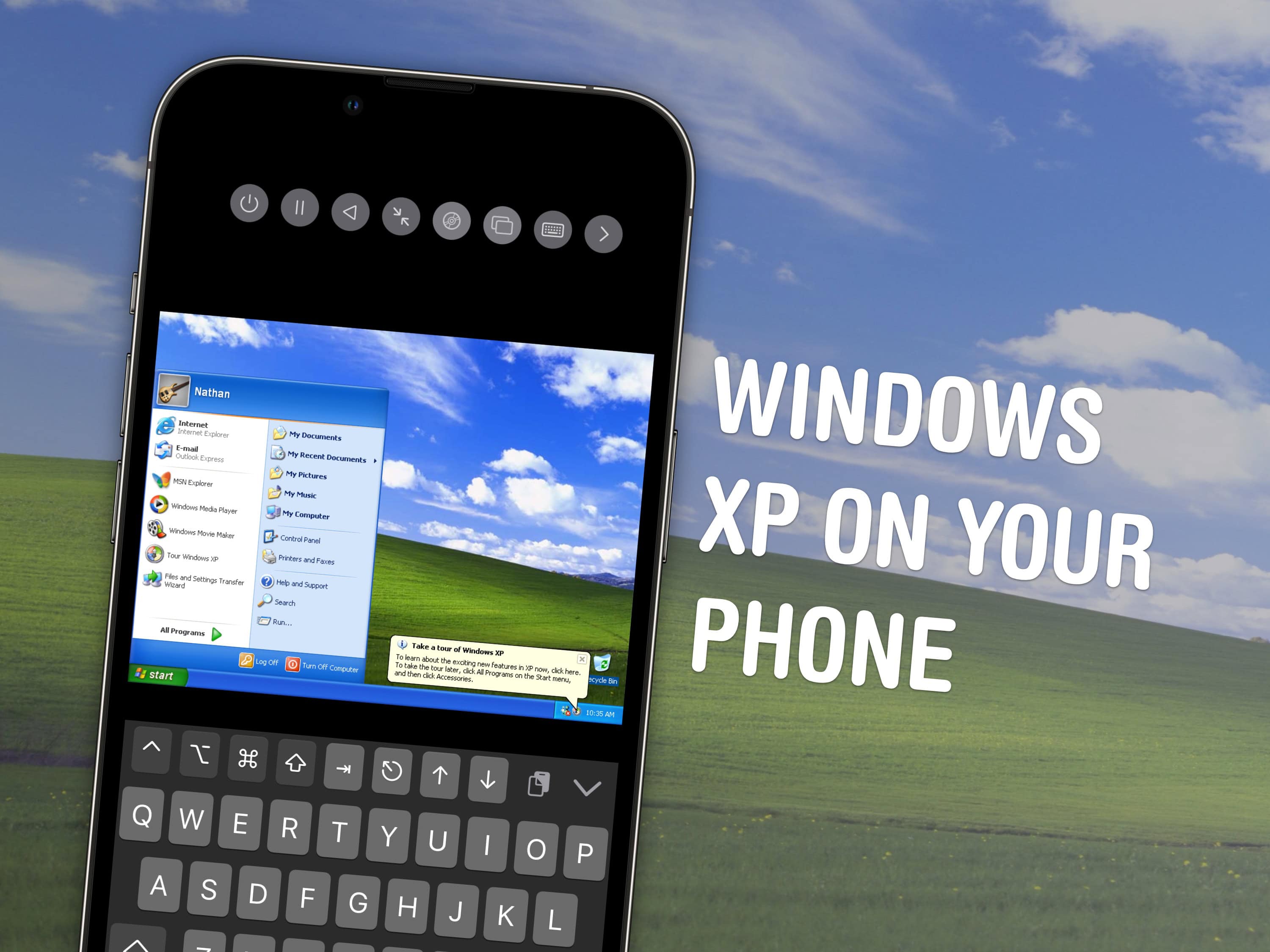
Running Windows XP on an iPhone requires a third-party emulator or remote desktop software because iOS does not natively support x86 architecture. Users typically achieve this by installing virtualization apps like UTM or utilizing rem...
Running Windows XP on an iPhone requires a third-party emulator or remote desktop software because iOS does not natively support x86 architecture. Users typically achieve this by installing virtualization apps like UTM or utilizing remote connection tools to stream a desktop environment from a host computer, though performance is constrained by hardware translation overhead and interface limitations.
Contents
The quest to run legacy operating systems on modern mobile hardware remains a fascinating pursuit for technology enthusiasts. Among these nostalgic pursuits, running Microsoft Windows XP on an Apple iPhone ranks as one of the most intriguing conceptual challenges. While Apple’s iOS mobile operating system is built for ARM-based processors and optimized for touch input, Windows XP was engineered for x86 desktop architectures and mouse-and-keyboard interactions.
Bridging this monumental gap requires understanding the underlying hardware architecture differences, the mechanics of software emulation, and the distinct performance bottlenecks that emerge when legacy desktop code runs inside a modern smartphone environment. This guide explores the realistic methods available, technical prerequisites, operational limitations, and safety considerations associated with bringing Windows XP to an iPhone display.
Understanding the Architecture Gap: ARM vs. x86
To understand how Windows XP can theoretically run on an iPhone, one must first recognize the fundamental architectural divide separating mobile devices from legacy personal computers.
Smartphones utilize ARM (Advanced RISC Machines) processors, which prioritize energy efficiency, thermal management, and rapid task-switching. Personal computers from the Windows XP era (roughly 2001 to 2009) relied heavily on x86 processors—specifically architecture lines like Intel Pentium and AMD Athlon—which process complex instruction sets optimized for heavy computational workloads, persistent power supplies, and active cooling fans.
When an iPhone attempts to run Windows XP, it cannot execute the operating system's native machine code directly. Instead, a translation layer or full system emulator must act as an intermediary.
The emulator simulates an entire virtual x86 computer inside iOS, translating every processor instruction, memory request, and graphics call into something the iPhone's ARM processor can understand. This process, known as binary translation or full system virtualization, demands immense processing power. Even though modern iPhone processors are remarkably fast, the overhead of translating x86 instructions on the fly introduces significant performance penalties.
Methods for Accessing Windows XP on iOS
Users generally choose between two primary methods to experience Windows XP on an iPhone: local emulation using specialized applications or remote desktop streaming. Each approach offers a distinct user experience, resource footprint, and complexity level.
Local Emulation via Virtualization Apps
Local emulation involves running a software application directly on the iPhone that simulates a complete motherboard, processor, RAM, and hard drive. Historically, users relied on jailbroken iOS environments to run apps like iDOS or Bochs.
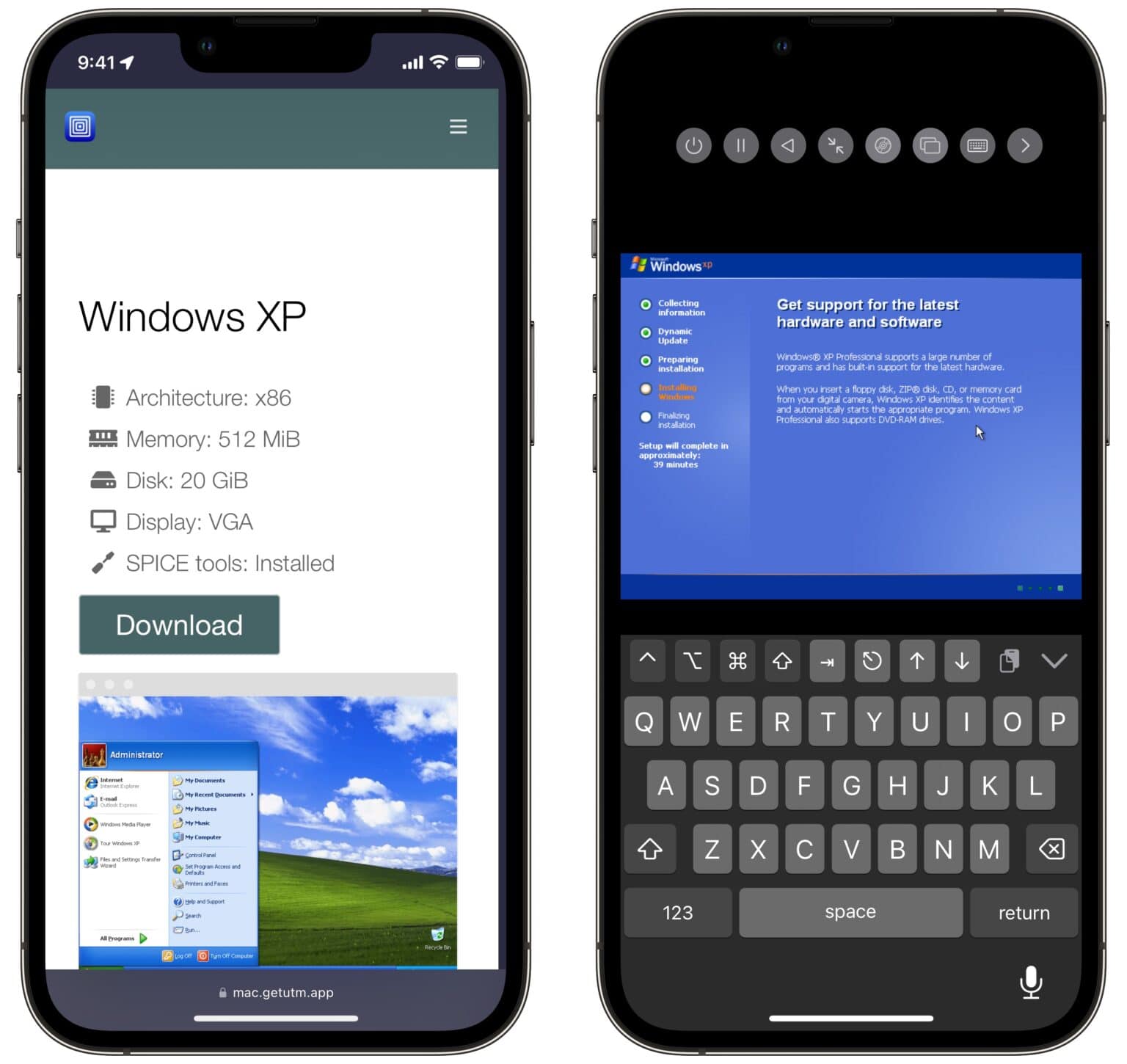
However, modern sideloading techniques and permitted developer tools have allowed more robust open-source emulators, such as UTM, to emerge. UTM utilizes QEMU under the hood to virtualize or emulate various operating systems on iOS devices.
- Prerequisites: An iPhone with sufficient free storage, a sideloading utility (such as AltStore or SideStore) if the app is not installed via alternative app marketplaces, and a legitimate Windows XP installation ISO file.
- Process: The user configures a virtual machine profile specifying RAM allocation (often limited to 256MB or 512MB to maintain stability), virtual hard disk size, and CPU cores, then mounts the XP installation media to boot the setup wizard.
- Performance: Sluggish boot times, high battery consumption, and thermal throttling are common due to the intense CPU translation required.
Remote Desktop Streaming
For users seeking functional performance rather than an offline curiosity, remote desktop streaming is the industry standard. Instead of forcing the iPhone to emulate an x86 processor, a host computer running Windows XP (either bare-metal or inside a modern hypervisor like VirtualBox) does all the heavy lifting. The iPhone merely acts as a client display and input receiver.
- Prerequisites: A host computer turned on and connected to the internet, a stable local network or VPN connection, and an iOS Remote Desktop client (such as Microsoft Remote Desktop, Jump Desktop, or VNC Viewer).
- Process: The host computer streams its desktop video output to the iPhone app while transmitting touch and keyboard commands back to the host.
- Performance: Fluid frame rates and rapid response times, entirely dependent on network latency and connection stability.
| Feature / Metric | Local Emulation (e.g., UTM) | Remote Desktop Streaming |
|---|---|---|
| Primary Requirement | Compatible iOS device, ISO file, sideloading tool | Host PC, internet/local network, client app |
| Internet Connection | Not required after setup | Strictly required |
| Execution Location | Locally on iPhone processor | Remotely on host PC hardware |
| Speed & Responsiveness | Extremely slow, high latency | Fluid, real-time responsiveness |
| Battery Impact | Severe drain, high heat generation | Moderate drain (display and Wi-Fi active) |
| Primary Use Case | Technical experimentation, offline novelty | Functional remote administration, legacy apps |
Step-by-Step Overview of Local Emulation
For those pursuing local emulation out of technical curiosity, the procedure demands patience and strict adherence to software guidelines. Because Apple maintains strict security boundaries regarding JIT (Just-In-Time) compilation and hypervisor access in standard App Store applications, local x86 emulators usually require sideloading.
1. Preparing the Environment
Ensure your iPhone has at least 2GB to 4GB of free storage space to accommodate the application, virtual disk image, and installation files. Install a reputable sideloading tool on your computer and connect your iPhone via cable to authorize the installation of third-party utility applications in accordance with your regional software policies.
2. Configuring the Virtual Machine
Launch the emulator application and create a new virtual machine.
- Assign a modest amount of RAM. Allocating too much memory can cause the iOS operating system to terminate the background process to reclaim resources.
- Set up a virtual hard drive image (QCOW2 or IMG format) sized around 4GB to 10GB.
- Attach a legal Windows XP installation ISO file as the virtual optical drive.
3. Executing the Installation
Start the virtual machine. You will see the standard text-based setup routines characteristic of Windows XP installation media.
- Use the virtual mouse cursor or touch-to-mouse mapping within the emulator app to navigate menus.
- Format the virtual partition using the NTFS file system (quick format is recommended to speed up the process).
- Allow the file copy and graphical installation phase to complete. Due to CPU translation overhead, this phase can take anywhere from thirty minutes to several hours depending on your iPhone model.
Operational Limitations and Security Realities
Running a legacy operating system from 2001 on modern mobile hardware introduces substantial limitations that make daily productivity impractical.
Input Mismatches
Windows XP was designed strictly around physical keyboard shortcuts and precise mouse navigation. Translating these paradigms to a capacitive multi-touch iPhone screen is inherently awkward. Right-clicking requires long-press gestures or on-screen modifier keys, and typing demands an on-screen software keyboard that consumes half the vertical display estate.
Driver and Hardware Support
Emulators present virtualized, generic hardware components to guest operating systems. Advanced graphics acceleration (DirectX 3D rendering) is rarely supported efficiently in software-based x86 emulators on iOS. Consequently, graphical user interfaces feel stuttery, and hardware-dependent legacy games or specialized software will frequently crash upon launch.
Severe Security Vulnerabilities
Microsoft officially ended extended support for Windows XP in April 2014. The operating system receives no security patches, vulnerability fixes, or definition updates. Connecting a local or virtualized instance of Windows XP to the internet exposes the system to unpatched exploits, malware, and network intrusions. If you successfully boot Windows XP on an iPhone, keep the virtual network adapter disabled to prevent security compromises.
Frequently Asked Questions
Can I run Windows XP natively on an iPhone without an emulator?
No. iPhones use ARM-based processors, whereas Windows XP requires x86 architecture. Native execution is impossible without hardware-level instruction translation or virtualization software.
Is it legal to download a Windows XP ISO file for mobile emulation?
Downloading Windows XP ISO files from arbitrary internet repositories violates copyright law unless you possess a valid, legally acquired product key and license media from Microsoft. Microsoft has not released Windows XP into the public domain.
Will running Windows XP drain my iPhone battery?
Yes. Local emulation forces the iPhone's processor to constantly translate foreign instruction sets, keeping CPU cores active at high clock speeds. This causes rapid battery drainage and noticeable thermal warming.
Can I run old Windows XP games on my iPhone using this method?
While simple 2D games like Minesweeper or Solitaire may run, resource-intensive 3D titles will fail to launch or suffer from unplayable frame rates due to the lack of hardware GPU acceleration in software-only emulators.
What is the best alternative if I urgently need a Windows application on iOS?
Using a remote desktop client to connect to a primary desktop computer or renting a cloud-based Windows virtual private server (VPS) provides vastly superior performance, stability, and compatibility.
Practical Next Actions
If you wish to explore legacy computing environments on mobile devices safely, prioritize remote desktop solutions over local emulation for any practical workflow. For pure technical experimentation, ensure your device operating system is backed up, utilize open-source and vetted emulation software packages, and keep any virtualized legacy environments isolated from local networks and the broader internet.
Image Gallery