Comprehensive Guide to iPhone App Developer Software and Ecosystem Tools in 2026
Choosing the right iPhone app developer software is essential for building, testing, and deploying high-performance applications for iOS, iPadOS, macOS, watchOS, and tvOS. The modern Apple development ecosystem relies heavily on Xcode...
Choosing the right iPhone app developer software is essential for building, testing, and deploying high-performance applications for iOS, iPadOS, macOS, watchOS, and tvOS. The modern Apple development ecosystem relies heavily on Xcode as its primary integrated development environment, supported by advanced frameworks like SwiftUI, SwiftData, and Metal. Whether you are building an independent utility or an enterprise-grade platform, mastering these tools ensures compliance with App Store guidelines and optimization for Apple Silicon hardware.
Contents
Understanding the Apple Development Ecosystem and Core Requirements
Building software for iOS requires a specific hardware and software stack. Apple enforces a strict ecosystem boundary, meaning native iOS applications must be developed using tools that run on macOS.
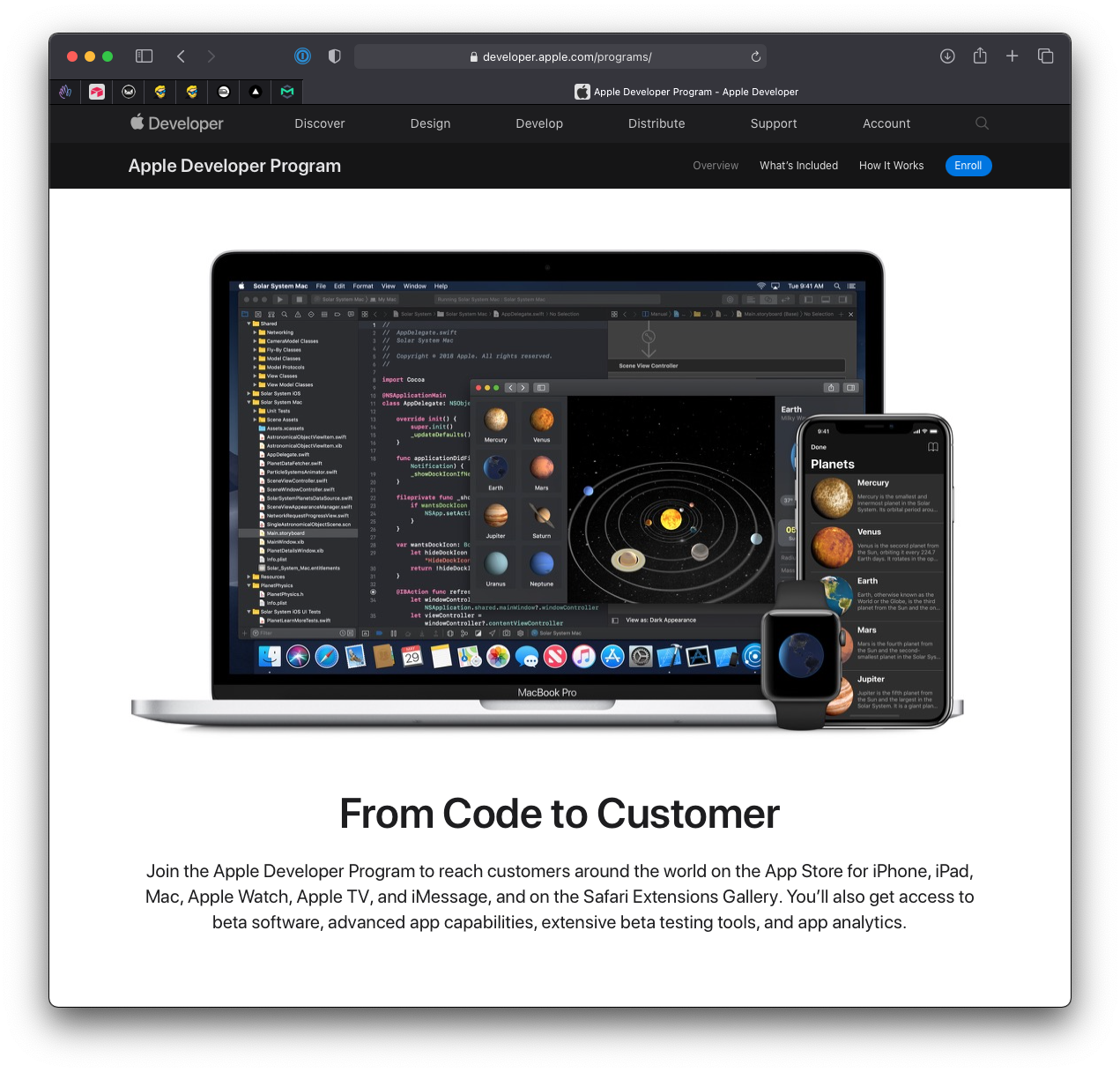
At the center of this ecosystem is Xcode, Apple's official integrated development environment (IDE). Xcode provides everything developers need to create applications, from source code editing and UI design to debugging, testing, and optimization. To maximize performance and utilize the latest features of iOS, developers must also be familiar with the Swift programming language, a modern, safe, and fast language designed to replace Objective-C.
Essential Hardware and Software Prerequisites
- Mac Computer: An Intel-based Mac running supported macOS versions or an Apple Silicon Mac (M1, M2, M3, M4 series) is mandatory for running Xcode.
- Apple Developer Account: Required for testing on physical devices, utilizing advanced capabilities like Push Notifications or CloudKit, and distributing applications through the App Store.
- macOS and Xcode Versions: Keeping both macOS and Xcode updated to their latest stable releases ensures access to modern APIs, compiler enhancements, and security patches.
Deep Dive into Xcode: The Standard iPhone App Developer Software
Xcode is much more than a simple code editor; it is a comprehensive suite of software development tools designed specifically for Apple platforms. It integrates interface design, coding, testing, and submission into a single unified workflow.
Key Components of the Xcode Environment
- Interface Builder and SwiftUI Previews: Allows developers to design user interfaces visually or through declarative code, with live rendering that updates instantly as code changes.
- Source Editor: Features intelligent code completion, syntax highlighting, refactoring tools, and source control integration with Git.
- Instruments: A powerful performance-analysis tool that helps developers track down memory leaks, CPU bottlenecks, graphics rendering hitches, and battery drain.
- iOS Simulator: A simulated environment running on your Mac that mimics various iPhone and iPad models, screen resolutions, and iOS versions without requiring a physical device for every test.
Modern Frameworks and Languages for iOS Development
While Xcode provides the environment, the languages and frameworks you use determine how efficiently your app runs and how maintainable your codebase remains.
Swift vs. Objective-C
Swift is the undisputed standard for modern iOS development. Introduced by Apple to supersede Objective-C, Swift offers modern type safety, optional chaining, automatic memory management through Automatic Reference Counting (ARC), and concise syntax. Objective-C remains relevant primarily for maintaining legacy enterprise codebases, but all new projects should be initiated in Swift.
SwiftUI and UIKit
- SwiftUI: Apple's modern declarative framework for building user interfaces across all Apple platforms. It allows developers to write less code while achieving complex animations, adaptive layouts, and automatic Dark Mode support.
- UIKit: The mature, imperative framework used for decades in iOS development. While SwiftUI is the future, UIKit remains crucial for integrating complex legacy components or handling highly specialized UI behaviors not yet fully exposed in SwiftUI.
Comparing iOS Development Environments and Tools
While Xcode is mandatory for final compilation and App Store submission, developers often utilize complementary tools for cross-platform workflows, code editing, and API testing.
| Tool Name | Primary Function | Platform Availability | Best Use Case |
|---|---|---|---|
| Xcode | Native IDE, Compilation, Signing | macOS Only | Native iOS/macOS app creation, debugging, and App Store deployment. |
| Visual Studio Code | Lightweight Source Code Editor | macOS, Windows, Linux | Cross-platform web development, editing React Native or Flutter scripts before compilation. |
| JetBrains AppCode | Swift/Objective-C IDE | macOS | Advanced code refactoring and static analysis (discontinued, but historically relevant). |
| Postman | API Testing and Documentation | macOS, Windows, Linux | Testing RESTful APIs and backend integration points for iOS apps. |
Step-by-Step Workflow for Setting Up Your First iOS Development Environment
To begin building iPhone applications, follow this structured setup procedure to configure your workstation and software stack properly.
- Obtain a Compatible Mac: Ensure your Mac is running a modern version of macOS that supports the current major release of Xcode.
- Download and Install Xcode: Navigate to the Mac App Store or the Apple Developer Downloads portal to download Xcode. Ensure you allocate sufficient disk space, as Xcode installations often exceed 30GB with all simulators installed.
- Install Command Line Tools: Open Terminal and run the command
xcode-select --installto install essential compilation tools required by package managers like CocoaPods or Swift Package Manager. - Configure an Apple Developer Account: Open Xcode settings, navigate to the Accounts tab, and sign in with your Apple ID to enable automatic code signing and device provisioning.
- Create a New Xcode Project: Launch Xcode, select "Create a new Xcode project," choose the iOS platform, and select the App template. Choose SwiftUI as your interface option and Swift as your language.
- Test on Simulator: Select an iPhone simulator from the scheme menu at the top of the Xcode window and press the Play button (or
Cmd + R) to compile and run your default empty template application.
Best Practices and Performance Optimization in 2026
Building a successful iOS application requires adhering to strict performance, security, and design standards.
- Memory Management: Utilize Swift's ARC effectively by avoiding strong reference cycles (retain cycles) using
[weak self]or[unowned self]closures in asynchronous tasks. - UI Responsiveness: Never perform heavy network requests, database queries, or intensive computations on the main thread. Always offload work to background threads using Swift Concurrency (
async/await). - Accessibility (a11y): Implement Dynamic Type and VoiceOver labels across all custom UI components to ensure your application is usable by individuals with visual or motor impairments.
- Security Standards: Implement App Transport Security (ATS) correctly, avoid hardcoding sensitive API keys, and utilize the iOS Keychain for secure credential storage.
Frequently Asked Questions About iPhone App Developer Software
Can I develop iPhone apps on a Windows PC?
While you can write cross-platform code (using frameworks like Flutter or React Native) on Windows, you cannot compile, sign, or test native iOS apps without a physical Mac running Xcode. macOS is strictly required for the final build and deployment pipeline.
Is an Apple Developer account required to test apps?
No, you can test apps on your personal physical iPhone for free by connecting it to your Mac and configuring free local code signing in Xcode. However, an active paid Apple Developer Program membership is required to distribute apps publicly on the App Store or use advanced capabilities like Apple Pay and push notifications.
What is the difference between SwiftUI and UIKit?
SwiftUI is a modern, declarative framework where you describe what your UI should look like, and the system handles the state changes. UIKit is an older, imperative framework where you manually manage view hierarchies and state transitions step-by-step.
How much does iPhone app developer software cost?
Xcode and the core development tools are entirely free to download and use. However, publishing apps on the Apple App Store requires an annual Apple Developer Program subscription fee of $99 USD.
What programming language should I learn for iOS development?
Swift is the primary language recommended by Apple for all modern iOS development due to its safety features, modern syntax, and deep integration with system frameworks.
Practical Recommendation
When starting your journey in iOS development, commit fully to the native Apple toolchain—utilize Xcode paired with Swift and SwiftUI. Avoid unnecessary cross-platform wrappers during your initial learning phase so you can fully understand the native lifecycle, memory management, and performance frameworks that Apple provides.
Image Gallery