How to Access Your Google Cloud Account: A Complete Step-by-Step Guide
To access your Google Cloud account, navigate to the Google Cloud Console in any modern web browser, sign in using the email address and password associated with your Google Cloud or Cloud Identity account, and select your target proje...
To access your Google Cloud account, navigate to the Google Cloud Console in any modern web browser, sign in using the email address and password associated with your Google Cloud or Cloud Identity account, and select your target project. Command-line users can authenticate directly through their local terminal by running the gcloud auth login command using the Google Cloud CLI.
Contents
Prerequisites for Accessing Google Cloud
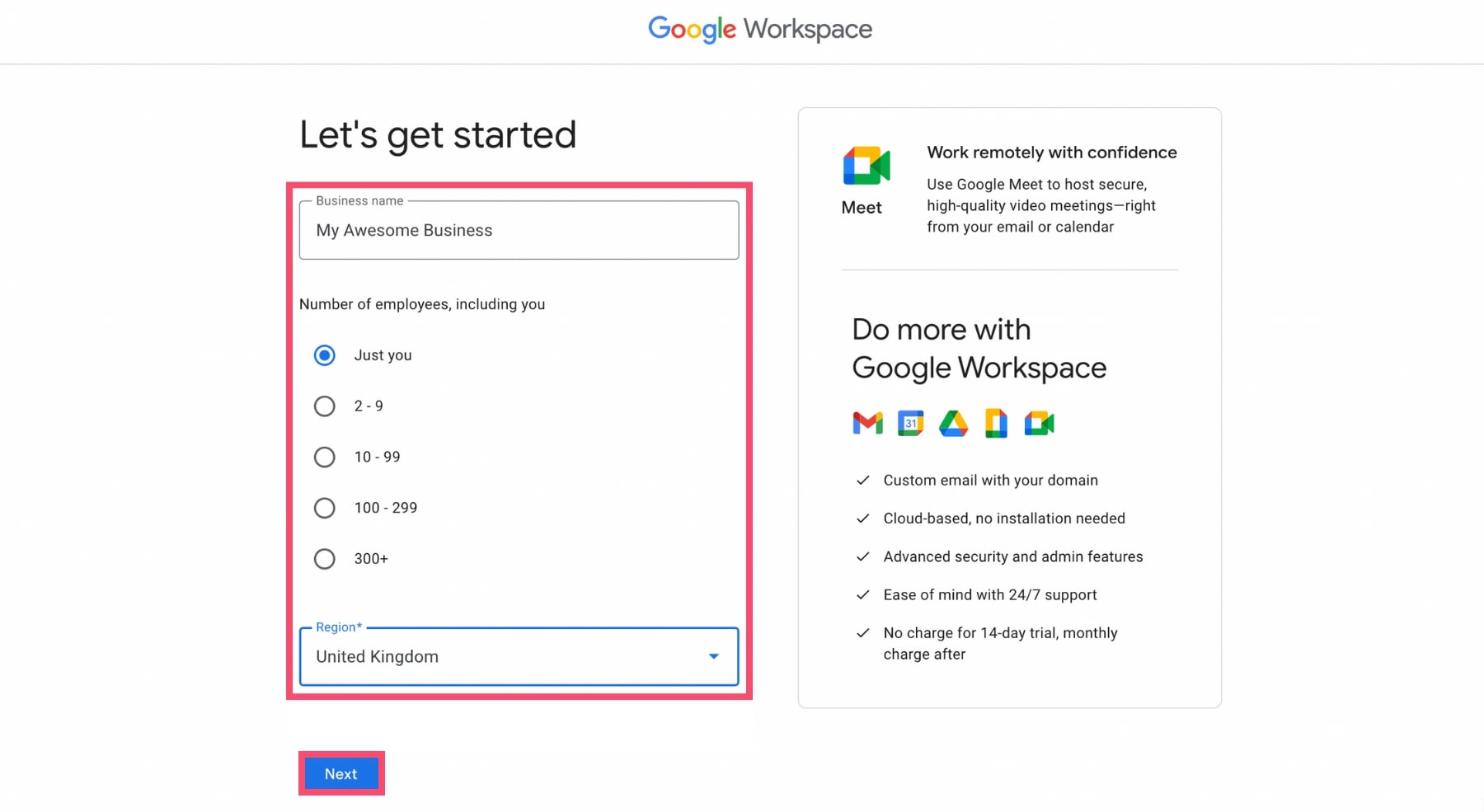
Before attempting to access Google Cloud resources, you must meet basic identity, authentication, and permission requirements. Google Cloud Platform (GCP) relies on Google’s unified identity infrastructure, meaning every user accesses the system through a recognized Google identity.
- User Identity
- Google Account, Google Workspace, Cloud Identity
- Authentication Layer
- SSO / 2FA
- IAM Authorization Check
- Checks Roles & Permissions for Target Project
- Google Cloud Resources
- Console, CLI, Cloud Shell, APIs
1. Recognized User Identity
To log in, you must use one of three primary identity types:
- Personal Google Account: An account registered with a
@gmail.comaddress or custom email address managed by Google. - Google Workspace Account: A corporate or educational email address managed by an organization using Google Workspace (formerly G Suite).
- Cloud Identity Account: A corporate account managed via Google Cloud Identity, which allows organizations to grant administrative access to non-Workspace users.
2. Identity and Access Management (IAM) Roles
Having an active account does not automatically grant access to specific virtual machines, storage buckets, or databases. Your organization's administrator must assign your identity specific IAM roles (such as Viewer, Editor, Owner, or custom granular roles like Storage Admin) within an Organization, Folder, or Project resource hierarchy.
3. Supported Browser & Terminal Requirements
For web-based access, Google Cloud supports current major browsers, including Google Chrome, Mozilla Firefox, Apple Safari, and Microsoft Edge. JavaScript and cookies must be enabled to preserve session tokens and handle security challenges. For local command-line access, you must install the Google Cloud SDK (gcloud CLI) on Windows, macOS, or Linux.
Primary Methods to Access Your Google Cloud Account
Google Cloud provides multiple interfaces designed for different technical tasks, operational environments, and security profiles.
Method 1: Accessing via the Web Console (Google Cloud Console)
The web console is the primary interface for visual resource management, administrative setup, billing review, and architecture visualization.
- Open the Console Page: Navigate to the Google Cloud Console.
- Enter Credentials: Enter your full email address (e.g.,
user@example.comoruser@gmail.com) and click Next. Enter your password. - Complete Multi-Factor Authentication (MFA): If your account or organization requires 2-Step Verification, enter the verification code sent to your authenticator app, hardware security key, or mobile device.
- Select a Project: Once logged in, click the Project Selector dropdown located in the top navigation bar (next to the Google Cloud logo) to switch between different organization projects and folders.
Method 2: Accessing via the Google Cloud CLI (gcloud)
For developers, systems engineers, and DevOps specialists, local access via the command line provides automateable control over cloud resources.
- Install the Google Cloud CLI: Download and install the CLI package appropriate for your operating system.
- Initialize the Environment: Open your local terminal or command prompt and execute:
gcloud init - Authenticate in Browser: If you want to log in without running full initialization, run:
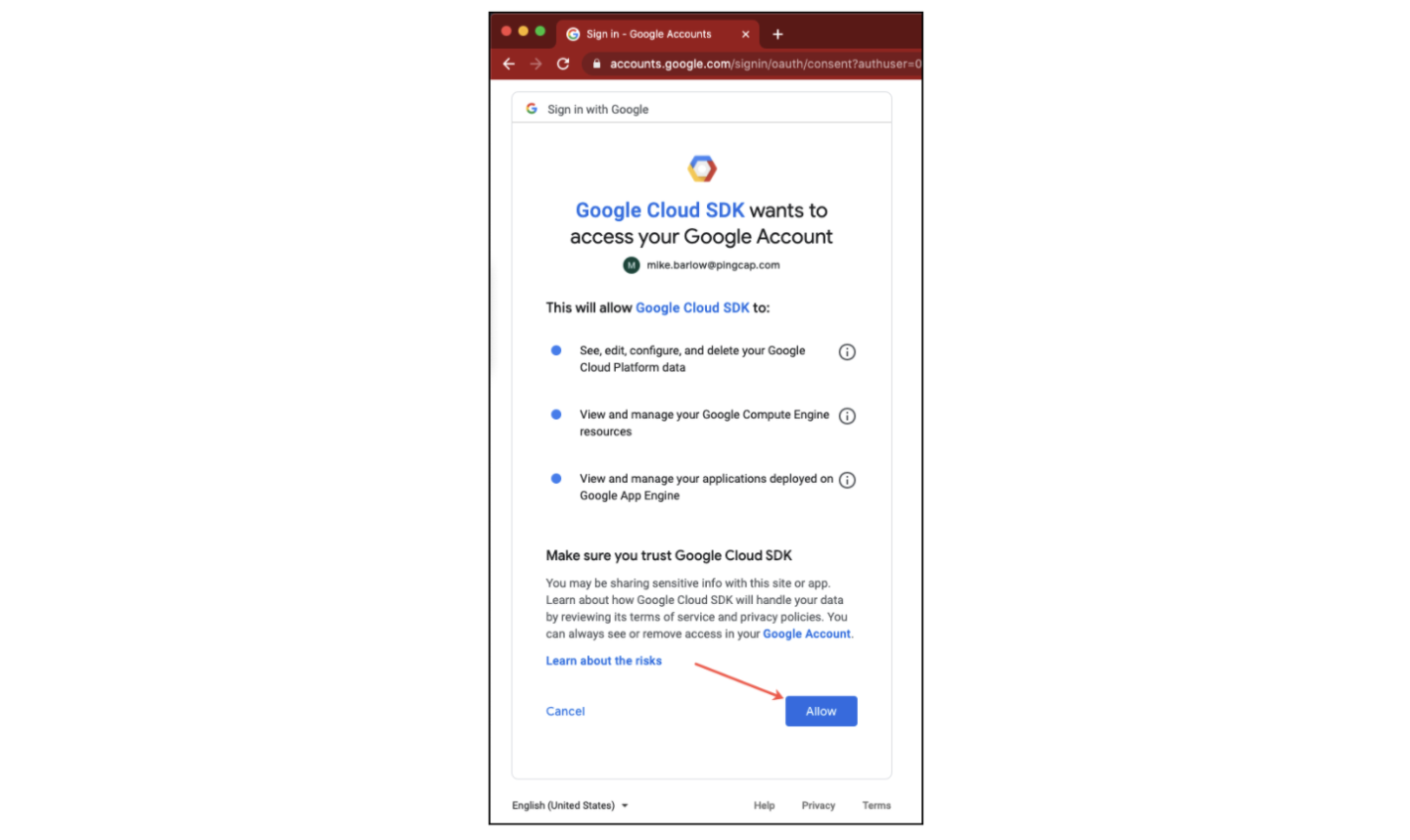
This command opens a web browser window prompting you to authorize the Google Cloud SDK to act on behalf of your account.gcloud auth login - Select Your Project and Region: Follow the terminal prompts to select an existing project and set default compute regions or zones.
Method 3: Accessing via Google Cloud Shell
Google Cloud Shell offers a pre-configured, browser-based Linux terminal environment accessible directly from the Google Cloud Console.
- Log in to the Google Cloud Console.
- Activate Cloud Shell: Click the Activate Cloud Shell icon (a terminal prompt symbol
>_) in the top-right toolbar. - Interact with Resources: Cloud Shell automatically authenticates your session with the credentials used to log into the web console, granting immediate access to pre-installed developer tools including
gcloud,docker,kubectl, andterraform.
Method 4: Accessing via the Google Cloud Mobile App
For monitoring infrastructure on the go, Google offers an official mobile application for iOS and Android.
- Download the App: Install the official Google Cloud App from the Apple App Store or Google Play Store.
- Sign In: Open the app and sign in using your Google Cloud credentials.
- Monitor Infrastructure: View resource status, monitor budget alerts, stop or restart Virtual Machine (VM) instances, and respond to active incidents directly from your mobile device.
Summary of Google Cloud Access Interfaces
| Access Interface | Primary Use Case | Target Audience | Authentication Mechanism | Required Tools |
|---|---|---|---|---|
| Cloud Console | Visual management, monitoring, billing setup, and identity configuration | Administrators, Architects, Beginners | Web-based SSO / OAuth 2.0 / 2FA | Modern Web Browser |
| Google Cloud CLI | Scripting, continuous deployment, automation, local testing | DevOps Engineers, Developers | Local token exchange via gcloud auth login |
Terminal, gcloud SDK |
| Cloud Shell | Quick operational tasks, debugging, standard tool execution | Developers, System Admins | Automatic inheritance from Console session | Browser (Integrated VM) |
| Cloud Mobile App | Real-time monitoring, metric tracking, emergency instance restarts | On-call Engineers, IT Managers | Mobile OAuth 2.0 / Device Passcode | iOS or Android App |
| Service Accounts | Machine-to-machine, automated API pipelines, CI/CD runners | Systems, Automated Applications | Service Account Keys, Workload Identity | Service Account Keys, IAM Tokens |
Authentication Protocols and Single Sign-On (SSO) Integration
Enterprise environments rarely rely on simple username-and-password combinations. Google Cloud integrates directly with corporate identity providers (IdPs) through Cloud Identity and Workforce Identity Federation.
- Enterprise IdP (Okta, Azure AD)
- Protocol: SAML
- Google Cloud Identity
- Protocol: OIDC
- Google Cloud Resources & Console
Enterprise Single Sign-On (SSO)
When logging into an enterprise Google Cloud account, entering your email address may redirect your browser to an external identity provider such as Okta, Microsoft Azure Active Directory (Azure AD / Entra ID), or Ping Identity. Once authenticated by your company's identity provider using SAML 2.0 or OpenID Connect (OIDC), your session redirects back to the Google Cloud Console automatically.
Multi-Factor Authentication (MFA / 2-Step Verification)
Google Cloud supports enforced MFA policies. When accessing an account protected by 2-Step Verification, users must provide a second factor, such as:
- Security Keys: Hardware keys complying with FIDO2/WebAuthn standards (e.g., YubiKey).
- Google Prompt: Push notifications sent to an authenticated mobile device.
- Authenticator Apps: Time-based One-Time Password (TOTP) apps (e.g., Google Authenticator).
Service Account Access for Programmatic Workloads
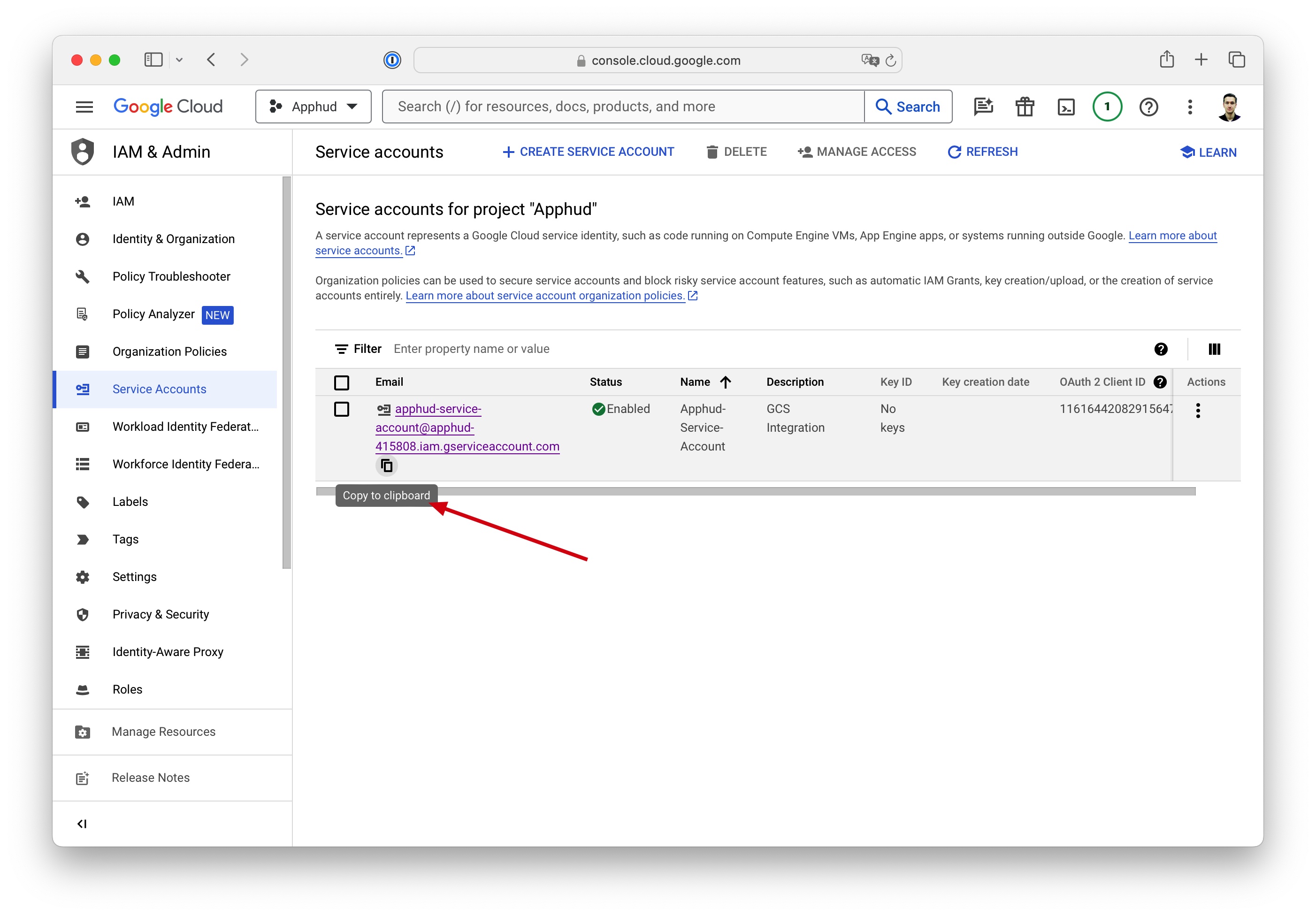
Human users use accounts tied to email addresses, but automated systems use Service Accounts. Service accounts do not access the web console directly through a traditional login screen; instead, they authenticate using:
- Workload Identity Federation: Allows external workloads (such as AWS, Azure, or GitHub Actions) to exchange short-lived tokens without storing long-lived security keys.
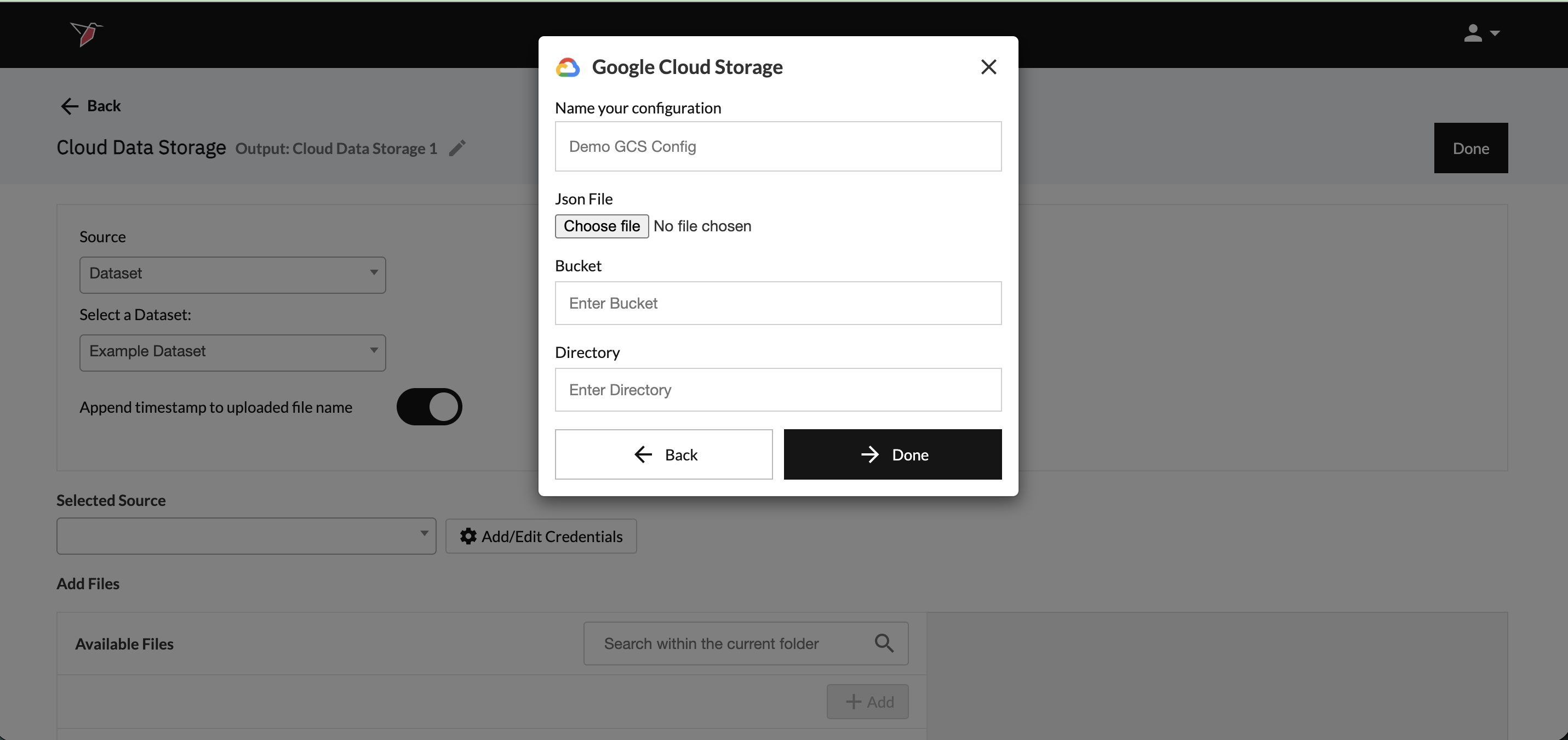
- Service Account Keys: Downloadable JSON private key files used by applications to call Google Cloud APIs. Note: Best practices recommend minimizing the usage of static key files in favor of temporary token generation.
Troubleshooting Common Google Cloud Access Issues
Access attempts can occasionally fail due to permission misconfigurations, session timeouts, or network restrictions.
Issue 1: "403 Forbidden" or "Permission Denied" Errors
- Cause: Your account identity was authenticated successfully, but it lacks the specific IAM permission required to view the requested page or resource.
- Solution: Verify that you have selected the correct project from the top dropdown menu. If the project is correct, contact your Organization Administrator or IAM Admin to request the appropriate IAM role (e.g.,
Compute ViewerorStorage Admin).
Issue 2: Redirect Loop or Persistent Authentication Prompts
- Cause: Stale browser cookies, conflicting multi-account Google sessions, or browser extensions blocking third-party tracking scripts.
- Solution: Clear browser cookies and cache, open an Incognito/Private window, or sign out of all other Google accounts before logging back into Google Cloud.
Issue 3: Unable to Log In via gcloud Command Line
- Cause: Network proxies, missing local credentials, or outdated gcloud components.
- Solution: Re-authenticate your local machine by executing the following commands in order:
If you operate behind a corporate proxy, configure the HTTP proxy settings inside your terminal environment before running the authentication command.gcloud auth revoke --all gcloud auth login gcloud config set project YOUR_PROJECT_ID
Issue 4: Account Locked or Password Reset Needed
- Cause: Repeated incorrect password entries or automated security flags triggered by unusual login locations.
- Solution: For personal accounts, use the standard Google Account Recovery process. For corporate or Workspace accounts, contact your organization's internal IT helpdesk or Google Workspace administrator to reset your password and reset your MFA credentials.
Security Best Practices for Account Access
Safeguarding access to your Google Cloud environment is critical to preventing unauthorized data exposure, unexpected infrastructure charges, and operational disruptions.
1. Apply the Principle of Least Privilege
Do not grant broad roles such as Owner or Editor for daily tasks. Assign granular predefined roles or custom IAM roles tailored specifically to job duties. Administrators should conduct periodic access reviews using the IAM Recommender tool to remove unused permissions.
2. Enforce Mandatory Multi-Factor Authentication
Organization administrators should enforce 2-Step Verification globally across all corporate accounts via the Google Admin Console or Cloud Identity console. Security keys (FIDO2) provide the strongest resistance against phishing attacks.
3. Restrict Session Duration and IP Addresses
Use Context-Aware Access policies within Cloud Identity to restrict console access based on specific network location, IP ranges, device security state, or geographic parameters. Additionally, set enforced re-authentication time limits for session tokens.
4. Audit Login and Access Logs
Monitor authentication attempts and administrative activities by reviewing Cloud Audit Logs. Set up real-time alerting using Cloud Logging and Security Command Center to detect suspicious login patterns, such as authentication attempts from unauthorized locations or unexpected service account key creations.
Frequently Asked Questions
What URL do I use to log into Google Cloud directly?
You can access the Google Cloud web interface directly by visiting https://console.cloud.google.com. If your company uses a specialized portal or Single Sign-On link, you may be redirected through your organization's corporate login page first.
Can I log into Google Cloud using a standard personal Gmail account?
Yes. You can create and access a Google Cloud account using a standard @gmail.com address. New individual users are frequently eligible for free credits upon initial registration to test Google Cloud services.
How do I switch between multiple Google Cloud accounts in the console?
Click your profile avatar in the upper right-hand corner of the Google Cloud Console screen. From the dropdown menu, select another signed-in Google account or click Add another account to authenticate additional identities without logging out of your current session.
What is the difference between logging in with a user account and a service account?
User accounts represent human users (employees, system administrators) and authenticate via web forms, browser logins, passwords, and MFA. Service accounts represent non-human workloads (applications, scripts, pipelines) and authenticate using cryptographic tokens or key files without interactive prompt screens.
Why does Google Cloud say "No Projects Found" after I sign in?
This occurs when your account identity has not yet been assigned permissions to any active Google Cloud project, or when your newly created account has not yet initialized its first project. Click Create Project on the dashboard home screen or ask your project administrator to add your email address to an existing project via the IAM console.
Recommended Next Steps
Now that you know how to access your Google Cloud account, take the following steps to ensure your working environment is properly configured:
- Set Up a Project: Open the Google Cloud Console, click the project dropdown, and create a new project to isolate your infrastructure.
- Configure Local CLI Tools: Install the Google Cloud SDK on your workstation and execute
gcloud initto sync your local environment with your remote cloud project. - Review IAM & Security Settings: Access the IAM & Admin dashboard within the console to verify user roles and enable 2-Step Verification on your identity profile.
Image Gallery