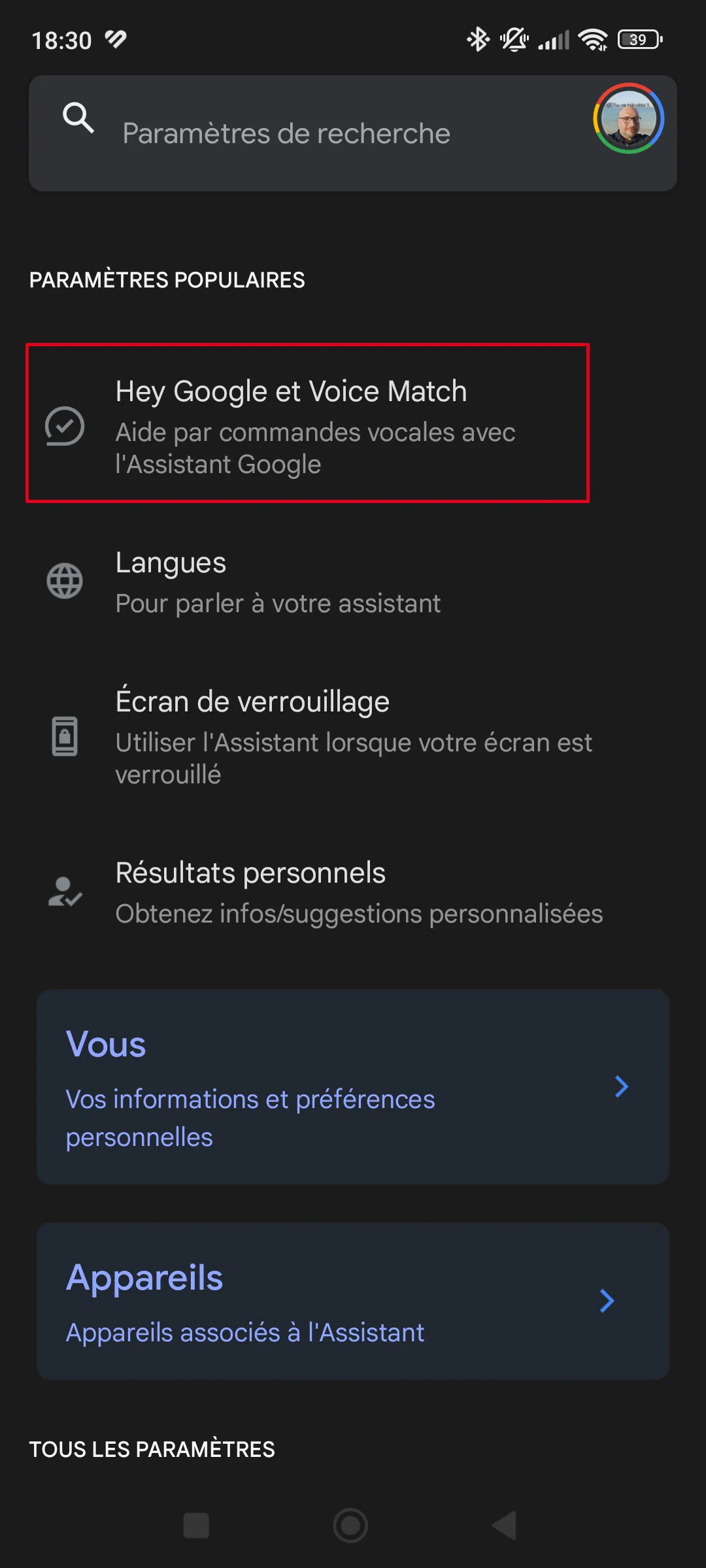
How to Activate Hey Google on Android
Activating the "Hey Google" voice command on your Android device requires configuring the Google Assistant settings, ensuring your voice model is properly trained, and granting the necessary system permissions. This process allows hand...
Activating the "Hey Google" voice command on your Android device requires configuring the Google Assistant settings, ensuring your voice model is properly trained, and granting the necessary system permissions. This process allows hands-free interaction for tasks like setting reminders, making calls, and playing media.
Contents
Understanding Google Assistant and Voice Match on Android
Google Assistant serves as the core virtual assistant ecosystem across Android smartphones and tablets. It leverages machine learning models to process natural language, execute device-level commands, and retrieve real-time information from the web. The "Hey Google" and "Ok Google" hotword triggers rely on a feature called Voice Match.
Voice Match listens continuously for specific acoustic patterns matching the hotword while running in a low-power listening mode on your device's digital signal processor (DSP). This architecture minimizes battery drain while ensuring the microphone array remains ready to capture your commands. Once the acoustic trigger is recognized, the system wakes the main processor, records your subsequent voice input, and sends it securely to Google servers for processing, or handles it locally if the device supports on-device speech recognition.
For Voice Match to function correctly, several underlying system requirements must be met:
- An active Google account signed into the Google app.
- The latest stable version of the Google app installed from the Google Play Store.
- Microphone permissions explicitly granted to the Google app.
- Device language set to a supported locale for Google Assistant.
- Unobstructed microphone hardware free of physical debris or case interference.
Prerequisites and System Requirements for Voice Activation
Before configuring your settings, verify that your device meets the software and hardware prerequisites. Older Android versions or heavily customized manufacturer skins may route assistant features differently, requiring updates to Google Play Services and the primary Google application.
You must also ensure that battery optimization settings do not restrict the Google app from running in the background. Aggressive power-saving modes often terminate background listening services, which disables the hotword detection feature when the screen is off or when using other applications.
| Component | Minimum Requirement | Recommended Standard |
|---|---|---|
| Android OS Version | Android 8.0 (Oreo) | Android 14 or Android 15 |
| Google App Version | v12.0 or higher | Latest available 2026 stable release |
| Google Play Services | v21.0+ | Latest available version |
| Internet Connection | 3G / Basic Wi-Fi | High-speed 4G LTE, 5G, or stable Wi-Fi |
Step-by-Step Guide to Activating Hey Google
Enabling voice activation involves navigating through the Google app settings menu to turn on Assistant responses and train your voice model. Follow this sequential workflow to complete the setup process successfully.
- Open the Google app on your Android smartphone or tablet.
- Tap your Profile Picture or initial in the top-right corner of the screen to open the account menu.
- Select Settings from the drop-down options.
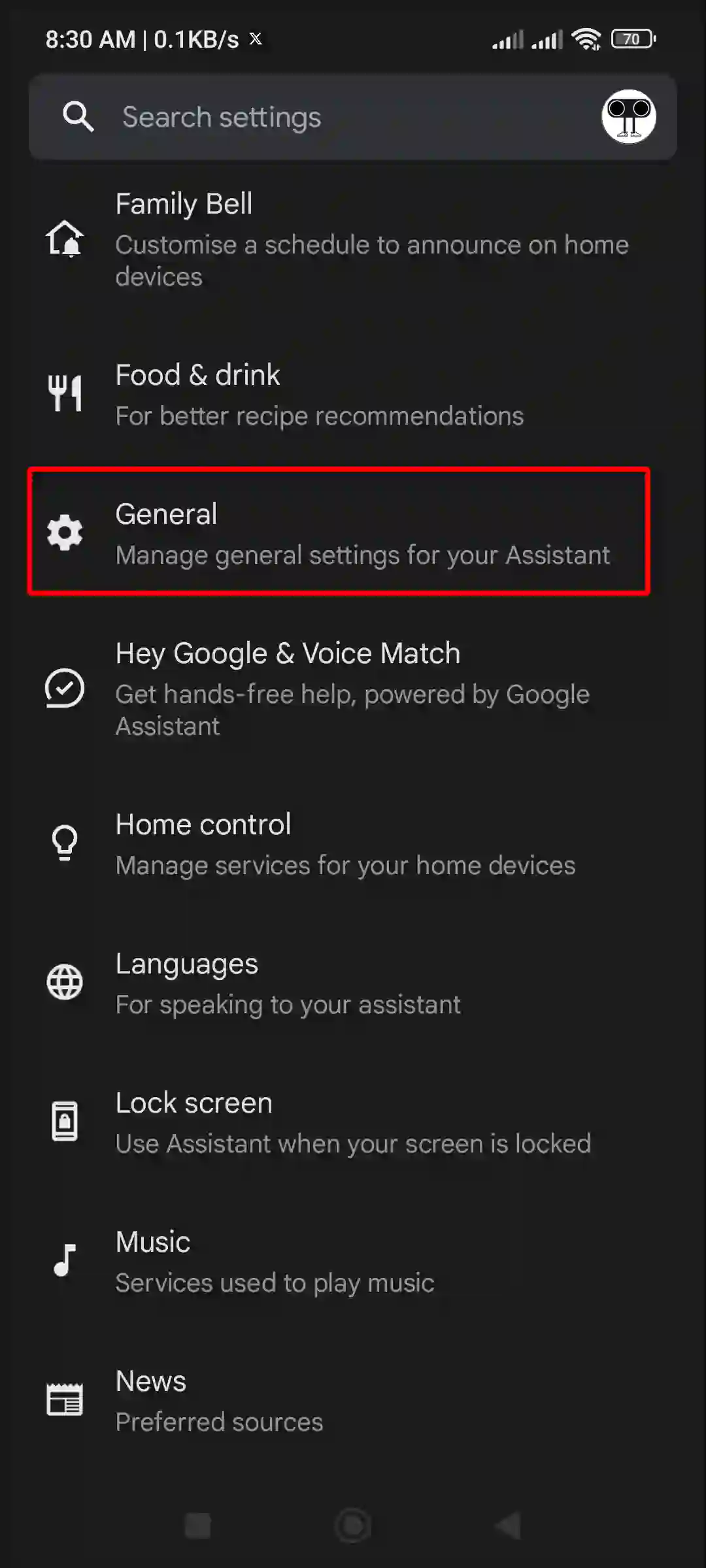
- Tap on Google Assistant to access assistant-specific configuration panels.
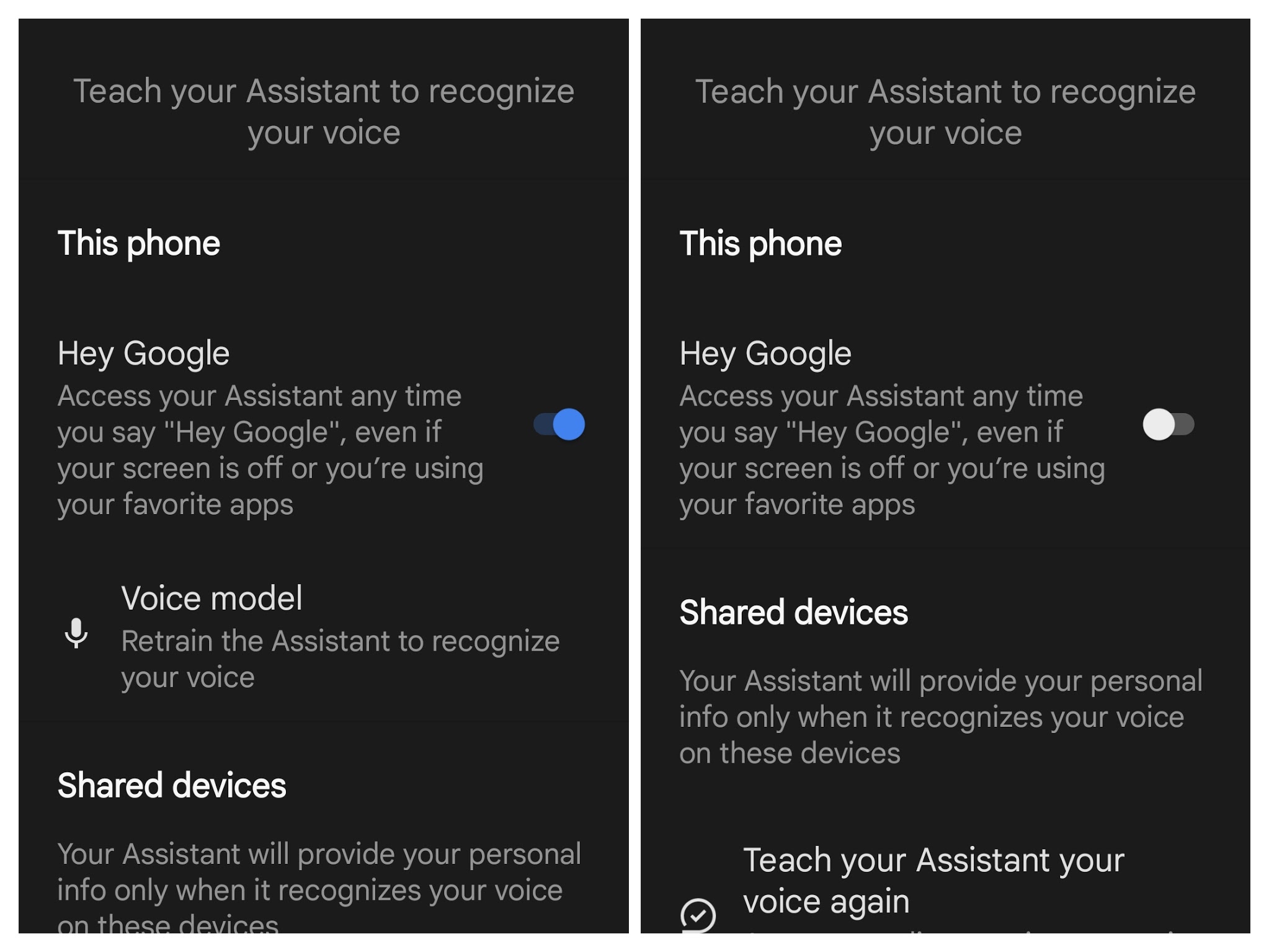
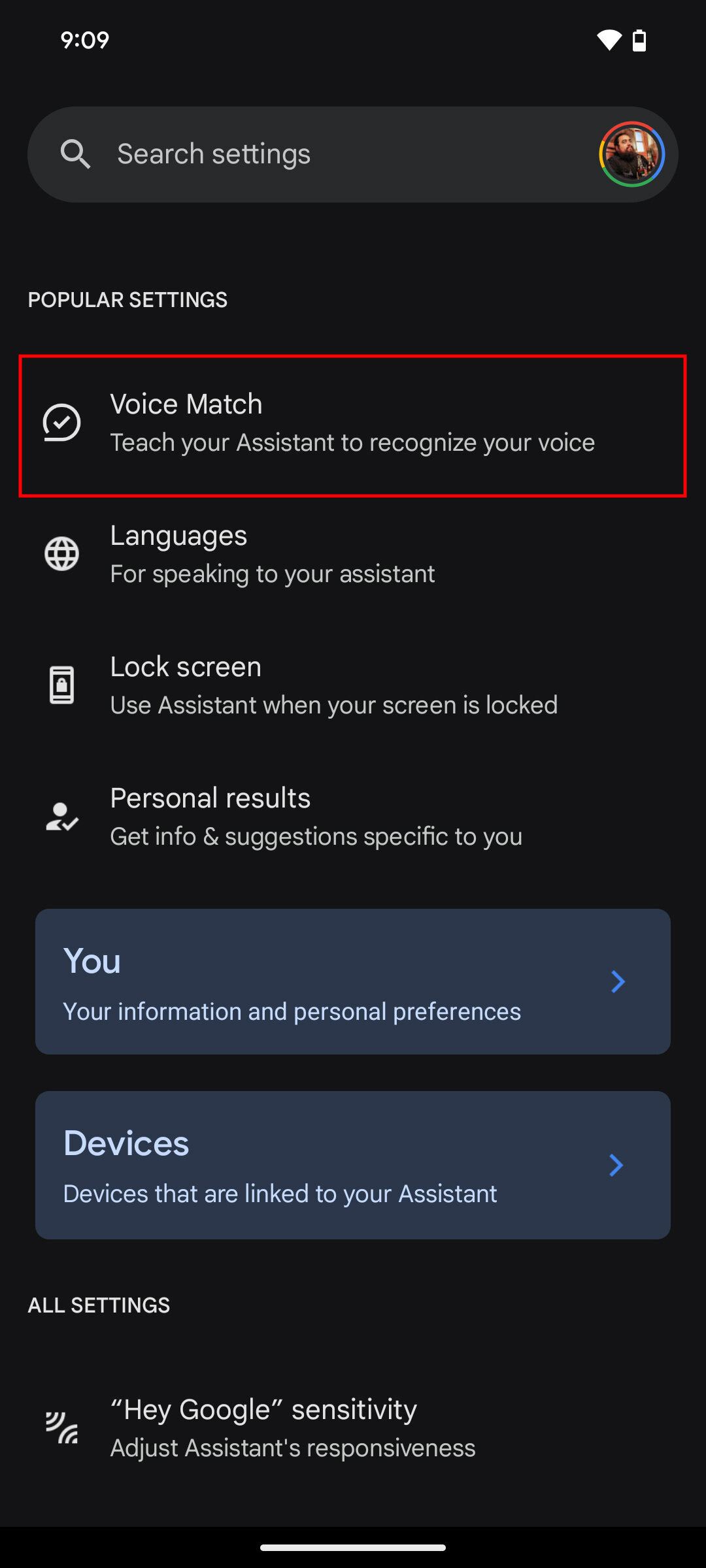
- Select Hey Google & Voice Match from the list of menu items.
- Toggle the Hey Google switch to the On position.
- Follow the on-screen prompts to train the system by repeating the phrases "Hey Google" and "Ok Google" multiple times to record your unique voice signature.
Once completed, the system saves your voice profile securely on the device, allowing the assistant to respond primarily to your voice rather than ambient sounds or other speakers.
Comparing Voice Activation Settings and Configurations
Different Android configurations offer varying levels of accessibility and lock-screen integration. Understanding how these settings interact helps you balance convenience against privacy and security.
| Setting Mode | Behavior When Screen is Locked | Battery Impact | Security Level |
|---|---|---|---|
| Standard Voice Match | Responds to basic queries; requires unlock for personal data. | Low | Moderate |
| Always-On Hotword | Listens continuously even in standby mode. | Medium-High | Moderate |
| Disabled Voice Match | Requires manual button press or swipe to activate. | Minimal | High |
| Trusted Voice (Legacy) | Bypasses lock screen completely for matched voice. | Low | Low (Not Recommended) |
Troubleshooting Common Voice Activation Failures
Users frequently encounter scenarios where the "Hey Google" trigger stops responding due to software conflicts, outdated application caches, or competing audio services. System-level audio focus management can sometimes prevent the Google app from accessing the microphone array.
Microphone Conflict Resolution: If another application like a voice recorder, phone call manager, or VOIP client holds exclusive access to the microphone, Google Assistant cannot listen for the hotword. Force-close background audio applications and restart the Google app to restore functionality.
Resolving Retrain Voice Match Errors
If the system fails to recognize your voice during setup or daily use, environmental noise is often the primary culprit. Perform the voice model retraining in a quiet room, speaking in your normal conversational tone without shouting. If the problem persists, clear the application cache by navigating to your device Settings > Apps > Google > Storage > Clear Cache, then restart the device before attempting the setup workflow again.
Handling Assistant Language Mismatches
Voice Match requires your Google Assistant language settings to match the primary system language of your Android device. If you use a regional dialect that is not fully supported by the assistant's hotword engine, the feature may toggle off automatically. Verify your language settings under Google App > Settings > Google Assistant > Languages.
Frequently Asked Questions
Why does Hey Google stop working when my phone screen is turned off?
Battery optimization settings often put the Google app to sleep when the screen is locked to conserve power. To fix this, disable battery restrictions for the Google app in your device's system settings under App Info.
Can multiple people use Hey Google on the same Android device?
Yes, you can train multiple voice profiles using the Voice Match feature if the device supports multi-user profiles or shared voice models. However, personal results like texts and emails will only appear for the account linked to the primary profile.
Does keeping Hey Google active drain the device battery quickly?
The feature uses a low-power digital signal processor to listen for the hotword, resulting in minimal battery consumption on modern Android hardware. Impact increases slightly on older processors that lack dedicated low-power audio co-processors.
Why is the Hey Google toggle greyed out in my settings?
A greyed-out toggle usually indicates that enterprise policies, school accounts, or restricted user profiles block assistant features. Switching to a standard personal Google account typically resolves this restriction.
How do I delete my Voice Match recording from Google servers?
You can delete your voice model and associated audio data by navigating to your Google Account activity controls, selecting Voice and Audio Activity, and deleting the saved recordings or turning off the setting entirely.
Optimizing Your Voice Assistant Experience
Maintaining optimal performance for your voice-activated assistant requires keeping your system software updated and periodically verifying microphone permissions. Regularly check for updates to the Google app via the Google Play Store to ensure access to the latest bug fixes, security patches, and natural language processing improvements. Adjust your assistant sensitivity settings if you experience false activations caused by television audio or general household noise.
Pro Tip: If your device fails to wake up consistently, check for physical lint or dust inside the primary microphone port located near the bottom of your phone. Cleaning this port with a soft, dry tool restores clear audio input for the Voice Match algorithm.
Image Gallery