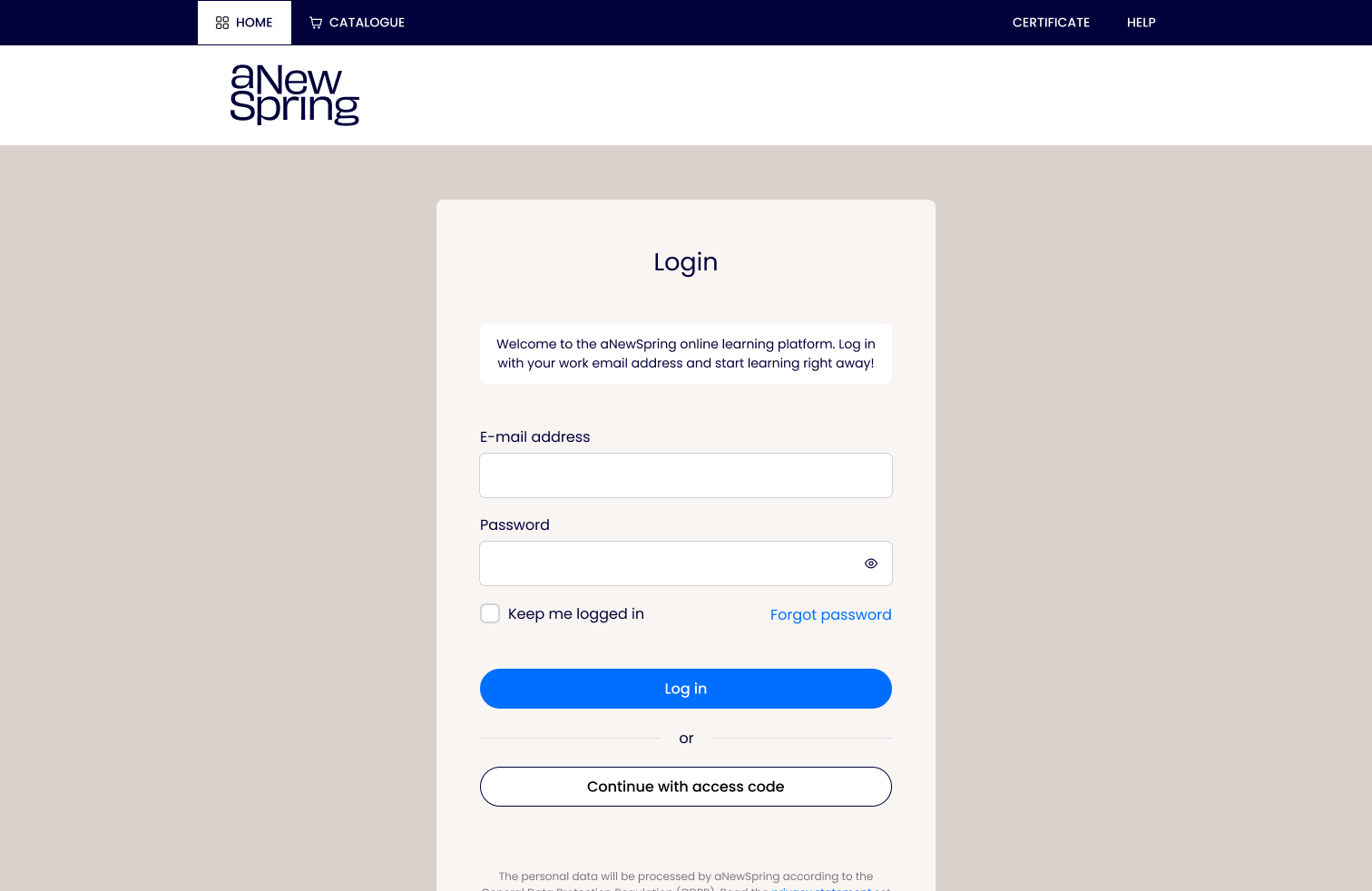
MyExperience Log In: Complete Access and Troubleshooting Guide for 2026
To access the MyExperience portal in 2026, navigate to the official organizational Single Sign-On (SSO) gateway using your assigned Global ID or corporate email address and secure password. This centralized platform serves as the prima...
To access the MyExperience portal in 2026, navigate to the official organizational Single Sign-On (SSO) gateway using your assigned Global ID or corporate email address and secure password. This centralized platform serves as the primary hub for employee scheduling, payroll, and training modules. While most commonly utilized by McDonald's employees globally, the term also applies to specific Workday-integrated HR environments.
Contents
The MyExperience platform has evolved into a sophisticated digital ecosystem. Whether you are an entry-level crew member or a regional manager, understanding the technical nuances of the 2026 interface is essential for maintaining operational efficiency. This guide provides the technical specifications, security protocols, and step-by-step procedures required to manage your professional profile effectively.
Prerequisites for Successful MyExperience Authentication
Before attempting to log in, users must ensure their digital environment meets the current 2026 security and compatibility standards. Failure to meet these requirements often results in "Authentication Failed" errors or "Looping Redirects" during the SSO handshake process.
- Verified Global ID: Your Global ID is a unique alphanumeric identifier assigned during the onboarding process. If you have not received this, you must contact your local HR administrator.
- Multi-Factor Authentication (MFA) Setup: As of early 2026, all corporate portals require a secondary verification step. This is typically handled through the Microsoft Authenticator app or a registered SMS-capable mobile device.
- Browser Compatibility: The portal is optimized for the latest versions of Chromium-based browsers (Google Chrome, Microsoft Edge) and Apple Safari. Support for legacy browsers has been completely phased out to maintain data encryption standards.
- Stable Network Connection: Secure corporate networks or private home Wi-Fi are recommended. Access via public, unsecured Wi-Fi is often restricted by organizational security policies to prevent credential harvesting.
Step-by-Step MyExperience Login Procedure
The 2026 interface utilizes a "Mobile-First" design, ensuring that the login process remains consistent across smartphones, tablets, and desktop workstations. Follow these steps to ensure a secure session:
Accessing the Portal via Desktop or Mobile Web
Open your preferred browser and navigate to the official MyExperience URL provided in your employment contract. Ensure the URL begins with "https://" and displays the valid padlock icon in the address bar.
Once the page loads, enter your Global ID. The system will automatically detect your regional domain and redirect you to the appropriate authentication sub-server. If your organization uses third-party identity providers like Okta or Ping Identity, you will see their respective branding during this transition.
Enter your password. Note that passwords in 2026 must adhere to the "High-Entropy" standard, requiring a minimum of 12 characters, including special symbols and numerical variations. After entering your credentials, the system will prompt you for your MFA code. Enter the six-digit code from your authenticator app to complete the process.
Utilizing the MyExperience Native Application
For those using the dedicated mobile application on iOS or Android, the process is streamlined via biometric authentication.
Biometric Integration and Security
The 2026 version of the MyExperience app supports FaceID and advanced fingerprint scanning. After the initial manual login and MFA verification, users can enable biometric "Quick-Launch" in the settings menu. This utilizes the device's secure enclave to store an encrypted token, significantly reducing the time spent on daily scheduling checks.
Comparison of Access Methods: Web vs. Mobile App
Choosing the right platform depends on the task you need to perform. While the mobile app is superior for quick checks, complex administrative tasks are better suited for the desktop web interface.
| Feature | MyExperience Web Portal | MyExperience Mobile App |
|---|---|---|
| Primary Use Case | Detailed Training & Tax Documents | Scheduling & Communication |
| Authentication | Password + MFA | Biometrics / PIN |
| Screen Real Estate | High (Multi-window support) | Low (Single-task focus) |
| Document Uploads | Direct File Explorer Integration | Camera/Scan Integration |
| Offline Access | Not Available | Limited (Read-only schedules) |
| Update Frequency | Server-side (Instant) | App Store Updates Required |
Advanced Features Within the 2026 MyExperience Dashboard
Once logged in, the MyExperience dashboard provides a high-density overview of your professional status. The 2026 update introduced AI-driven predictive scheduling and "Fred" (Learning Management System) integration.
FRED: The Evolution of Training
The FRED (Food, Restaurants, Engineering, and Documentation) module is the backbone of the MyExperience learning path. In 2026, FRED utilizes augmented reality (AR) guides for equipment maintenance and interactive simulations for customer service scenarios. Progress in FRED is automatically synced with your MyExperience profile, influencing eligibility for promotions and specialized roles.
Payroll and Financial Management
The "MyPay" section of the portal allows for real-time tracking of earned wages. Beyond simple paystub viewing, the 2026 portal includes:
- Direct Deposit Management: Instantly update banking information with real-time verification.
- Tax Documentation: Access W-2s, 1099s, and regional tax forms via a secure, encrypted vault.
- Benefit Enrollment: Comprehensive management of health insurance, 401(k) contributions, and educational assistance programs.
Troubleshooting Common Login Failures
Technical issues are inevitable in complex HR systems. If you encounter difficulties, use the following diagnostic hierarchy to resolve the issue.
Password Recovery and Account Recovery
If the system rejects your credentials, do not attempt more than three consecutive logins. The 2026 security protocol triggers an "Account Lockout" after five failed attempts to protect against brute-force attacks.
- Step 1: Click the "Forgot Password" link on the primary login screen.
- Step 2: Provide your Global ID and the secondary email address on file.
- Step 3: Complete the CAPTCHA and MFA challenge sent to your mobile device.
- Step 4: Create a new password that has not been used in the last 12 months.
Clearing Cache and Session Tokens
Persistent errors, such as a "Session Expired" message appearing immediately after login, are usually caused by corrupted browser cookies or outdated cache files.
- Access browser settings and navigate to "Privacy and Security."
- Select "Clear Browsing Data."
- Specifically target "Cookies and other site data" and "Cached images and files" for the last 24 hours.
- Restart the browser and attempt a fresh login.
Corporate Network and VPN Interference
If you are accessing MyExperience through a corporate VPN, ensure the VPN client is updated to the 2026 build. Older VPN protocols may not support the modern SSO handshake, leading to a "Connection Reset" error. If the issue persists, disconnect from the VPN and attempt to log in via a standard ISP connection to determine if the conflict is network-specific.
Security Best Practices for MyExperience Users
In 2026, cyber threats targeting employee portals have become increasingly sophisticated. Protecting your MyExperience credentials is vital for both personal data security and organizational integrity.
- Avoid Shared Devices: Never log in to MyExperience on public library computers or kiosks. If unavoidable, use "Incognito" or "Private" mode and ensure you manually log out.
- Audit Active Sessions: Periodically check the "Security" tab within your profile to view all active sessions. In 2026, the portal provides geographic and device-specific data for every login. Terminate any sessions you do not recognize immediately.
- Phishing Vigilance: The organization will never ask for your password via text or email. Any communication requesting your credentials or MFA code is a phishing attempt. Report these through the "Security Reporting" link at the bottom of the portal.
Frequently Asked Questions
What should I do if my Global ID is not recognized by the system?
First, verify that you are on the correct regional portal. A common error is attempting to log into the "Global" portal when your region requires a "Local" domain. If the URL is correct, contact your manager to ensure your profile has been fully activated in the HCM (Human Capital Management) system, which can take up to 48 hours after your start date.
How do I update my phone number for MFA if I lose my old device?
You must contact the Global IT Help Desk or your regional HR representative. For security reasons, MFA device resets cannot be performed by the user without access to the original device. You will likely be required to provide proof of identity, such as a government-issued ID or a verified employee badge number.
Why is the MyExperience app not loading my schedule for 2026?
Schedule visibility is dependent on the manager's publication status. If the app is blank, first check for an app update in your device’s store. If the app is current, the issue is likely on the administrative side of the restaurant or corporate office. Try logging into the web version to see if the data is visible there; if it is, reinstall the mobile app.
Can I access MyExperience after I leave the company?
Access to the full suite of tools is usually revoked within 24 hours of your official termination date. However, a "Limited Access" portal remains available for up to three years to allow former employees to download tax documents and pay history. Use your original Global ID to access this legacy section.
Is the portal available in multiple languages?
Yes, the 2026 MyExperience platform supports over 40 languages. You can change your language preference by clicking on the globe icon in the top right corner of the login screen or within the "Personal Preferences" section of your profile settings.
Final Recommendations for Seamless Portal Management
Mastering the MyExperience portal is a foundational skill for modern employees. By maintaining updated MFA settings, utilizing the mobile app for daily updates, and following rigorous security protocols, you ensure that your focus remains on your professional growth rather than technical hurdles. Always keep your Global IT Help Desk contact information accessible outside of the portal in case of complete account lockout.
Image Gallery