How to Clear iPhone Notifications: A Complete Guide to Managing Your Lock Screen and Notification Center
To clear iPhone notifications, swipe up from the center of the Lock Screen or swipe down from the top-left of any other screen to open the Notification Center. Tap the X icon next to a group of notifications and select Clear, or swipe...
To clear iPhone notifications, swipe up from the center of the Lock Screen or swipe down from the top-left of any other screen to open the Notification Center. Tap the X icon next to a group of notifications and select Clear, or swipe left on an individual alert and tap Clear. To remove all notifications at once, long-press the X button and select Clear All Notifications.
Contents
Managing the constant stream of alerts on your iPhone is essential for maintaining focus and ensuring that important information doesn’t get buried under a mountain of social media updates and promotional emails. As of 2026, Apple has further refined the iOS notification architecture, offering more granular control over how alerts are viewed, grouped, and dismissed. Whether you are dealing with a cluttered Lock Screen or trying to remove the persistent red badges on your home screen icons, understanding the nuances of the notification system is the first step toward digital decluttering.
The Anatomy of iPhone Notifications
Before diving into the "how-to" of clearing alerts, it is vital to understand where these notifications live and how they behave. Apple categorizes notifications into three primary locations: the Lock Screen, the Notification Center, and Banners.
The Lock Screen vs. Notification Center
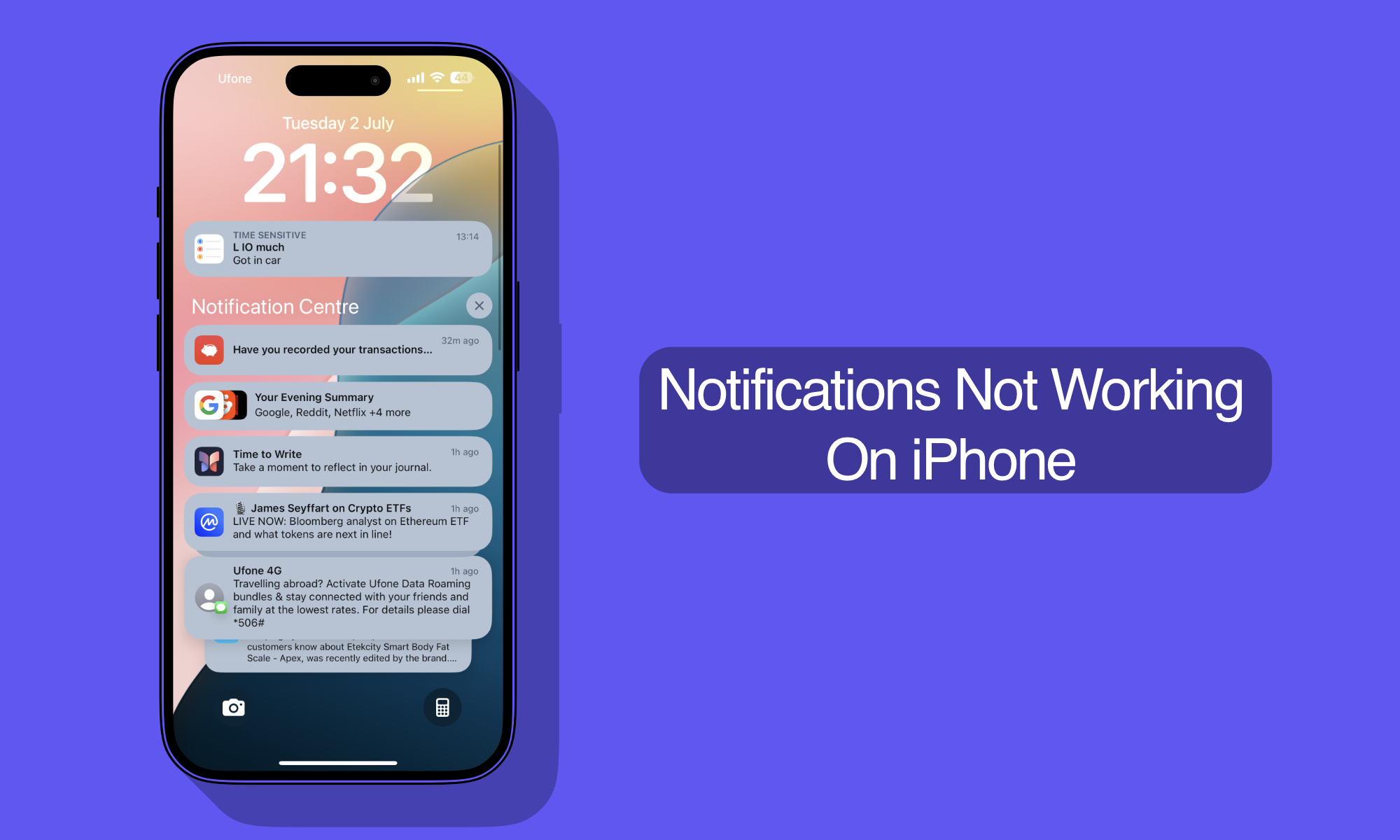
The Lock Screen is what you see when you first wake your device. By default, iOS displays recent notifications here. However, once you unlock your phone or interact with it, older notifications are moved to the Notification Center. To access the Notification Center while your phone is unlocked, you must swipe down from the top-left corner of the screen. If you are on the Lock Screen, you swipe up from the middle of the display to reveal "Older Notifications."
Notification Stacks and Grouping
To prevent a single app from taking over your entire display, iOS uses a system called "Grouping." This stacks notifications from the same app or thread together. When you see a stack, you can tap it to expand the individual alerts. Clearing a stack removes all notifications within that group, whereas clearing an individual alert only removes that specific message.
How to Clear Individual Notifications
Clearing a single notification is the most common task for users who want to keep their history clean without losing track of other pending alerts.
- Locate the Alert: Open the Notification Center by swiping down from the top-left of your screen.
- The Swipe Gesture: Swipe left on the specific notification. You will see three options: More, Clear, and usually a shortcut like Archive or Delete depending on the app (e.g., Mail or Messages).
- Execute the Clear: Tap Clear. Alternatively, you can perform a "long swipe" all the way to the left edge of the screen to clear the notification in one continuous motion without having to tap a button.
This method is ideal for dismissing a single text message or a specific app update while keeping other notifications from the same app visible.
How to Clear Groups and All Notifications
If your Notification Center has become overwhelmed, clearing alerts one by one is inefficient. Apple provides two primary ways to handle bulk clearing.
Clearing a Specific App Group
If you have twenty notifications from a single news app, you don’t need to swipe twenty times. Look for the app's name at the top of the stack. To the right of the app name (or the "Notification Center" header), you will see a small X icon.
- Tap the X.
- The button will change to say Clear.
- Tap Clear again to confirm.
The "Clear All" Power Move
For those who want a completely fresh start, you can wipe every single notification from the Notification Center in two taps.
- Open the Notification Center.
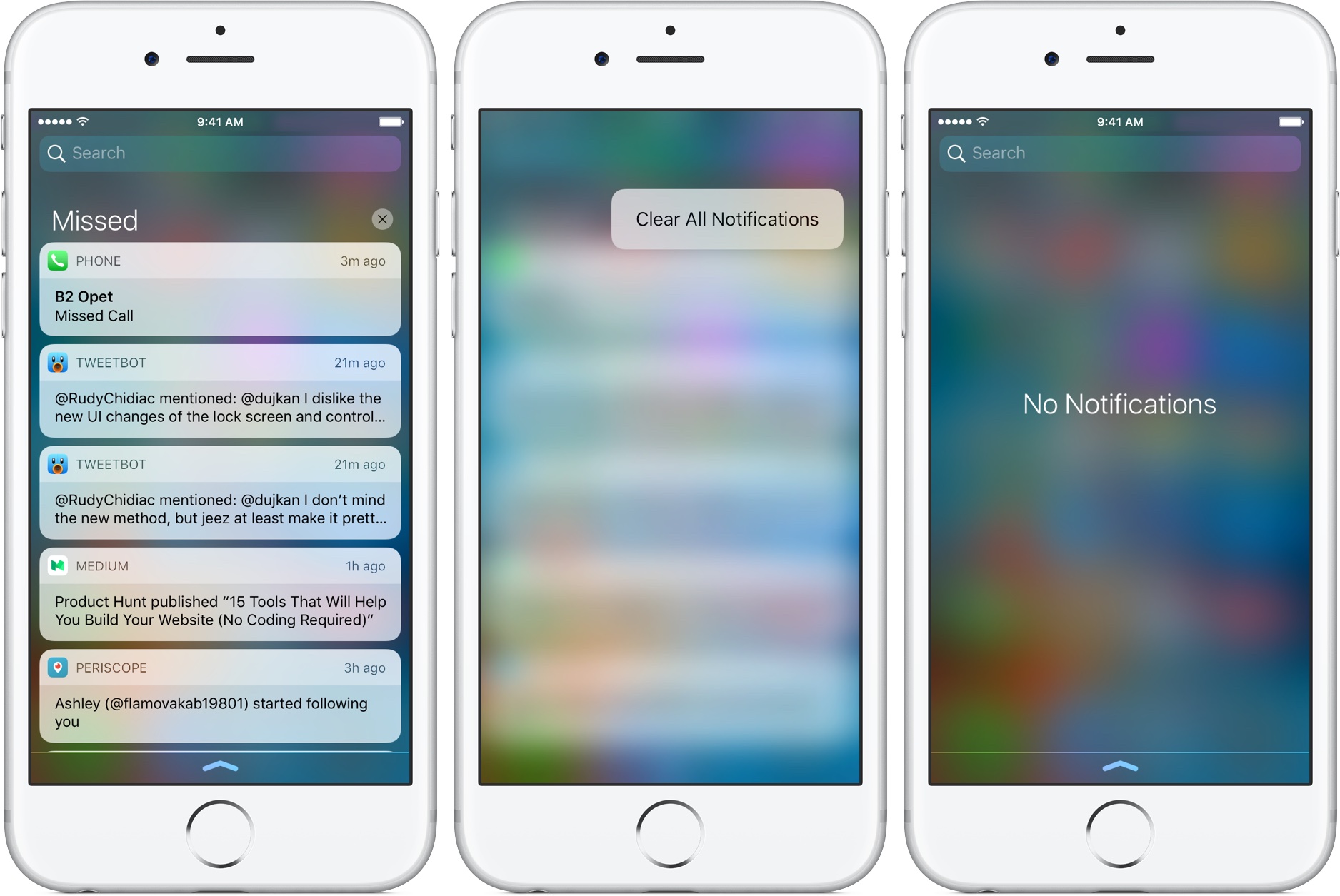
- Locate the X icon at the top right of the "Notification Center" or "Older Notifications" section.
- Long-press (Haptic Touch) the X button.
- A menu will appear with the option Clear All Notifications.
- Tap this option, and your Notification Center will be instantly emptied.
Understanding the "Clear" vs. "Archive" Distinction
It is a common mistake to confuse clearing a notification with deleting the underlying data. When you "Clear" a notification from the Lock Screen, you are simply removing the visual reminder of that event. The email still exists in your inbox, the text message is still in your Messages app, and the missed call remains in your Recents log.
However, some apps offer "Custom Actions" when you swipe left and tap More or when you long-press the notification. For example, in the Gmail or Mail app, you may see an option to Trash or Archive. Selecting these will actually modify the data within the app. If your goal is simply to tidy up your screen, always stick to the Clear command.
Advanced Notification Management: Scheduled Summary
Introduced in earlier versions of iOS and highly refined by 2026, the Scheduled Summary is the best tool for preventing notification clutter before it happens. Instead of receiving non-urgent notifications (like Instagram likes or news headlines) throughout the day, you can bundle them into a single summary that arrives at a time of your choosing.
Setting Up Scheduled Summary
- Open the Settings app.
- Navigate to Notifications.
- Tap on Scheduled Summary and toggle it On.
- Select the apps you want to include in the summary. iOS will often suggest apps that send a high volume of notifications.
- Set your "Schedule." Most users prefer one summary in the morning and one in the evening.
When the summary arrives, it appears as a large, organized tile on your Lock Screen. You can clear the entire summary with a single swipe, effectively "clearing" dozens of notifications simultaneously.
How to Manage App Icon Badges
Even after you clear notifications from the Notification Center, you may still see red numbered circles on your app icons. These are known as "Badges." For many users, these badges are more distracting than the notifications themselves.
To clear these without necessarily reading every item in the app:
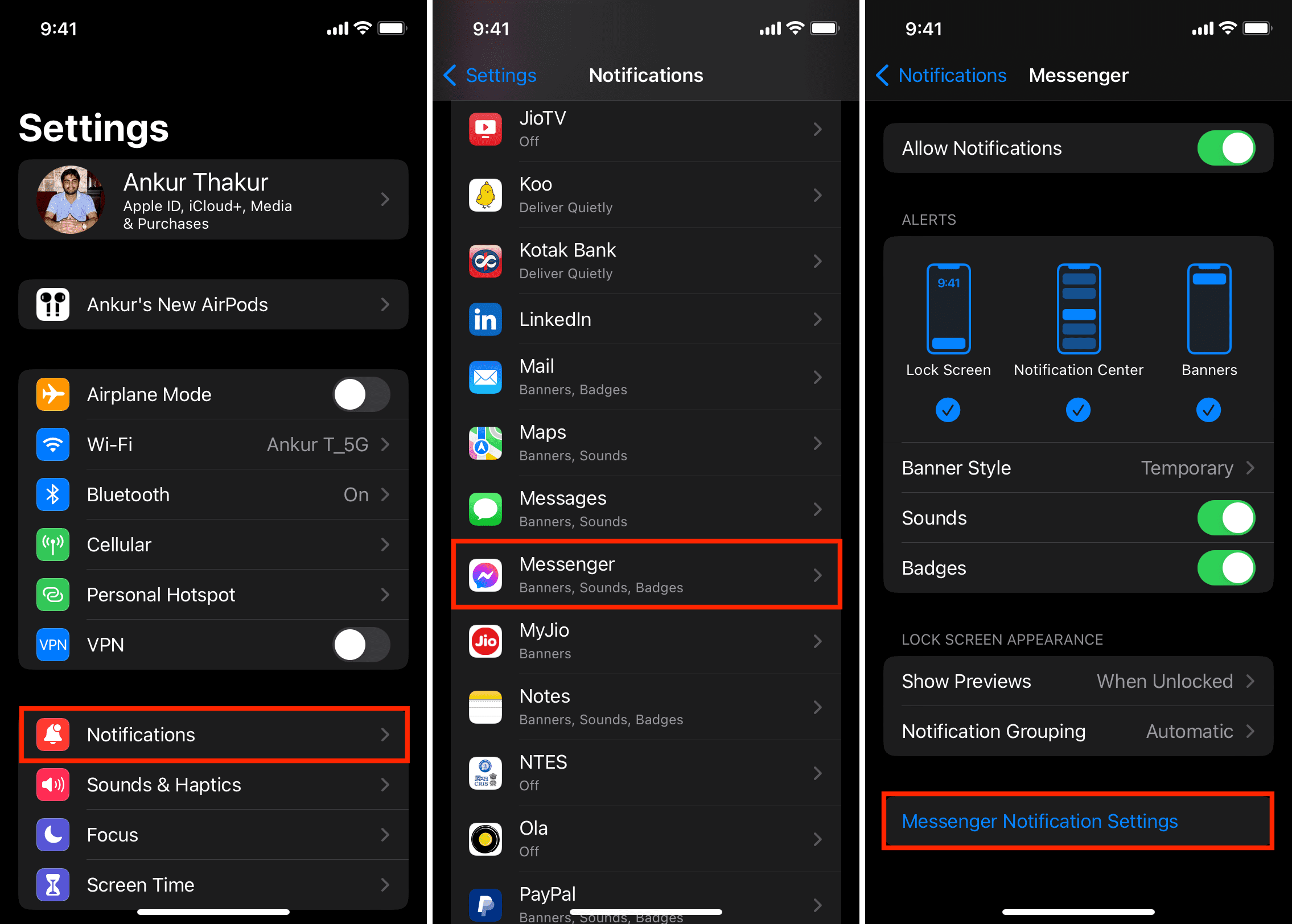
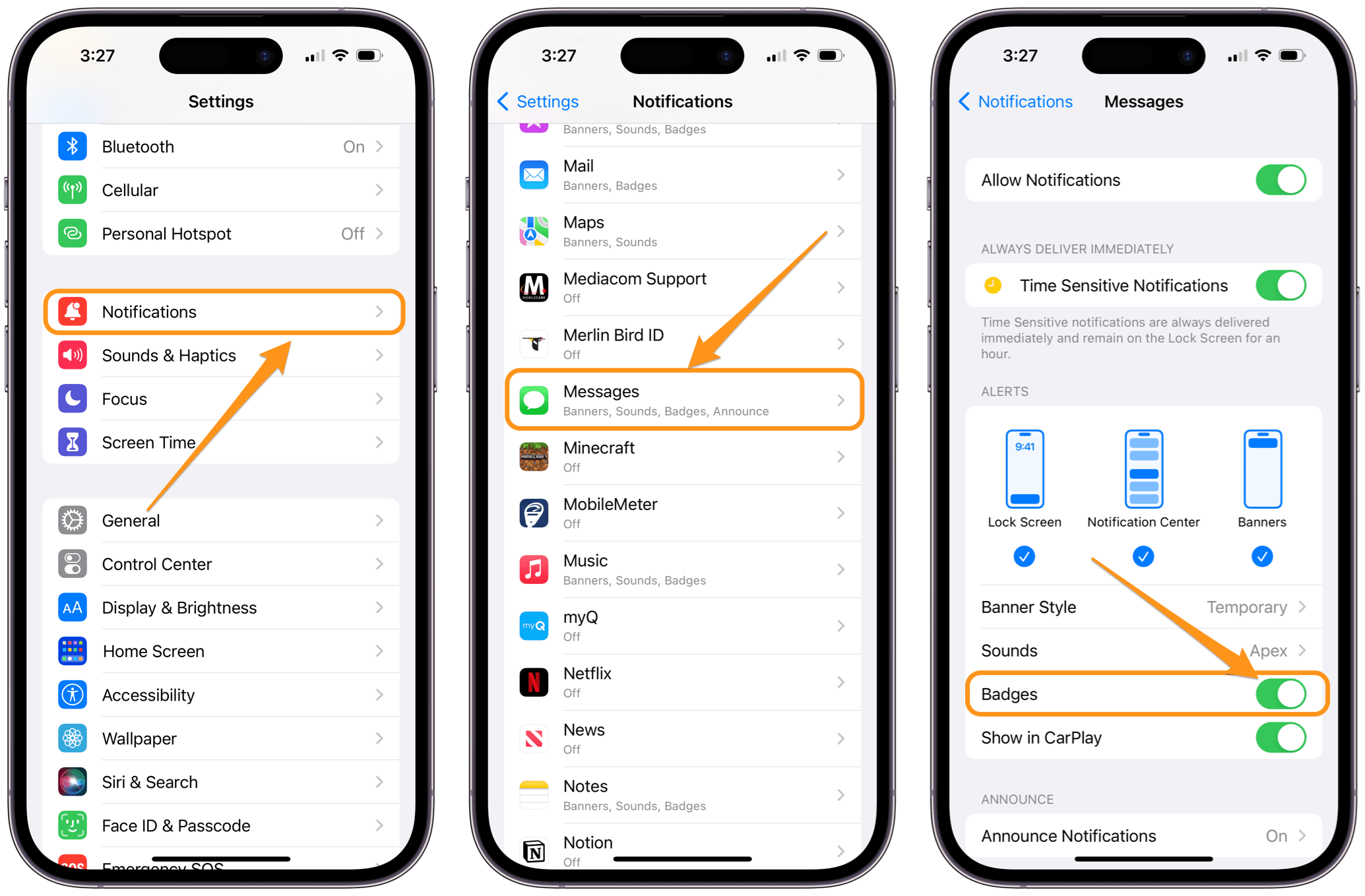
- Go to Settings > Notifications.
- Select the specific app (e.g., "Mail").
- Toggle the Badges switch to Off.
This ensures that even if you have unread items, the home screen remains visually clean. This is particularly useful for email accounts that receive high volumes of automated traffic.
Comparison of Notification Interaction Methods
| Method | Best For | Result |
|---|---|---|
| Short Left Swipe | Individual alerts | Reveals "Clear" and "More" options. |
| Long Left Swipe | Fast clearing | Instantly clears the notification in one motion. |
| Single Tap on X | App groups | Clears all alerts for a specific app or time period. |
| Long Press on X | Total Reset | Clears every notification in the Notification Center. |
| Scheduled Summary | Non-urgent apps | Prevents clutter by bundling alerts into a periodic digest. |
| Focus Modes | Work/Sleep | Silences notifications entirely for a set duration. |
Troubleshooting: Notifications That Won't Go Away
Occasionally, a notification may seem "stuck" or a badge won't disappear even after you've opened the app. This is a common software glitch that can usually be resolved with a few simple steps.
Force Restart the App
If an app icon badge persists, swipe up from the bottom of the screen (or double-click the Home button on older models) to enter the App Switcher. Swipe up on the offending app to close it completely, then relaunch it.
Refresh the Notification Settings
Go to Settings > Notifications, select the app, toggle "Allow Notifications" Off, wait ten seconds, and toggle it back On. This often forces the system to re-sync the notification state with the app's server.
The System Restart
If the Notification Center itself is laggy or shows "ghost" notifications, a quick restart of your iPhone is the most effective solution. In 2026, modern iPhones still benefit from a weekly reboot to clear system caches and reset the springboard (the interface that handles the home screen and notifications).
Using Focus Modes to Filter Notifications
Clearing notifications is a reactive task; using Focus Modes is a proactive one. By setting up Focus Modes (such as Work, Personal, or Sleep), you can define exactly which people and which apps are allowed to notify you.
When a Focus Mode is active, notifications that are not on the "Allowed" list are automatically sent to the Notification Center without lighting up your screen or making a sound. You can view them later when you are ready, and you can clear them all at once when the Focus session ends. This significantly reduces the frequency with which you need to manually clear your screen.
Frequently Asked Questions
Does clearing a notification delete the message?
No. Clearing a notification only removes the alert from your Lock Screen and Notification Center. It does not delete the text message, email, or app data associated with the alert. To delete the actual content, you must open the app or use the "Delete" action within the notification's "More" menu.
Why do some notifications reappear after I clear them?
This usually happens with persistent alerts like "Calendar" invites or "Reminders." If you haven't taken action (like "Accepting" or "Marking as Complete"), the app may be configured to remind you again after a certain period. To stop this, you should interact with the notification rather than just clearing it.
Can I clear notifications from my Apple Watch and iPhone simultaneously?
Yes. In the Apple Support documentation, it is noted that notifications are mirrored between devices. If your devices are synced via iCloud and Bluetooth, clearing a notification on your iPhone will generally remove it from your Apple Watch, and vice versa.
How do I stop notifications from waking my screen?
If you want to receive notifications but don't want your screen to light up every time, go to Settings > Notifications, select the app, and uncheck Lock Screen under the "Alerts" section. The notification will go straight to your Notification Center silently.
Is there a way to "Undo" a Clear All Notifications command?
Unfortunately, no. Once you tap "Clear All Notifications," the alerts are removed from the system history. There is no "Trash" folder for notifications. You will need to open individual apps to see any missed activity.
Practical Recommendation
To maintain a clean iPhone in 2026, we recommend a two-tier approach. First, perform a "Clear All" once every evening to start the next day with a blank slate. Second, audit your notification settings once a month. Navigate to Settings > Notifications and look for apps that send frequent, low-value alerts. Move these apps into your Scheduled Summary or turn off their Badges. By reducing the volume of incoming alerts, the task of clearing them becomes a minor adjustment rather than a constant chore.
Image Gallery