Understanding How Salesforce Document Management Works in 2026
Salesforce document management works through a sophisticated architecture that integrates native file storage, collaborative libraries, and external cloud connectors. Instead of a single "folder" system, Salesforce utilizes a relationa...
Salesforce document management works through a sophisticated architecture that integrates native file storage, collaborative libraries, and external cloud connectors. Instead of a single "folder" system, Salesforce utilizes a relational model where files are treated as independent objects (Content Documents) linked to CRM records, allowing for version control, granular permissions, and seamless cross-departmental sharing.
Contents
Managing documents effectively within a CRM is critical for maintaining a "single source of truth." In 2026, Salesforce document management has evolved far beyond simple attachments. It now serves as a central hub that bridges the gap between structured CRM data (like Account and Opportunity records) and unstructured data (like contracts, proposals, and technical specifications). Understanding the underlying mechanics of this system is essential for any organization looking to scale its operations without drowning in data silos.
The Architecture of Salesforce Files
To understand how document management works, one must first understand the Salesforce Files framework. Historically, Salesforce relied on "Attachments" and "Notes," which were rigid and tied strictly to a single record. The modern framework uses a decoupled architecture.
The Content Object Model
At the heart of the system are three primary entities:
- ContentDocument: This represents the "wrapper" or the abstract concept of a file. It remains constant regardless of how many versions are uploaded.
- ContentVersion: This is the actual physical file data. Every time a user updates a document, a new
ContentVersionis created. This allows Salesforce to maintain a complete audit trail and version history without losing previous iterations. - ContentDocumentLink: This is the "bridge" entity. It defines the relationship between a document and a record (like an Account, Case, or Lead) or a user/group.
Because of this link-based architecture, a single file can be associated with multiple records simultaneously. For example, a "Master Service Agreement" can be linked to five different Opportunities and three different Accounts without the file being duplicated in the system’s storage. This significantly reduces storage overhead and ensures that every stakeholder is viewing the most recent version.
Salesforce Libraries: Structured Content Management
While individual files can be attached to records, Salesforce CRM Content and Libraries provide a more structured approach for high-volume or high-sensitivity documents.
How Libraries Function
Libraries function as administrative containers where files are organized by purpose, department, or security level. Unlike standard record attachments, files in a Library can be tagged with custom metadata. This metadata allows users to categorize files (e.g., "Legal," "Marketing," "Finalized") and perform advanced searches based on specific attributes rather than just file names.
Permission Sets and Tagging
In a Library, permissions are more granular than standard Salesforce sharing rules. An administrator can assign roles such as "Author," "Viewer," or "Library Administrator." This determines who can publish new versions, who can delete content, and who can share content with external parties via Content Deliveries. Content Deliveries generate a unique URL for a file, allowing external stakeholders to view or download it while providing the Salesforce user with tracking data, such as when the file was opened and how many times it was downloaded.
Overcoming Storage Constraints: Salesforce Files Connect
One of the most important aspects of how Salesforce document management works is its ability to integrate with external providers. Because native Salesforce file storage can be expensive once an organization exceeds its allocated quota, many enterprises utilize Salesforce Files Connect.
The Hybrid Storage Logic
Files Connect acts as a gateway. It does not move your files from their original location; instead, it "surfaces" them within the Salesforce interface. When a user looks at a record in Salesforce, they can see a list of files stored in SharePoint, Google Drive, or Box as if they were native Salesforce Files.
- Authentication: Files Connect uses OAuth 2.0 or OpenID Connect to ensure that users only see the files they have permission to access in the external system.
- Searchability: Salesforce indexes the metadata of these external files, allowing users to search for a SharePoint document directly from the Salesforce global search bar.
- Reference Point: Only a "reference" to the file is stored in Salesforce, meaning the actual megabytes of data do not count against your Salesforce File Storage limit.
Document Generation and Automation
In 2026, document management is often synonymous with document generation. Salesforce provides native tools like OmniStudio Document Generation, but many organizations also rely on AppExchange partners.
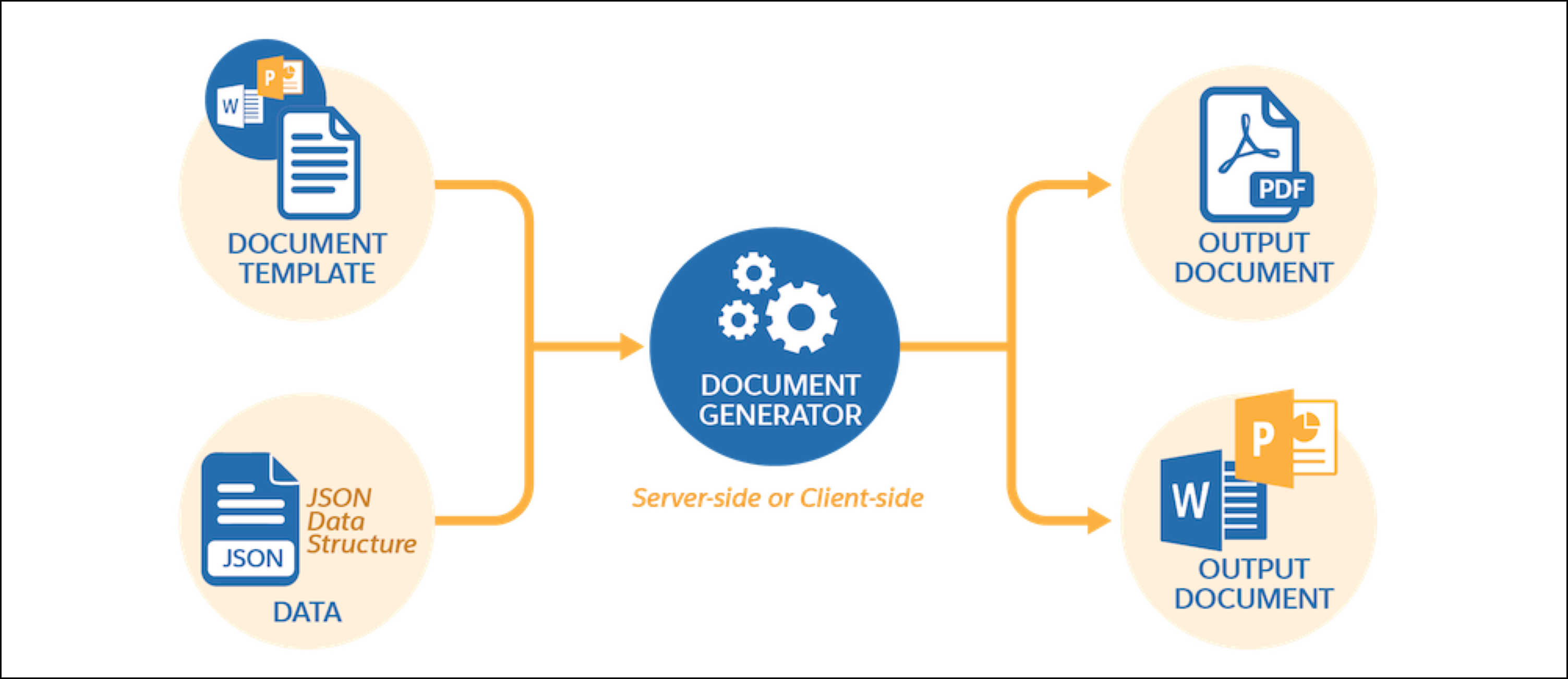
The process typically follows this workflow:
- Template Creation: A user creates a Word or HTML template with merge fields (e.g.,
{Account.Name},{Opportunity.Amount}). - Data Mapping: Salesforce maps live CRM data into these fields.
- Output Generation: The system generates a polished PDF or Word document.
- Automated Filing: The generated document is automatically saved to the Salesforce "Files" related list of the record and, if configured, synced to an external repository like OneDrive.
This automation reduces manual entry errors and ensures that every contract or invoice generated follows the organization’s latest branding and legal guidelines.
Security and Compliance Mechanisms
Security is a primary pillar of how Salesforce manages documents. The system employs several layers of protection to ensure that sensitive data remains confidential.
- File Sharing Settings: Files inherit the permissions of the record they are attached to. If a user cannot see an Opportunity record, they generally cannot see the files attached to that record unless the file has been explicitly shared with them.
- Salesforce Shield: For organizations in highly regulated industries (like healthcare or finance), Salesforce Shield Platform Encryption can be used to encrypt files at rest. This ensures that even if the physical storage media were compromised, the documents remain unreadable without the specific tenant secret.
- Edge Protection: Salesforce uses virus scanning on upload to prevent malicious files from entering the ecosystem.
Technical Comparison of Storage Options
| Feature | Native Salesforce Files | Salesforce Files Connect | Third-Party AppExchange (e.g., Box/S-Drive) |
|---|---|---|---|
| Primary Storage Location | Salesforce Cloud | External (SharePoint/Google) | Third-Party Cloud |
| Storage Costs | High (after quota) | Low (uses external quota) | Moderate (License + External) |
| Complexity | Low (Out-of-the-box) | Moderate (Requires Setup) | High (Requires Integration) |
| Version Control | Native & Automatic | Managed by External Source | Managed by Third-Party App |
| Mobile Access | Seamless (Salesforce App) | Supported | Requires Third-Party App |
| Searchability | Full Text & Metadata | Metadata & Partial Text | Dependent on Integration |
Common Challenges and Troubleshooting
Despite the robust framework, users often encounter hurdles in document management. One frequent issue is Storage Limit Exceedance. Salesforce provides a base amount of storage (typically 10 GB for most enterprise editions) plus an additional allocation per user. When this is reached, users cannot upload new files. Administrators must then either purchase more storage, implement a cleanup strategy using the Data Loader, or transition to a Files Connect model.
Another common point of confusion is File Visibility. If a user "follows" a file in Chatter, they receive updates, but this does not necessarily grant them the right to edit the file. Administrators must distinguish between "Viewer," "Collaborator," and "Owner" permissions to resolve access tickets effectively.
Frequently Asked Questions
1. What is the difference between Salesforce Files and Salesforce Attachments?
Salesforce Attachments are an older, "legacy" technology. They are strictly tied to a single record and do not support versioning or sophisticated sharing. Salesforce Files is the modern replacement that allows a single document to be versioned and shared across multiple records, users, and groups without duplicating the file.
2. Can I use my own company’s SharePoint for Salesforce document storage?
Yes, this is achieved through Salesforce Files Connect. It allows you to link SharePoint folders to Salesforce records. Users can view, upload, and manage SharePoint files directly within the Salesforce UI, which helps save on Salesforce-specific storage costs while keeping documents in your corporate repository.
3. How do I control who can see a specific document?
Visibility is controlled through the ContentDocumentLink. By default, a file is visible to anyone who has access to the record it is attached to. However, you can also share files privately with specific users, public groups, or via Libraries, which have their own independent permission sets.
4. Does Salesforce scan files for viruses?
Yes. Salesforce automatically performs a virus scan on all files uploaded through the UI. If a virus is detected, the file is blocked. However, it is important to note that files uploaded via the API may have different scanning protocols depending on your organization’s specific security configuration and the use of Salesforce Shield.
5. What happens to previous versions of a document when I upload a new one?
Salesforce retains previous versions as ContentVersion records. You can view the version history, see who uploaded each version and when, and even restore an older version to be the "current" one. This is vital for legal and compliance auditing.
Practical Recommendations
For organizations starting with Salesforce document management in 2026, the best approach is a tiered storage strategy.
- Tier 1: Store small, record-specific documents (like customer photos or brief notes) as native Salesforce Files for maximum speed and mobile accessibility.
- Tier 2: Use Salesforce Libraries for company-wide assets like sales decks, training manuals, and HR policies to take advantage of metadata tagging.
- Tier 3: Implement Files Connect for large-scale archival storage or heavy contract management to minimize storage costs and maintain a centralized corporate repository in SharePoint or Google Drive.
By leveraging the link-based architecture and integrating external storage where appropriate, businesses can ensure their document management system remains performant, secure, and cost-effective.
Image Gallery