How to See App Download History on Your Phone: A Comprehensive Guide
Accessing your app download history allows you to track previously installed software, recover deleted applications, and manage digital clutter across your mobile ecosystem. Whether you are using an Android device tied to the Google Pl...
Accessing your app download history allows you to track previously installed software, recover deleted applications, and manage digital clutter across your mobile ecosystem. Whether you are using an Android device tied to the Google Play Store or an iPhone linked to the Apple App Store, both platforms maintain a detailed ledger of your historical downloads associated with your account credentials. By understanding where these logs reside, you can easily restore past apps or monitor which applications are linked to your profile across various devices.
Contents
Understanding App Store Account Ecosystems
Your download history is not stored locally on the hardware of your smartphone, but rather within the cloud-based account infrastructure maintained by the platform provider. When you download an app, a digital receipt is generated in your Google or Apple account. This record persists even if you uninstall the application from your device, clear your phone’s storage, or switch to a new handset.
The primary requirement for viewing this history is that you must be logged into the identical account used for the original installations. If you share a family plan or have multiple accounts on one device, you may need to switch the active profile within the application store to see the complete history. Because these records are tied to your unique user ID, they serve as a permanent audit trail of your software usage, which is particularly useful for re-downloading paid apps without incurring repeat charges.
Viewing Download History on Android via Google Play Store
The Google Play Store organizes your history through a section often labeled as "Manage apps & device." This interface separates apps currently on your device from those you have installed in the past.
- Open the Google Play Store: Tap the icon on your home screen or app drawer.
- Access Your Profile: Tap your profile icon (usually located in the top-right corner of the search bar).
- Navigate to Manage: Select the option labeled "Manage apps & device."
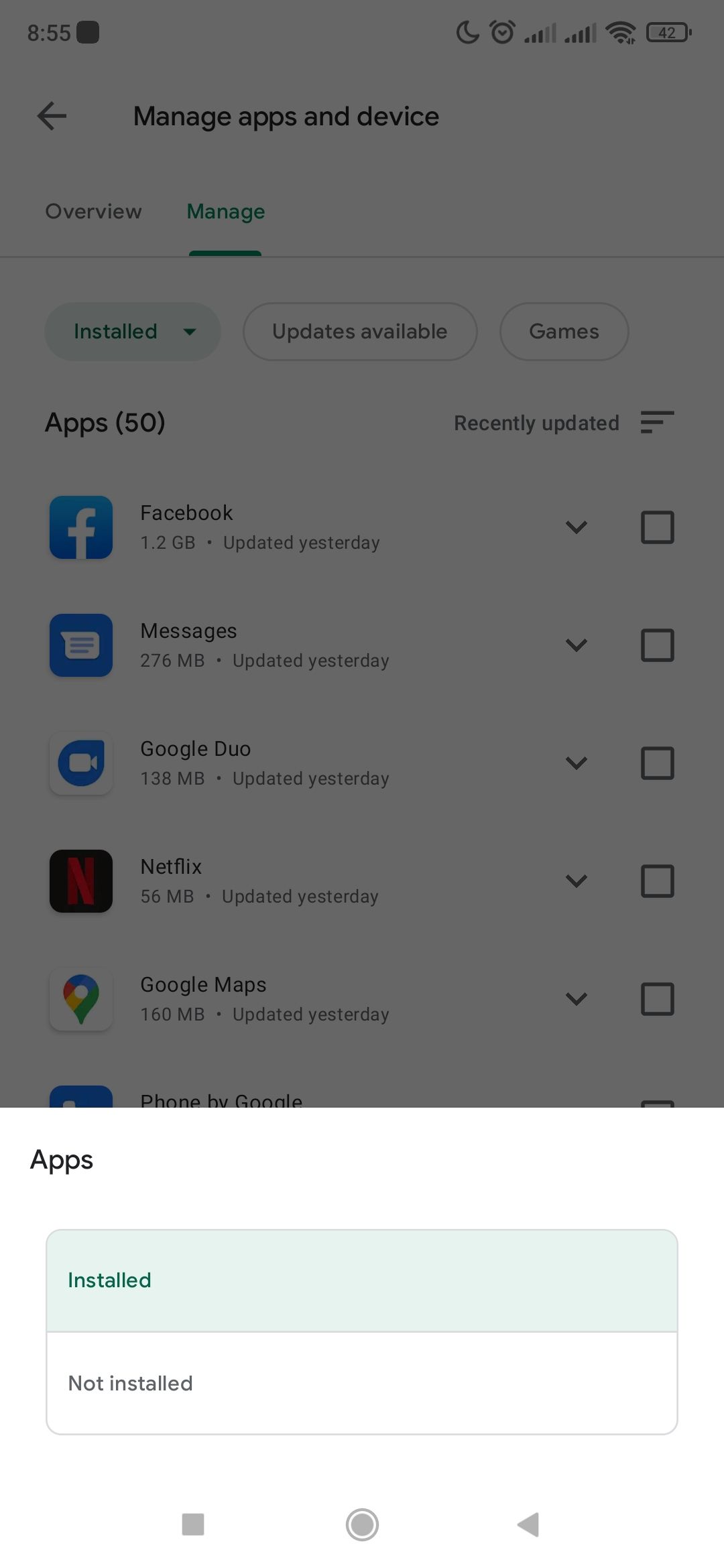
- Switch to the "Manage" Tab: Inside this menu, you will see two main tabs: "Overview" and "Manage." Tap on "Manage."
- Filter by History: By default, this view shows "Installed" apps. Tap the button that says "Installed" and change the filter to "Not installed." This will display every app previously downloaded to this specific Google account that is not currently present on your device.
This list is sorted chronologically or alphabetically depending on your system settings and offers a direct pathway to reinstall an app by tapping the checkbox next to its name or selecting the app icon to view its store page.
Viewing Download History on iOS via the Apple App Store
Apple simplifies this process through the "Purchased" or "Apps" section of your Apple ID account. The terminology may vary slightly depending on your specific version of iOS, but the navigation path remains consistent.
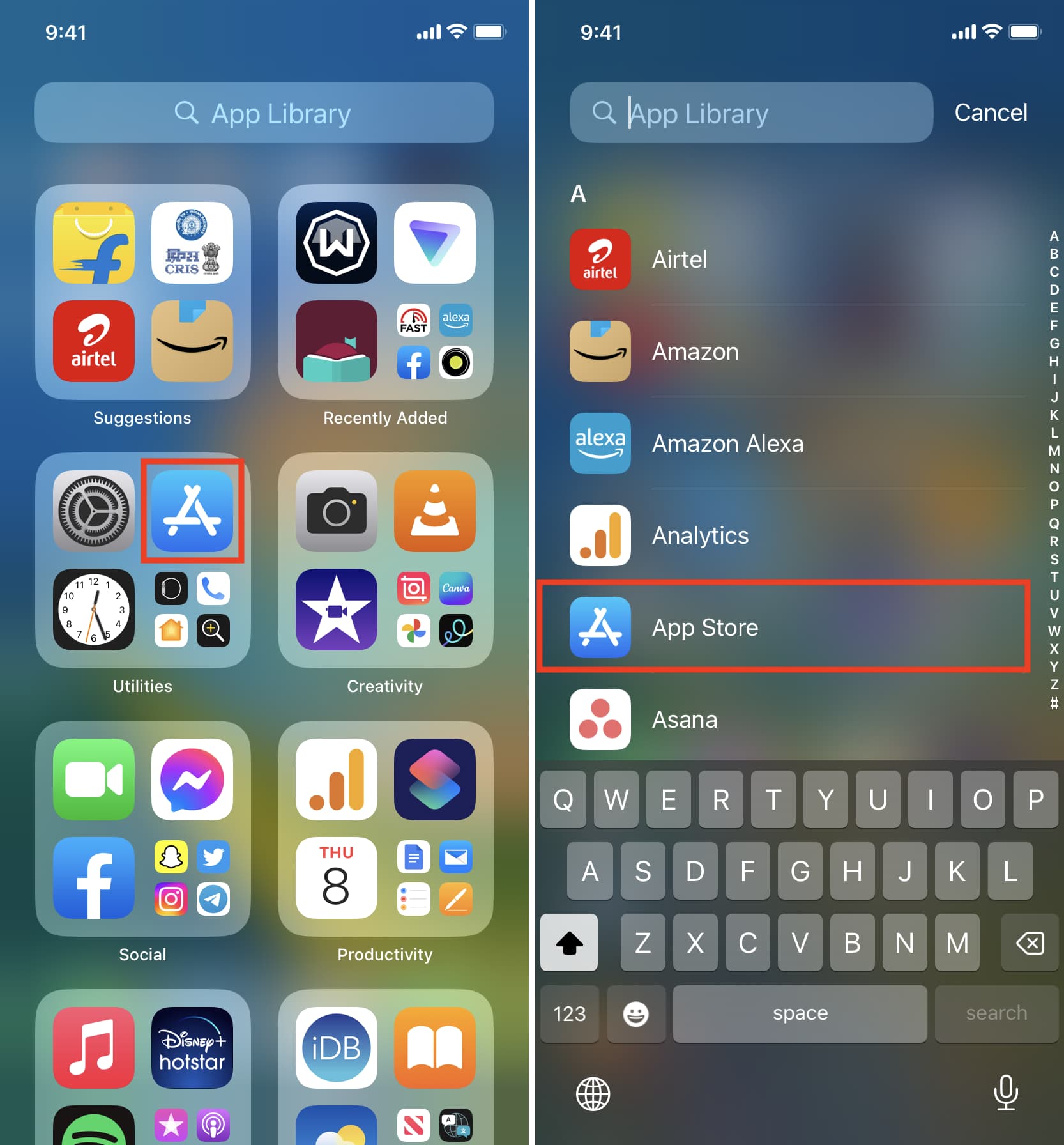
- Open the App Store: Launch the application from your home screen.
- Access Account Settings: Tap your profile icon or picture at the top-right corner of the main page.
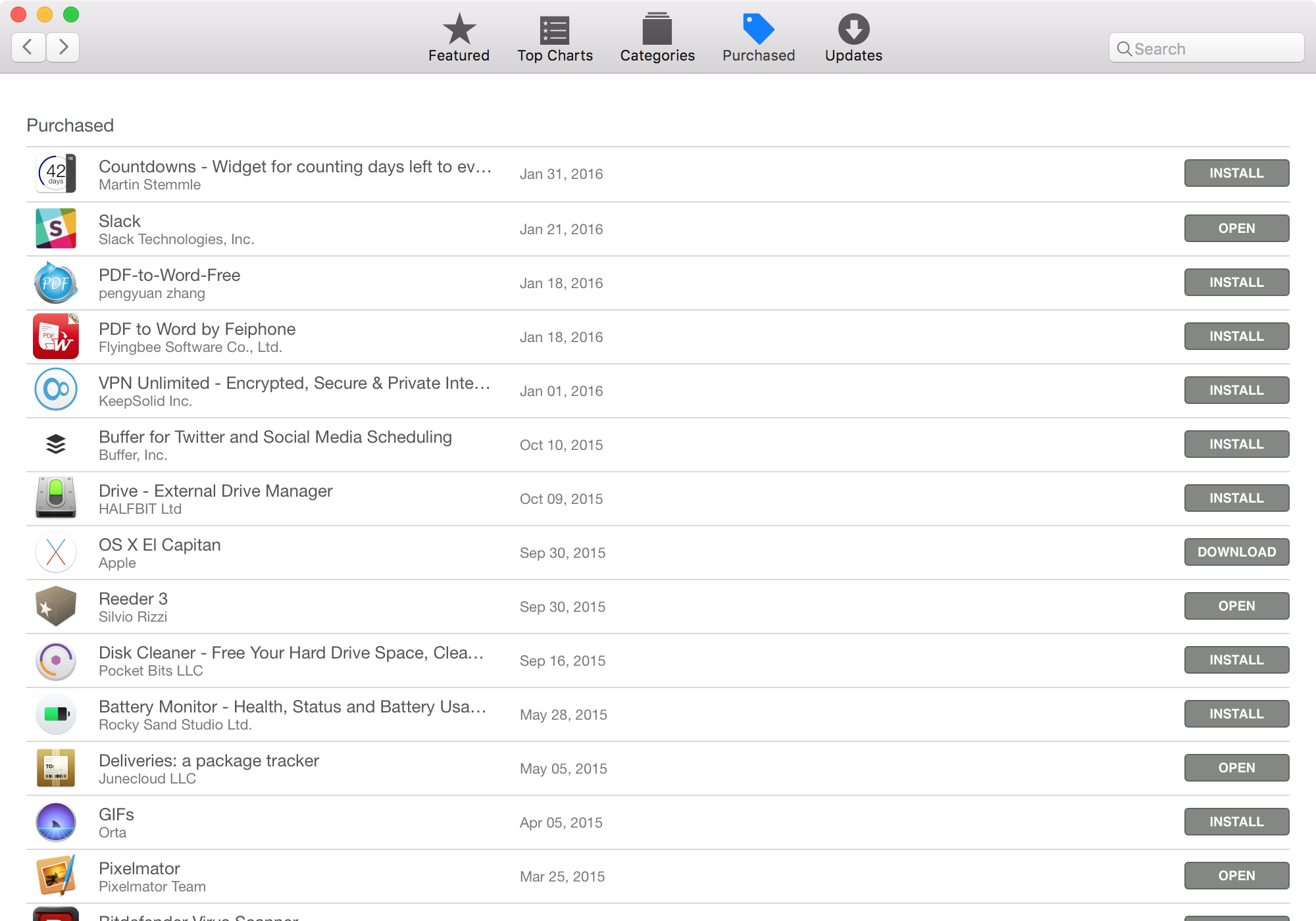
- Select Purchased: In the account menu, tap the "Purchased" button. If you have "Family Sharing" enabled, you may see an option for "My Purchases" versus specific family member accounts.
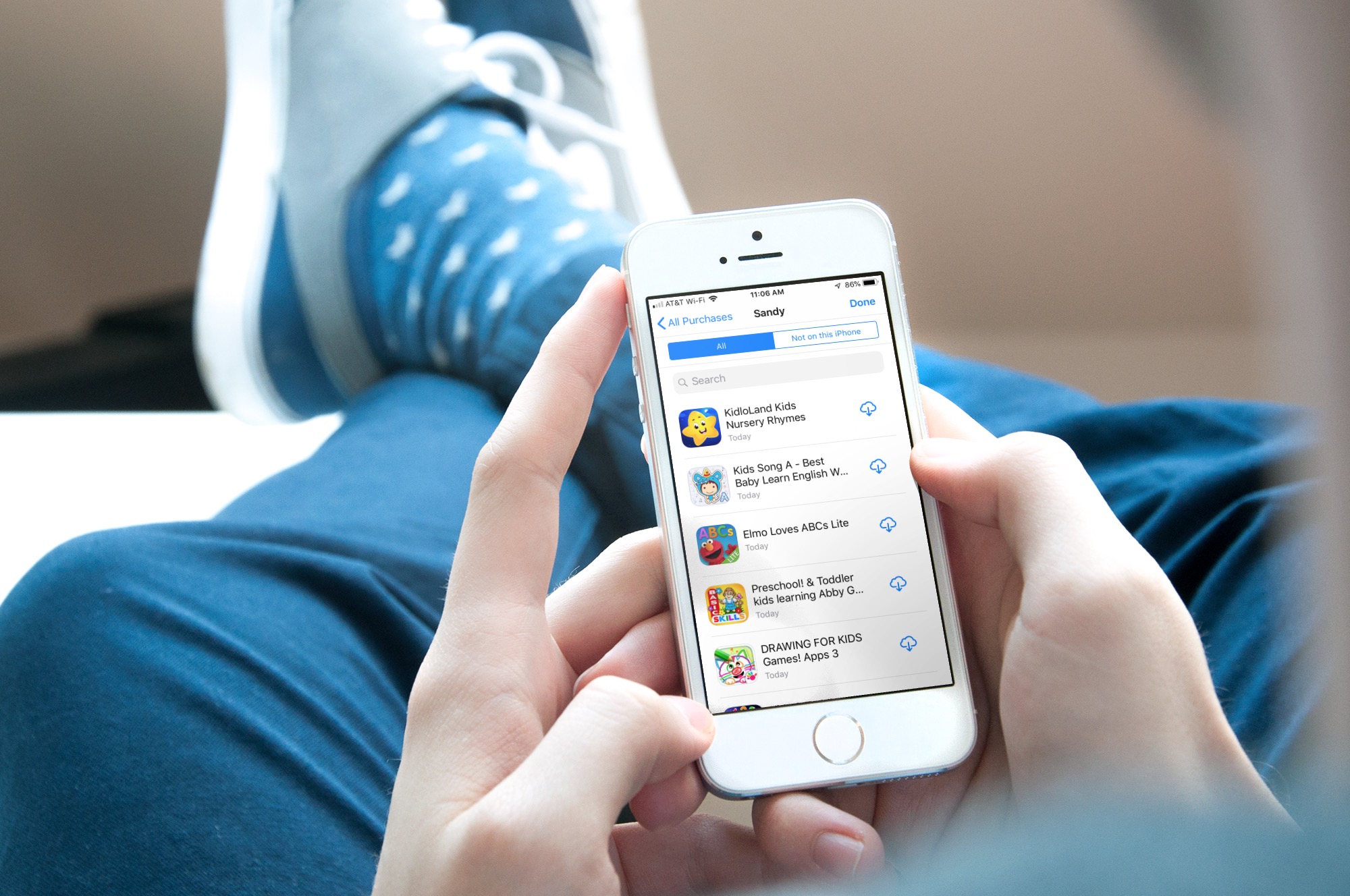
- View All Apps: You will see a list of every app ever downloaded using your Apple ID. To see only apps not currently on your phone, tap the "Not on this iPhone" tab.
- Search or Download: You can use the search bar to find specific apps or tap the cloud-download icon to restore them immediately.
Unlike Android, Apple provides a "Purchased" tab that includes both free and paid apps, making it a comprehensive repository of your entire download lifecycle on the platform.
Comparison of App History Management
| Feature | Google Play Store (Android) | Apple App Store (iOS) |
|---|---|---|
| Account Linkage | Tied to Google Account (Gmail) | Tied to Apple ID |
| History Label | "Manage apps & device" | "Purchased" or "My Apps" |
| Filtering | "Installed" vs. "Not installed" | "All" vs. "Not on this device" |
| Sync Across Devices | Yes, across all linked devices | Yes, across all devices with same ID |
| Cloud Removal | Not possible to delete history | Possible to "Hide" purchases |
Managing and Troubleshooting Your History
While the steps above generally work, you may occasionally encounter issues where apps do not appear in your history or where you wish to curate the list.
Handling Multiple Accounts
A common point of confusion arises when users have multiple Google or Apple accounts. If you do not see an app you know you downloaded, verify that the account currently signed into the App Store or Play Store matches the one used for the original purchase. On Android, you can switch accounts by tapping your profile icon and selecting the alternate email address from the dropdown list. On iOS, you may need to sign out of the current Apple ID in Settings and sign into the previous one to access different purchase histories.
Deleting or Hiding History
On Apple devices, you cannot permanently delete a purchase, but you can "hide" it so it does not show up in your "Purchased" list. This is performed via a desktop browser (iTunes or App Store on macOS/Windows) by navigating to "Account Information" and selecting "Hidden Purchases." On Android, Google does not currently provide a native feature for users to delete their install history from the "Not installed" list. The records remain permanently linked to your Google Account's activity logs.
Troubleshooting Missing Apps
If an app is missing from your history, consider the following possibilities:
- App Delisting: The developer may have removed the app from the store. If an app is no longer available on the platform, it will not show up in the store's repository, even if you previously owned it.
- Regional Restrictions: If you moved to a different country and changed your store region, some apps may disappear from your history if they are not licensed in your new location.
- Data Sync Delay: Occasionally, the store servers experience a delay. If you just uninstalled an app, wait a few minutes before checking the "Not installed" or "Not on this device" tabs.
Frequently Asked Questions
Can I see apps I downloaded on a different phone? Yes. Your download history is tied to your account, not your physical hardware. As long as you sign in with the same Google or Apple ID, you can view the history of every app downloaded on any device, past or present, associated with that account.
Will deleting an app from my history remove it from my device? No. Removing an app from your device (uninstalling) does not remove it from your digital history. Conversely, hiding an app from your history does not uninstall it from your phone. These are separate actions within the platform’s management layer.
Are paid apps different in my history? Paid apps appear in your history just like free apps. The advantage is that your history acts as a proof-of-purchase, allowing you to reinstall paid applications on new devices without having to pay for them a second time, provided you are using the original account.
Why is an app I used to have missing from my history? If an app is not in your history, it was either downloaded using a different account, or the app has been removed from the platform by the developer. Developers frequently delist apps that are outdated, discontinued, or violating updated store policies.
Final Recommendation
If you need to retrieve a large number of past applications, it is more efficient to use a computer browser to manage your account settings rather than the mobile interface. For most users, the steps outlined above for the App Store and Google Play Store provide immediate access to your full library. If you are preparing to switch devices, take a moment to review your "Not installed" list to identify useful utilities or games you may have forgotten about, as this is the most reliable way to recover your personalized software ecosystem.
Image Gallery