How to Convert PST to PDF for Easy Sharing: A Complete Technical Guide
To convert a PST (Personal Storage Table) file to PDF for easy sharing, you must extract the email messages and export them into Portable Document Format. You can do this natively in Microsoft Outlook using the "Microsoft Print to PDF"...
To convert a PST (Personal Storage Table) file to PDF for easy sharing, you must extract the email messages and export them into Portable Document Format. You can do this natively in Microsoft Outlook using the "Microsoft Print to PDF" feature, use open-source clients like Mozilla Thunderbird with conversion add-ons, or employ specialized desktop PST conversion software for automated batch processing and attachment preservation.
Contents
Converting proprietary Outlook data into universally readable PDF files eliminates platform dependencies, simplifies file sharing across mobile and desktop operating systems, and preserves critical communication logs for long-term archiving or legal discovery.
Why Convert PST Files to PDF?
Microsoft Outlook uses the PST file format to store email messages, calendar events, contacts, tasks, and attachments locally on Windows systems. While PST files are efficient for local email management within Outlook, they present significant friction when you need to share communications externally or preserve documents long-term.
| Key Reasons to Convert PST to PDF |
|---|
| 1. Universal Accessibility: PDFs open on iOS, Android, macOS, Linux. |
| 2. Standardized Formatting: Preserves original layouts & typography. |
| 3. Security & Integrity: Read-only format, supports encryption/watermarks |
| 4. Regulatory Archiving: PDF/A compliance for long-term preservation. |
| 5. Streamlined Sharing: Share individual emails without sending giant PSTs. |
Eliminating Software Dependency
Opening a PST file natively requires Microsoft Outlook or specialized viewer software. If you send a raw PST file to a recipient who uses macOS, Linux, or non-Microsoft web clients (such as Gmail or ProtonMail), they cannot view the contents without importing the file into a compatible application. PDF files open natively on modern web browsers and smartphone operating systems without requiring desktop email client setup.
Long-Term Archiving and Legal Compliance
In corporate compliance, litigation, and regulatory audits, email records must remain tamper-evident and accessible for years or decades. The International Organization for Standardization maintains ISO 19005, which defines PDF/A—an executive standard specifically engineered for long-term preservation of digital records. Unlike PST files, which can become corrupted as file sizes grow beyond tens of gigabytes, PDF/A documents self-contain all fonts, formatting, and images necessary to render the exact document layout in perpetuity.
Granular File Sharing and Privacy
A single PST archive often contains thousands of emails spanning multiple years, alongside internal notes and contact lists. Converting specific email threads into individual or consolidated PDF documents allows you to share relevant conversations without exposing sensitive, unrelated messages stored within the broader PST archive.
Key Considerations Before Converting
Before initiating a PST to PDF conversion workflow, evaluate your technical environment, target volume, and attachment handling requirements to select the correct approach.
| Technical Factor | Manual Outlook Export | Open-Source (Thunderbird) | Specialized PST Converter |
|---|---|---|---|
| Outlook Installation Required | Yes | No | No |
| Batch Processing Capacity | Low (Single emails or small groups) | Moderate (Folder-by-folder) | High (Multi-GB archives, bulk PSTs) |
| Attachment Handling | Printed separately or saved manually | Saved to disk or basic embedding | Advanced (Embed, convert to PDF, or link) |
| Folder Hierarchy Preservation | Manual folder creation required | Preserved via extension | Automatically recreated |
| Metadata Preservation | Basic (Visible headers only) | Moderate (Standard headers) | Comprehensive (MIME, RFC 822, full headers) |
| Cost | Free (Included with Office) | Free (Open-source) | Paid software license |
Handling Email Attachments
Email messages rarely exist in isolation; they frequently carry PDF documents, Microsoft Word files, images, spreadsheets, or compressed archives. Standard print-to-PDF drivers render only the message body and basic header information, ignoring attached files or simply listing their filenames in text.
When establishing your conversion process, decide how attachments should be handled:
- Separate Extraction: Attachments are detached and saved into a dedicated target folder alongside the converted PDF email.
- Direct Embedding: Attachments are embedded inside the PDF file structure as native file objects, allowing recipients to double-click and open the original attachment directly from within the PDF reader.
- Inline PDF Conversion: Printable attachments (such as
.docx,.xlsx, or.png) are automatically converted into PDF pages and appended directly to the end of the email PDF document.
Metadata Integrity
Email headers contain essential metadata, including sender IP addresses, intermediate mail server hops, precise timestamp data (UTC offsets), Message-ID strings, and read/delivery confirmations. If you are converting emails for legal discovery, regulatory submissions, or forensic analysis, verify that your chosen conversion method captures all hidden RFC 822 headers rather than just the basic "To," "From," "Date," and "Subject" visible in standard print views.
Method 1: Convert PST to PDF Using Microsoft Outlook Natively
If Microsoft Outlook is installed on your Windows machine and you only need to share a select group of emails, you can use the built-in Microsoft Print to PDF virtual printer driver.
- Outlook PST File
- Open in Outlook
- Select Email
- File > Print
- Microsoft Print to PDF
- PDF File
Step 1: Open the PST File in Outlook
- Launch Microsoft Outlook.
- Click on File in the top-left menu bar.
- Select Open & Export, then click Open Outlook Data File.
- Browse your local storage, select the target
.pstfile, and click OK. - The PST folder structure will appear in Outlook's left-hand navigation pane.
Step 2: Print Individual Emails to PDF
- Navigate to the folder containing the messages you wish to convert.
- Select the specific email message.
- Click File > Print (or press
Ctrl + P). - Under the Printer drop-down menu, select Microsoft Print to PDF.
- Under Settings, select Memo Style. This layout ensures the email header (From, Sent, To, CC, Subject) is formatted cleanly at the top of the page.
- Click Print Options if you need to print attached files. Note: Checking "Print attached files" will attempt to send attachments to your system's default physical printer driver, not necessarily embed them into the generated PDF.
- Click Print, choose your target output folder, enter a descriptive file name, and click Save.
Limitations of the Native Outlook Method
While free and accessible, using Outlook's native print engine presents operational limitations:
- No Automated Bulk Processing: Selecting hundreds of emails and printing them simultaneously prompts multiple save dialog boxes or generates a single, combined print queue where individual email boundaries become unclear.
- Attachment Detachment: Embedded non-image attachments are not automatically converted into PDF pages or embedded inside the output PDF file.
- Loss of Folder Structure: You must manually create directory folders on your computer system to replicate your Outlook folder hierarchy.
Method 2: Open-Source PST to PDF Conversion via Mozilla Thunderbird
If you do not have an active Microsoft 365 or Outlook subscription, you can utilize the free, open-source mail client Mozilla Thunderbird along with community-maintained extension software to read PST files and export them directly to PDF format.
Step 1: Prepare Mozilla Thunderbird
- Download and install Mozilla Thunderbird.
- Open Thunderbird. If prompted to set up an email account, you can skip the wizard by selecting I think I'll use my existing email or choosing local storage mode.
Step 2: Import the PST File
- Click the menu icon (three horizontal lines) in the top-right corner and choose Tools > Import.
- Select Import from another mail client, then choose Outlook (if Outlook is installed locally) or use Thunderbird's native PST migration tool.
- If importing directly from a standalone
.pstfile on a machine without Outlook, install the ImportExportTools NG add-on:- Navigate to Tools > Add-ons and Themes.
- Search for ImportExportTools NG and click Add to Thunderbird.
- Restart Thunderbird.
Step 3: Export Messages or Folders to PDF
- Right-click the imported email folder in Thunderbird's left sidebar.
- Hover over ImportExportTools NG in the contextual menu.
- Select Export all messages in folder > PDF format.
- Choose an output destination directory on your hard drive.
- Thunderbird will process the folder, creating individual PDF files named after the subject line and timestamp of each email message.
Method 3: Automated Batch Conversion for Large PST Files
For enterprise data migrations, legal e-Discovery projects, or archiving massive historical PST databases (often tens of gigabytes in size), manual export methods are inefficient. Specialized desktop PST converter software provides robust batch processing engines that eliminate manual setup.
- [Large PST Archive]
- [Batch PST Converter]
- Advanced Filtering (Date, Folder, Header)
- Consolidated PDF Portfolio
- Individual PDFs + Embedded Attachments
- Strict PDF/A Standard Output
Key Workflow Features of Professional Tools
- Non-Outlook Dependency: Professional utilities read the underlying binary structure of PST files directly, allowing you to convert orphaned
.pstfiles on machines where Microsoft Office is not installed. - Custom Naming Conventions: You can configure output naming schema based on metadata patterns, such as
YYYY-MM-DD_Sender_Subject.pdforBates_Number_001.pdf. - Flexible Attachment Handling: Professional conversion engines allow you to choose whether to append document attachments as additional PDF pages, zip them alongside the PDF, or convert inline images directly into the main document body.
- Selective Filtering: Convert specific date ranges, exclude deleted item folders, or filter out spam messages using keyword queries prior to generating PDF files.
Step-by-Step Desktop Utility Workflow
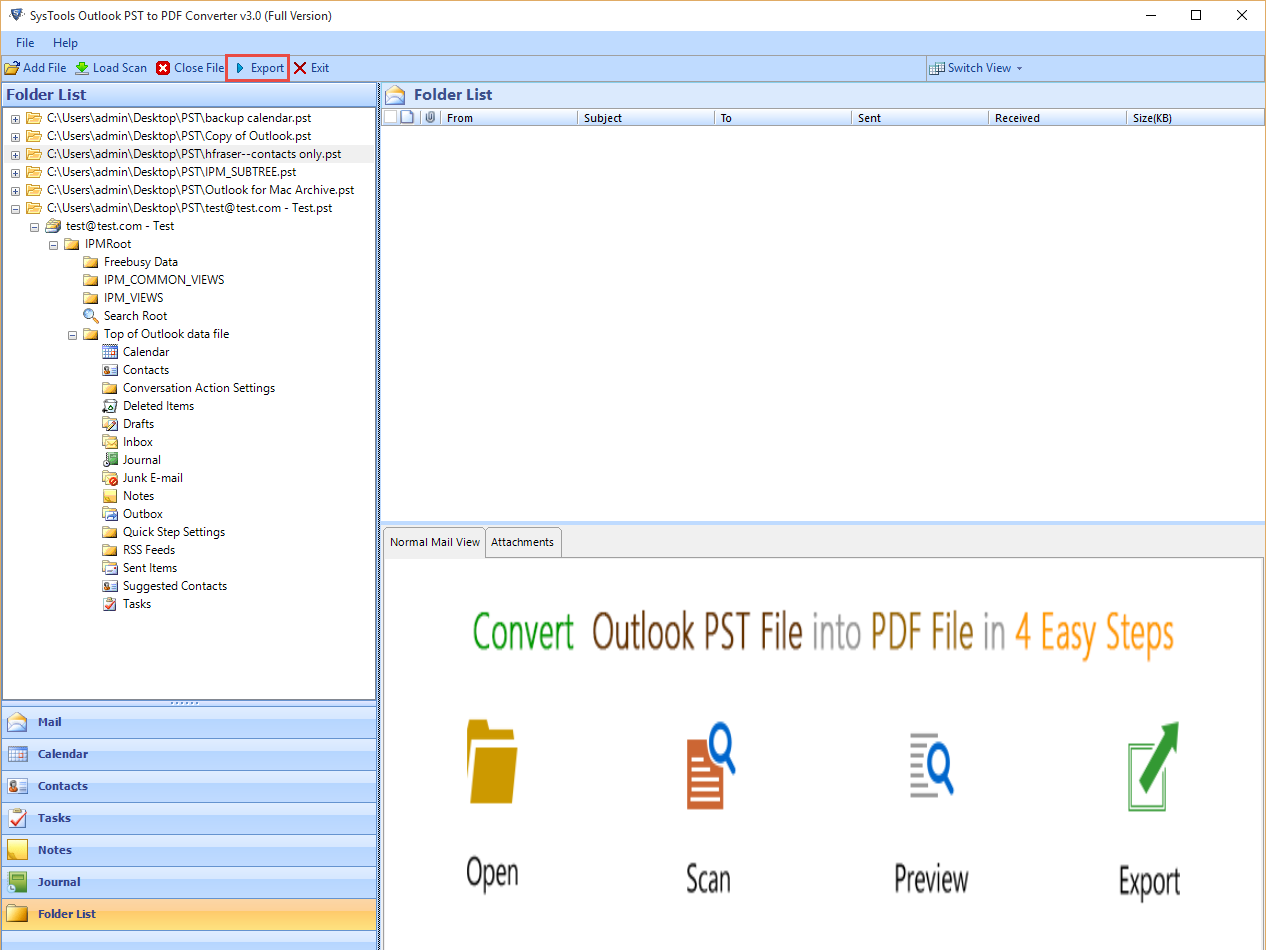
- Load Source Files: Launch the PST conversion utility and select Add File or Add Folder to load one or multiple PST archives.
- Select Folders: Check the specific subfolders (Inbox, Sent Items, Custom Archives) you wish to process.
- Configure Target Format: Choose PDF as the destination format.
- Set Attachment Rules: Select Embed Attachments into PDF, Convert Attachments to PDF, or Save Attachments to External Folder.
- Apply PDF/A Standards: If required for legal compliance, select PDF/A-1b or PDF/A-2b output formats.
- Execute Conversion: Select the destination directory and click Convert. The engine will execute the job in the background and generate an execution log summarizing successful and skipped items.
Advanced Technical Considerations: PDF/A and Forensic Preservation
When converting PST files for evidentiary purposes, regulatory bodies (such as the SEC, FINRA, or courts of law) frequently enforce strict preservation standards to guarantee that digital documents remain authentic and verifiable.
The PDF/A Specification Standard
Standard PDF documents can contain external dependencies, such as links to remote web fonts, external audio/video streams, or dynamic JavaScript scripts. These external elements can break over time if the remote sources are removed or altered.
To ensure long-term preservation, convert your PST files using the PDF/A specification, defined by the PDF Association:
- PDF/A-1b (Basic Conformance): Guarantees that the visual appearance of the email will be rendered identically across all compliant reading software in the future. Fonts and color profiles are fully embedded inside the file.
- PDF/A-2u (Unicode Conformance): Requires visual fidelity along with mandatory mapping to Unicode text. This allows users to reliably search, copy, and extract text from converted email bodies.
- PDF/A-3 (Attachment Support): Permits the embedding of arbitrary file formats (such as raw XML, native Excel files, or audio recordings) directly inside the compliant PDF/A container.
Maintaining Bates Numbering for Litigation
In legal proceedings, converted email PDFs often require unique sequential identification markers known as Bates Stamping. High-end PST conversion workflows allow litigation teams to apply custom page numbering, case prefixes, and timestamp watermarks directly to the headers or footers of converted PDF pages during the batch export process.
Troubleshooting Common PST Conversion Issues
Converting complex email storage archives occasionally yields errors caused by file corruption, structural limits, or legacy metadata quirks. Refer to the table below for solutions to common issues.
| Issue | Primary Cause | Recommended Solution |
|---|---|---|
| Conversion fails mid-way | Corrupted PST header | Run scanpst.exe |
| Missing email attachments | Incompatible print driver | Use dedicated utility |
| Garbled text/characters | Non-UTF-8 encoding | Force Unicode export |
| File size oversized | High-res inline graphics | Compress PDF images |
1. The PST File Fails to Open or Load
Large PST files—especially those created in legacy versions of Outlook using ANSI formatting—are susceptible to file header corruption.
- Fix: Before attempting to convert the file, run Microsoft's native Inbox Repair Tool (
scanpst.exe), located in your Office installation folder (typicallyC:\Program Files\Microsoft Office\root\Office16). For detailed instructions, consult Microsoft's official guide to repairing Outlook data files.
2. Output PDF Contains Garbled Characters or Strange Text Blocks
Older PST archives may contain messages encoded in legacy character sets (such as ISO-8859-1 or Windows-1252) that do not translate smoothly to modern UTF-8 PDF font engines.
- Fix: When using automated conversion software, ensure the encoding option is set to Automatic Detection or explicitly set to UTF-8. In Outlook, go to File > Options > Advanced > International Options and set outgoing encoding to UTF-8 before printing.
3. Password-Protected PST Archives
If a user set a password on the PST file prior to archiving, conversion software will fail to parse the underlying message tree.
- Fix: If using Microsoft Outlook, open the PST file in Outlook, enter the valid user password when prompted, right-click the root folder name, select Data File Properties > Advanced > Change Password, leave the "New Password" fields blank, and click OK to permanently remove encryption before processing.
Frequently Asked Questions
Can I convert a PST file to PDF online using web converters?
It is strongly recommended to avoid uploading PST files to online web converters. PST archives often contain confidential communications, personal identity details, passwords, and sensitive attachments. Uploading these files to third-party web servers introduces severe privacy and security risks. Always use local, desktop-based software to process PST conversions safely on your own machine.
Will converting a PST to PDF delete my original emails?
No. The conversion process is strictly a read-and-export operation. Your original PST file remains unchanged on your hard disk drive. The conversion software parses the source data and writes a separate PDF file to your designated output directory.
How do I convert thousands of emails inside a PST file at once?
To batch-convert thousands of emails automatically, use an enterprise PST conversion tool or the Mozilla Thunderbird ImportExportTools NG extension. Native Outlook print functions require too much manual intervention for multi-thousand-item queues.
What is the difference between PST, PDF, and PDF/A?
- PST is a proprietary binary storage format used by Microsoft Outlook to hold emails, calendars, contacts, and tasks.
- PDF is a open document format engineered for displaying rendered pages across operating systems.
- PDF/A is an ISO-standardized version of PDF designed specifically for long-term archiving, which mandates that all fonts, colors, and structural data be embedded permanently within the document.
How are email attachments stored inside the converted PDF?
Depending on your conversion settings, attachments can be saved as separate files in an output folder, appended directly as additional printable pages at the end of the email PDF, or embedded as native digital file attachments directly inside the PDF reader's file panel.
Final Recommendation
To successfully convert PST files to PDF for easy sharing, match your solution to the scope of your project:
- For individual emails or small message threads: Use Microsoft Outlook's native "Print to PDF" feature. It requires no extra software, captures standard message layouts cleanly, and outputs ready-to-share PDF files in seconds.
- For zero-cost batch processing without Outlook: Deploy Mozilla Thunderbird paired with the ImportExportTools NG extension to convert full folders directly to PDF without purchasing additional software.
- For legal compliance, large PST archives, or attachment embedding: Utilize dedicated desktop PST converter software configured to output PDF/A-2b format. This maintains structural metadata, handles complex attachments automatically, and ensures long-term accessibility across all devices.
Image Gallery