What Is a Command Line Antivirus? A Guide to CLI Security Tools
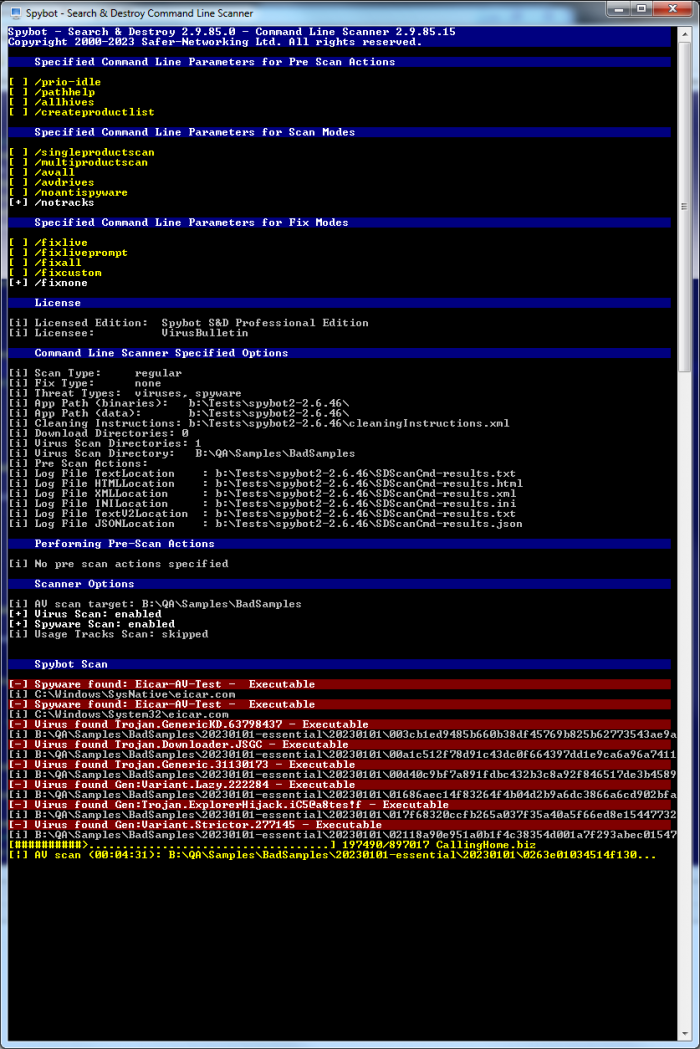
A command line antivirus is a security software utility operated through a text-based interface rather than a graphical user interface (GUI). It allows users and administrators to perform malware scans, update virus definitions, and ma...
A command line antivirus is a security software utility operated through a text-based interface rather than a graphical user interface (GUI). It allows users and administrators to perform malware scans, update virus definitions, and manage security protocols by typing specific commands into a terminal or command prompt.
Contents
In the landscape of 2026, cybersecurity has evolved beyond simple desktop alerts. While most casual users are familiar with the colorful dashboards and "Scan Now" buttons of traditional antivirus software, professional environments—such as data centers, cloud infrastructures, and DevOps pipelines—rely on a more streamlined approach. A command line antivirus (CLI AV) provides the core scanning engine of a security suite without the overhead of a visual interface. This makes it an essential tool for systems where resources are at a premium or where automation is the primary goal.
The use of CLI-based security tools is not a step backward into the past; rather, it is a strategic choice for high-performance computing. Whether you are managing a fleet of Linux servers or securing a Windows-based development environment, understanding the role and functionality of command line antivirus is critical for modern system administration.
Understanding the Architecture of Command Line Antivirus
To understand what a command line antivirus is, one must first distinguish between the scanning engine and the user interface. Most modern antivirus products are modular. The engine is the underlying code responsible for opening files, identifying patterns, and comparing them against a database of known threats. The GUI is simply a "wrapper" that sends instructions to that engine.
A command line antivirus removes the wrapper. When you execute a command like clamscan in a terminal, you are interacting directly with the binary executable of the security software. This direct interaction offers several technical advantages:
- Minimal Resource Consumption: Without the need to render high-resolution graphics, animations, or real-time notification windows, the CLI version of an antivirus consumes significantly less RAM and CPU power.
- Headless Operation: Many servers operate in "headless" mode, meaning they have no monitor, keyboard, or mouse attached, and no desktop environment (like GNOME or Windows Explorer) installed. A CLI antivirus is the only way to perform local scans on these systems.
- Remote Execution: Administrators can trigger scans across thousands of machines simultaneously using Secure Shell (SSH) or remote management scripts, something that is cumbersome or impossible with a GUI-only application.
Why Use a Command Line Antivirus?
The primary search intent for those asking "what is a command line antivirus" often stems from a need for automation or specialized server security. In 2026, the use cases for these tools are more diverse than ever.
Automation and CI/CD Pipelines
In modern software development, code is frequently moved through Continuous Integration and Continuous Deployment (CI/CD) pipelines. Before a piece of software is packaged and sent to a customer, it must be verified as safe. A command line antivirus can be integrated into these automated workflows. For example, a script can be set to run a scan on every new file uploaded to a repository; if the CLI tool returns a "threat detected" exit code, the pipeline automatically halts, preventing the distribution of infected code.
Security for Specialized Environments
Docker containers, Kubernetes pods, and microservices often run stripped-down versions of Linux. These environments are designed to be as small as possible to increase efficiency. Installing a full-featured GUI antivirus in a container is inefficient and often technically impossible. A lightweight CLI scanner like ClamAV is perfectly suited for these environments, providing a layer of security without bloating the container image.
Forensic Analysis and Emergency Recovery
When a system is heavily infected, the malware may disable the GUI or hijack the desktop environment to prevent the user from launching security tools. In these scenarios, booting into a "Safe Mode" terminal or using a live recovery USB allows a technician to run a command line antivirus to clean the system. Since the CLI tool operates independently of the desktop interface, it is much harder for traditional malware to "hide" from it or block its execution.
Core Components of a CLI Malware Scanner
Operating a command line antivirus requires an understanding of three main components: the binary, the database, and the flags.
The Scan Engine (The Binary)
This is the executable file (e.g., clamscan.exe, mpcmdrun.exe) that performs the heavy lifting. It handles file system navigation, archives (like .zip or .tar files) decompression, and heuristic analysis. Heuristic analysis allows the engine to identify suspicious behavior even if the specific virus signature is not yet in the database.
Definition Databases and Signatures
Like any antivirus, a CLI tool is only as good as its knowledge of threats. Most CLI tools include a secondary utility (such as freshclam) specifically designed to download the latest virus definitions. In a command line environment, these updates are often scheduled via cron jobs (on Linux) or Task Scheduler (on Windows) to ensure the system remains protected without manual intervention.
Command-Line Flags and Parameters
The true power of a CLI antivirus lies in its "flags"—short text snippets added to the command to change its behavior. For example:
--recursive: Scans all folders and subfolders.--move=/infected: Automatically moves any detected threats to a specific quarantine folder.--log=/logs/scan.log: Saves the results of the scan to a text file for later review.
Popular Command Line Antivirus Solutions in 2026
Several major security vendors provide robust command line versions of their software. The choice of tool often depends on the operating system and the specific security requirements of the organization.
| Antivirus Tool | Primary Platform | Best For | Key Feature |
|---|---|---|---|
| ClamAV | Linux / Unix / Windows | Open-source environments | High flexibility and mail server integration |
| Microsoft Defender (MpCmdRun) | Windows / Linux | Enterprise Windows fleets | Deep integration with Windows Security |
| ESET Server Security (cls) | Linux / Windows | High-performance servers | Low false-positive rate and advanced heuristics |
| Sophos Protection (avscanner) | Linux / Cloud | Hybrid cloud environments | Centralized management via Sophos Central |
| Bitdefender (bdscan) | Linux | High-speed scanning | Powerful engine used by many OEMs |
ClamAV: The Open-Source Standard
ClamAV remains the most widely used command line antivirus, particularly in the Linux world. It is the engine behind many email gateway scanners. Because it is open-source, it is free to use and highly customizable. As of 2026, ClamAV has integrated advanced AI-driven detection modules that allow it to compete with commercial paid products in identifying "zero-day" threats.
Microsoft Defender (MpCmdRun.exe)
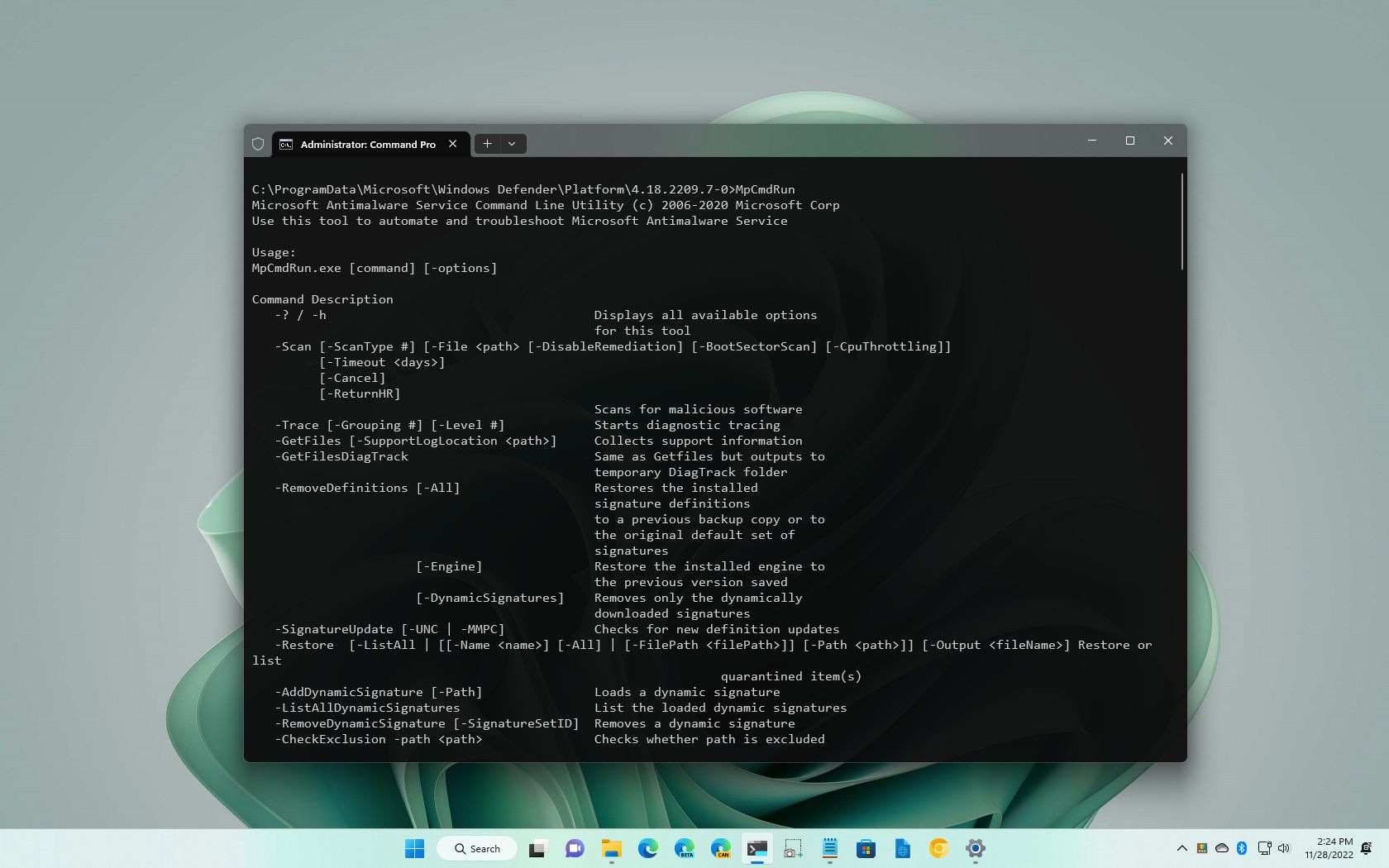
Many users do not realize that Windows Defender—the built-in security for Windows 10 and 11—includes a powerful command line utility called MpCmdRun.exe. This tool is located in the Windows Defender folder within Program Files. It allows administrators to trigger updates, perform full system scans, and even restore items from quarantine via the Command Prompt or PowerShell. This is particularly useful for managing Windows Server Core installations that lack a GUI.
Integration and Automation: The Power of Scripting
The defining characteristic of a command line antivirus is its "scriptability." When a CLI tool runs, it generates an exit code (or return code) when it finishes. In the world of programming, an exit code of 0 usually means "success" or "no threats found," while a code of 1 or higher indicates that a threat was detected or an error occurred.
An administrator can write a simple script that says: "Run a scan every night at 2:00 AM. If the exit code is not 0, send an emergency email to the security team and shut down the network interface." This level of proactive, automated response is what separates professional-grade security from basic consumer protection.
Performance and Resource Management
In high-traffic environments, such as a file server handling terabytes of data, the performance impact of an antivirus can be significant. Command line tools allow for "fine-grained" control over performance. For instance, an administrator can use the nice command in Linux to lower the priority of the antivirus scan, ensuring that the scan doesn't slow down the website or database running on the same server.
Furthermore, many CLI antivirus tools support multithreading. By using flags to specify the number of CPU cores the scanner is allowed to use, an admin can speed up the scan during maintenance windows or throttle it during peak business hours.
Limitations and Security Considerations
While command line antivirus tools are powerful, they are not a silver bullet. There are specific limitations to consider:
- Lack of Real-Time Protection: Many CLI-only scanners are "on-demand" tools. This means they only scan files when you tell them to. Unlike a desktop antivirus that watches every file you download in real-time, a CLI tool (like the basic
clamscan) might require a separate background service (likeclamd) to provide continuous protection. - Learning Curve: There is no "Help" menu with clickable icons. Users must be comfortable with the terminal and prepared to read through extensive "man pages" (manuals) to understand the available options.
- No Visual Feedback: If a scan is running in the background, there is no progress bar or pop-up notification. Users must rely on log files or monitoring tools to know the status of the security check.
FAQs about Command Line Antivirus
Is a command line antivirus as effective as a GUI version?
Yes, in terms of detection. Most vendors use the exact same scanning engine for both their CLI and GUI products. The difference lies entirely in how you control the software and how it reports its findings, not in its ability to find malware.
Can I run a command line antivirus on Windows?
Absolutely. Microsoft Defender’s MpCmdRun.exe is the most common option. Additionally, third-party vendors like ESET and Bitdefender offer CLI versions of their software for Windows, and ClamAV has a native Windows port.
How do I update the virus definitions in a CLI antivirus?
Most CLI tools have a dedicated update command. For ClamAV, it is freshclam. For Microsoft Defender, you use MpCmdRun.exe -SignatureUpdate. These commands are typically automated using system schedulers so that the definitions stay current without manual effort.
Is command line antivirus free?
Some are, and some aren't. ClamAV is the most famous free, open-source option. However, most enterprise-grade CLI tools from companies like Sophos, ESET, or Bitdefender require a paid license, usually sold as part of a server or cloud security package.
Can a command line antivirus remove a virus, or just detect it?
Most can do both. By using flags like --remove or --move, you can instruct the tool to automatically delete or quarantine infected files. However, security professionals often prefer to "quarantine" first to avoid accidentally deleting a "false positive" (a safe file incorrectly identified as malware).
Summary and Next Actions
A command line antivirus is a specialized but vital component of the modern security stack. By removing the graphical interface, it provides the speed, automation capabilities, and low resource footprint required for servers, cloud environments, and professional recovery tasks.
If you are a system administrator or a power user looking to enhance your security, your next step should be to explore the built-in CLI capabilities of your current OS. Windows users can experiment with MpCmdRun.exe via PowerShell, while Linux users should consider installing ClamAV to learn the basics of text-based malware scanning. Understanding these tools ensures that your security posture remains robust, even in environments where a mouse and monitor are nowhere to be found.
For official documentation on implementing CLI security in enterprise environments, refer to the Microsoft Defender for Endpoint documentation or the ClamAV official manual.
Image Gallery