How to Improve RAM on Your Phone: Practical Methods and Technical Realities
Improving RAM on your mobile device involves a combination of managing active background processes, utilizing virtual memory features built into modern operating systems, and removing resource-heavy applications that consume physical m...
Improving RAM on your mobile device involves a combination of managing active background processes, utilizing virtual memory features built into modern operating systems, and removing resource-heavy applications that consume physical memory. While you cannot physically upgrade the hardware RAM chip inside a smartphone, you can optimize how your operating system allocates memory to ensure smoother multitasking and better overall performance.
Contents
Understanding Phone RAM: Physical Memory vs. Virtual Allocation
Random Access Memory (RAM) serves as your phone’s short-term workspace. Unlike internal storage (such as UFS or NVMe flash storage), which retains files, photos, and apps when the device is powered off, RAM holds data that the processor needs immediately. When you switch between apps, the operating system keeps them loaded in RAM so they open instantly.
As applications grow more complex and feature-rich, they demand larger footprints of physical memory. When a device runs out of physical RAM, the operating system must close background tasks or rely on slower storage mechanisms to swap data out. This leads to stuttering, app reloads, and sluggish response times. Understanding this distinction helps clarify why traditional memory-boosting apps often fail and why system-level management is necessary.
Assessing Your Device Memory Usage
Before attempting to optimize your memory, you must determine how much RAM your device has and how it is currently being utilized. Both Android and iOS handle memory transparency differently, but each provides tools to inspect memory consumption.
Checking RAM on Android
Most Android manufacturers include a built-in memory monitor within the settings menu:
- Open Settings.
- Navigate to Developer Options (if hidden, tap Build Number seven times under About Phone).
- Select Memory or Running Services to view average memory usage over the last 3 hours or 24 hours.
- Review which applications consume the highest share of physical memory.
Checking RAM on iOS
Apple’s iOS manages memory dynamically and restricts direct user inspection of raw RAM allocation. However, users can monitor overall storage and app behavior via Settings > General > iPhone Storage, and observe performance degradation by tracking how frequently applications force-reload when switching tasks.
Effective Methods to Optimize Phone RAM
To achieve meaningful performance improvements, focus on practical adjustments that reduce the memory footprint of your system.
1. Identify and Remove Resource-Heavy Applications
Some applications run persistent background services that continuously consume RAM, even when you are not actively using them. Social media platforms, navigation tools, and poorly optimized utility apps are common culprits. Uninstalling rarely used applications or restricting their background activity prevents them from hoarding memory resources.
2. Disable or Restrict Background Processes
Android users can limit background activity directly through the operating system settings or application preferences.
- Navigate to Settings > Apps.
- Select resource-intensive applications and change their battery or background usage settings to Restricted or Optimized.
- Alternatively, enable Developer Options and adjust the Background Process Limit to restrict how many apps can remain active concurrently.
3. Utilize Built-In Virtual RAM Features
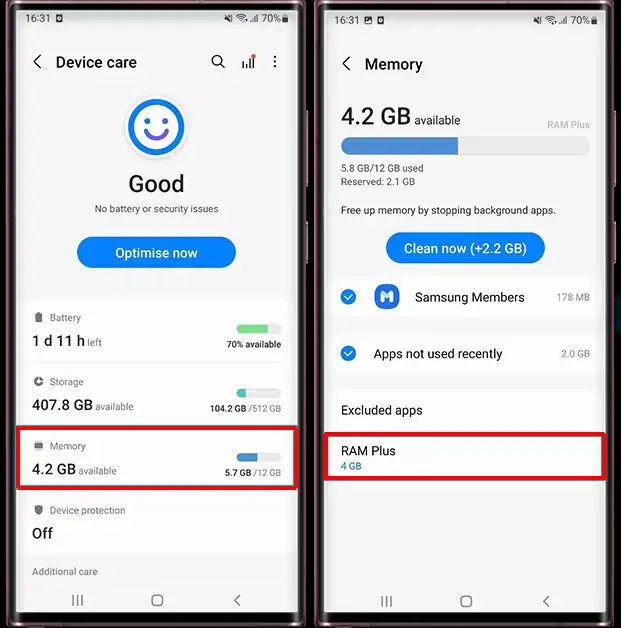
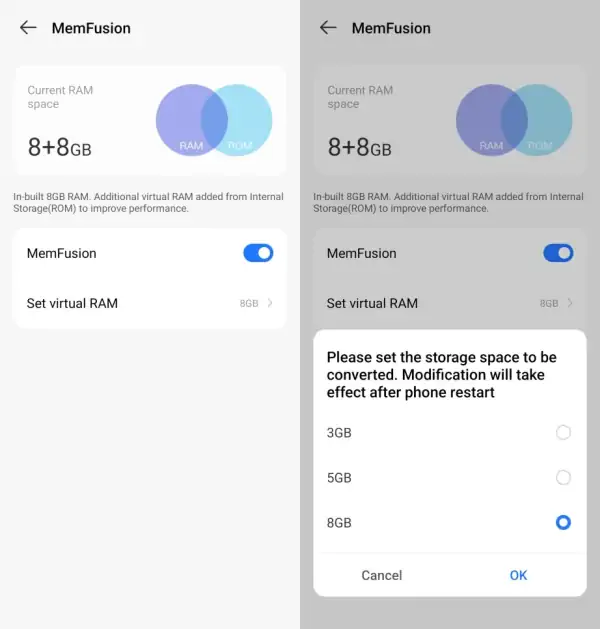
Many modern smartphone manufacturers—including Samsung, OnePlus, Xiaomi, and Vivo—offer a feature commonly known as Virtual RAM, RAM Plus, or Memory Extension. This feature allocates a portion of your phone's internal storage to act as overflow memory when physical RAM reaches capacity.
- How to enable it on Android: Go to Settings > Battery and Device Care > Memory (or Settings > Additional Settings > Memory Extension) and select the desired amount of virtual RAM to allocate.
- Note: While virtual RAM helps prevent app crashes due to out-of-memory errors, storage memory is significantly slower than physical LPDDR5 or LPDDR5X RAM. It is not a complete substitute for physical hardware capacity.
4. Clear App Caches and Restart Your Device
Over time, temporary data cached in memory can fragment operations. Restarting your phone completely flushes the RAM, terminating all background services and starting the operating system with a clean slate. Regularly clearing app caches via Settings > Storage > Apps also prevents leftover temporary files from consuming valuable system overhead.
Comparison of Phone Memory Management Strategies
| Strategy | Effectiveness | Potential Drawbacks | Best For |
|---|---|---|---|
| System Restart | High | Temporary solution; apps will reload over time. | Clearing accumulated background clutter and reviving sluggish UI performance. |
| Virtual RAM (RAM Plus) | Moderate | Uses internal storage bandwidth, which is slower than physical RAM. | Preventing sudden app crashes when multitasking with heavy apps. |
| Uninstalling Bloatware | High | Permanent removal of features you might occasionally use. | Devices with limited physical RAM (4GB or lower) struggling with daily tasks. |
| Third-Party RAM Cleaners | Low / Negative | Often run persistent background ads and services, consuming more RAM. | Avoid entirely; modern OS schedulers handle task termination more efficiently. |
Common Myths About Phone RAM
Many misconceptions surround mobile memory optimization. Understanding these myths prevents users from adopting counterproductive habits.
- "Task Killer" Apps Improve Speed: Third-party task killer applications advertised on app stores often do more harm than good. Modern mobile operating systems are designed to keep apps in RAM for quick launching; forcefully terminating them forces the processor to expend extra energy and CPU cycles to relaunch them later.
- More RAM Always Equals Faster Speed: While capacity matters for heavy multitasking, processor architecture (CPU/GPU), storage speed (UFS standards), and software optimization play an equally critical role in overall user experience.
- Free RAM is Wasted RAM: An operating system that keeps RAM entirely empty is inefficient. Android and iOS intentionally preload common assets and apps into available memory to ensure rapid response times.
Frequently Asked Questions
Can I physically upgrade the RAM in my smartphone?
No. Unlike desktop computers or some modular laptops, smartphone RAM chips are soldered directly onto the motherboard alongside the system-on-chip (SoC). Upgrading physical memory is impossible for end-users.
Does closing apps manually save RAM and battery?
Generally, no. Force-closing apps from the recent apps menu frequently requires the phone to reload the application from storage the next time you open it, which can consume more battery power than leaving it suspended in memory. Let the operating system manage background tasks automatically.
What is the minimum amount of RAM needed for a smooth phone experience?
In 2026, standard usage requires at least 6GB to 8GB of RAM for a smooth, stutter-free experience on Android and iOS. Devices with 4GB or less will frequently close background apps and struggle with heavy web browsing or modern mobile gaming.
Do virtual RAM settings slow down phone storage?
Yes, slightly. Virtual RAM relies on flash storage blocks, which operate at lower read/write speeds compared to dedicated RAM modules. However, the speed reduction is usually negligible for standard background tasks and helps prevent out-of-memory crashes.
Why does my phone say RAM is full even after clearing apps?
Operating systems reserve a significant portion of physical RAM for system-level processes, display rendering, and core hardware drivers. This reserved memory is completely normal and remains allocated even when all user-facing applications are closed.
Conclusion and Next Actions
To maintain optimal performance on your phone, avoid relying on third-party memory booster apps. Instead, focus on sustainable system habits: restart your device weekly, evaluate and uninstall unused applications that drain resources, and enable built-in virtual memory features if your manufacturer supports them. If your device continues to experience severe slowdowns due to physical hardware limitations, consider upgrading to a model with a higher RAM capacity to meet modern software demands.
Image Gallery