How to Clear Cookies on a Samsung Phone: A Step-by-Step Guide
To clear cookies on your Samsung phone, open your preferred browser—typically Samsung Internet or Google Chrome—and navigate to the Settings menu. Locate the Privacy or Browsing Data section, select Cookies and site data, and tap Delet...
To clear cookies on your Samsung phone, open your preferred browser—typically Samsung Internet or Google Chrome—and navigate to the Settings menu. Locate the Privacy or Browsing Data section, select Cookies and site data, and tap Delete or Clear data. This process removes stored login sessions and tracking files to improve privacy.
Contents
Managing digital footprints on a Samsung Galaxy device is essential for maintaining both performance and privacy. As we navigate 2026, mobile browsers have become more sophisticated, yet the fundamental need to purge "cookies"—small text files stored by websites to remember your preferences and login status—remains a core maintenance task. Whether you are using the native Samsung Internet browser or the widely popular Google Chrome, understanding how to manage these files ensures your device remains secure and functions optimally.
Understanding Cookies on Samsung Devices
Before proceeding with the removal process, it is helpful to understand what cookies are and why they reside on your Samsung phone. Cookies are data packets sent from a website and stored on your device's local storage. They serve various purposes, ranging from keeping you logged into your favorite social media platforms to remembering items in a digital shopping cart.
On a Samsung device running the latest One UI interface, cookies are managed at the application level. This means that clearing cookies in one browser (like Chrome) will not automatically clear them in another (like Samsung Internet). There are two primary types of cookies you will encounter:
- First-party cookies: These are created by the site you are currently visiting and are generally used to improve user experience.
- Third-party cookies: These are created by other sites that own some of the content, such as ads or images, that you see on the page you are visiting. These are often used for tracking and cross-site advertising.
While cookies are generally harmless, they can accumulate over time, leading to "storage bloat" or causing errors when a website’s stored data conflicts with a new update to the site’s code. Regularly clearing them is a standard troubleshooting step for login issues and slow page loading.
How to Clear Cookies in Samsung Internet
Samsung Internet remains the default browser for millions of Galaxy users due to its deep integration with the One UI ecosystem and its optimized performance on OLED displays. To clear cookies in this specific browser, follow these steps:
- Open Samsung Internet: Locate the app icon on your home screen or in the app drawer.
- Access the Menu: Tap the three horizontal lines (the "hamburger" menu) located in the bottom-right corner of the screen.
- Navigate to Settings: Select the gear icon labeled Settings.
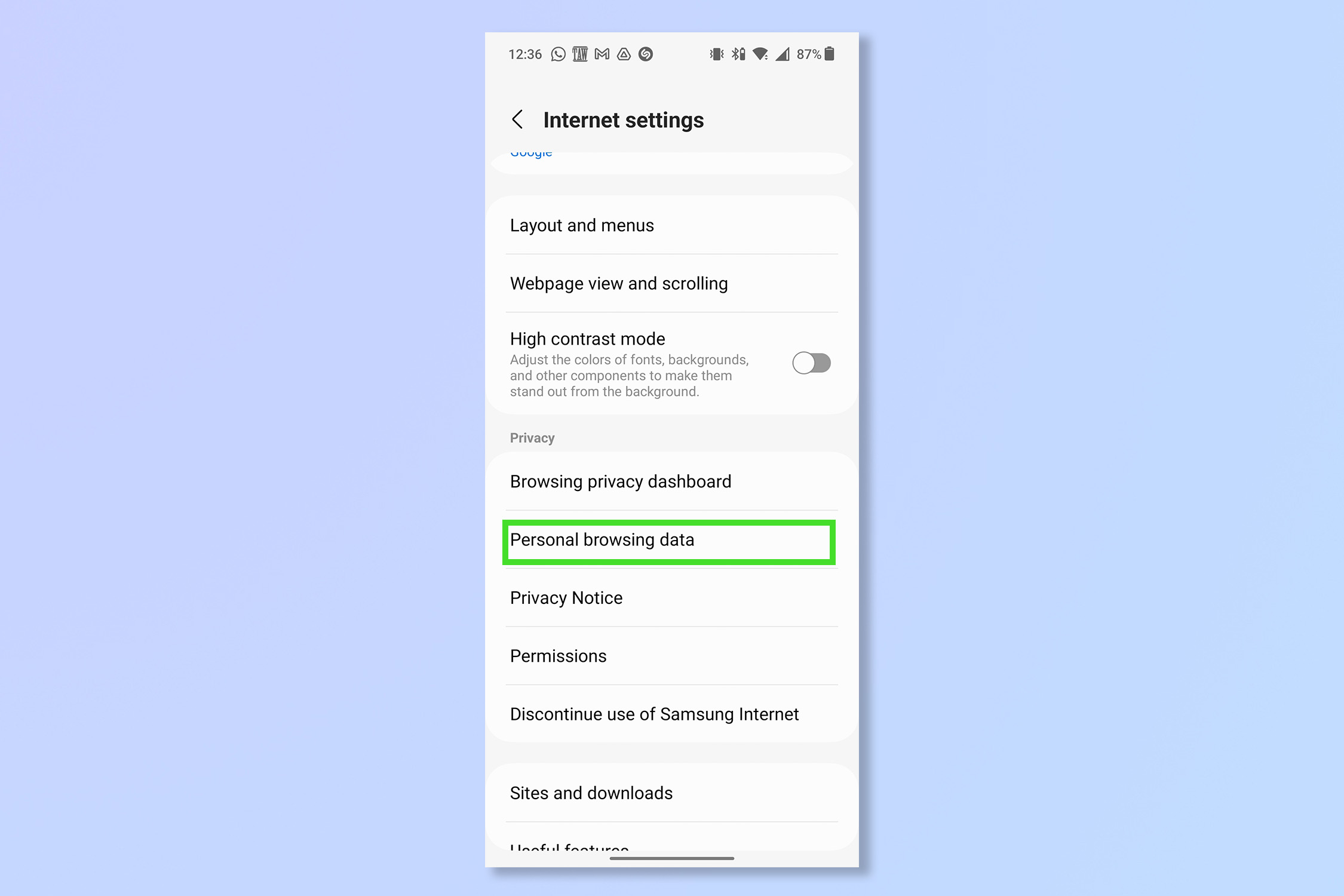
- Enter Personal Browsing Data: Scroll down to the "Privacy" section and tap on Personal browsing data.
- Delete Browsing Data: Tap on the top option, Delete browsing data.
- Select Cookies: A list of data types will appear. Ensure that Cookies and site data is checked. You may also choose to clear your cache and browsing history at this stage, though it is not strictly necessary for clearing cookies.
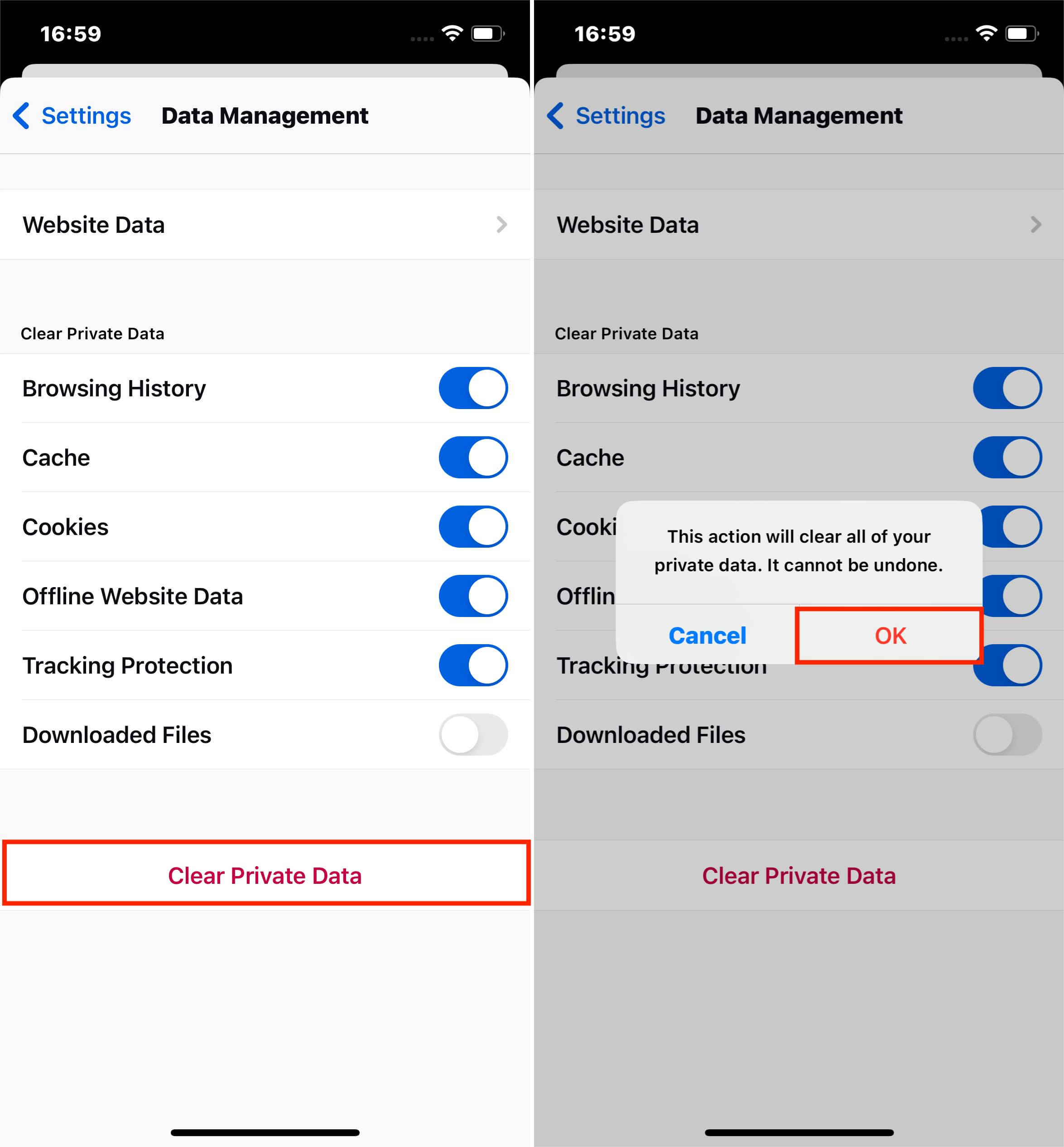
- Execute the Deletion: Tap the Delete data button at the bottom. A confirmation pop-up will appear; tap Delete again to finalize the process.
In the 2026 version of Samsung Internet, users also have access to "Enhanced Tracking Protection." While clearing cookies removes existing data, enabling this feature helps prevent future third-party cookies from tracking your movement across different websites.
How to Clear Cookies in Google Chrome
Google Chrome is the most used browser on the Android platform. Because it syncs with your Google Account, clearing cookies here might affect your experience on other devices if you are signed in.
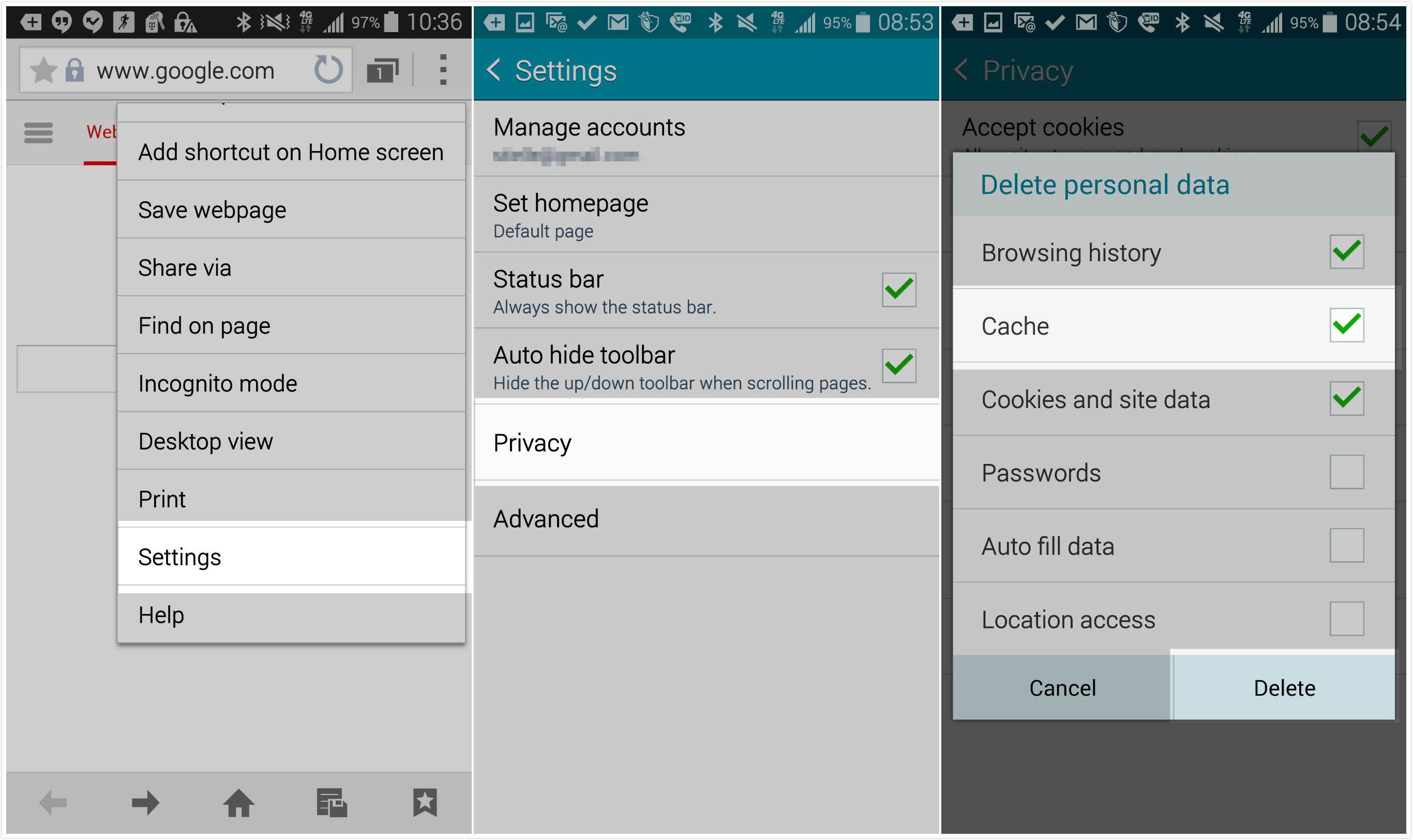
- Launch Chrome: Open the Chrome app on your Samsung phone.
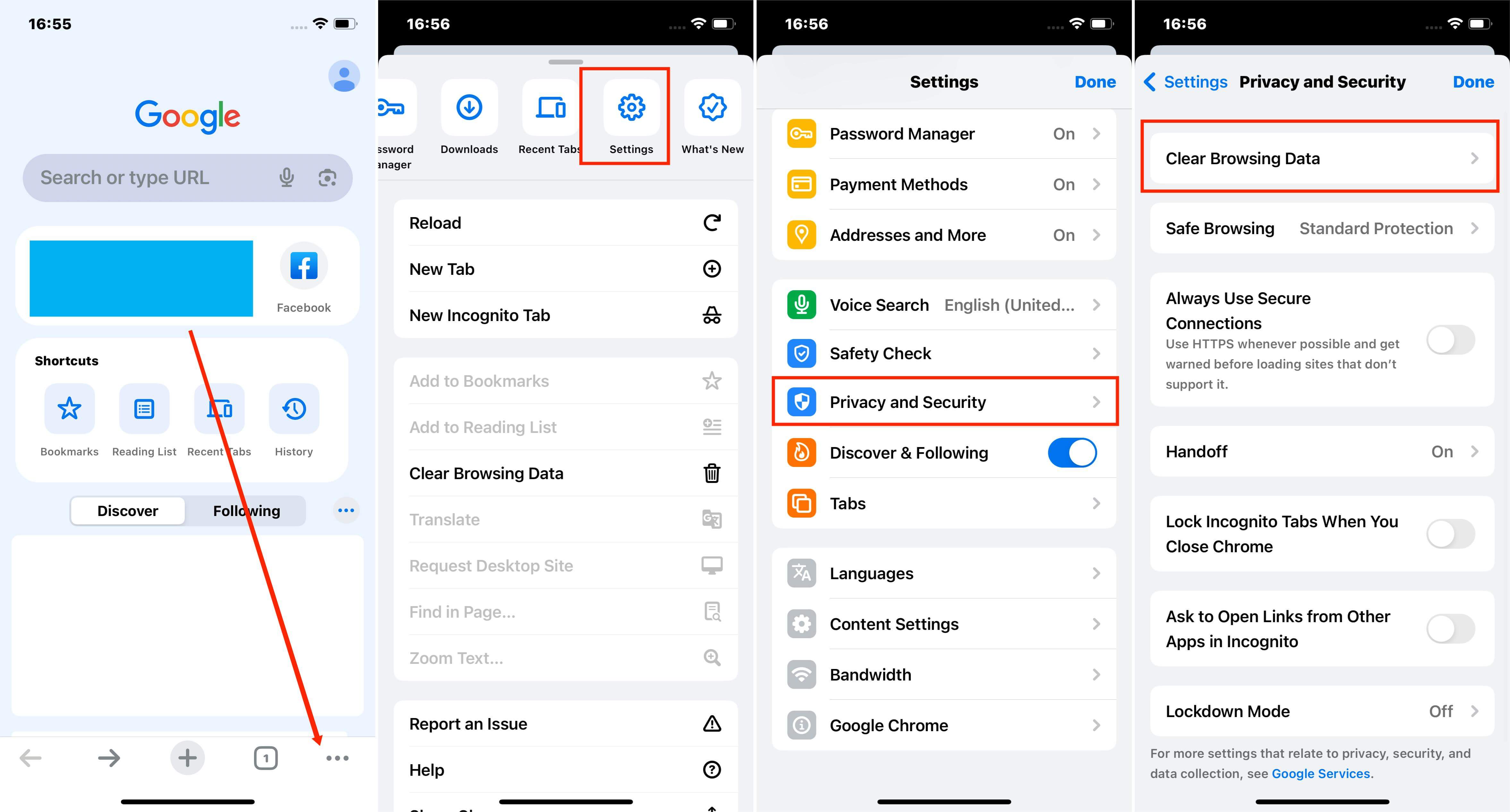
- Open Settings: Tap the three vertical dots in the top-right corner and select Settings.
- Privacy and Security: Scroll down and tap on Privacy and security.
- Clear Browsing Data: Tap the first option on the list.
- Choose the Time Range: At the top of the screen, you can choose a time range (e.g., "Last hour," "Last 24 hours," or "All time"). To completely clear the device, select All time.
- Select Data Type: Check the box next to Cookies and site data.
- Clear Data: Tap the Clear data button. Chrome may ask if you want to clear data from "important" sites you visit frequently; confirm your choice to proceed.
Chrome also offers an "Advanced" tab within the Clear Browsing Data menu. This allows for more granular control, such as clearing saved passwords or autofill form data, which are distinct from standard cookies.
System-Level Management: The Settings App Method
If you are experiencing severe glitches with a browser or simply want to reset an app to its factory state, you can clear data through the Samsung system settings. This is often referred to as the "nuclear option" because it removes cookies, cache, and all user settings for that specific app.
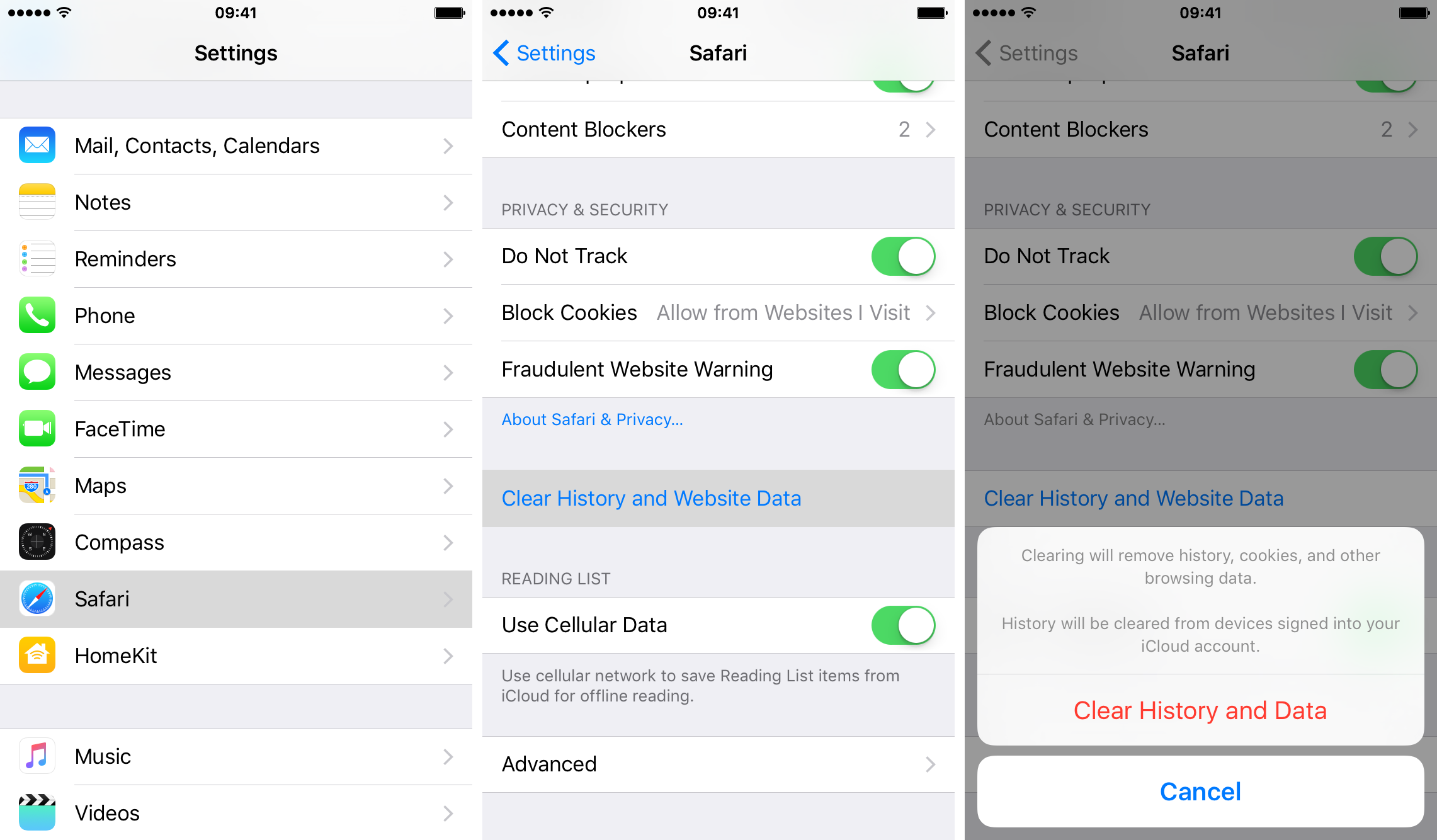
- Go to Settings on your Samsung phone.
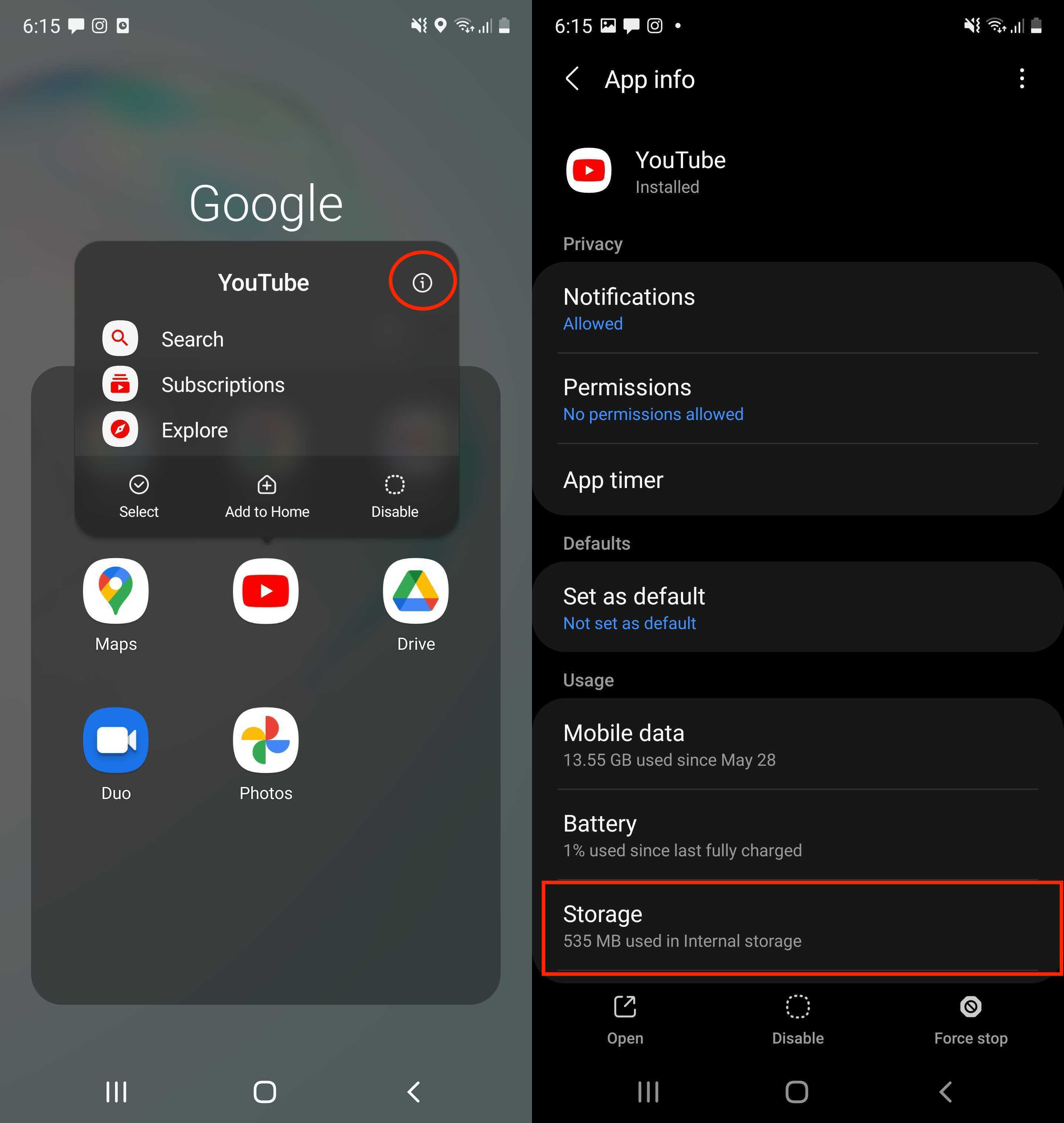
- Tap on Apps.
- Find and select the browser you wish to manage (e.g., Samsung Internet or Chrome).
- Tap on Storage.
- You will see two options: Clear cache and Manage storage (or Clear data).
- Tapping Clear cache only removes temporary files. To remove cookies, you must tap Manage storage and then select Clear all data.
Note: Using "Clear all data" will log you out of every website and reset all browser preferences. Use this method only if the standard in-app methods fail to resolve your issue.
Comparison of Data Removal Methods
It is important to distinguish between cookies, cache, and history, as users often confuse these terms. The following table illustrates the differences and the impact of clearing each.
| Data Type | What it Contains | Effect of Clearing | Recommended Frequency |
|---|---|---|---|
| Cookies | Login sessions, site preferences, tracking IDs. | Logs you out of sites; resets site-specific settings. | Monthly or when errors occur. |
| Cache | Images, scripts, and temporary media files. | May cause sites to load slightly slower on the first visit. | When storage is low. |
| History | A list of URLs and page titles you have visited. | Removes items from the browser's "Suggested" search list. | At user discretion for privacy. |
| App Data | All of the above plus passwords and settings. | Resets the app to its original "just installed" state. | Only for troubleshooting. |
Why You Should Clear Cookies Regularly
While modern Samsung phones come with significant storage capacity (often 256GB or higher in 2026), cookies can still cause functional issues. Here are the primary reasons to clear them:
- Privacy and Tracking: Advertisers use cookies to build a profile of your interests. By clearing them, you break the tracking chain, though new cookies will begin accumulating immediately as you resume browsing.
- Fixing Site Errors: If a website has updated its security protocols but your phone is trying to use an old session cookie, you may receive "400 Bad Request" or "Access Denied" errors. Clearing cookies forces a fresh connection.
- Security on Shared Devices: If you ever lend your Samsung phone to someone else, clearing cookies ensures they cannot access your logged-in accounts on web browsers.
- Freeing Up "Hidden" Storage: Although individual cookies are small, thousands of them combined with "site data" (local storage used by web apps) can occupy several hundred megabytes of space.
Troubleshooting Common Issues
Occasionally, users encounter problems while trying to clear cookies. If the "Clear Data" button is greyed out, it may be because your browser is currently syncing data with a cloud account. Ensure you have a stable internet connection, or try toggling Airplane Mode on and off to reset the connection.
If cookies seem to reappear immediately after deletion, check if you have any third-party "cleaner" apps or security suites installed. Some of these apps perform automatic backups of app data, which can inadvertently restore deleted cookies. For the best results, rely on the official Samsung Support documentation or the Google Chrome Help Center for software-specific troubleshooting.
Frequently Asked Questions
Will clearing cookies delete my saved passwords?
Clearing "Cookies and site data" typically only logs you out of websites. It does not delete the passwords saved in your Samsung Pass or Google Password Manager. However, if you choose the "Clear all data" option in the system settings, you may need to sign back into the browser's sync service to regain access to your saved passwords.
How often should I clear cookies on my Samsung Galaxy?
For most users, clearing cookies every one to three months is sufficient. If you are a heavy browser user or frequently visit sites with intensive advertising, a monthly cleanup can help maintain device snappiness. If you use "Incognito" or "Secret Mode," cookies are automatically deleted when you close the tab, eliminating the need for manual clearing.
Does clearing cookies speed up my internet connection?
No, clearing cookies does not affect your raw internet speed. In fact, websites may load slightly slower the first time you visit them after clearing cookies because the browser must re-download certain site preferences. However, it can resolve "hangs" or "freezes" caused by corrupted data, which improves the perception of speed.
Can I clear cookies for just one specific website?
Yes, in both Samsung Internet and Google Chrome, you can manage cookies for individual sites. In Chrome, go to Settings > Site Settings > All sites, select the specific URL, and tap Clear & reset. This is useful if only one specific website is malfunctioning and you do not want to be logged out of everything else.
What is the difference between "Secret Mode" and clearing cookies?
Samsung Internet's "Secret Mode" (and Chrome's Incognito Mode) prevents cookies from being saved permanently. Any cookies created during a Secret session are deleted the moment you close the tab. Clearing cookies manually is the process of removing data that was saved during normal browsing sessions.
Moving Forward: Privacy Best Practices
Once you have successfully cleared your cookies, consider adjusting your browser settings to limit future data accumulation. In 2026, both Samsung and Google provide "Privacy Sandboxes" and "Tracking Protection" settings that allow you to block third-party cookies by default. Navigating to Settings > Privacy and Security in your browser and selecting "Block third-party cookies" is a proactive way to reduce the need for frequent manual cleanings while significantly enhancing your mobile privacy.
Image Gallery