How to Run Plex Media Server for Linux: A Complete Setup Guide (2026)
To run Plex Media Server on Linux, you must install the official Plex package for your distribution, such as Ubuntu, Debian, or Fedora, or deploy it as a Docker container. After installation, you manage the server via a web-based dashb...
To run Plex Media Server on Linux, you must install the official Plex package for your distribution, such as Ubuntu, Debian, or Fedora, or deploy it as a Docker container. After installation, you manage the server via a web-based dashboard, configure media libraries, and ensure the "plex" user has appropriate read permissions for your files.
Contents
Linux has long been the gold standard for hosting media server software. In 2026, it remains the preferred choice for enthusiasts and professionals alike due to its minimal resource overhead, exceptional stability, and superior support for hardware-accelerated transcoding. Whether you are repurposing an old laptop or configuring a dedicated enterprise-grade rack server, Linux provides the granular control necessary to host a high-performance Plex environment.
Why Linux is the Preferred Platform for Plex
When deciding how to run Plex Media Server, the operating system choice impacts both performance and maintenance. While Plex runs on Windows and macOS, Linux distributions like Ubuntu Server or Debian offer several distinct advantages that are particularly relevant in a 2026 ecosystem defined by high-bitrate 4K and 8K content.
The primary benefit is resource efficiency. A headless Linux server (one without a graphical user interface) consumes significantly less RAM and CPU cycles than Windows. This leaves more overhead for Plex to handle complex tasks like subtitle burning or audio transcoding. Furthermore, Linux handles "zombie processes" and memory management more effectively, allowing servers to run for months or even years without a reboot.
Secondly, Hardware Acceleration (HWA) on Linux is more robust. For users with Intel processors, the Linux kernel provides direct access to QuickSync Video (QSV) via the vaapi drivers, often resulting in smoother 4K HDR tone mapping than what is found on other platforms. For NVIDIA users, the proprietary Linux drivers offer high-performance NVENC encoding, which is essential for serving multiple remote streams simultaneously.
System Requirements and Hardware Considerations
Before diving into the installation commands, you must ensure your hardware meets the demands of your media library. In 2026, the standard for a "good" experience has shifted toward handling HEVC (H.265) and AV1 codecs.
CPU and Transcoding Power
Plex uses a metric called a "PassMark" score to estimate transcoding capabilities. While a basic 1080p stream requires a score of roughly 2,000, 4K HDR streams can require 12,000 to 17,000 if you are not using hardware acceleration. If you plan to run Plex on Linux, prioritizing a CPU with Intel QuickSync (8th Gen or newer) is the most cost-effective way to handle high-resolution files without needing a massive, power-hungry processor.
Memory (RAM)
Plex itself is not memory-intensive. For a standard Linux build, 4GB of RAM is sufficient. However, if you intend to use a RAM disk for transcoding—a popular technique in 2026 to reduce wear on SSDs—you should aim for 16GB or more.
Storage and Connectivity
Your Linux OS should ideally live on an NVMe SSD for fast database searching and metadata loading. Your actual media files can reside on larger, slower mechanical drives or a Network Attached Storage (NAS) device. For networking, a wired Gigabit Ethernet connection is mandatory; Wi-Fi is generally too unstable for the high-bitrate demands of a primary Plex server.
Preparing Your Linux Environment
Before installing the software, you must prepare the operating system. This guide focuses on Ubuntu and Debian-based systems, as they represent the vast majority of Linux server deployments.
- Update the System: Ensure all existing packages are current to avoid dependency conflicts.
sudo apt update && sudo apt upgrade -y
- Set a Static IP: A media server needs a consistent address so that your client devices (Smart TVs, phones, tablets) can always find it. This is typically done through your router's DHCP reservation settings or by editing the
/etc/netplan/files on Ubuntu. - Manage Permissions: This is the most common hurdle for new Linux users. Plex runs under its own user account, named
plex. If your media folders are owned by your primary user and lack "Read" permissions for others, Plex will not be able to see your files. Use thechownandchmodcommands to ensure theplexuser has access.
Step-by-Step Installation on Ubuntu and Debian
Using the official Plex repository is the best method because it allows you to update the server using the standard Linux package manager.
Step 1: Add the Plex Repository
First, you need to import the Plex GPG key to ensure the software is authentic. Open your terminal and enter:
curl https://downloads.plex.tv/plex-keys/PlexSign.key | gpg --dearmor | sudo tee /usr/share/keyrings/plex-archive-keyring.gpg > /dev/null
Next, add the repository to your sources list:
echo "deb [signed-by=/usr/share/keyrings/plex-archive-keyring.gpg] https://downloads.plex.tv/repo/deb public main" | sudo tee /etc/apt/sources.list.d/plexmediaserver.list
Step 2: Install the Server
Update your package list again to include the new repository, then install the server software:
sudo apt update
sudo apt install plexmediaserver
Step 3: Verify the Service
Once the installation is complete, the Plex service should start automatically. You can check its status with:
sudo systemctl status plexmediaserver
If it is not active, use sudo systemctl enable --now plexmediaserver to start it and ensure it launches on boot.
Alternative Installation: Running Plex via Docker
Many administrators in 2026 prefer containerization. Running Plex in Docker isolates the application from the rest of the OS, making backups and migrations incredibly simple.
To run Plex via Docker, you can use a docker-compose.yml file. This method is highly recommended if you plan on running other "Home Lab" services alongside Plex. A standard configuration includes mapping your media folders to the container and passing through the /dev/dri device to enable hardware transcoding.
Benefits of the Docker approach:
- Version Control: You can roll back to a previous version of Plex in seconds if an update causes issues.
- Portability: To move your server, you simply copy your Docker config folder to a new machine.
- Dependency Isolation: No need to worry about conflicting libraries on the host OS.
Comparing Installation Methods for Linux
| Feature | Native Package (deb/rpm) | Docker Container |
|---|---|---|
| Ease of Setup | High (Simple commands) | Medium (Requires Docker knowledge) |
| Updates | Via apt or dnf |
Via image pull |
| Performance | Native speed | Native speed (with host networking) |
| Isolation | Low | High |
| HW Acceleration | Direct access | Requires device passthrough |
| Maintenance | Minimal | Very Low |
Post-Installation: Configuration and Remote Access
Once the service is running, the remainder of the setup occurs in the web browser. Navigate to http://your-server-ip:32400/web.
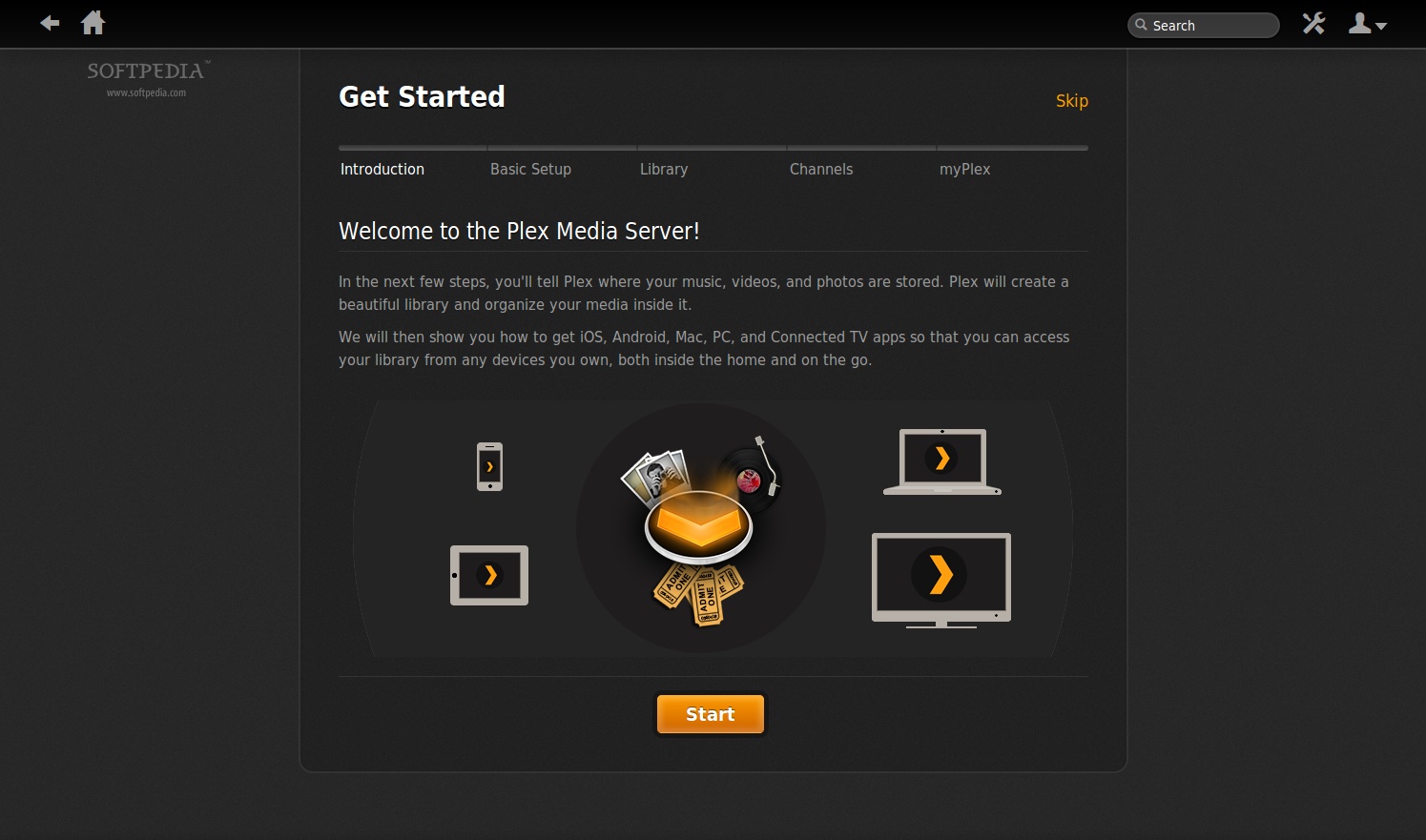
Initial Setup Wizard
You will be prompted to sign in with your Plex account. The wizard will then ask you to name your server and add libraries. When adding a library (e.g., "Movies"), you must point Plex to the exact Linux directory where your files are stored, such as /mnt/media/movies.
Firewall Configuration
If you have a firewall enabled (like UFW on Ubuntu), you must allow traffic through port 32400.
sudo ufw allow 32400/tcp
Remote Access and Port Forwarding
To watch your media when away from home, you must enable Remote Access in the Plex settings. This usually requires "Port Forwarding" on your home router. You must direct all incoming traffic on port 32400 to the static internal IP address of your Linux server. In 2026, many modern routers support UPnP, but manual port forwarding remains the most reliable method to prevent connectivity drops.
Optimizing Linux for Media Transcoding
To truly master how to run Plex Media Server for Linux, you should enable hardware-accelerated transcoding. This feature requires a Plex Pass subscription but drastically reduces CPU usage.
On Linux, hardware acceleration for Intel CPUs requires the installation of the intel-media-va-driver-non-free package. For NVIDIA GPUs, you must install the proprietary drivers and the nvidia-container-toolkit if using Docker. Once the drivers are installed, go to Settings > Transcoder in the Plex Web UI and check the box for "Use hardware acceleration when available."
You can verify it is working by playing a high-resolution file on a client and checking the "Activity" dashboard on the server. If you see "(hw)" next to the video format, your Linux server is successfully using the GPU to process the video.
Common Troubleshooting Steps on Linux
Even with a perfect installation, issues can arise. Here are the most frequent problems encountered on Linux:
- Permission Denied: If Plex shows an empty library after you add a folder, it is almost always a permissions issue. Ensure the
plexuser has "Execute" permissions on every parent folder in the path and "Read" permissions on the files. - Server Not Found: If you cannot access the web UI, check if the service is running (
systemctl status plexmediaserver) and ensure your firewall is not blocking port 32400. - Transcoding Lag: If video buffers constantly, check your CPU usage with the
toporhtopcommand. If usage is near 100%, you may need to enable hardware acceleration or lower the quality settings on the client device. - Database Corruption: In rare cases, a power failure can corrupt the Plex database. Regular backups of the
/var/lib/plexmediaserver/Library/Application Support/Plex Media Server/directory are essential.
Frequently Asked Questions
Can I run Plex on a Raspberry Pi using Linux?
Yes, you can run Plex on a Raspberry Pi (especially the Pi 4 or Pi 5) using Raspberry Pi OS, which is based on Debian. While the Pi is excellent for direct-playing media, it struggles with transcoding high-bitrate 4K video. It is an ideal low-power solution for users who have a library optimized for their playback devices.
Do I need a GUI (Desktop Environment) on my Linux server?
No, and it is generally recommended to use a "Server" or "Headless" version of Linux. This saves system resources and improves stability. You can perform all necessary management via the Plex web interface from another computer on your network.
How do I update Plex on Linux?
If you installed Plex via the official repository, you update it just like any other software: by running sudo apt update && sudo apt upgrade. If you are using Docker, you simply pull the latest image and restart the container.
What is the best Linux distribution for Plex in 2026?
Ubuntu Server and Debian remain the top choices due to their massive community support and extensive documentation. For those who prefer a more specialized storage-focused OS, Unraid or TrueNAS Scale (which are Linux-based) offer excellent built-in Plex support.
How do I add internal or external hard drives to Plex on Linux?
You must "mount" the drives to a directory in your Linux filesystem, typically under /mnt or /media. For permanent internal drives, you should add an entry to the /etc/fstab file to ensure the drives mount automatically every time the server reboots.
Practical Recommendation
For the most stable and performant experience in 2026, install Ubuntu Server 24.04 LTS (or the latest LTS version) on a dedicated machine with an Intel CPU supporting QuickSync. Use the official repository method for installation to ensure easy updates, and store your media on a separate mirrored array of high-capacity hard drives. This setup balances ease of use with the powerful performance that only a Linux-based media server can provide.
Image Gallery