Recognizing the Signs of a Computer Virus: A Technical Guide
Identifying a computer virus involves monitoring your system for deviations in performance, unauthorized configuration changes, and erratic behavioral patterns. While modern operating systems include robust integrated security suites,...
Identifying a computer virus involves monitoring your system for deviations in performance, unauthorized configuration changes, and erratic behavioral patterns. While modern operating systems include robust integrated security suites, malicious software—or malware—often attempts to operate stealthily by masquerading as legitimate background processes, consuming system resources, or hijacking communication channels to maintain persistence.
Contents
System Performance Anomalies
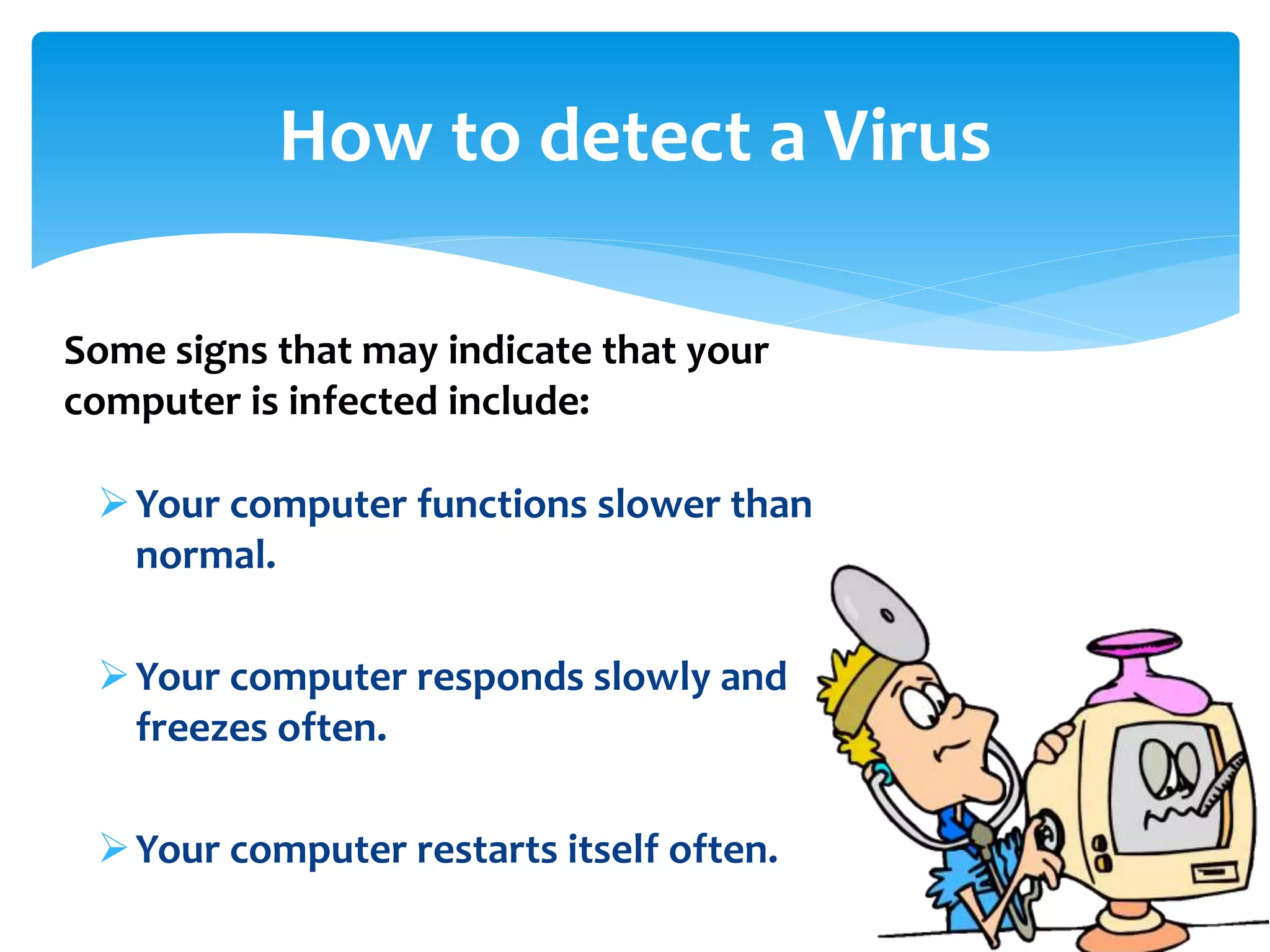
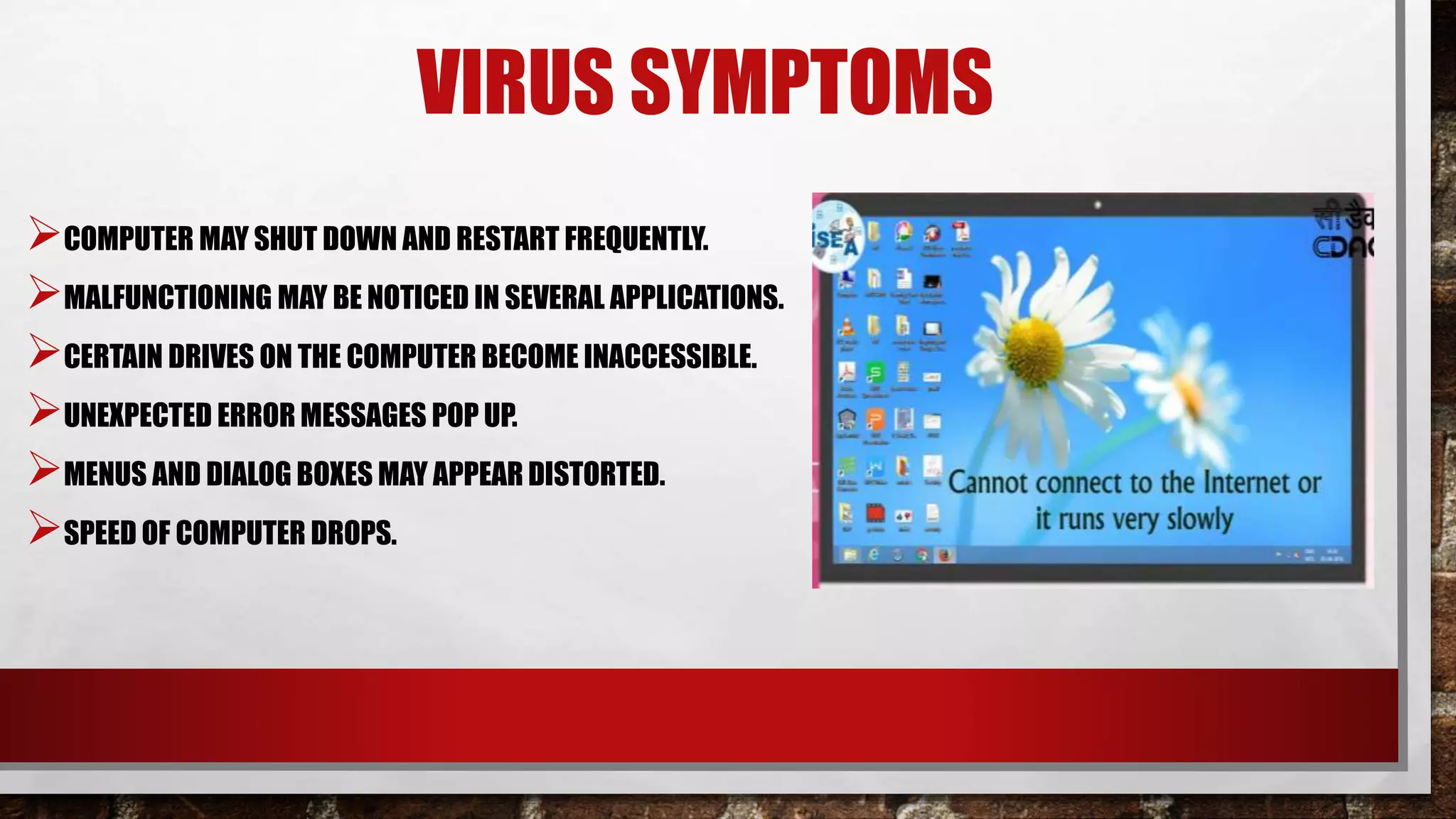
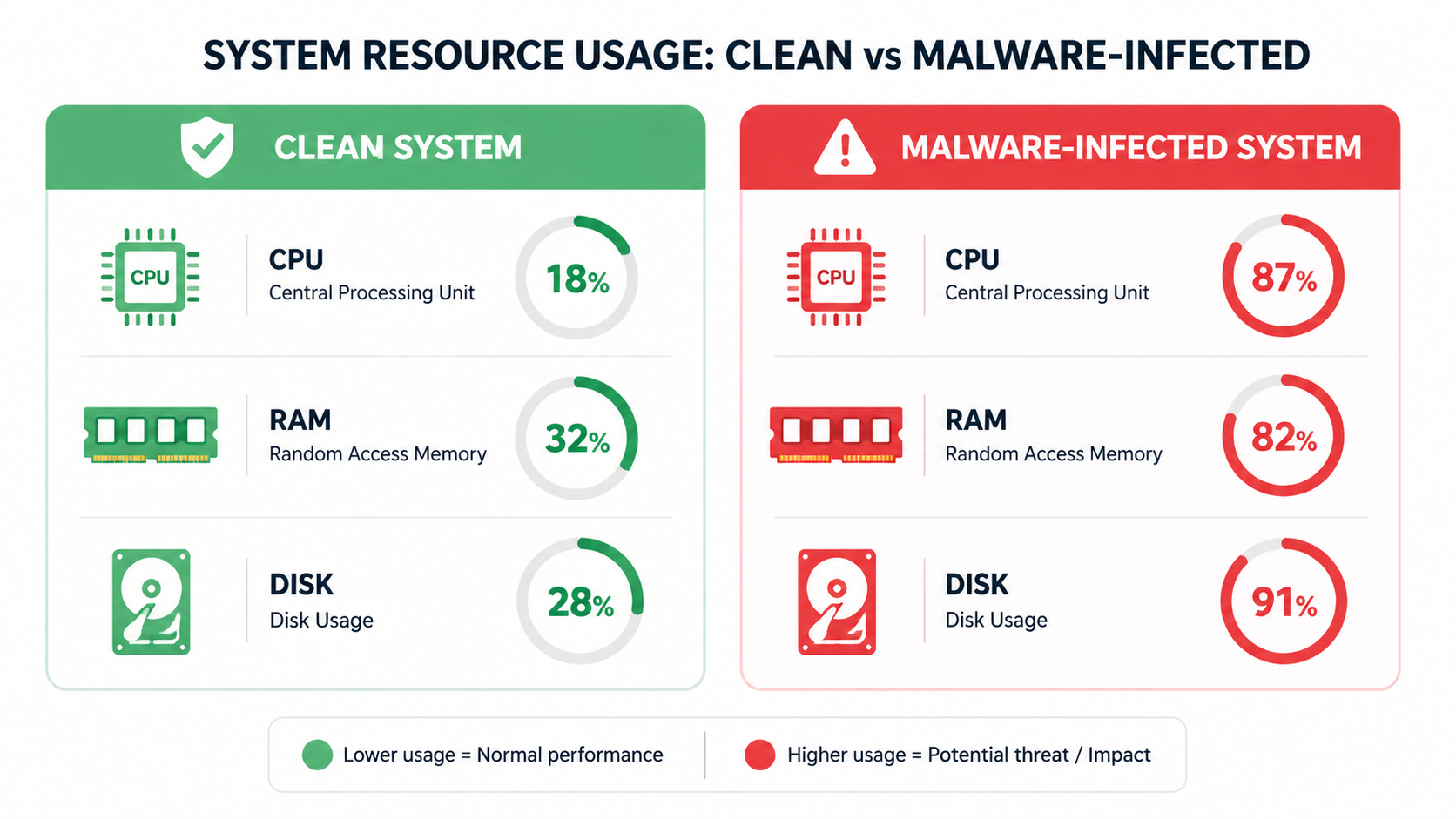
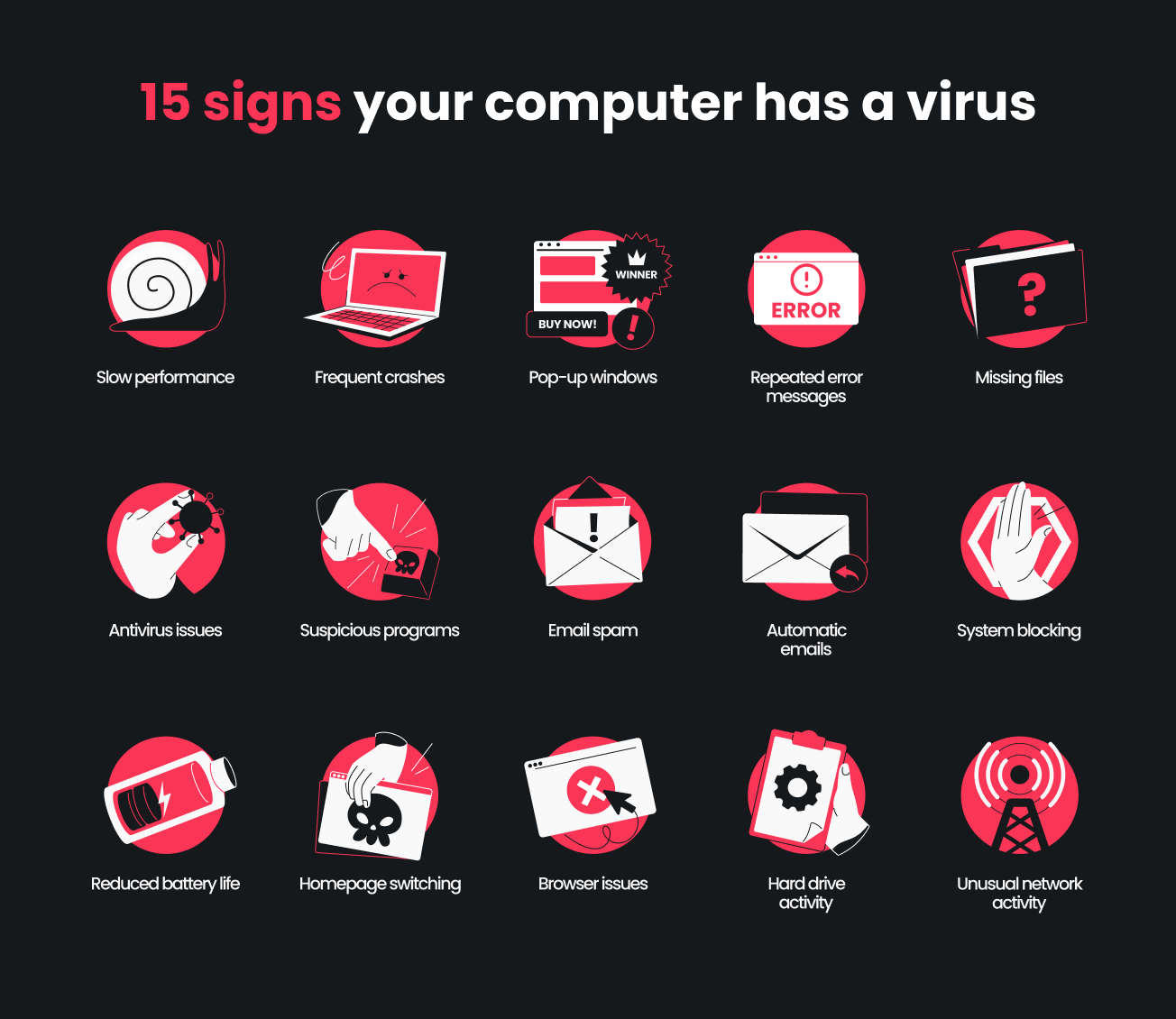
One of the most immediate indicators of a compromised system is a sudden, unexplained degradation in processing speed. While software updates or heavy multitasking can naturally slow down a machine, a virus often triggers sustained CPU and disk usage spikes.
Unexplained Resource Consumption
When a system is infected, malicious code may utilize your hardware for background tasks such as cryptomining, data exfiltration, or botnet communication. You can identify these processes by using the Task Manager (Windows) or Activity Monitor (macOS). Look for processes consuming a high percentage of CPU or memory that have nonsensical names, lack a verified digital signature, or appear under unusual user accounts.
Unexpected System Crashes and Errors
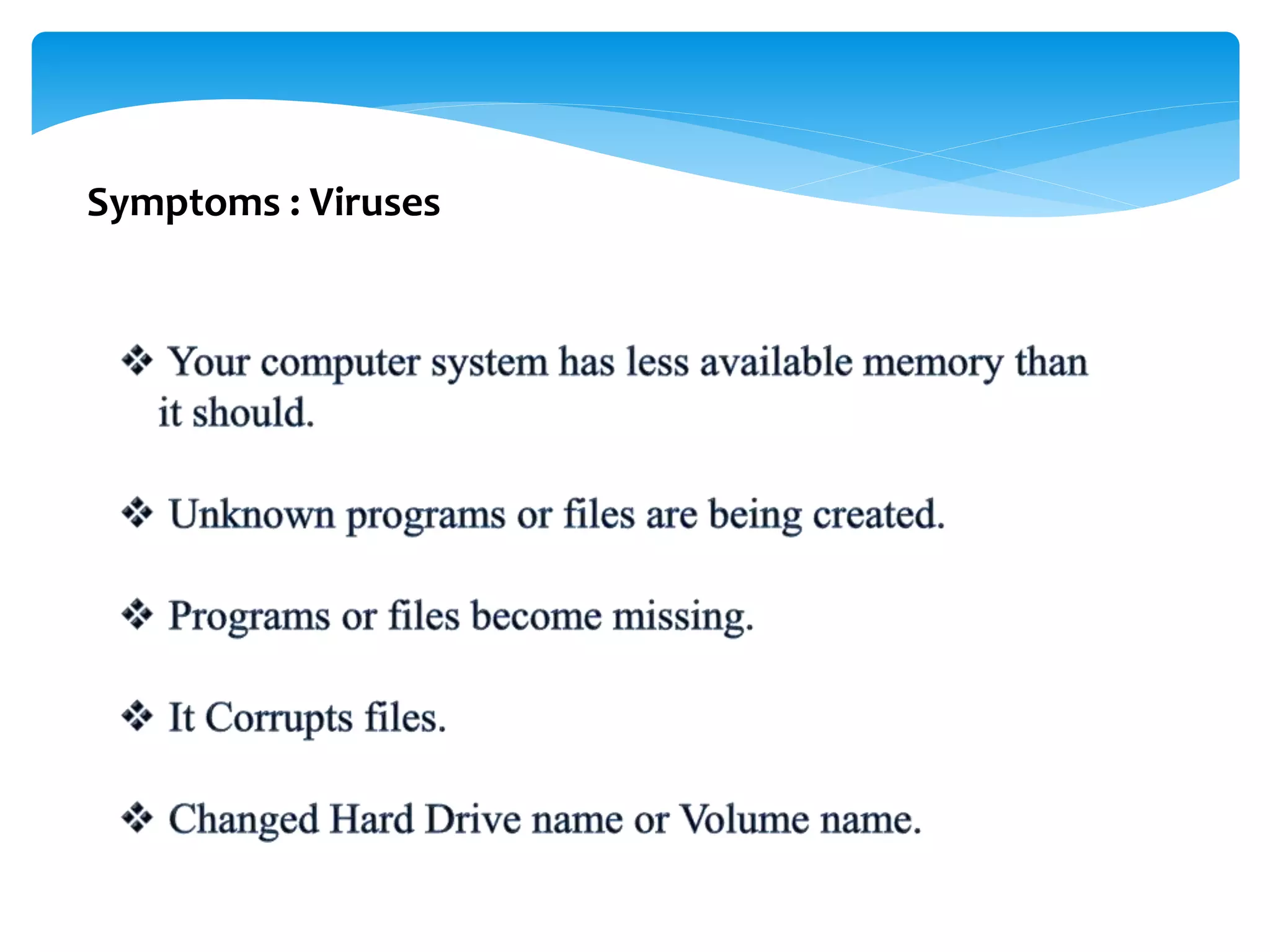
Frequent "Blue Screen of Death" (BSOD) events or kernel panics are often symptomatic of deep-level system interference. Malware sometimes attempts to inject code into core system processes. If the injection is poorly managed, it can cause the host process to terminate, leading to system instability or forced reboots. If your computer frequently freezes or displays unexpected error messages regarding missing system files, the integrity of your operating system may be compromised.
Behavioral Changes and Browser Hijacking
Viruses frequently target the user experience to generate ad revenue or redirect traffic to phishing websites. These signs are often the most visible to the average user.
Browser Redirects and Unauthorized Toolbars
If your default search engine suddenly changes without your input, or if you are consistently redirected to unknown websites regardless of your search queries, your browser is likely compromised. Modern "browser hijackers" often arrive bundled with free software installations. Check your browser's installed extensions; if you see add-ons you do not recognize, they should be removed immediately.
Unauthorized Pop-ups and Notifications
Persistent pop-up advertisements, even when your browser is closed, suggest the presence of adware. These are not merely nuisances; they often act as entry points for more dangerous payloads. Furthermore, check your system's notification settings. If your browser or operating system is pushing notifications from suspicious sources, these may be designed to trick you into downloading "urgent" updates that are actually malicious installers.
Network and Connectivity Irregularities
Modern malware often requires an active internet connection to communicate with a Command and Control (C2) server. Monitoring your network behavior can reveal subtle infections that avoid simple file-based detection.
- Excessive Data Usage: If your data usage statistics indicate high traffic while the system is supposedly idle, a background process may be exfiltrating personal data or uploading large files to a remote server.
- Disabled Security Software: A primary objective of many viruses is to ensure their own survival. If your antivirus software or firewall settings are mysteriously disabled, or if you are unable to access security-related websites, this is a strong indicator of an active infection.
- Email Spoofing: If your contacts report receiving strange emails or links from your account that you did not send, your credentials may have been harvested, or a bot has gained access to your mail client to spread the infection to others.
Comparative Indicators of System Health
| Indicator | Normal System Behavior | Potential Viral Activity |
|---|---|---|
| CPU Usage | Fluctuates with current tasks | High, constant, or spikes during idle |
| Browser Homepage | Stays as configured by user | Changes without user intervention |
| Security Software | Updates regularly and stays active | Disabled, locked, or error-prone |
| Data Traffic | Reflects active user browsing | Constant background outbound data |
| System Startup | Known applications launch | Unknown, randomized, or hidden items |
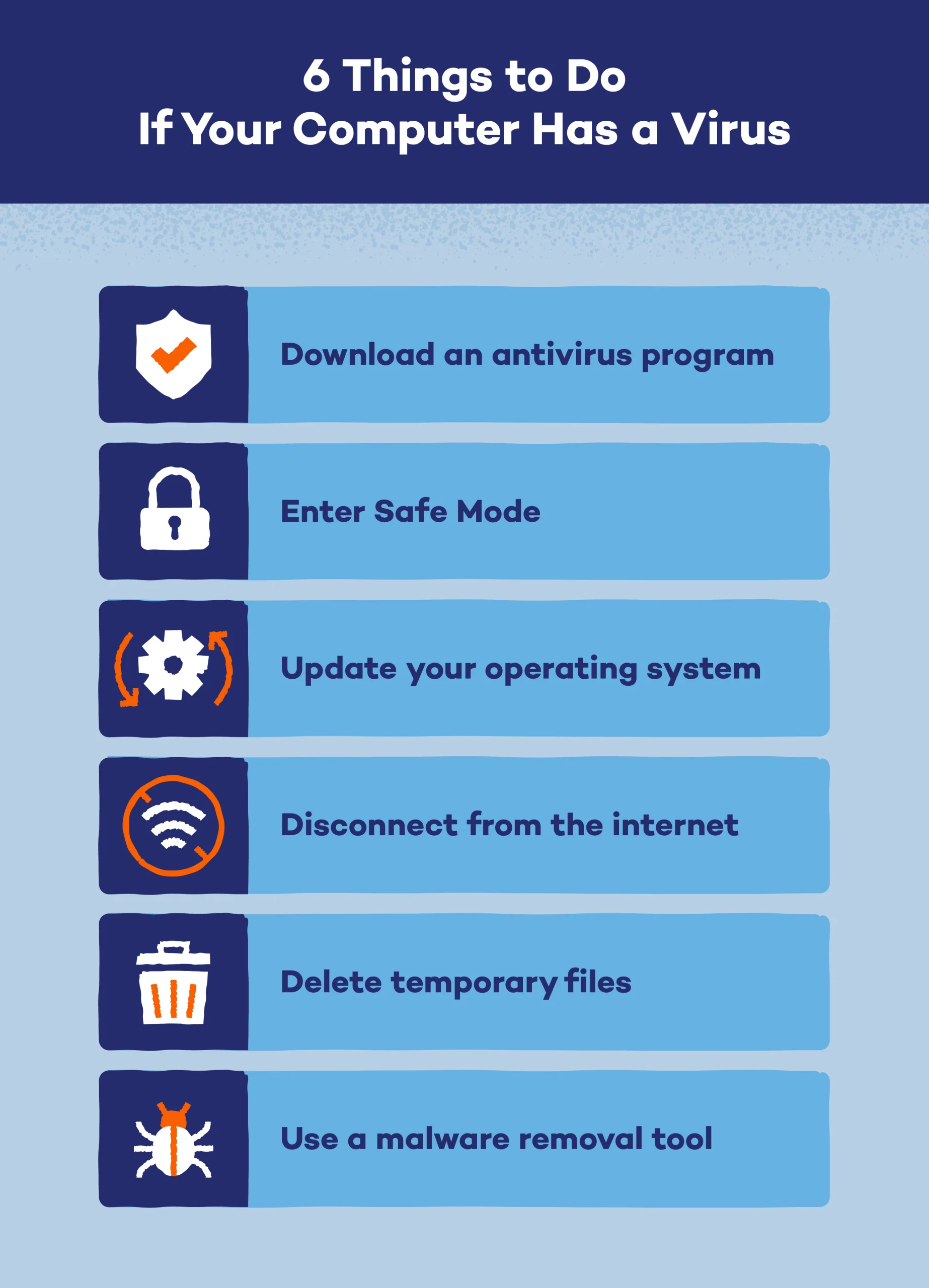
Diagnostic and Troubleshooting Steps
If you suspect your system is infected, rely on verified procedures to isolate and neutralize the threat. Do not rely on "pop-up" scanners that appear within your browser, as these are often the very malware you are attempting to avoid.
1. Perform an Offline Scan
Modern security suites, including Microsoft Defender and various third-party enterprise tools, offer an "Offline Scan" feature. This mode reboots the computer into a minimal, trusted environment before the operating system loads, allowing the scanner to detect rootkits and boot-sector viruses that are capable of hiding during a standard scan.
2. Audit Startup Items
Malware frequently adds entries to the system startup sequence to ensure it executes as soon as the computer boots.
- Windows: Use the Task Manager "Startup" tab to audit and disable suspicious applications.
- macOS: Check System Settings > General > Login Items to remove unrecognized helper applications.
3. Verify Account and Permission Integrity
Ensure that your user account has not been modified to include additional administrative accounts. If an unauthorized administrator account exists, it is possible for a remote attacker to maintain persistent access regardless of file-level antivirus cleanup.
4. Consult Professional Guidance
For enterprise environments or cases involving sensitive financial or medical data, do not attempt to "clean" the machine manually. If a system contains highly sensitive information, the most secure path is to re-image the drive from a known-good backup rather than attempting to delete the malicious files. This ensures that hidden backdoors or secondary payloads are fully removed.
Frequently Asked Questions
Can my computer have a virus without showing any signs?
Yes. Sophisticated "Advanced Persistent Threats" (APTs) are designed to remain dormant and silent for months, acting only when a specific objective is met. These threats often use legitimate system tools to move laterally through a network, making them difficult to detect with traditional signature-based antivirus software.
Is my computer slow because of a virus or just old hardware?
Age-related slowdowns are usually gradual, while viral slowdowns are often abrupt. If your computer was performing normally yesterday and is suddenly unresponsive today, it is more likely to be an active process, a recent update conflict, or a malicious file rather than simple hardware degradation.
Do I need to pay for antivirus software to be safe?
Not necessarily. Most modern operating systems include capable security software. However, paid versions often provide advanced features like heuristic analysis, real-time cloud protection, and identity theft monitoring, which can be valuable for high-risk users or families.
What is the first thing I should do if I identify a virus?
Disconnect the device from the network immediately. By cutting the internet connection, you prevent the malware from receiving further instructions, uploading your data to a remote server, or downloading additional secondary payloads. Once disconnected, perform a full system scan using an updated, reputable security tool.
Should I delete files that look suspicious?
Do not delete files manually unless you are certain of their origin. Many system-critical files have cryptic names that may look suspicious to an untrained eye. Deleting the wrong system file can cause your operating system to become unbootable. Always use a dedicated anti-malware tool to identify and quarantine suspicious files.
Taking Action
If your system displays the indicators described above, initiate a full scan using your installed security solution immediately. If you have been performing online banking or accessing sensitive accounts while the system was exhibiting symptoms, change your passwords from a known-clean device and enable multi-factor authentication (MFA) on all critical accounts as a precautionary measure.
Image Gallery